How to reopen Work Order
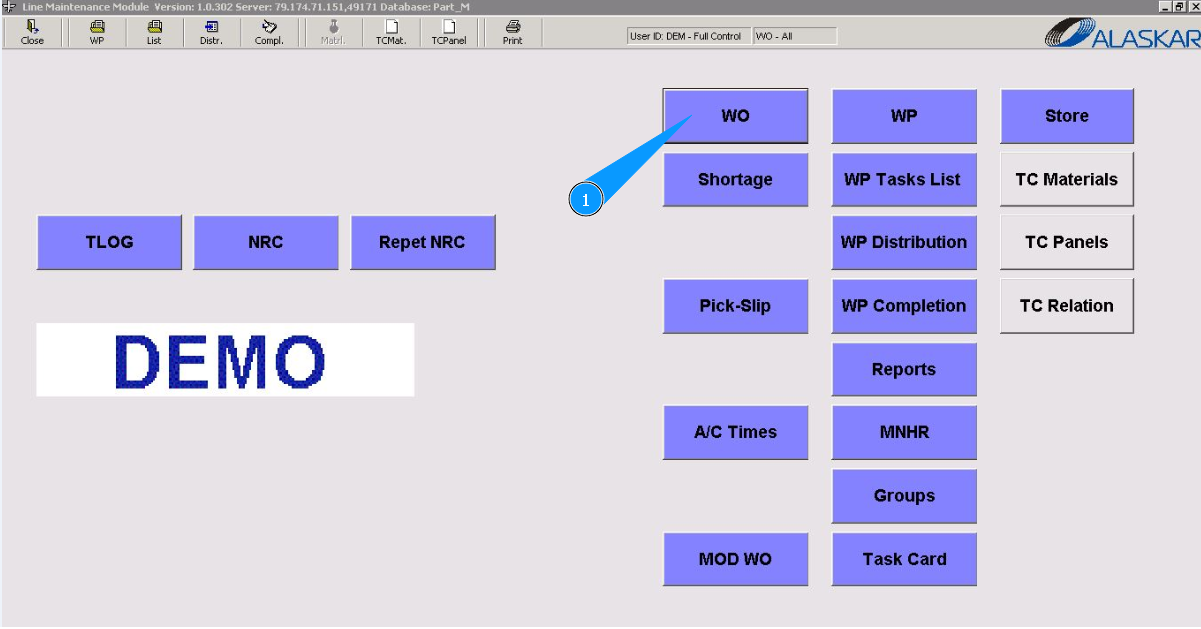
1. To reopen Work Order, go to the submodule "WO".
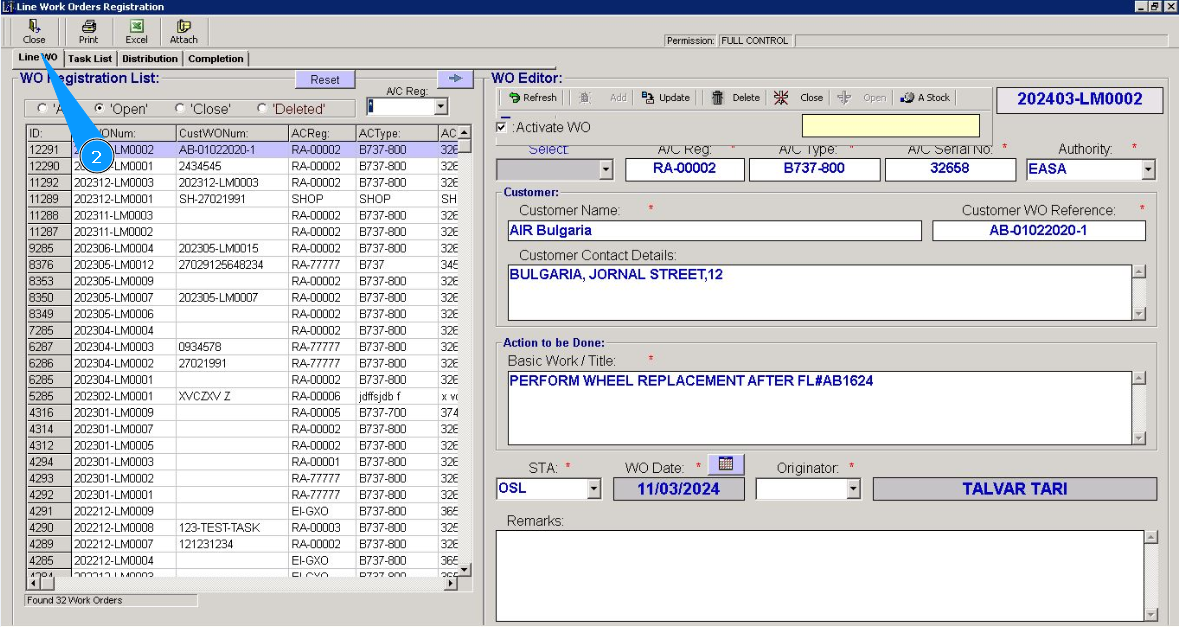
2. Then go to the tab "Line WO".
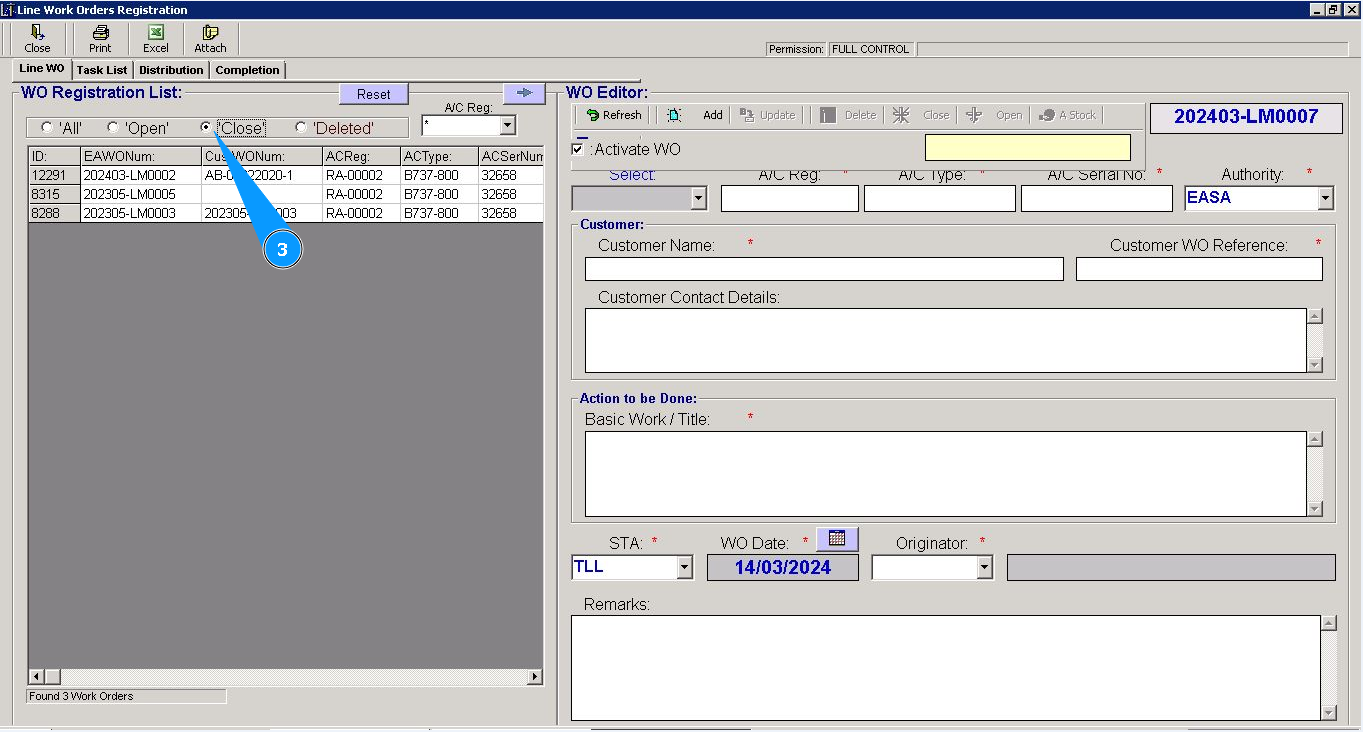
3. Make sure that the closed WO filter is set in the field "Close".
4. Enter the aircraft registration number in the field "A/C Reg:" and press the knob "Enter" on your keyboard.
5. Or select the aircraft registration number from the dropdown list.
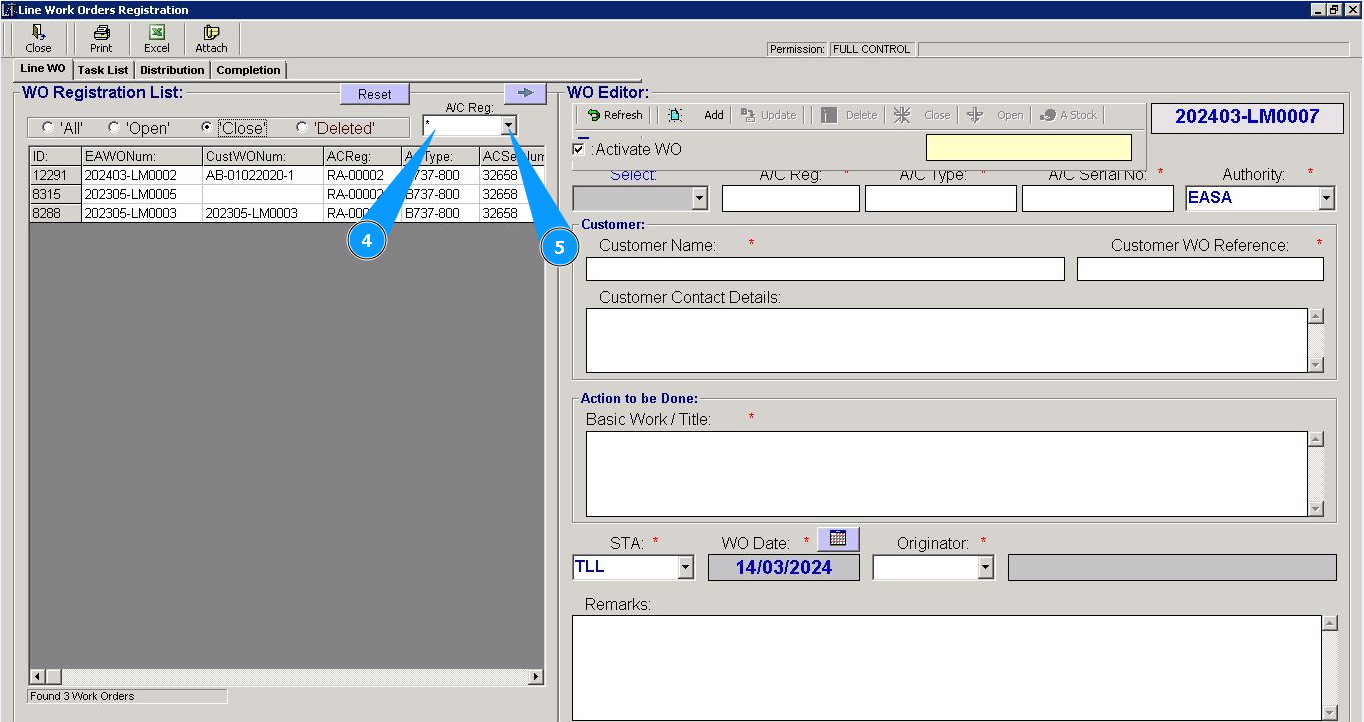
6. Select the required WO number for closing from the list in the window "WO Registration List". Click on the line with WO.
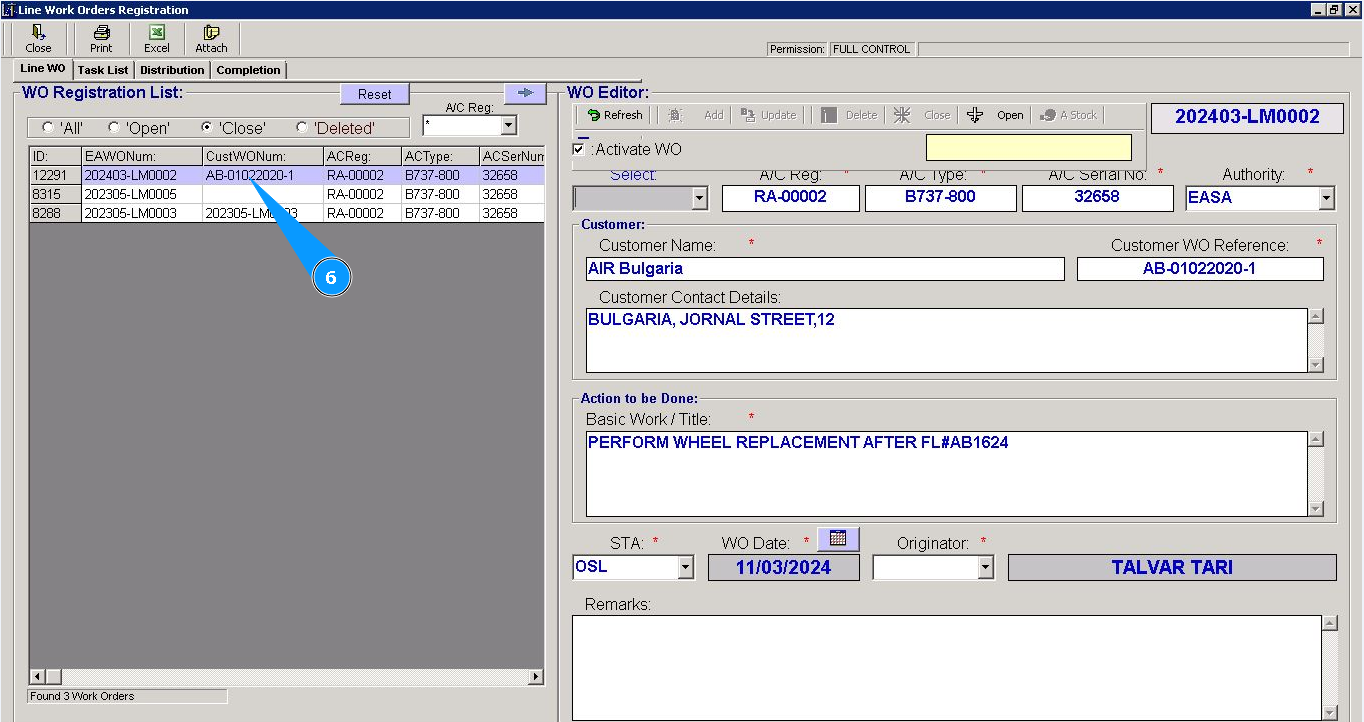
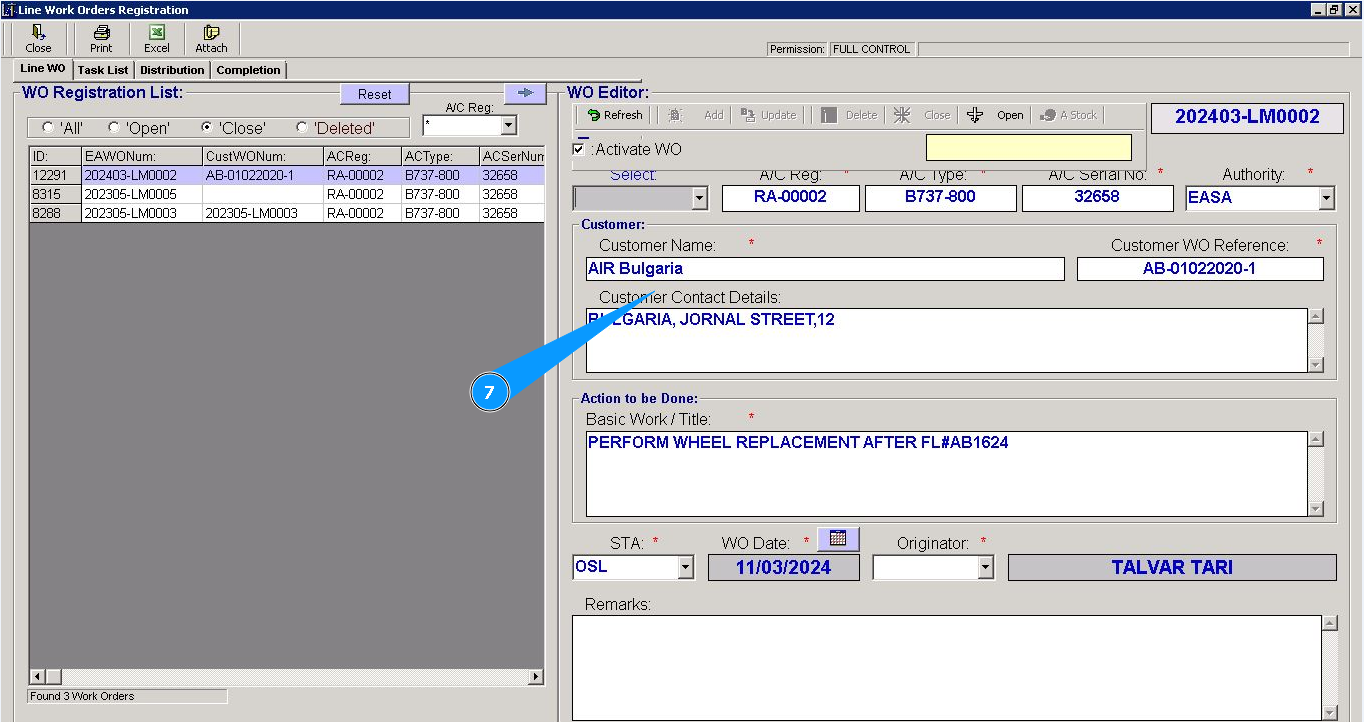
7. Check that the data of the required WO is displayed in the editor "WO Editor".
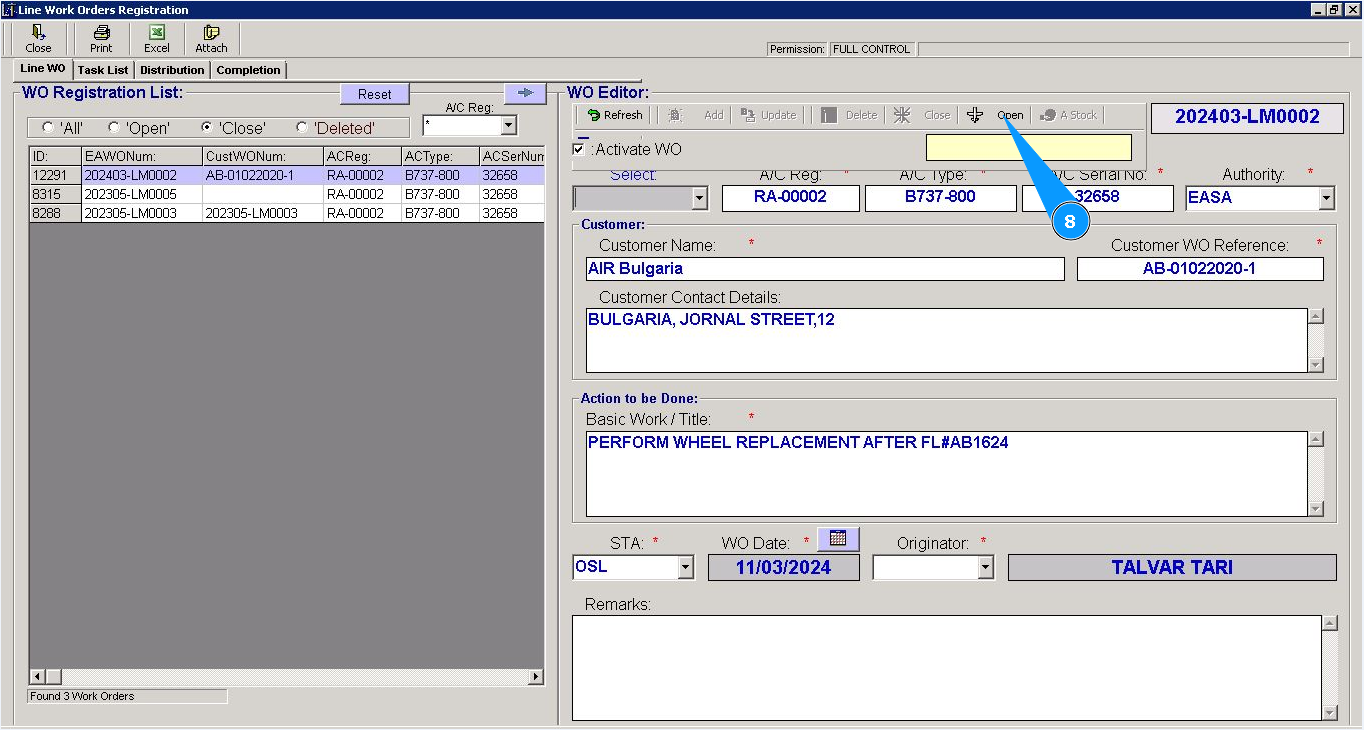
8. Click on the button "Open", to open the required Work Order.
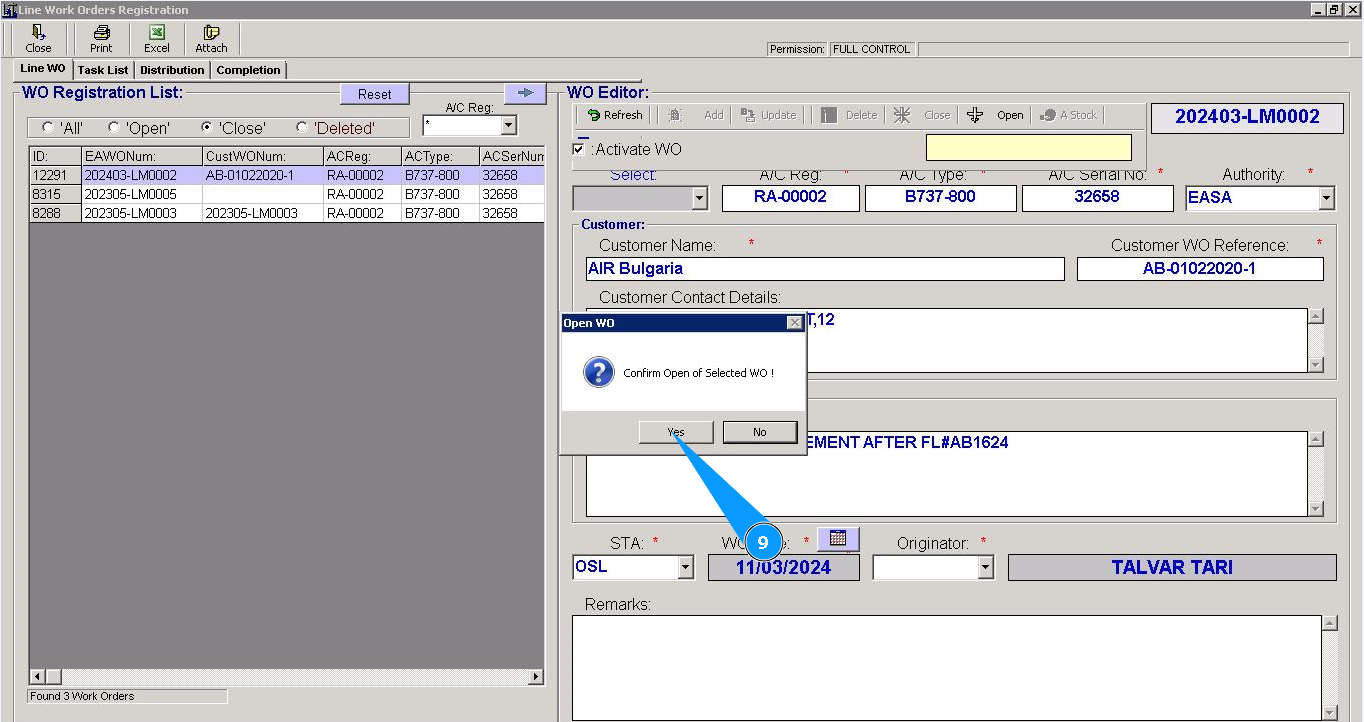
9. Click on the button "Yes", to confirm the opening of Work Order.
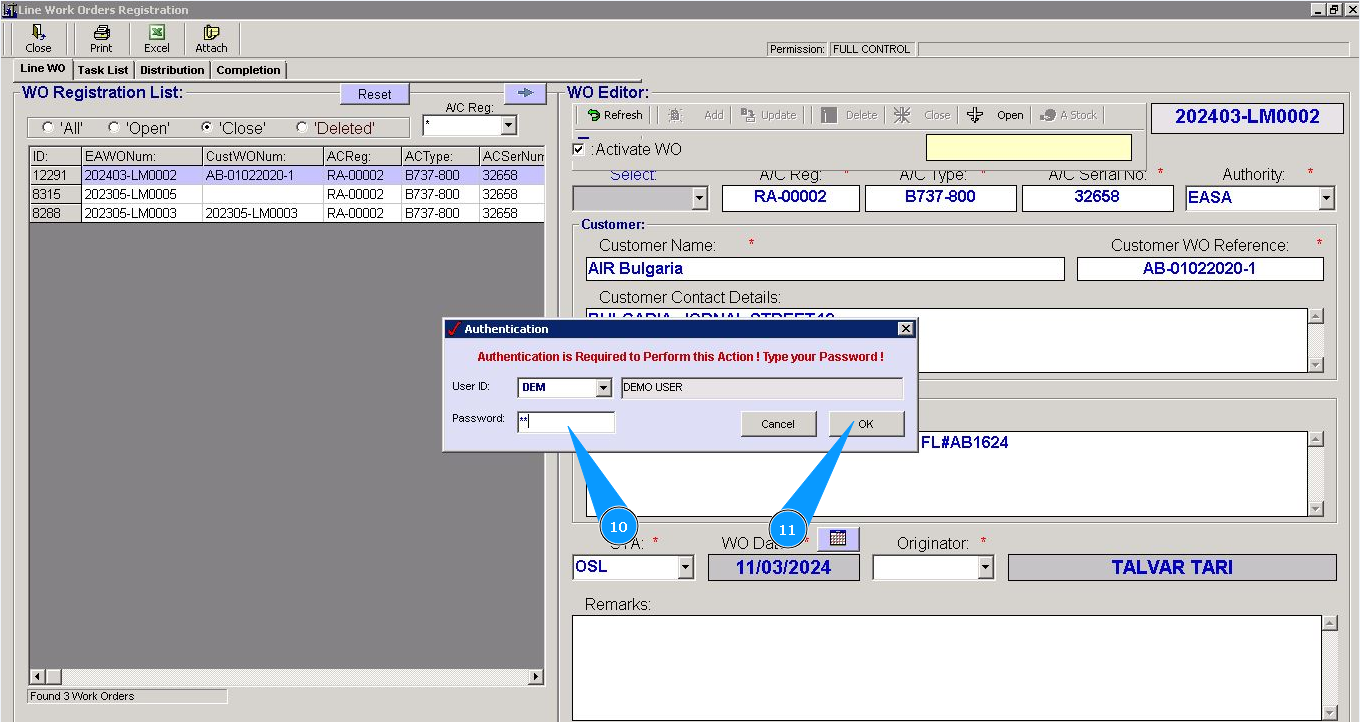
10. Enter the Alaskar password in the field "Password".
11. Click on the button "Ok", to save the opening of the WO in the program.
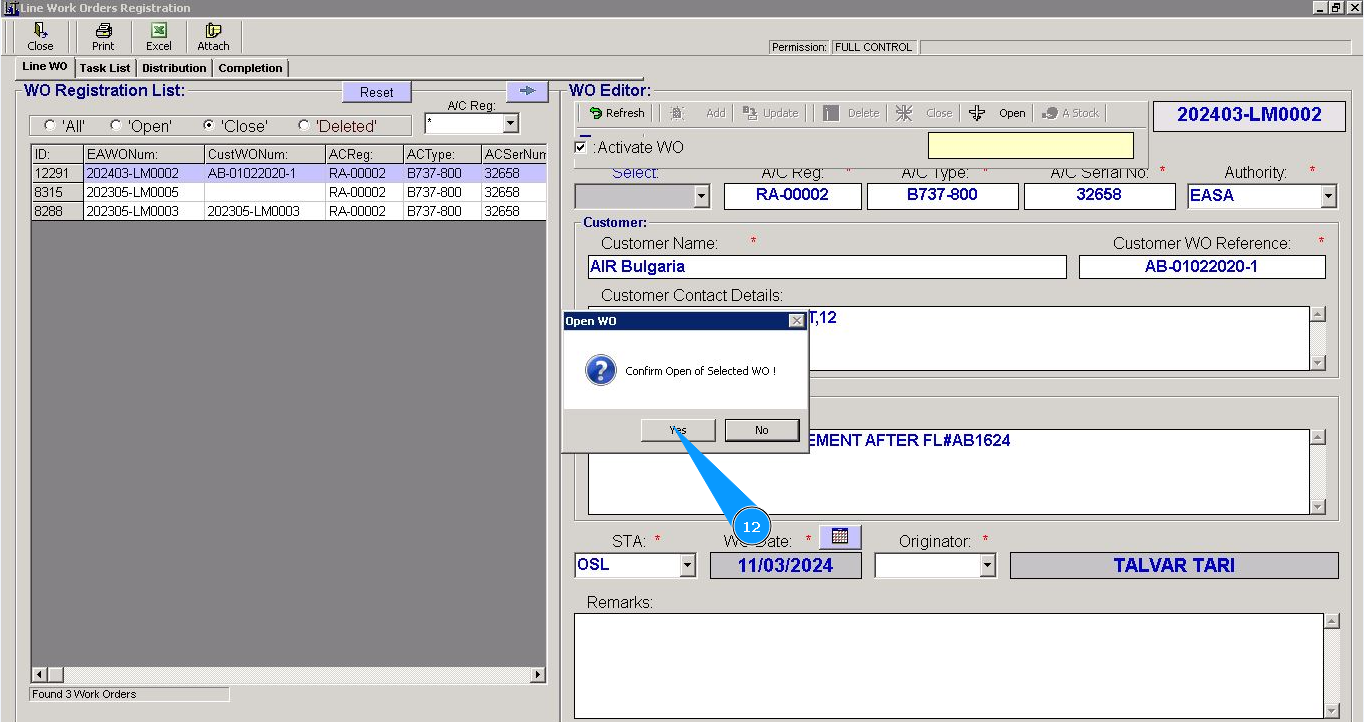
12. Click on the button "Yes", to confirm the opening of Work Order again.
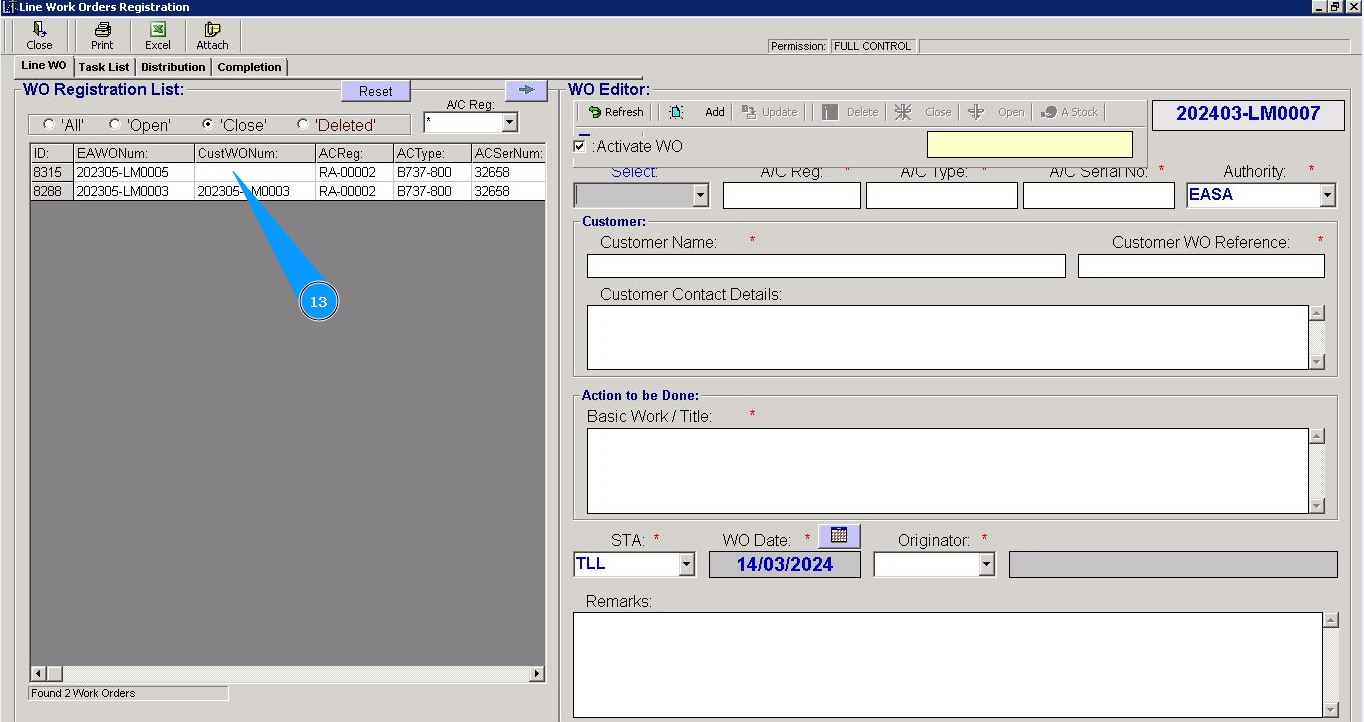
13. Check that the Work Order record has disappeared from the list of closed WOs in the window "WO Registration List".
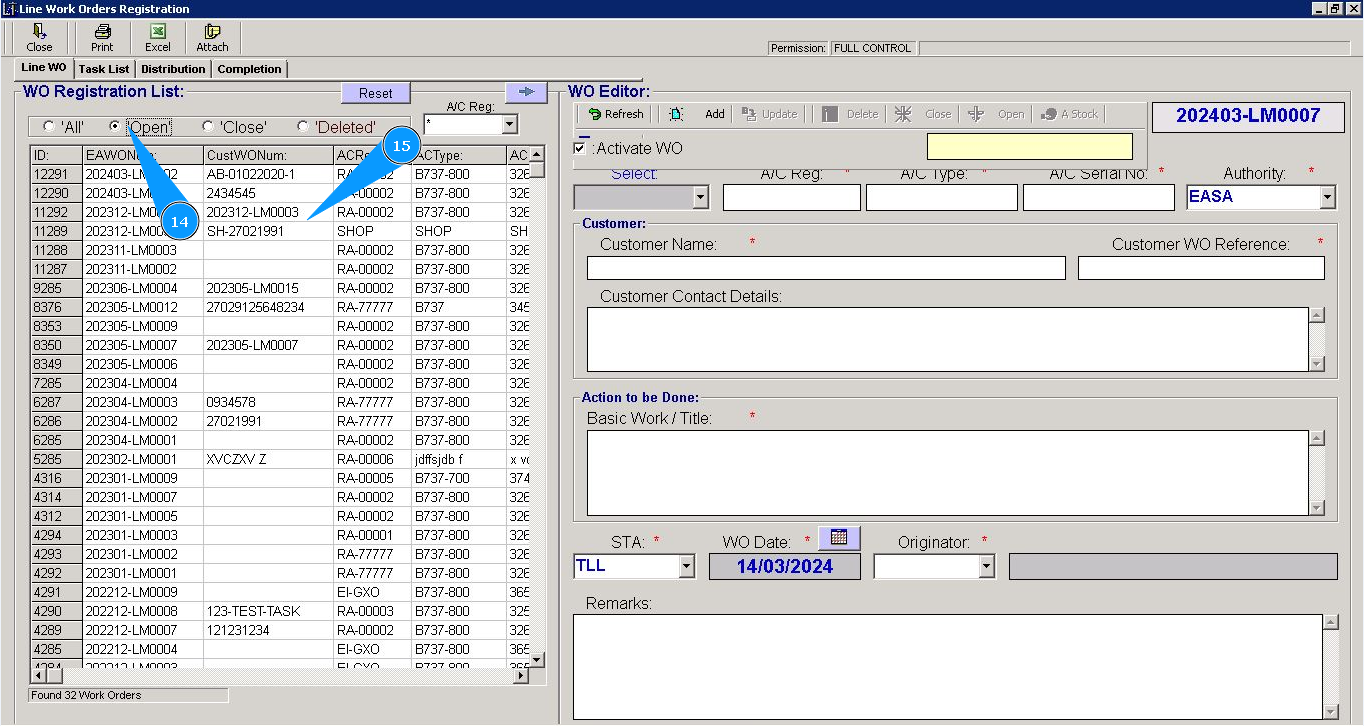
14. If necessary, set the filter to "Open".
15. Make sure that the record with Work Order is displayed in the list of opened works in the window "WO Registration List".