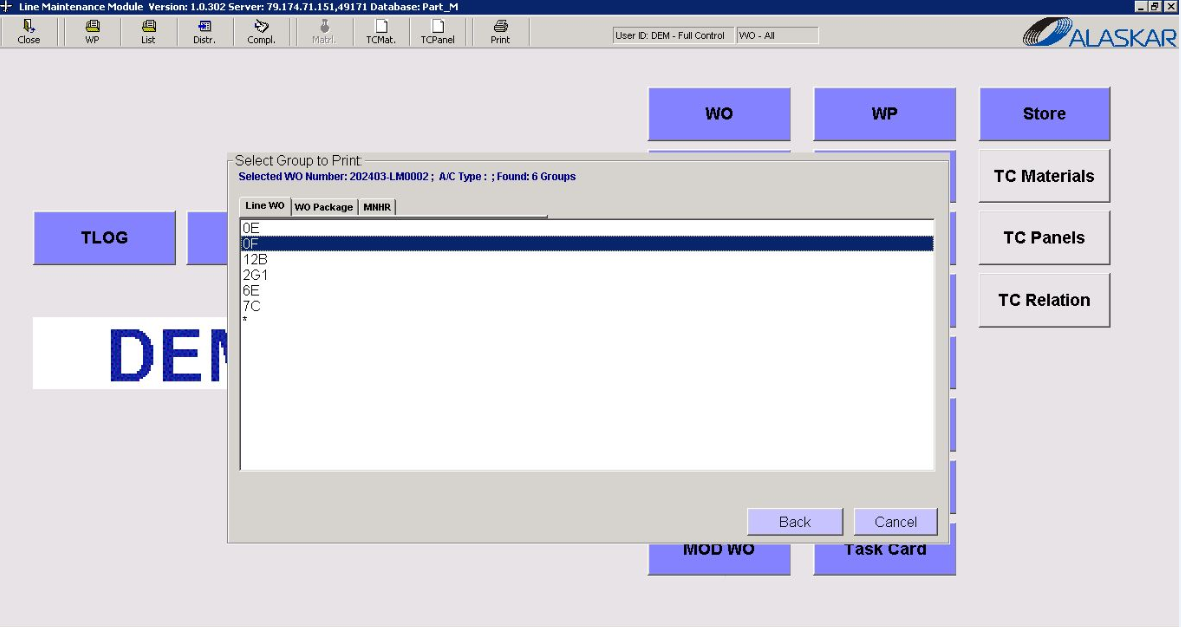
How to print man-hours for Line Work order
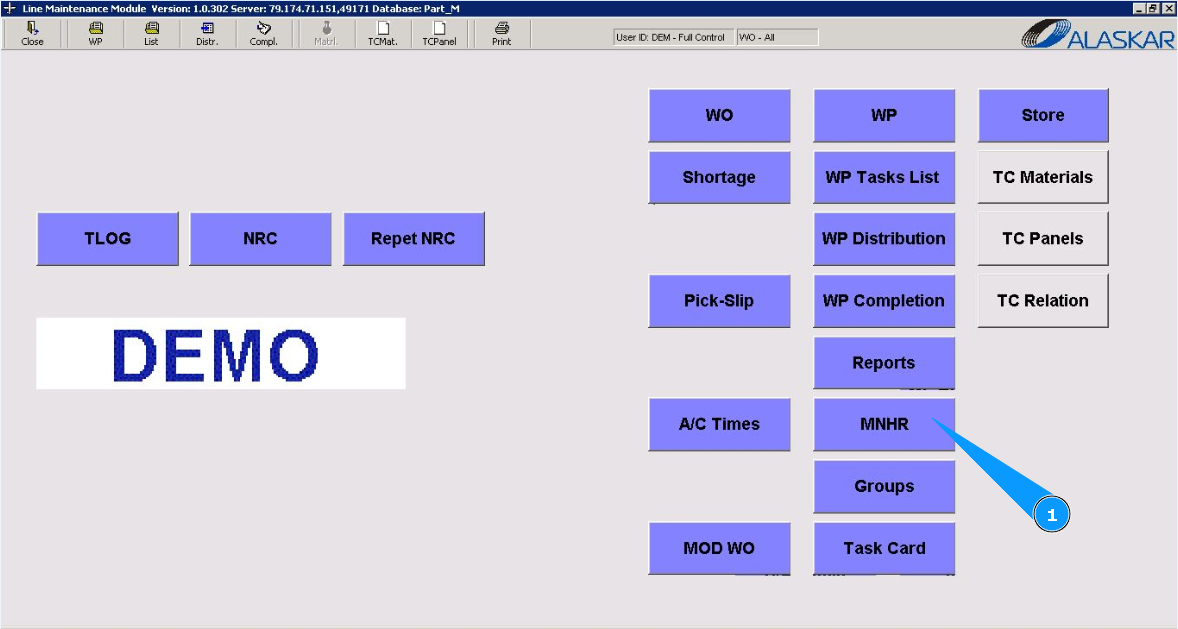
1. In order to print man-hours for Line Work order, go to the module "MNHR".
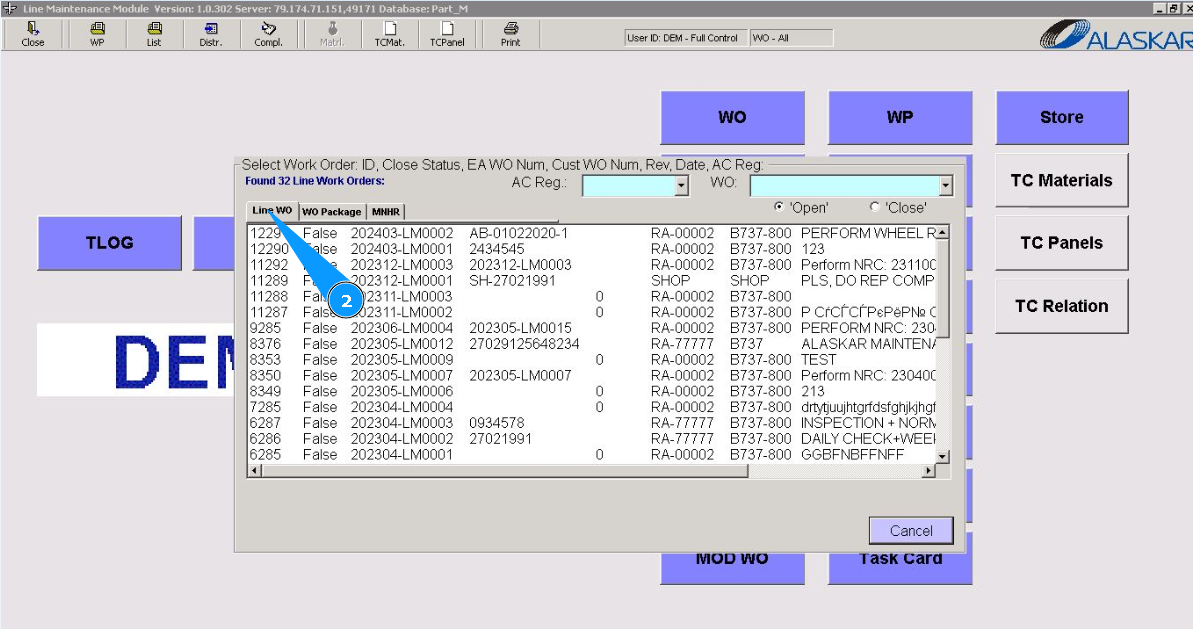
2. Then go to the tab "Line WO".
3. Select the required WO number from the list in the window "Select Work Order". Double click on the corresponding line with the LWO. Note: If necessary, use search filters with dropdown lists, there are fields: "AC Reg.", "WO".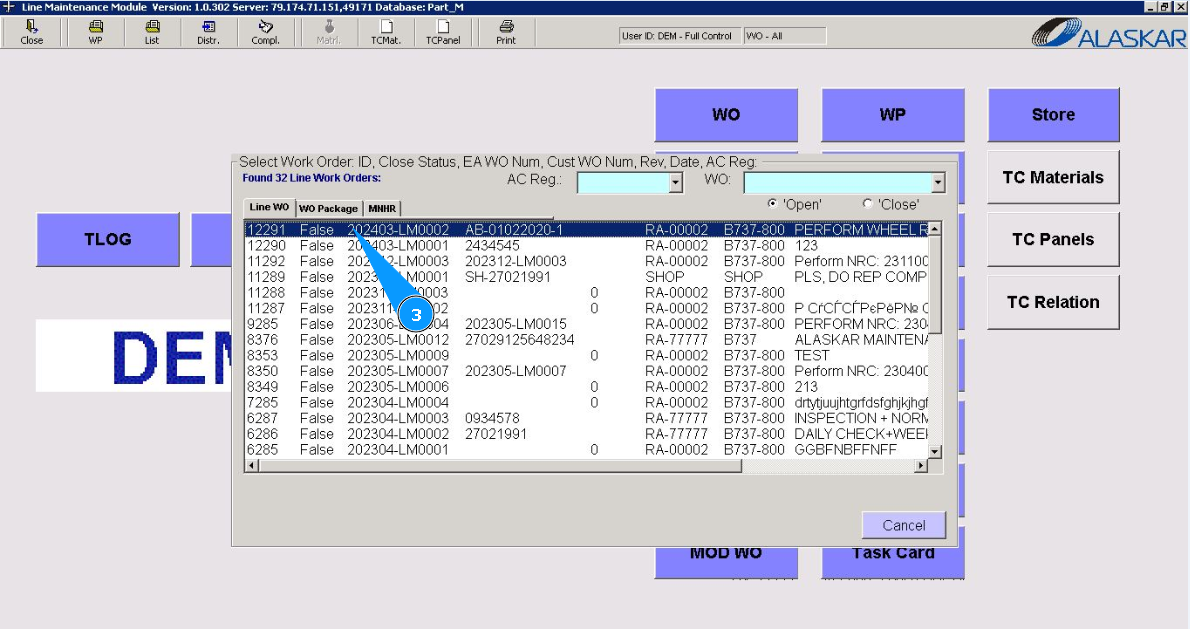
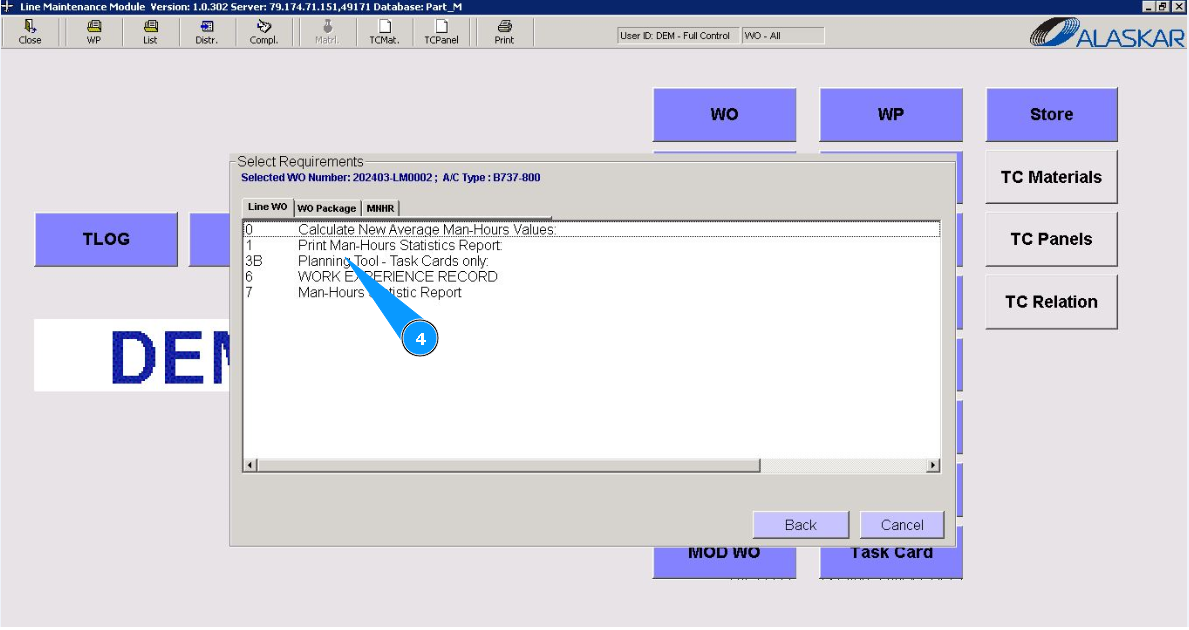
4. Select the man-hours report required for generation in the "Selected Task Cards to print" window. Click on the corresponding line.
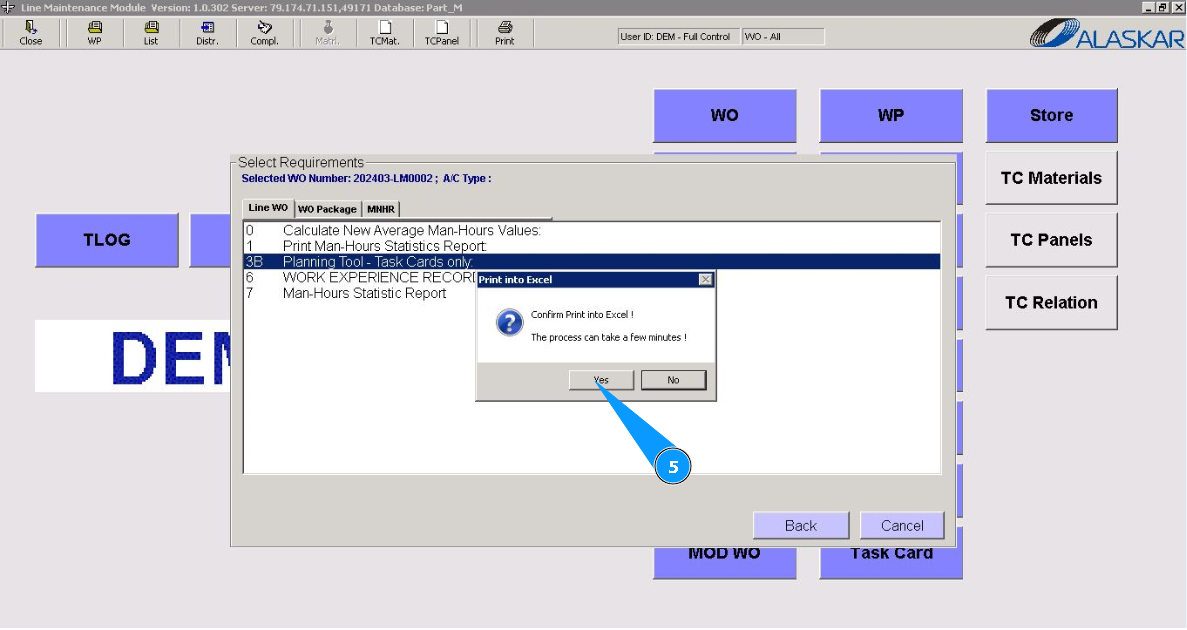
5. If necessary, click the button *"Yes", to confirm the report generation.
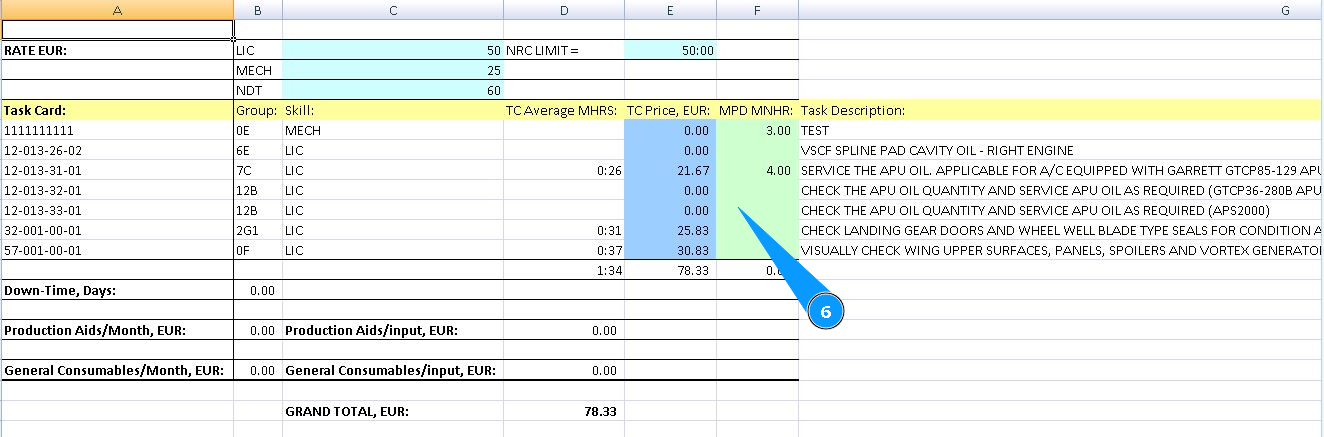
6. Check that the required report is displayed on your screen.
Note: For some of the reports, you may need to select additional criteria for generating the report, for example by groups, select such criteria.