How to Edit an Aircraft Techlog
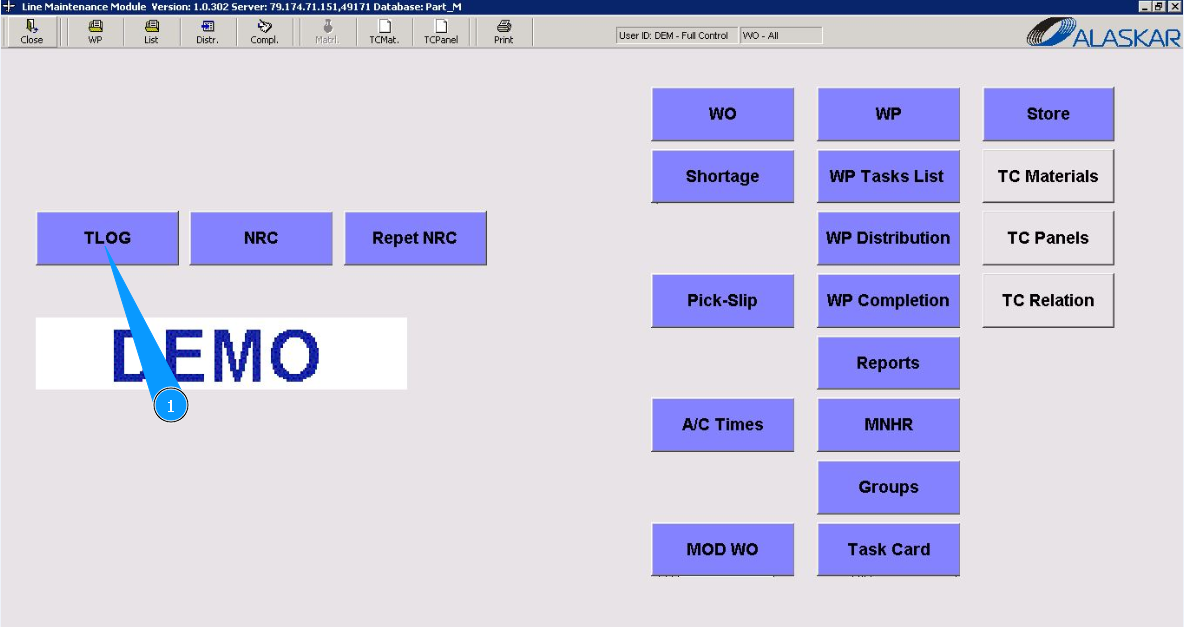
1. For editing aircraft techlog please go to submodule "TLog".
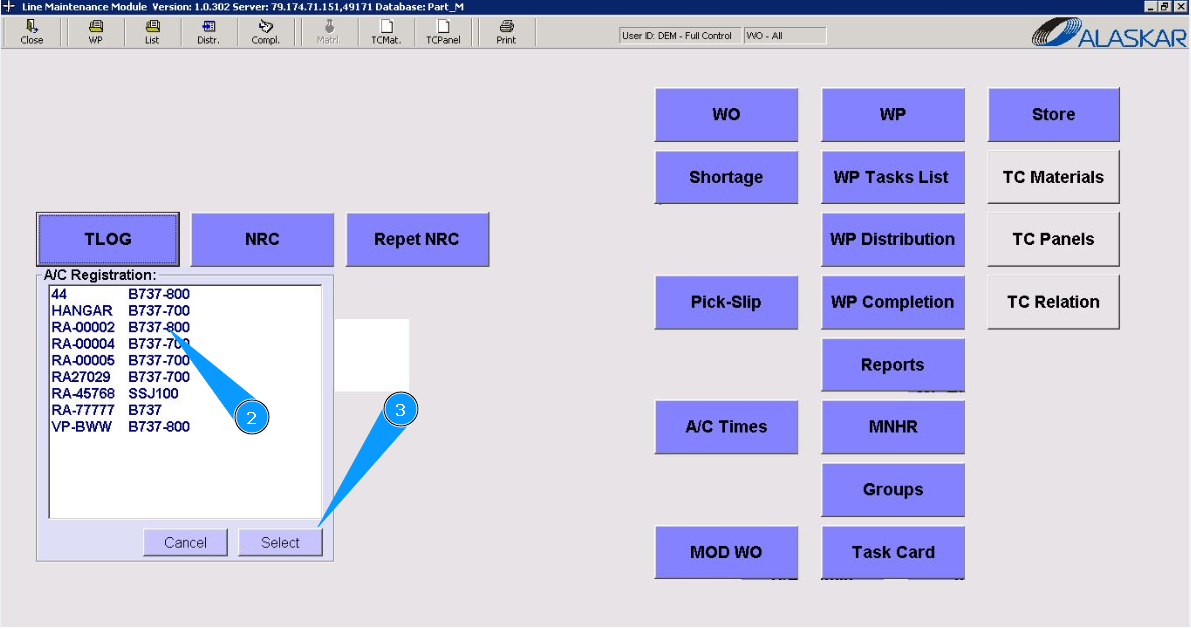
2. Select the aircraft registration number from the list in the window "A/C Registration".
3. Click on the button "Select".
4. Click on the button "New", for refreshing data on the page and adding data.
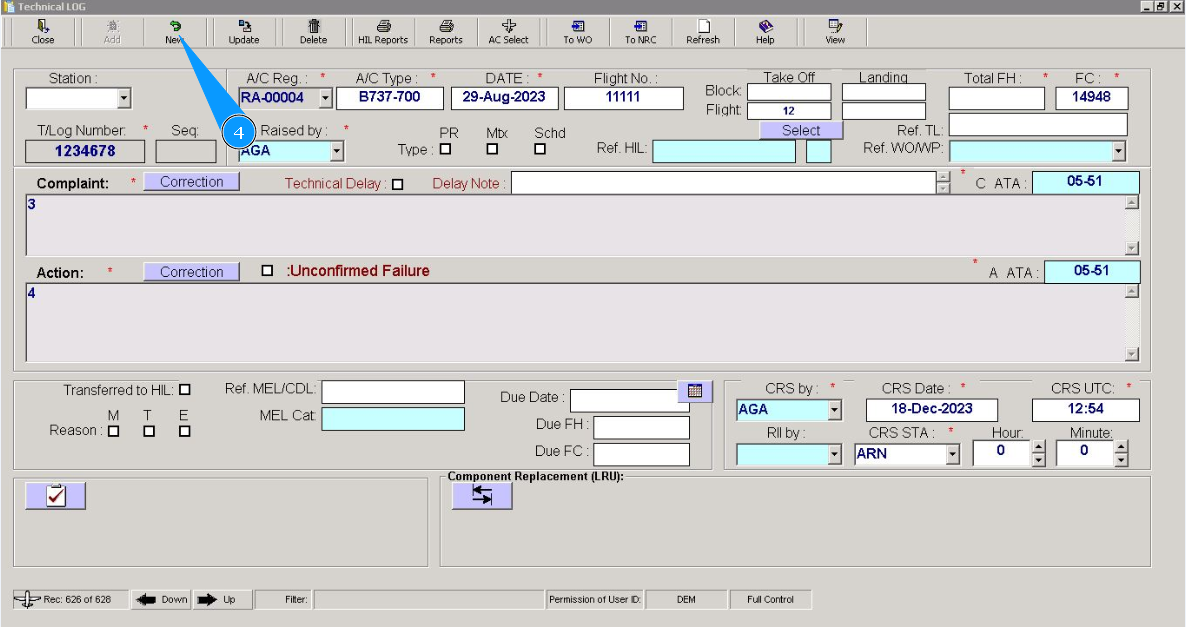
5. Select the aircraft registration number from the list in the field "A/C Reg.". Note: Fields with red stars are mandatory for filling in.
6. Select the entering date and click on the button with the symbol calendar.
7. Enter the ATLog page in the field "T/Log Number.".
8. Enter your Alaskar login in the field "Raised by".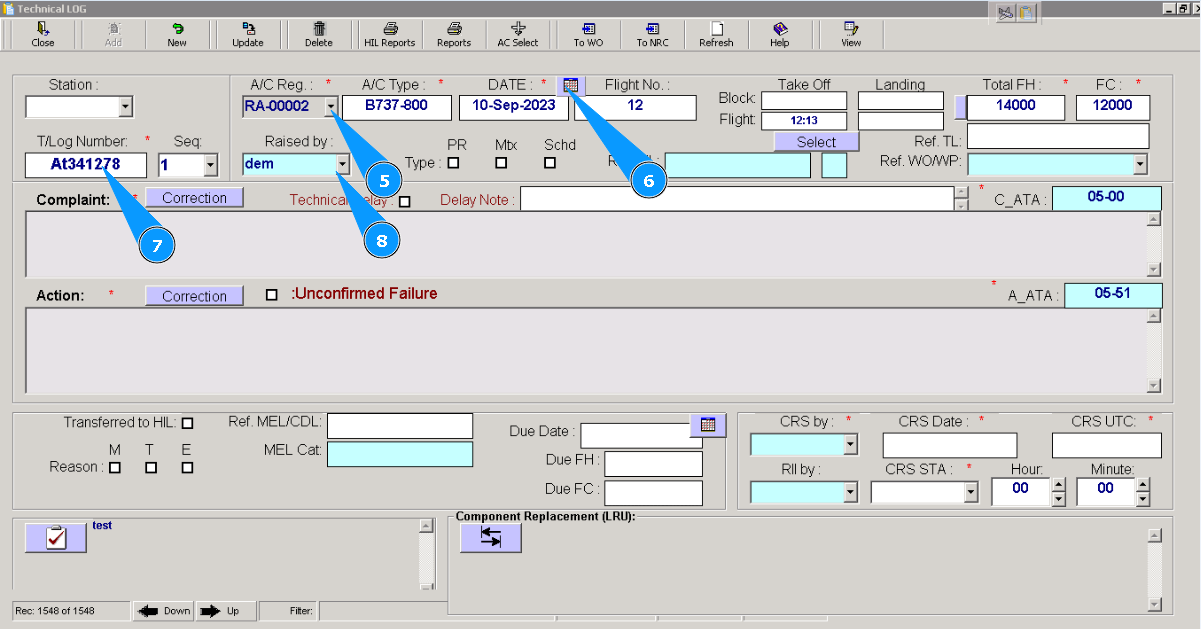
9. Enter the description of failure in the window "Complaint". Note: Aircraft utilization will be automatically filled in from submodule **"A/C times" If necessary, you can change it.
10. Enter the necessary actions to fix the failure in the window "Action".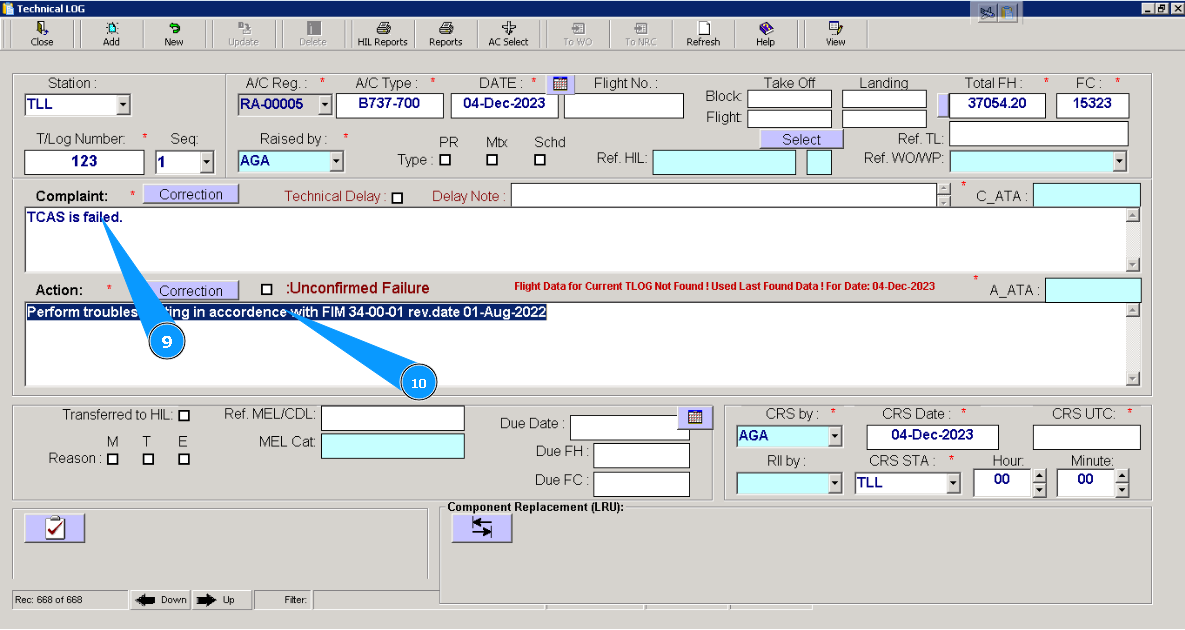
11. Enter the time of filling out the techlog as UTC time in the field "CRS UTC". Note: Fields "CRS by" и "CRS Date" are to be automatically filled in, if necessary, you can change the data in them.
12. Enter STA, where works to fix failure are performed in the field "CRS STA".
13. Or select from dropdown list.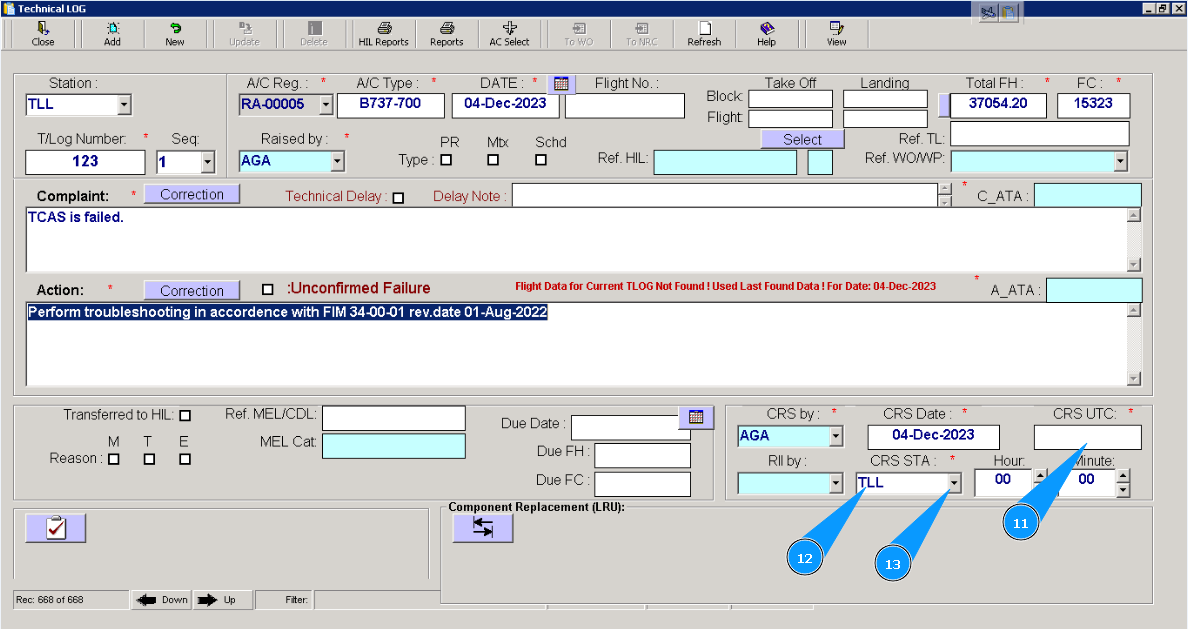
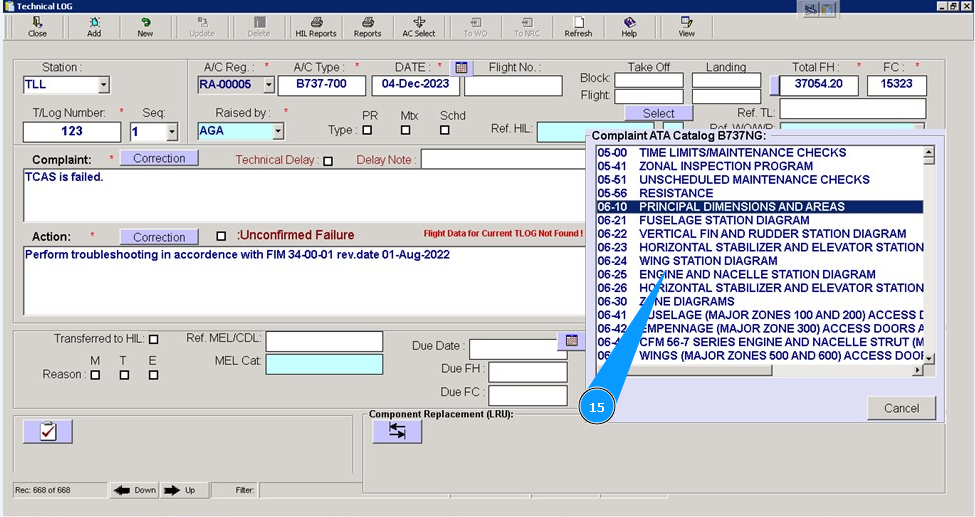
14. Enter the ATA number in the window **"Complaint" and click in the field "C_ATA".
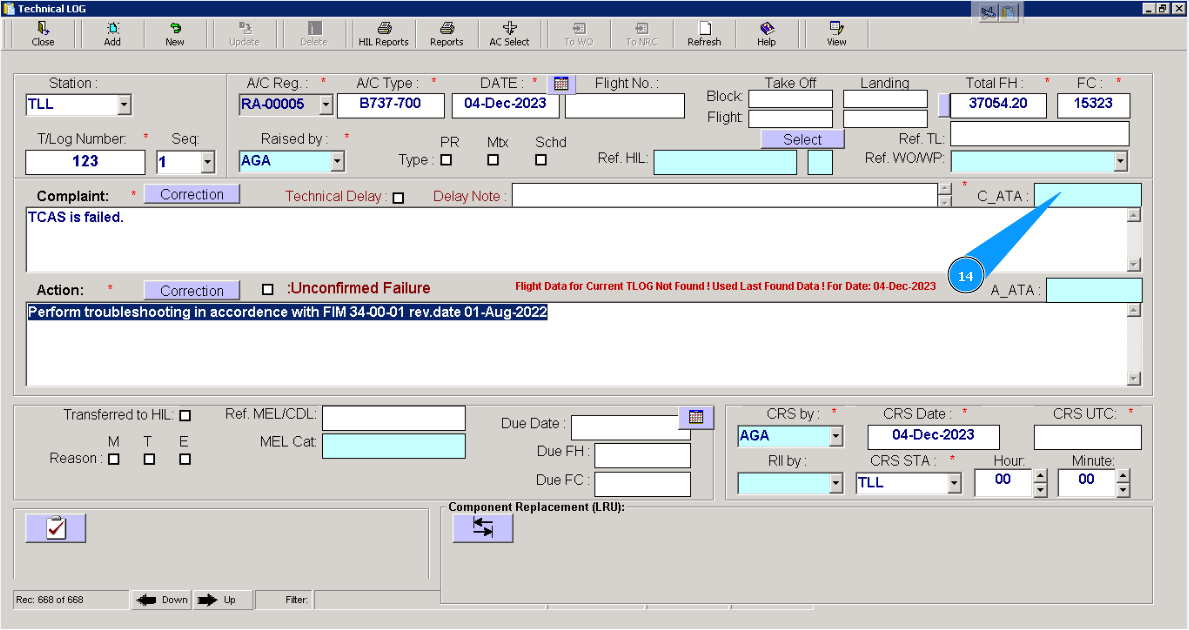
15. Select from dropdown list by scrolling method, and click on the necessary line.
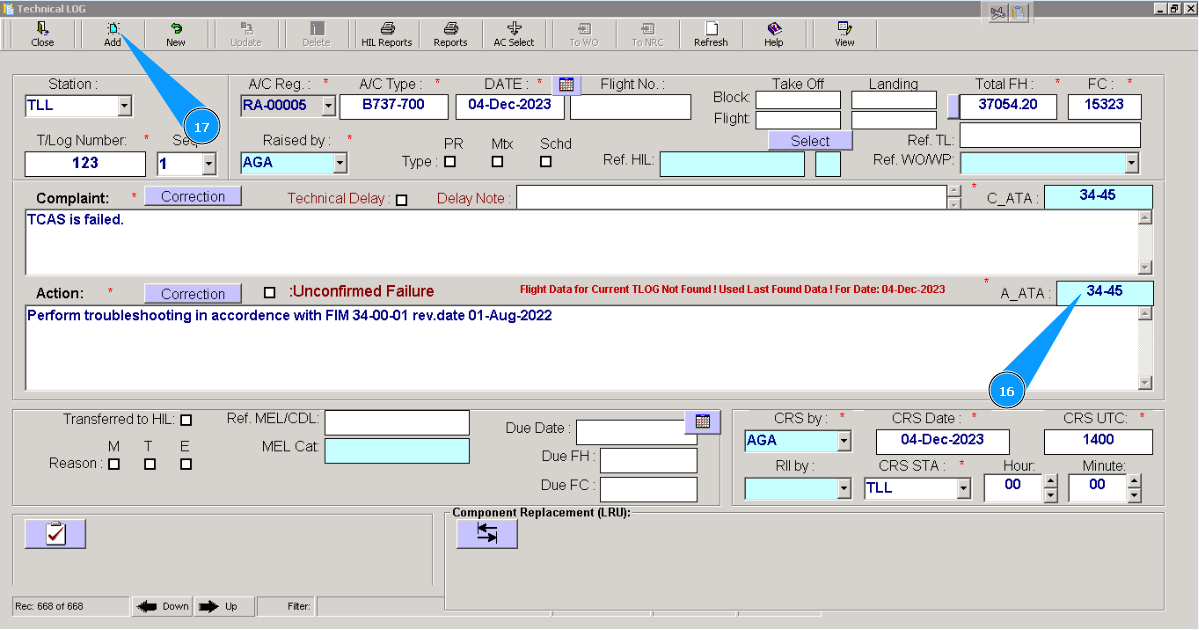
16. АТА for the window "Action" is to be automatically filled in, if necessary, you can change the data of it, click in the field "A_ATA".
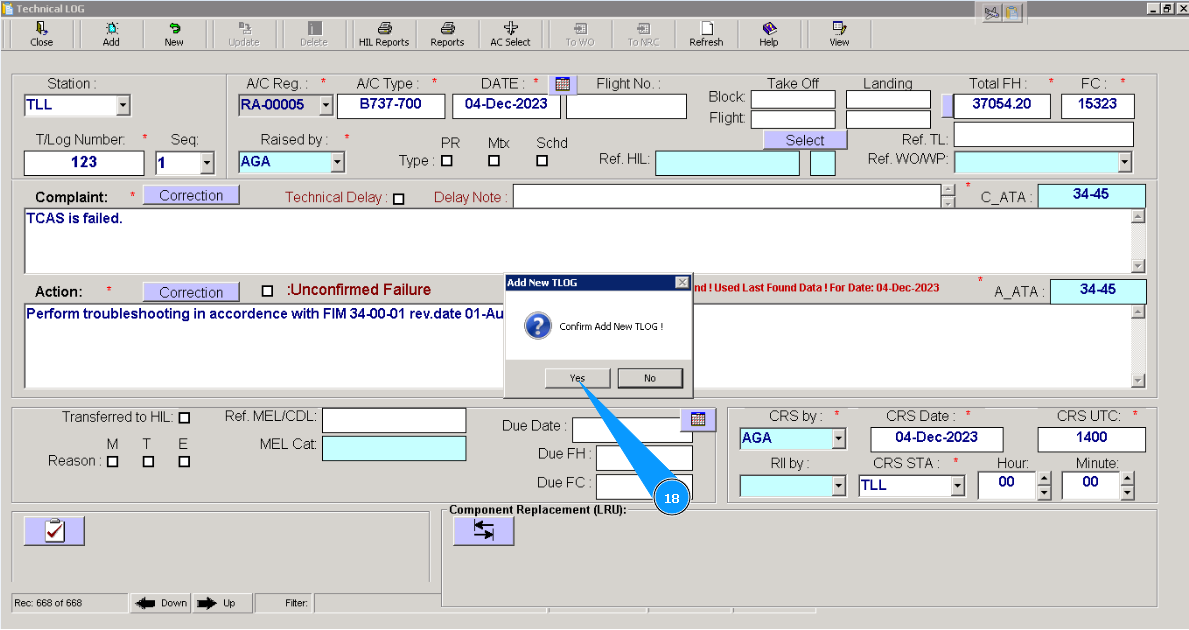
17. Click on the button **"Add" to add data to the program.
18. Click on the button "Yes", to confirm adding data to the program. Aircraft Tech Log page is fully completed.