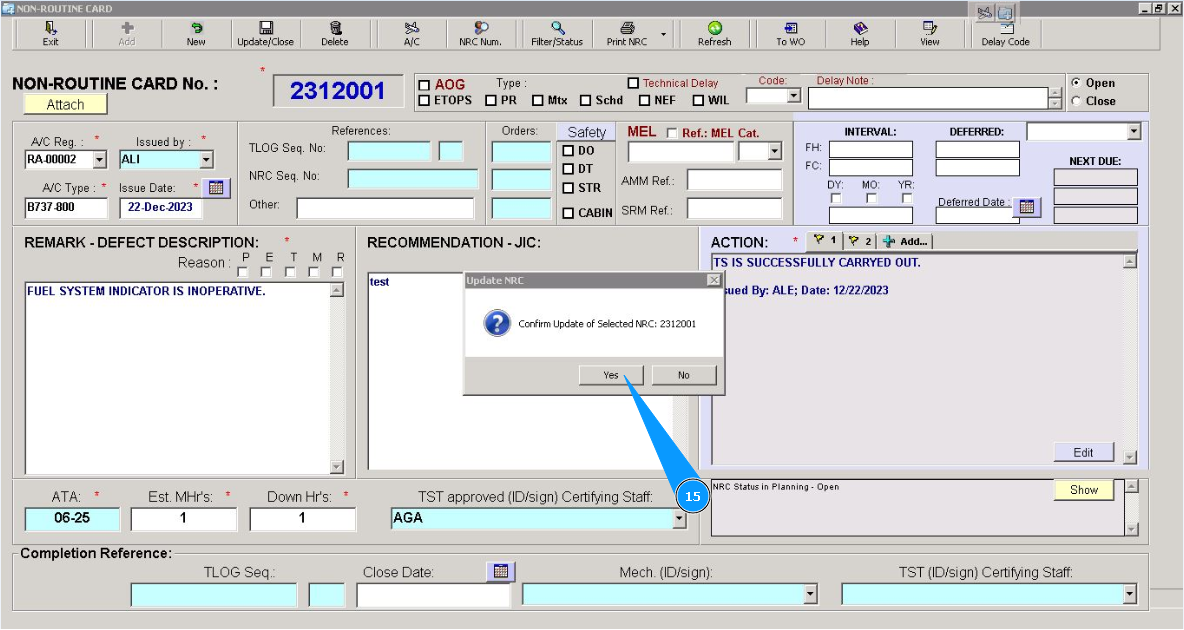
How to edit NRC
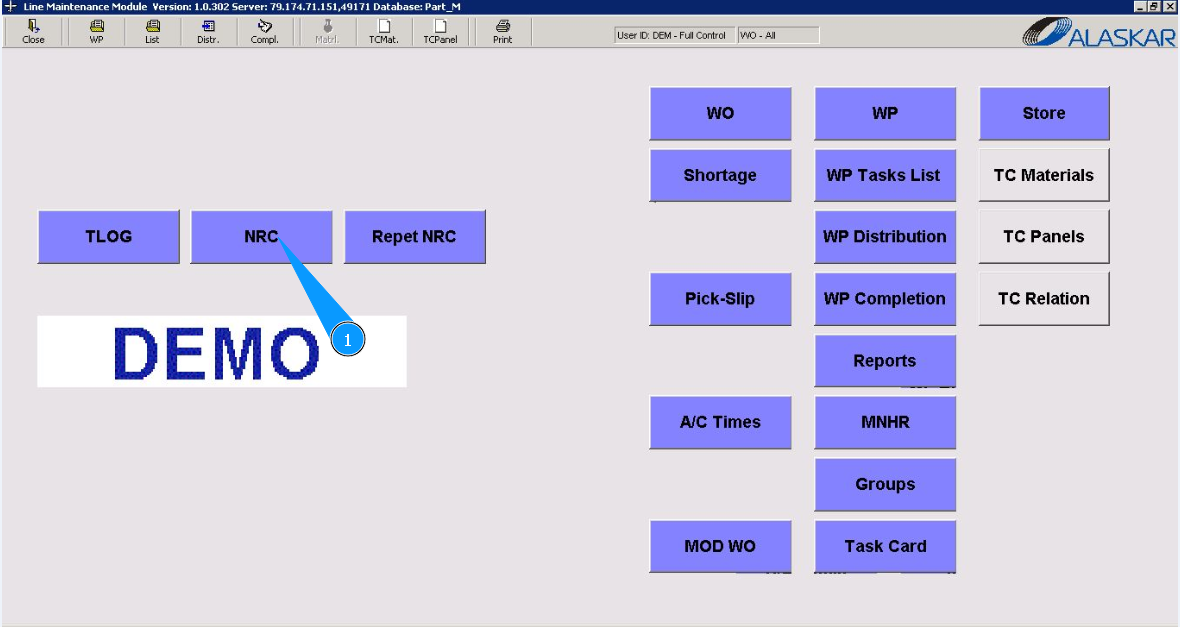
1. For editing NRC, please go to submodule "NRC".
2. Enter the NRC number in the field "NRC Number". Note: If you do not know the NRC number, please use the following searching fields: "Filter-AC Reg.", "ATA/MEL Ref." or any other available in this submodule.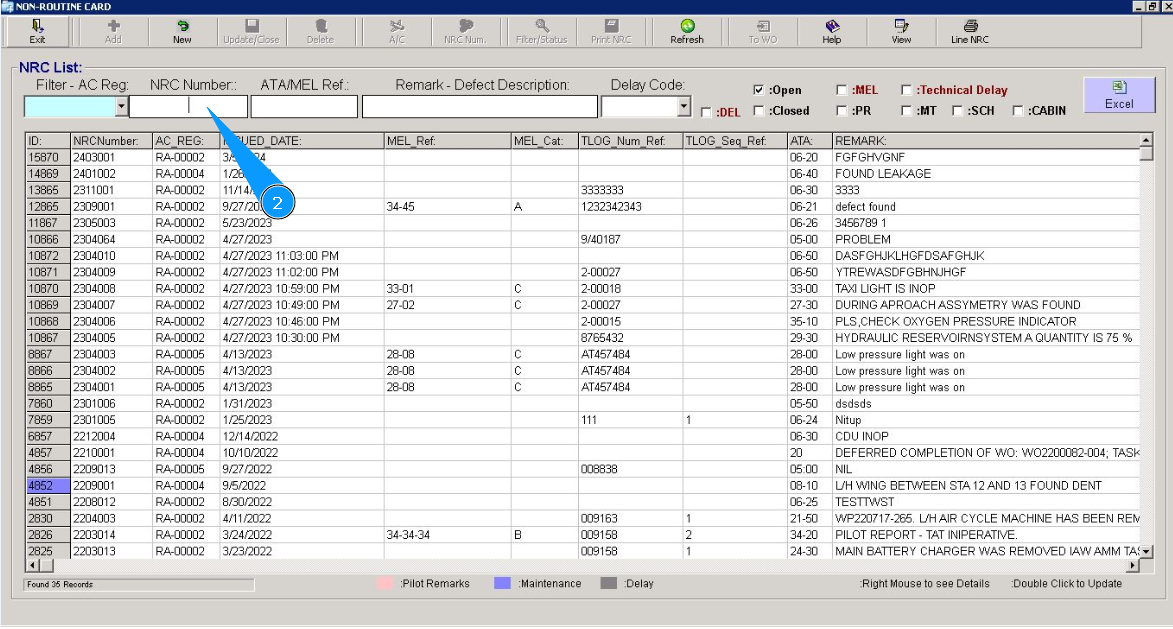
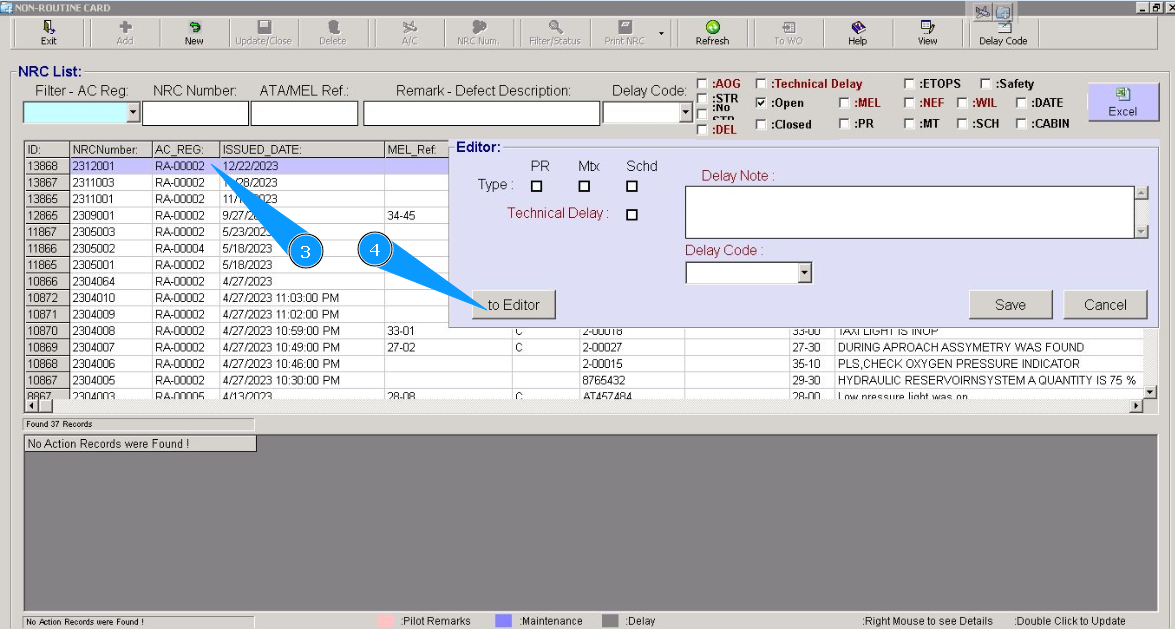
3. Click on the corresponding line with the NRC number twice.
4. Click on the button **"To Editor" to go to the edit mode of NRC.
5. Enter the necessary information about the recommended performance of works on board in the field "Recommendation-JIC".
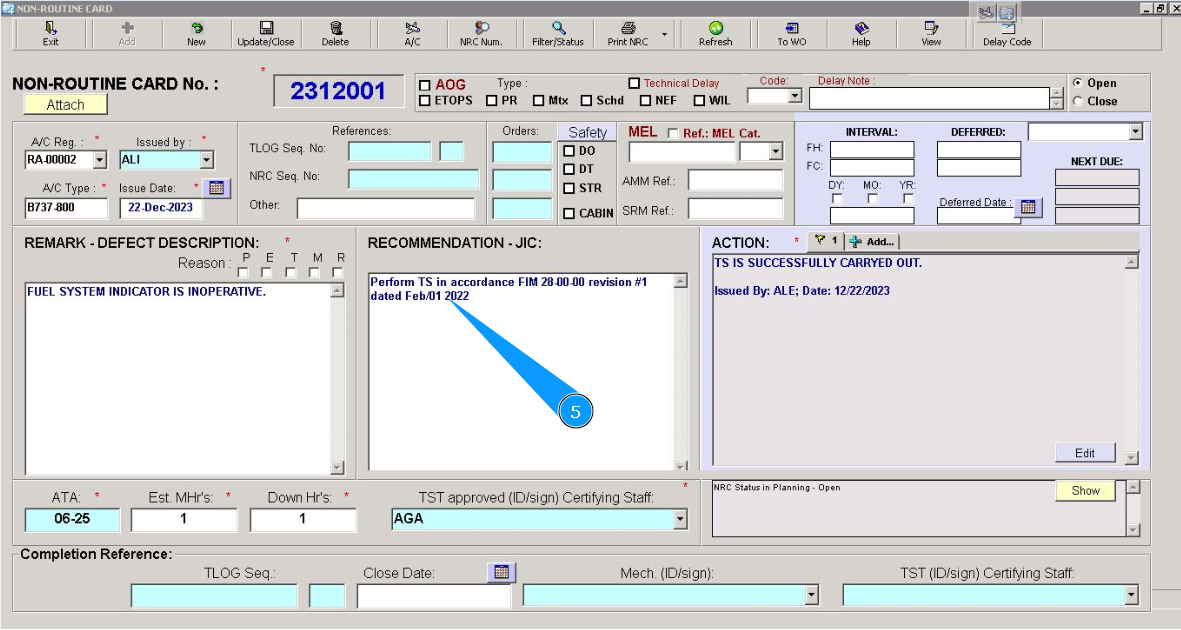
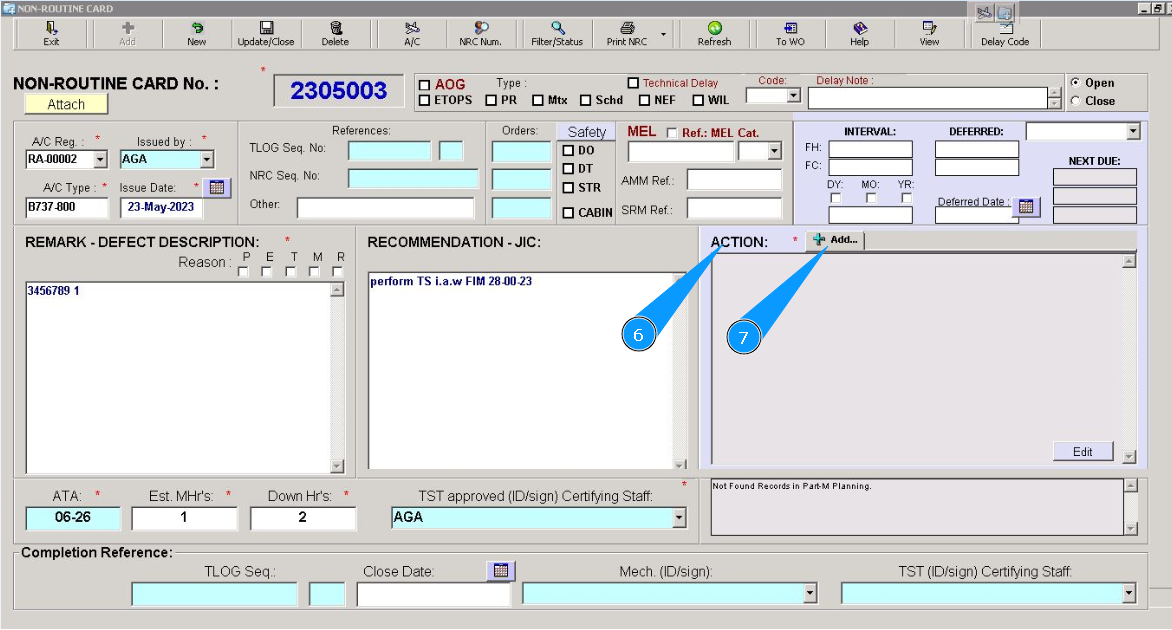
6. Enter necessary information about performed works on board in the field "Action".
7. Click on the button **"Add" to add data to the program.
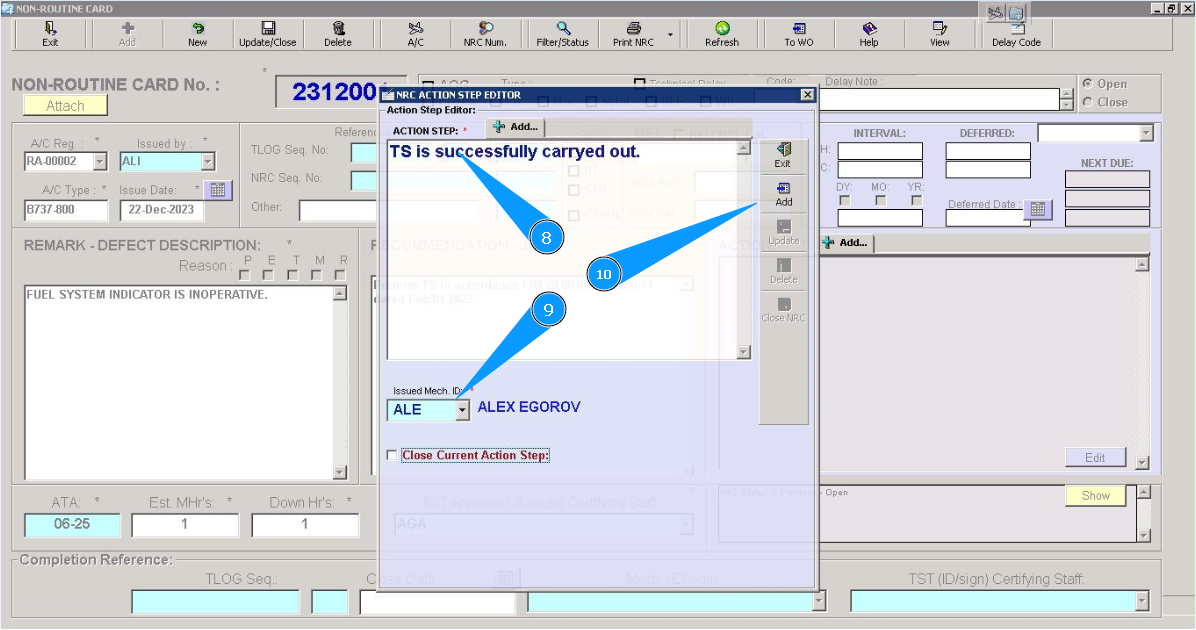
8. Enter necessary information about performed works on board in the text field "Action Step".
9. Enter the login of the certifying staff or NRC creator (in accordance with your company policy) in the field "Issued by" or select from dropdown list.
10. Click on the button **"Add" to add data to the program.
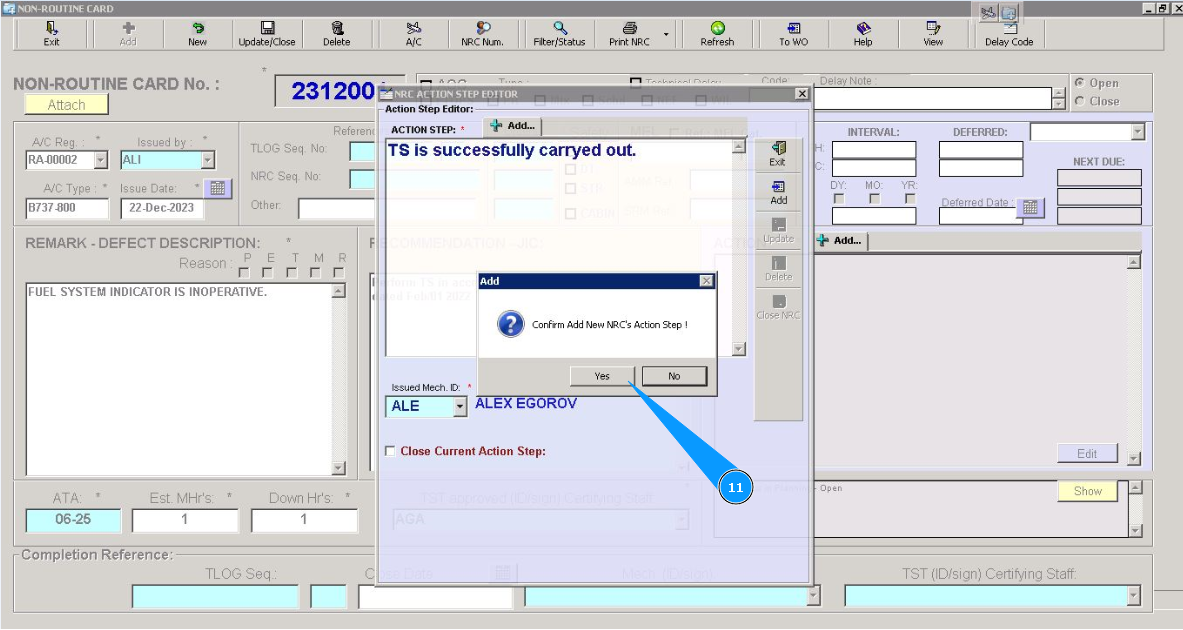
11. Click on the button "Yes", to confirm adding the data from the first action step to the program.
12. Click on the button "Exit", to exit from edit mode. Note: If it is necessary to add other next steps of action in the field "Action", click repeatedly on the button "Add", to add one more step of performed works.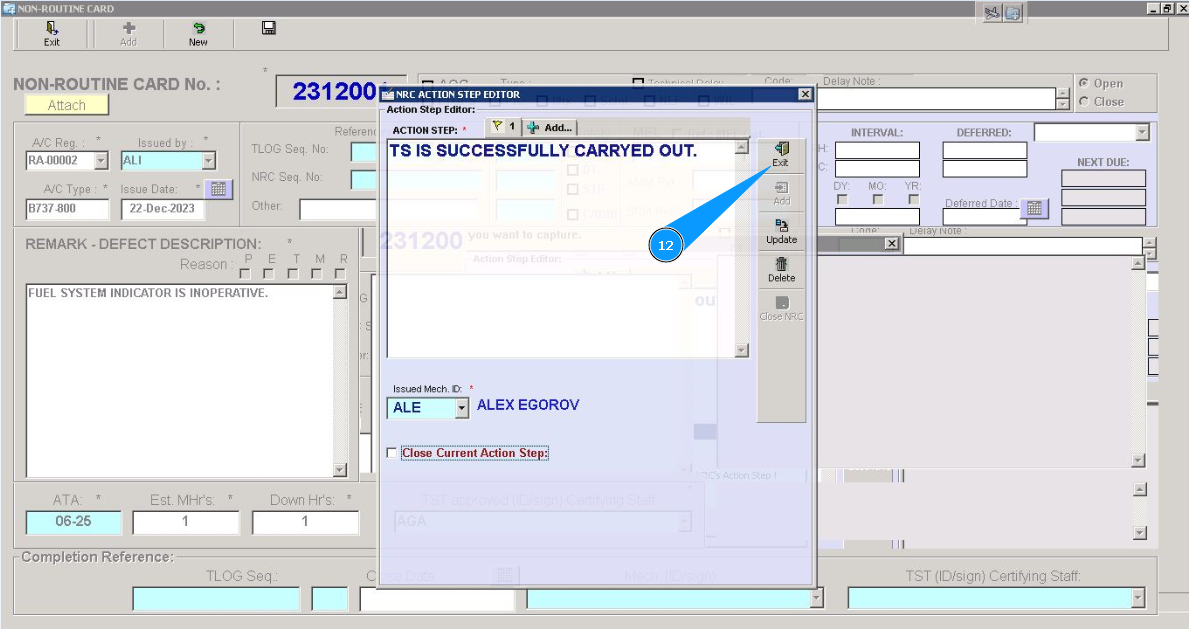
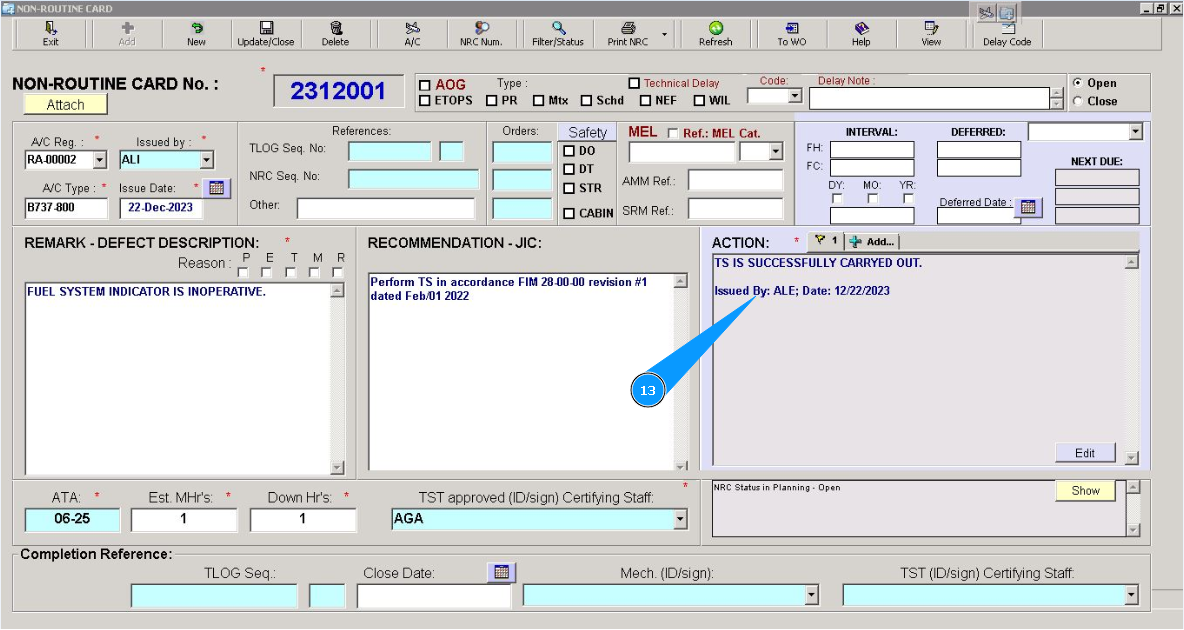
13. Check that edited data is presented in the window "Action".
14. Click on the button **"Update" to finish the NRC process.
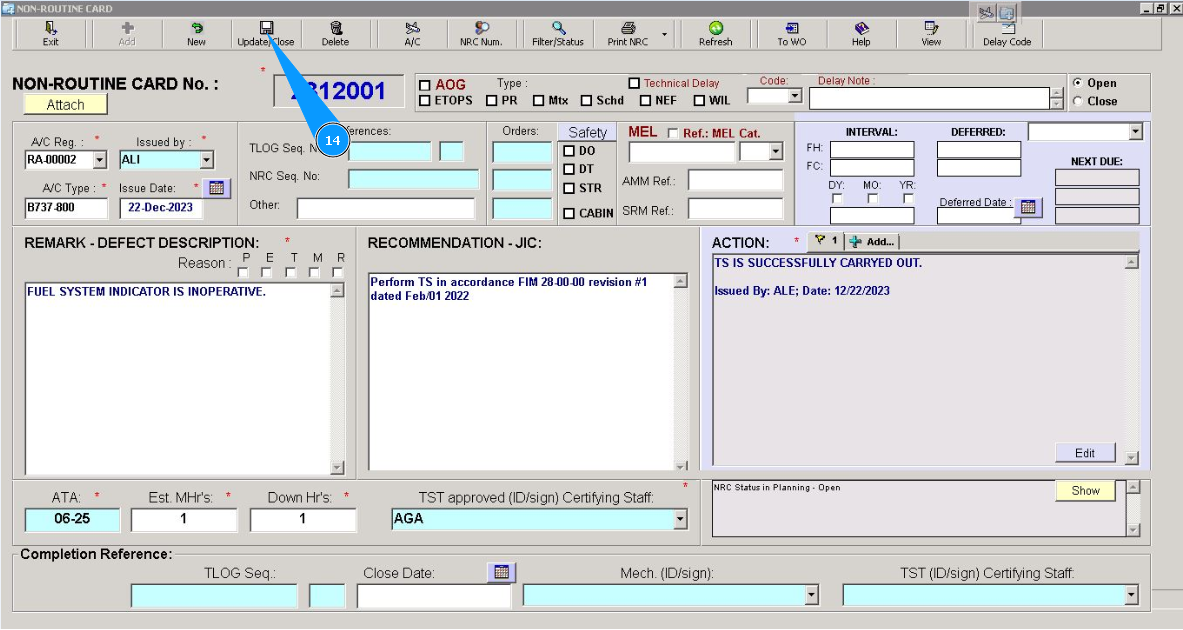
15. Click on the button "Yes", NRC correction is fully finished.