How to distribute customer request
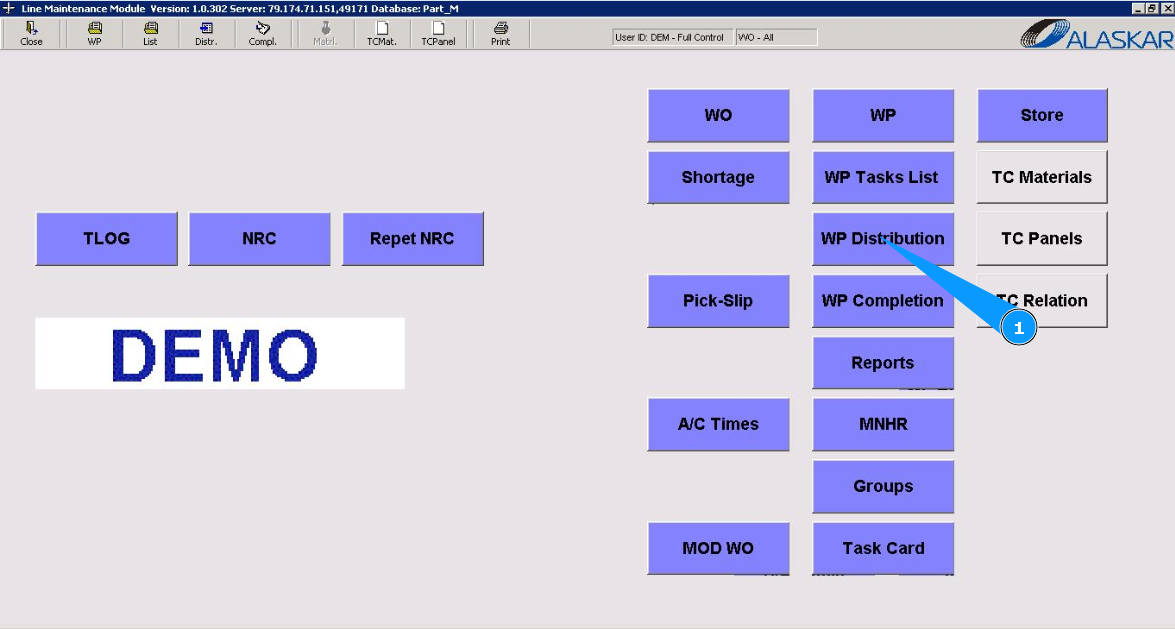
1. To distribute customer request, go to the submodule "WP Distribution".
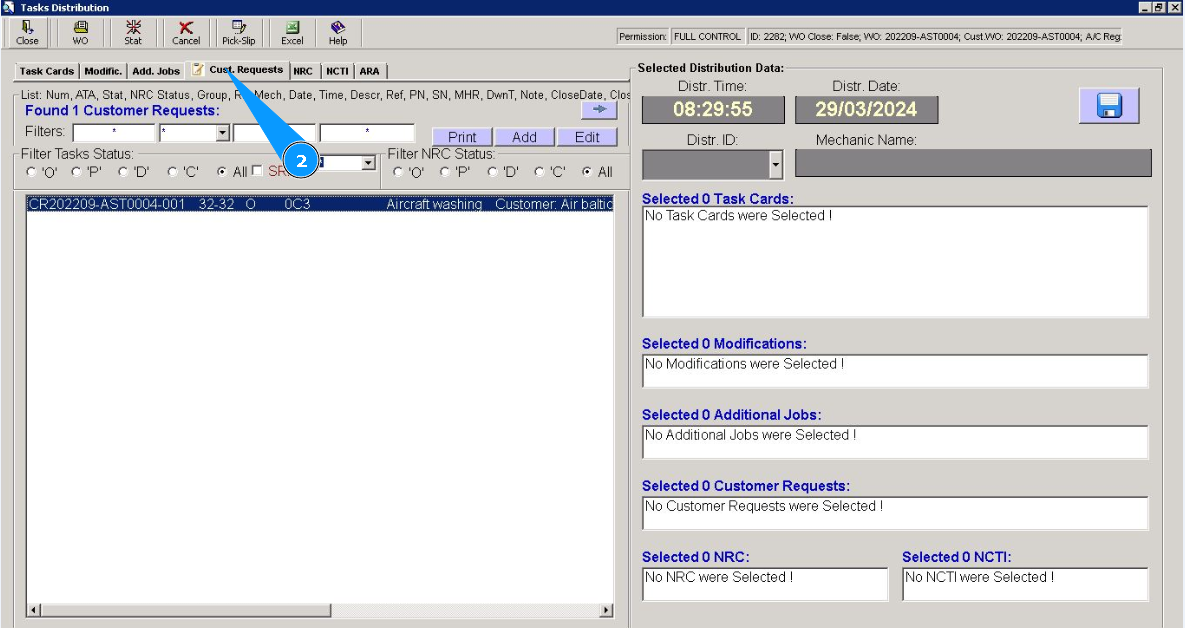
2. Then go to the tab "Cust. Requests".
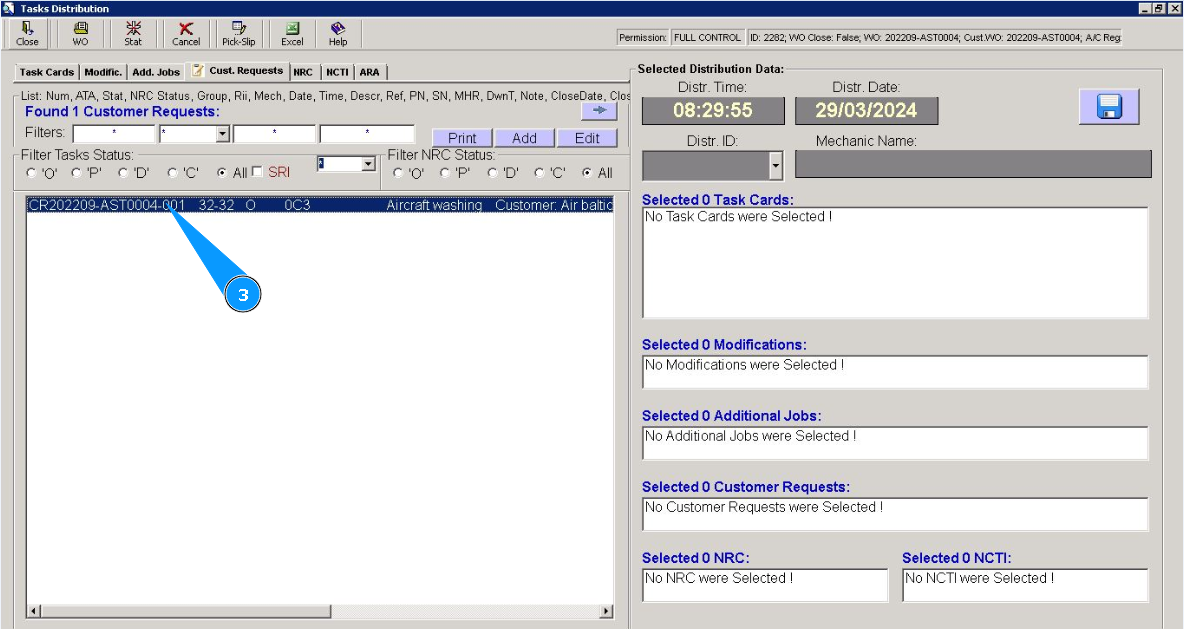
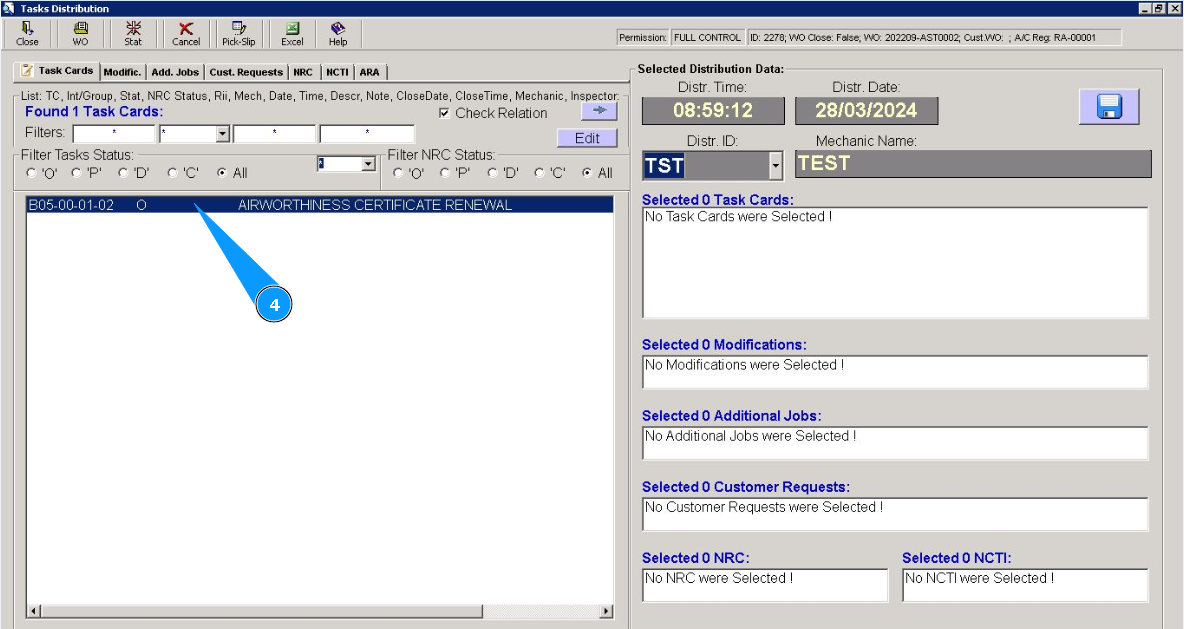
3. Click on the line with the request for the distribution twice.
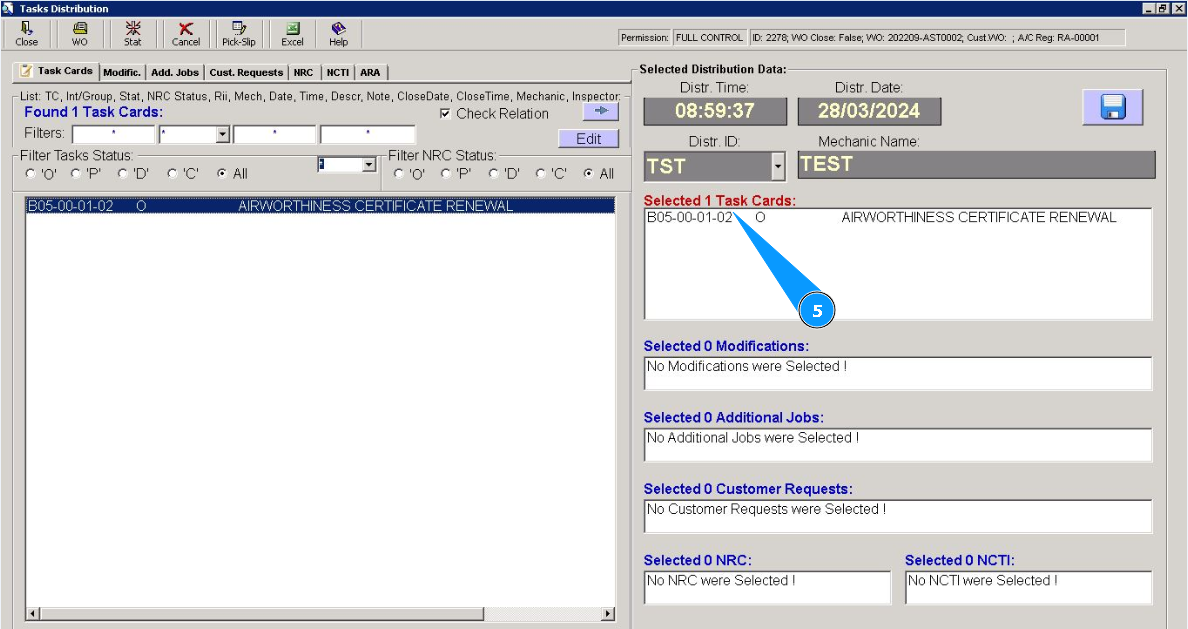
4. Make sure that the required customer request is displayed in the right window "Selected Customer Requests".
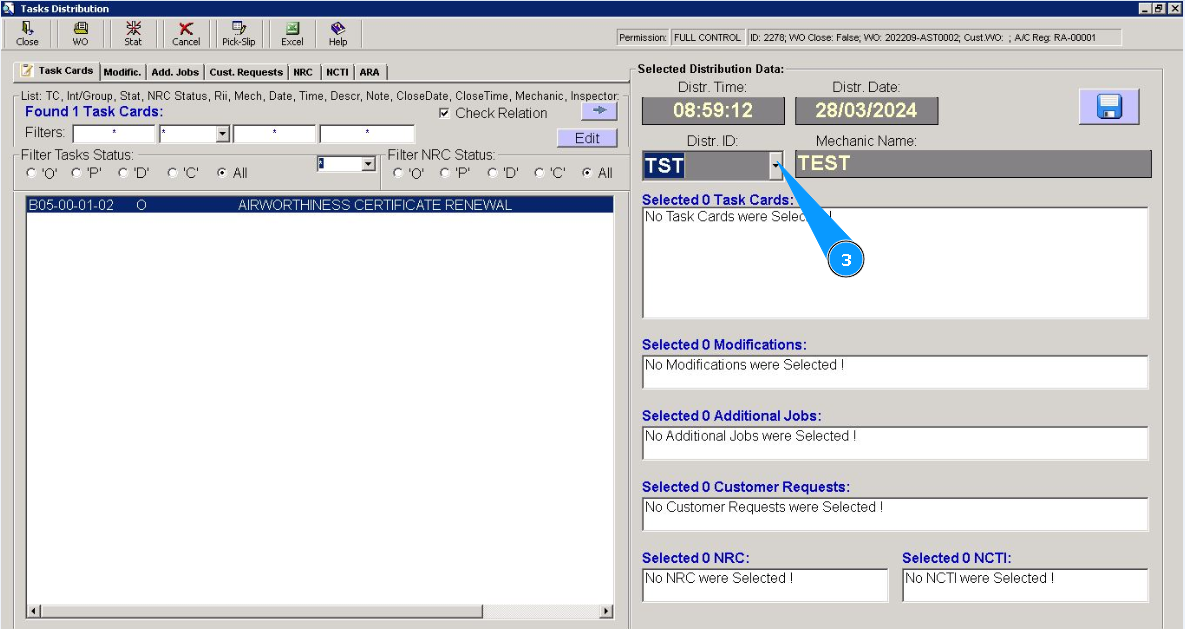
5. Select from dropdown list the ID of the staff who will perform this customer request.
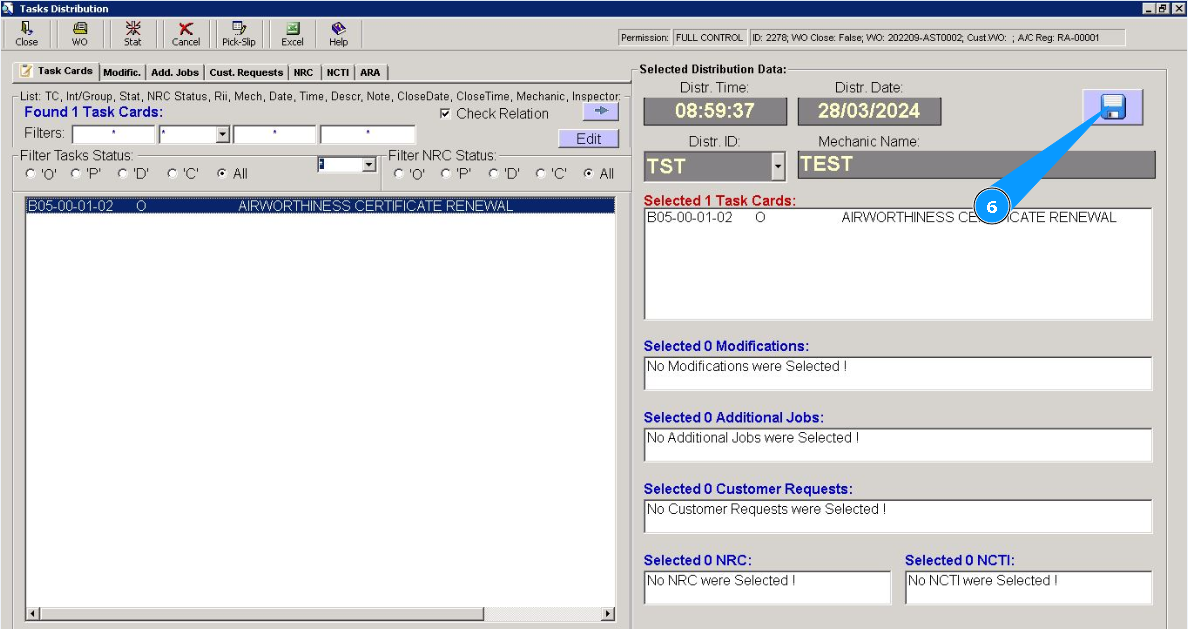
6. Click the diskette symbol button to save the distribution.
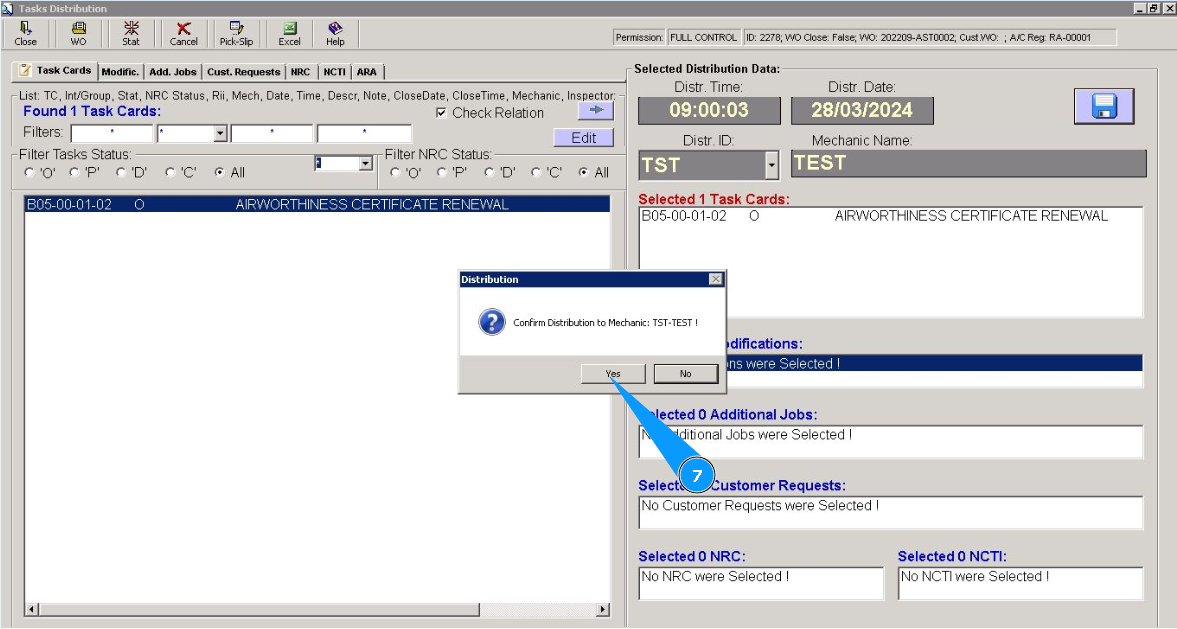
7. Click on the button "Yes", to confirm the distribution of customer request to perform.
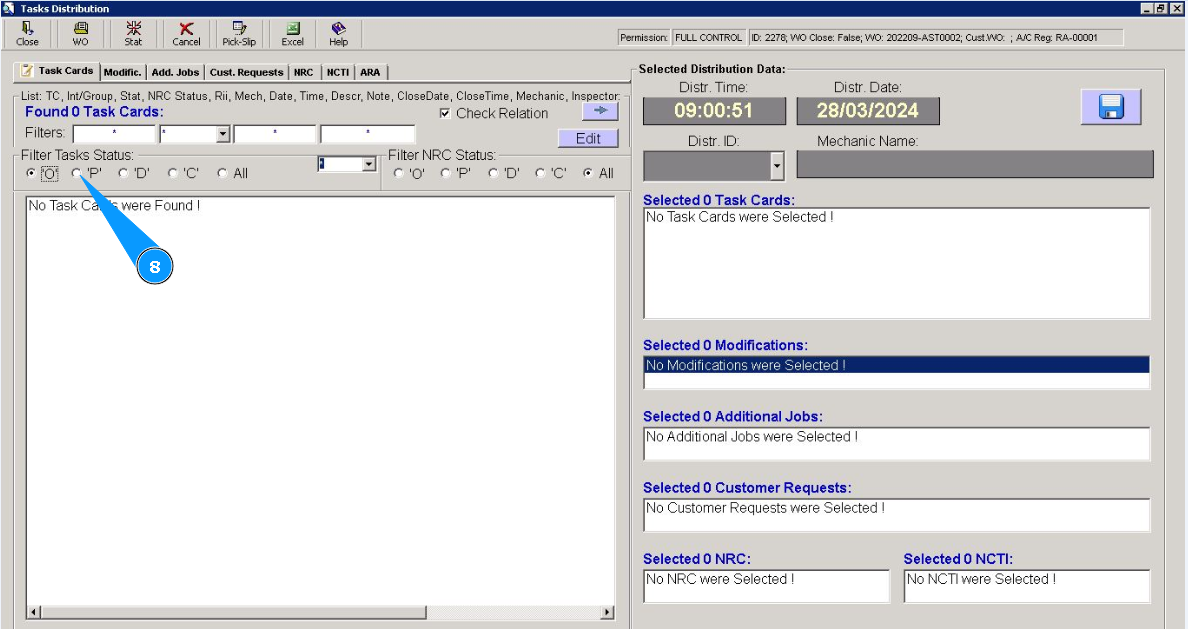
8. Make sure that the customer request has moved from the "open" status to the "planned" status. To check it, set the filter "P".
9. Customer request is fully distributed to staff for performance.