How to distribute Additional jobs
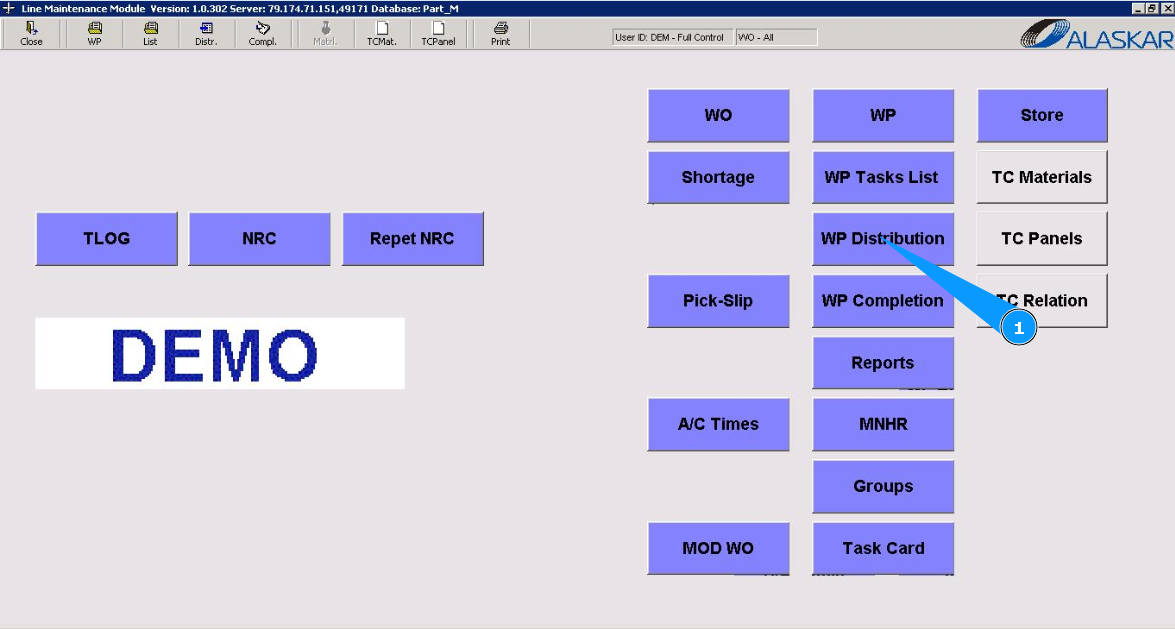
1. To distribute additional jobs, go to the submodule "WP Distribution".
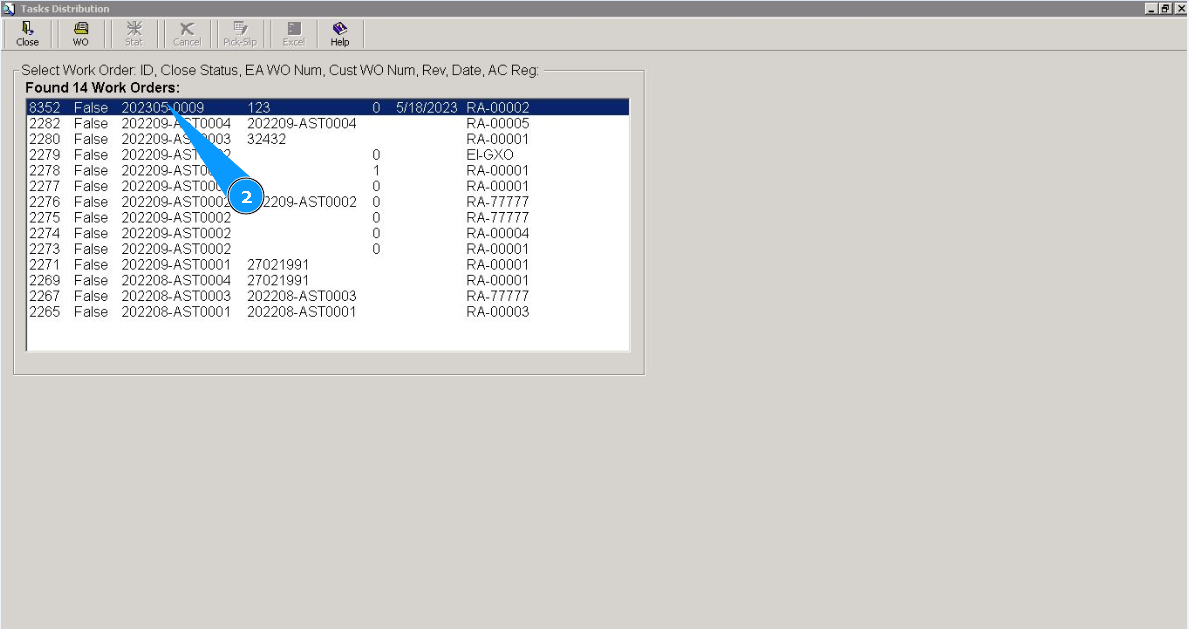
2. Select your required WP from the list of WO and click on the corresponding line.
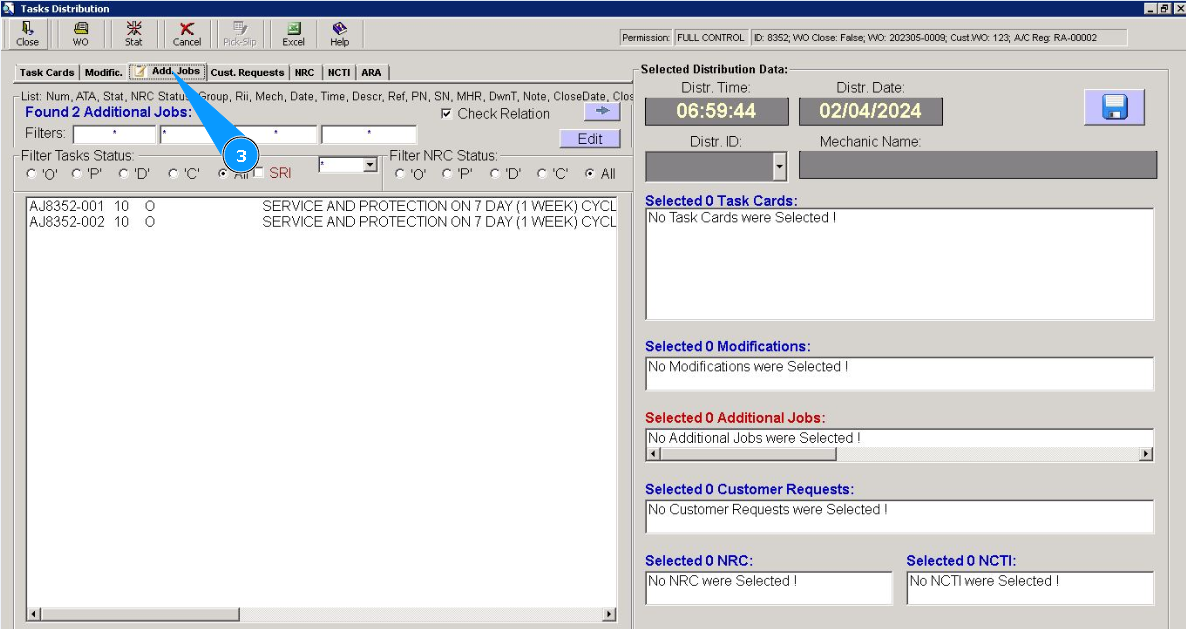
3. Then go to the tab "Add. Jobs".
4. Select from the list of additional jobs and click on the line with the required job for the distribution twice. Note: If necessary, use the available filters to quickly find your job on the list. Use the fields: "Filters".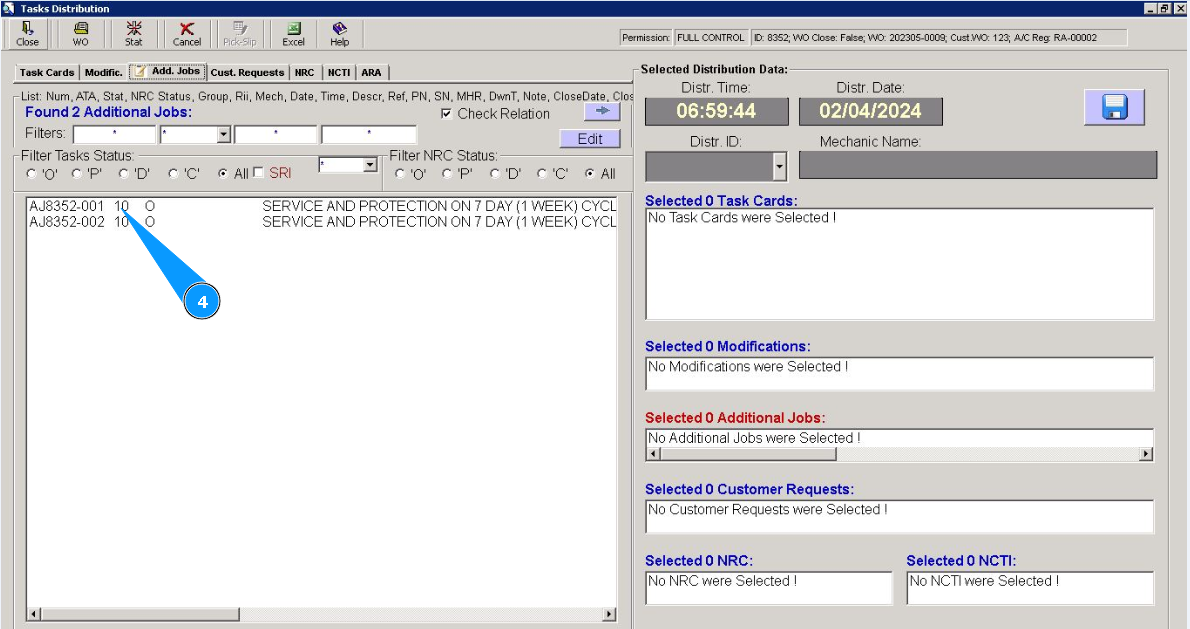
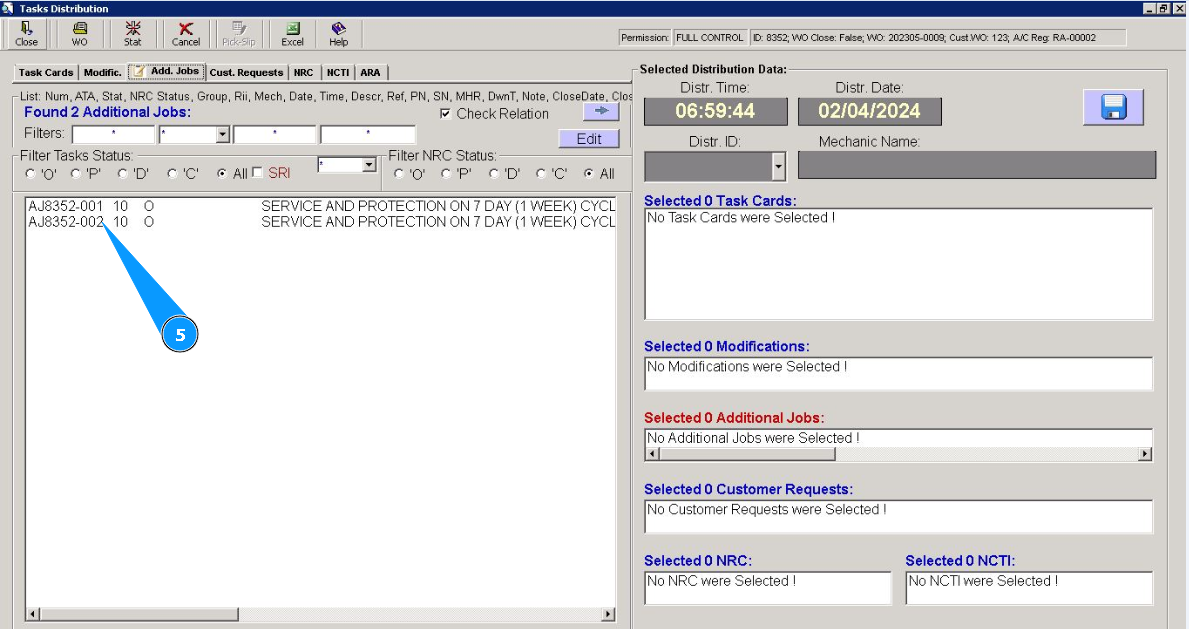
5. If necessary, select all the additional jobs that you want to distribute.
6. Check that all required jobs for performance are moved to the right window "Selected Task Cards". Note: Quantity of additional jobs are colored red in the field name "Selected _ Additional jobs"..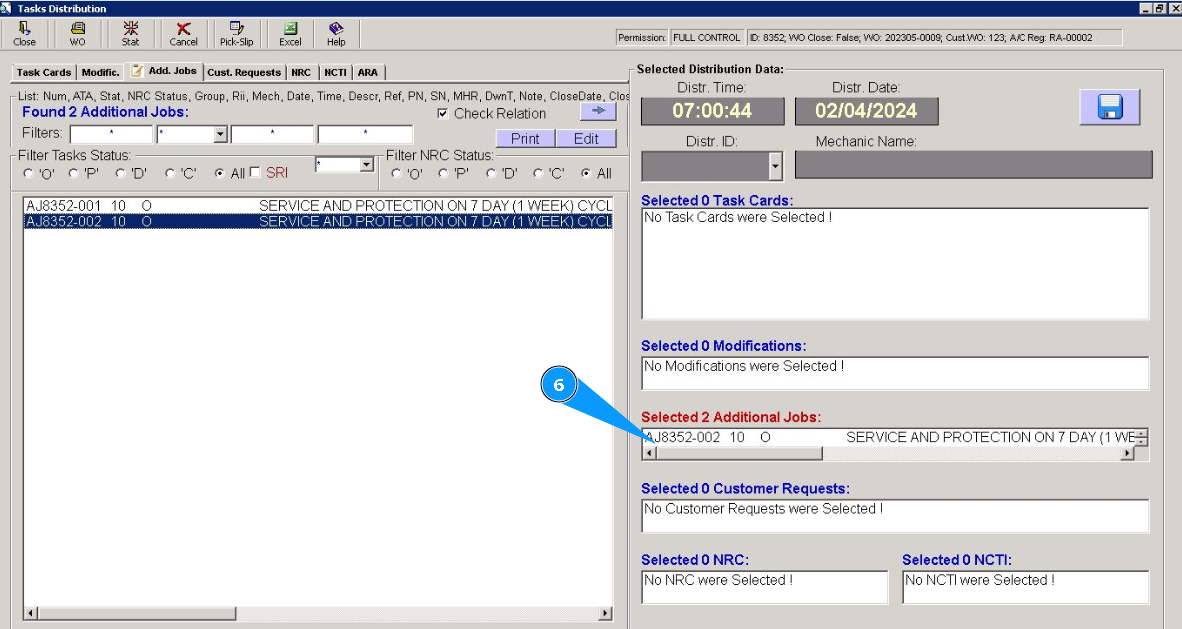
7. Select from dropdown list the ID of the staff who will perform these additional jobs.
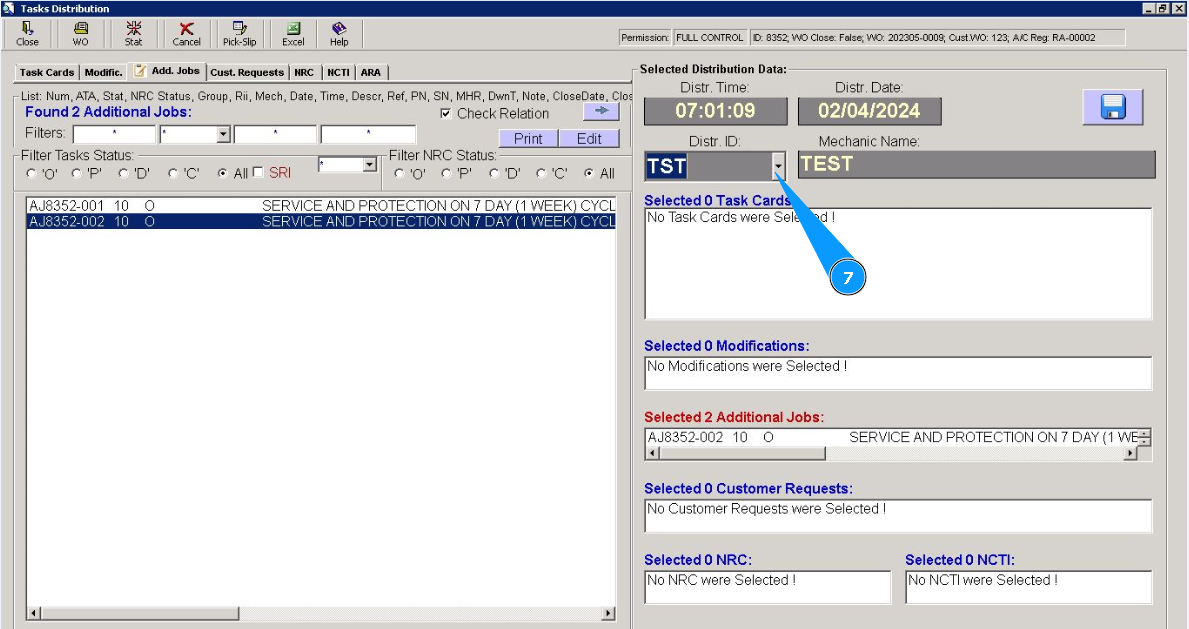
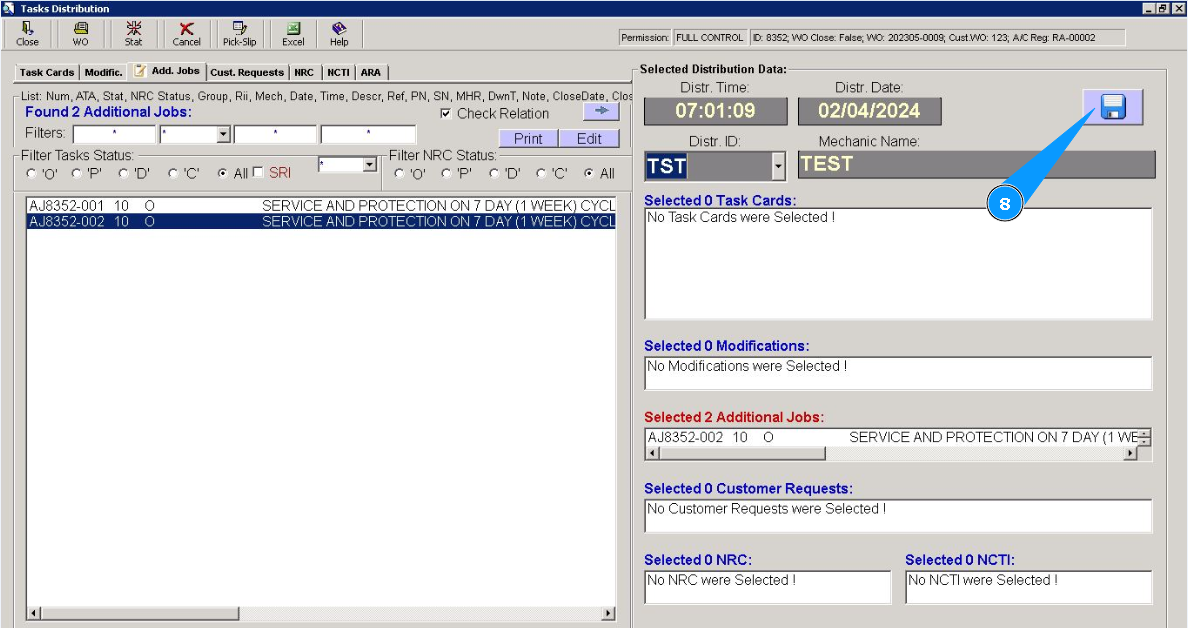
8. Click on the diskette symbol button to save the distribution.
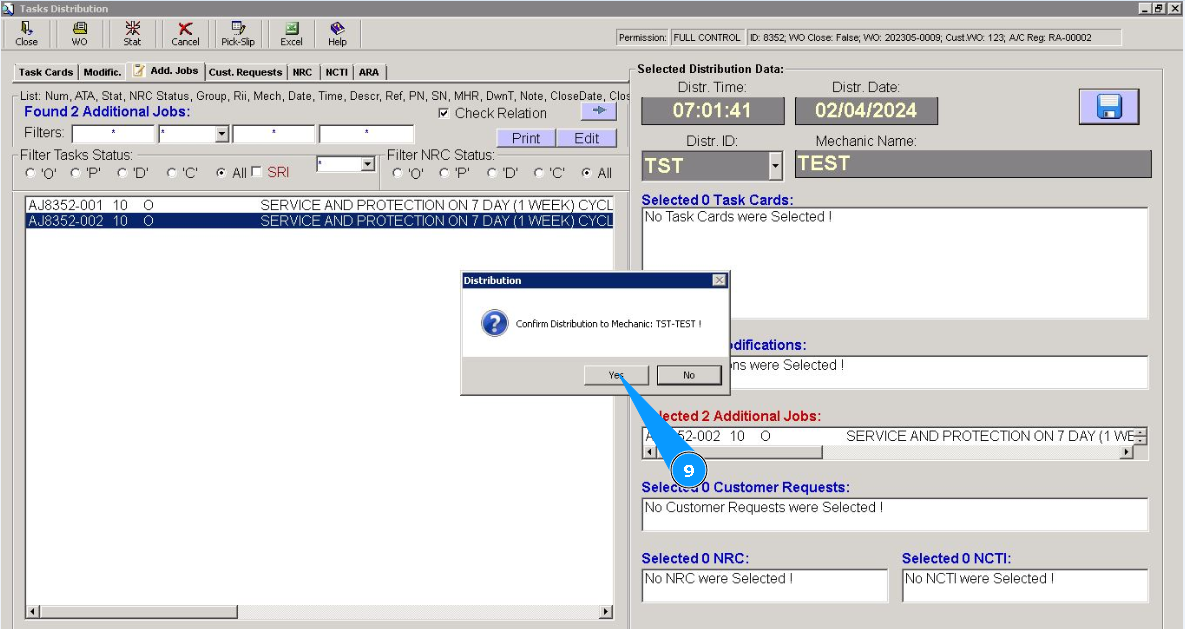
9. Click on the button "Yes", to confirm the distribution of additional jobs to perform.
10. Check that the additional jobs have disappeared from the "open" status.
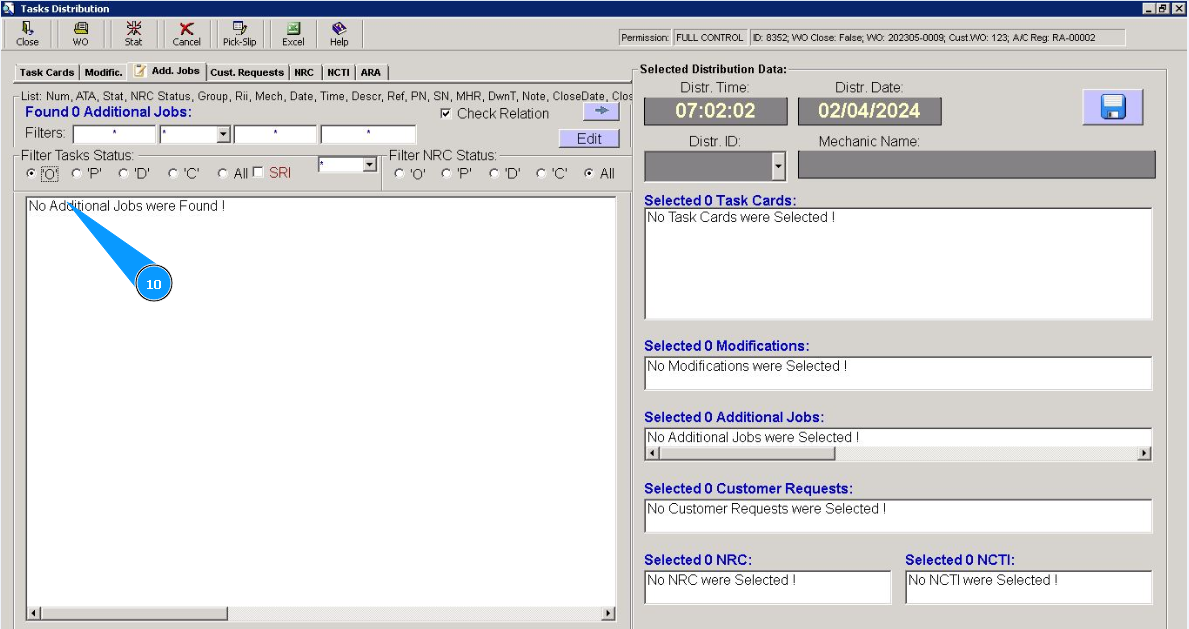
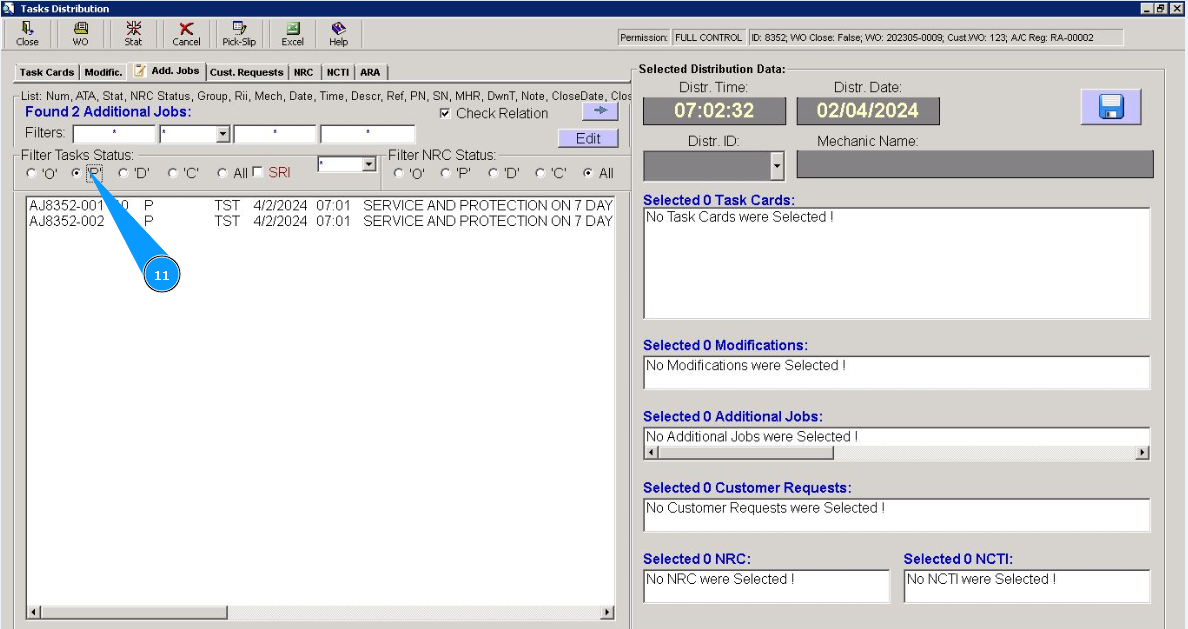
11. Check that the additional jobs have moved to the "planned" status. To check it, set the filter "P". Additional jobs are fully distributed to staff for performance.