How to delete materials from Pick-Slip list
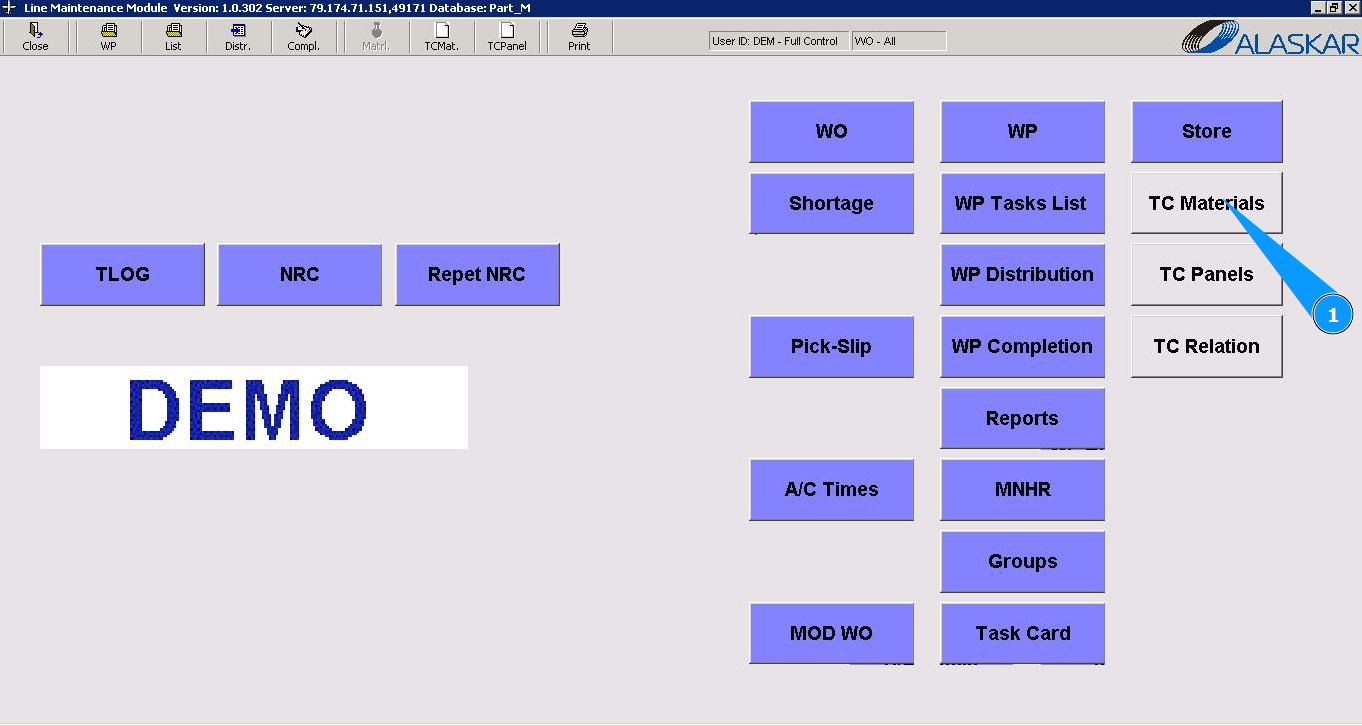
1. In order to delete materials from Pick-Slip list, go to the submodule "TC Materials".
2. Select the required WO or WP in the list "Select Work Order" and click on the corresponding line. Note: If necessary, use the available filter of WO or WP number.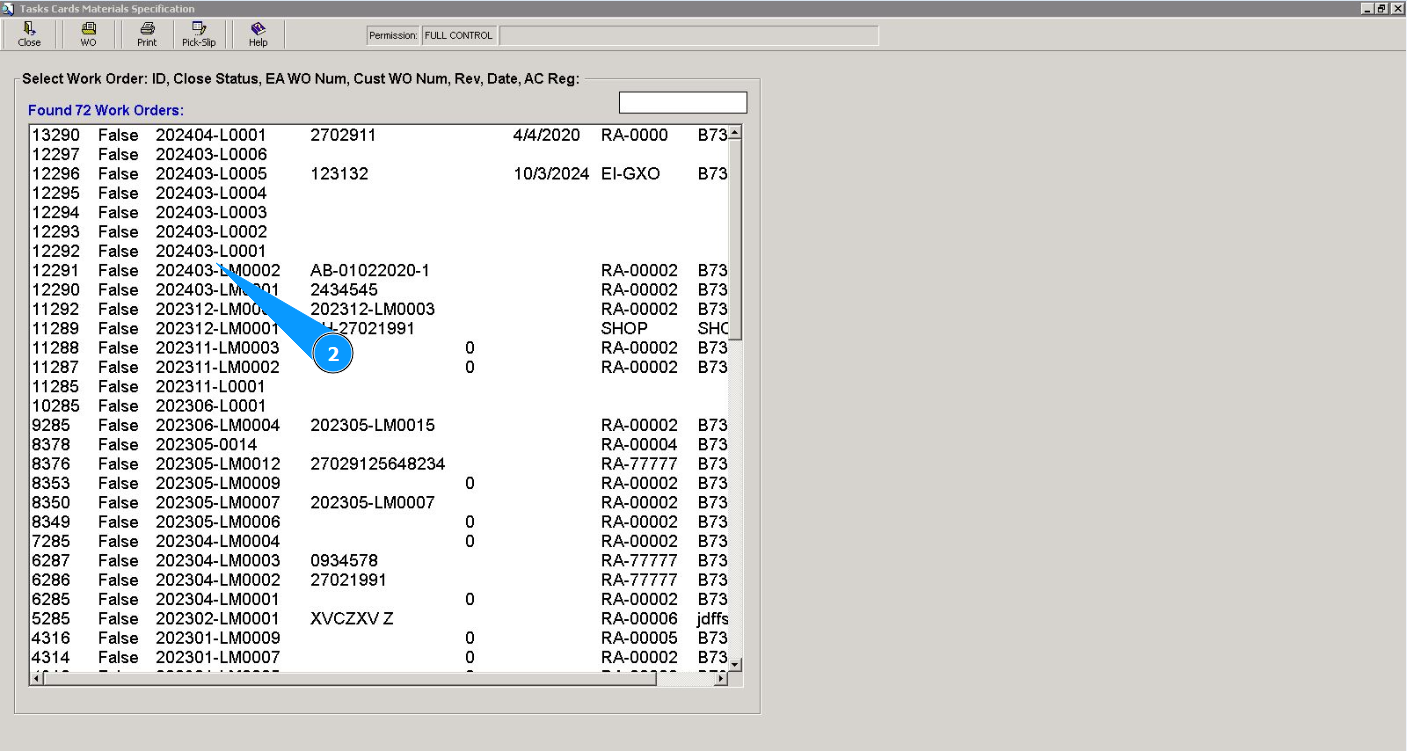
3. Then go to the tab "Task Card". Note: Use the available filters if necessary.
4. Select the required task card in the list "Task Cards" and click on the corresponding line.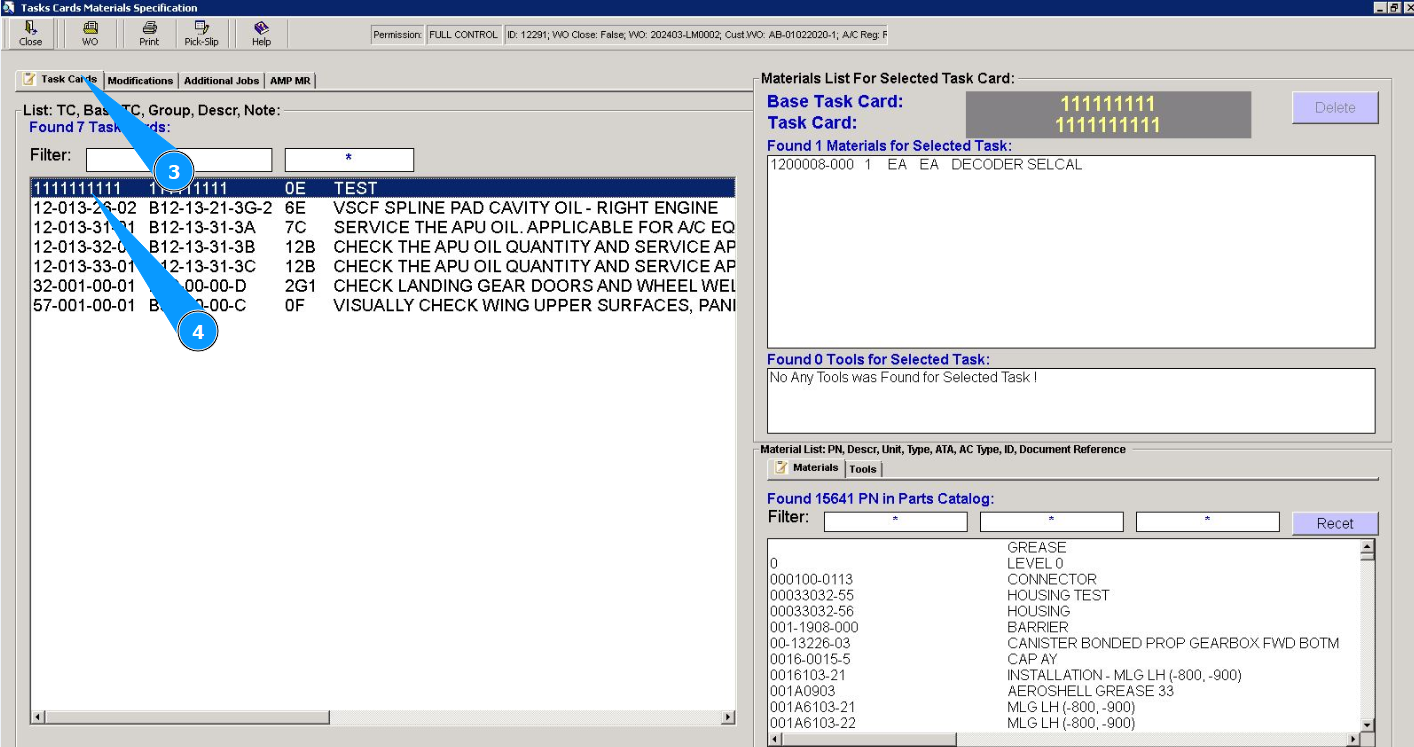
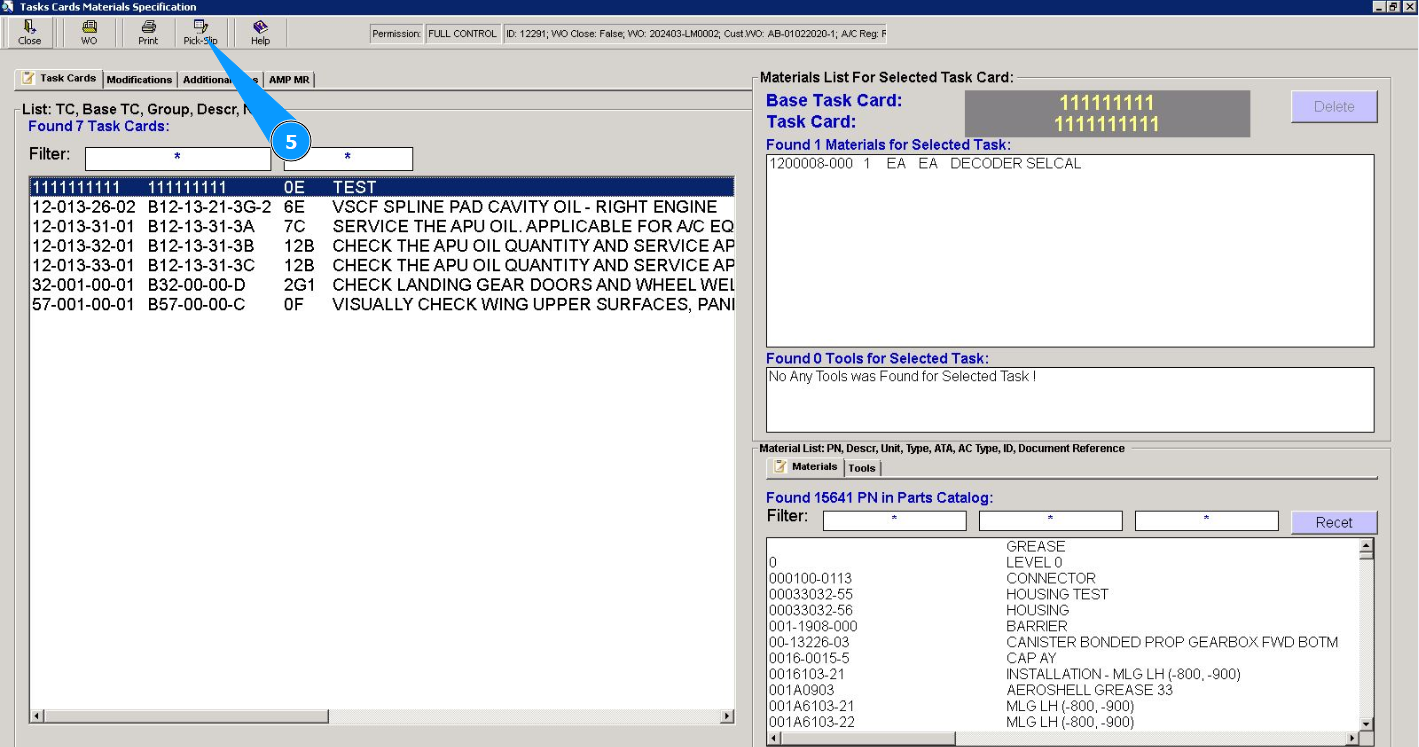
5. Click on the button "Pick-Slip" to delete materials from the Pick-Slip list.
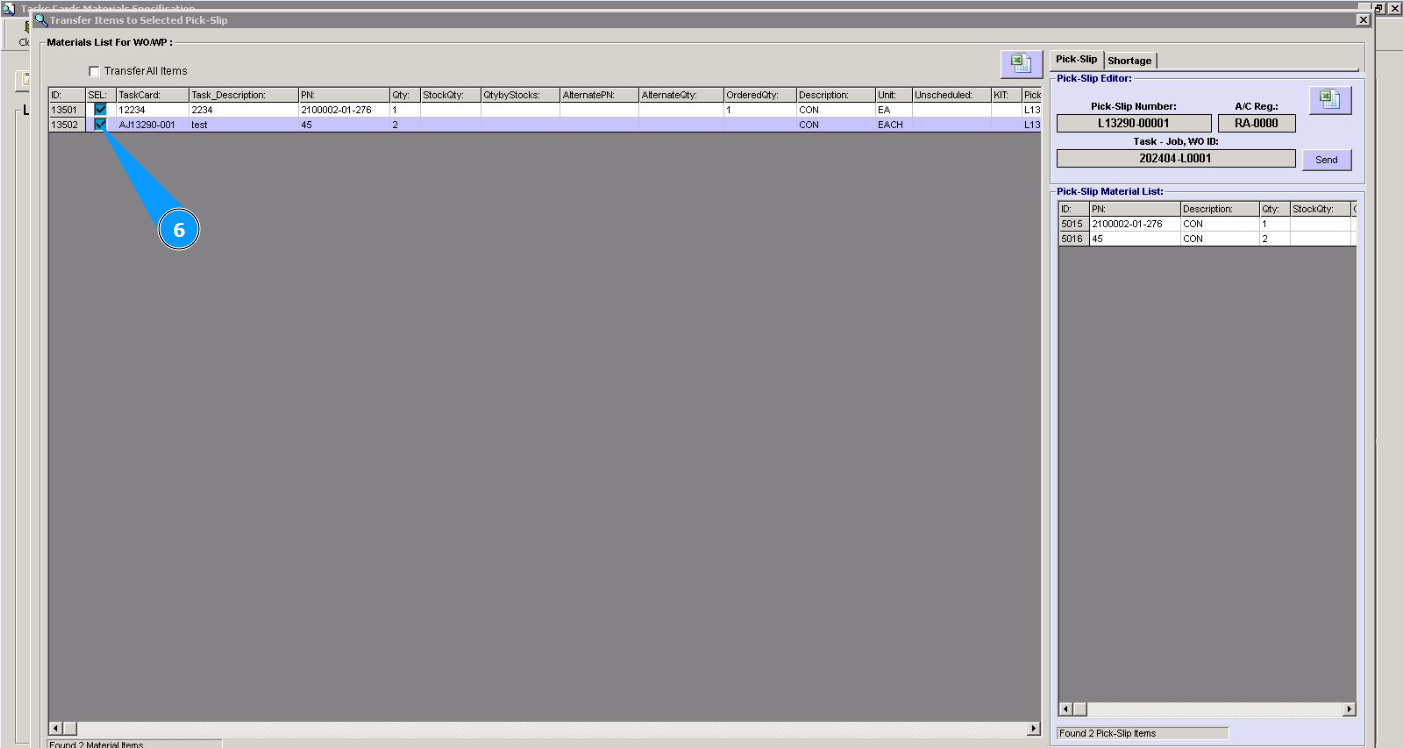
6. Click in the field "Sel." to deselect the material and delete it from the Pick-Slip list.
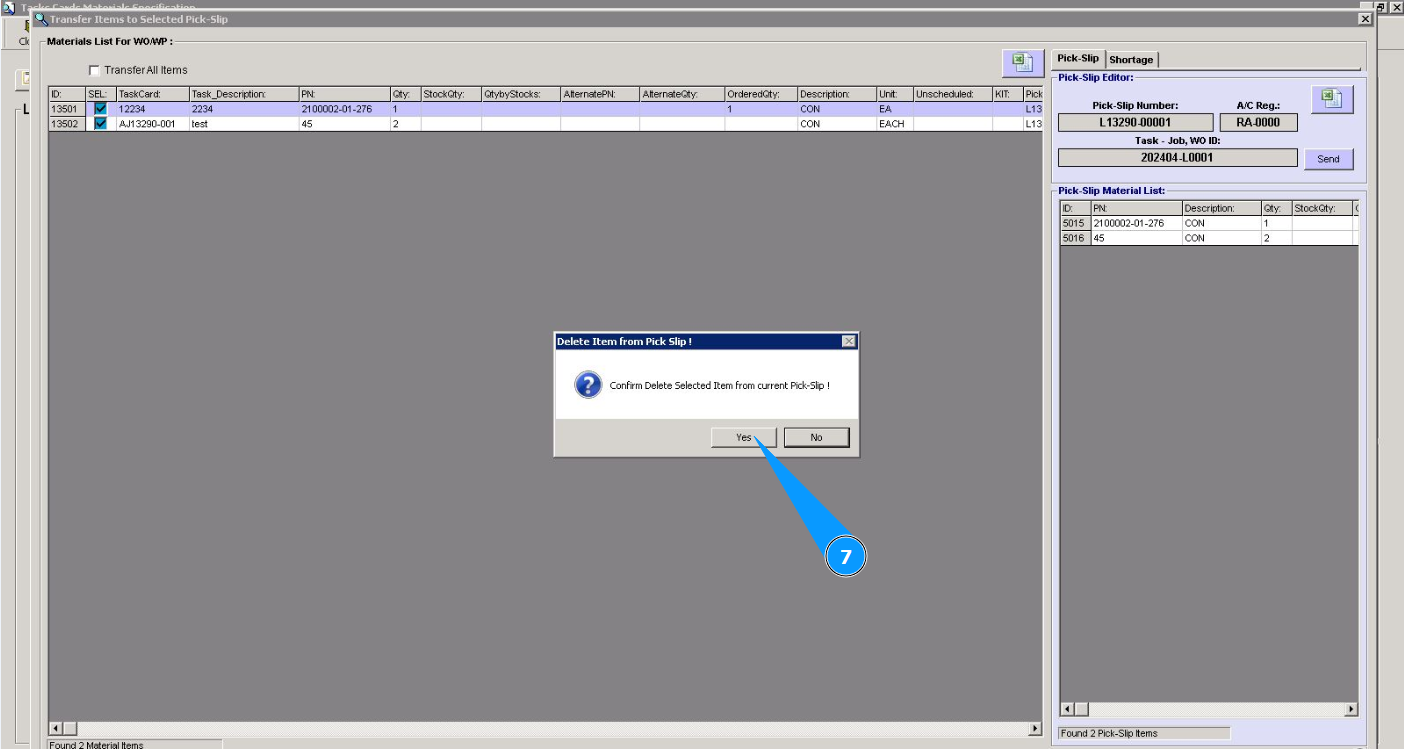
7. Click on the button "Yes" to confirm deleting the material from the Pick Slip list.
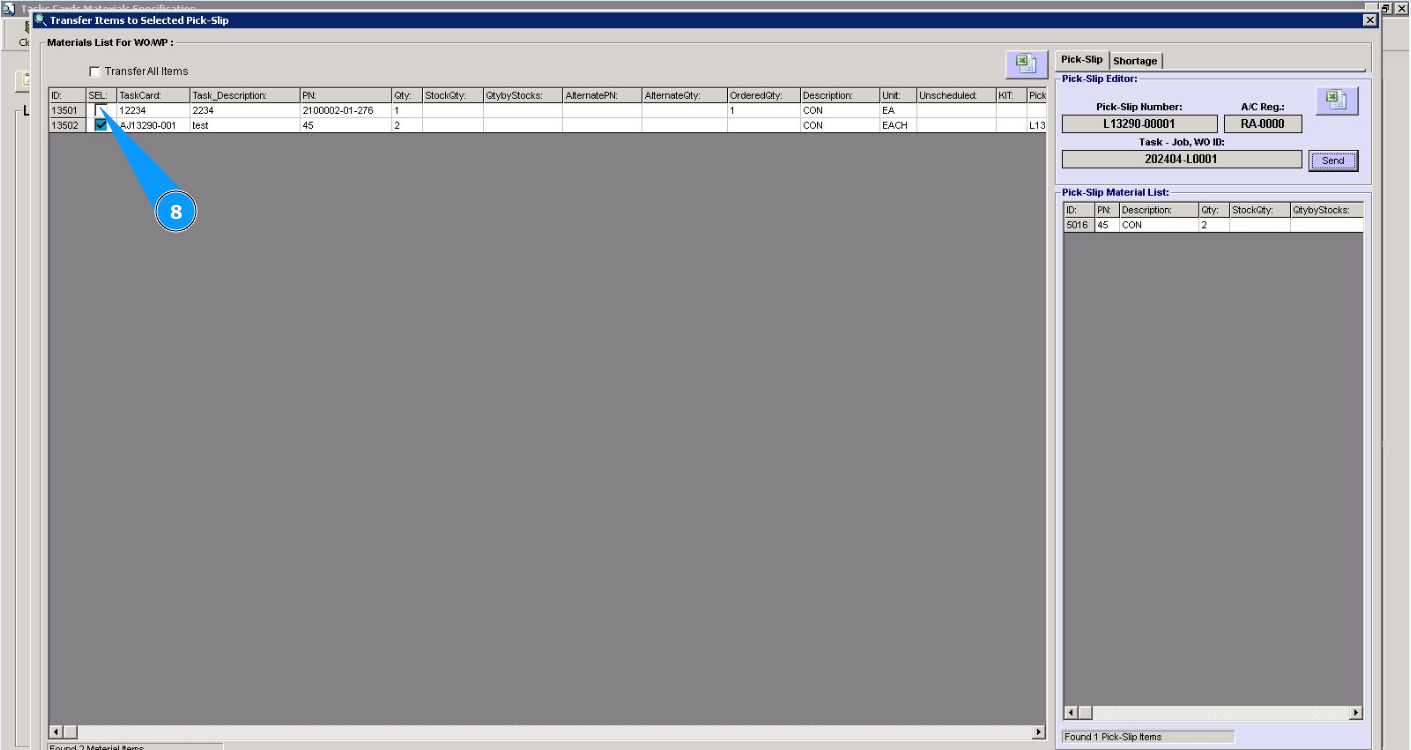
8. Make sure that the field "Sel." is unselected. Field has a white color.
Note: Be attention! Once the Pick Slip list has been sent to the Store for material collection, it will not be possible to edit such Pick Slip list.
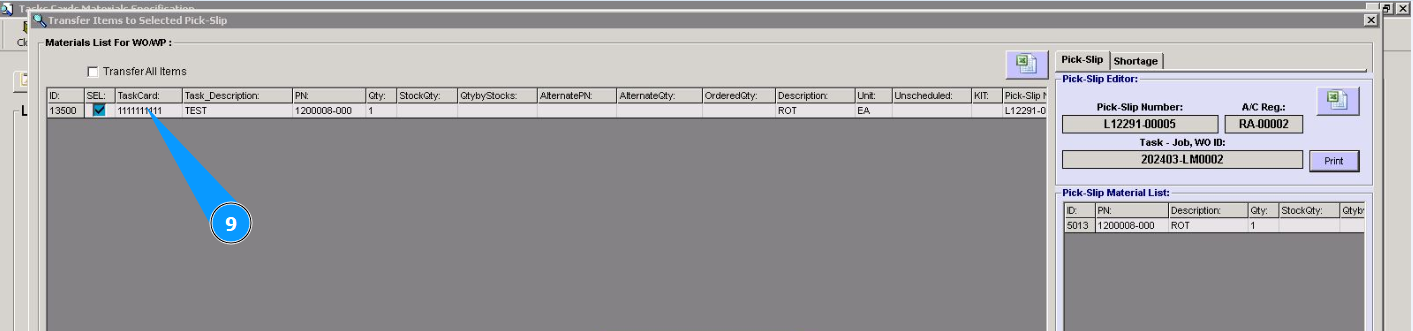
9. The gray background of the line indicates that editing the "Pick-Slip" list is not possible.