How to create a task card based on additional jobs
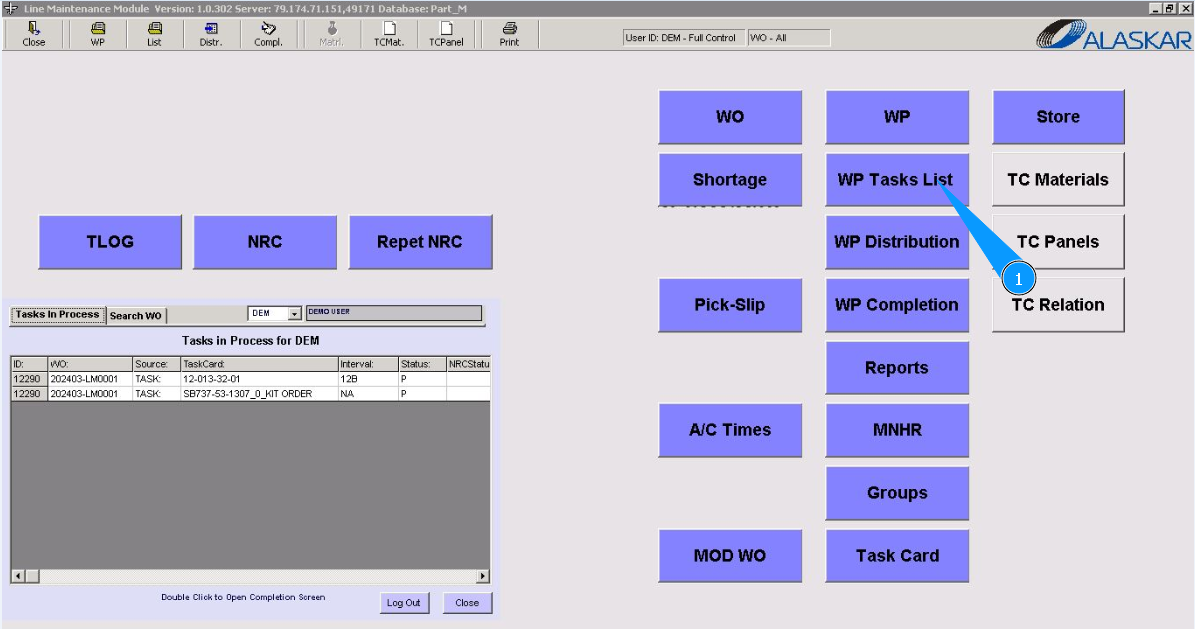
1. To create a task card based on additional jobs, go to the submodule "WP Task List".
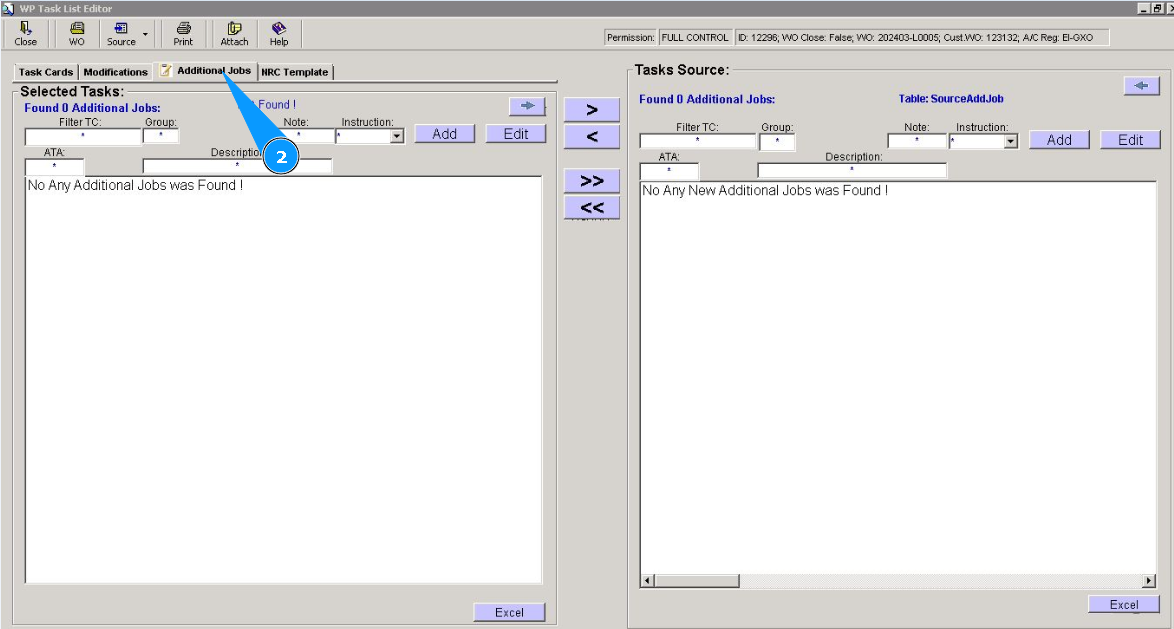
2. Then go to the tab "Additional Jobs".
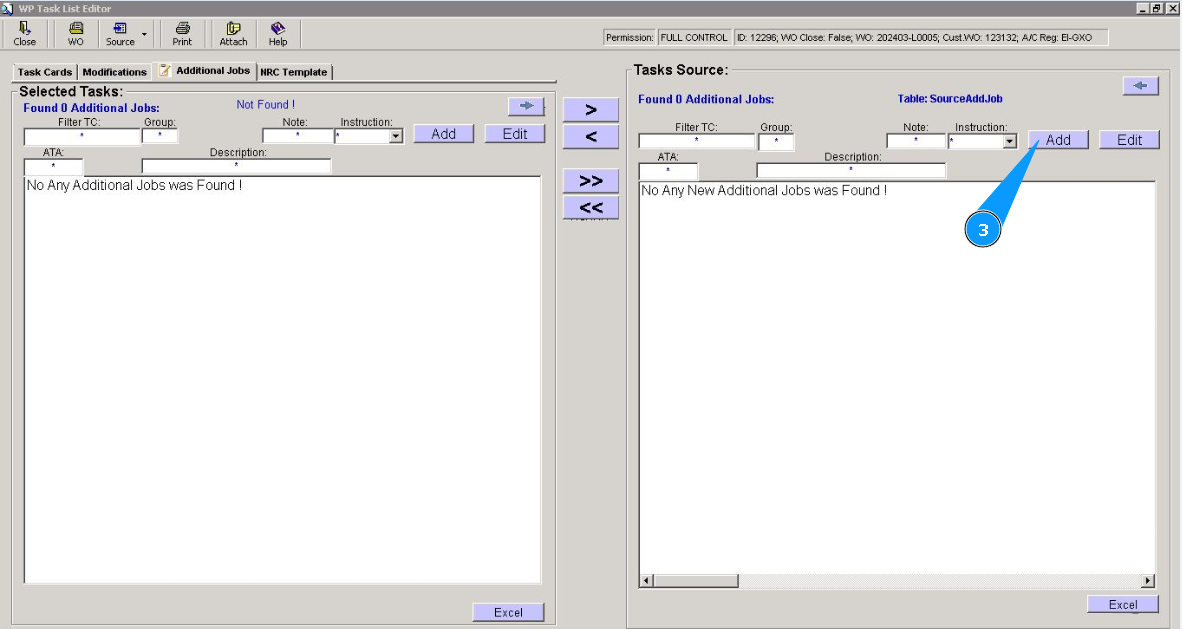
3. Click on the button "Add", to add a new task card.
4. Check that the task editor is open and available in the window "Additional Job Editor".
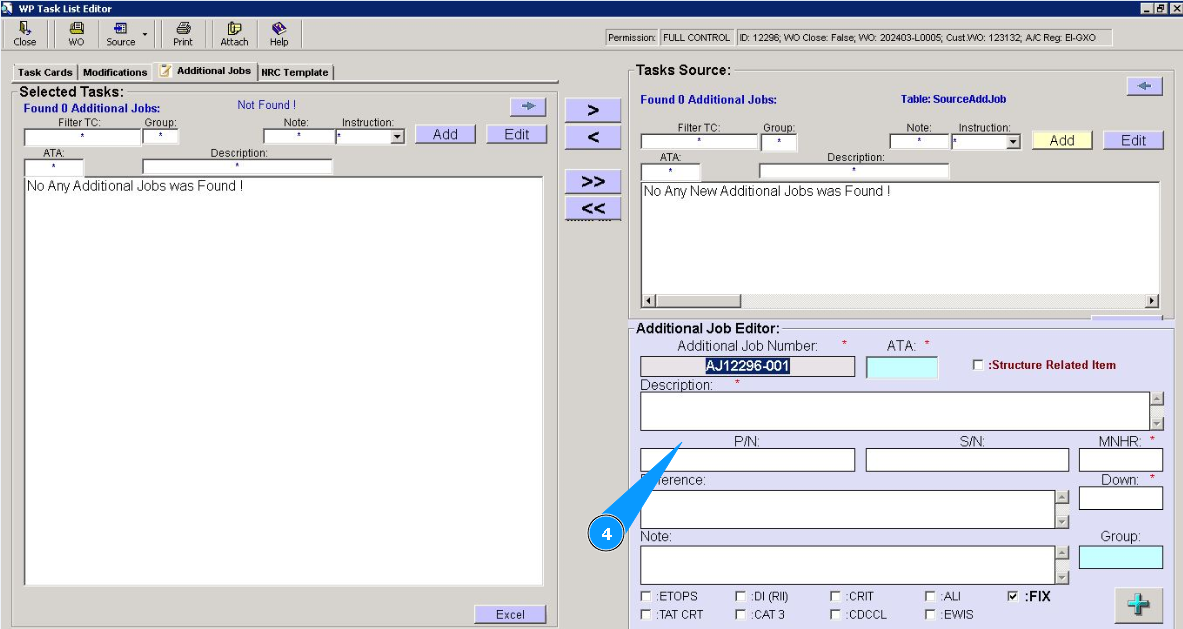
5. Enter an ATA number and click in the field "ATA".
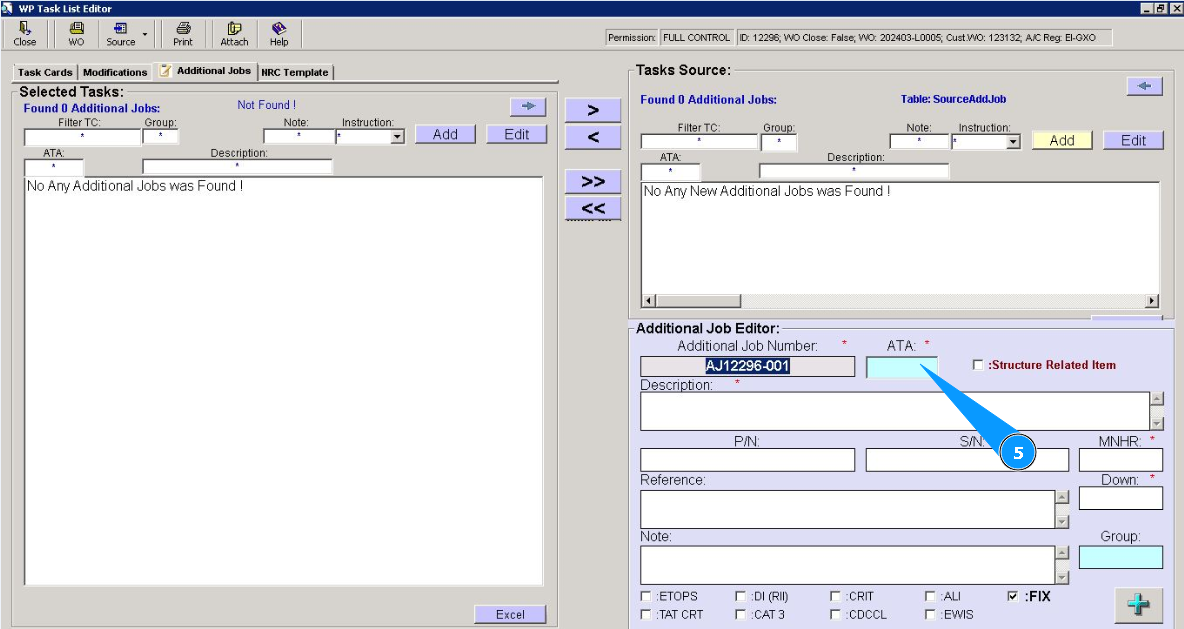
6. Select the required ATA from the dropdown list and click on the corresponding line. Note: The task number is automatically created by the program in the field "Additional Job Number".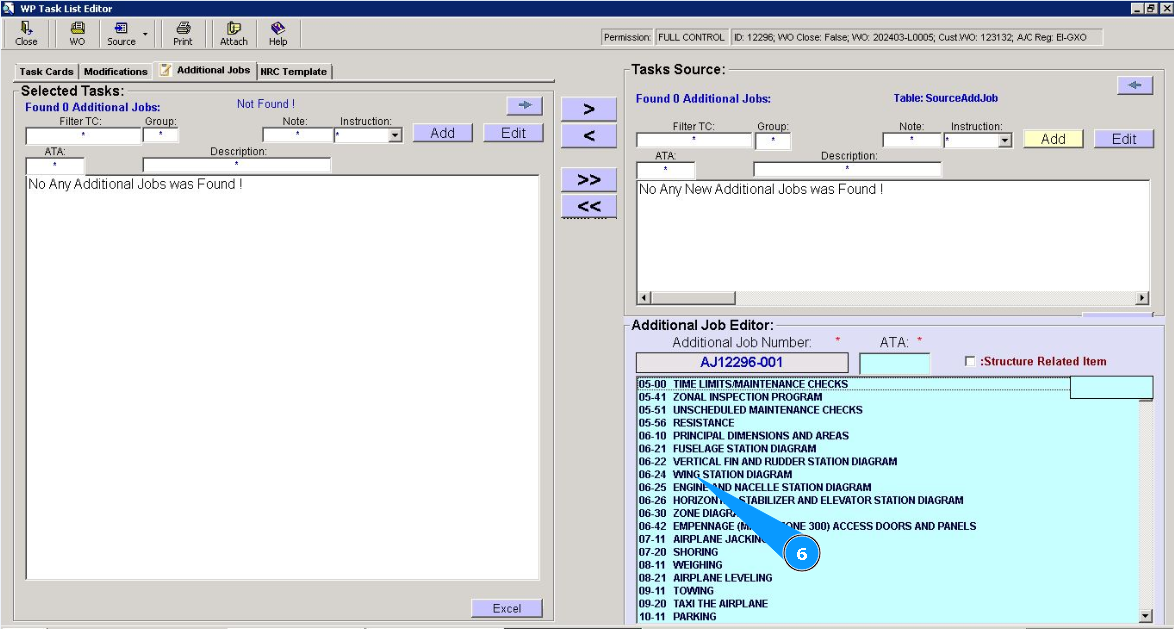
7. If the task is related to structural repair, click in the corresponding window in the field "Structure Related Item".
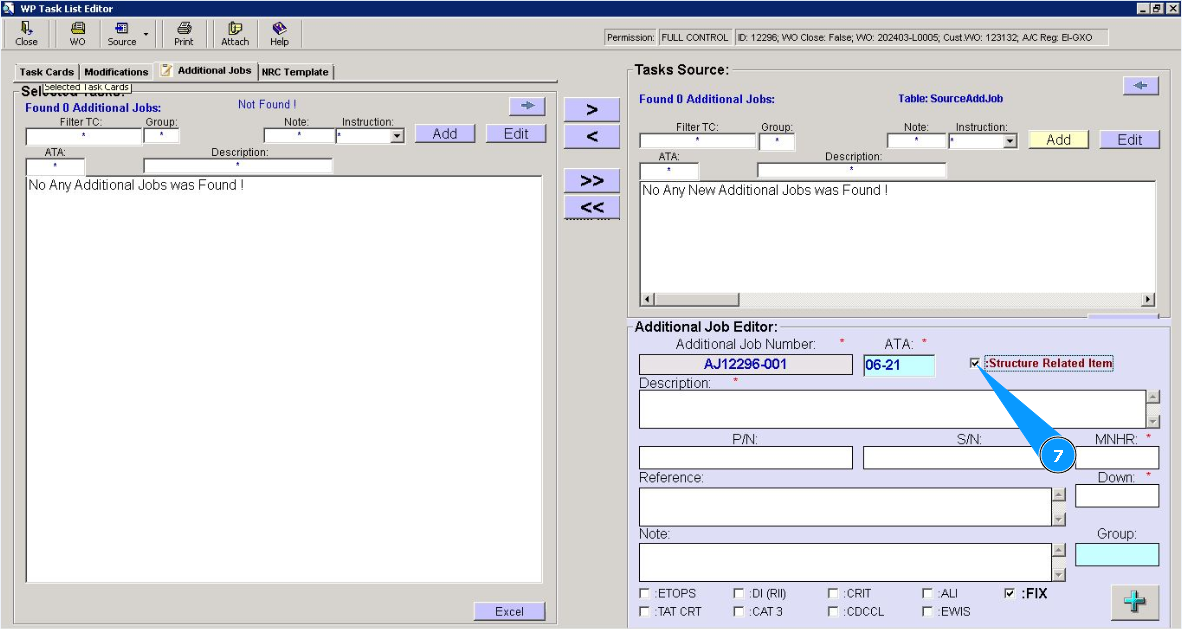
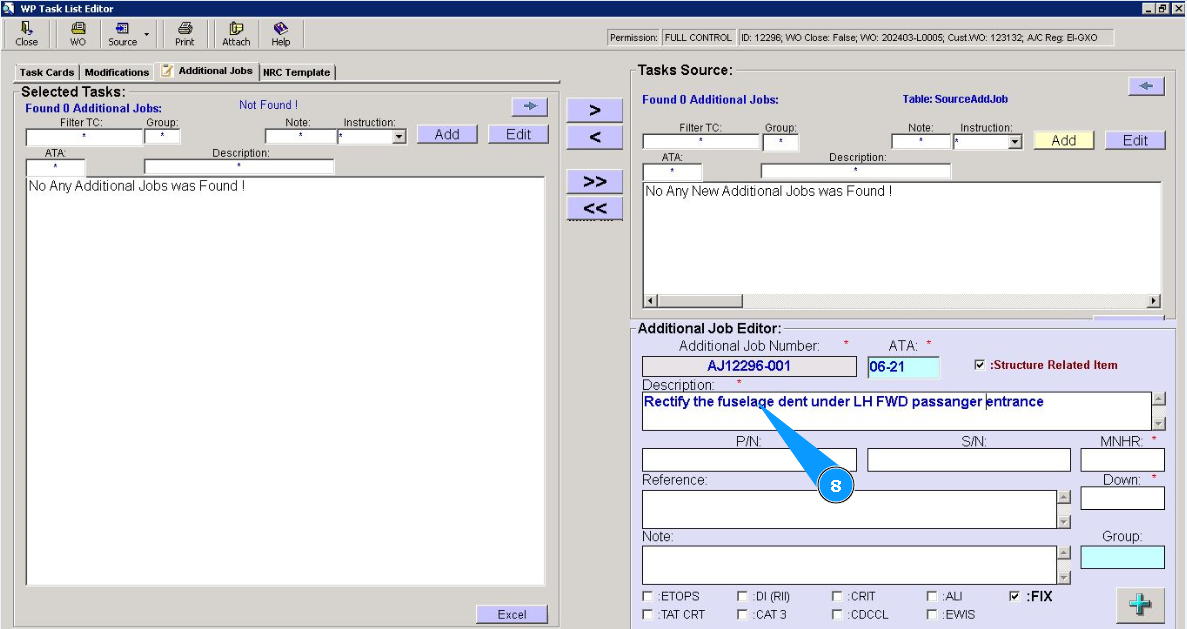
8. Enter a description of the task to perform in the field "Description".
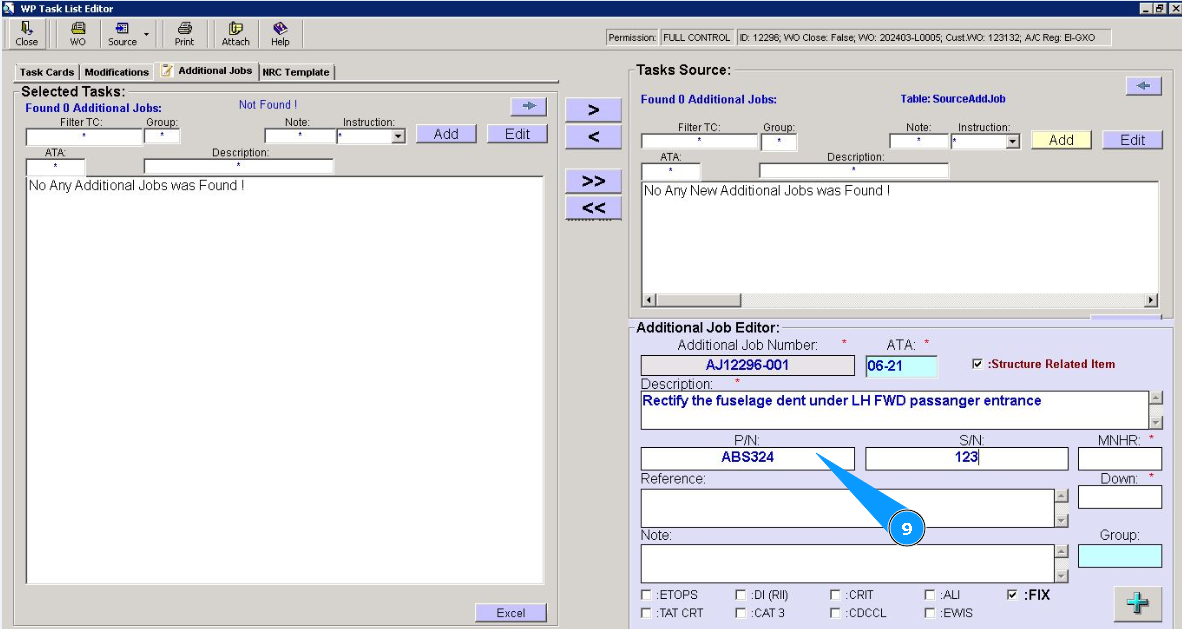
9. If necessary, enter the part and serial number of the component in the fields: "P/N" and "S/N".
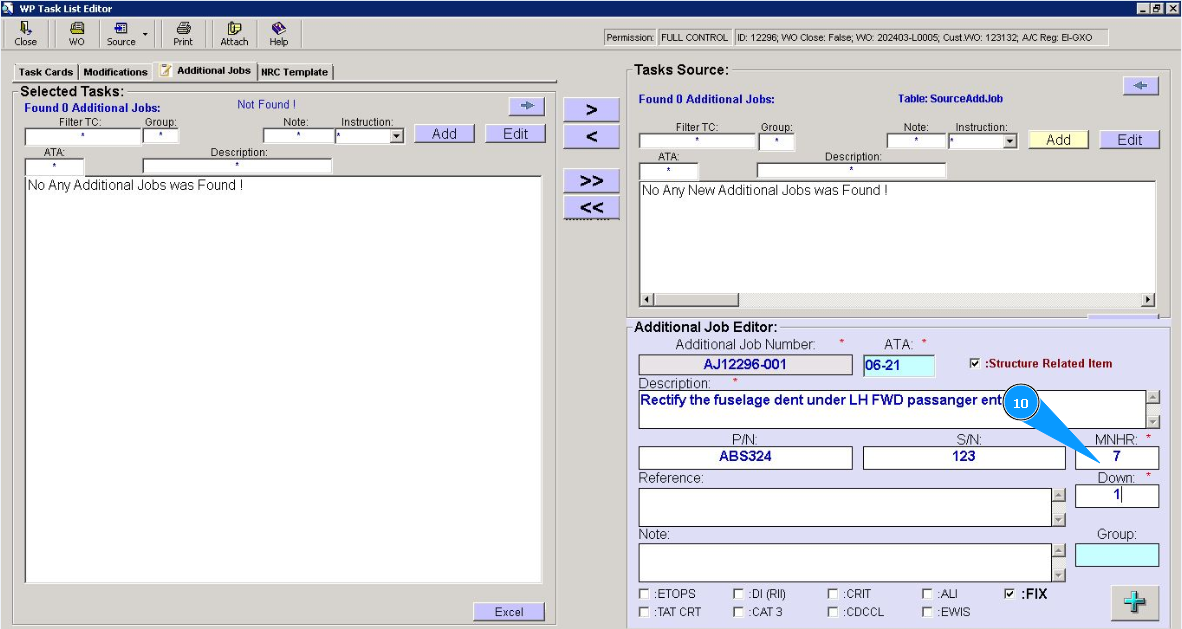
10. Enter the required number of man-hours in the field "MPD MNHR".
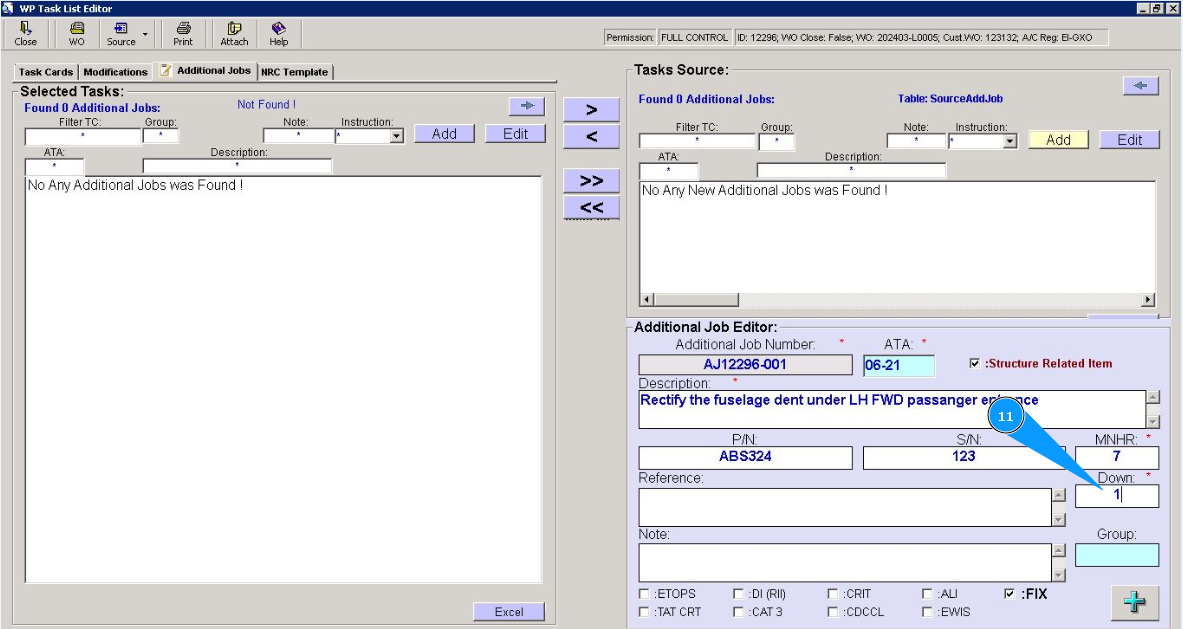
11. Enter the required number of downtime of aircraft in the field "Down".
12. To select a work type group, click in the field "Group".
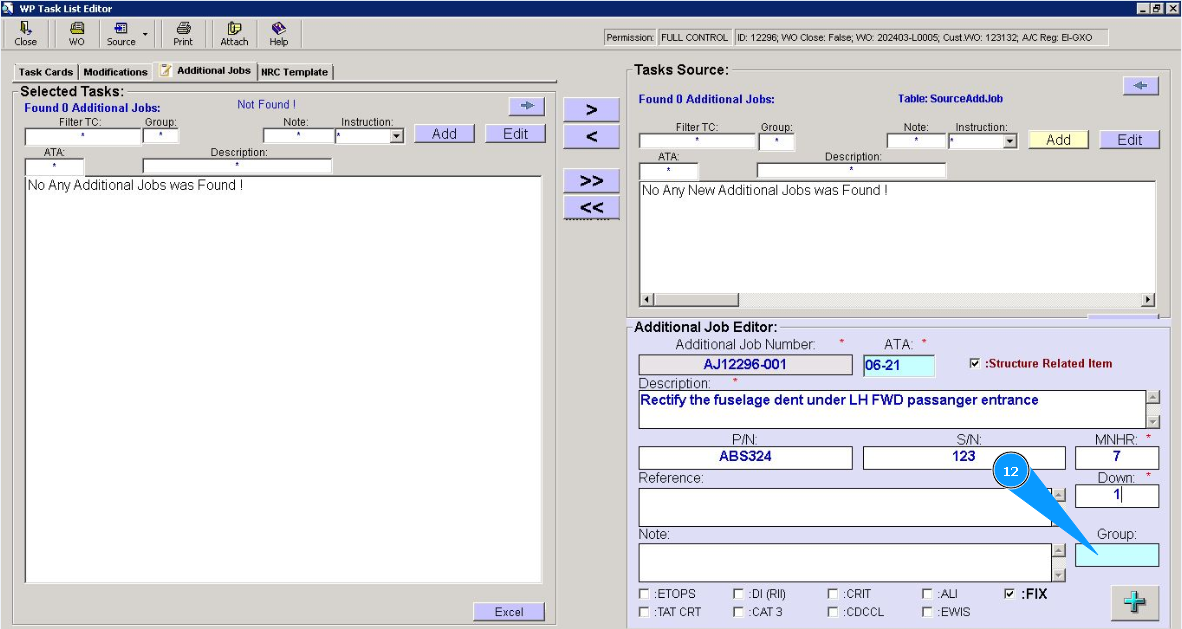
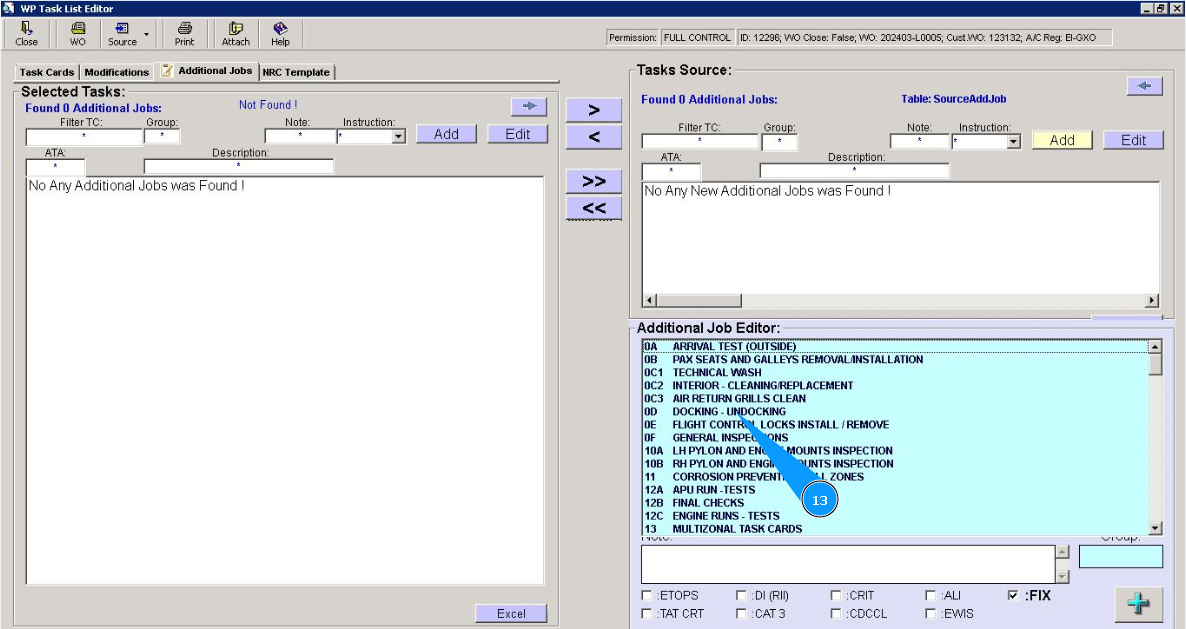
13. From the dropdown list, select the required work type group and click on the corresponding line.
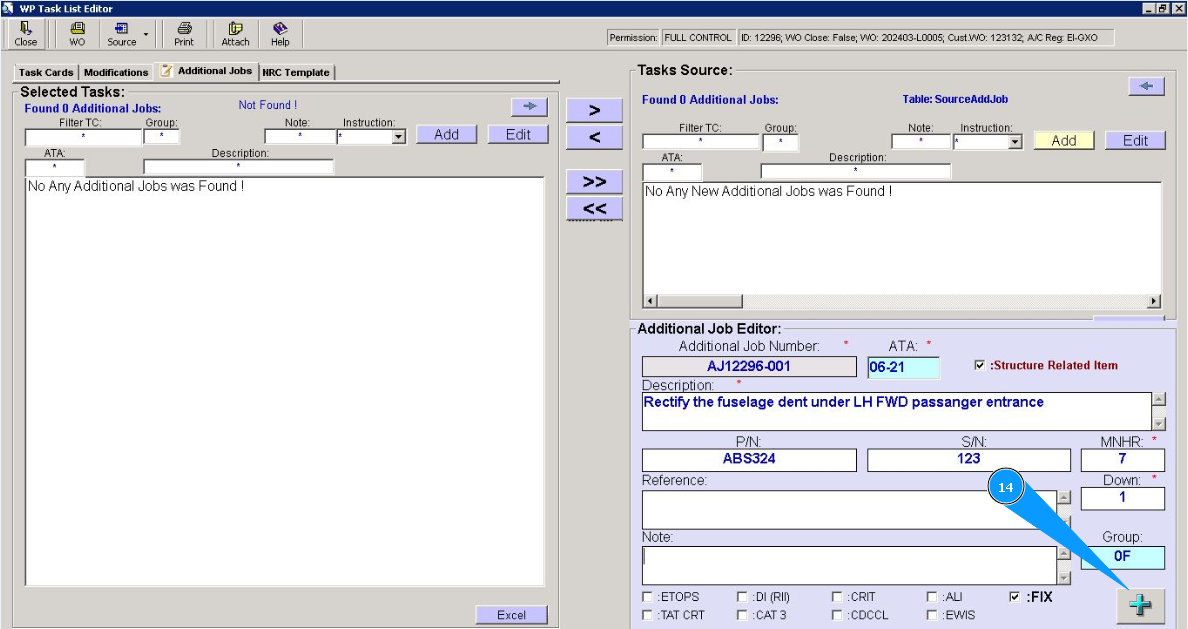
14. Click on the button plus to add a newly created task.
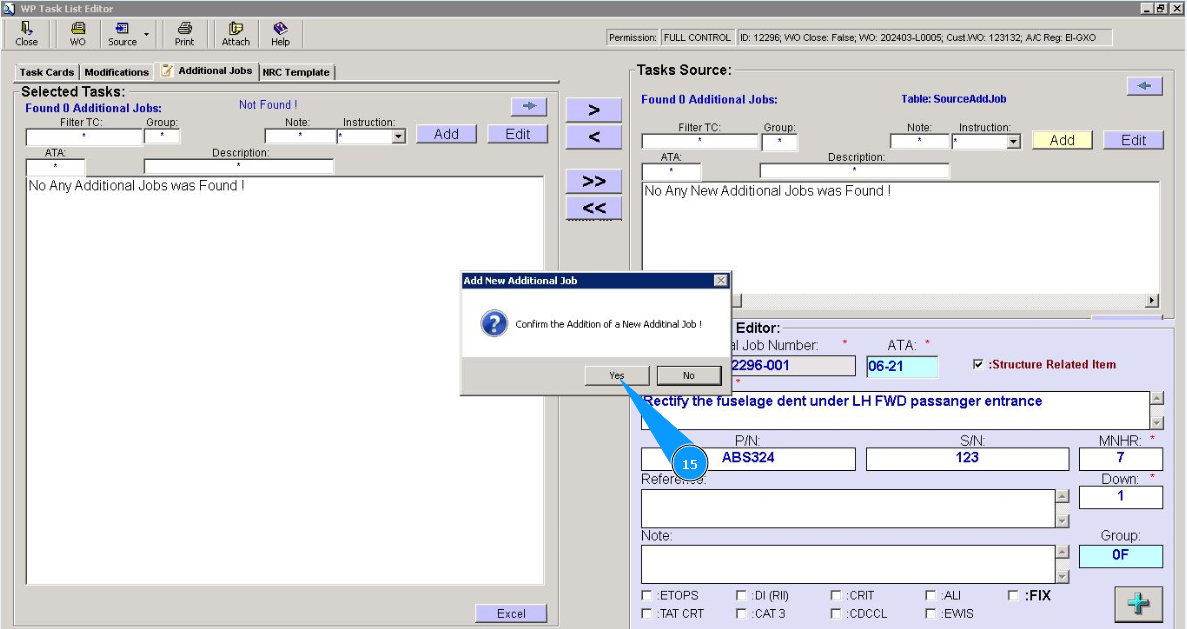
15. Click on the button "Yes", to confirm that you want to add a new task to the program.
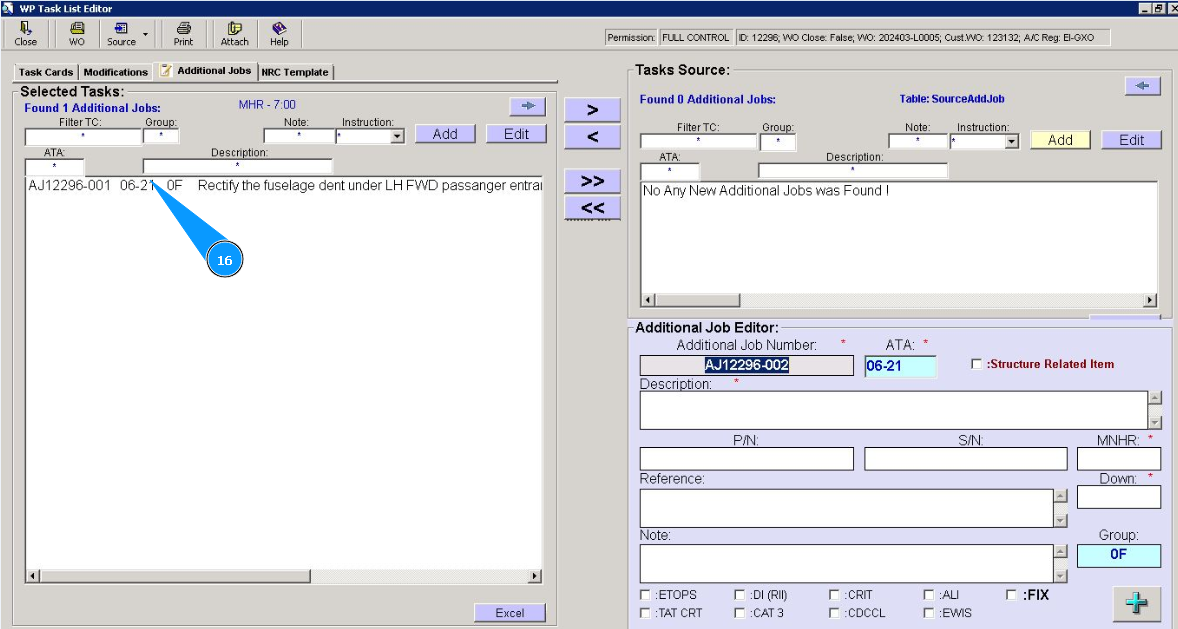
16. Check the record line with a new task displayed in the window "Selected Task". Note: If necessary, use the available filters to quickly find your task in the list, bin this case, use the fields: "Filter TC", "ATA", "Group" etc.