How to close a customer request after completion
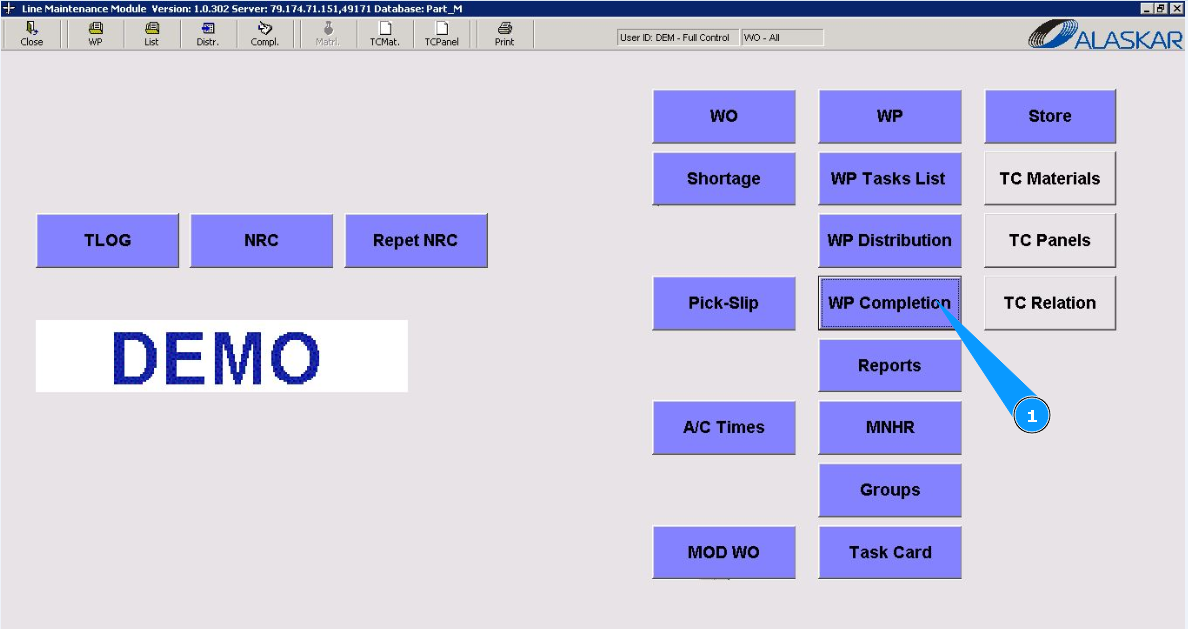
1. To close the customer_request after completion, go to the submodule "WP Completion".
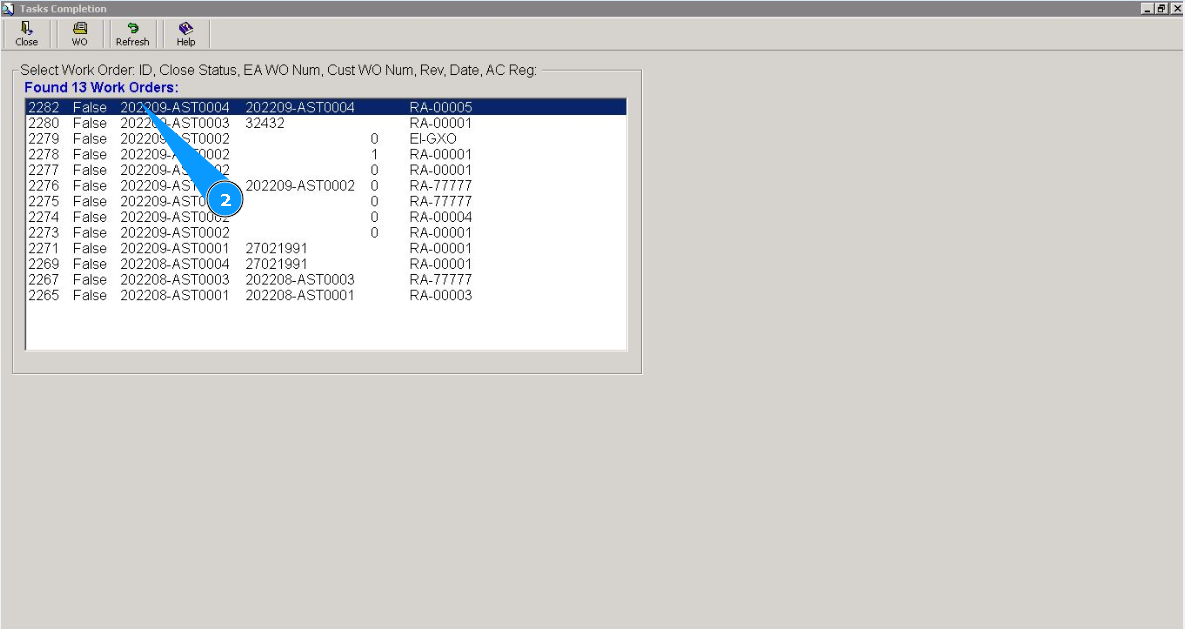
2. Select your required WP from the list of WO for distribution and click on the corresponding line.
3. Then go to the tab "All". Note: If necessary, it is possible to mark the completion in the tab: "Customer Request".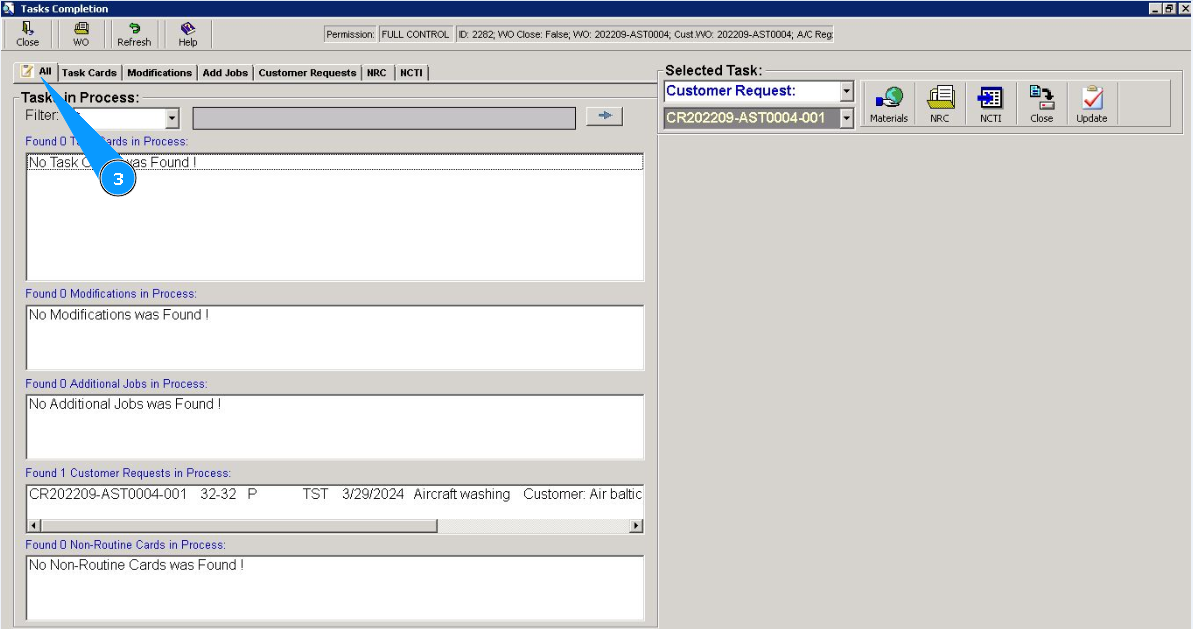
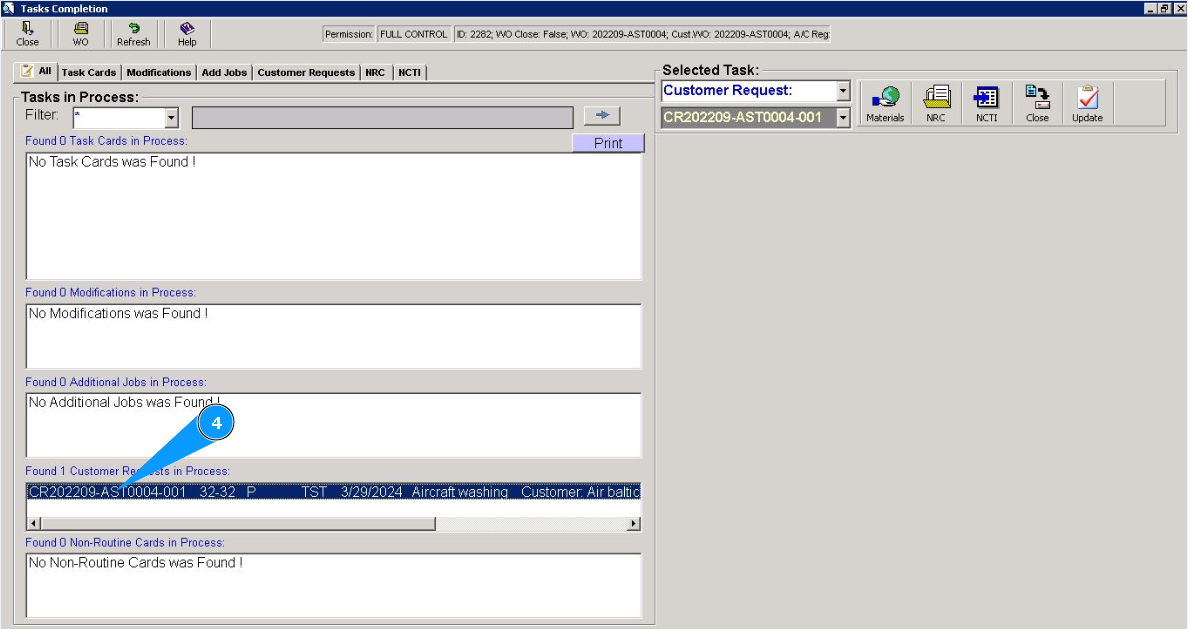
4. Select the customer request to distribute from the list in the window "Customer Request in proccess".
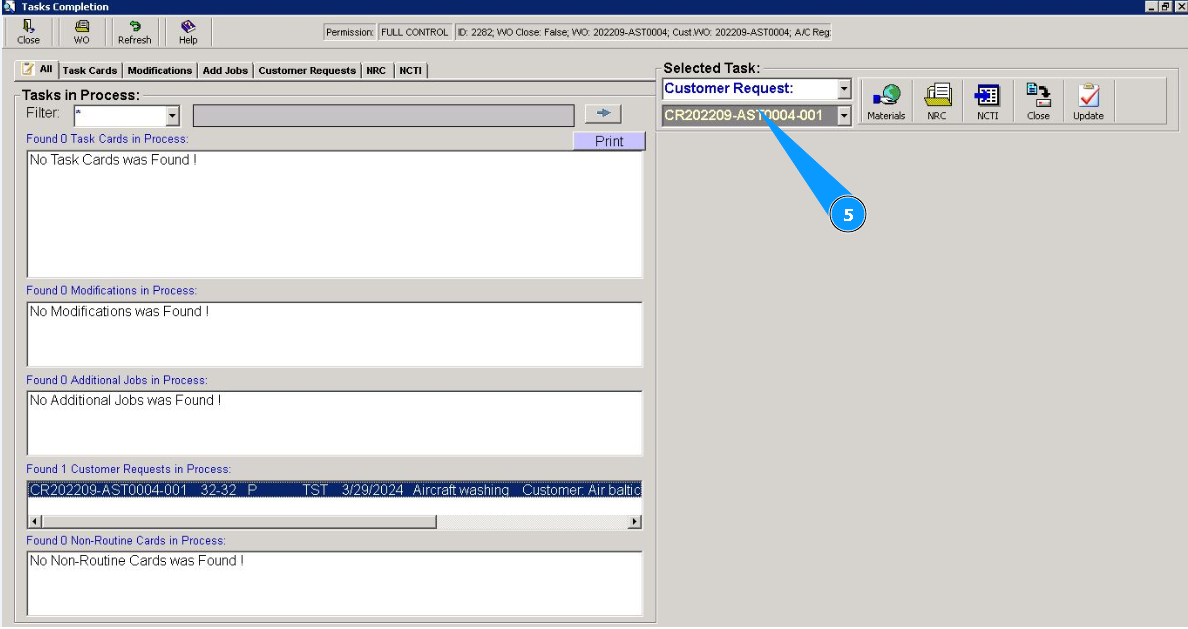
5. Check that the customer request number is displayed in the field "Selected Tasks".
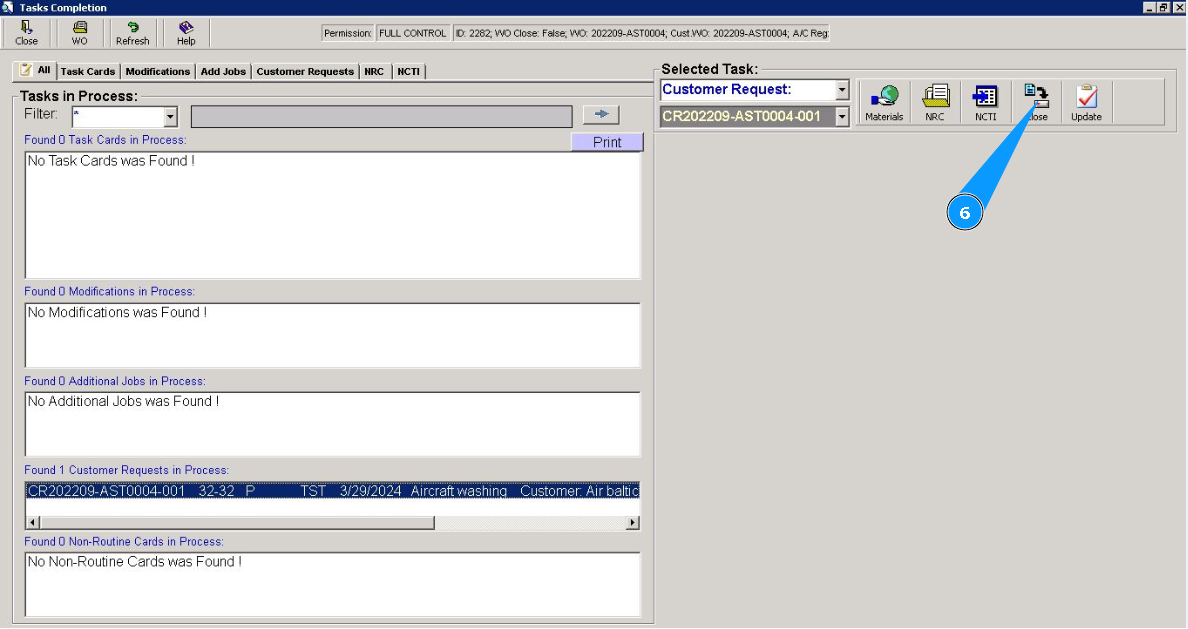
6. Click on the button "Close", to open thecustomer request editor.
7. Enter quantity of man-hours in hours in the field "Hour". Note: The time and date fields are filled in automatically when you work with the editor. But if necessary, you can change the current date.
8. Enter quantity of man-hours in minutes in the field "Minute".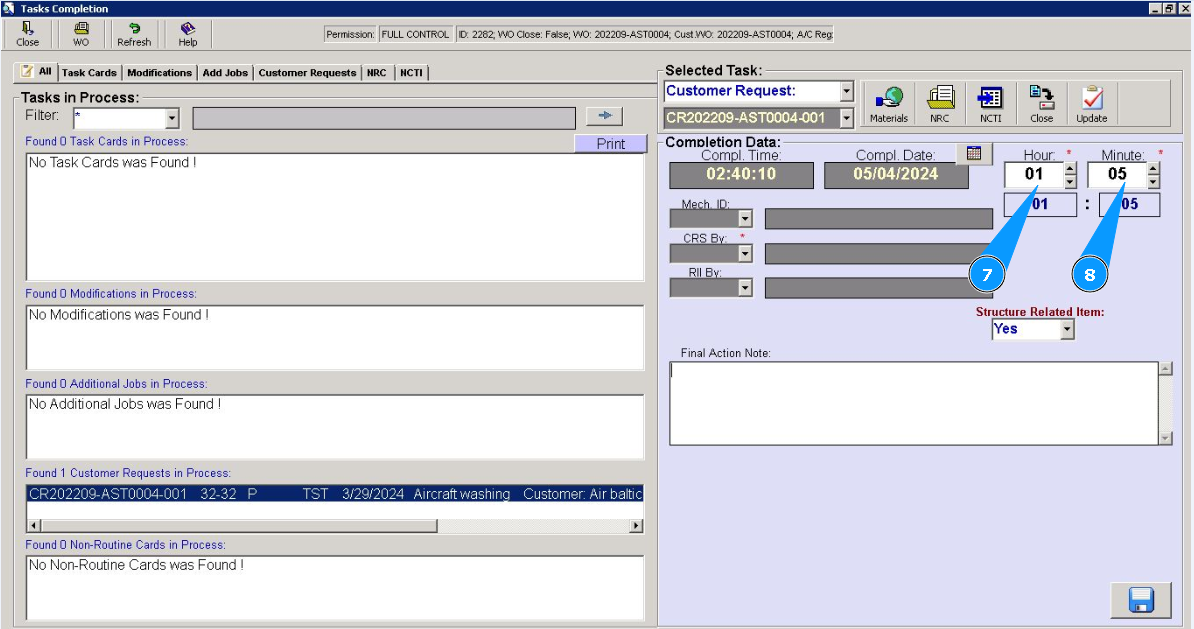
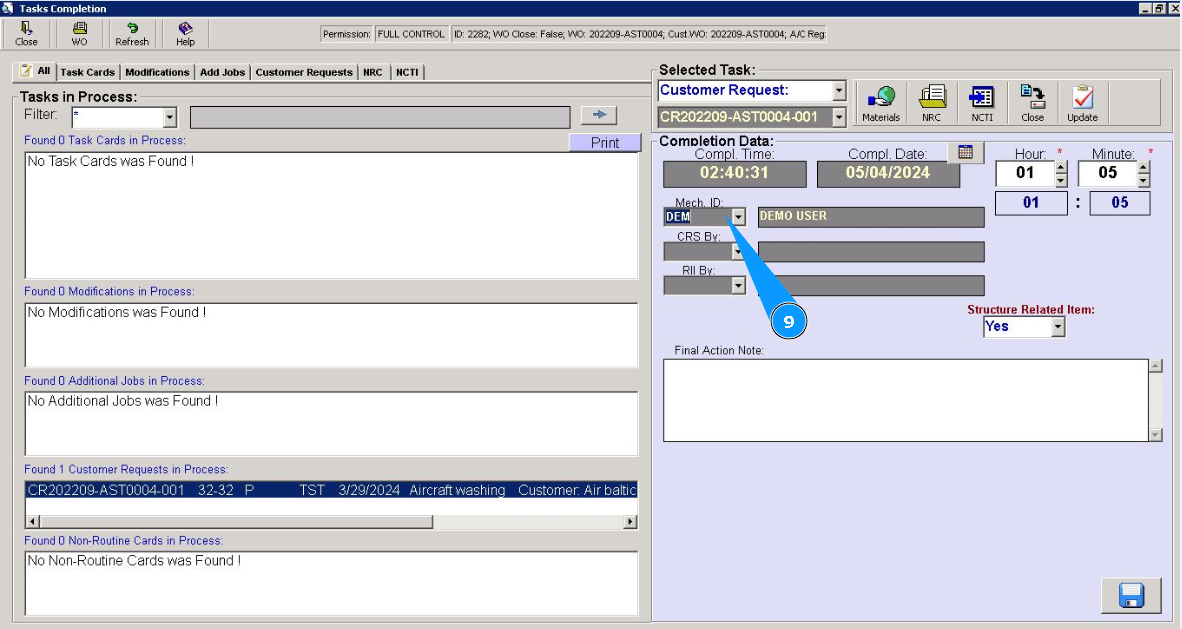
9. Select from dropdown list ID of staff who have performed this customer request in the field "Mech.ID".
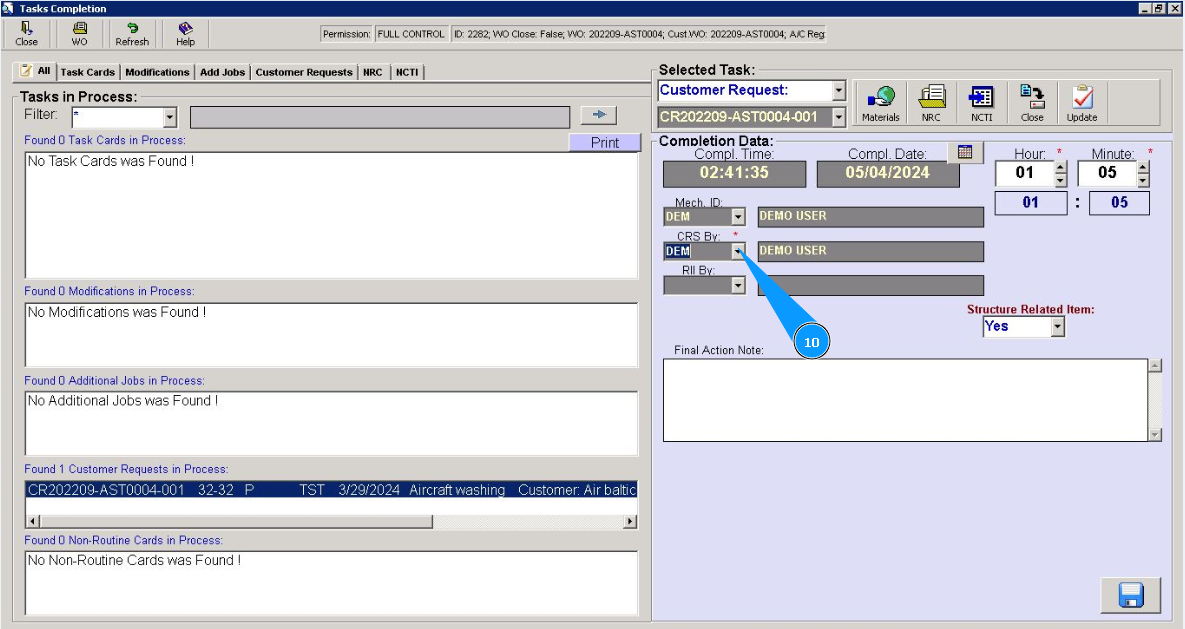
10. Select from dropdown list ID of the certifying staff who has issued CRS for customer request in the field "CRS By".
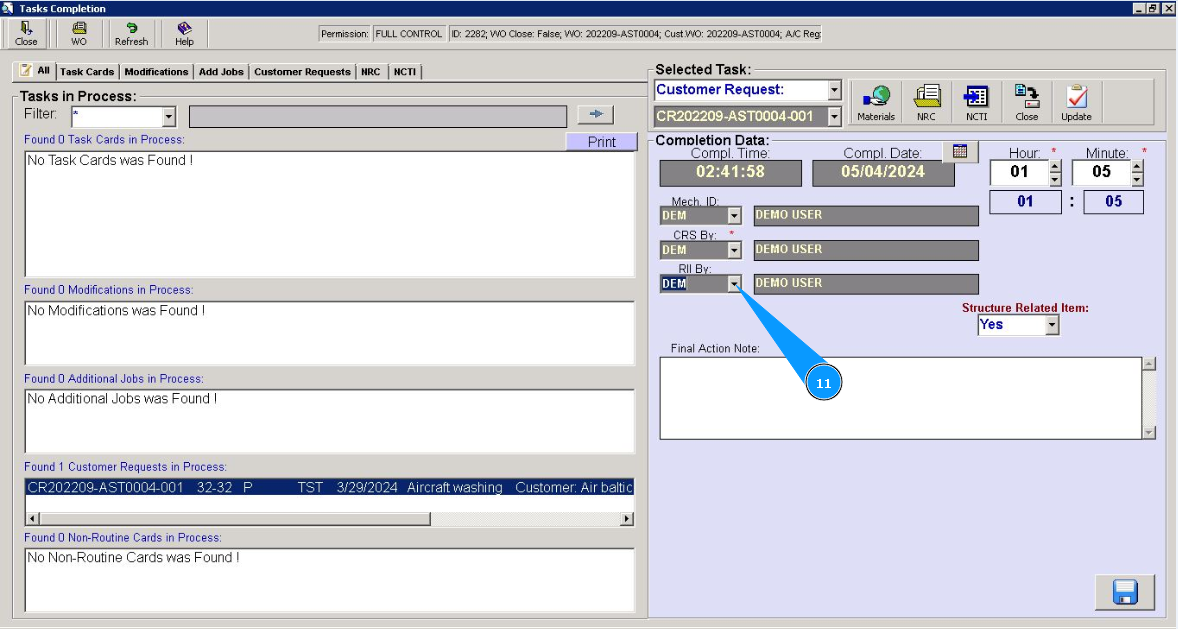
11. If necessary, select from dropdown list ID of the staff who has inspected the performed customer request in the field "RII By".
12. If necessary, select "Yes" from the dropdown list, if this customer reques is related to structural repair in the field "Structure Related Item".
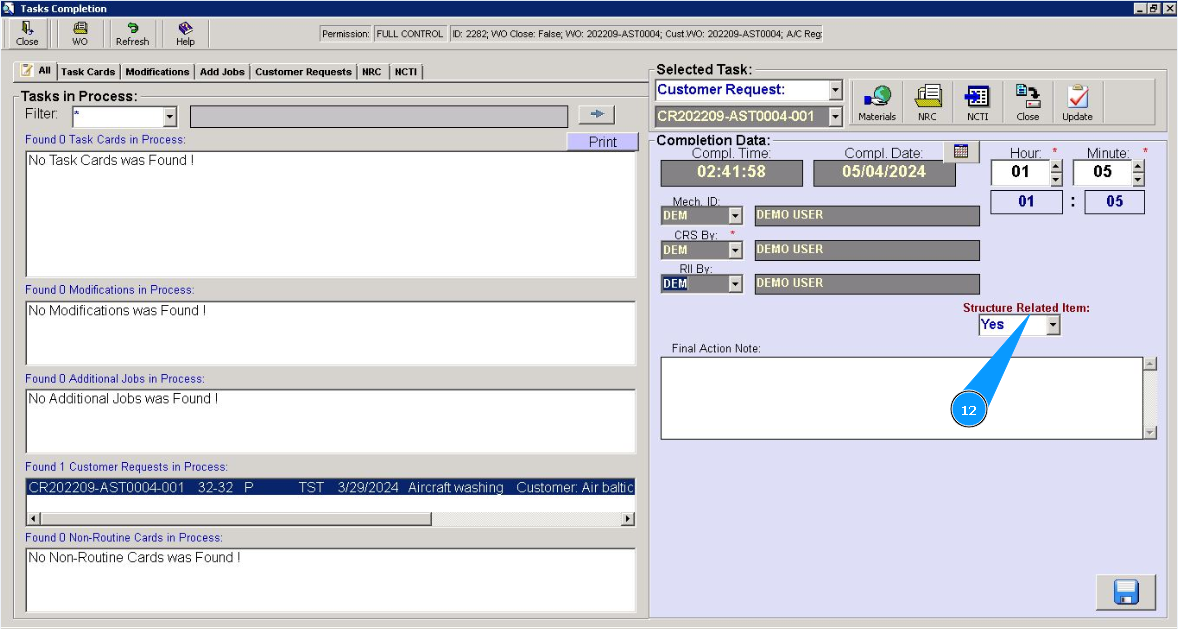
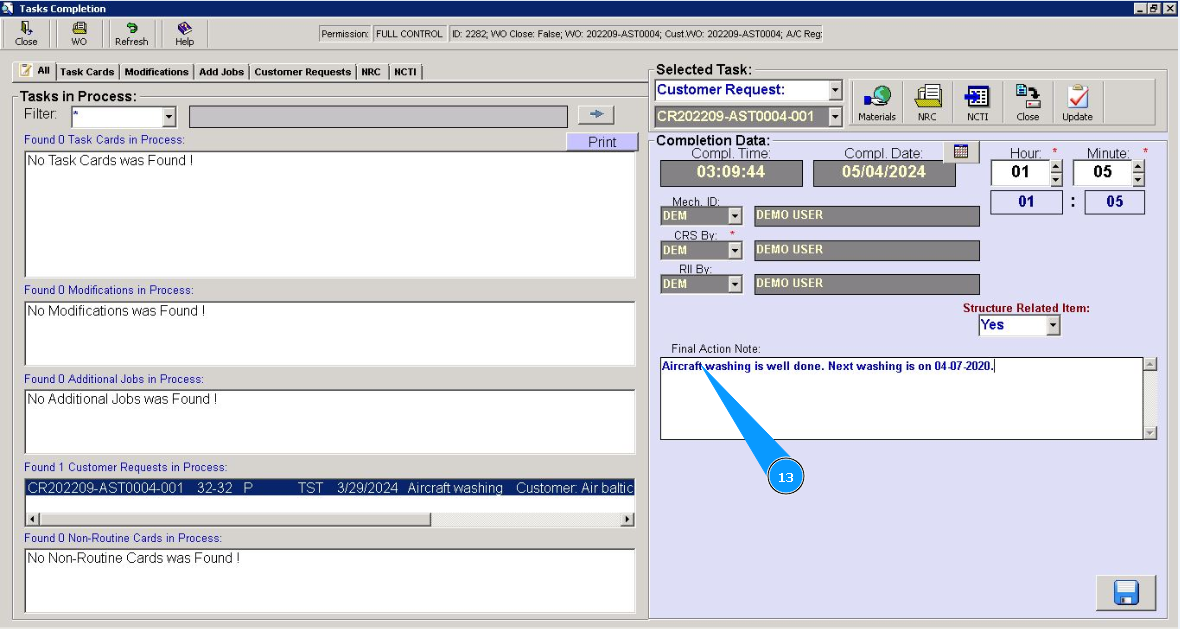
13. If necessary, enter information about possible final comments in the field "Final Action Note".
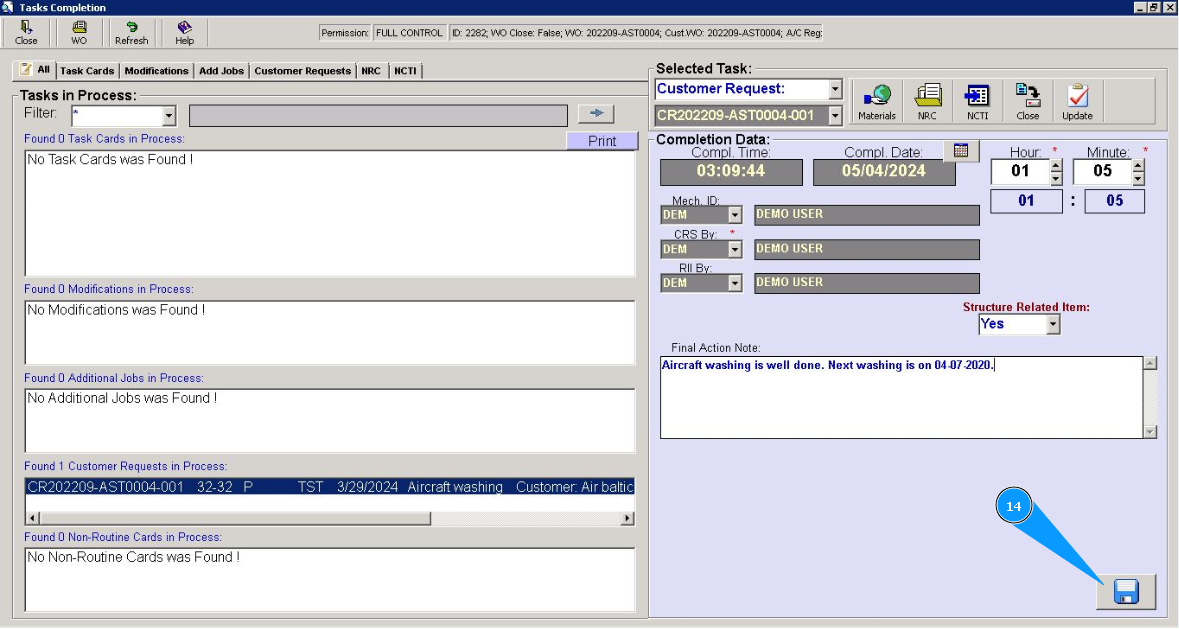
14. Click on the button with a floppy disk symbol to save the completed NRC to the program.
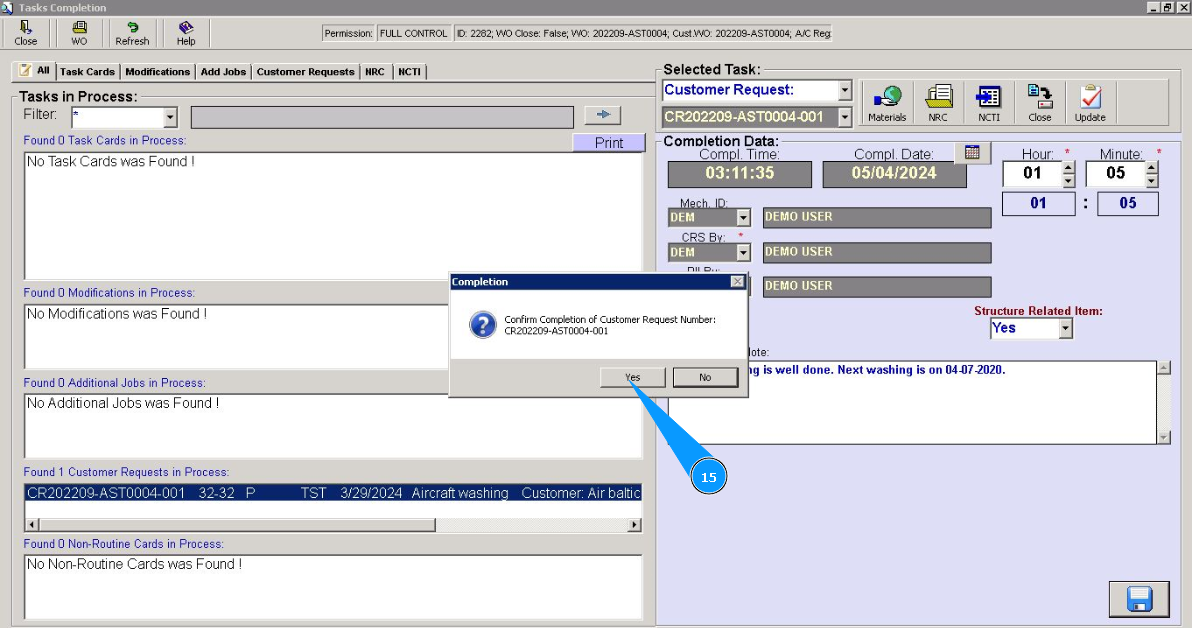
15. Click on the button "Yes", to confirm the completion of the customer request.
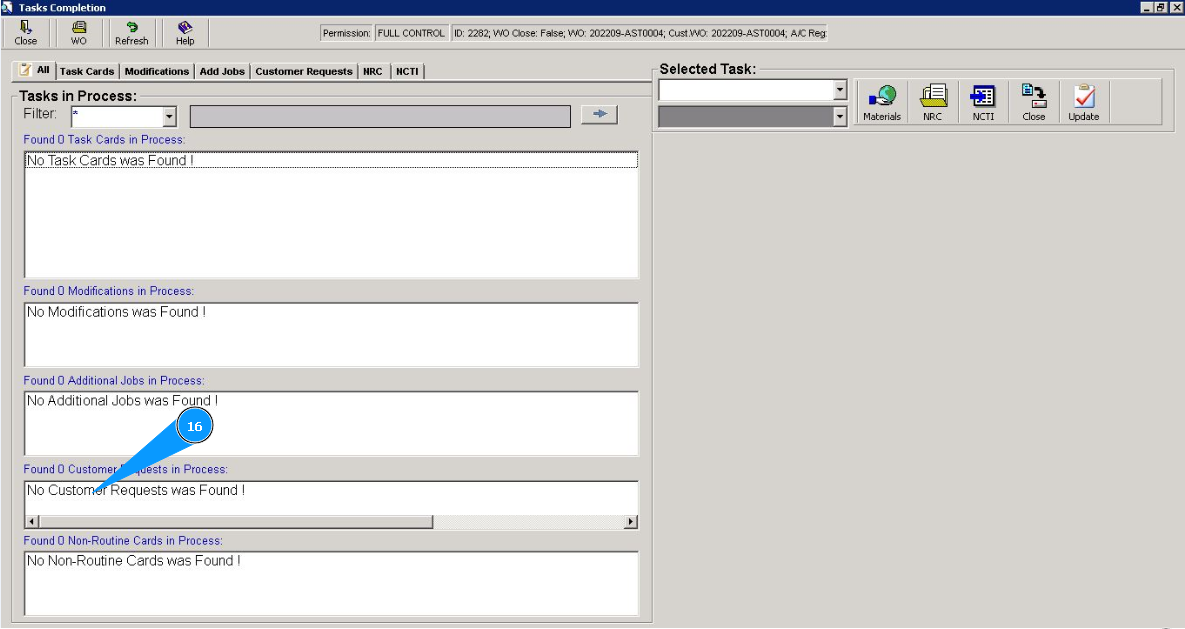
16. Check that the required customer request has disappeared from the list in the window "Tasks Cards in proccess".