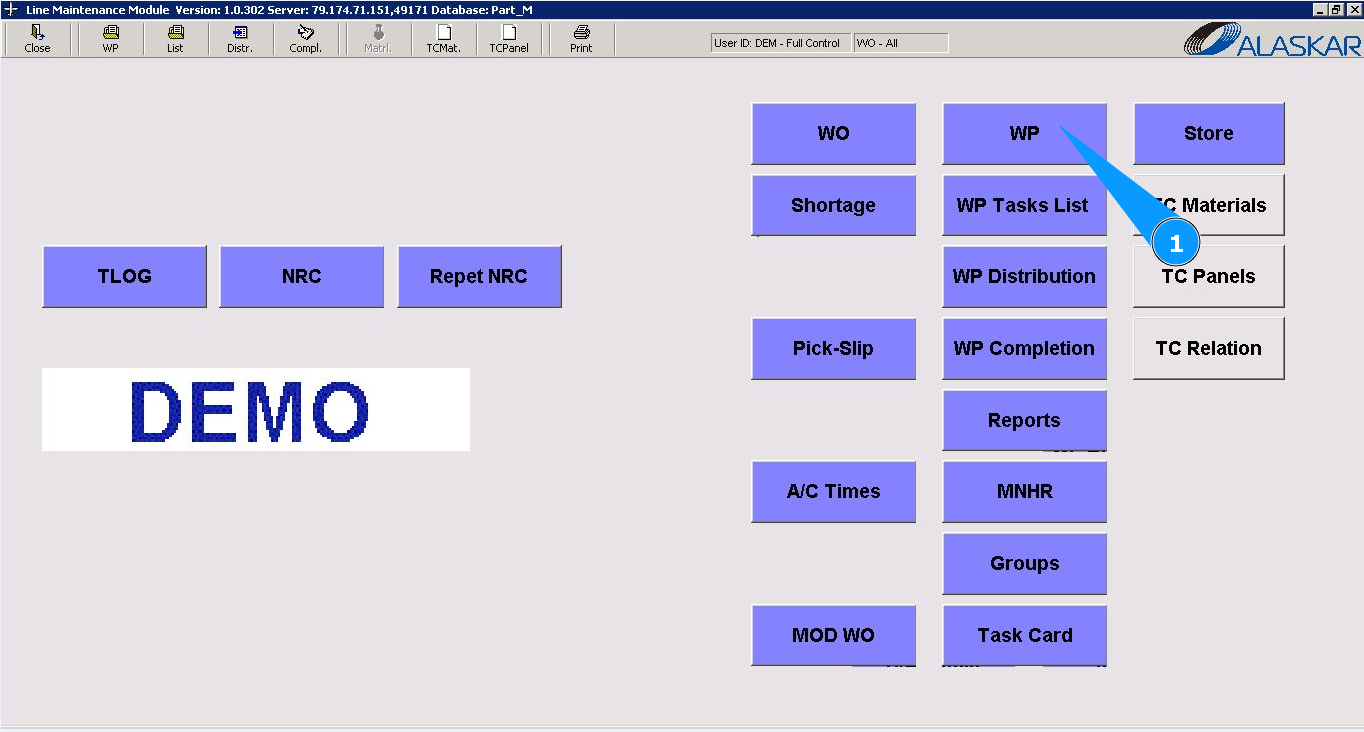
How to close Work Package
1. To close the Work Package, go to the submodule "WP".
2. Enter the WO number in the field "Filter WO" and press the knob "Enter" on your keyboard. Note: If necessary, use other search filters, the fields: "Filter A/C Reg.", "Filter A/C SN", "Filter Customer" etc.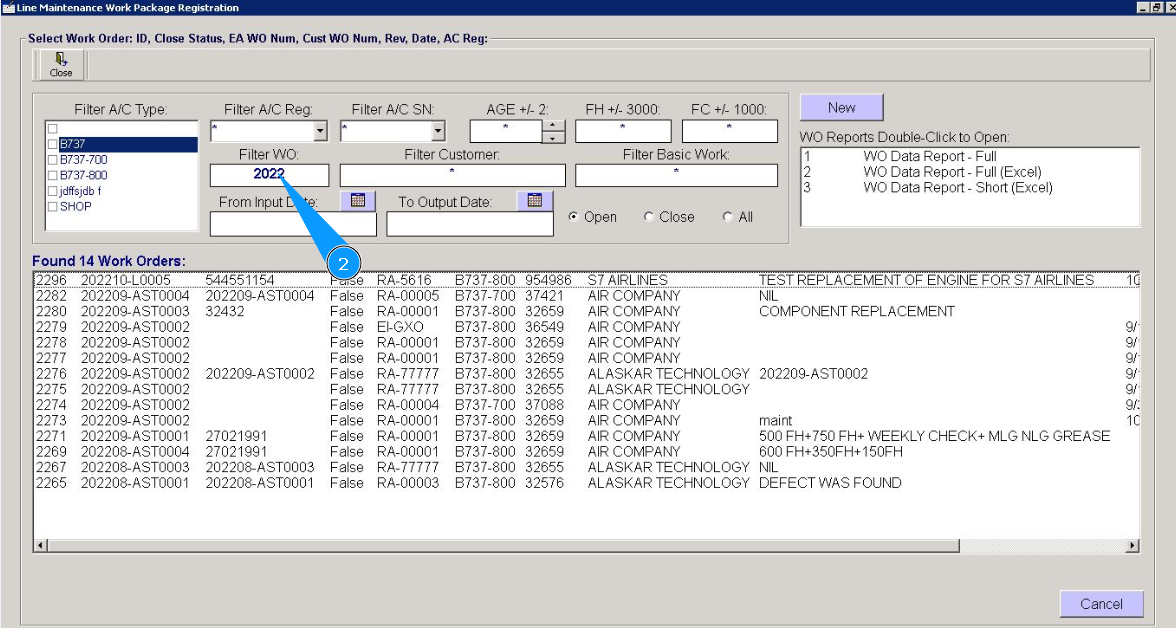
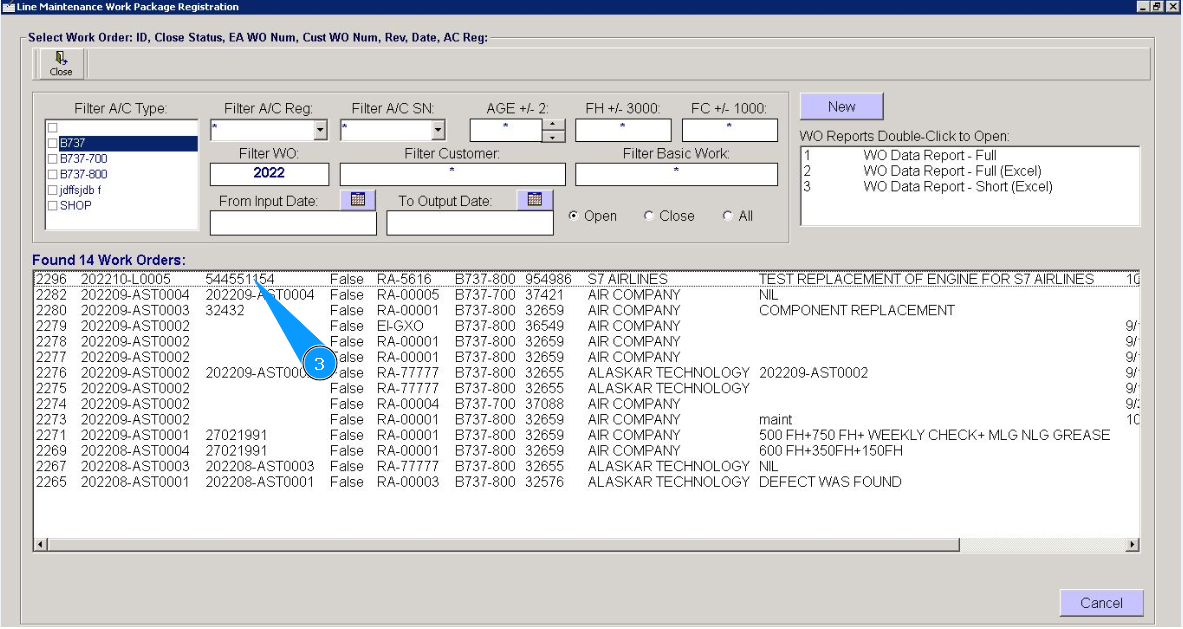
3. Select the required line with the record and click on it twice.
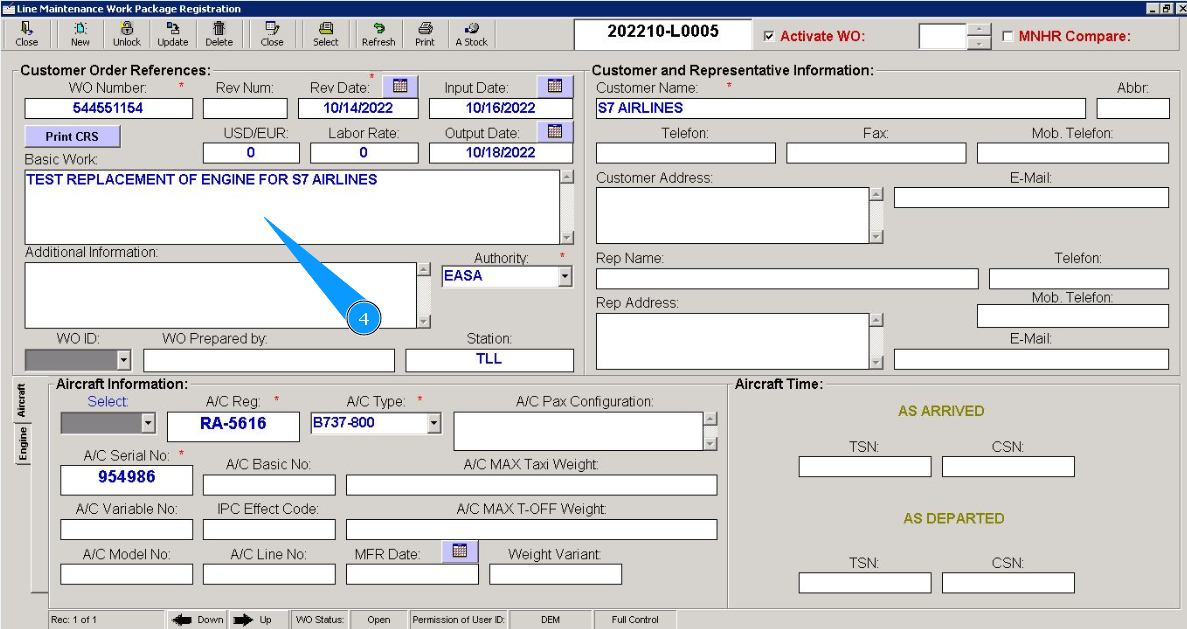
4. If necessary, enter additional data to the WP card.
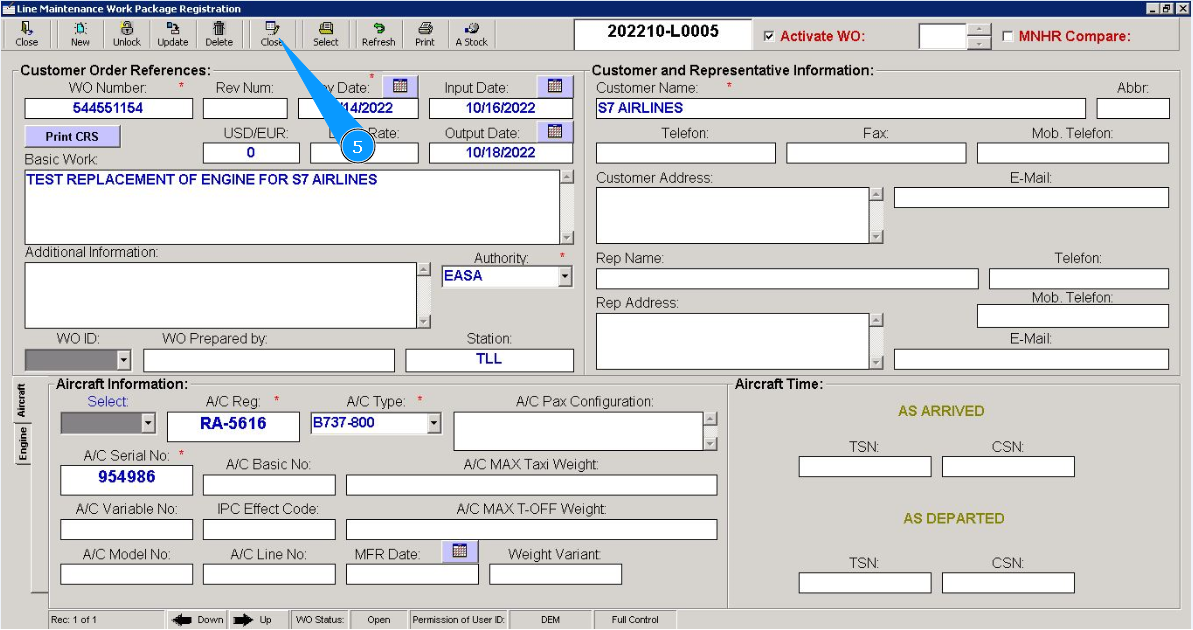
5. Click on the button "Close", to close the WP.
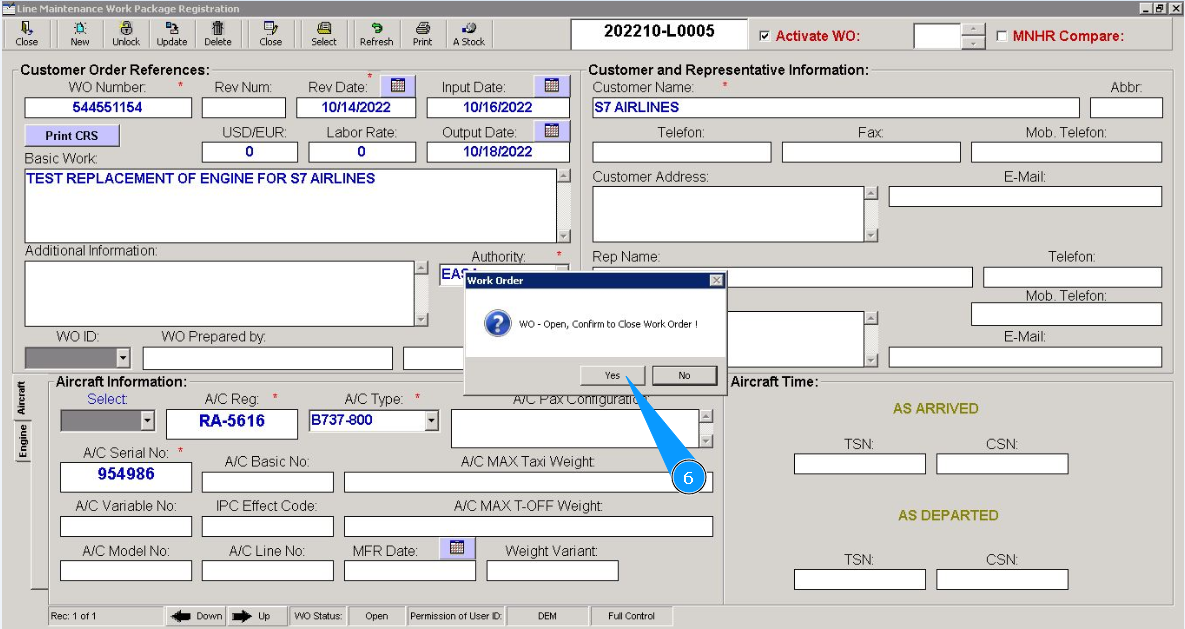
6. Click on the button "Yes", to confirm WP close.
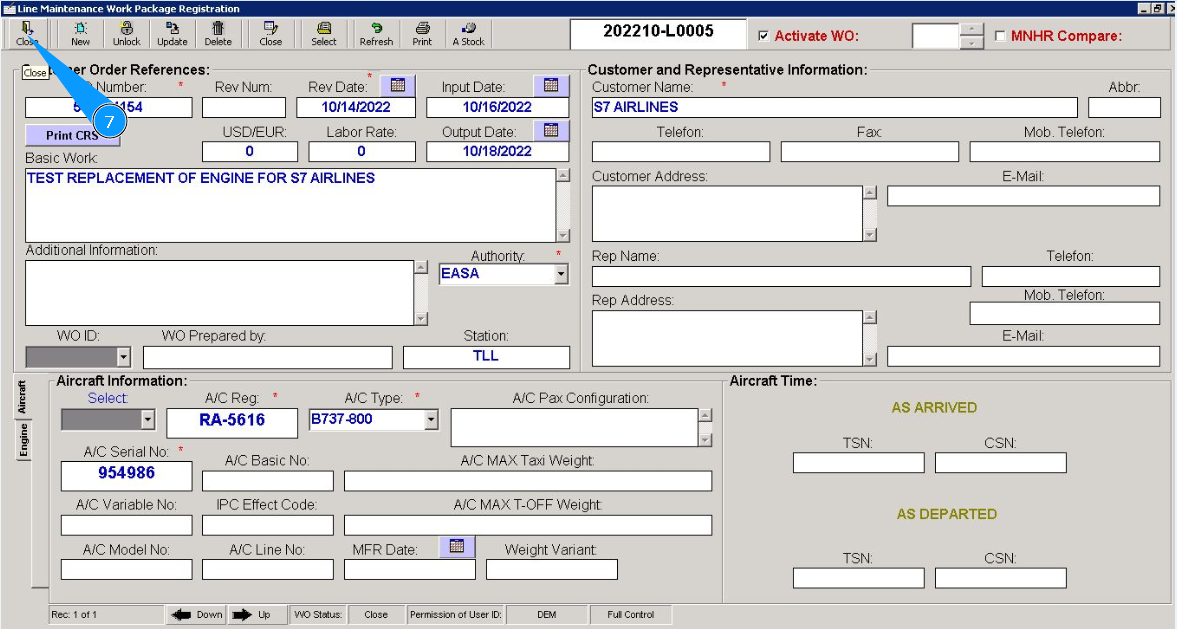
7. Click on the button "Close", exit from WO edit mode.
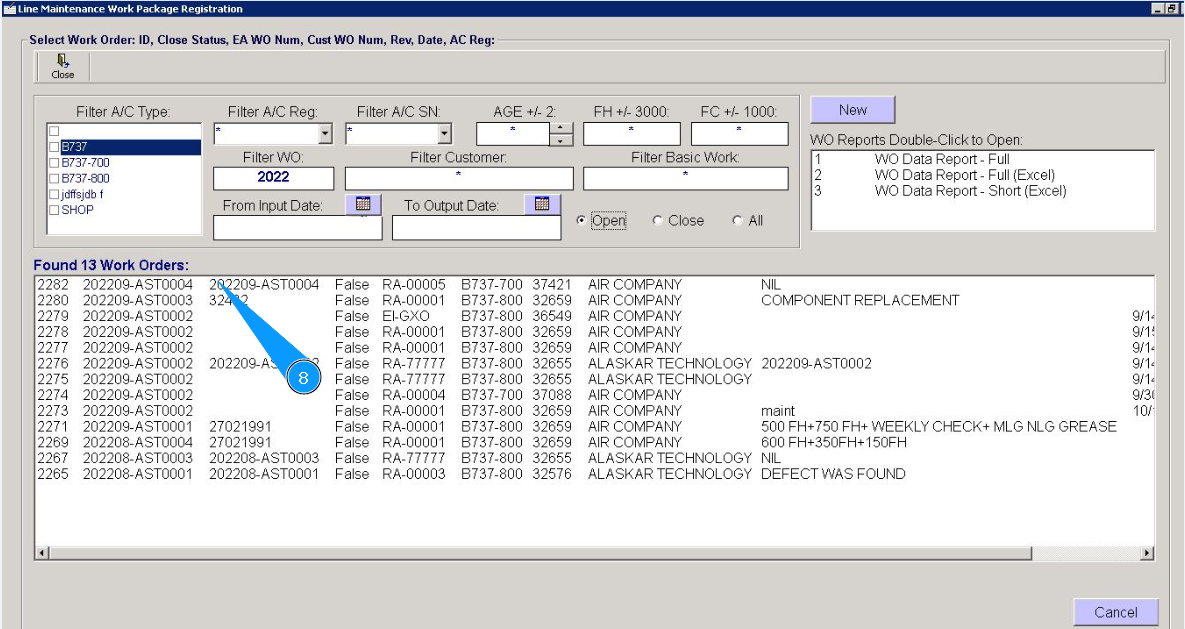
8. Make sure that the WP line is disappeared from the opened works list in the window "Work Orders".
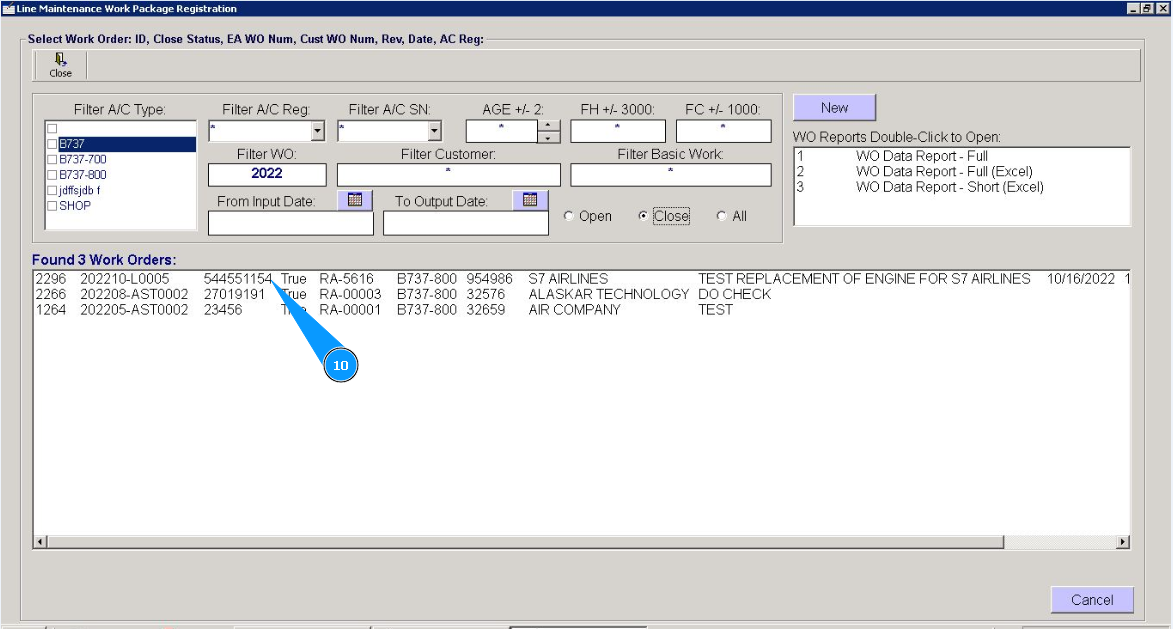
9. If necessary, click on the filter "Close".
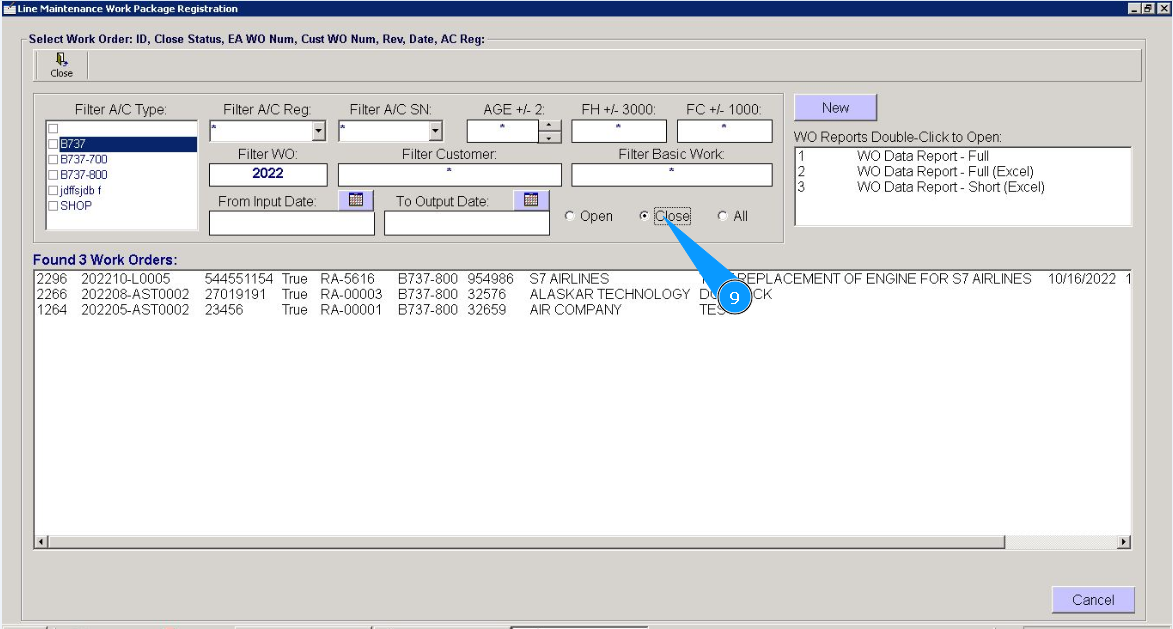
10. Make sure that the WP record is displayed in the closed WO list in the window "Work Orders".