How to change the status of a task (modification, additional work, request from the Customer, Non-Routine Card, Non-Completed Task Item, named in the text of this instructions: “other”) created for WP
Note: This instruction describes the steps to change the status of a task created for WP. But, to change another type of work created for WP, just go to the required tab and follow the steps of this instruction. Use tabs: "Modific.", "Add.Jobs", "Customer Requests", "NRC", "NCTI".
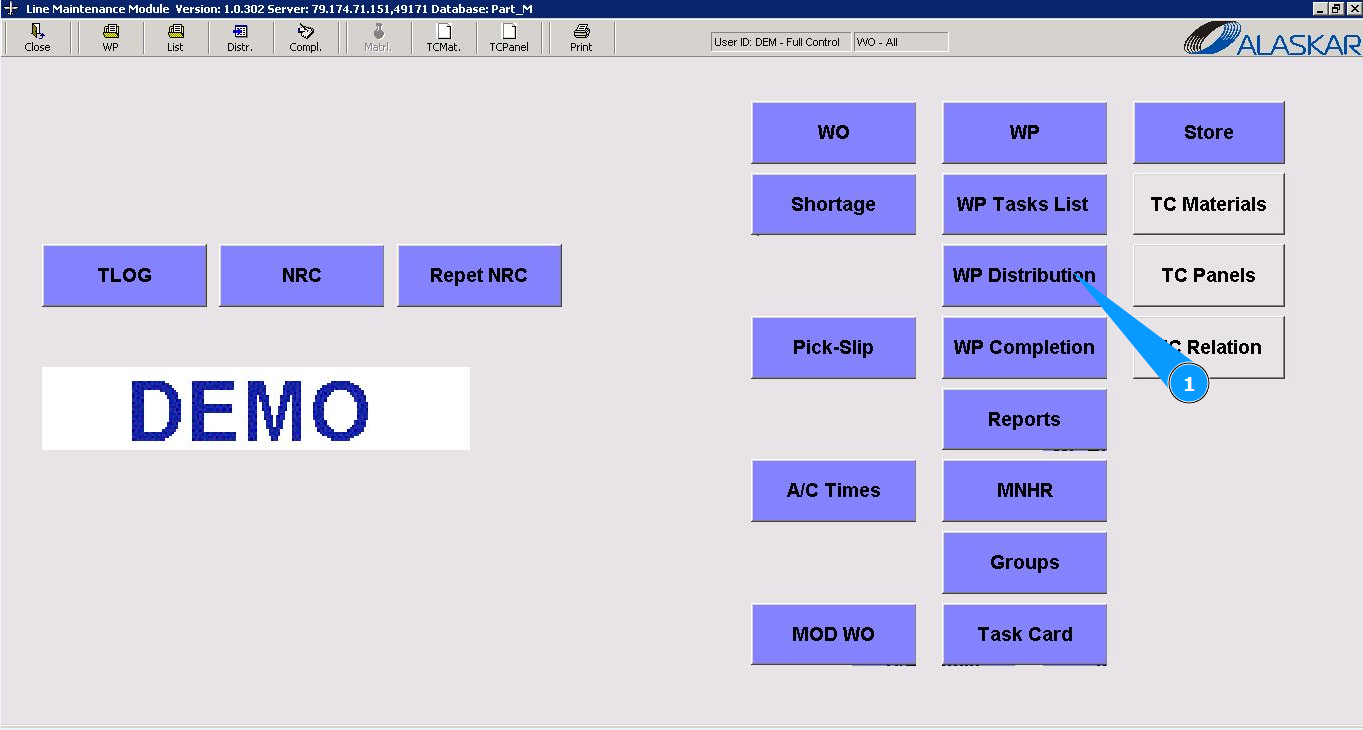
1. In order to change the status of a task (modification, additional work, request from the Customer, Non-Routine Card, Non-Completed Task Item, named in the text of this instructions: “other”) created for WP", go to the submodule "WP Distribution".
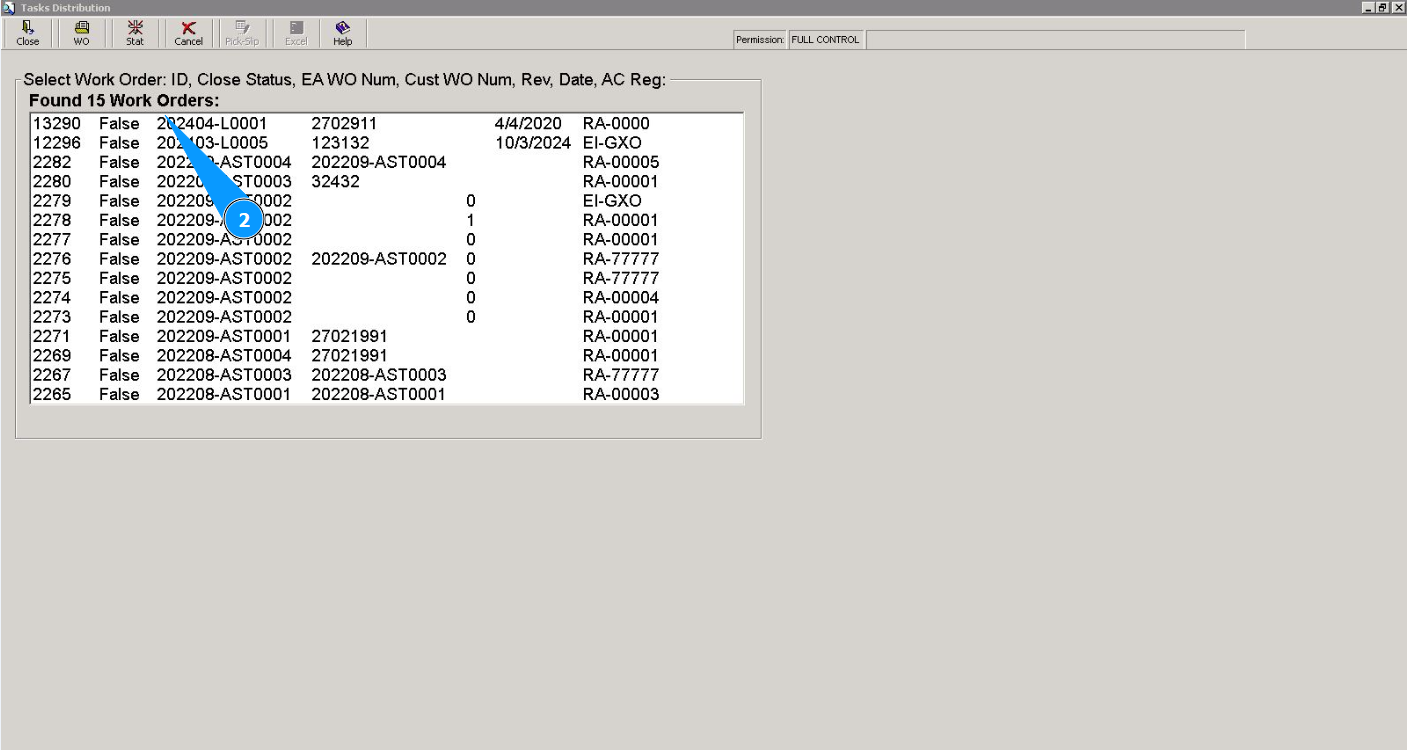
2. Select your work package from the list of packages and double click on the corresponding line.
3. Then go to the tab "Task Cards" ("other".see Note).
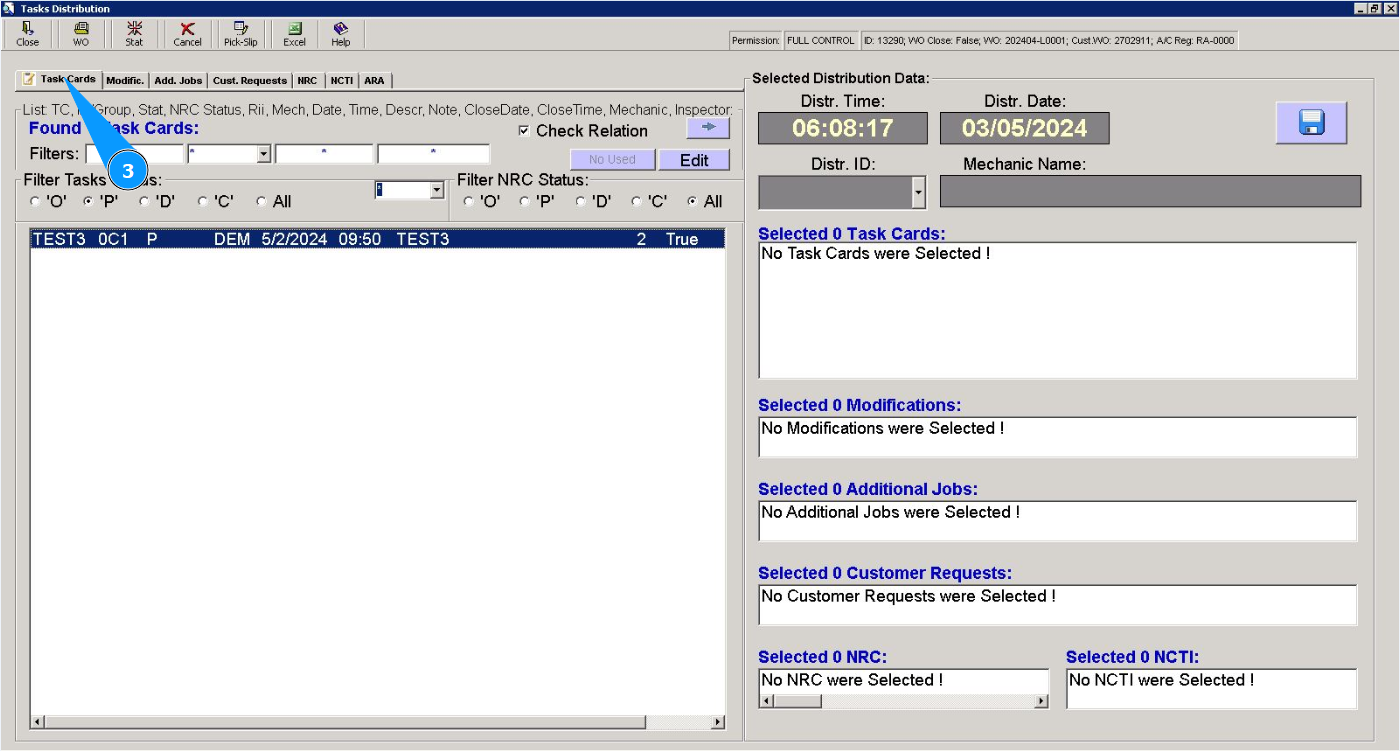
4. Click on the line with the required task ("other".see Note).
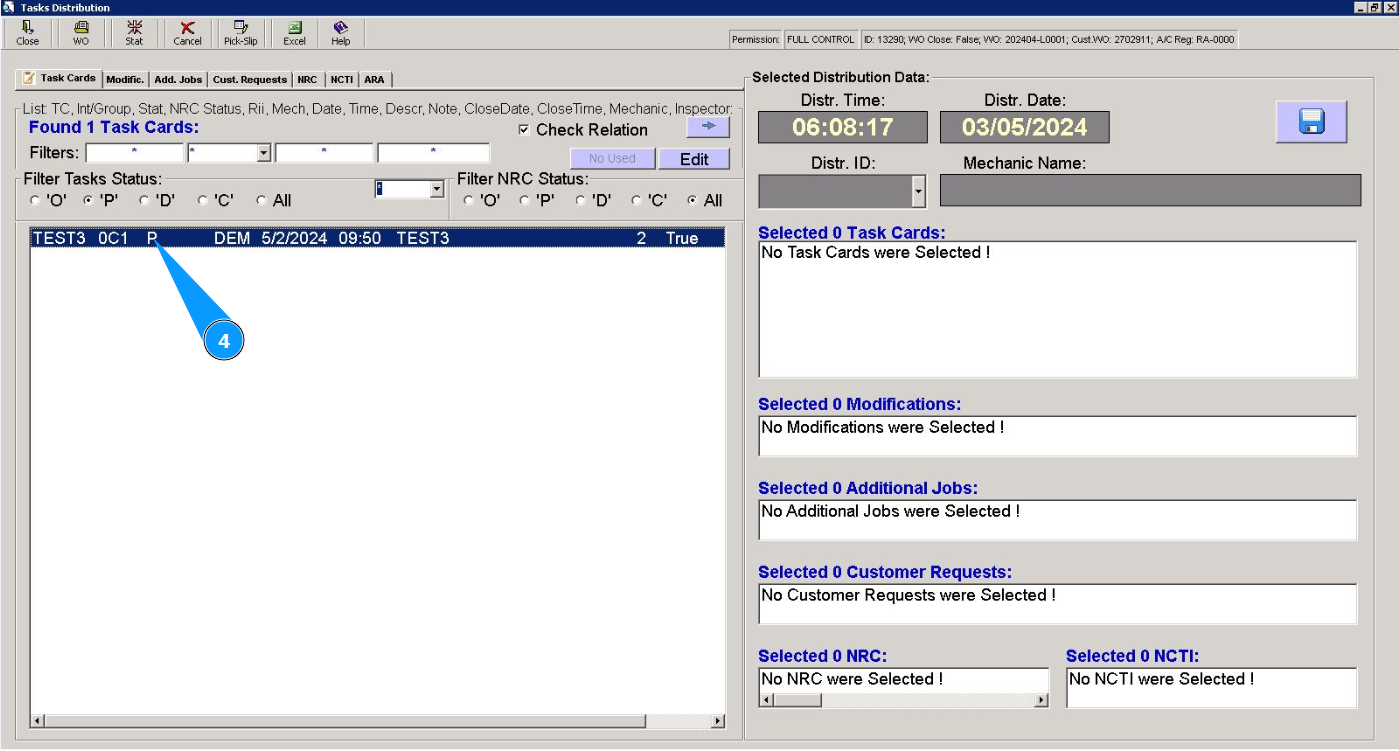
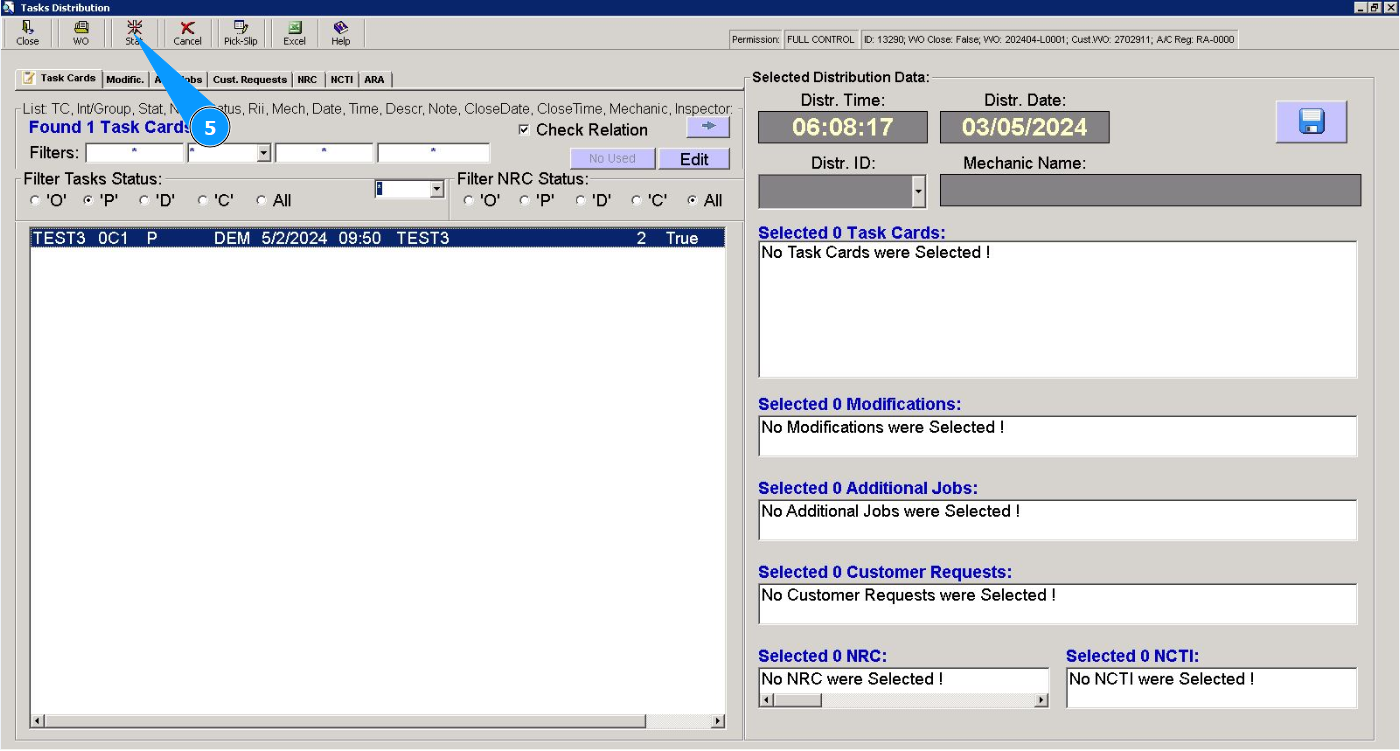
5. Click on the button "Stat", to change the status of the selected task ("other".see Note).
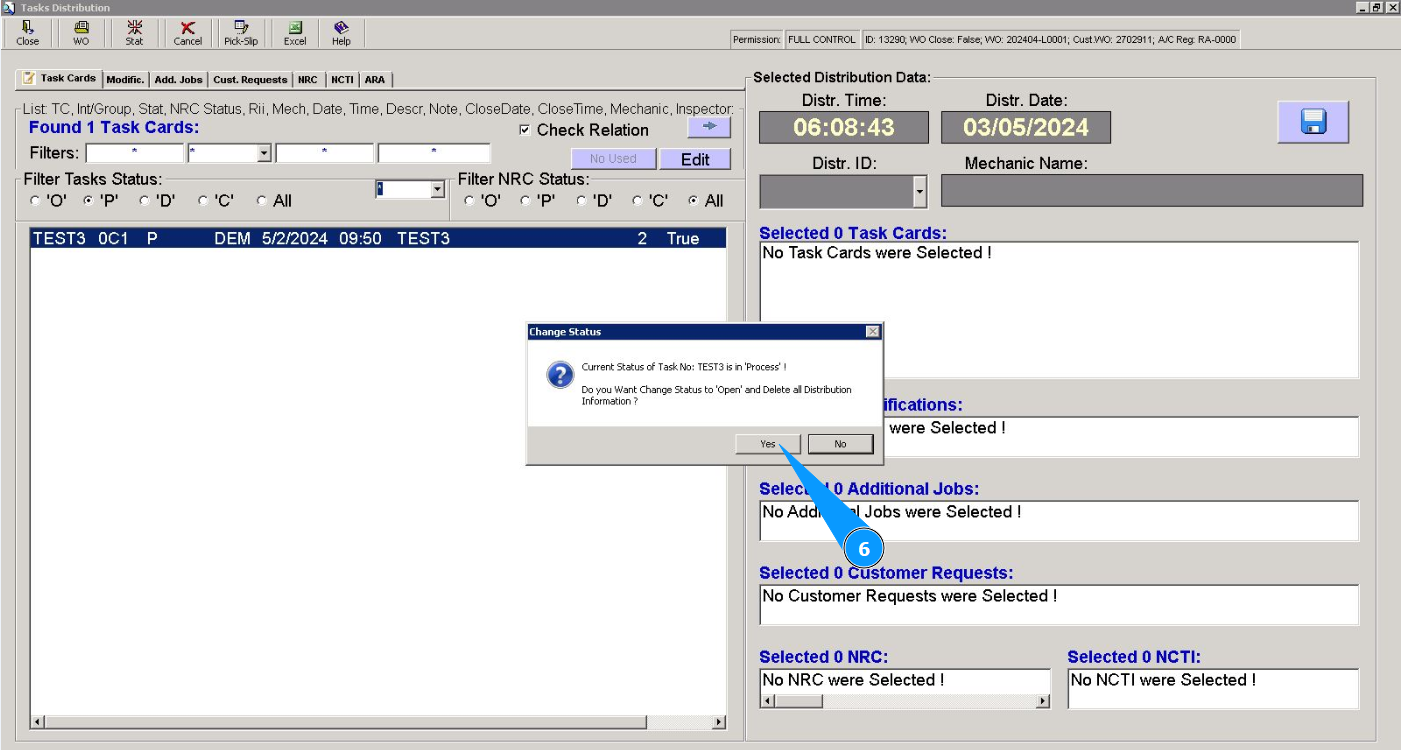
6. Click on the button "Yes", to confirm the task status change ("other"; see Note) from planned to opened.
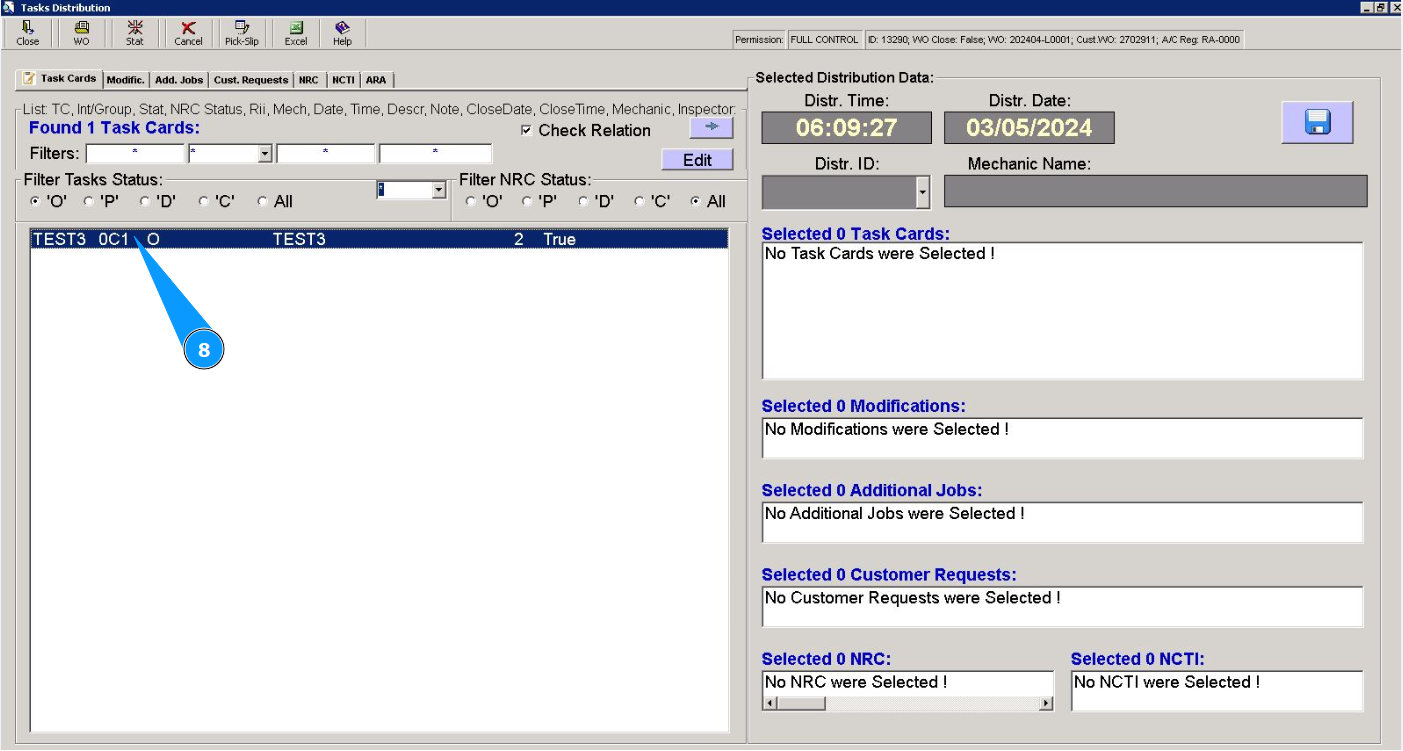
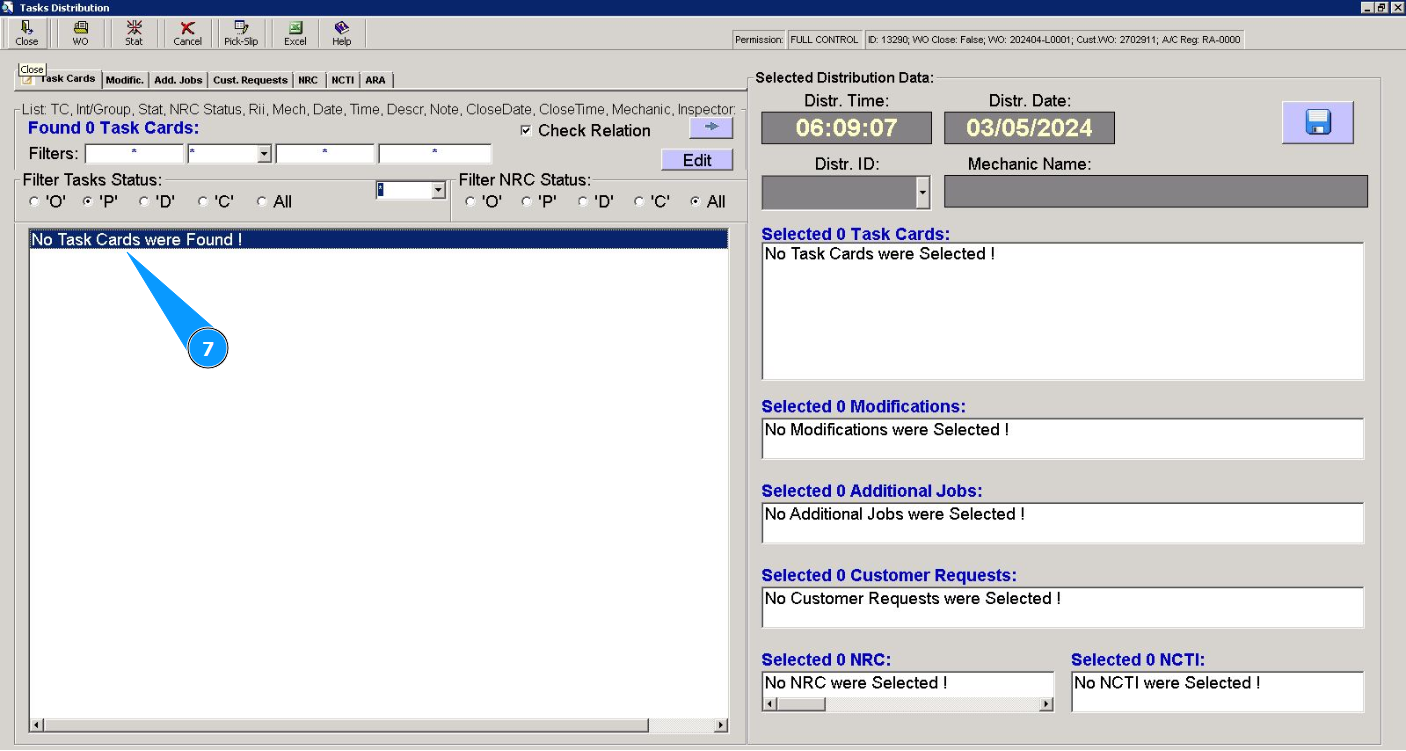
7. Check that task ("other".see Note) has disappeared from planned status.
8. Check that task ("other".see Note) is moved to opened. In this case set filter "O".