How to change the Work Package
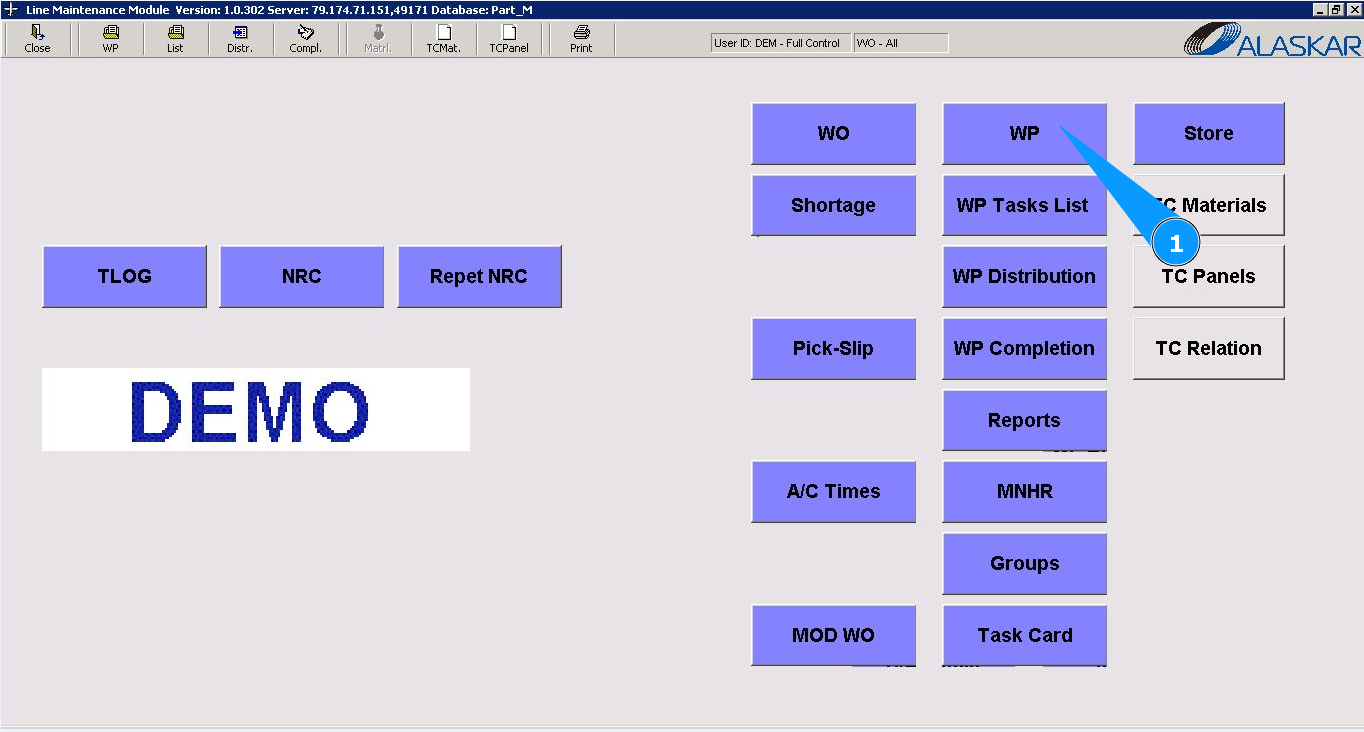
1. To change Work Package data, please go to submodule "WP".
2. Enter the WO number in the field "Filter WO" and press the knob "Enter" on your keyboard. Note: If necessary, use other search filters in the fields: "Filter A/C Reg.", "Filter A/C SN", "Filter Customer" etc.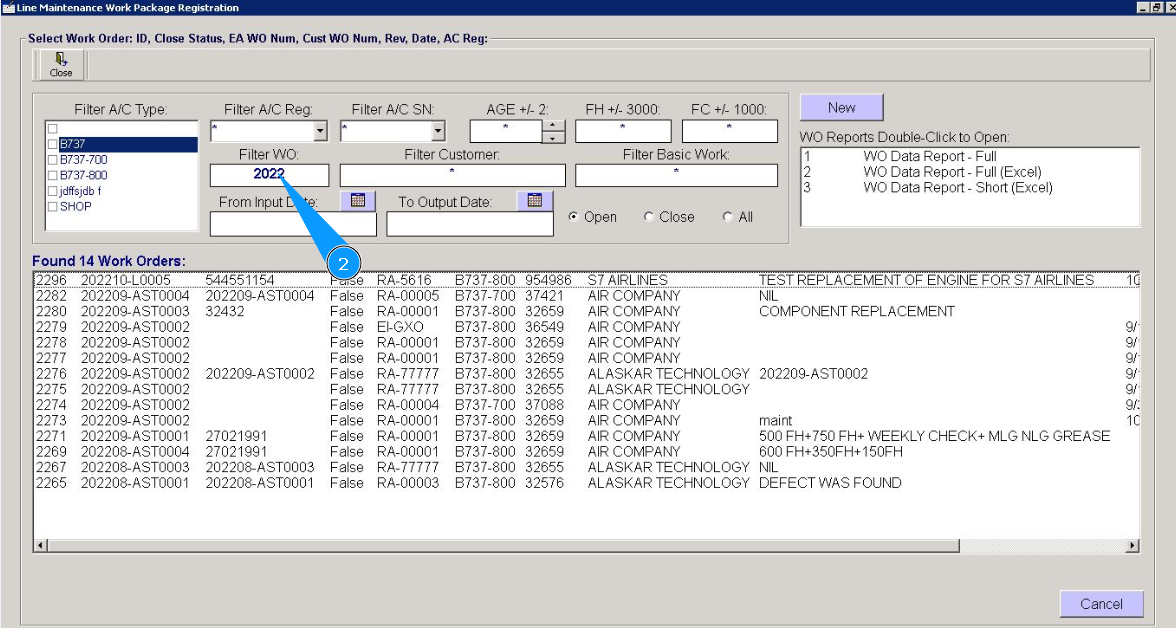
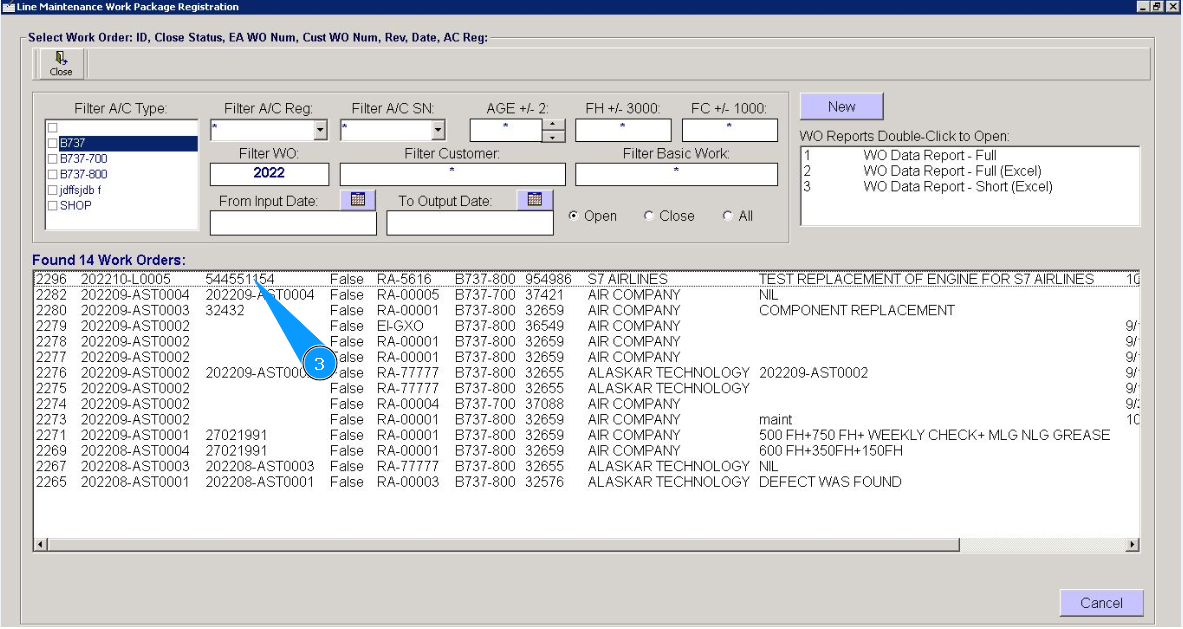
3. Select the required line with the record and double click on it.
4. Note:
If, after creating the WP and writing its data to the program, you try to change its data, the program will not allow you to do this. Information message will come out: "Records are locked".
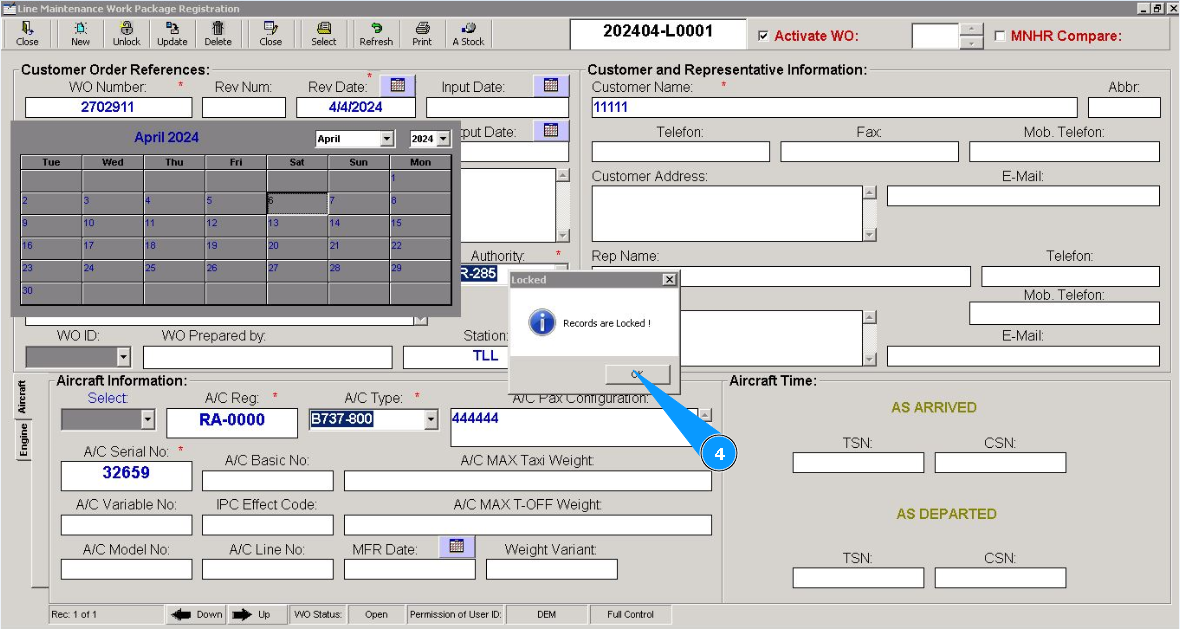
5. Click on the button "Unlock", to unlock the WP card for editing.
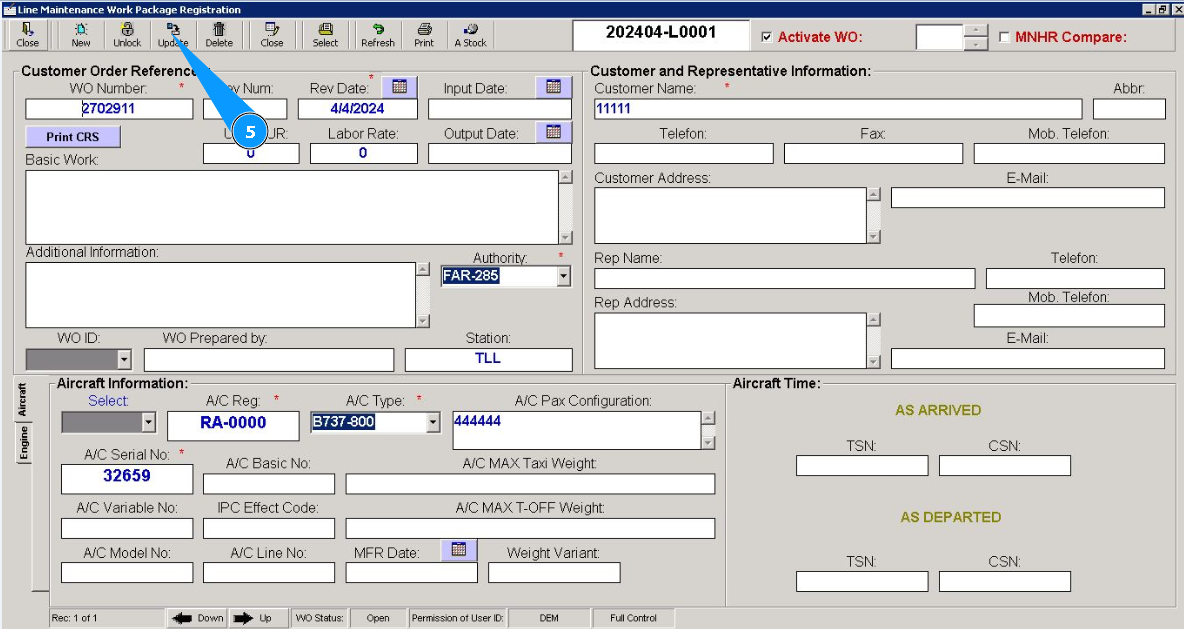
6. Change the WP fields as required.
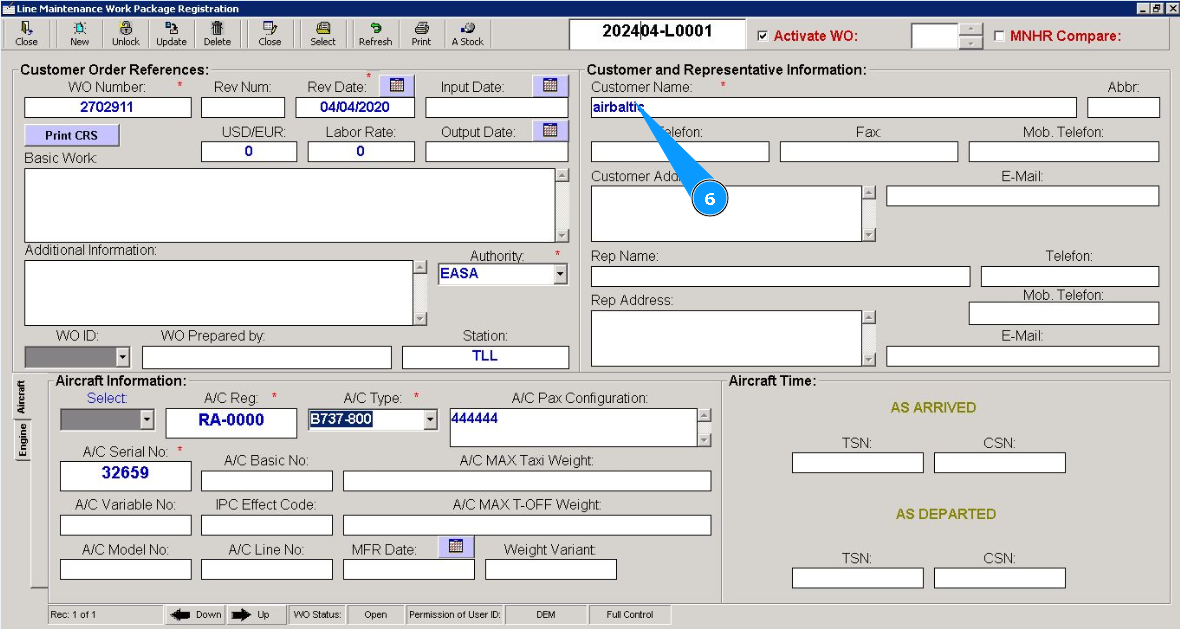
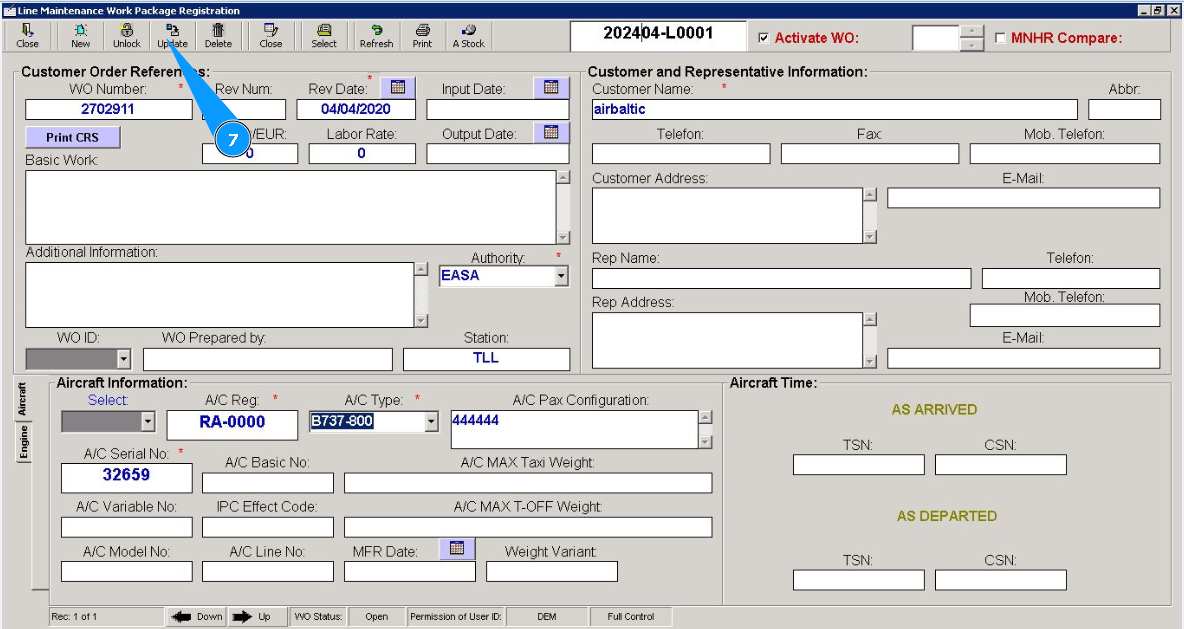
7. Click on the button "Update", to add changed WP data to the program.
8. Click on the button "Yes", to confirm adding WP data to the program..
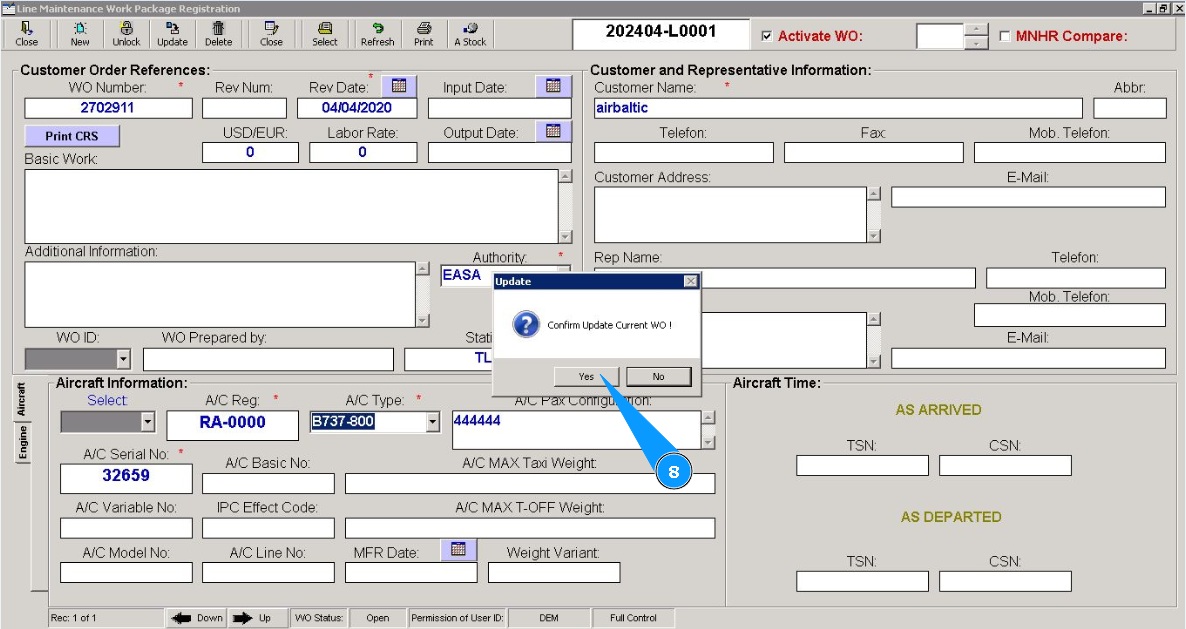
9. Check that the corrected data is displayed successfully.
