How to add panels to LWO card
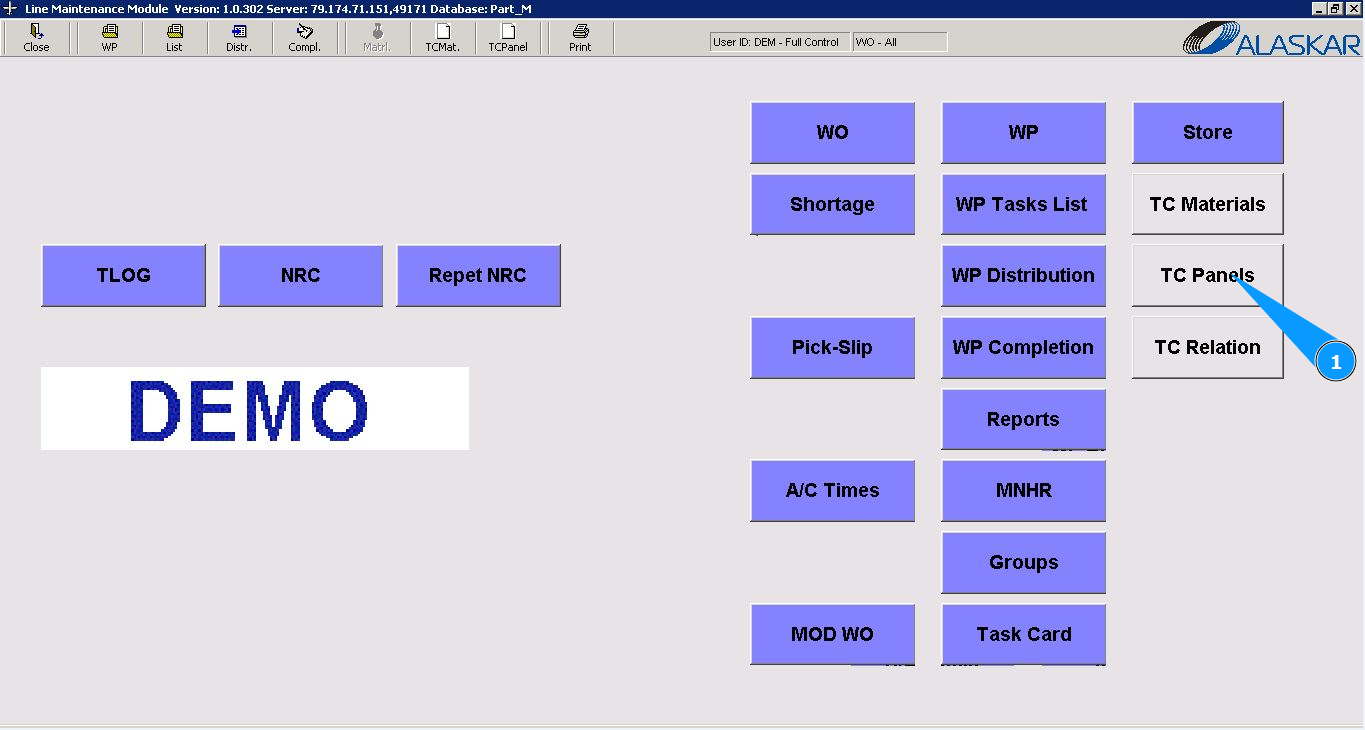
1. In order to add panels to the Work Order task, go to the submodule "TC Panels".
2. Select the required WO in the list "Select Work Orders" and click on the corresponding line. Note: If necessary use the available filter by LWO number.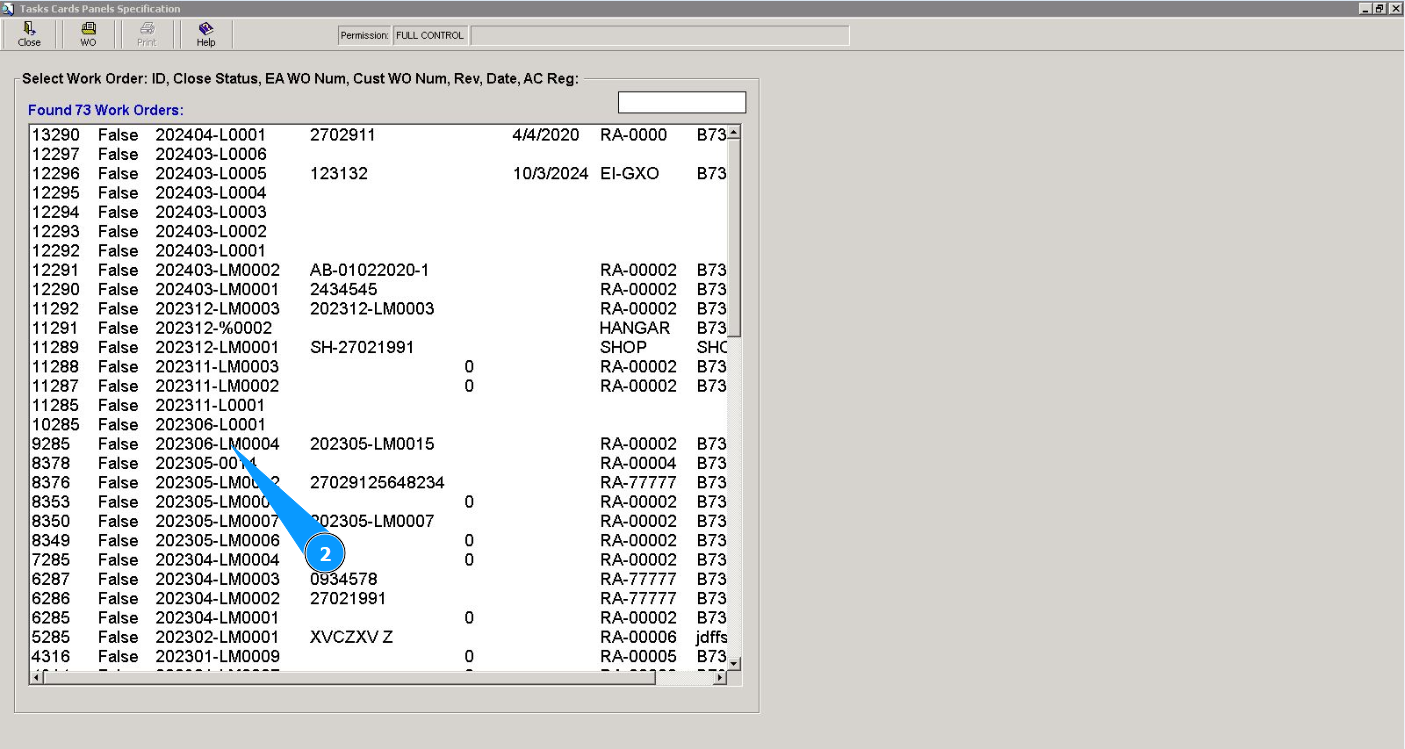
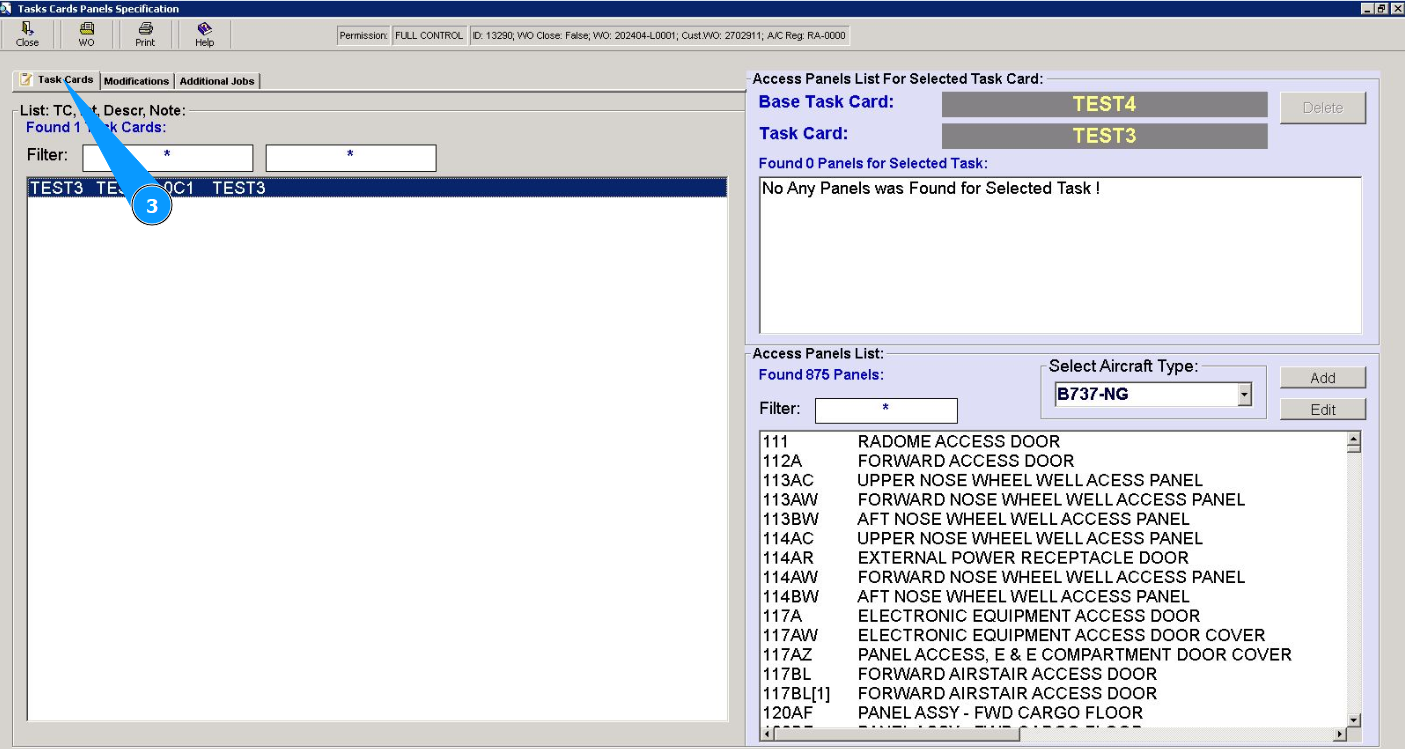
3. Then go to the tab "Task Card".
4. Select the required task card in the list "Task Cards" and click on the corresponding line. Note: If necessary use the available filter in the field: "Filter". .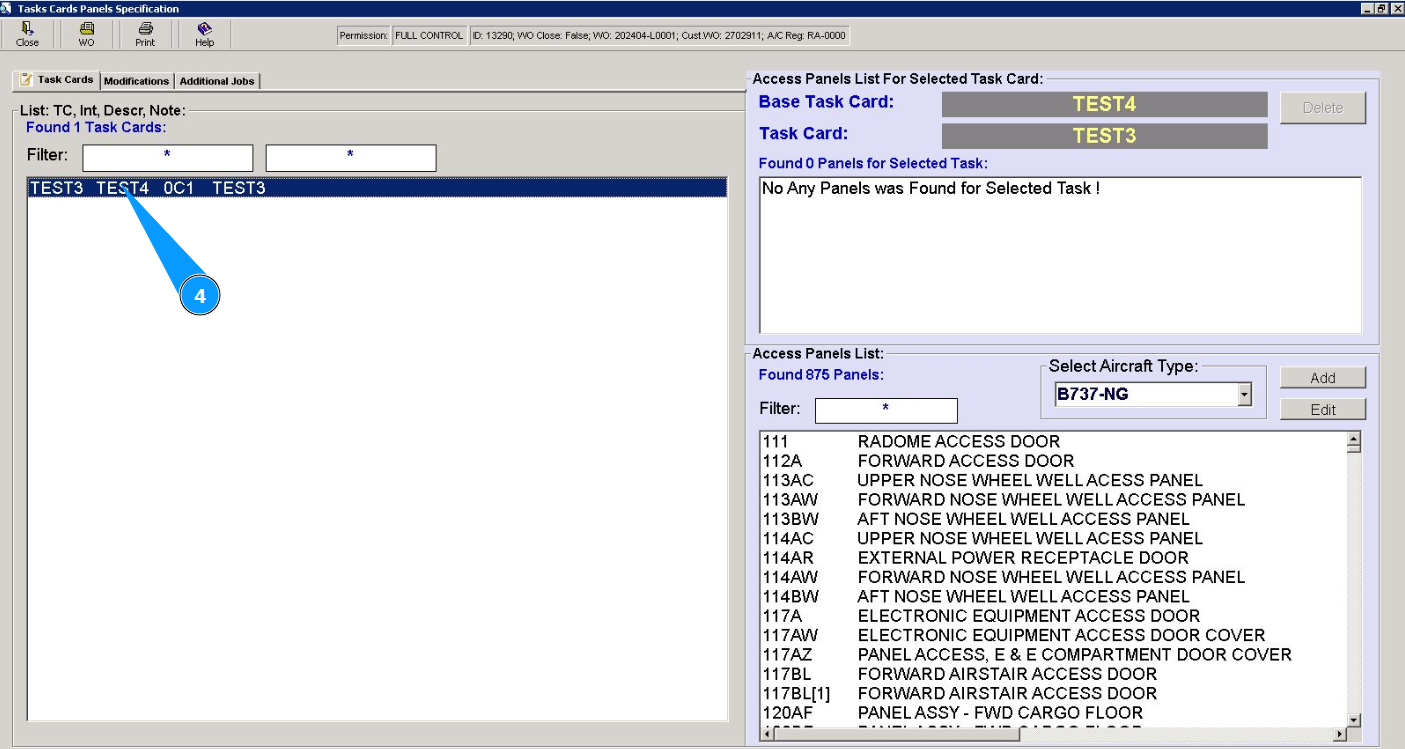
5. Make sure that the number of the selected task is displayed in the field "Base Task Card".
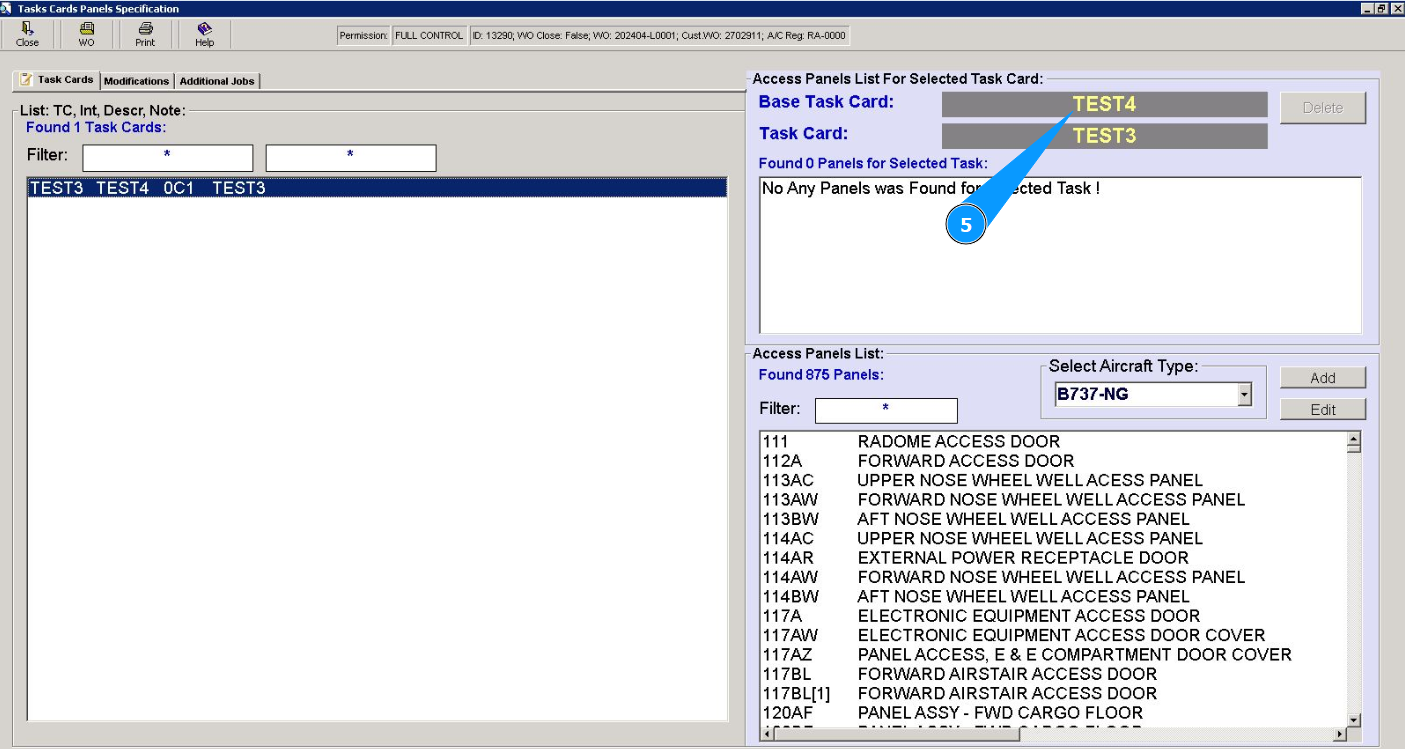
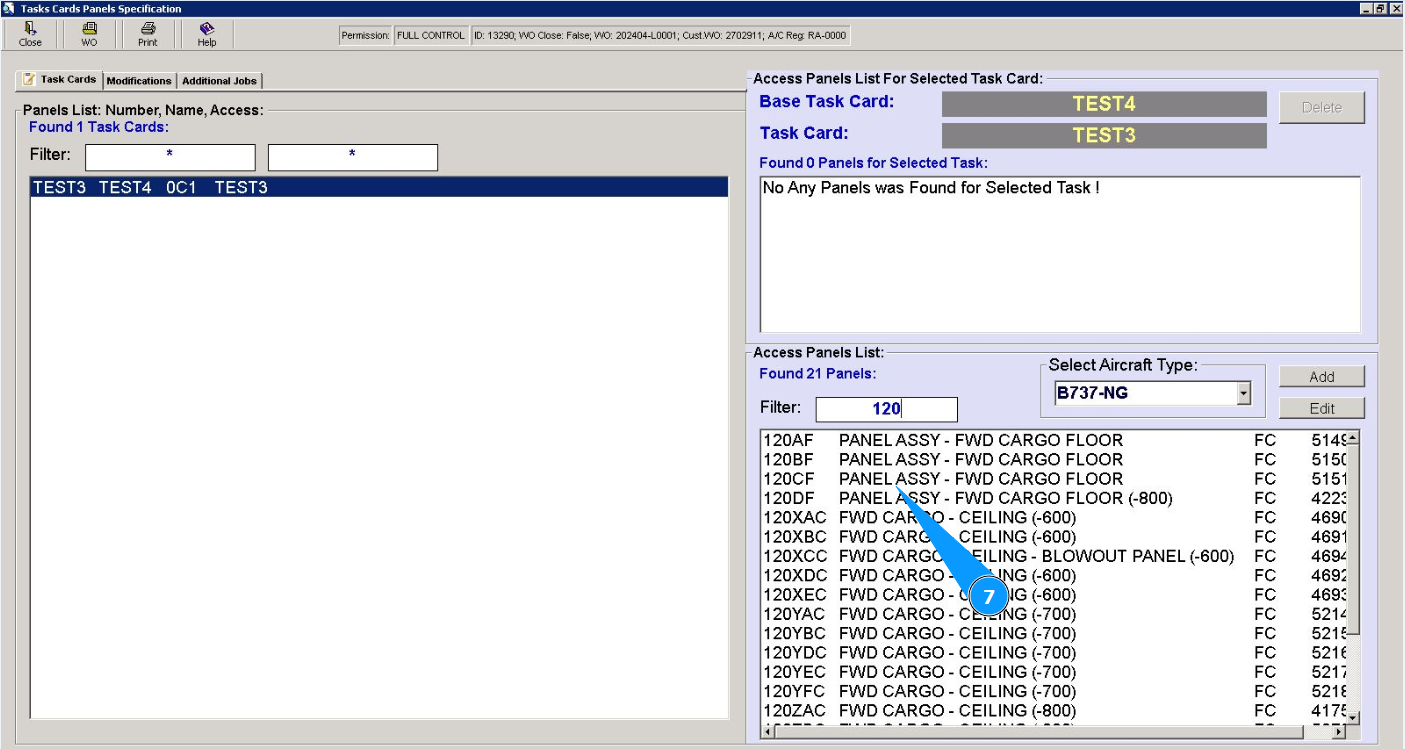
6. Enter the number of the panel you are looking for in the searching field "Filter" and press the button "Enter" on your keyboard.

Note:
- If the required panel number is found, continue with step 7 of this instruction.
- If the required panel number is not found continue with the instruction and go to step 10.
7. Select the required panel number in the list and click on the corresponding line.
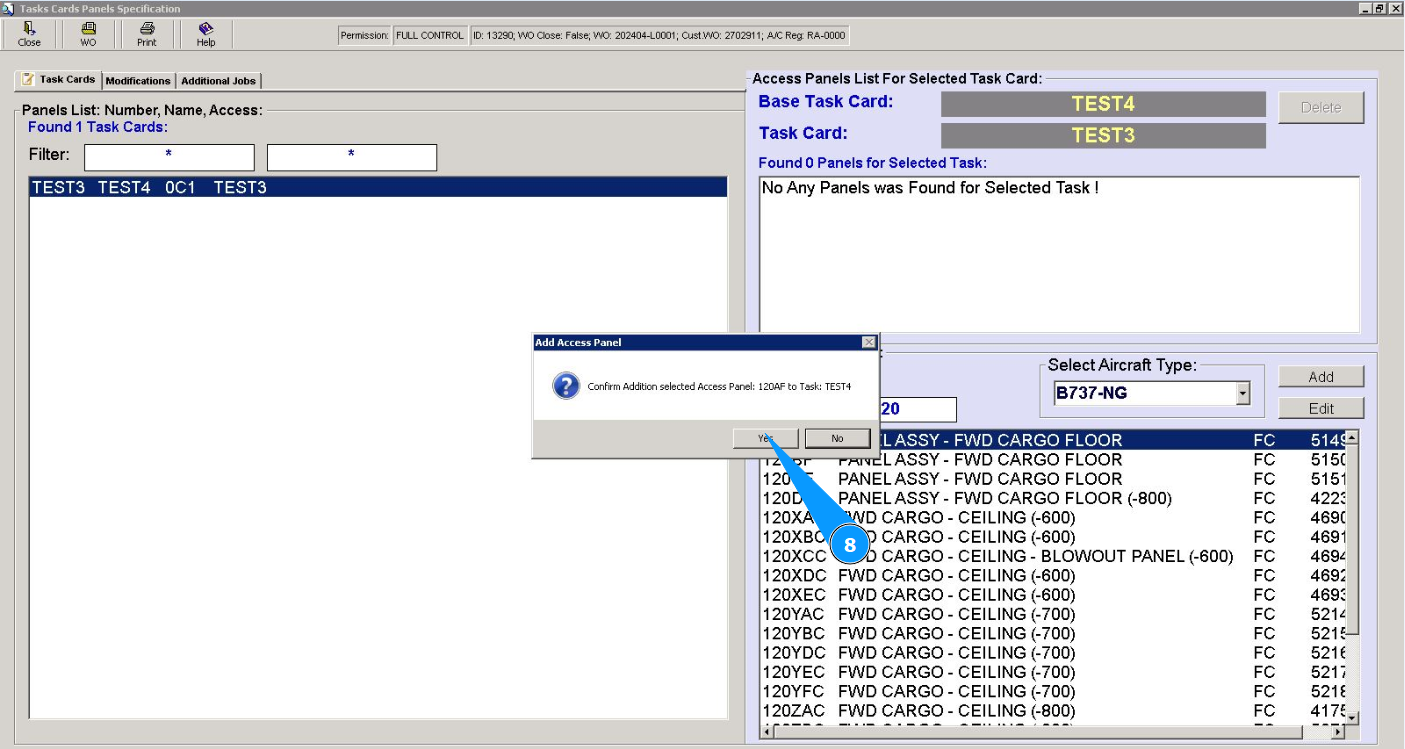
8. Click on the button "Yes", to confirm adding the panel to the task.
9. Check that the record with the added panel is displayed in the window "Found Panels for Selected Task".
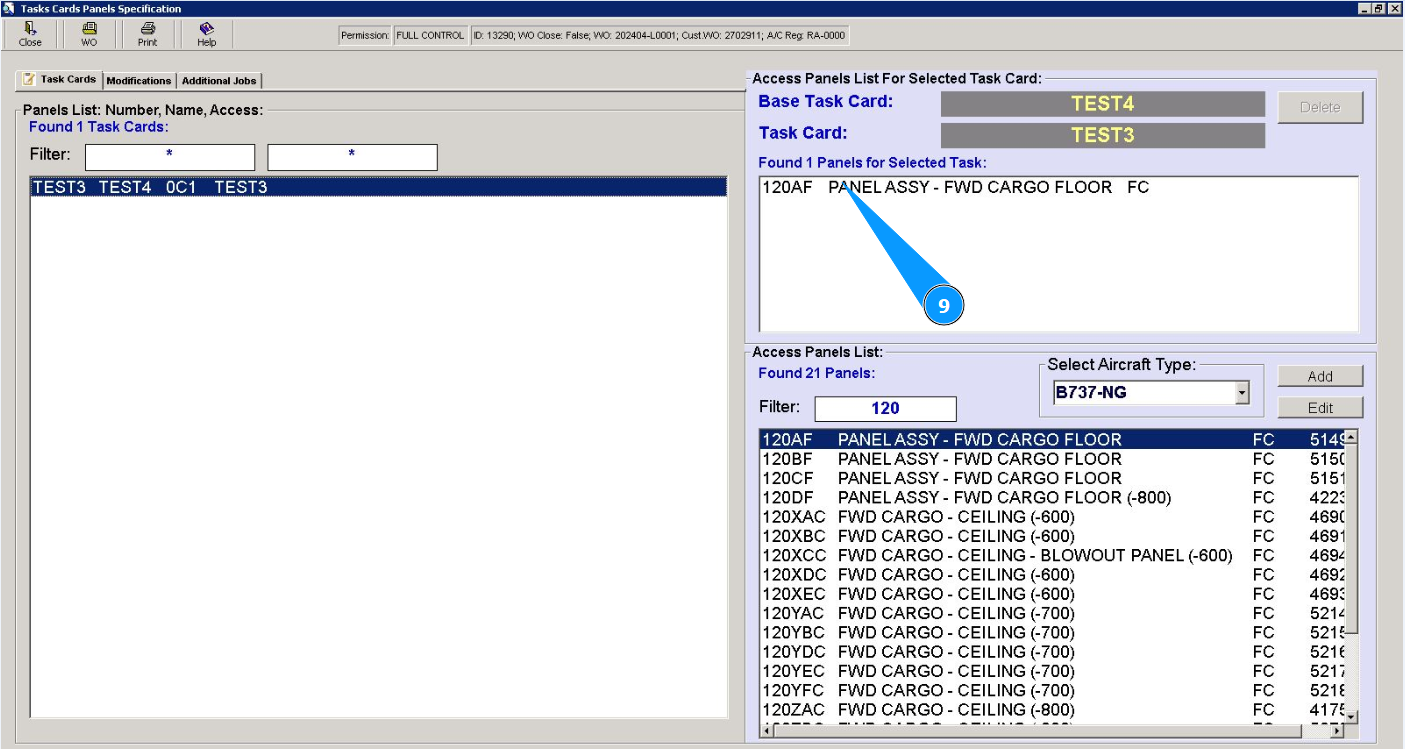
Note: If you need to add other panels, repeat the instructions from steps 6 to 9.
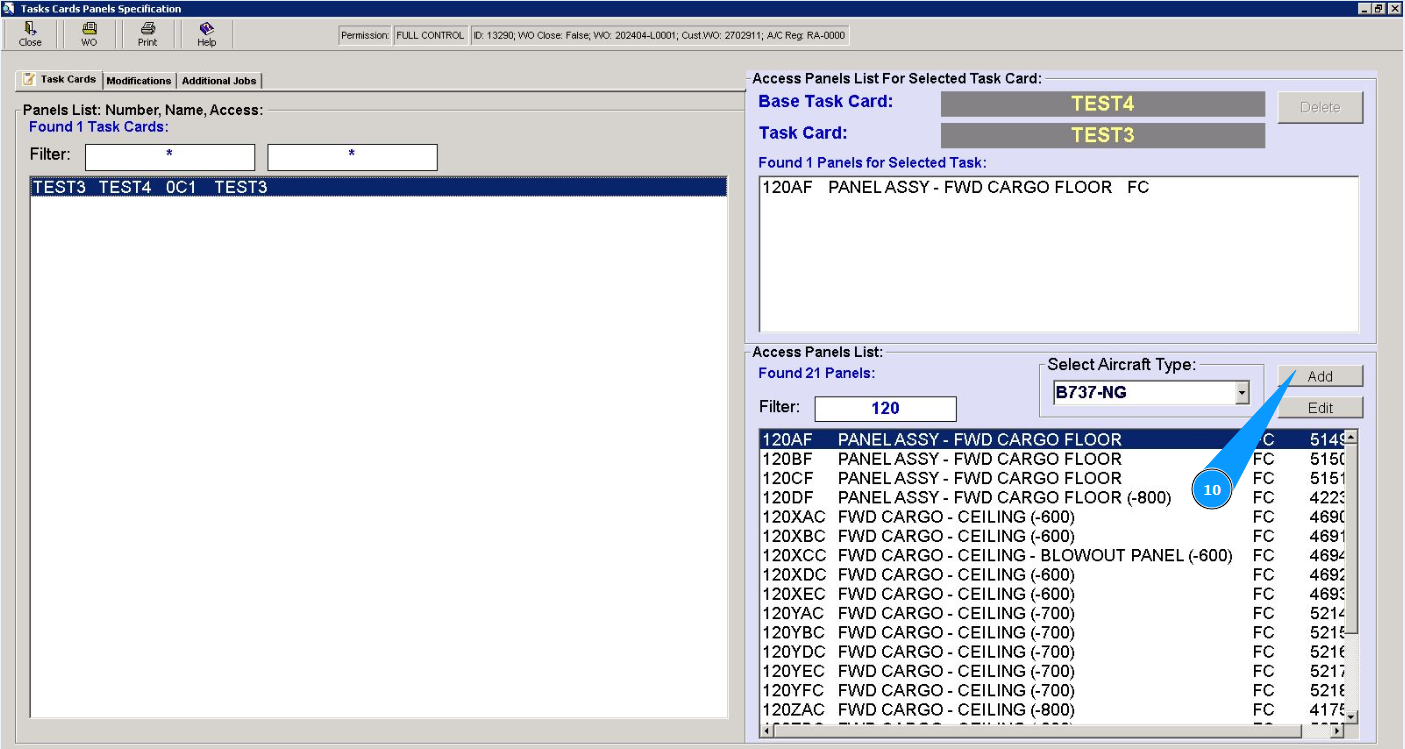
10. Click on the button "Add", to add a new panel to the list of panels.
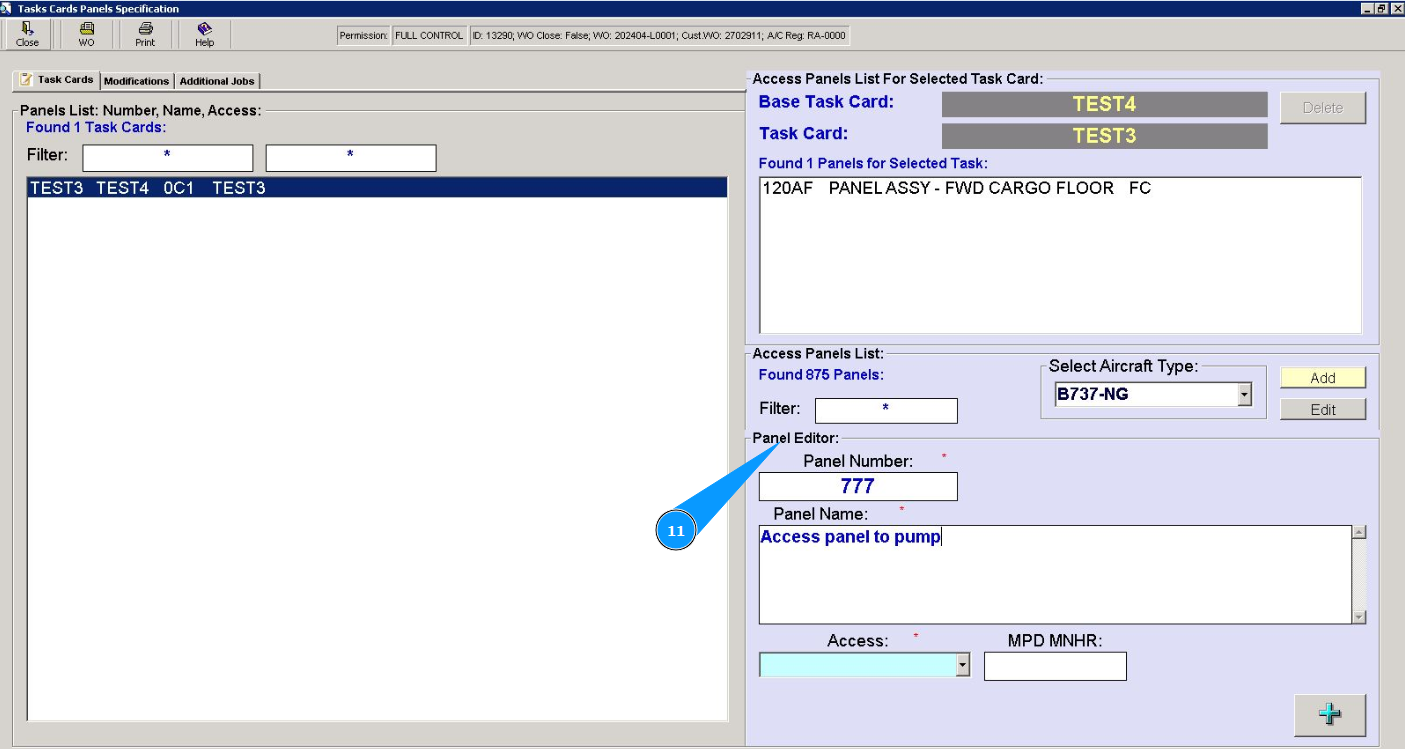
11. Make sure that the panel editor is opened in the window "Panel Editor".
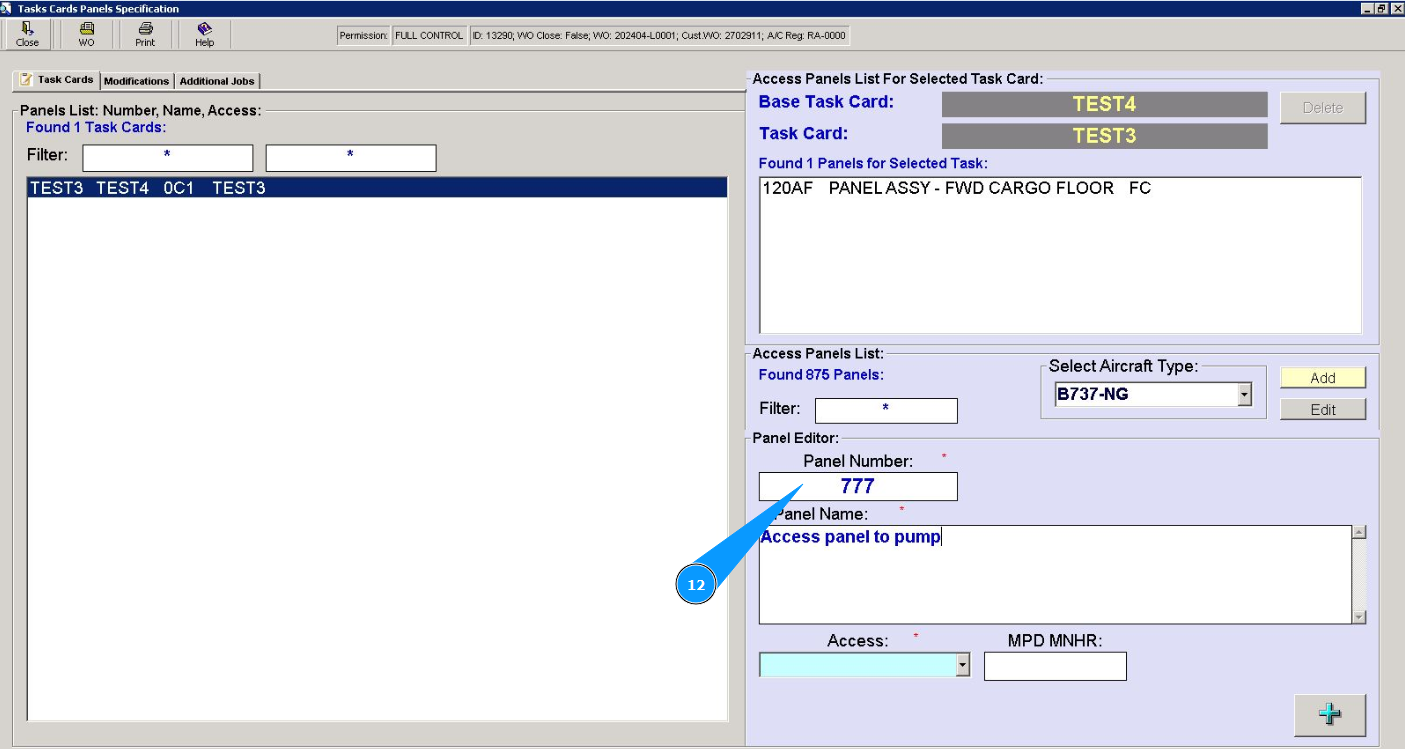
12. Enter the panel number in the field "Panel Number".
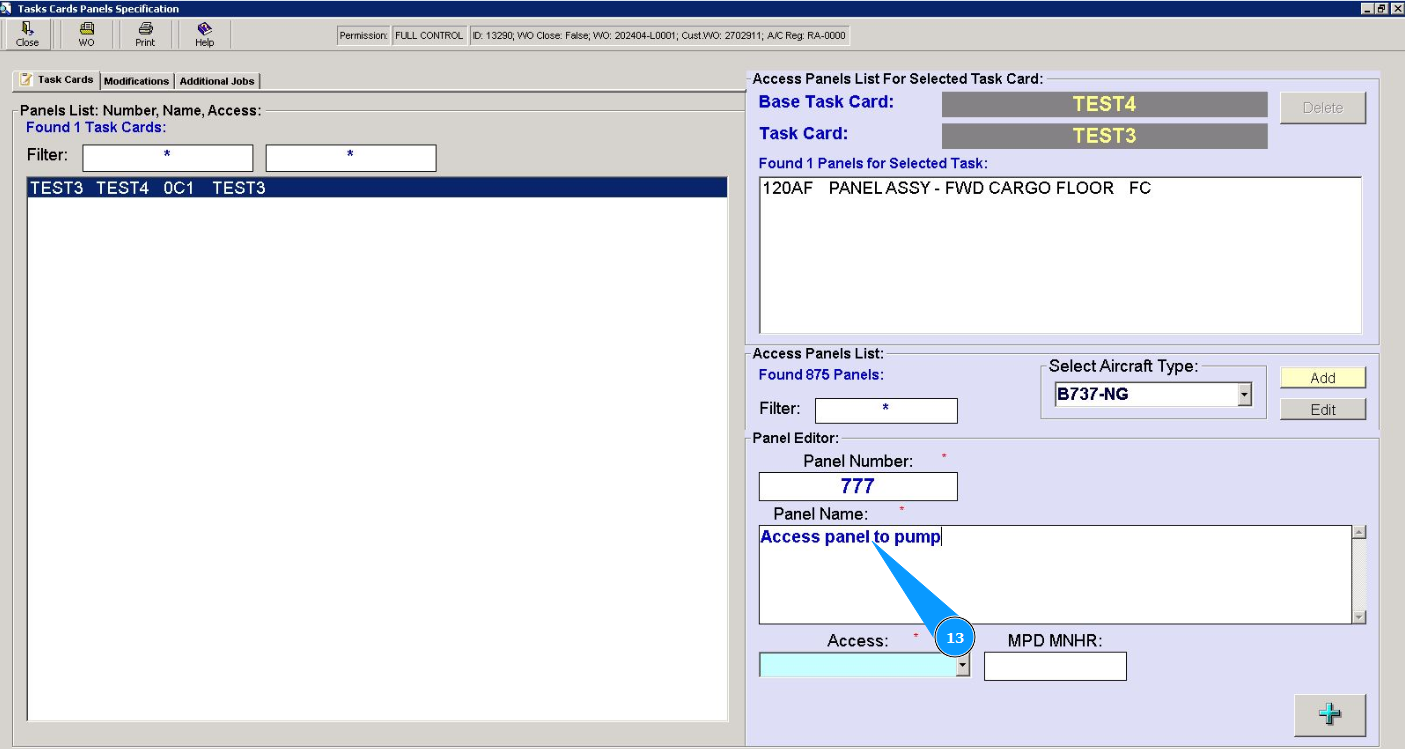
13. Enter the name of the panel in the field "Panel Name".
14. Select the access type from the dropdown list in the field "Access".
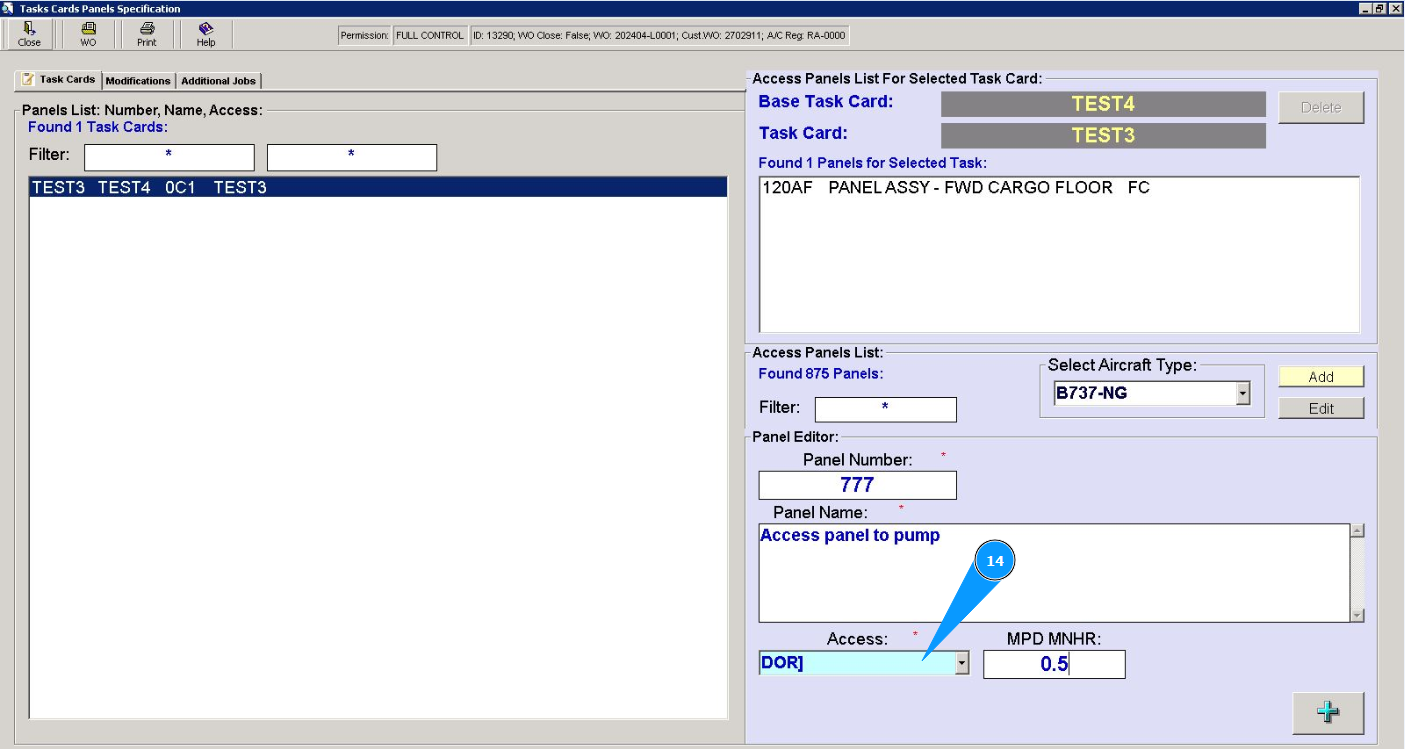
15. Click on the button with the plus symbol to add a new panel to the list of panels. Note: If necessary enter information about the required quantity of man hours to open this panel in the field: "MPD MNHR".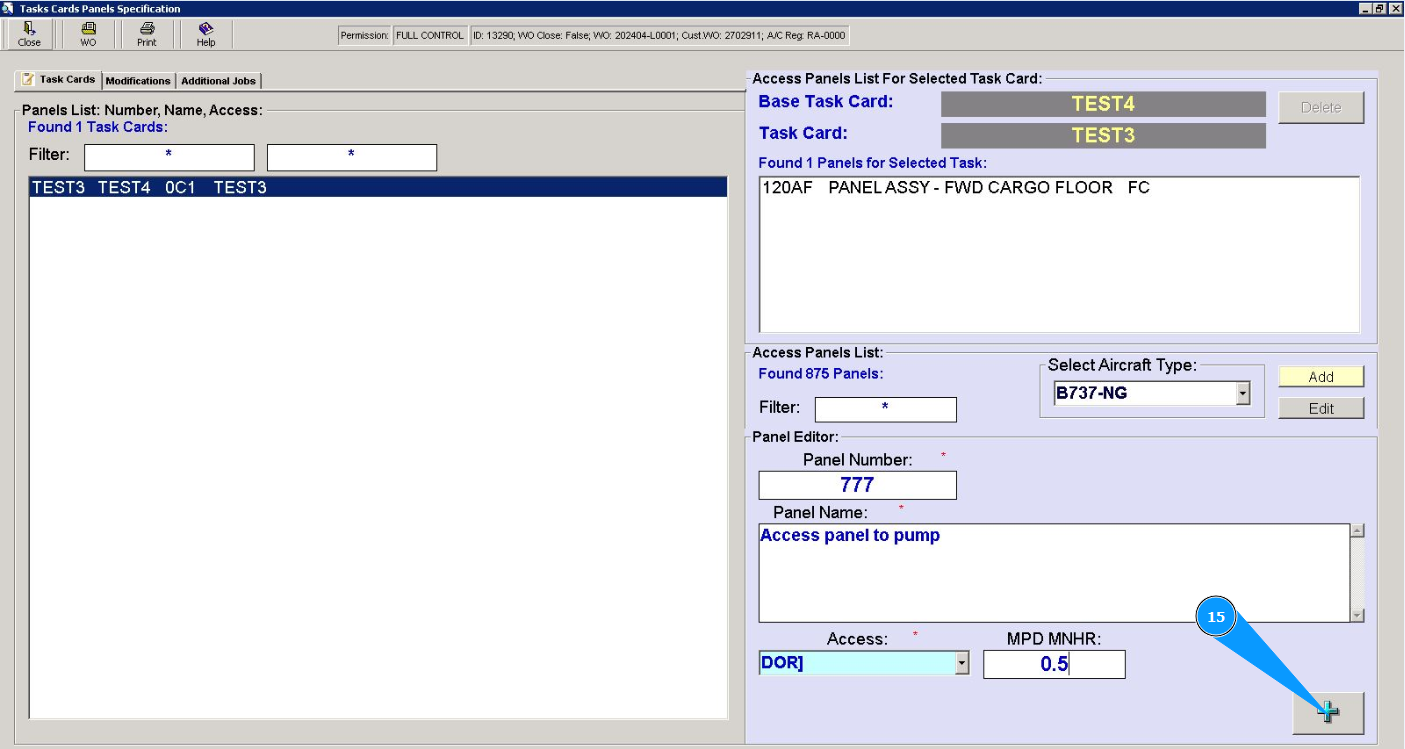
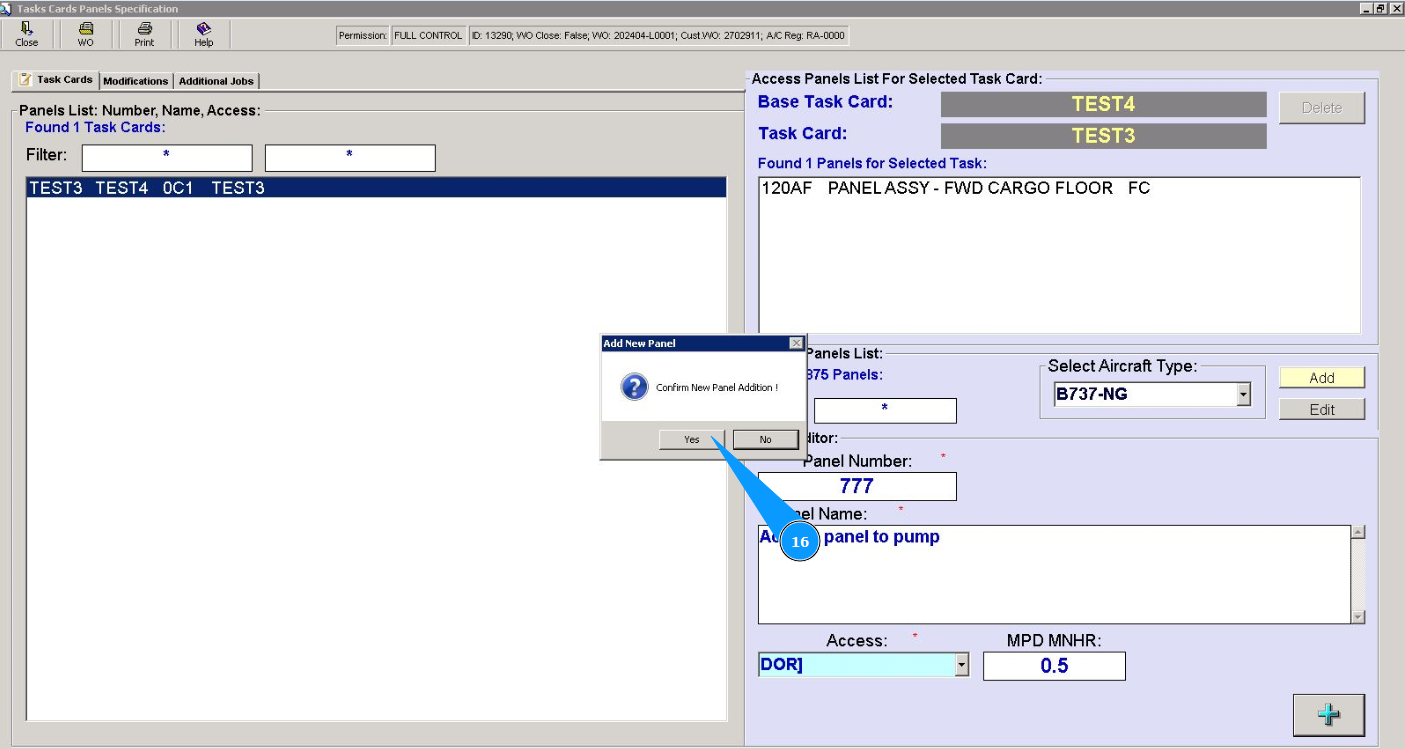
16. Click on the button "Yes", to confirm adding the panel to the program.
17. Enter the number of the added panel in the field поиска "Filter" and press the button "Enter" on your keyboard.
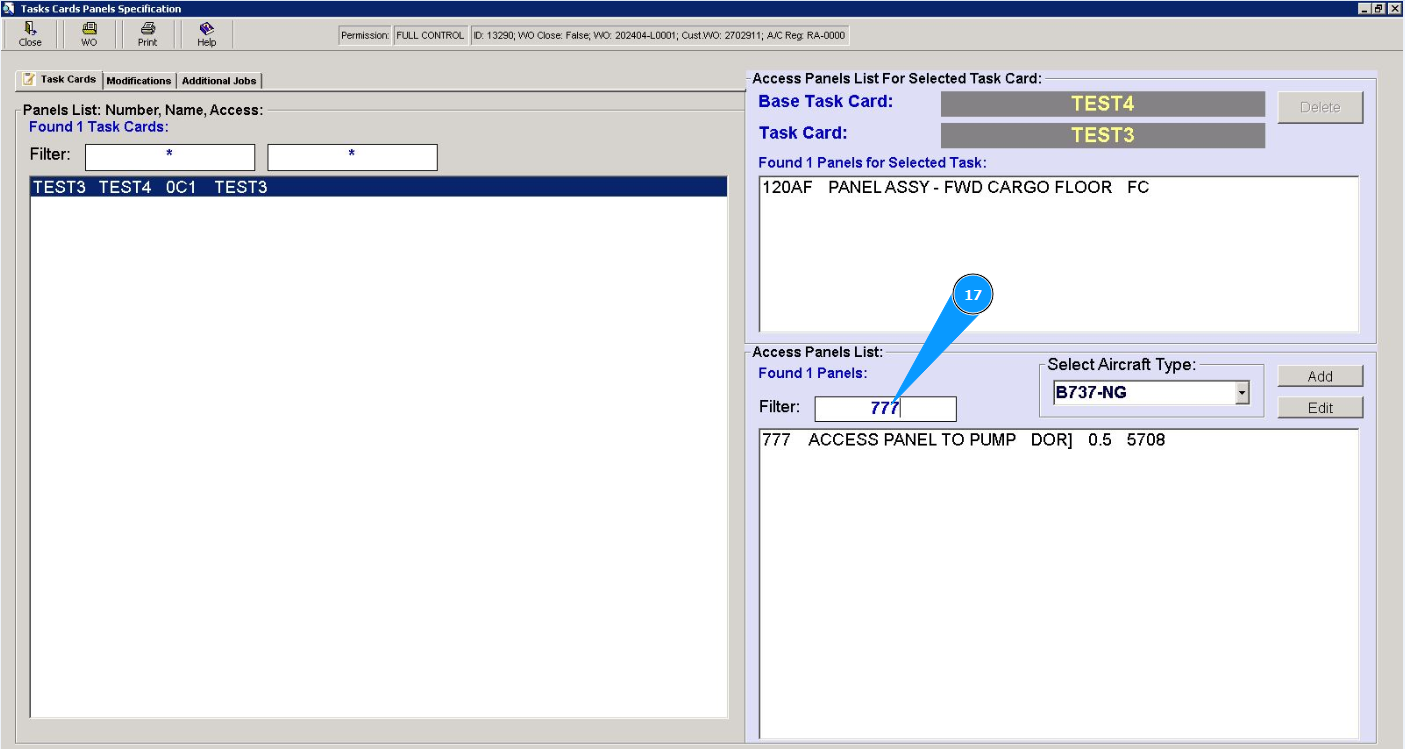
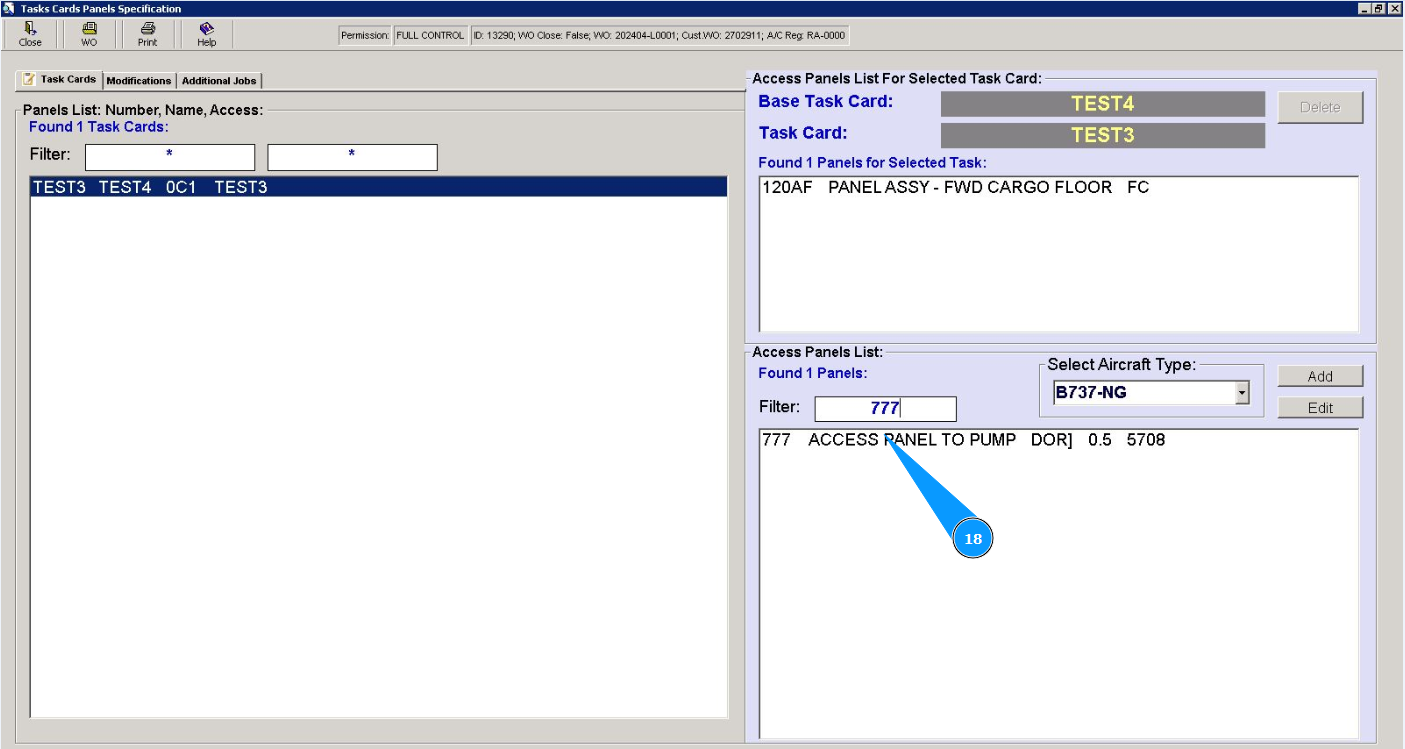
18. Check that the record of added panel is displayed in the window "Access Panel List".
Note: In order to add a panel to a task, follow steps 7 to 9 of this instruction.