How to add man-hours to task card based on Work Order
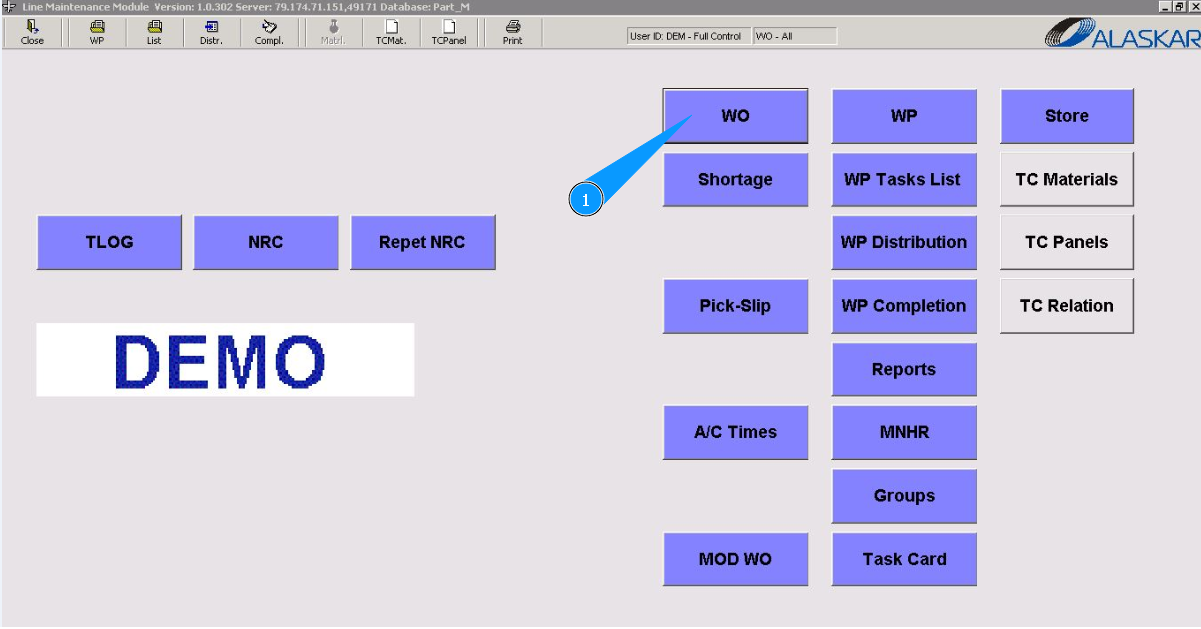
1. In order to add man-hours to the Work Order task, go to the submodule "WO".
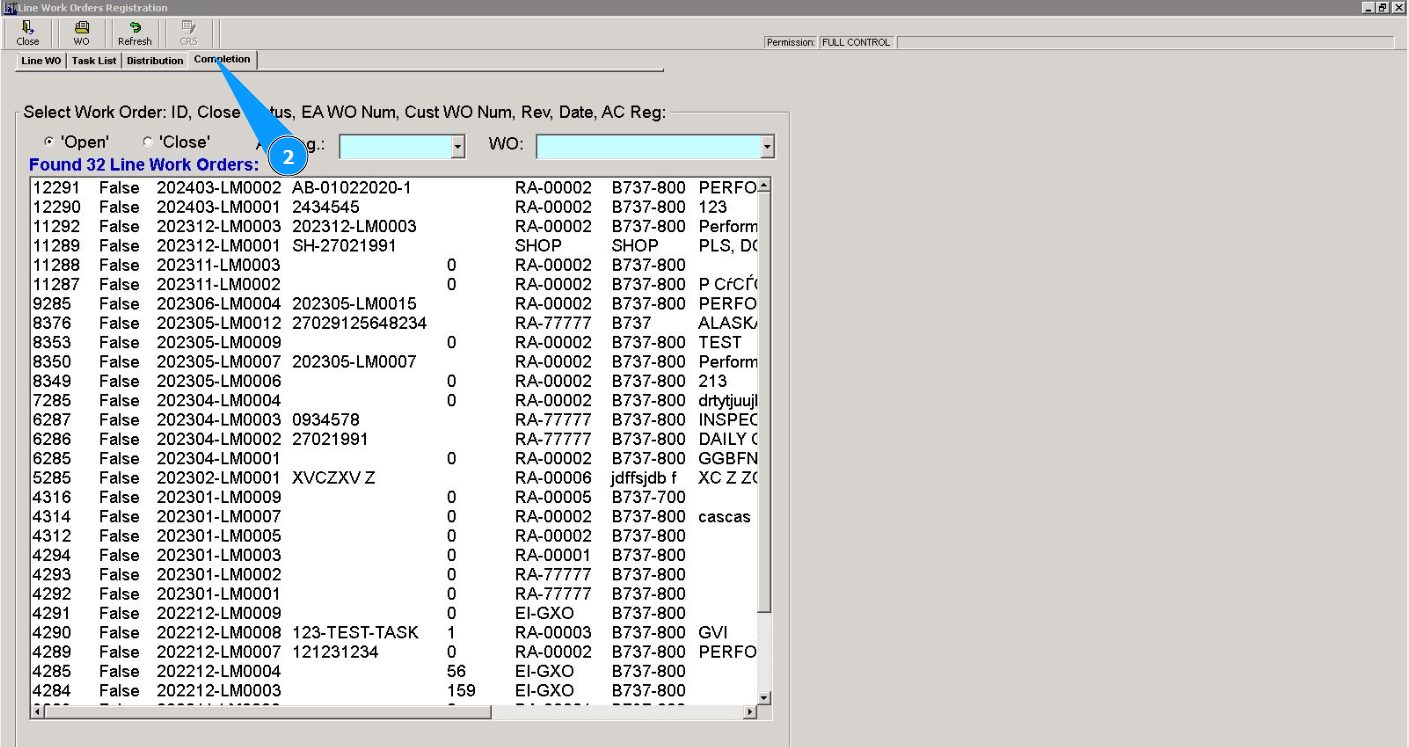
2. Then go to the tab "Completion".
3. Select the WO number required for adding man-hours from the list in the window "Line Work Order List". Click on the corresponding line. Note: If necessary, use the search filters, fields: "AC Reg.", "WO".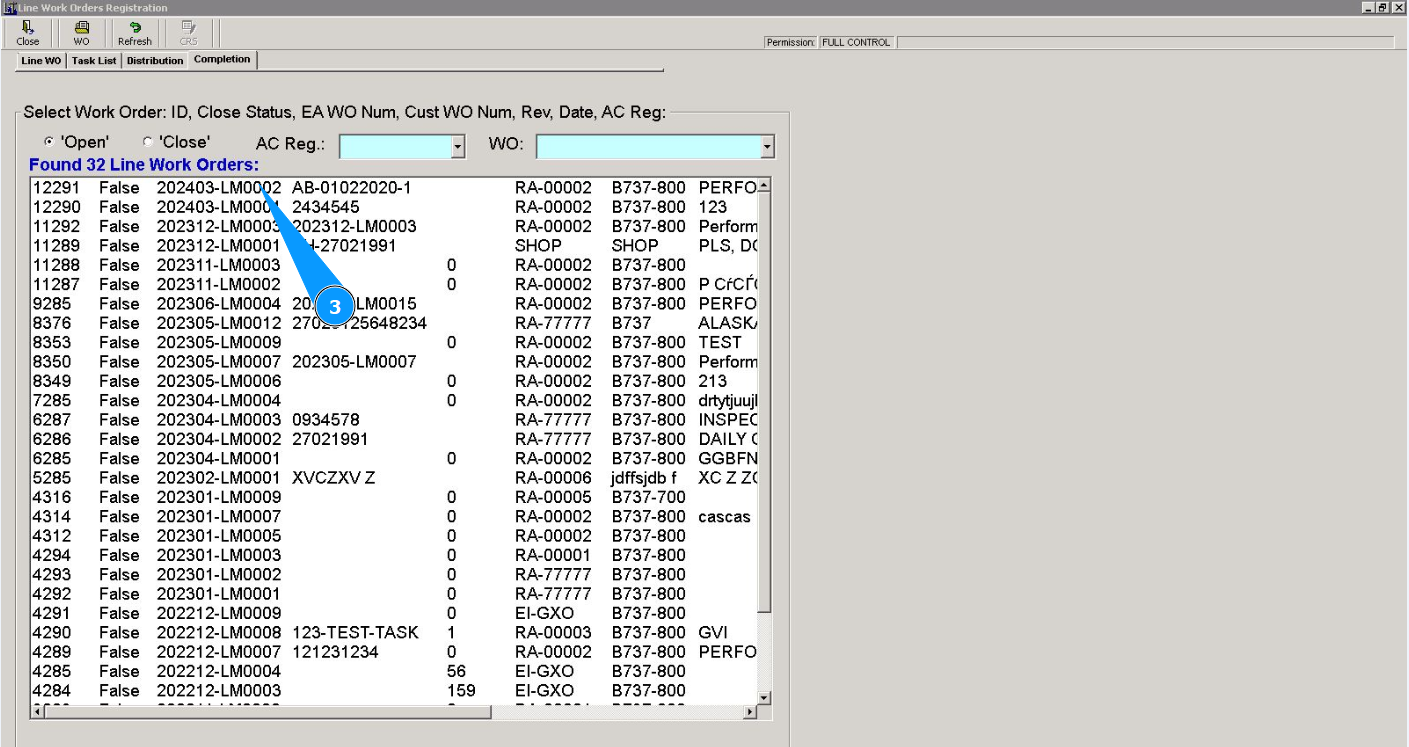
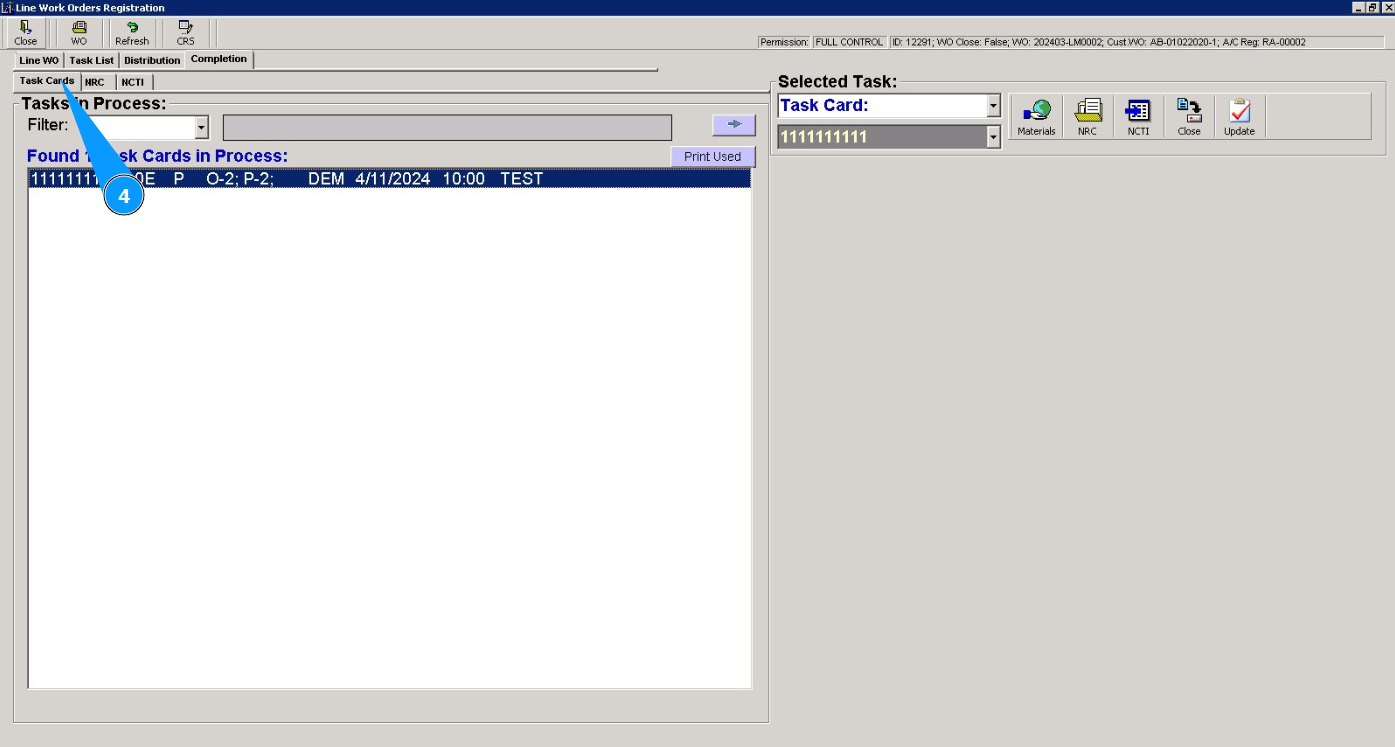
4. Then go to the tab "Task Cards".
5. Select the required task number for adding man-hours from the list in the window "NRC List". Click on the corresponding line for the task. Note: If necessary, use the search filters, field: "Filter".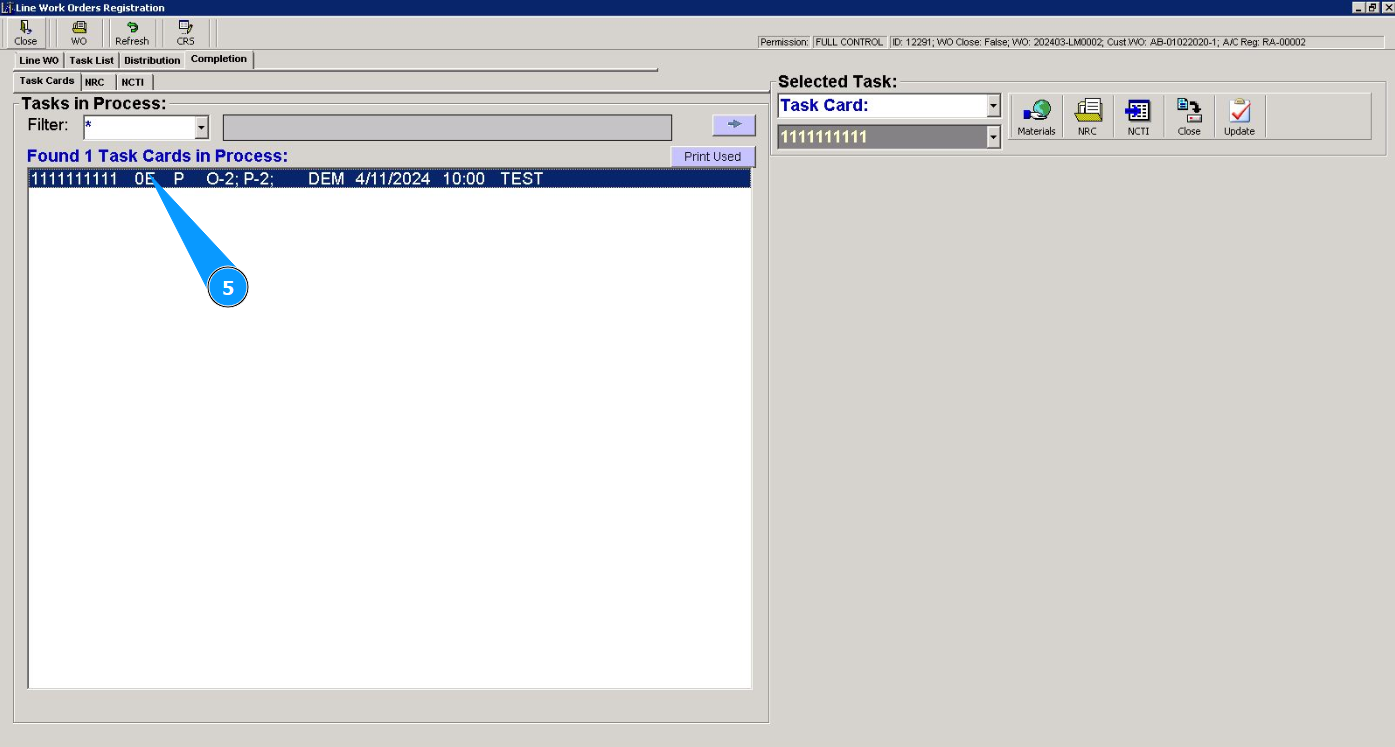
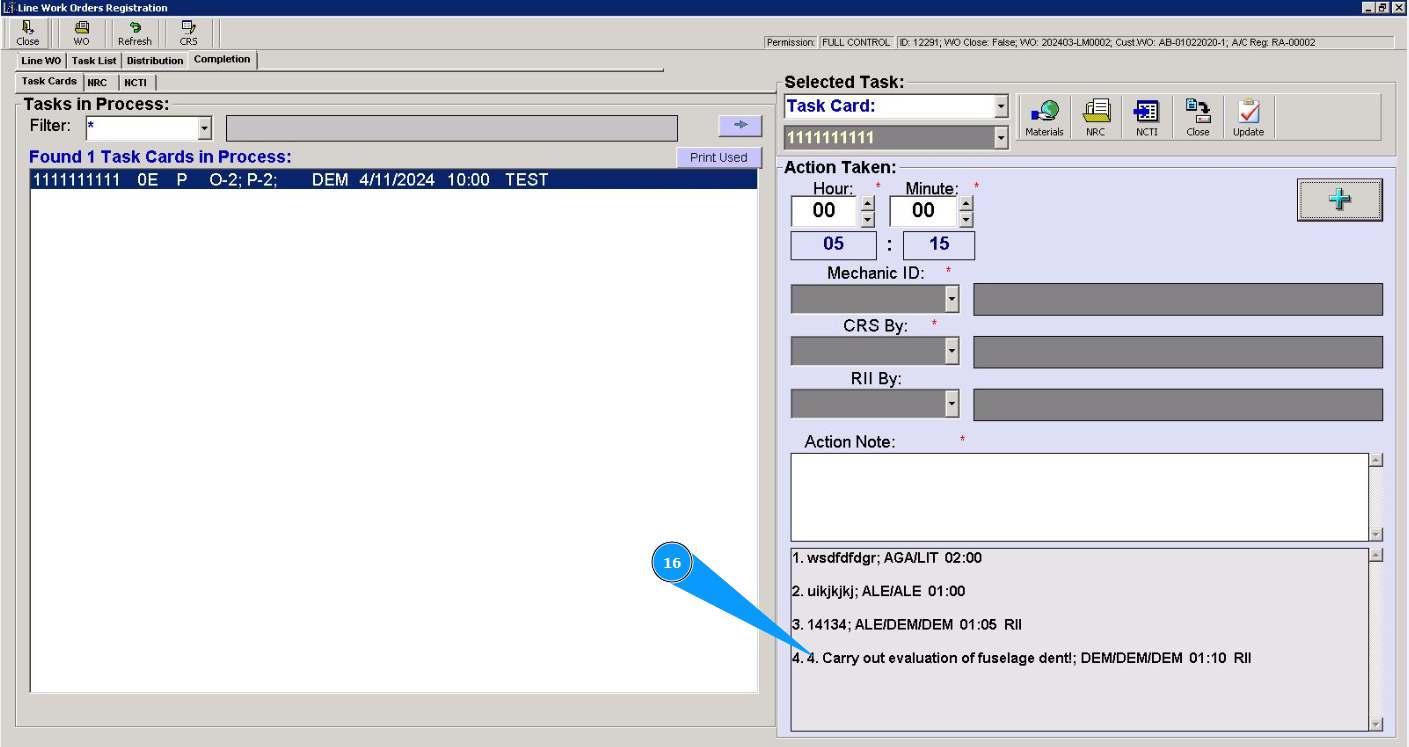
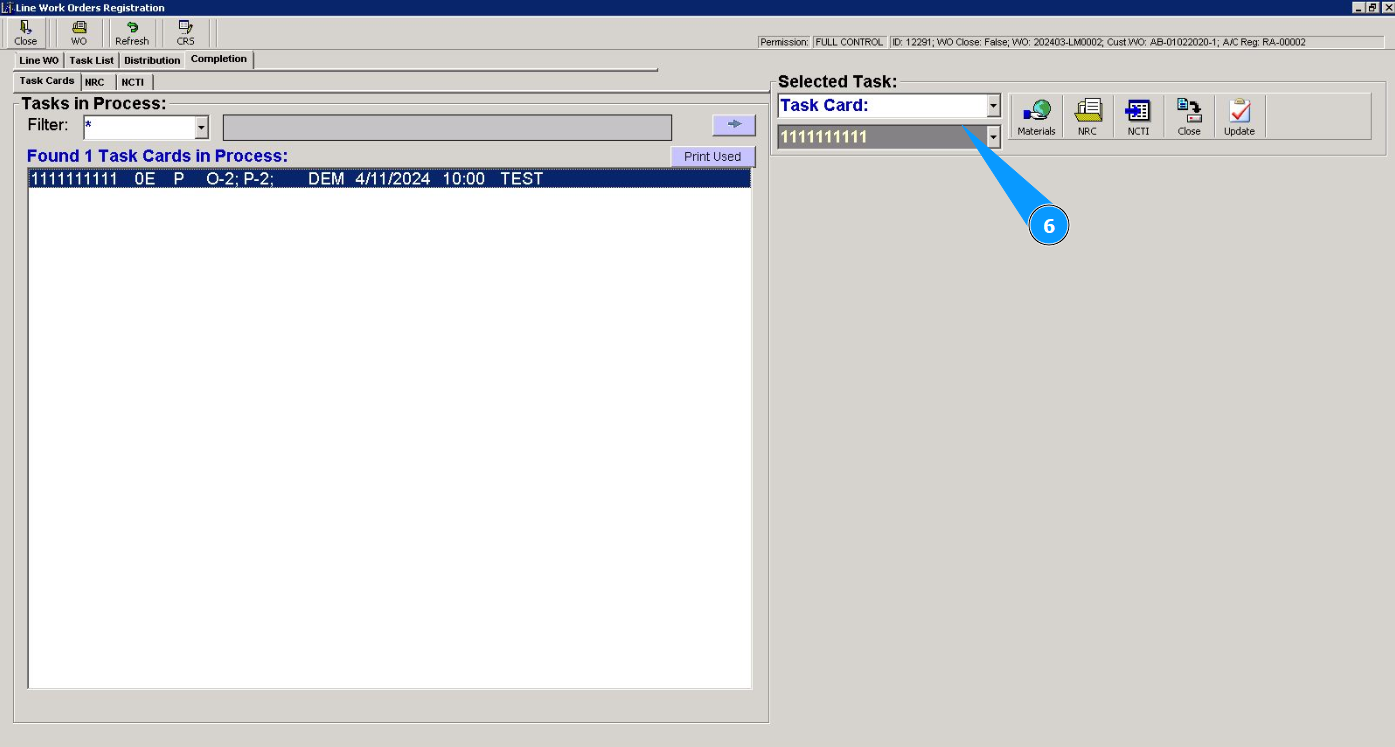
6. Check that the required task and its number are displayed in the right window "Selected Task".
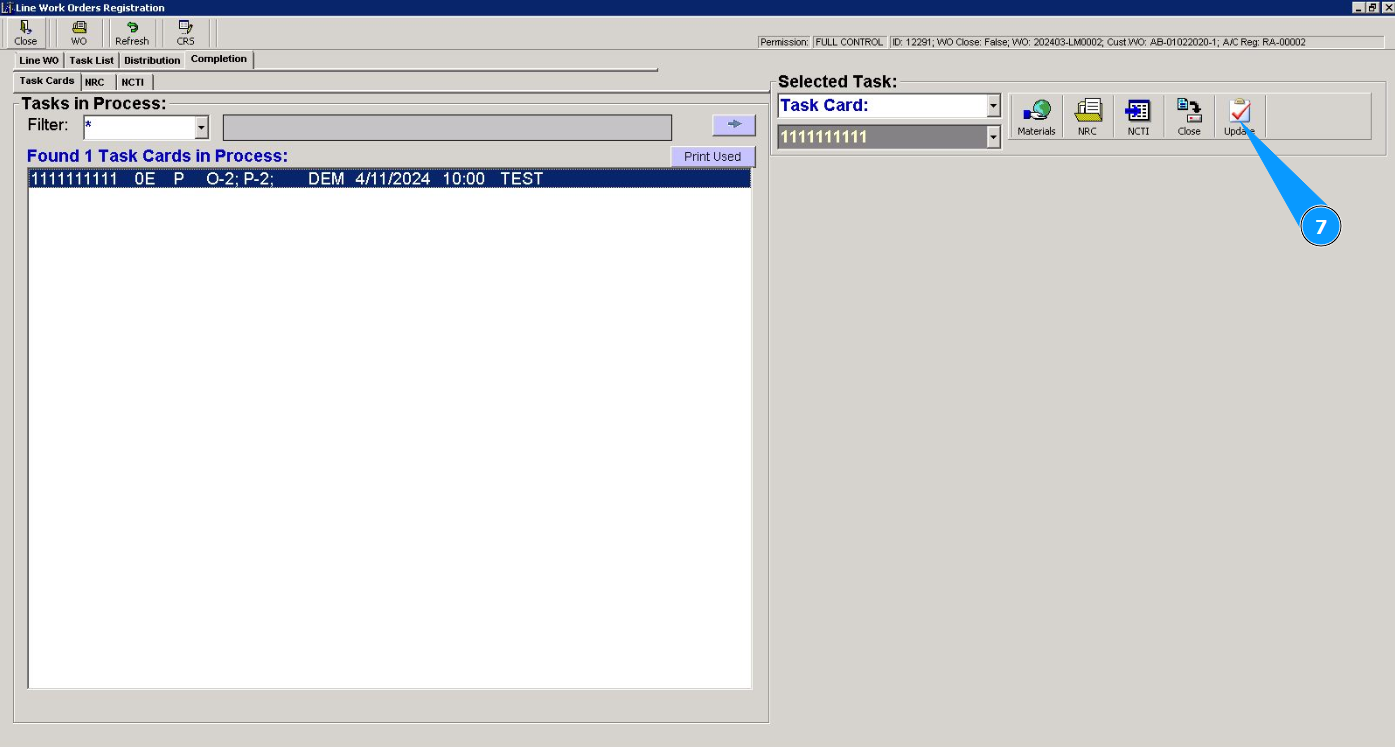
7. Click on the button "Update", to update the man-hours data of this task.
8. Enter the required number of standard hours in hours in the field "Hour". Note: If the number of man-hours was previously entered, then the newly entered data is summarized with the previous ones.
9. Enter the required number of standard hours in minutes in the field "Minute".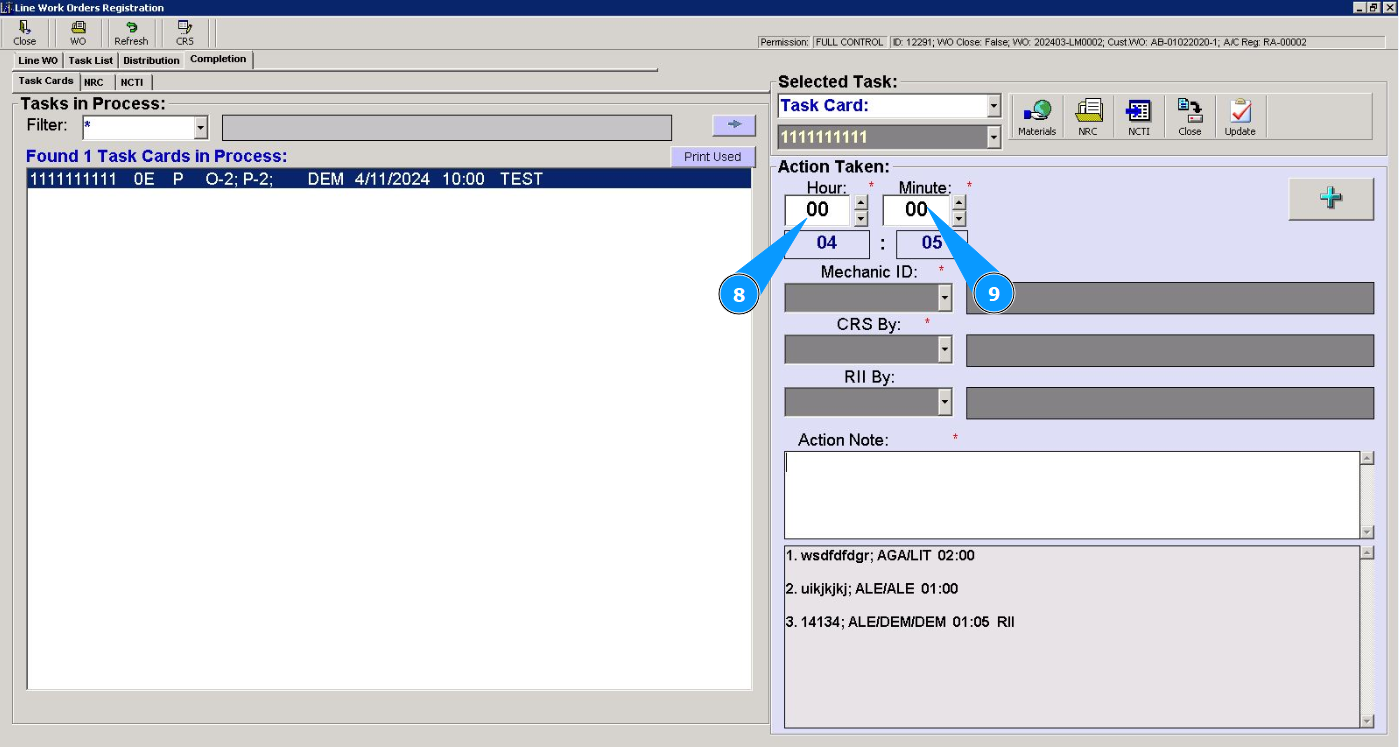
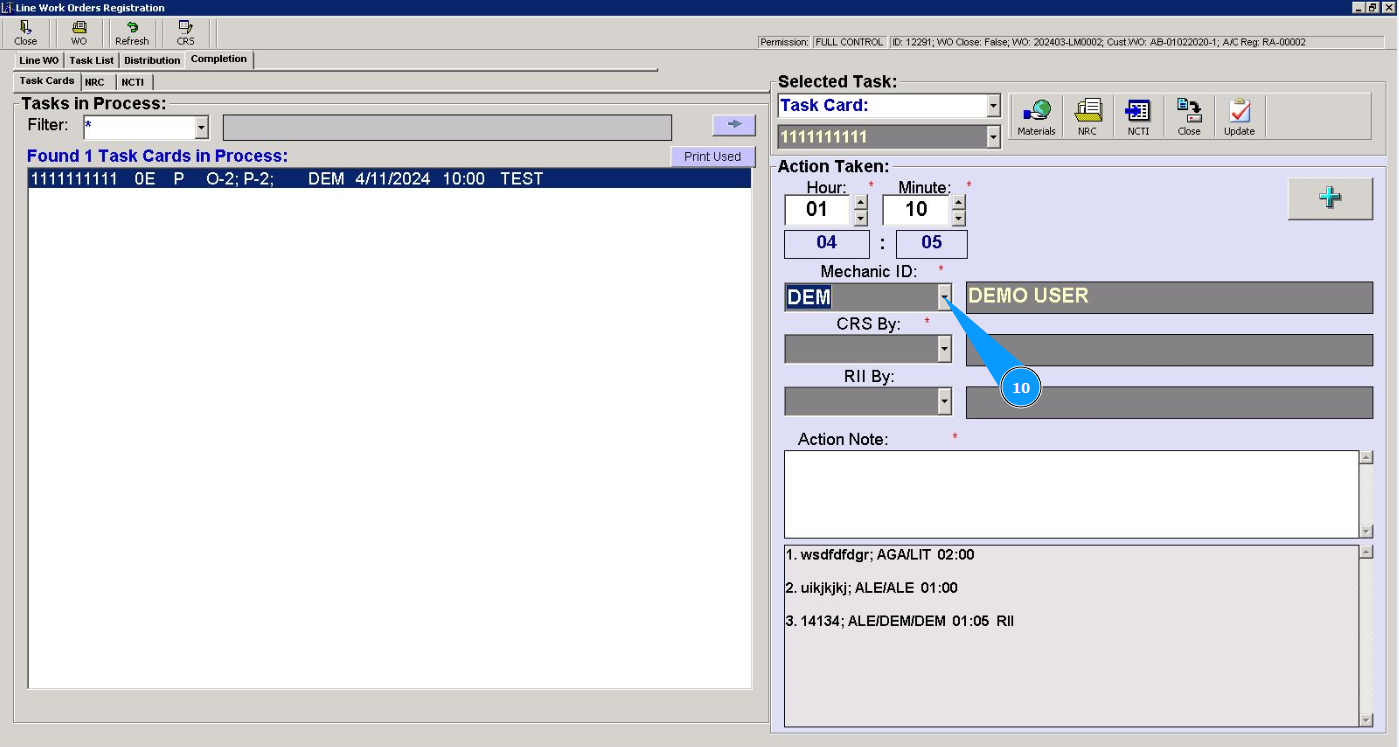
10. Select from the dropdown list the ID of the specialist who performed this task in the field "Mechanic ID".
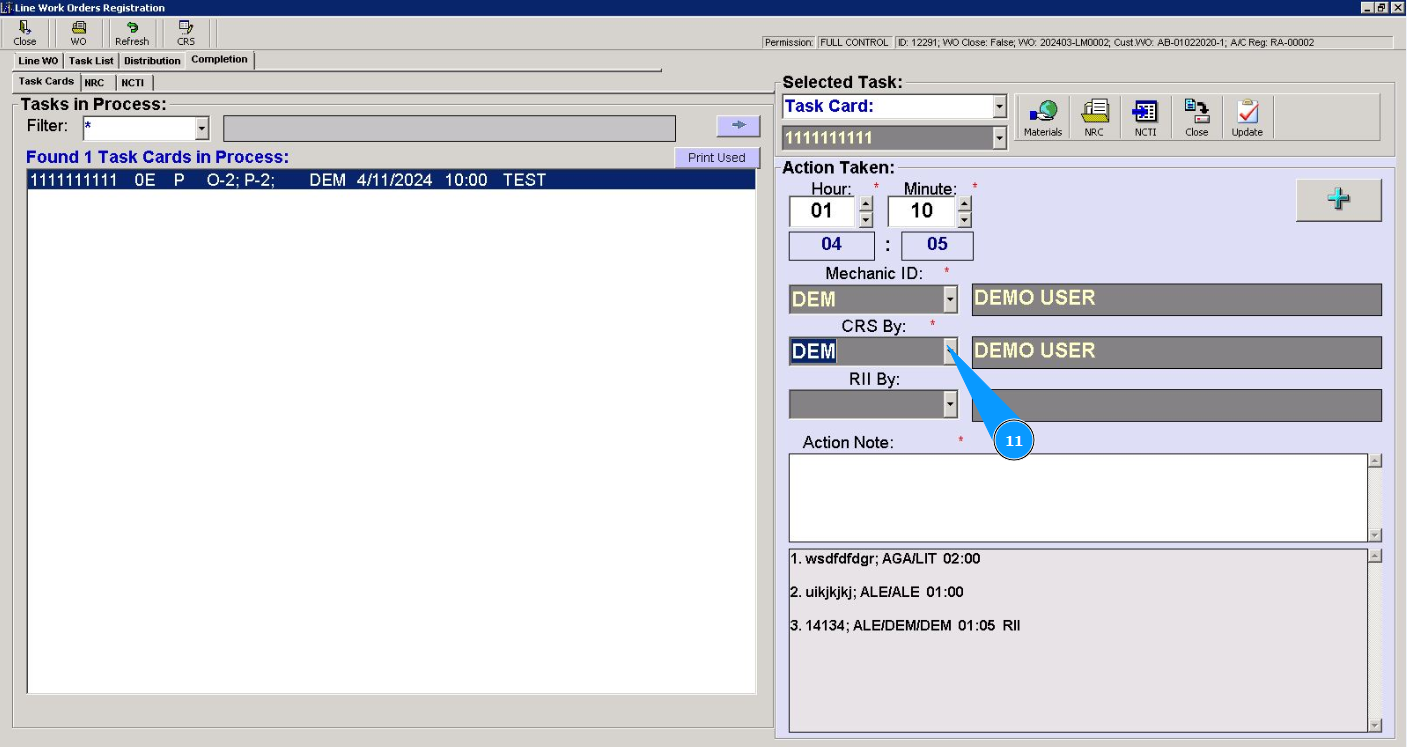
11. Select from the dropdown list the ID of the staff who certified this task in the field "CRS By".
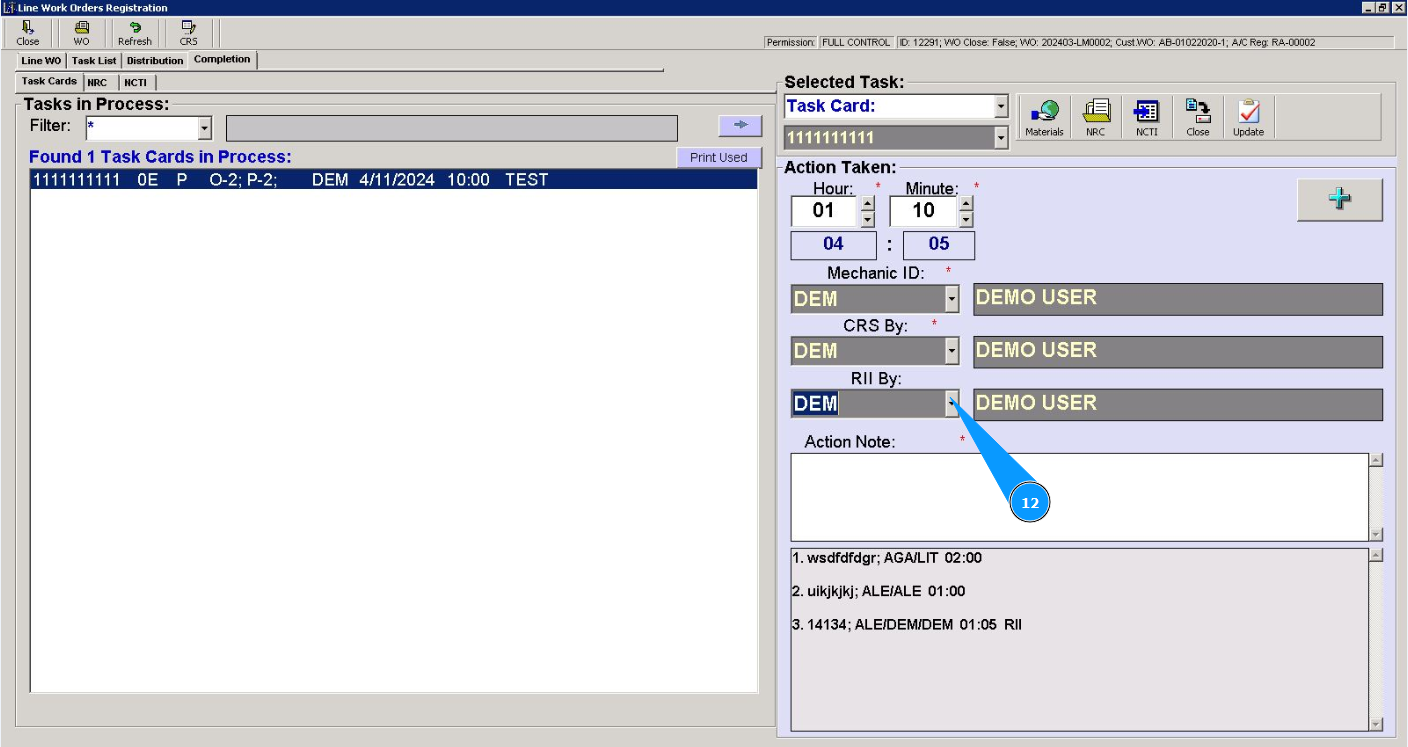
12. Select from the dropdown list the ID of the personal who certified this task in the field "RII By".
13. Enter information about the completion of the task in the field "Action Note".
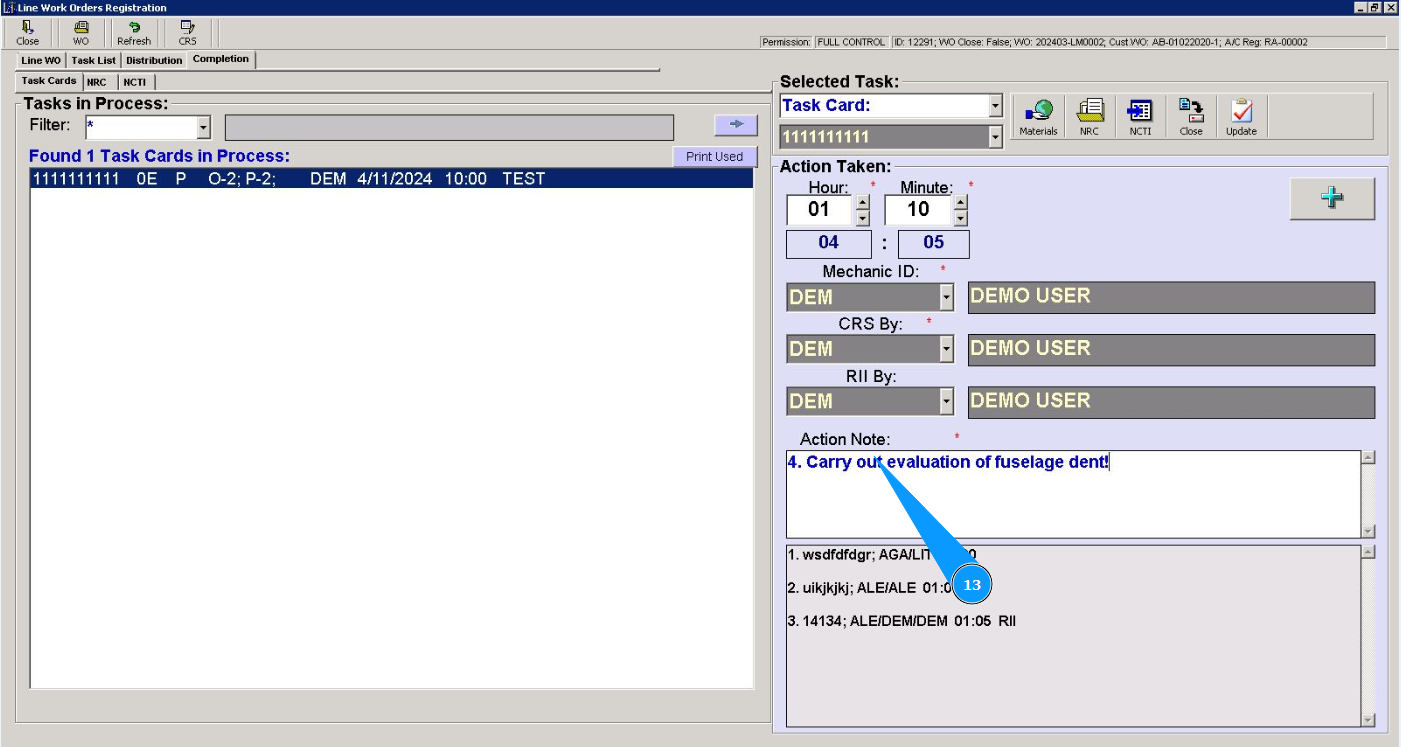
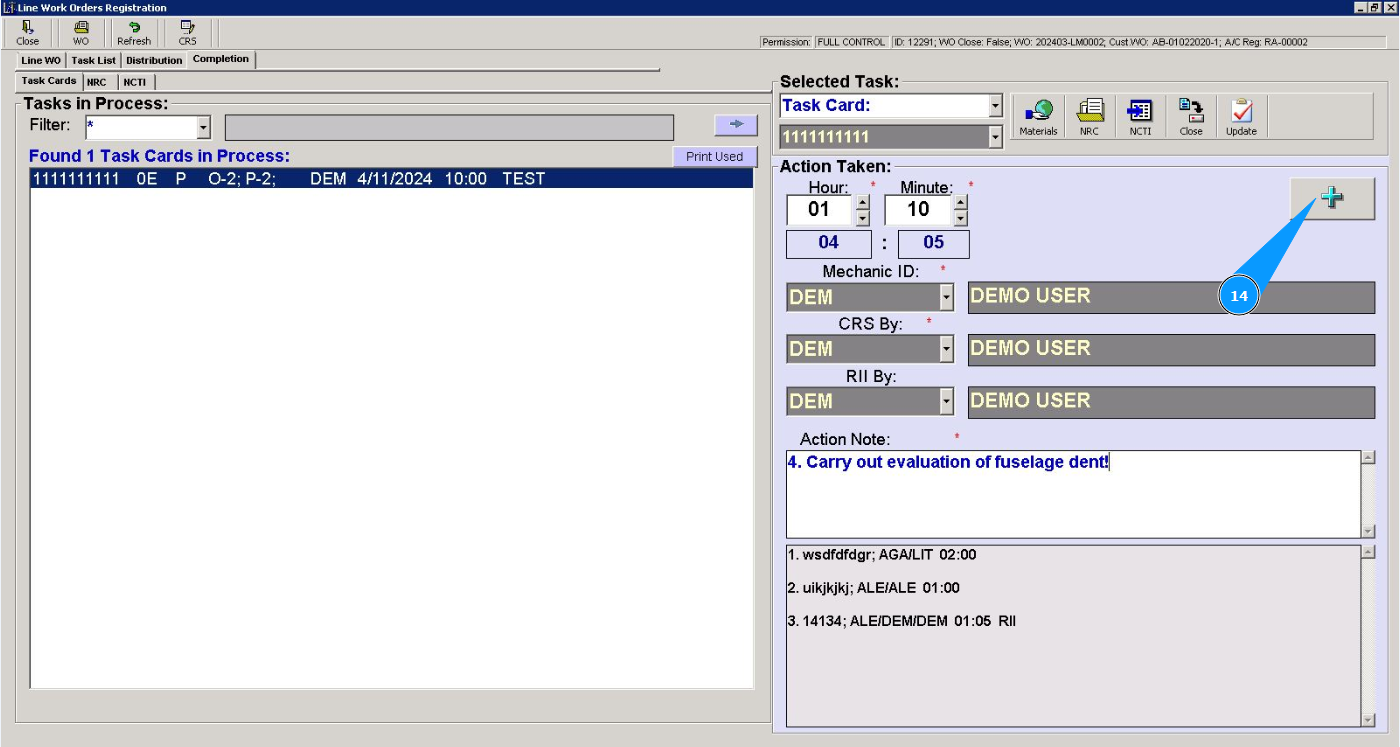
14. Click on the button with a plus symbol to save the entered data.
15. Click on the button "Yes", to confirm entering man-hours for this task.
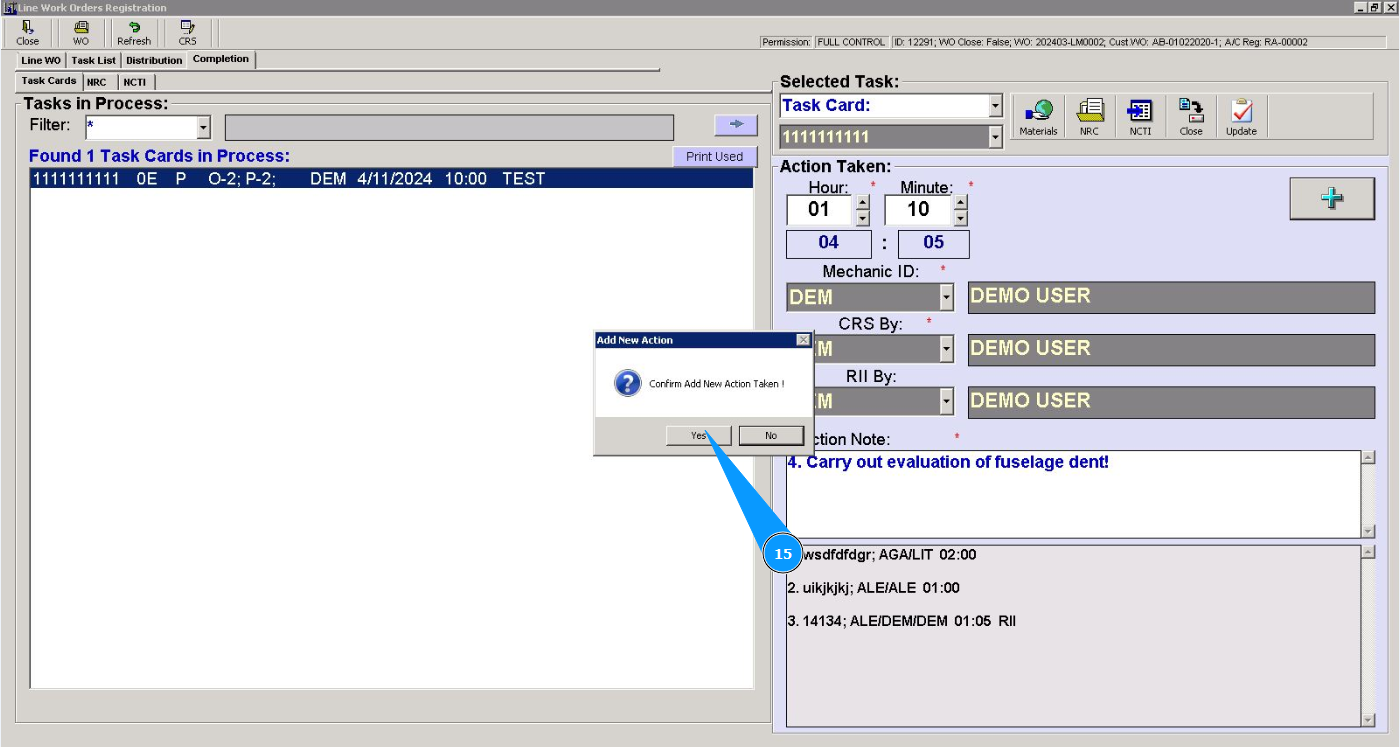
16. Check that the new line with the entered man-hours is displayed in the recorded entries in the field "Action Note".