How to Print Damage Reports
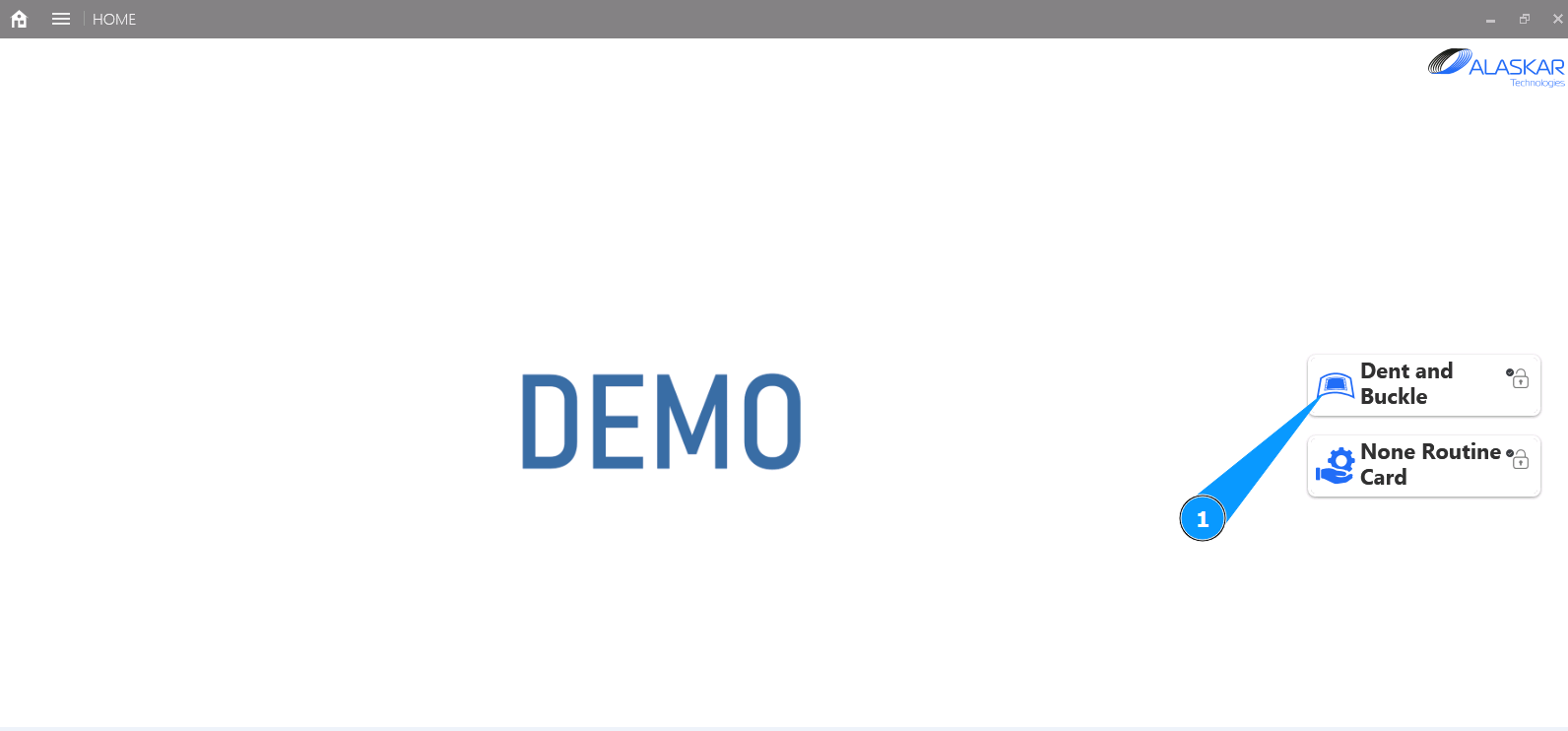
1. In order to print damage reports, go to the submodule "Dent and Buckle".
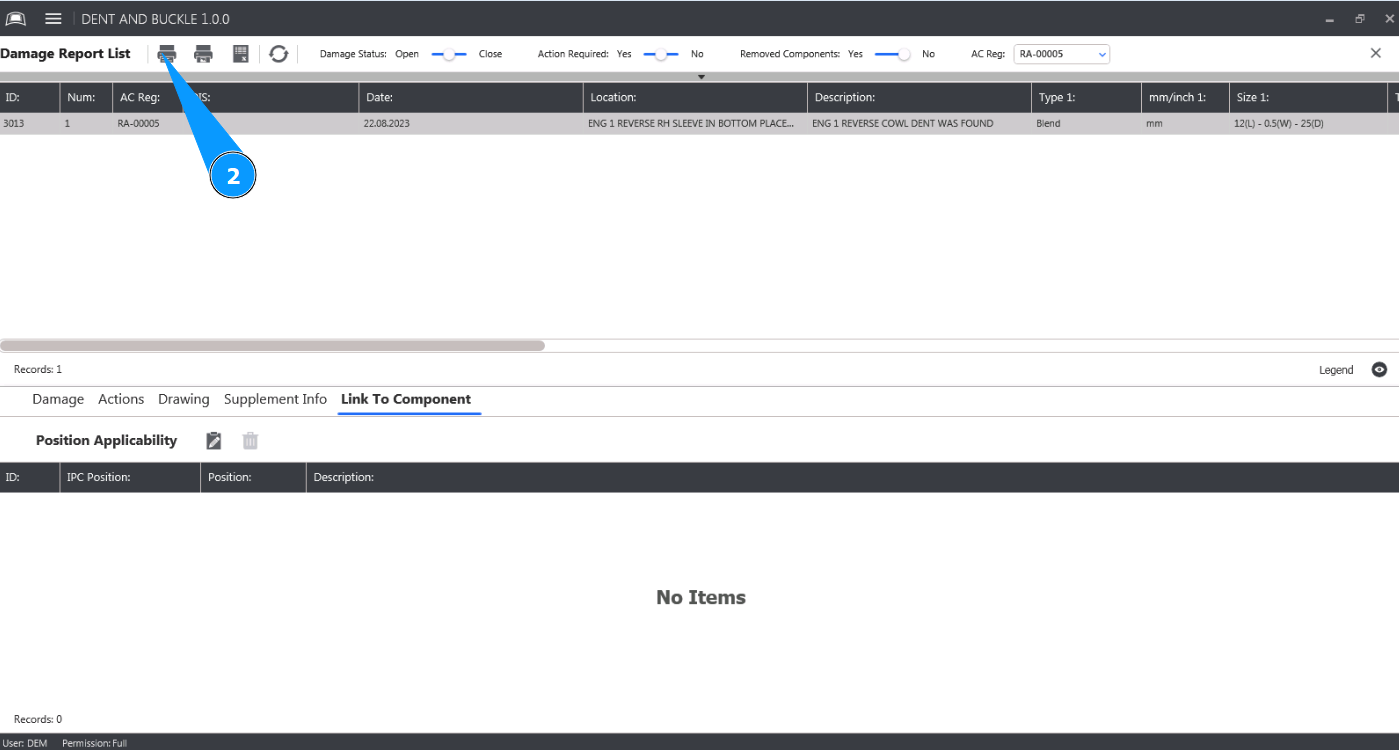
2. In the main menu, click on the button "Open Print Report Dialog" to open the report editor.
3. Make sure the editor is open and accessible in the window "Print Selections".
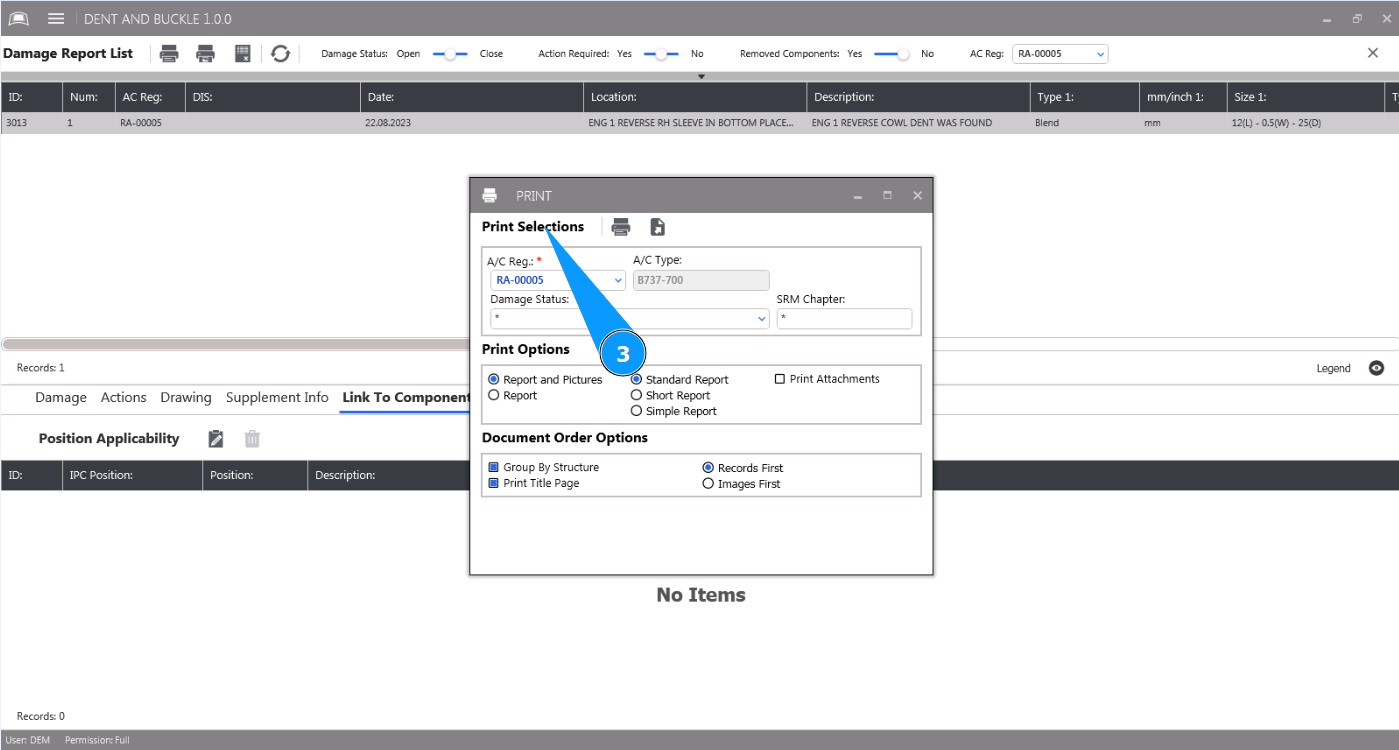
4. Select the aircraft registration number from the dropdown list in the field "A/C Reg.".
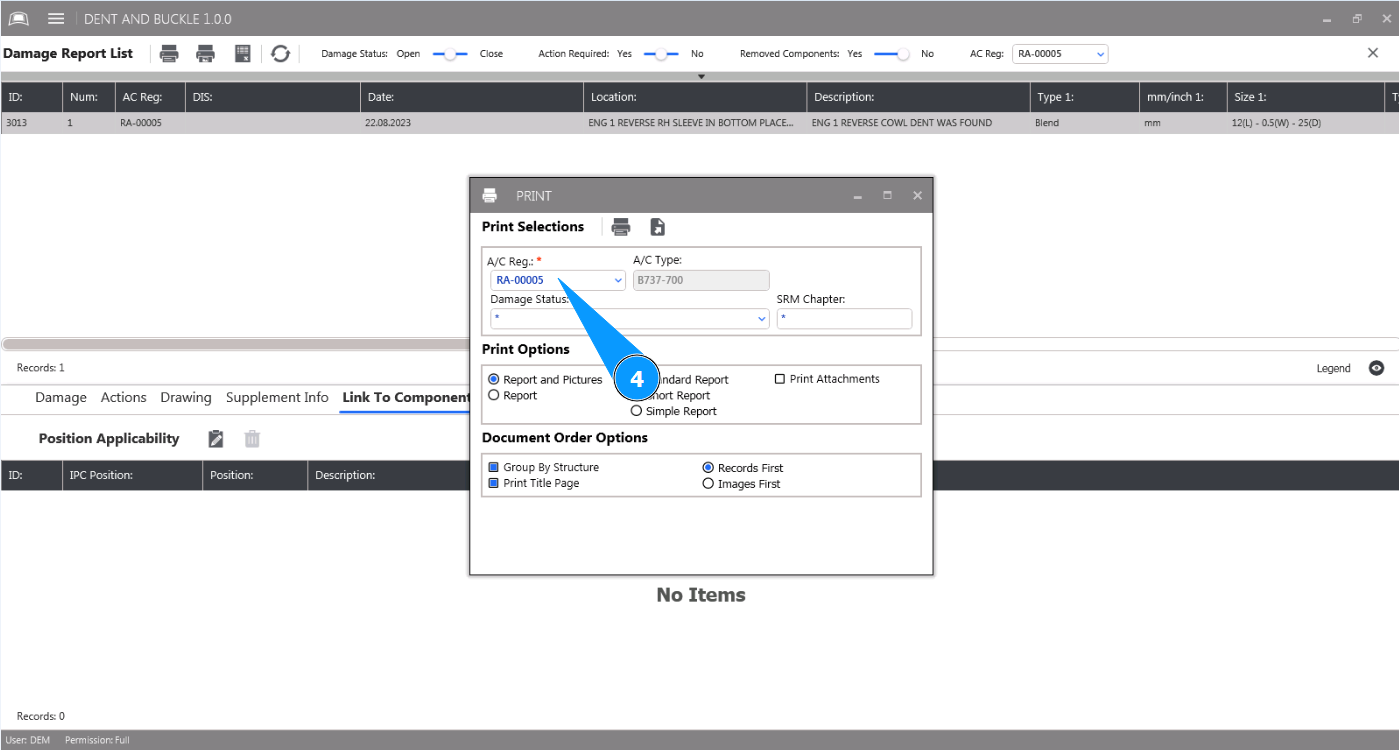
5. Select the damage with the required status from the dropdown list in the field "Damage Status".
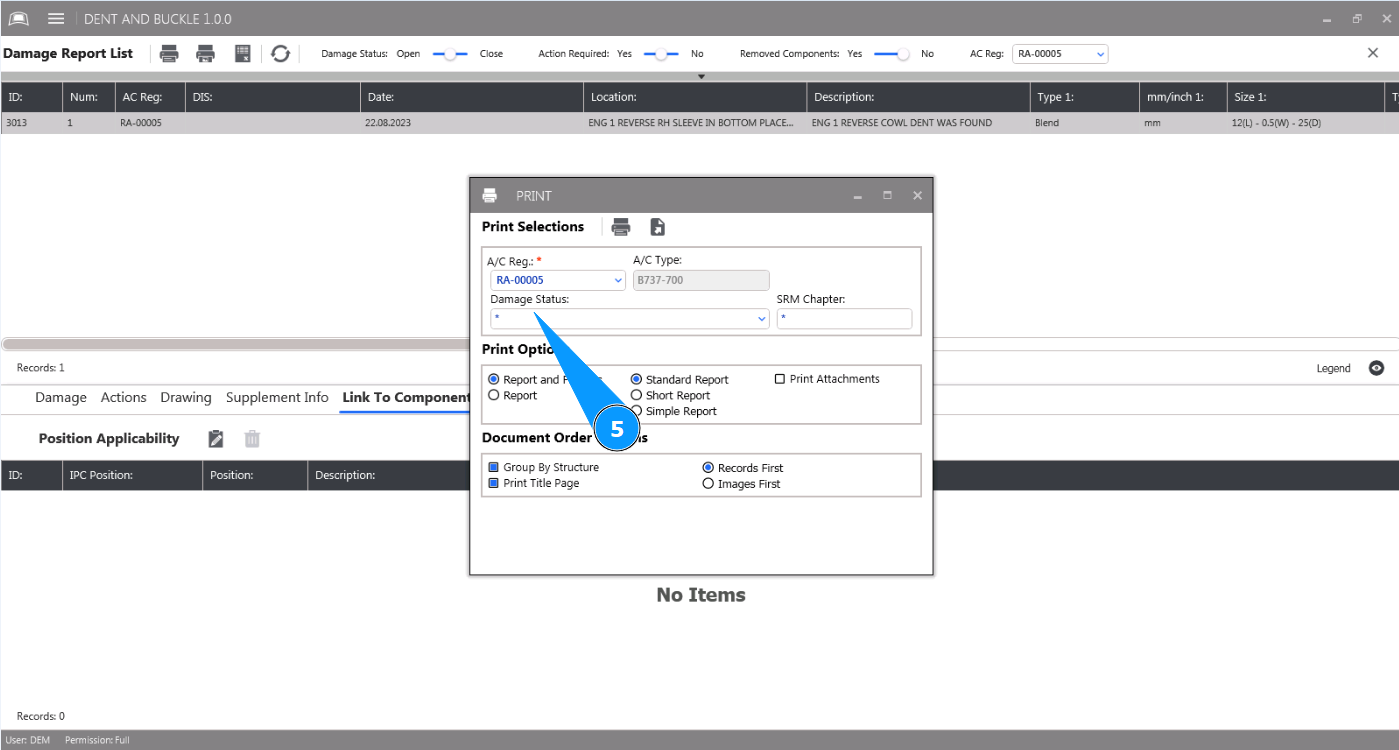
6. If necessary, add the required ATA chapter "SRM Chapter" to the filter.
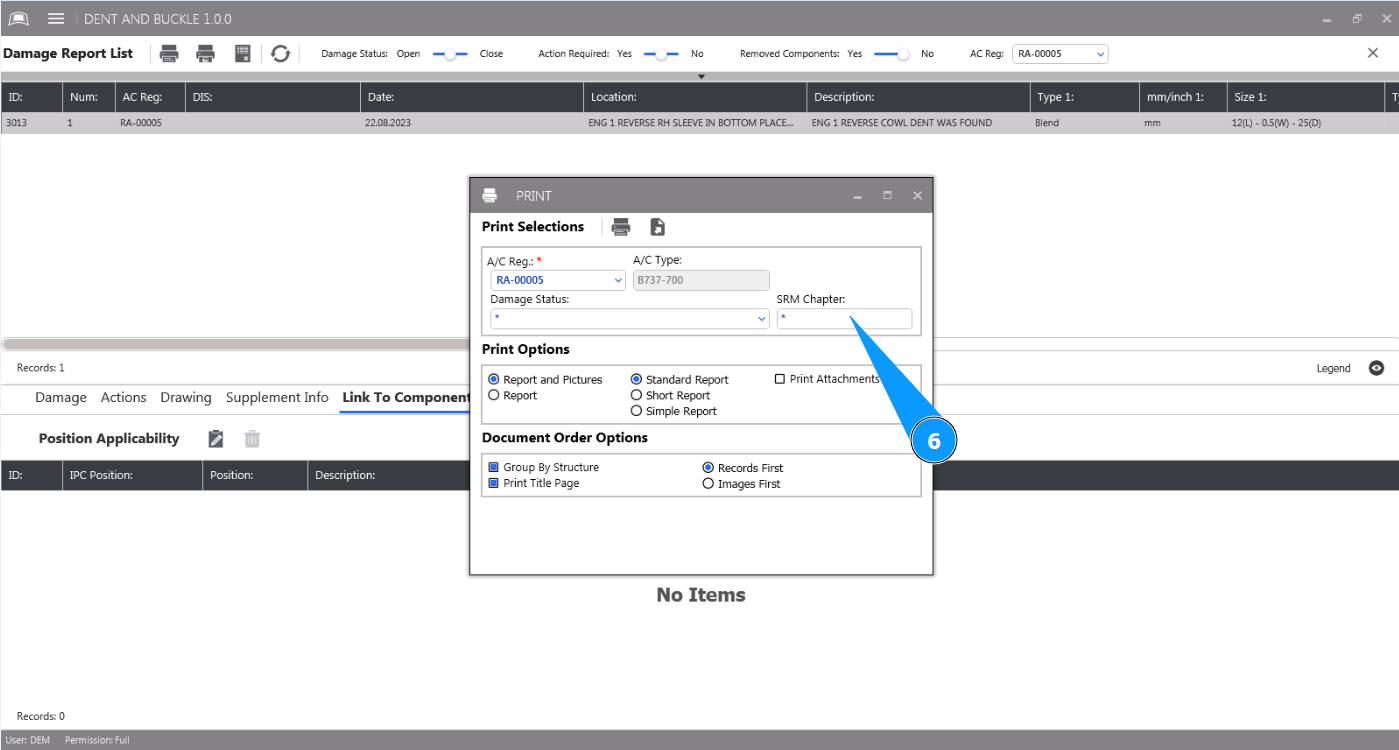
7. Select the required report in the window "Print Options" and click on the appropriate field.
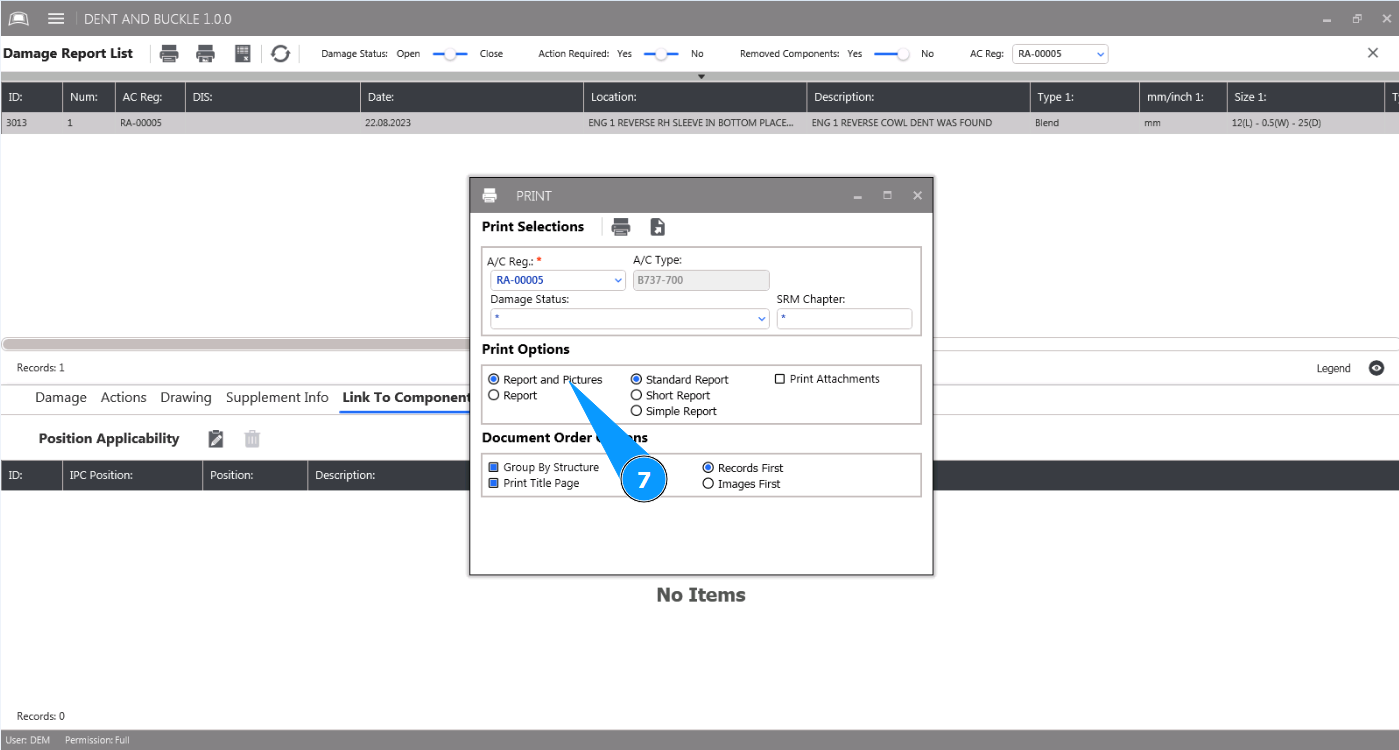
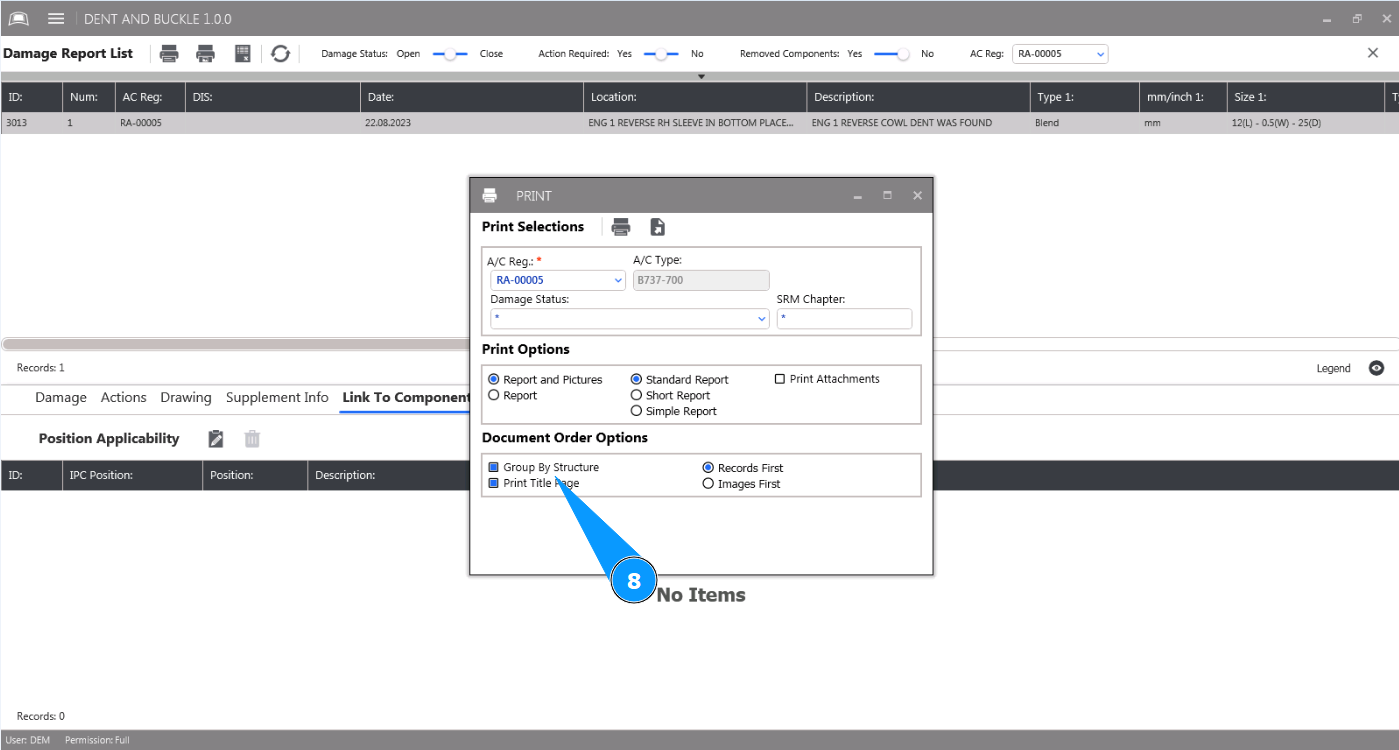
8. Select additional report requirements in the window "Document Order Options" and click on the appropriate field.
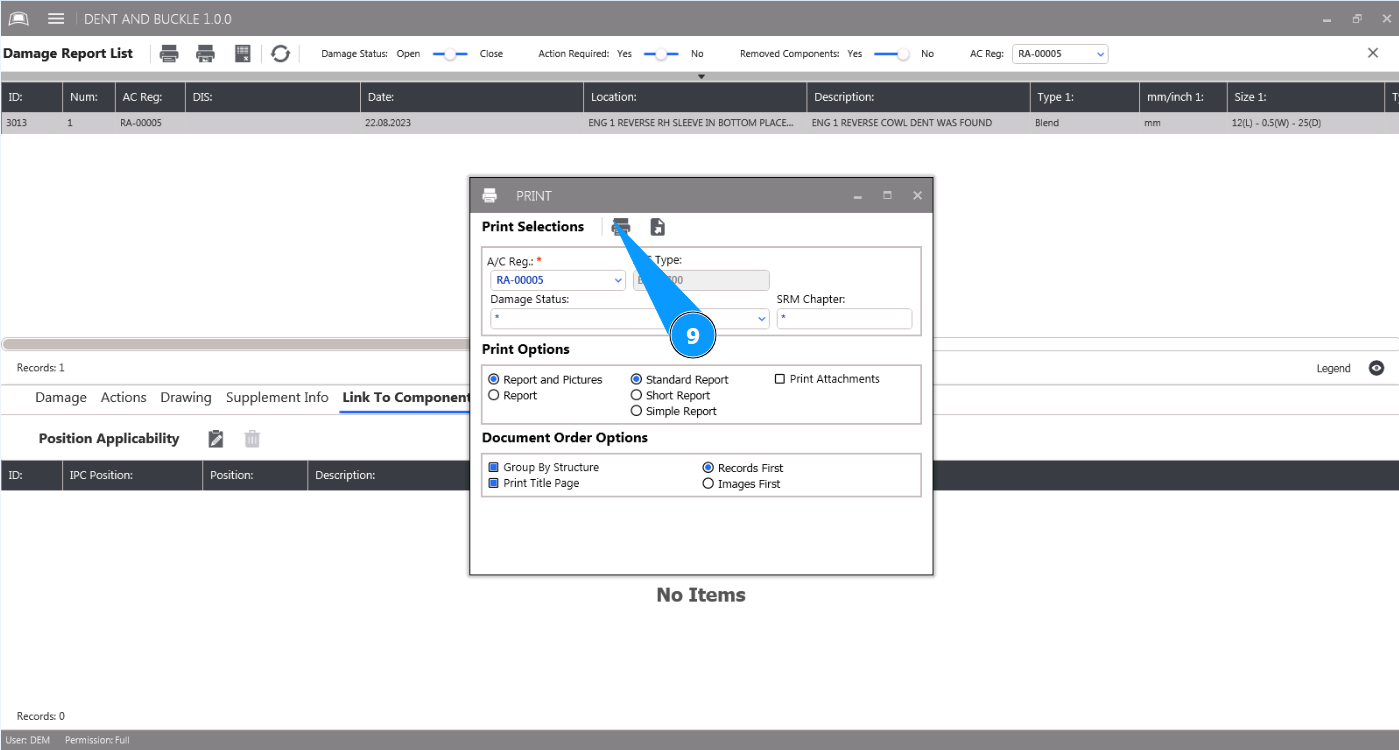
9. Click on the button "Print Report" to print the specified report.
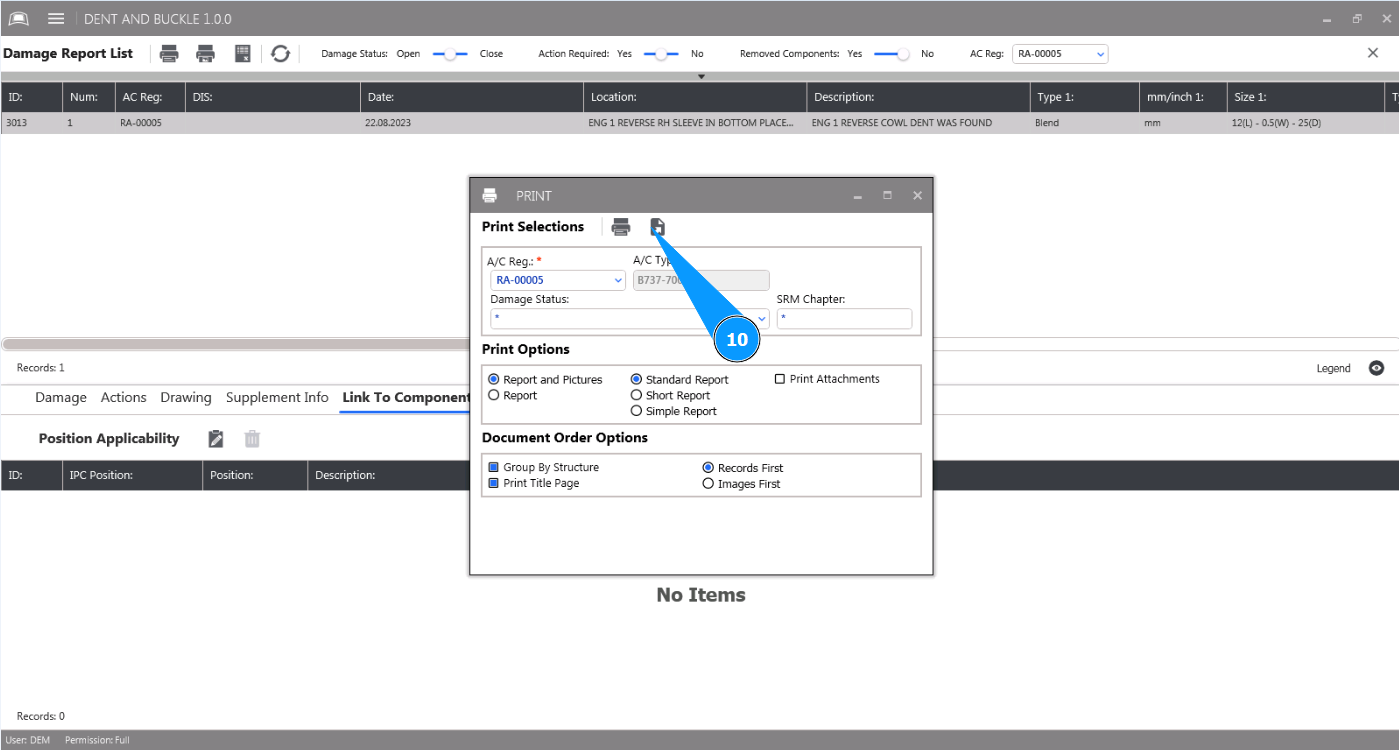
10. If you want to output the damage report in PDF format and save it on your computer, click on the button "Export report".