How to complete action on damage
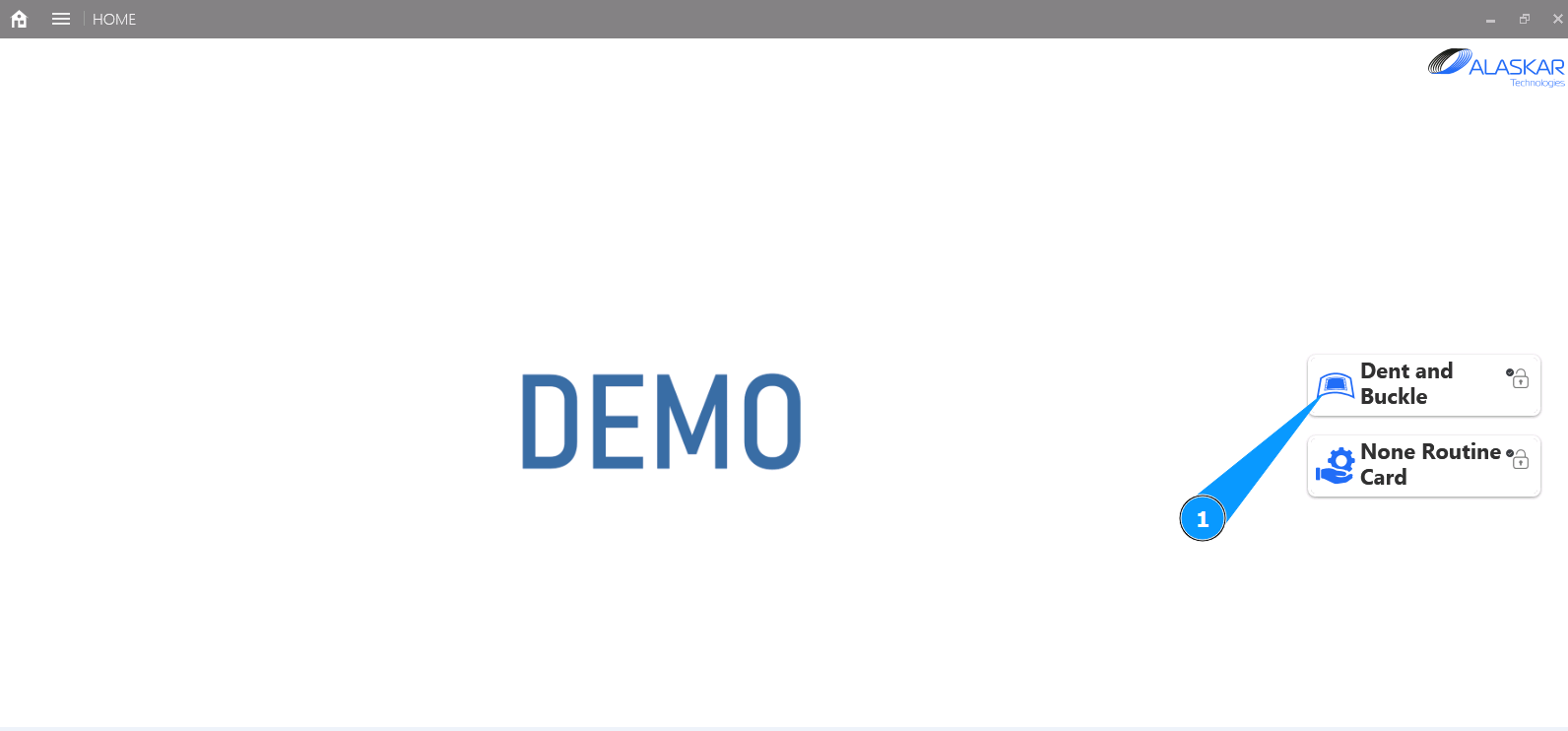
1. In order to mark a completed action on damage, go to the submodule "Dent and Buckle".
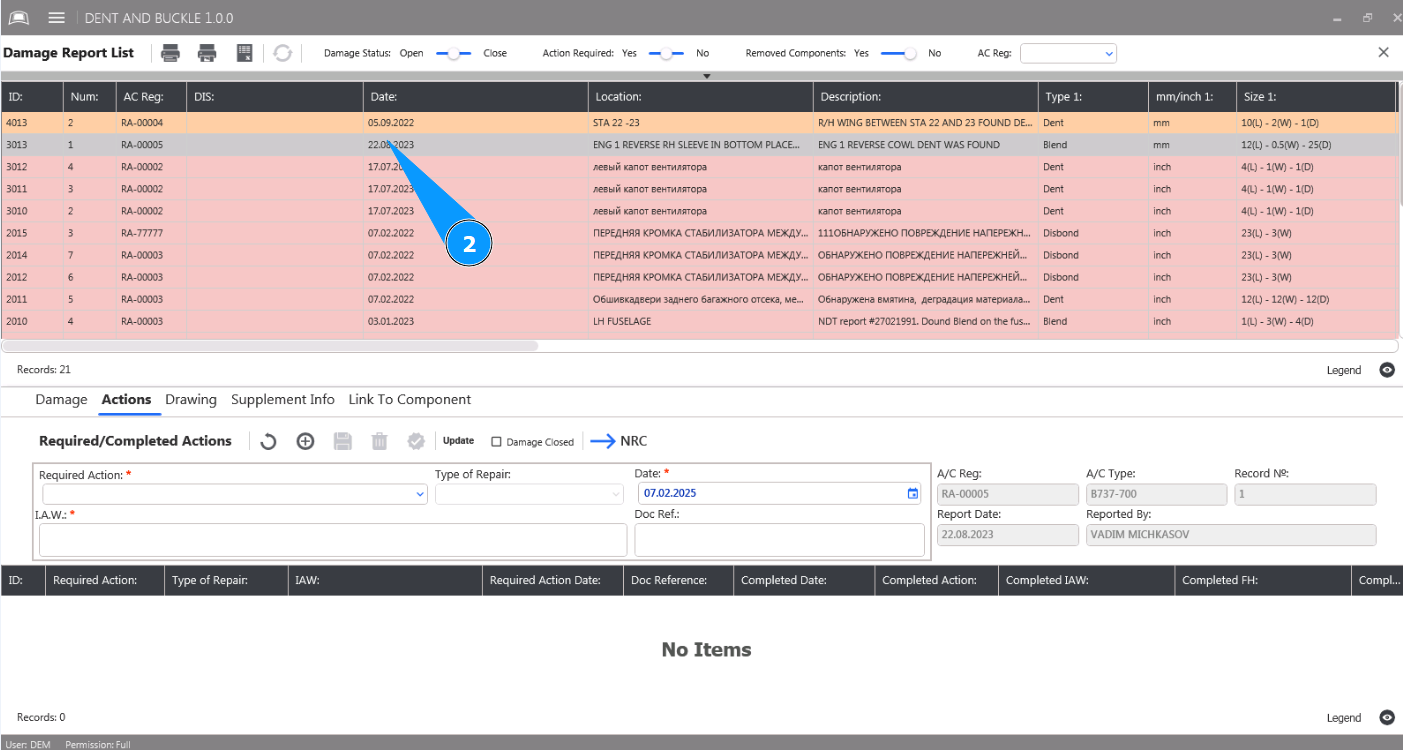
2. Select damage from the list to complete the action and click on the corresponding line in the window "Damage Report List".
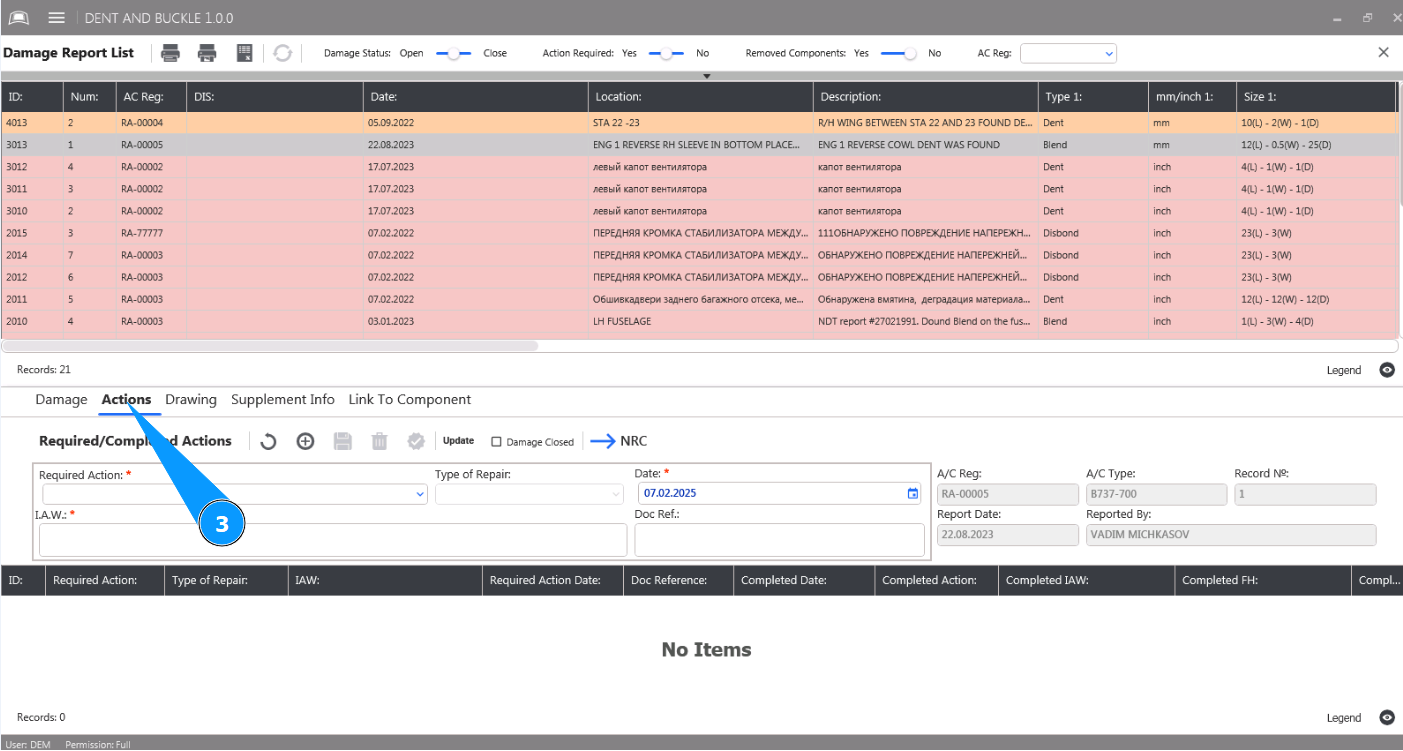
3. Then go to the tab "Actions".
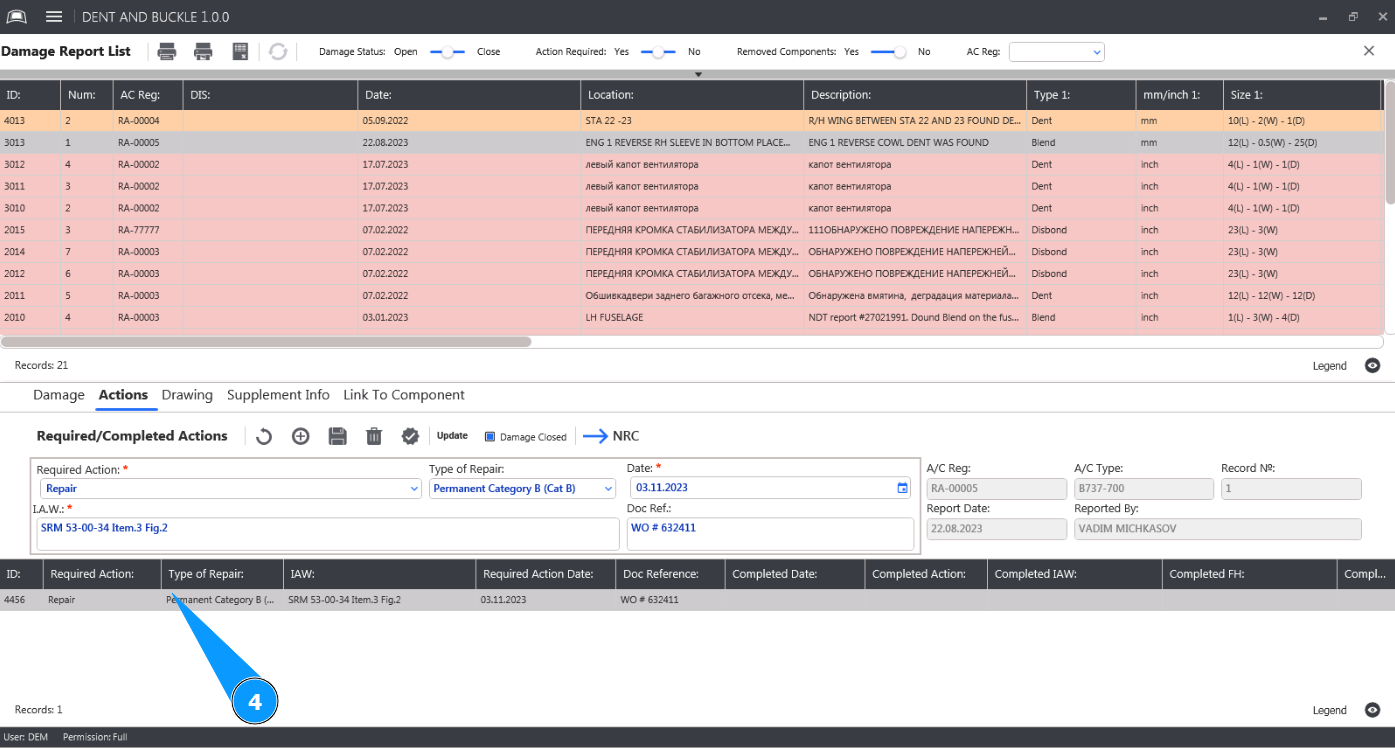
4. Select the required action from the list to complete as completed and click on the corresponding line in the window "Required Actions".
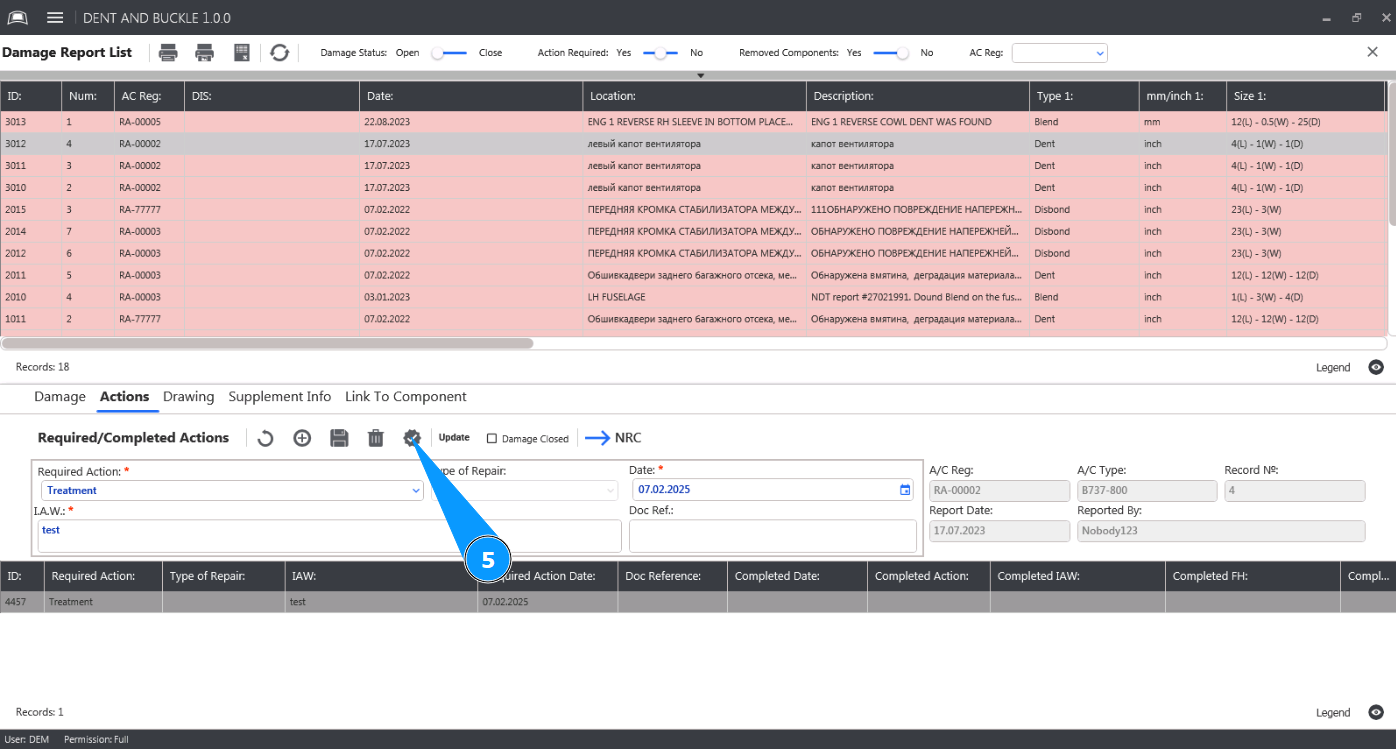
5. Click on the button "Completion Action" to mark the required repair action as completed.
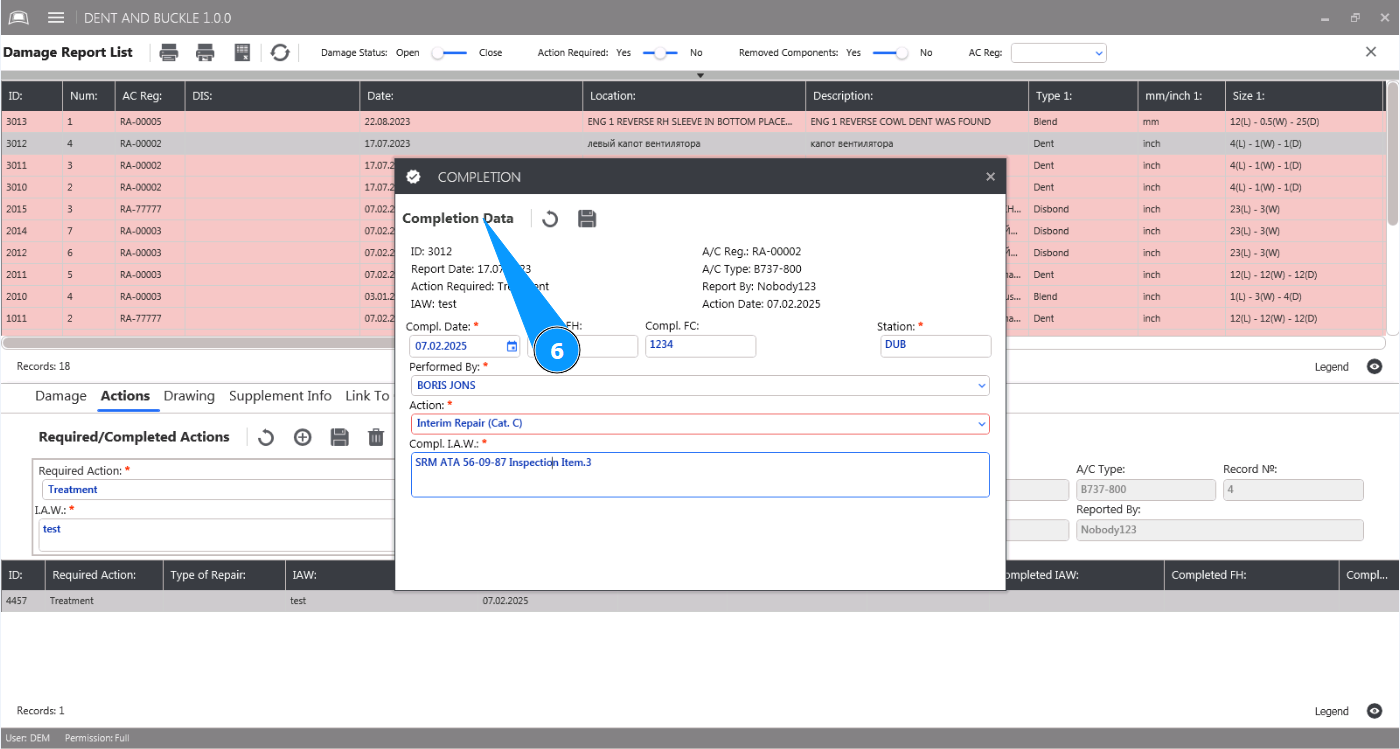
6. Make sure the repair action completion editor is open in the window "Completion Data".
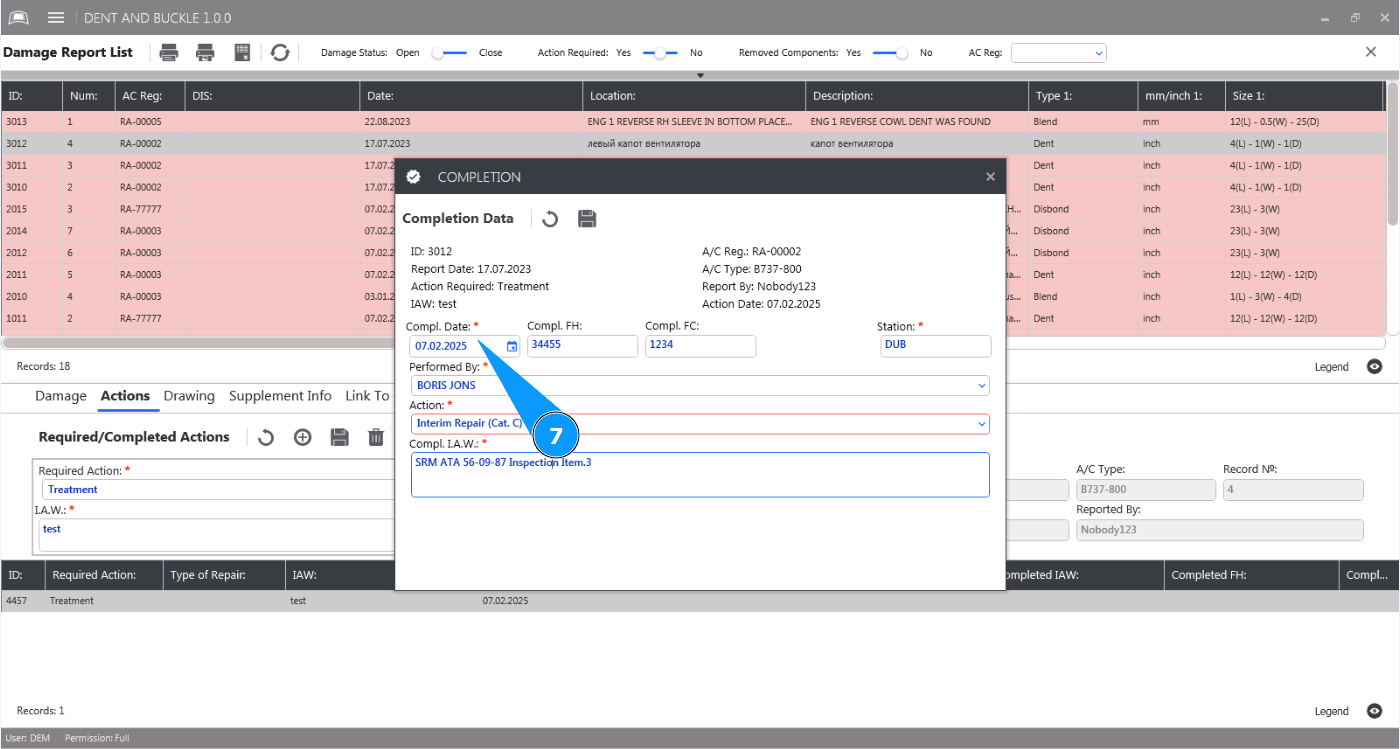
7. Enter the date of completion in the field "Compl. Date".
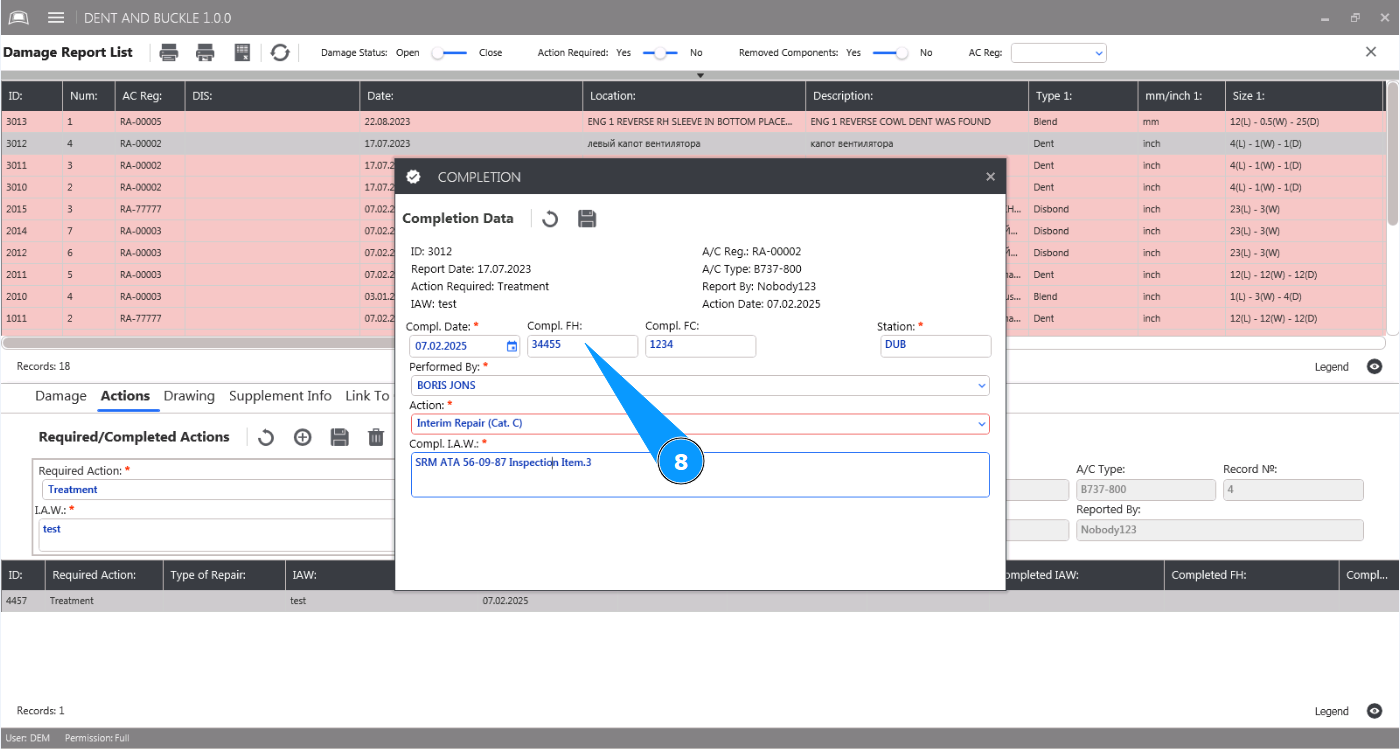
8. If necessary, enter the hours of operation on date of completion in the field "Compl.FH".
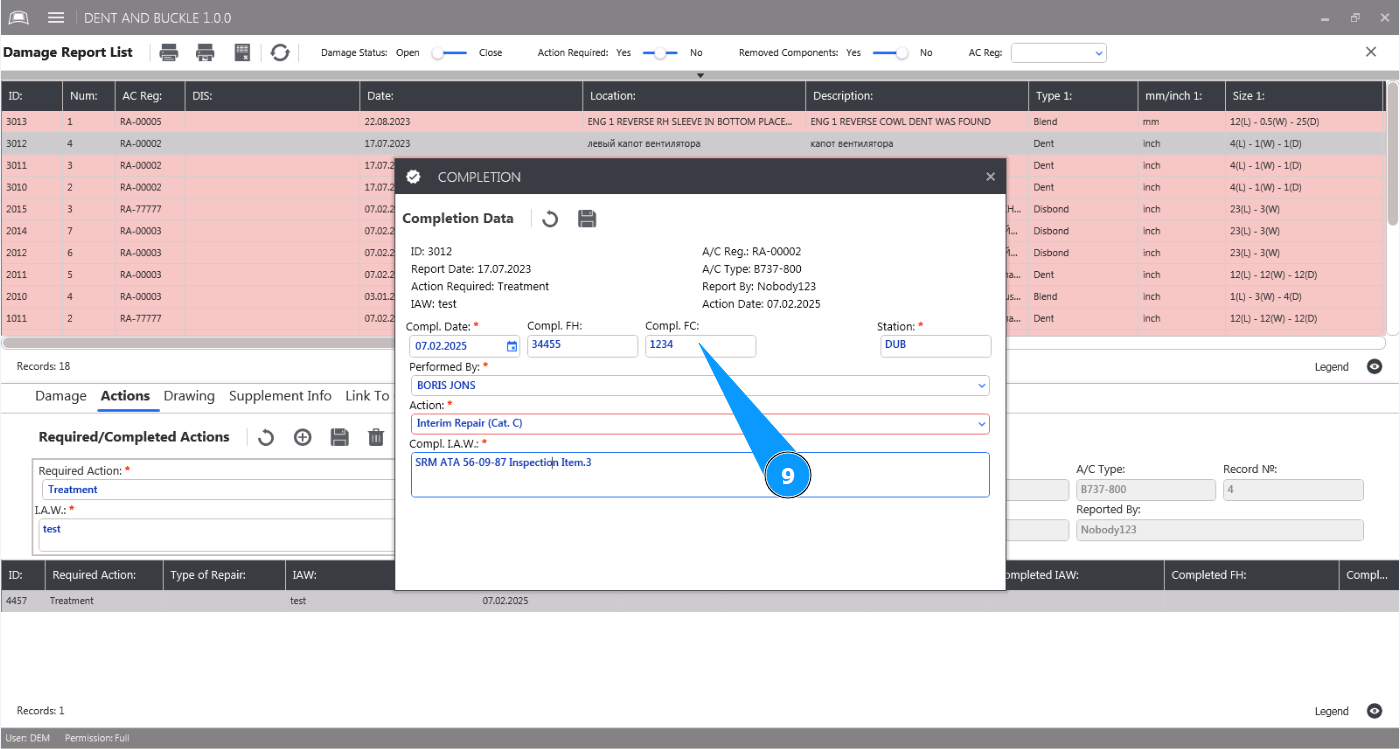
9. If necessary, enter the cycles of operation on date of completion in the field "Compl.FC".
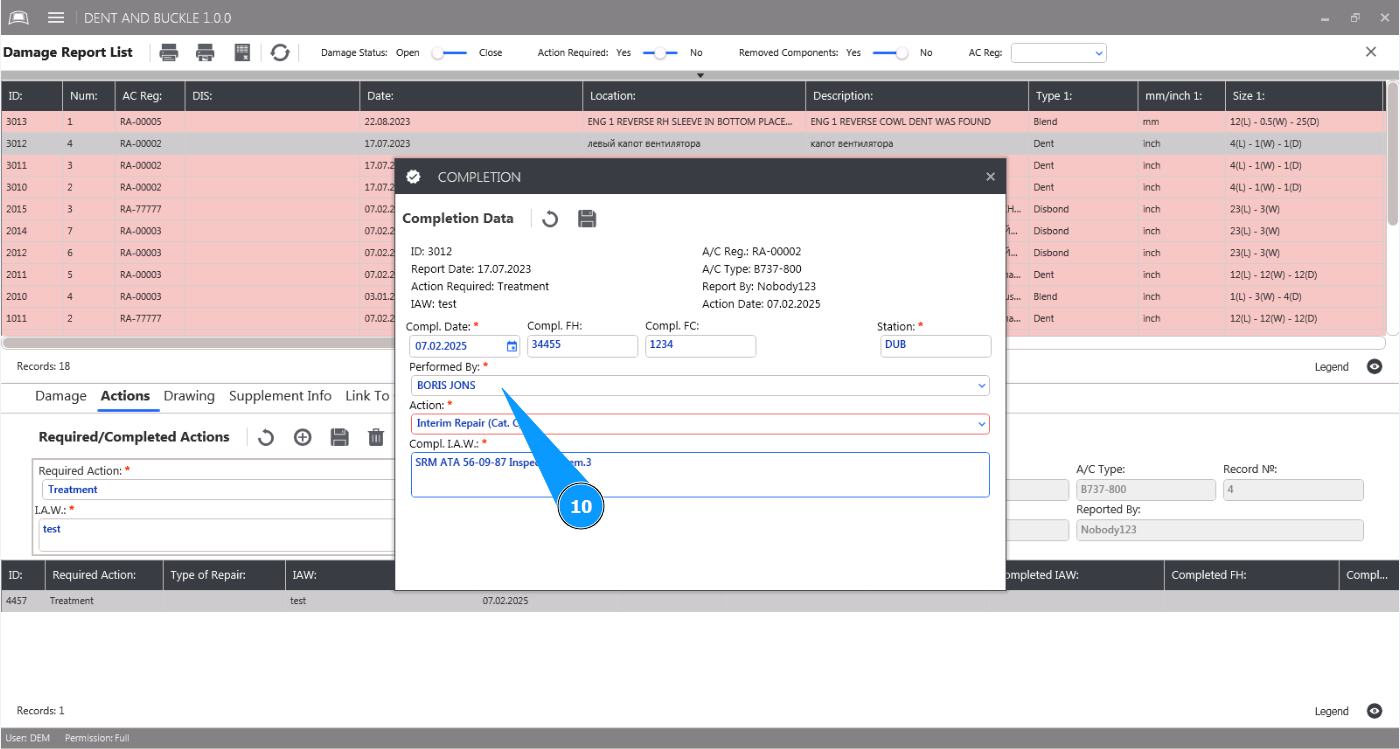
10. Select from the dropdown list the personnel who performed the work in the field "Performed by".
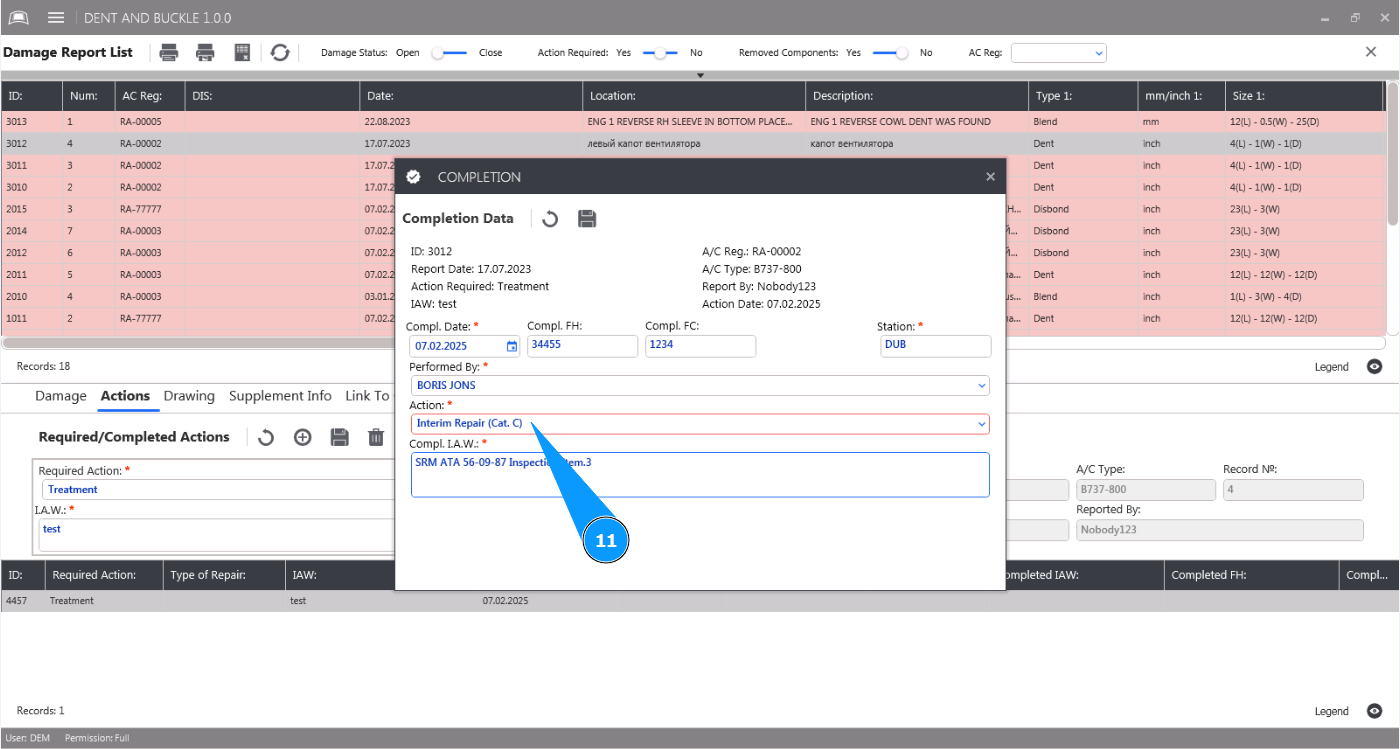
11. Select from the dropdown list the repair action type performed in the field "Action".
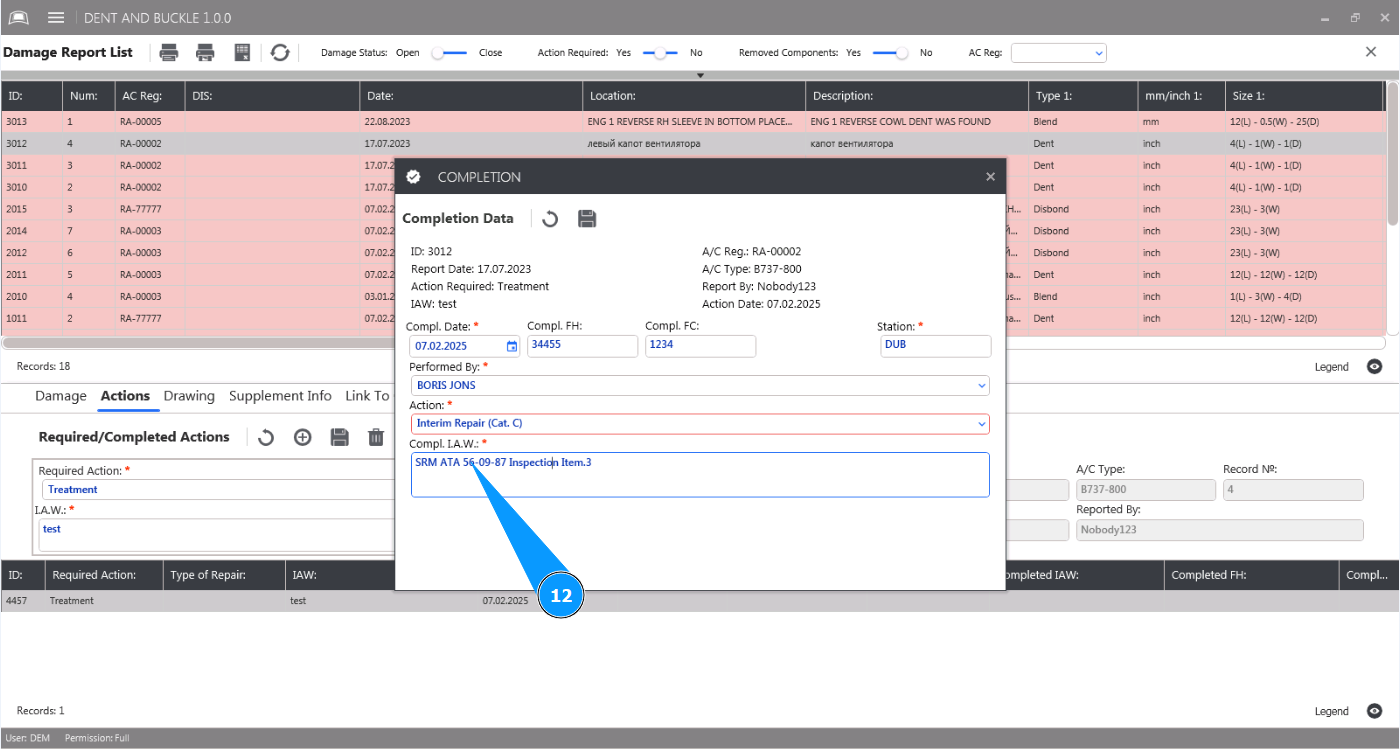
12. Enter a reference to the document and section on which the action was performed in the field "Compl. I.A.W".
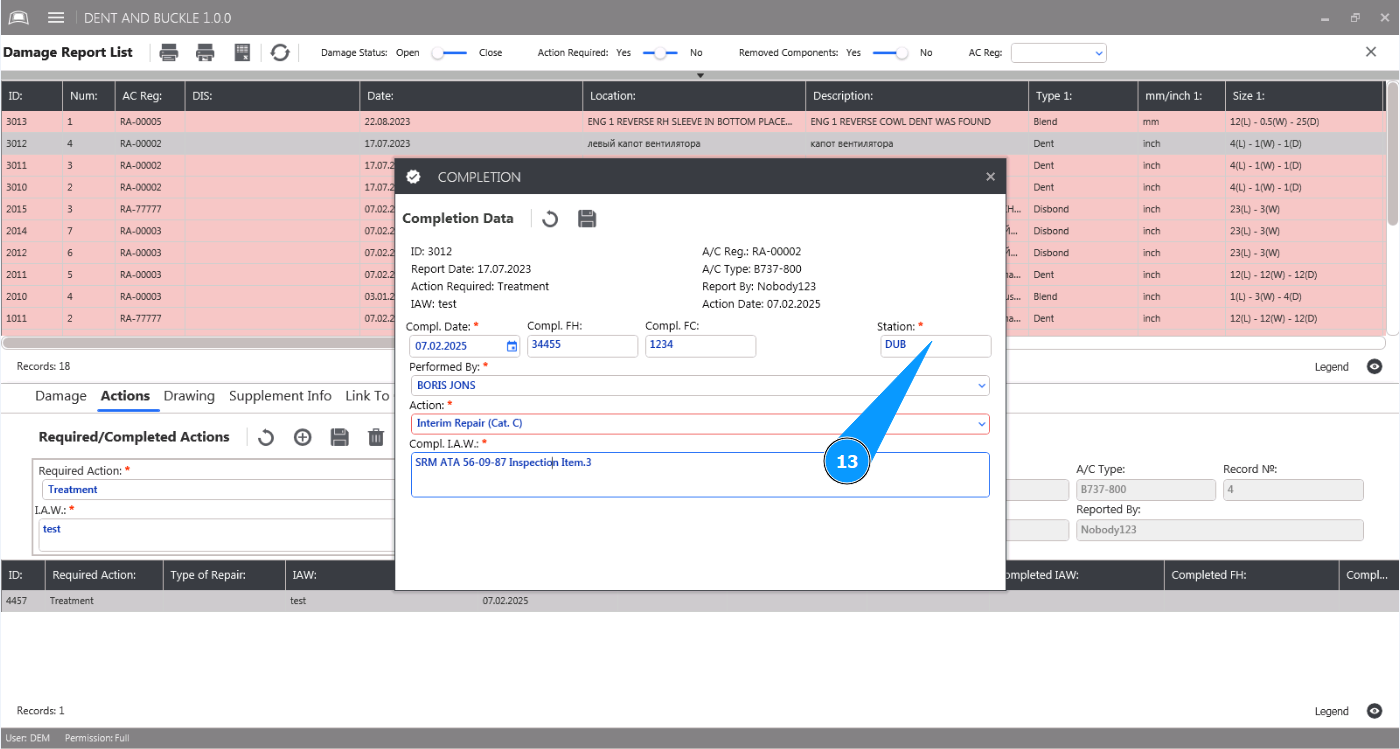
13. Enter the abbreviation of the line station where the work was performed in the field "Station".
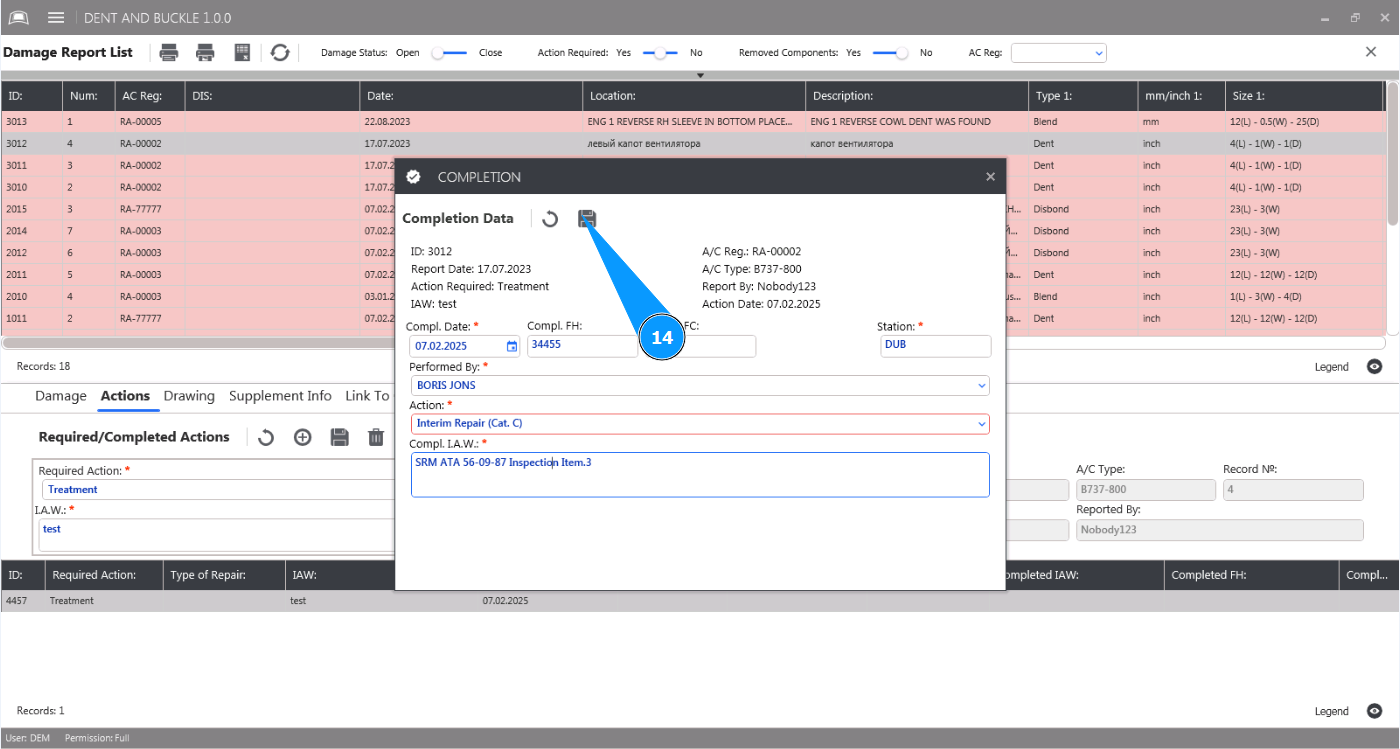
14. Click on the button "Update" to save the data and add a note about the action being completed.
15. Click on the button "Yes" to confirm saving the action data to the program.
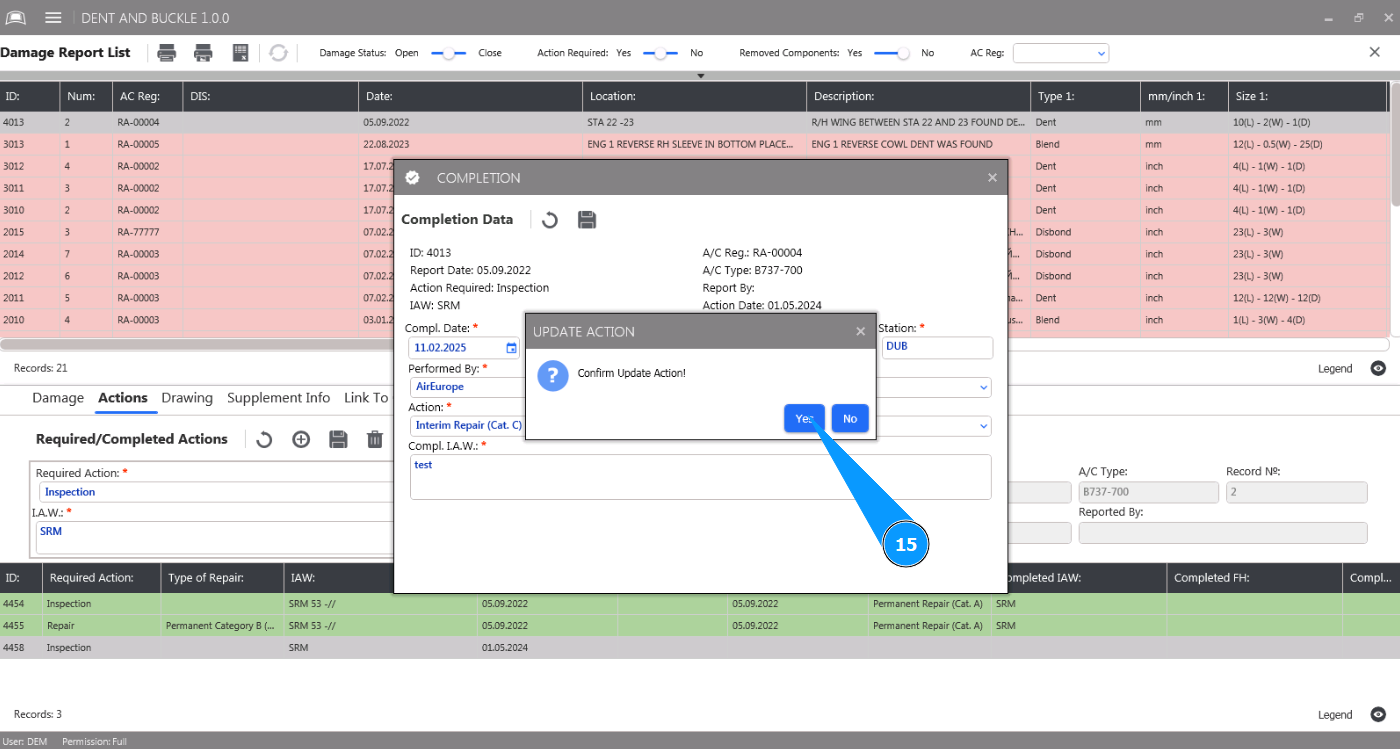
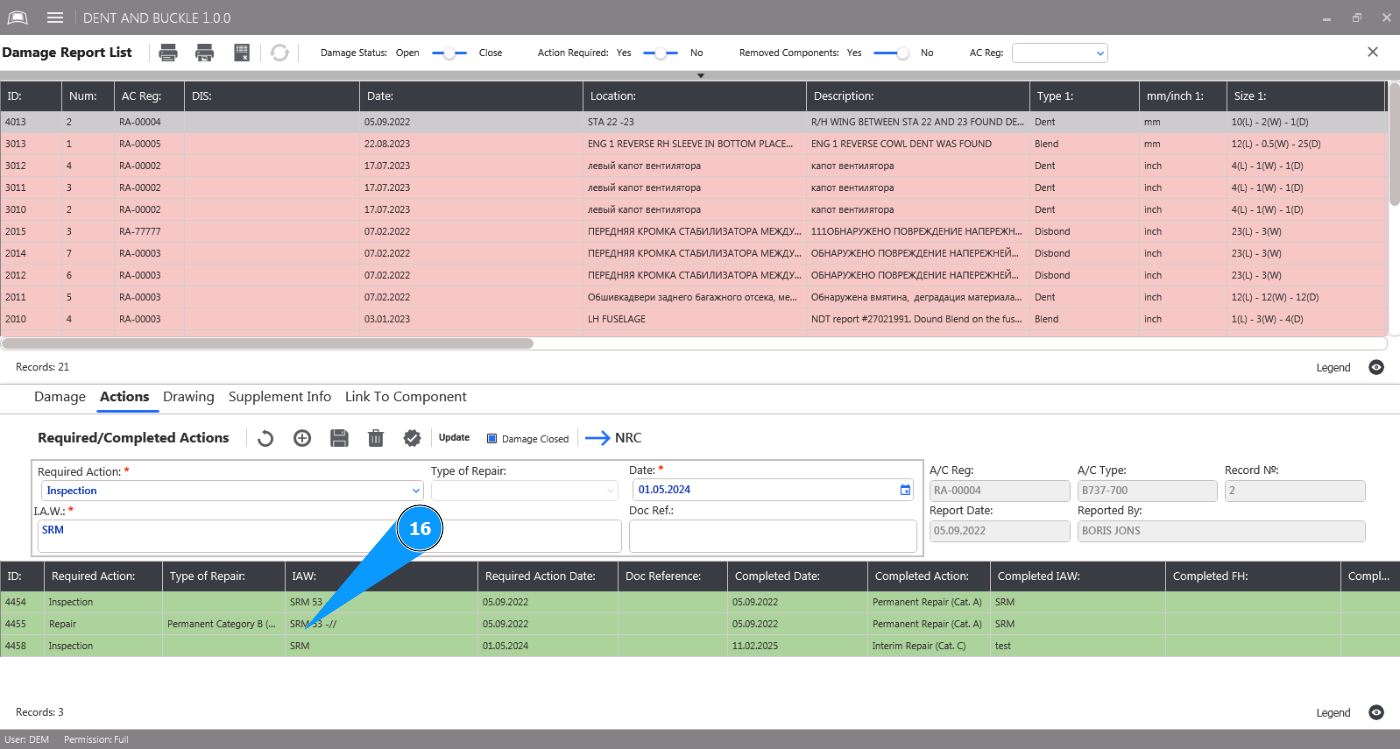
16. Check that the completed action has changed color to green in the window "Required Actions".