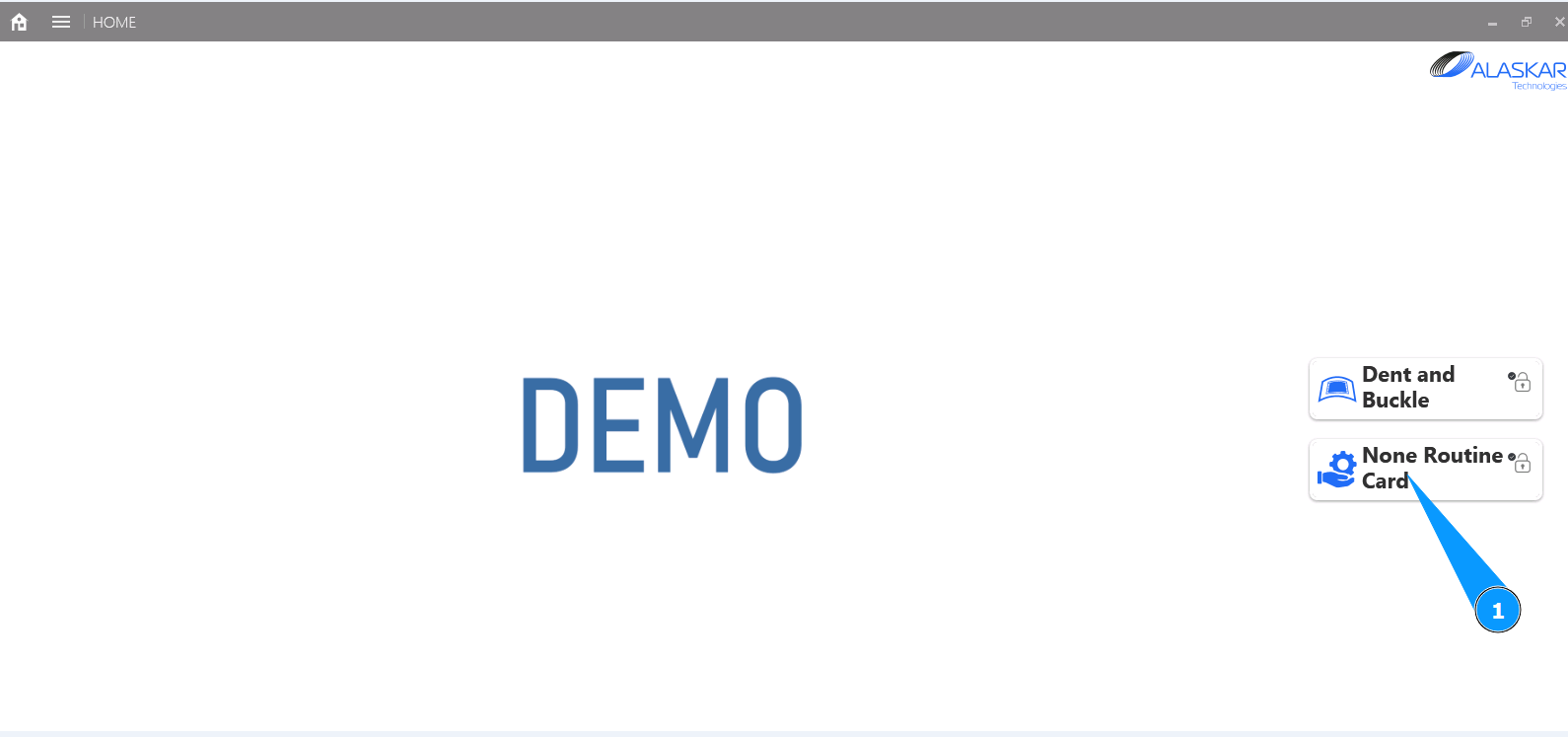
How to close an action in NRC
1. In order to close an action in NRC, go to the submodule "Non Routine Card".
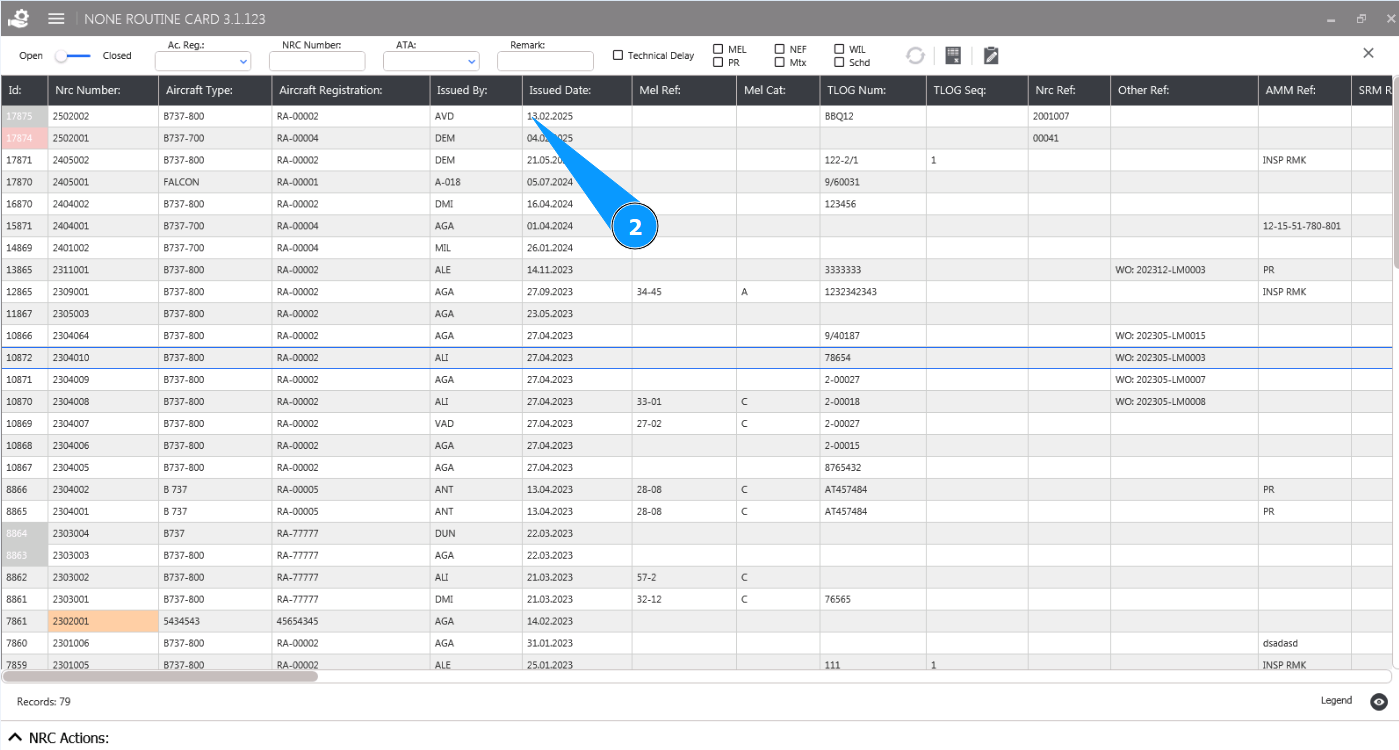
2. Select the NRC from the list to close the action and click on the corresponding line in the window "NRC List".
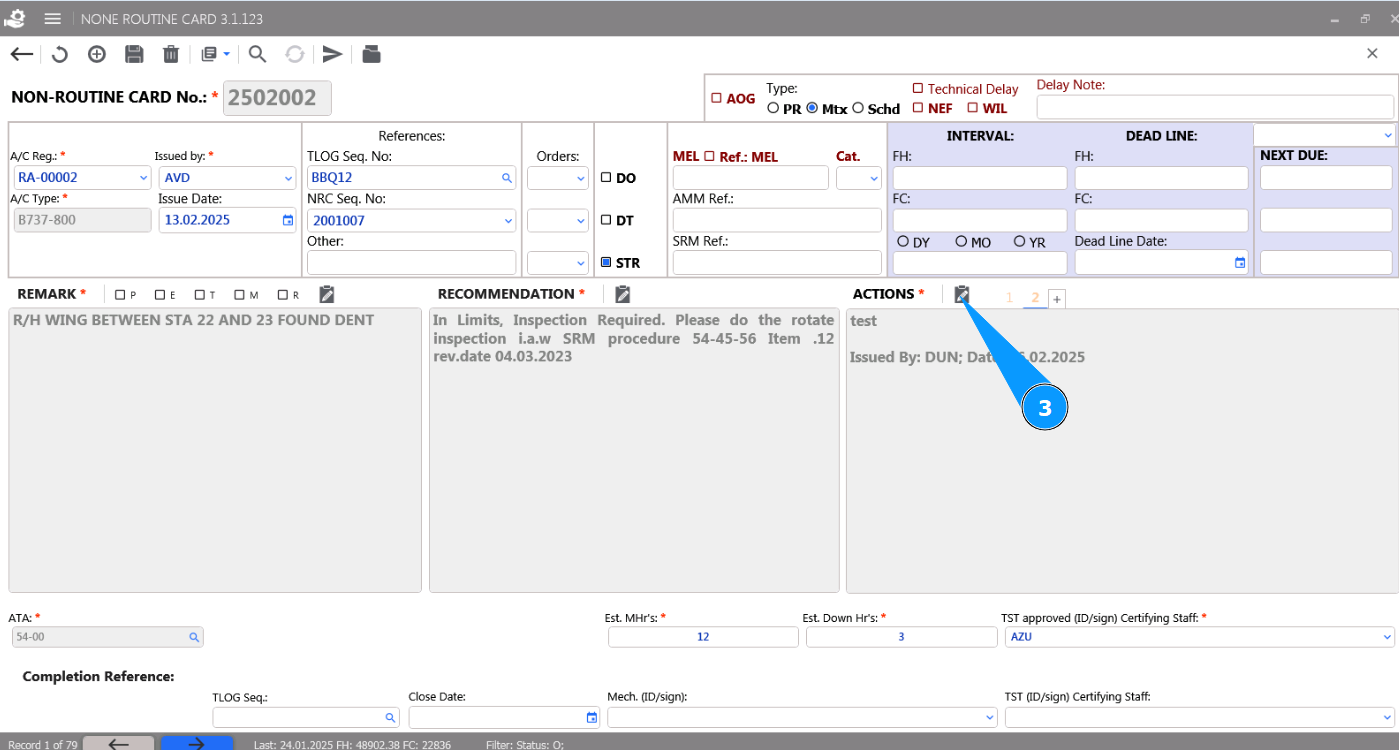
3. Click on the button "Edit" to open the action editor.
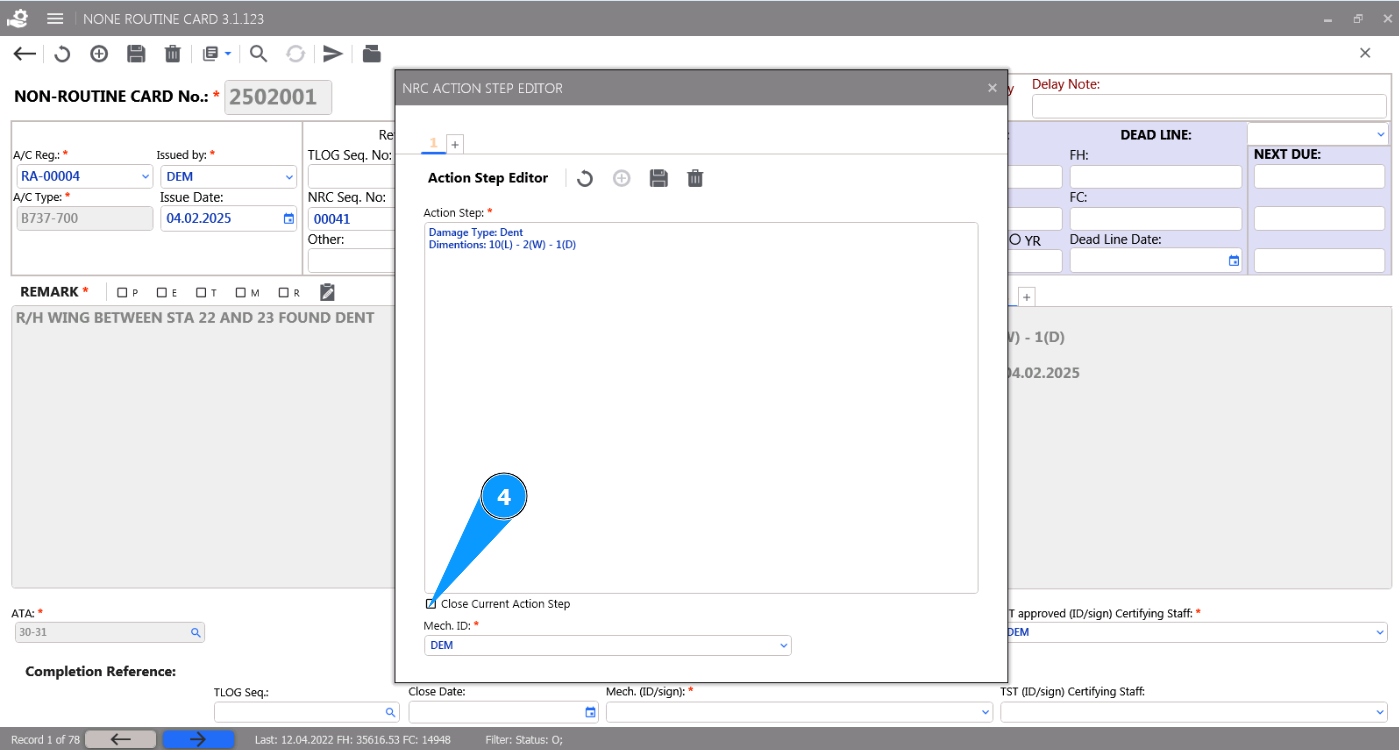
4. Click in the field "Close Current Action Step" to open the close action window.
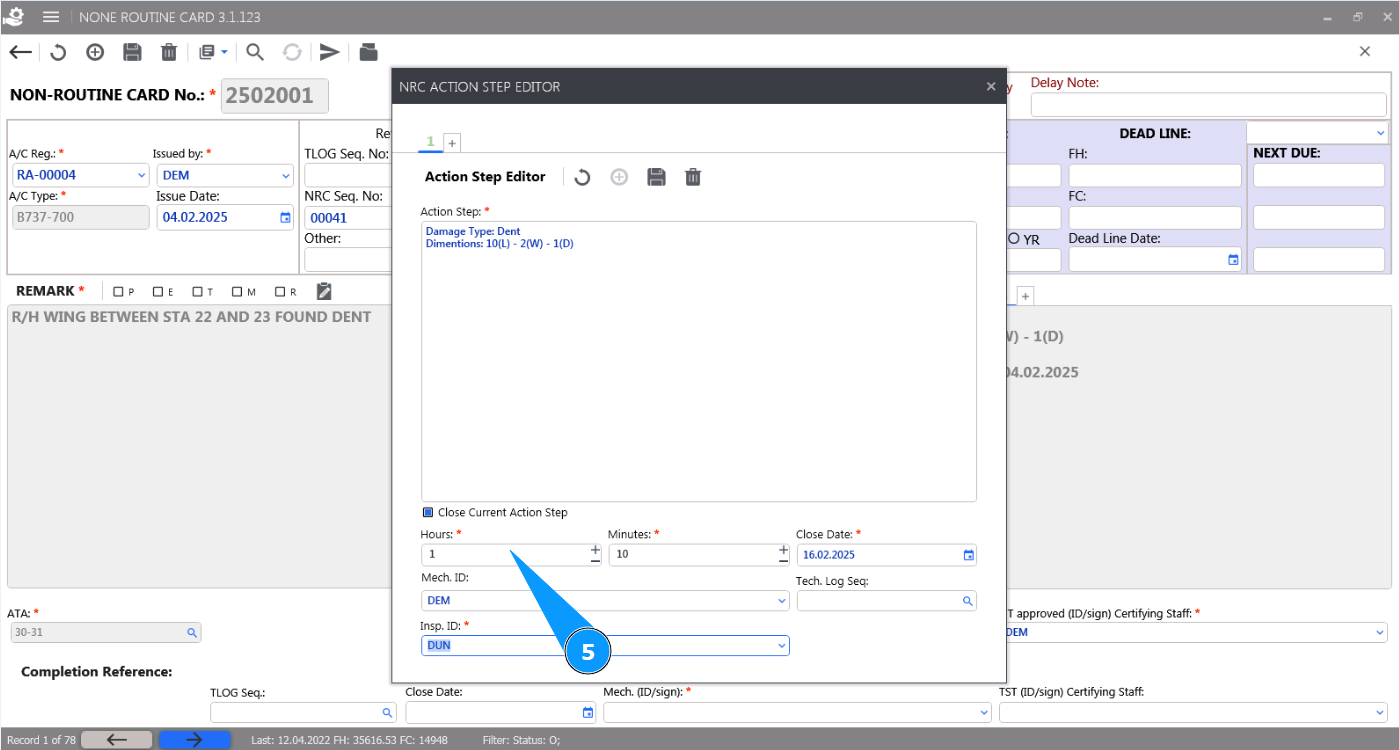
5. Enter the spent hours in the field "Hours".
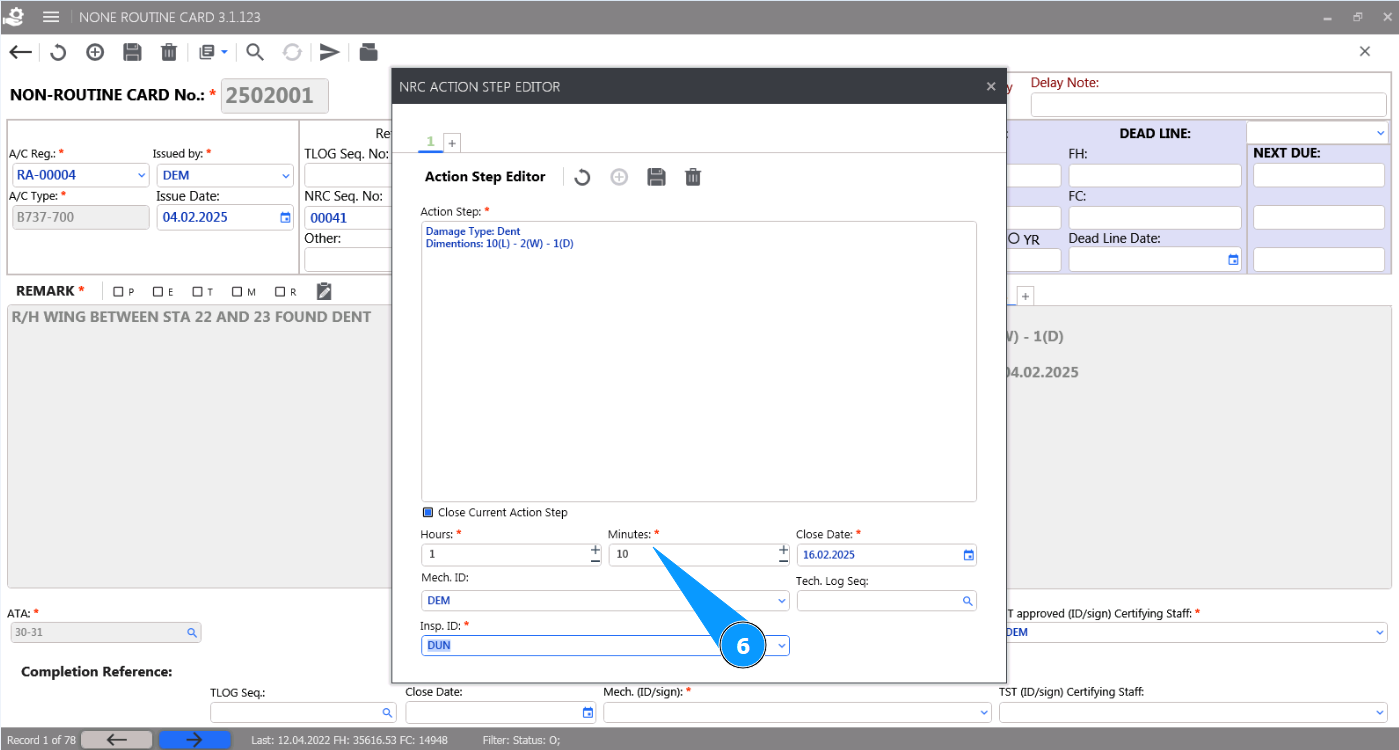
6. Enter the spent hours in minutes in the field "Minutes".
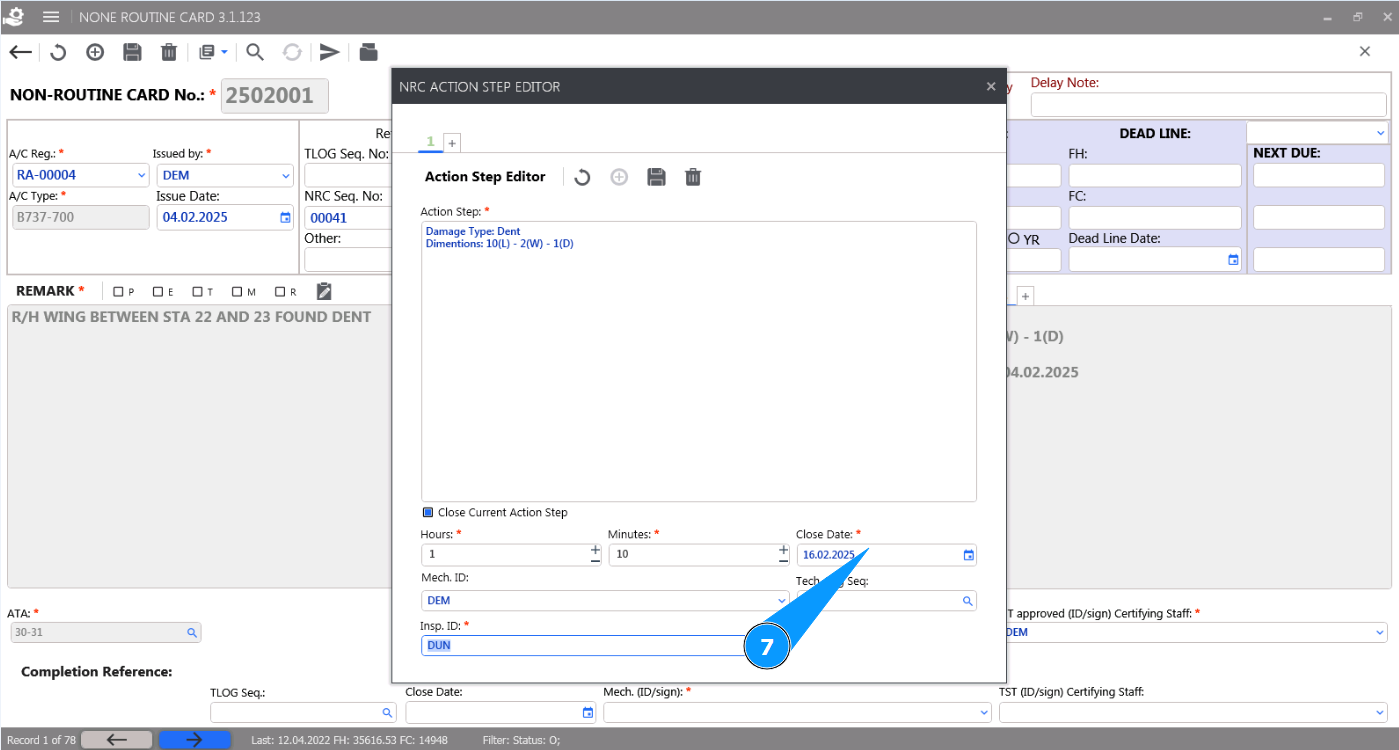
7. Enter the action close date in the field "Close Date" or select from the calendar.
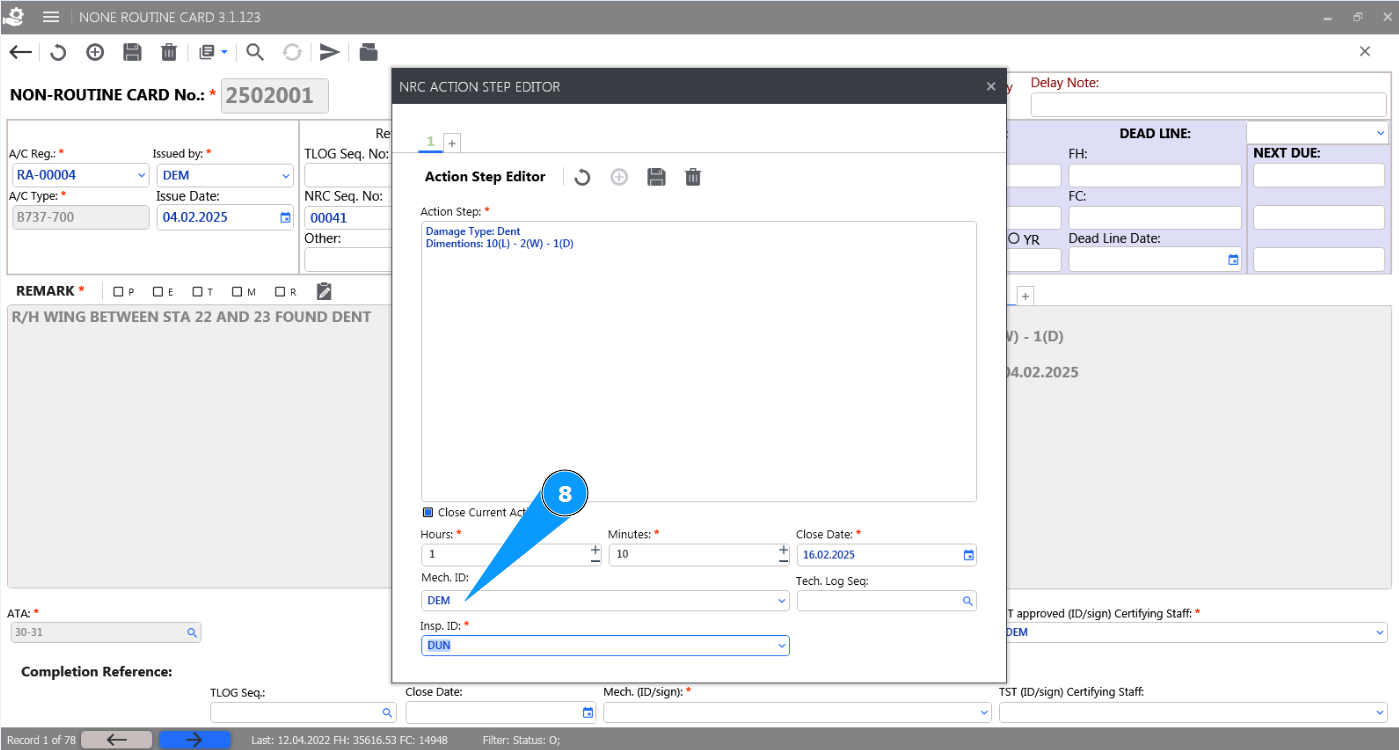
8. Enter the initials of the NRC filer or technician (as defined by your company policy) in the field "Mech ID" or select from the dropdown list.
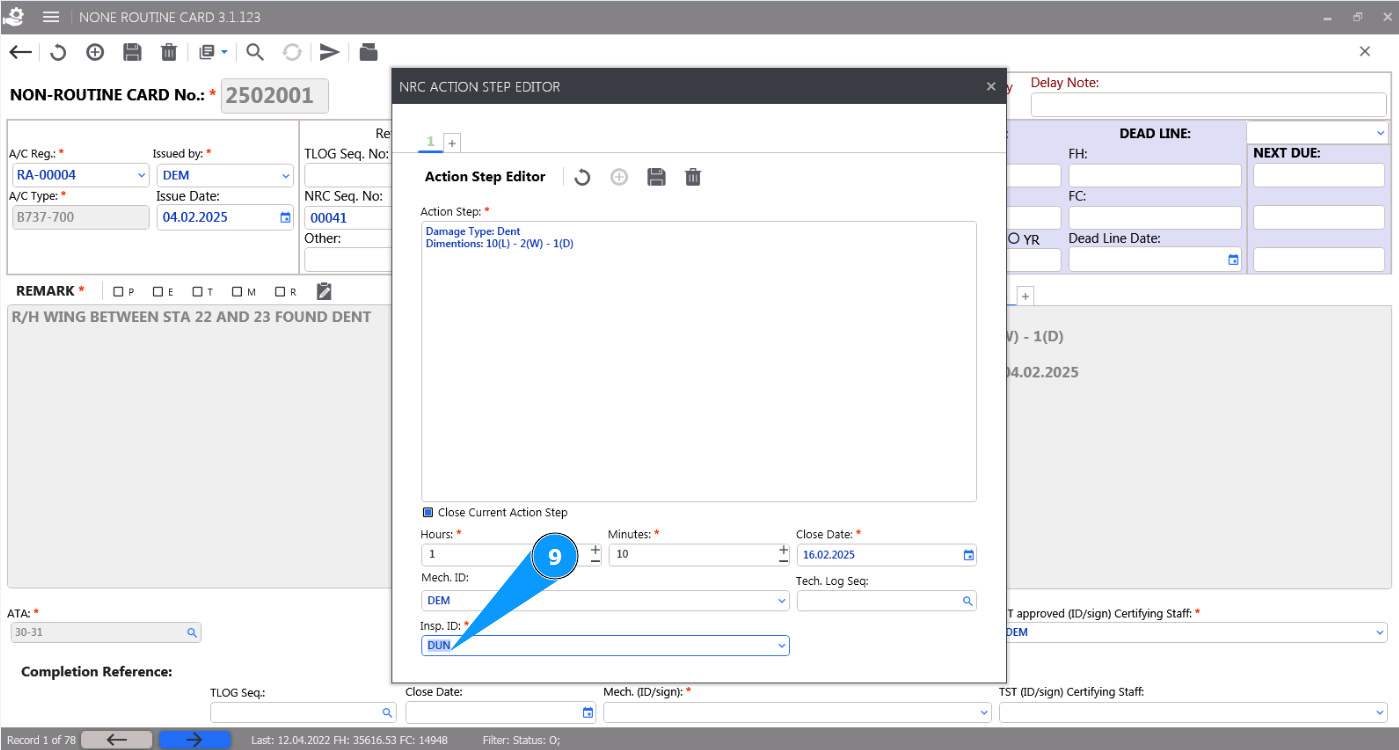
9. Enter the initials of the NRC filer or technician (as defined by your company policy) in the field "Insp. ID" or select from the dropdown list.
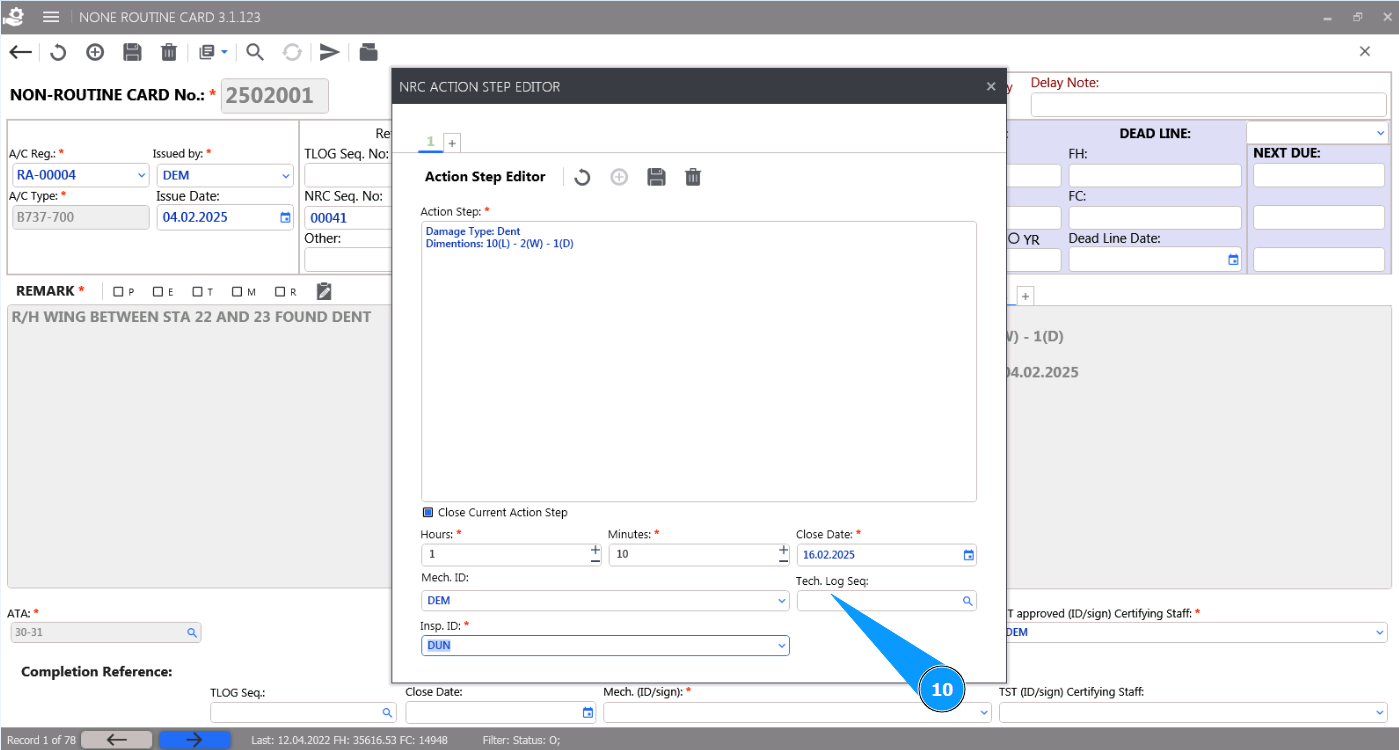
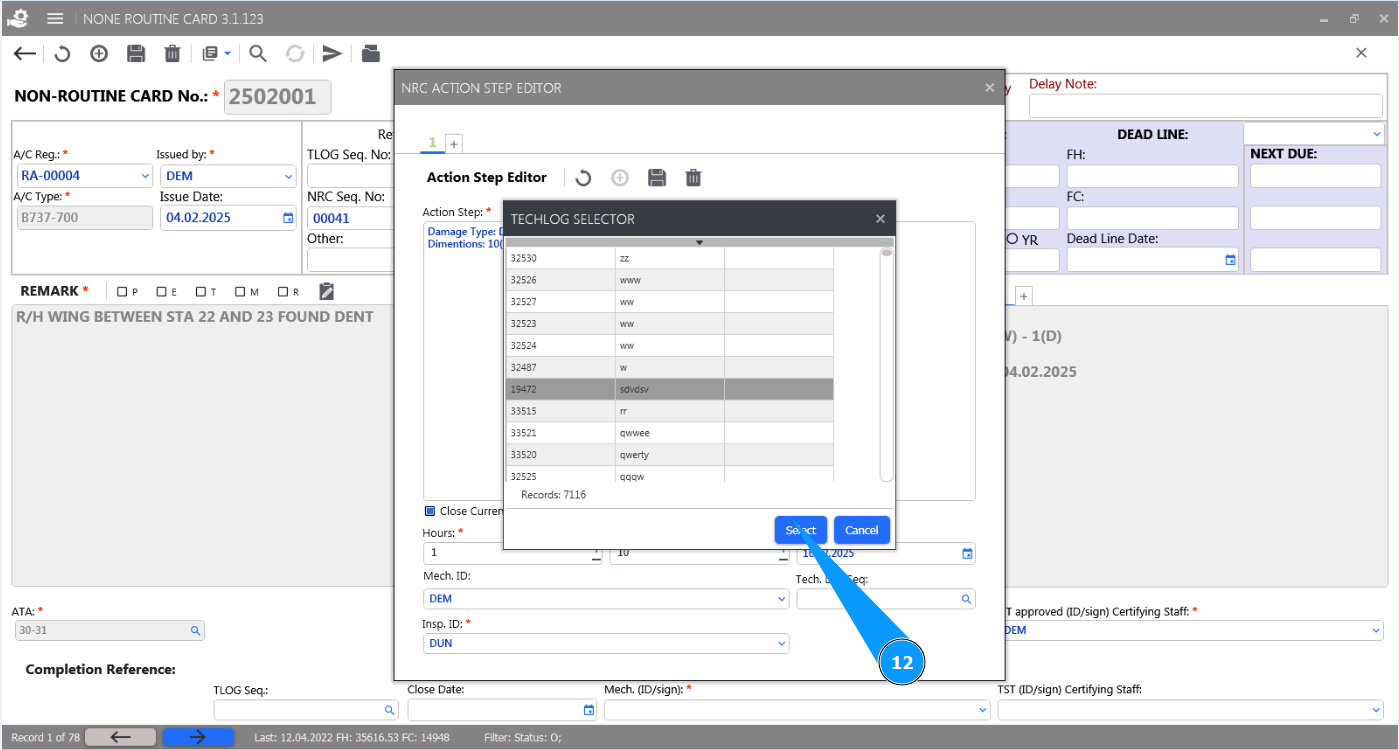
10. If necessary, enter the logbook number by clicking on the field "Tlog Number".
11. Select the required logbook from the list and click on the corresponding line in the window "Techlog Selector".
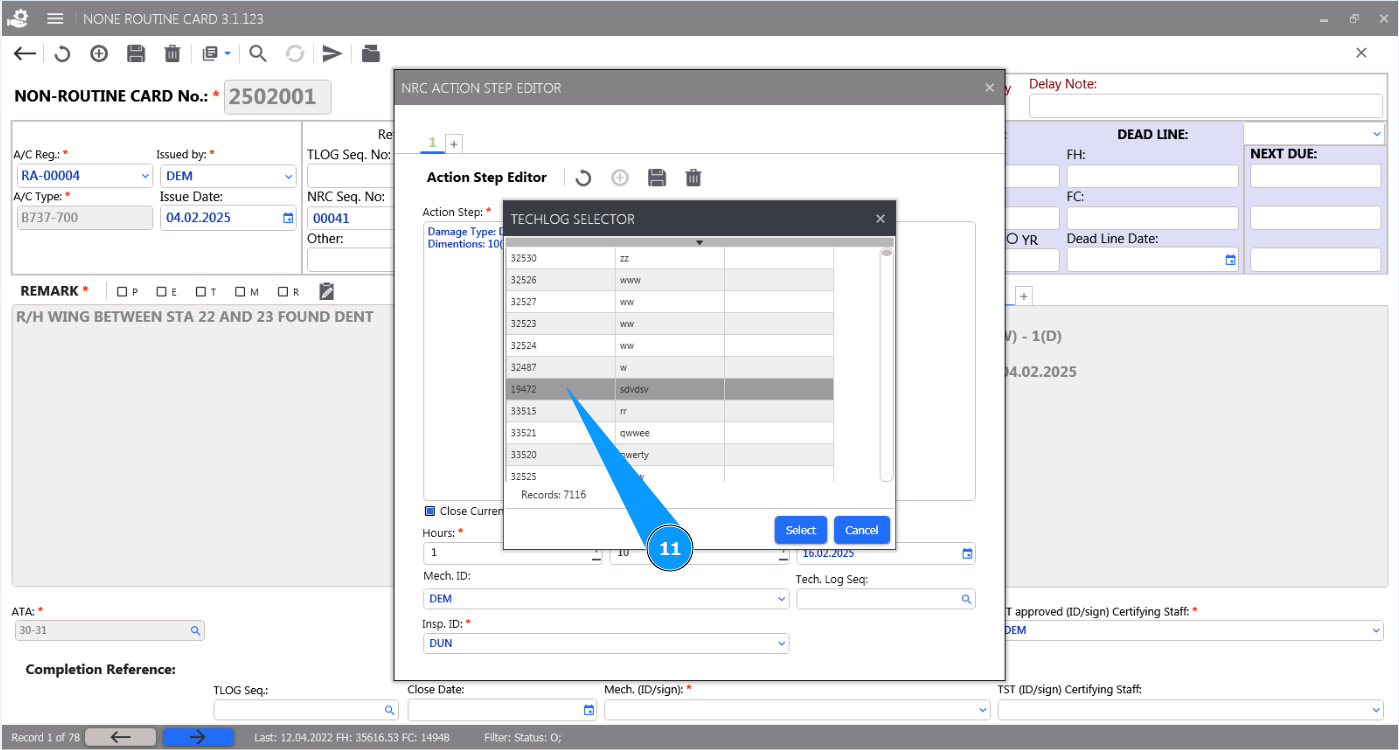
12. Click on the button "Select" to select the required logbook number.
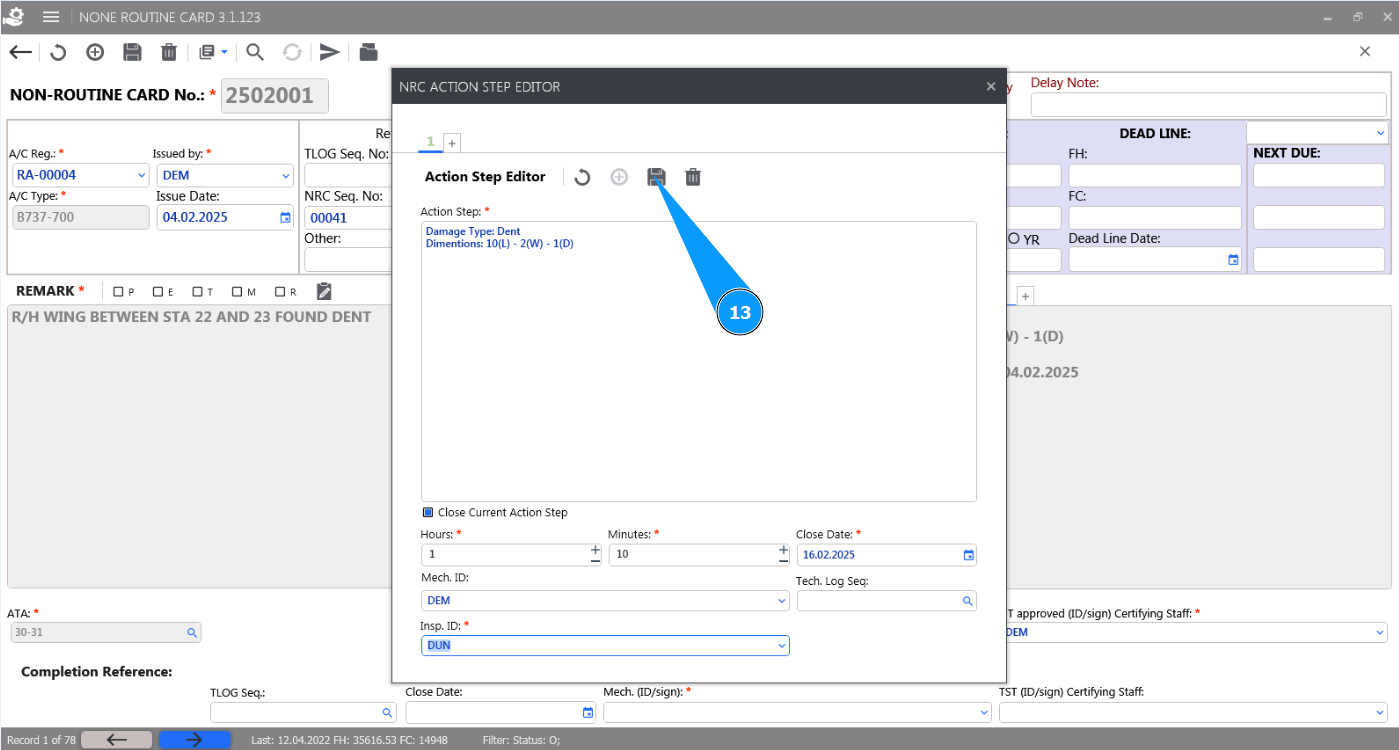
13. Click on the button "Update" to close the action in NRC.
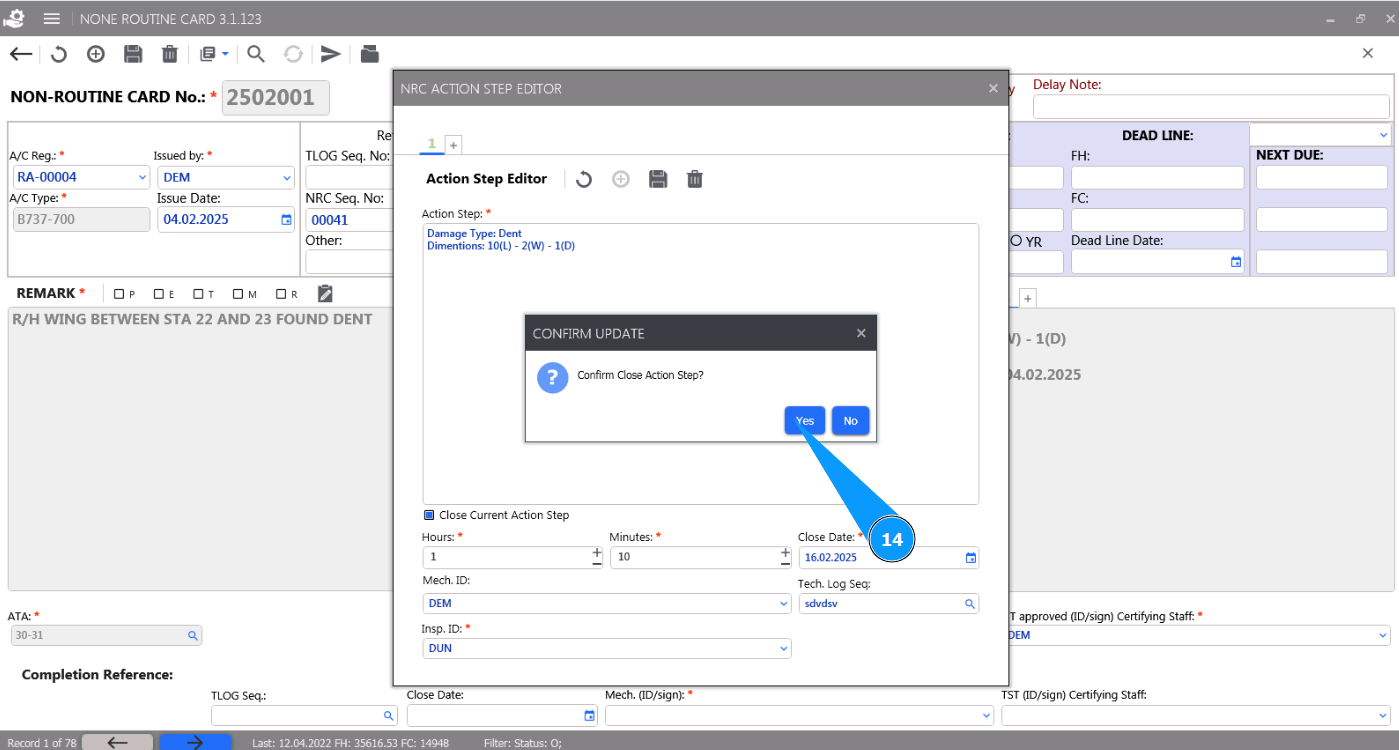
14. Click on the button "Yes" to confirm entering the data into the program.
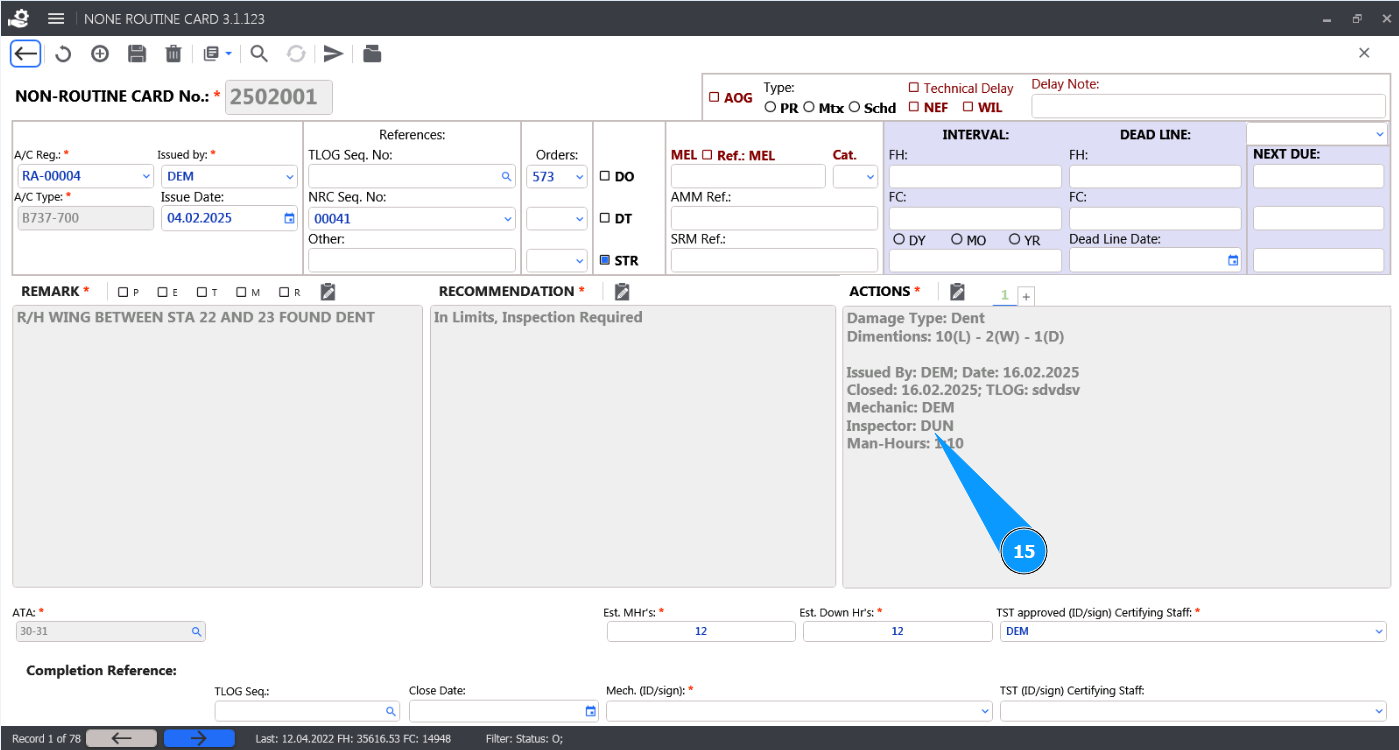
15. Check that the action is closed in the window "Actions".