How to add damage to Alaskar
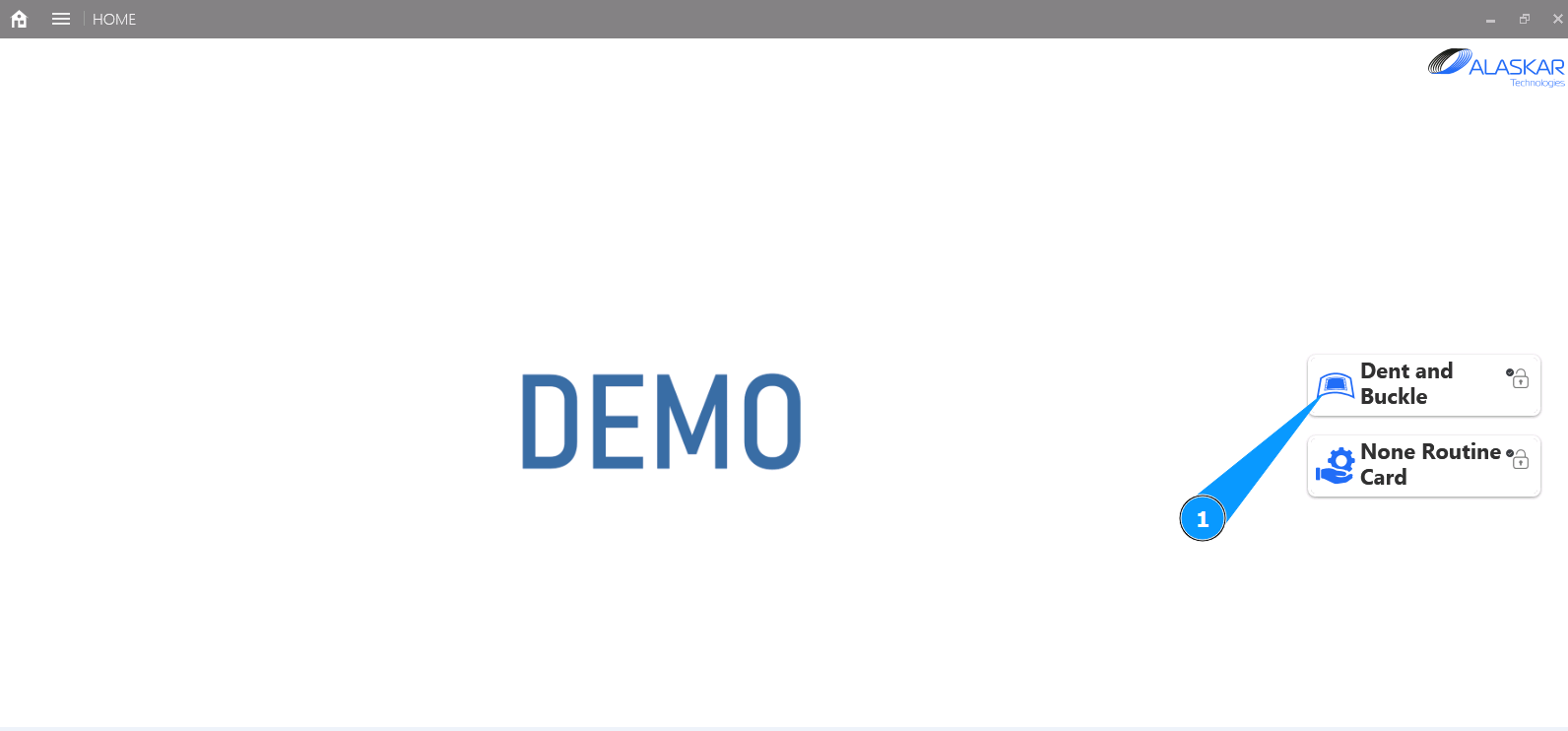
1. In order to add damage to Alaskar, go to the submodule "Dent and Buckle".
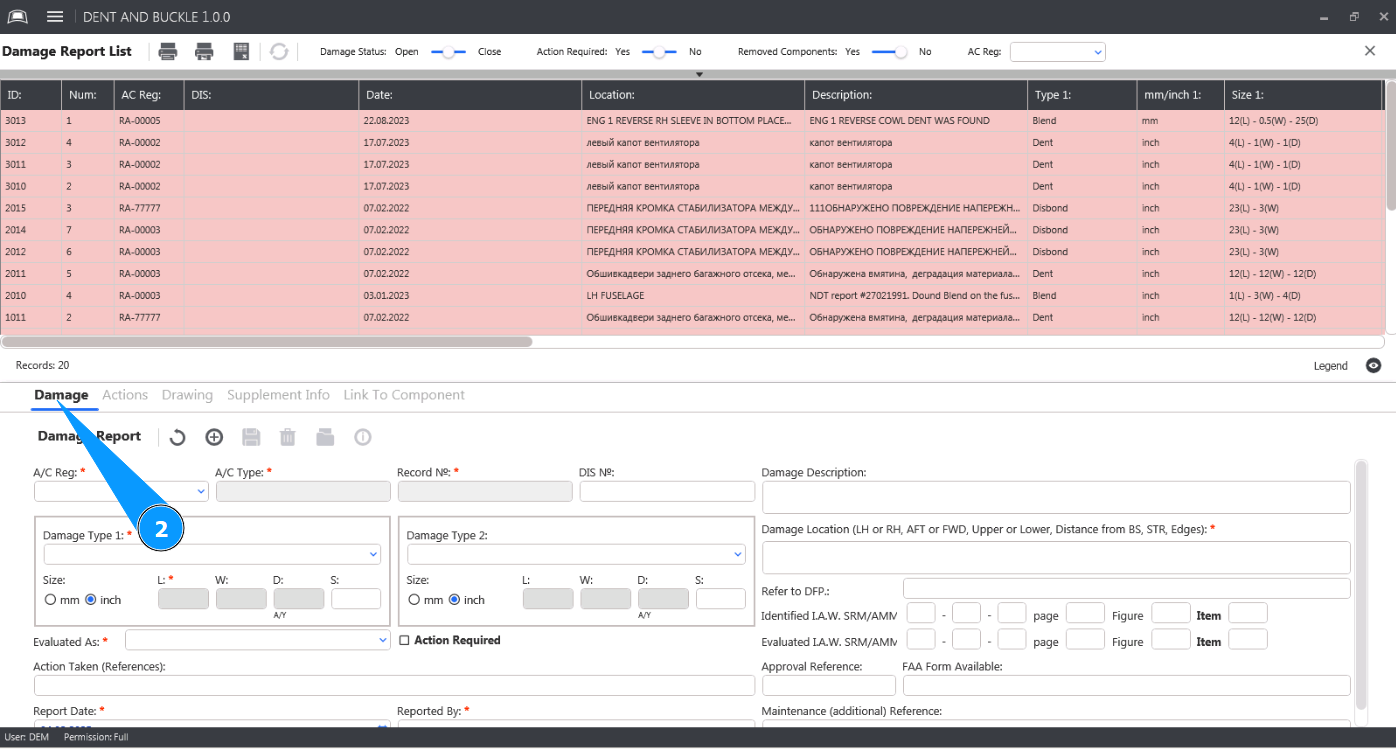
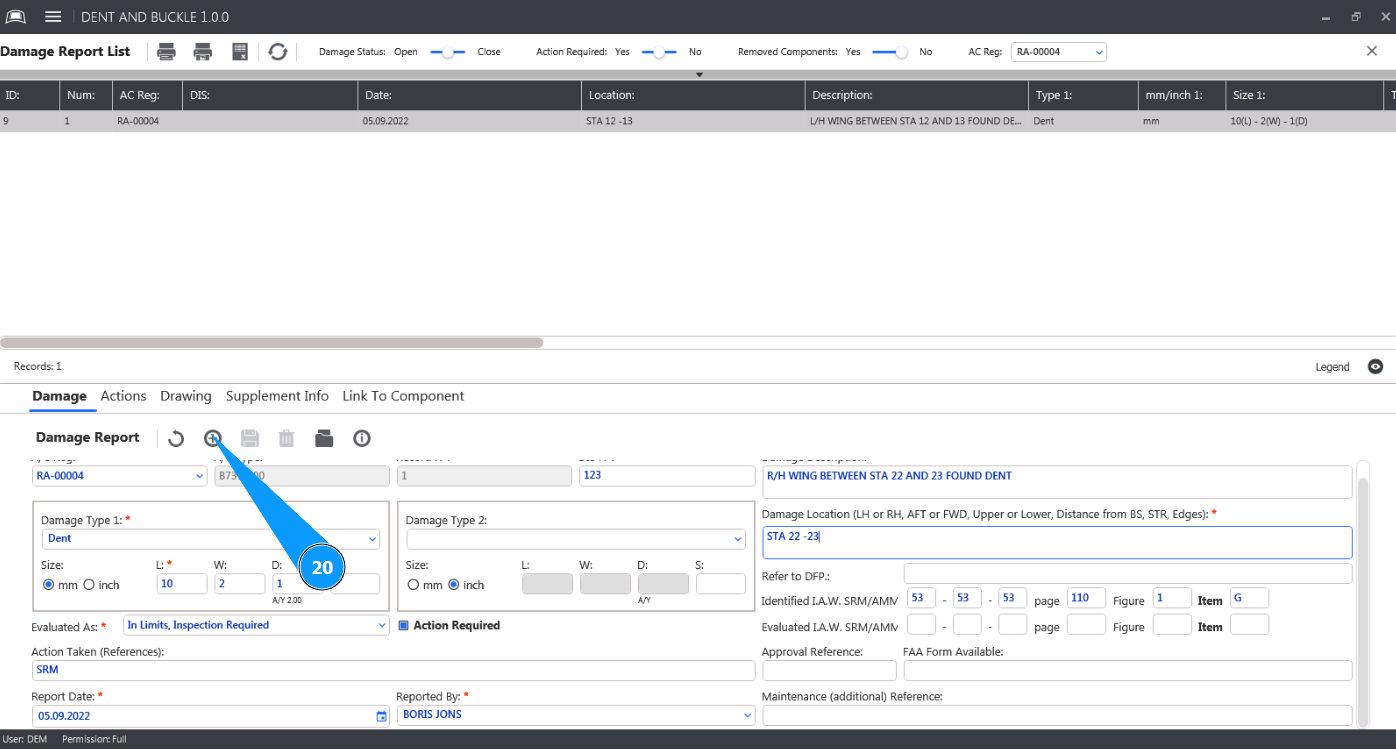
2. Then go to the tab "Damage". The fields must be filled with data.
3. Select the aircraft registration number from the dropdown list in the field "A/C Reg.". Note: The fields "A/C Type" and "Record №" will be filled in automatically by the program.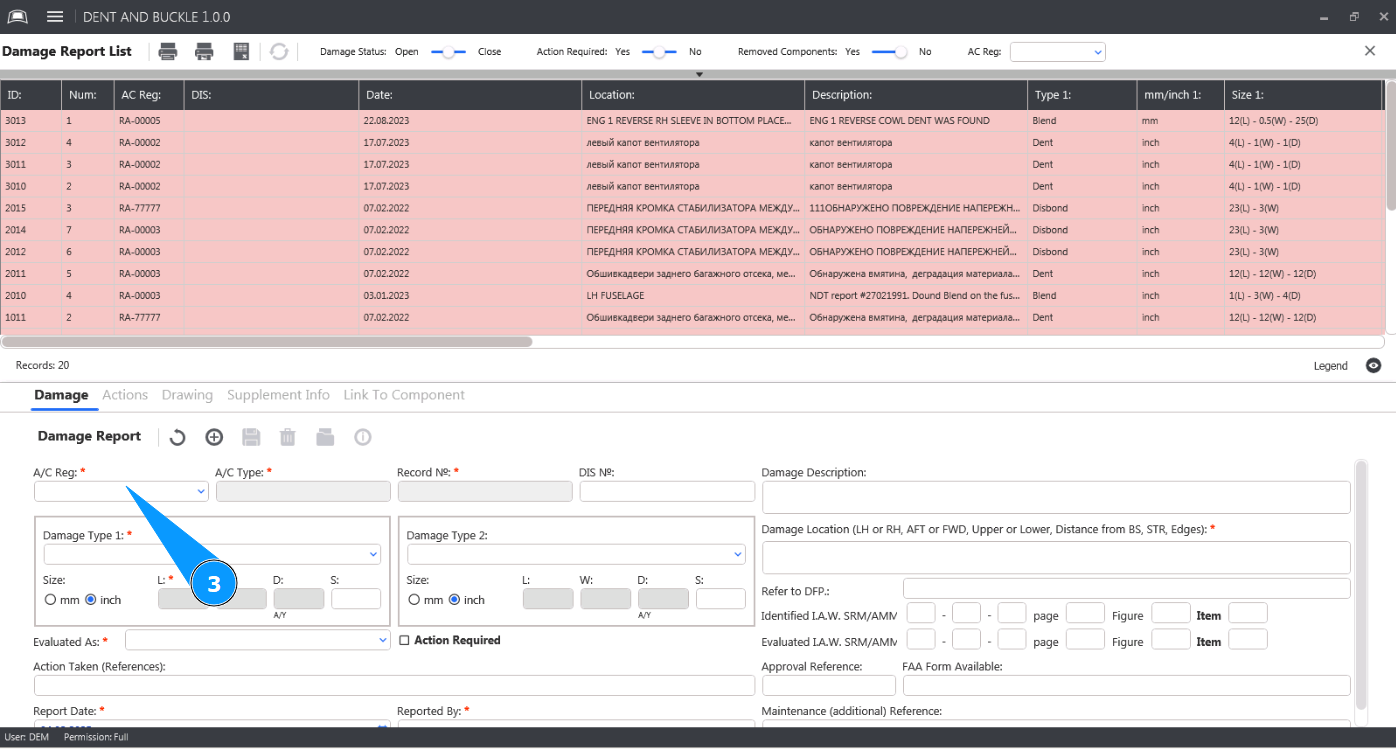
4. Select the type of damage from the dropdown list in the field "Damage Type 1".
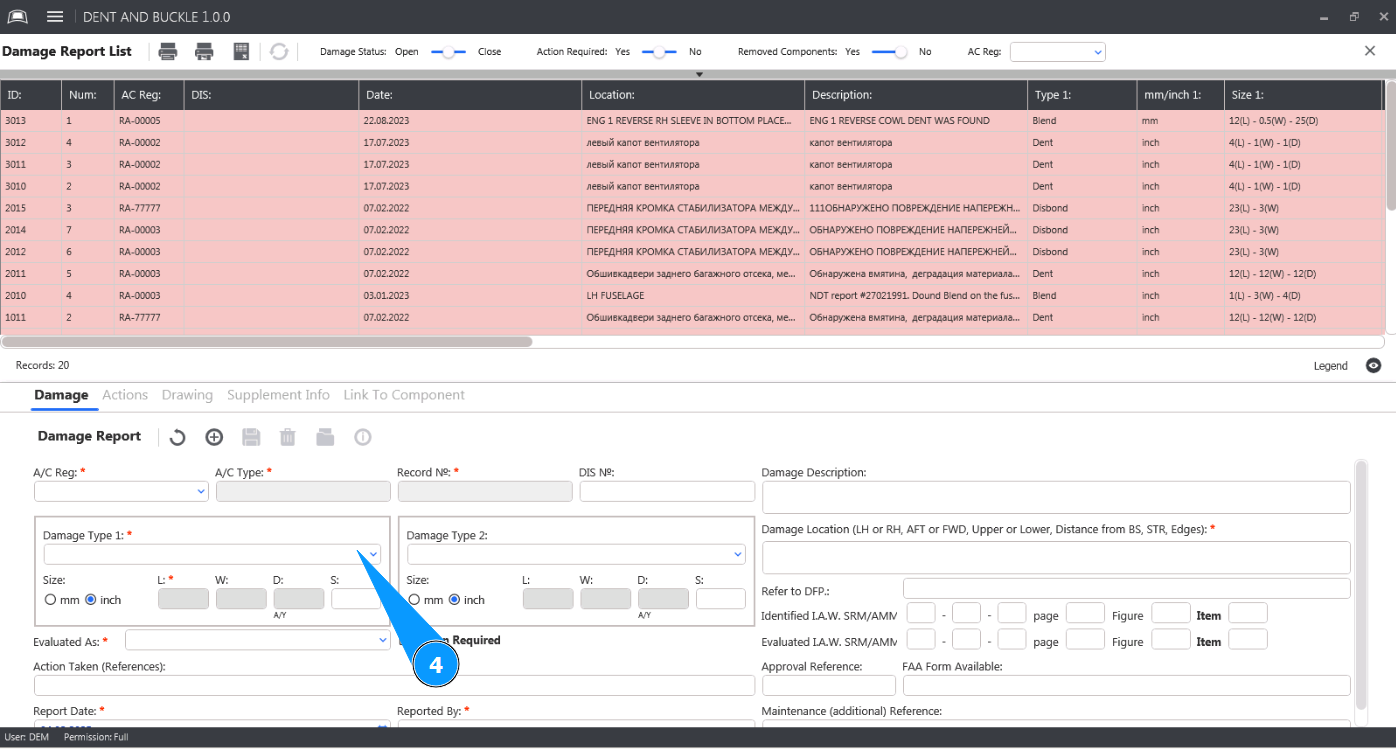
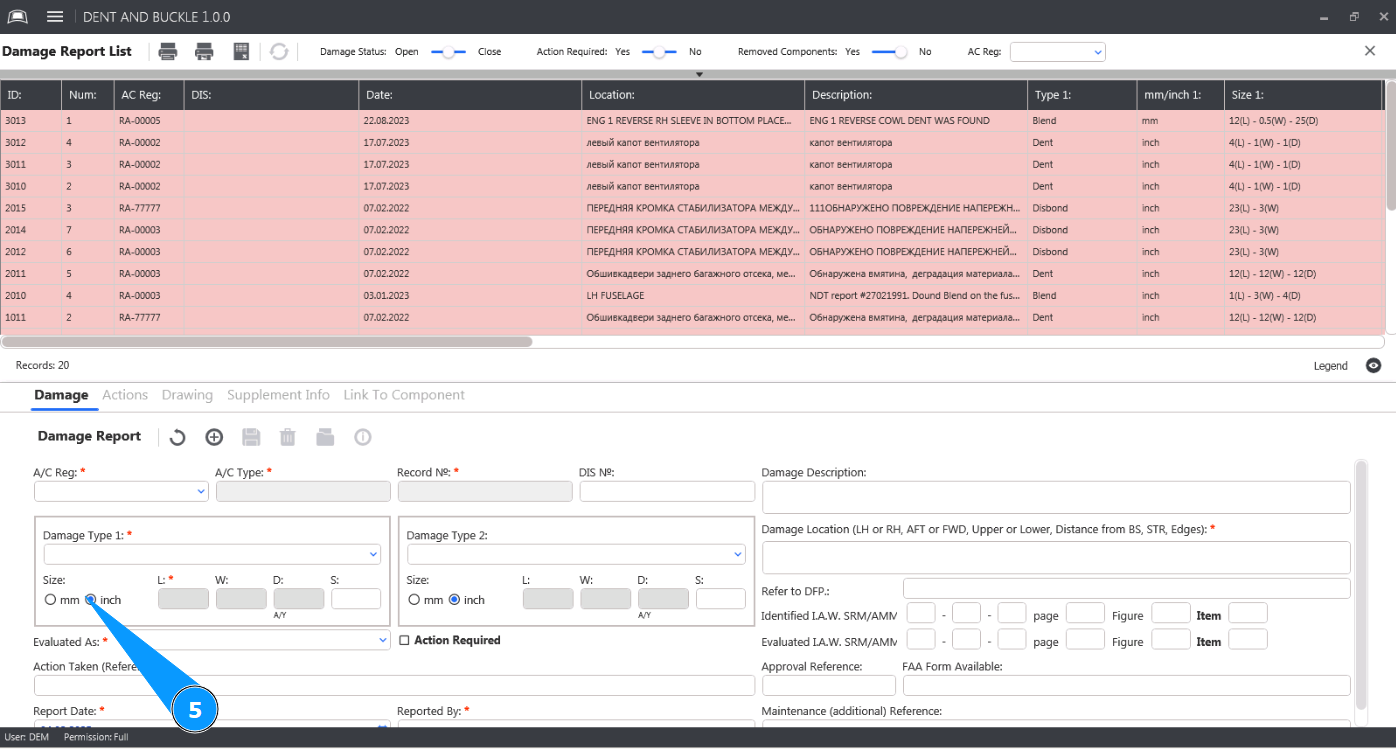
5. Enter the units of measurement used in the fields "Mm" or "Inch".
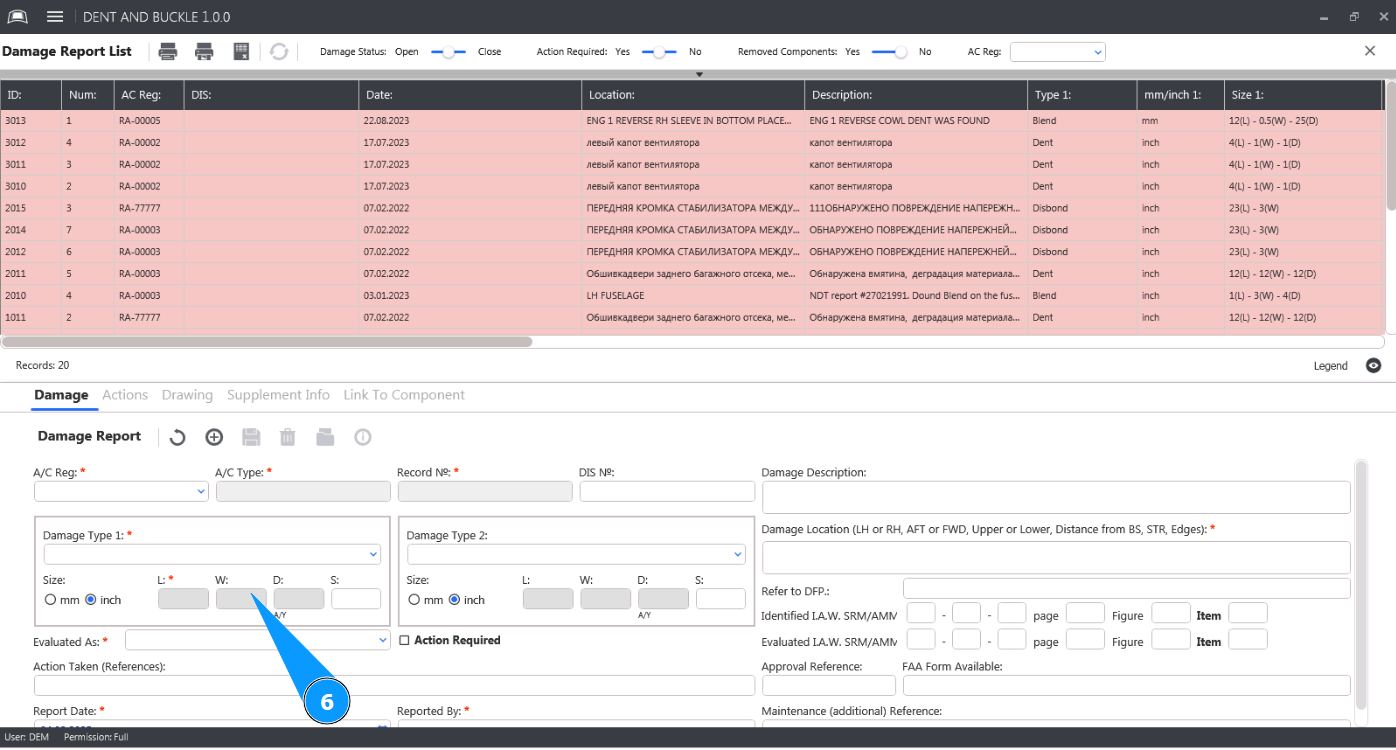
6. Enter the current dimensions of the damage in the appropriate fields.
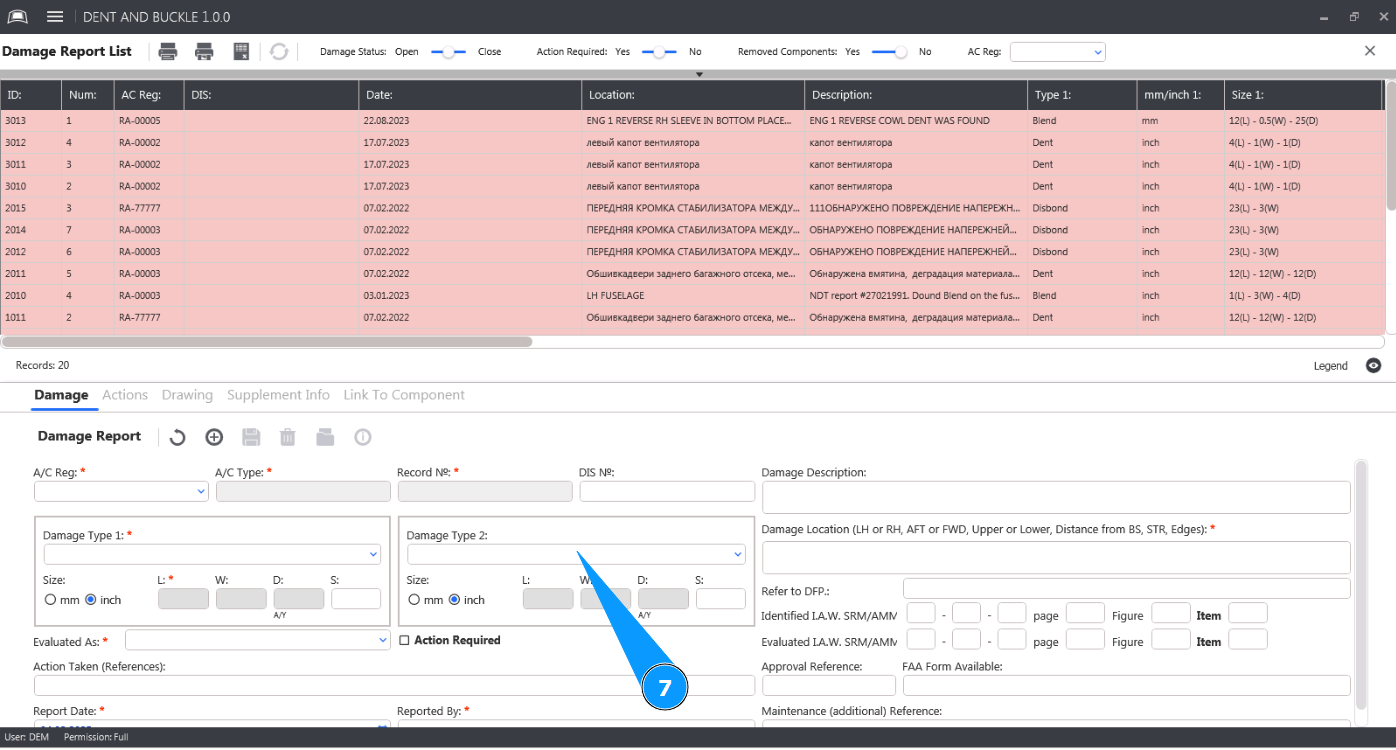
7. If necessary, select the type of the second damage from the dropdown list in the field "Damage Type 2".
8. Select the damage evaluation result from the dropdown list in the field "Evaluated As".
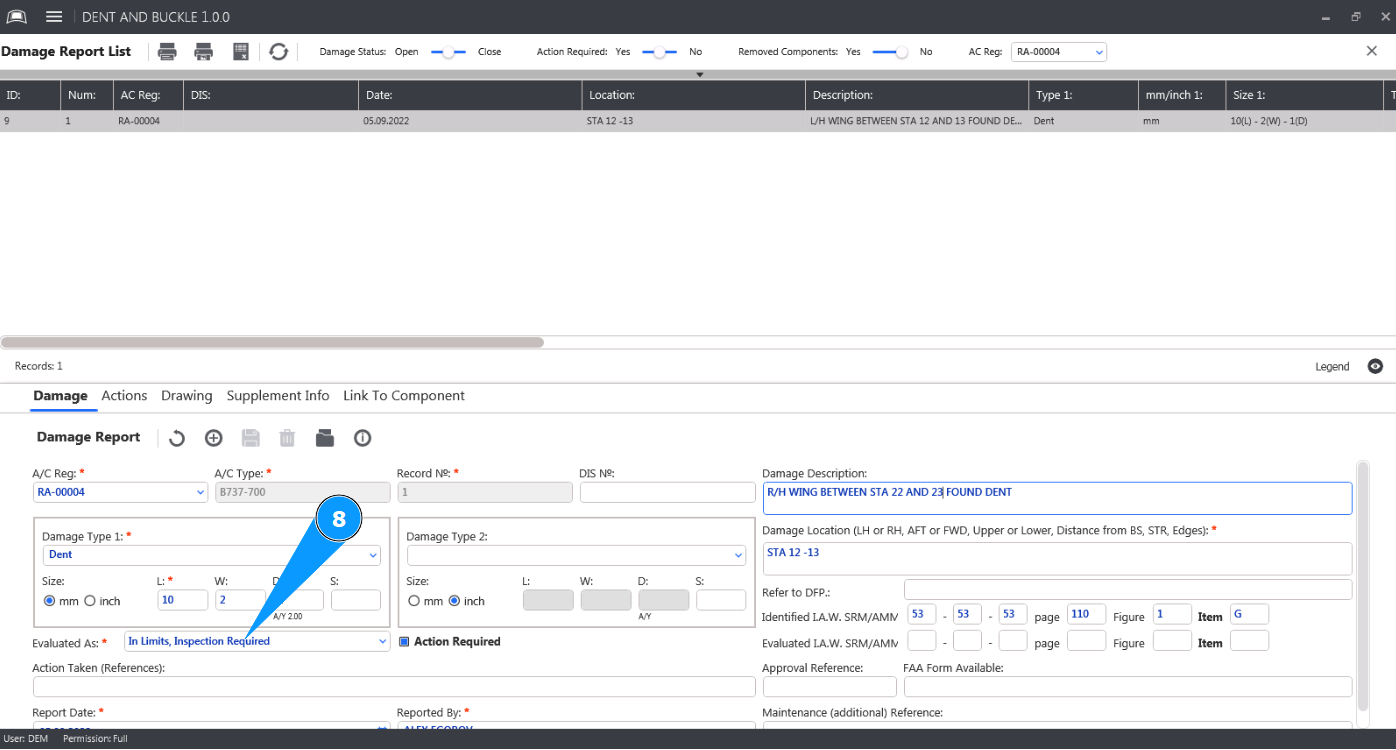
9. If technical actions are required for this damage, check the corresponding box in the field "Action required".
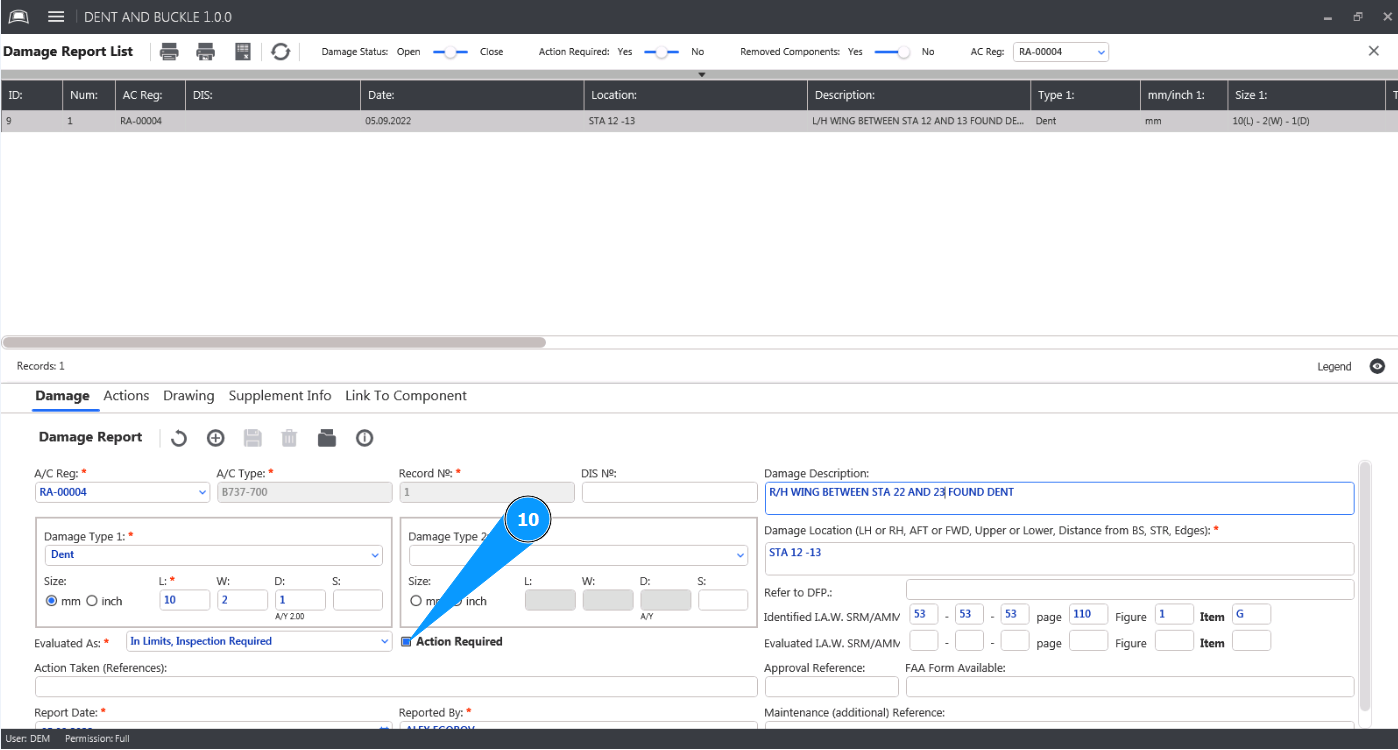
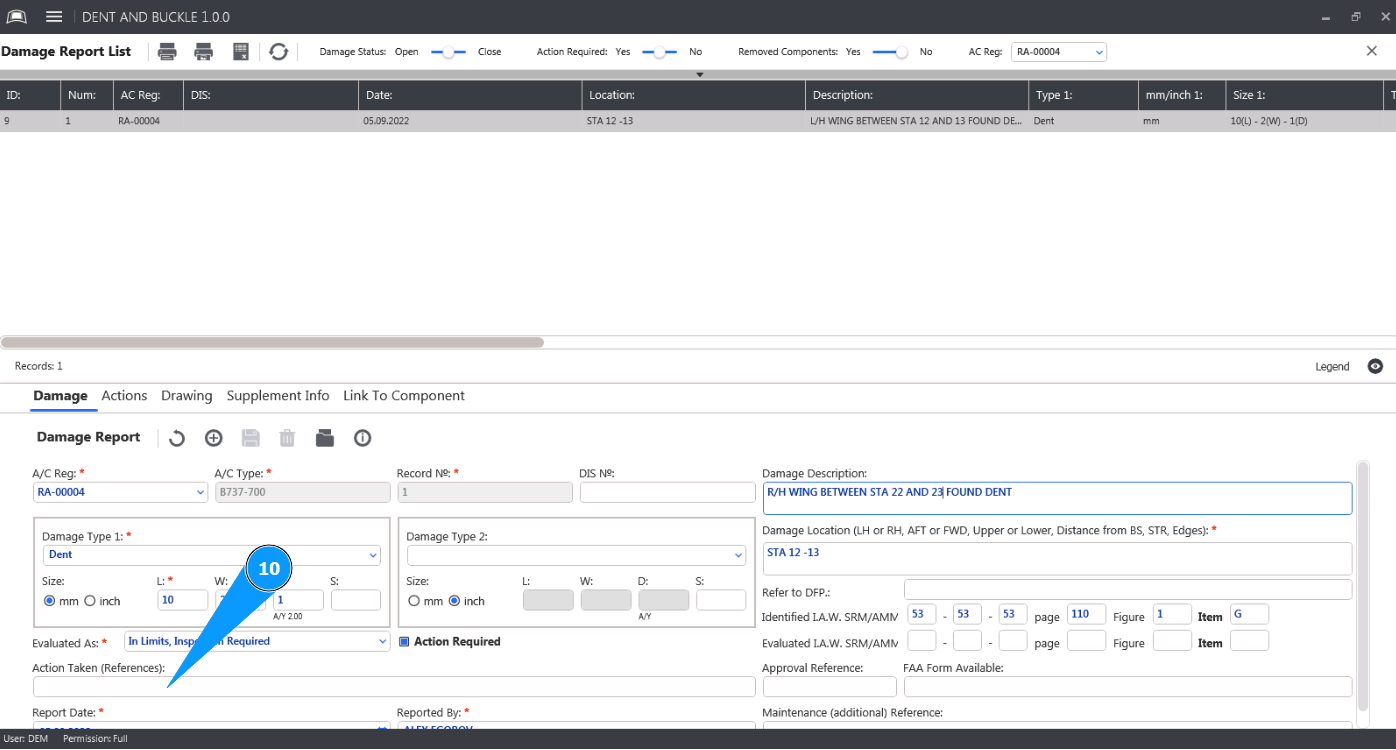
10. If necessary, enter information about the actions taken or references to them in the field "Action Taken (References)".
11. Enter a description of the damage in the field "Damage Description".
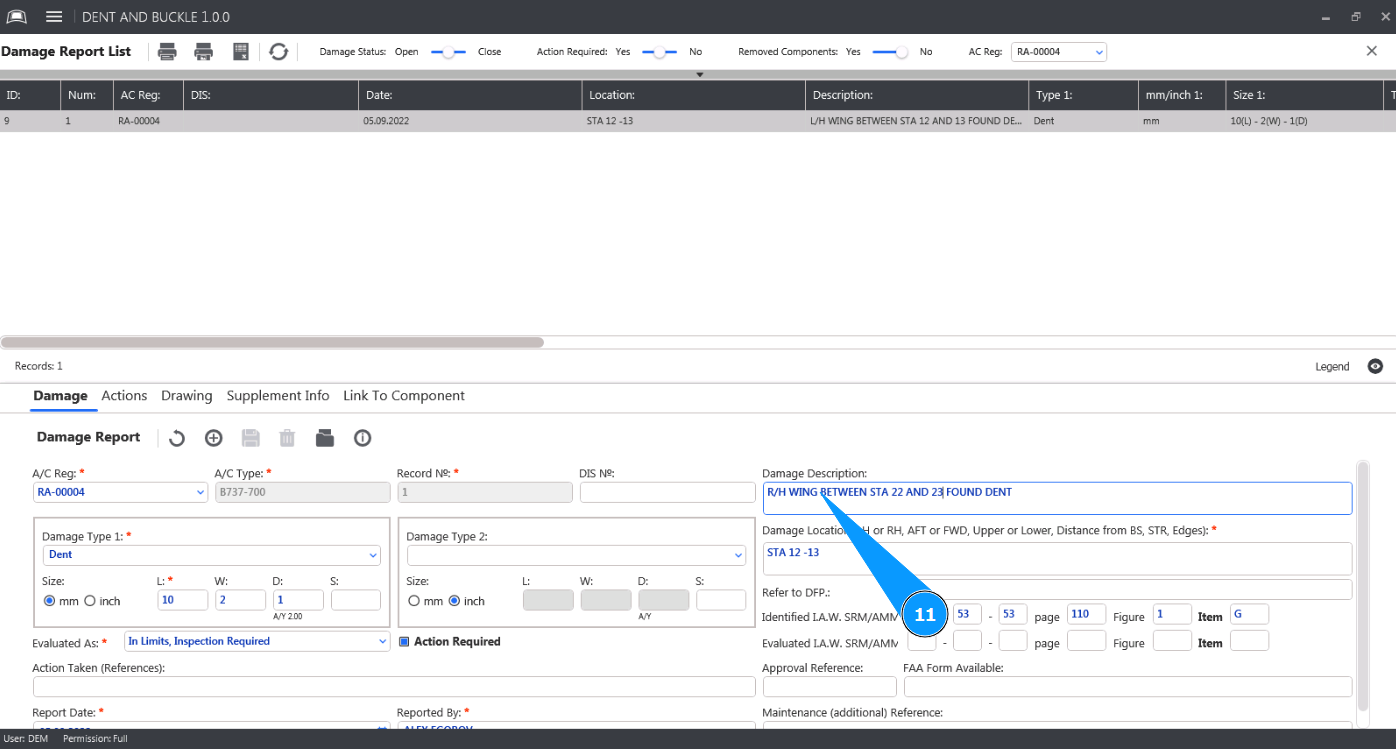
12. Enter a location of the damage in the field "Damage Location".
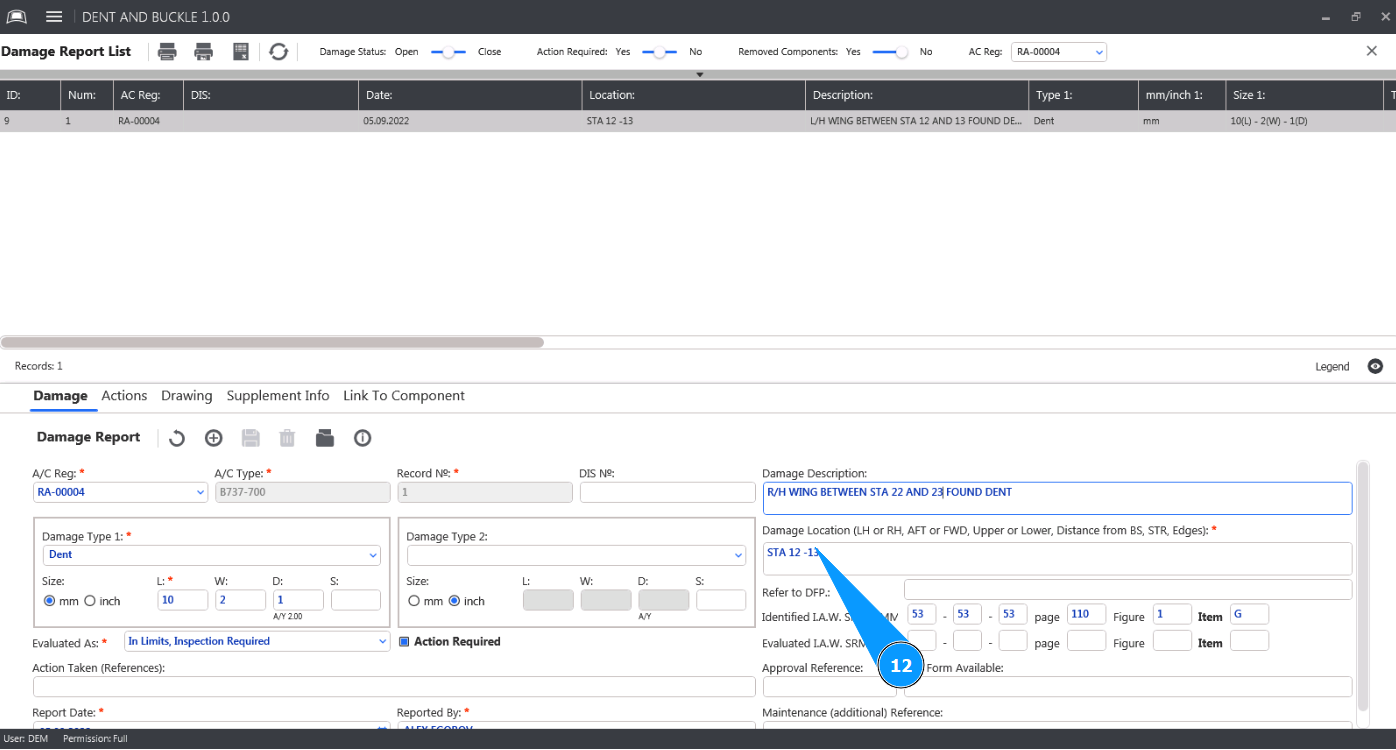
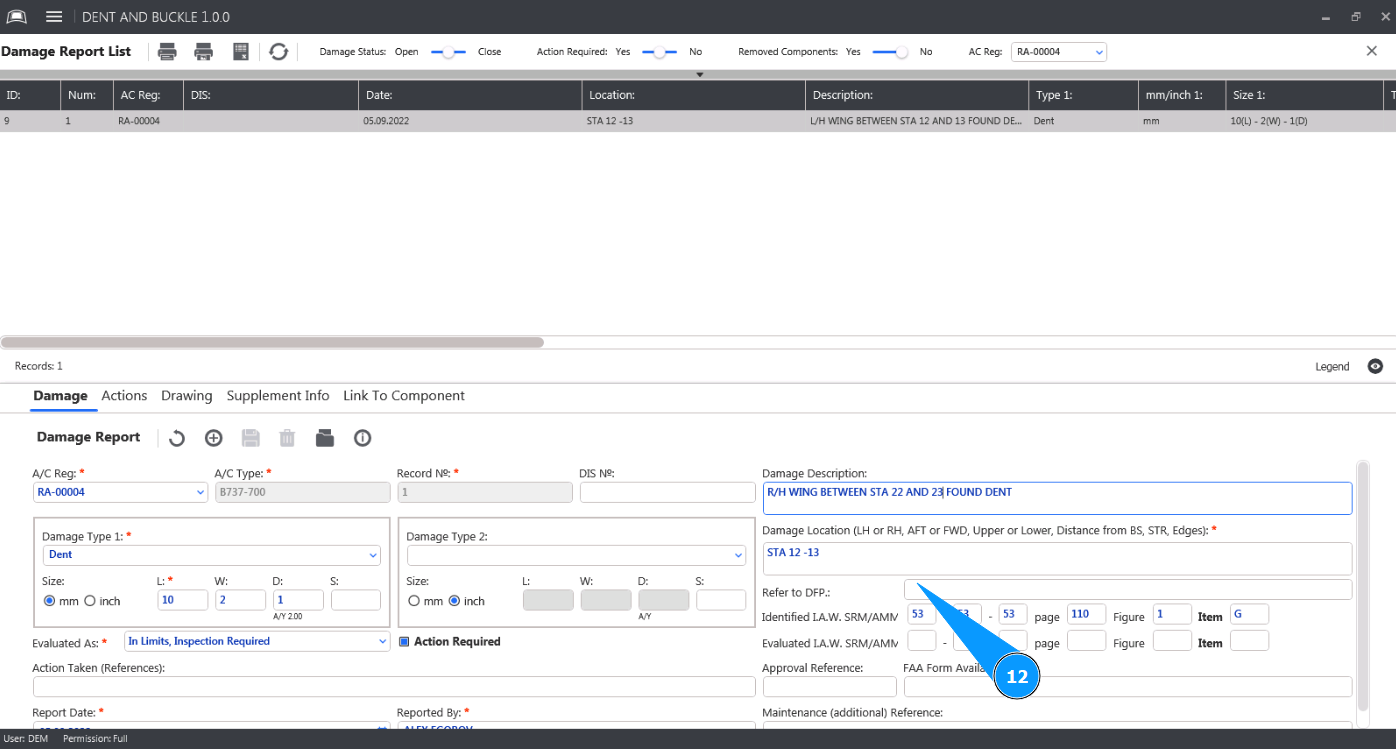
13. If necessary, enter a reference to the job performed in the field "Refer to DFP".
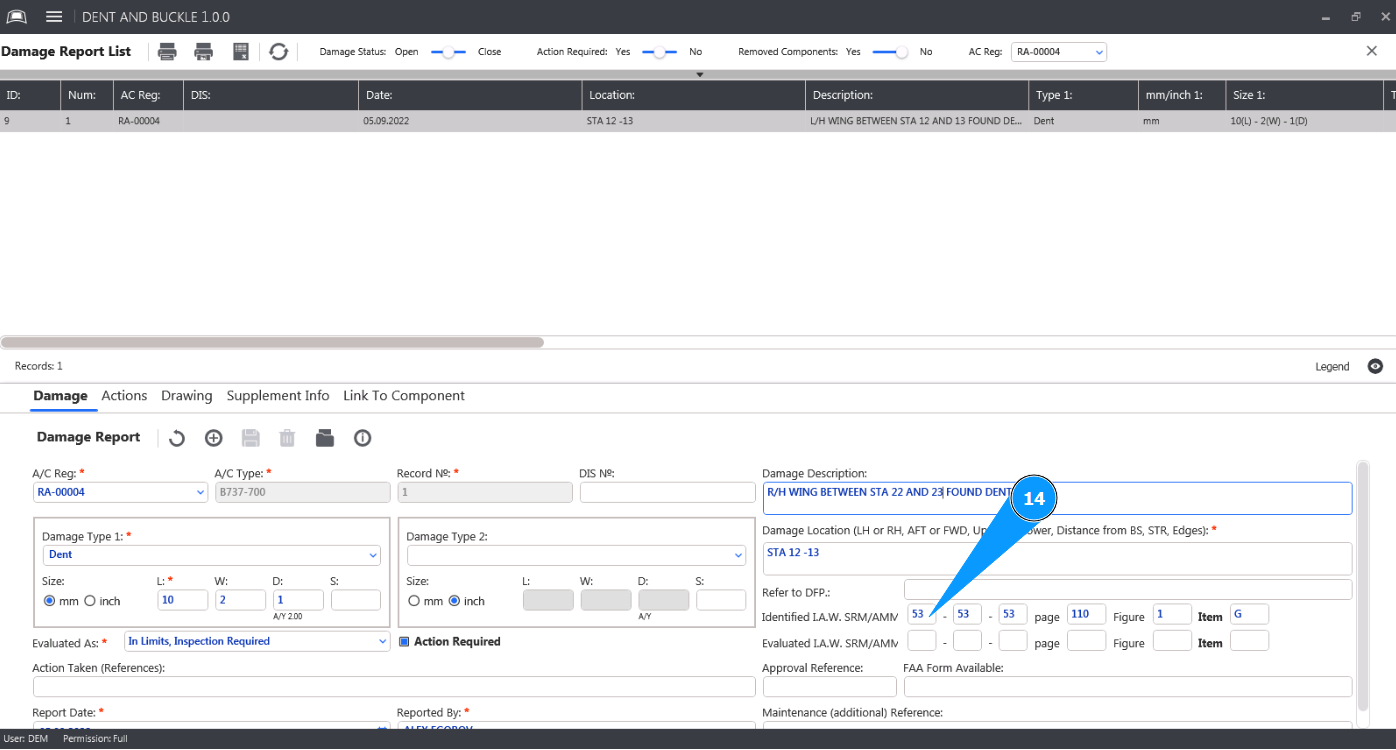
14. If necessary, enter data on the document by which this damage was identified in the field "Identified i.a.w AMM,SRM".
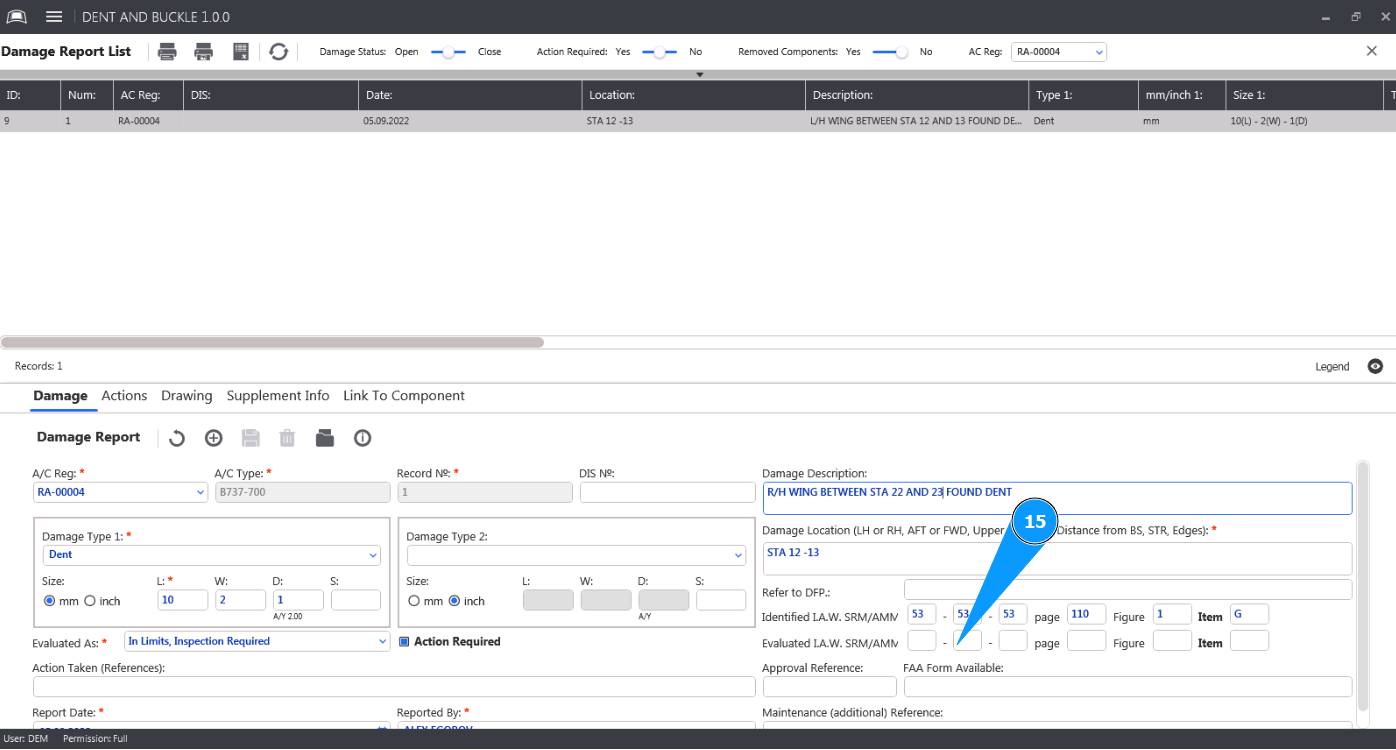
15. If necessary, enter data on the document by which this damage was assessed in the field "Evaluated i.a.w AMM,SRM".
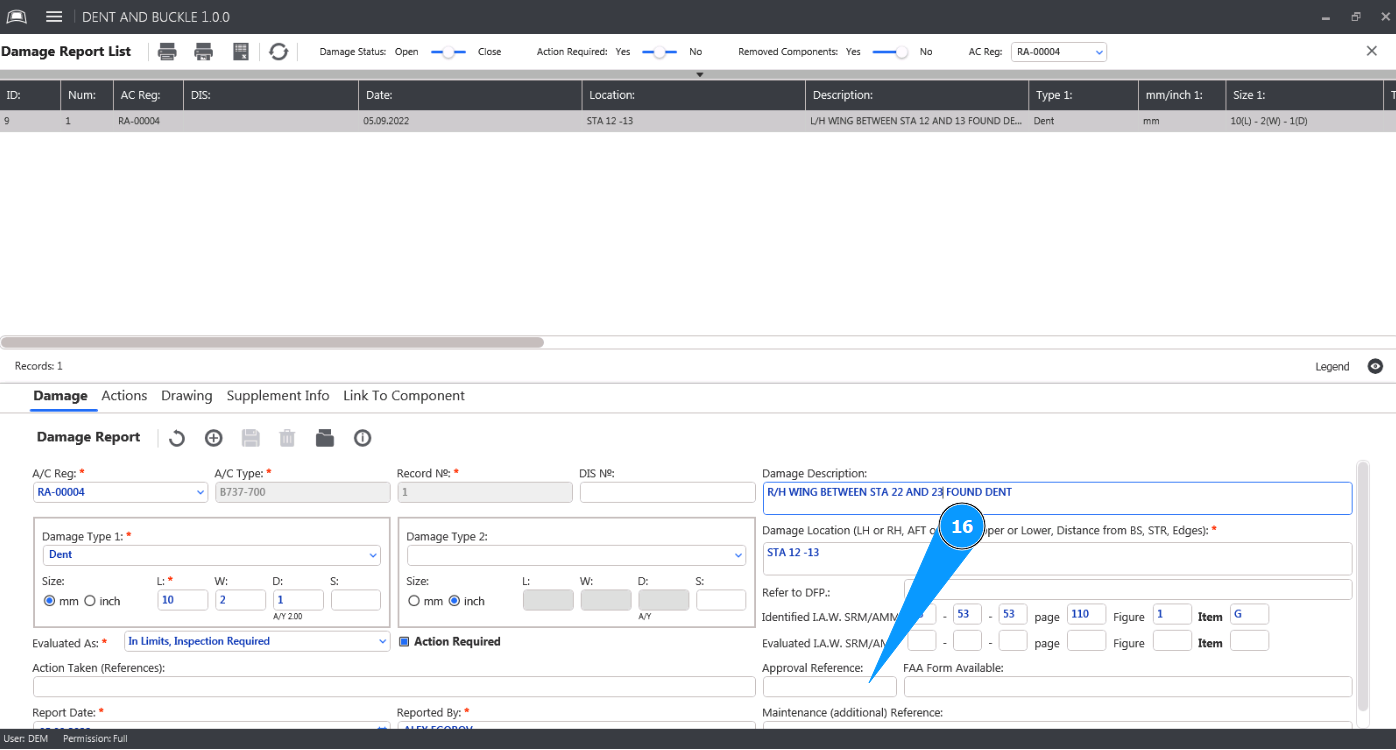
16. If applicable, enter the aviation authority approvals in the field "Approval Reference".
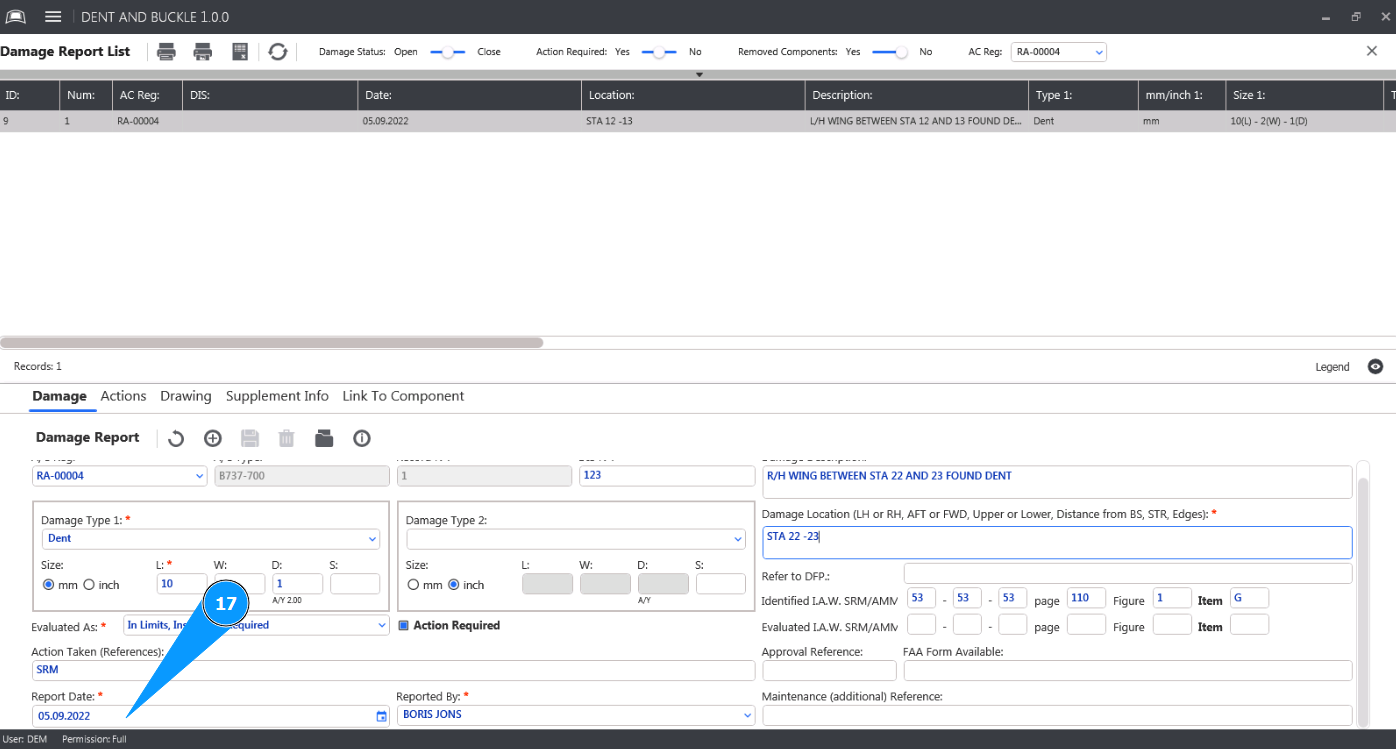
17. Enter the date the damage was identified in the field "Report Date".
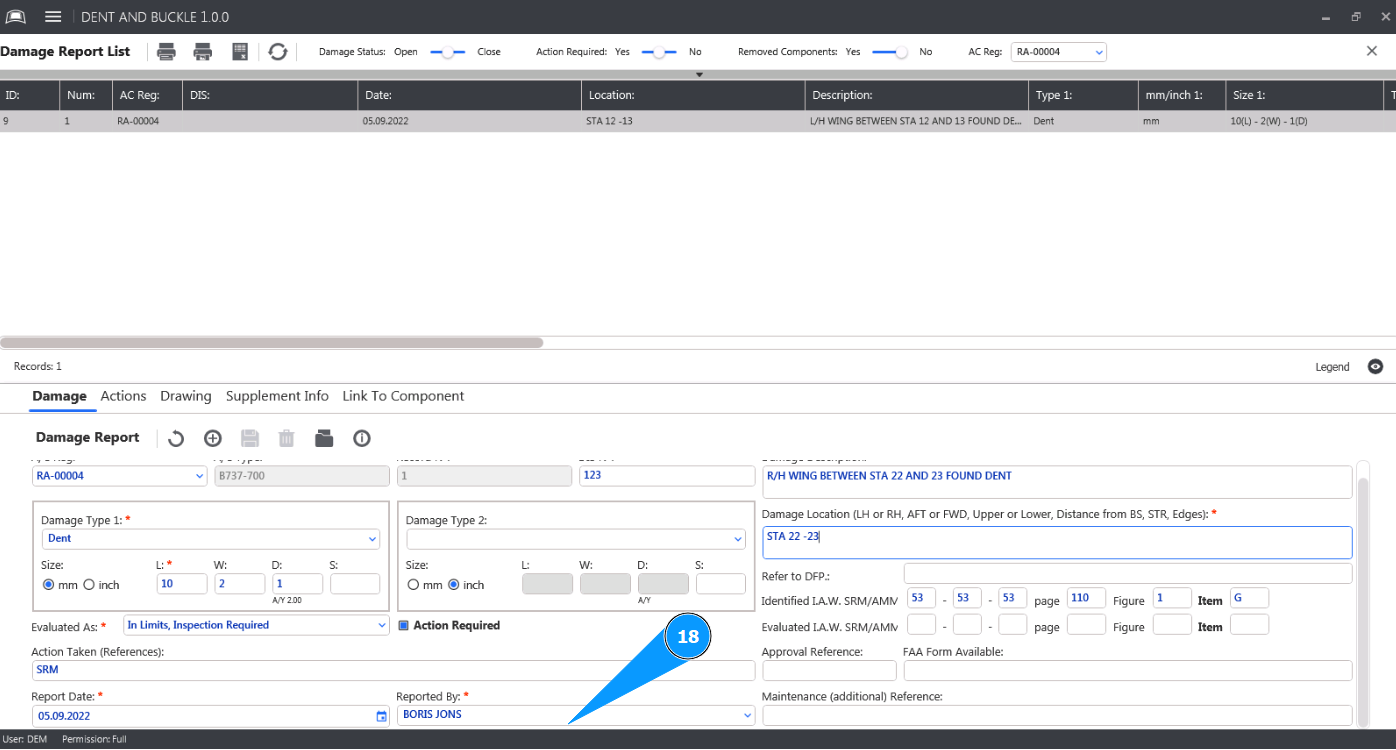
18. Select the personnel who identified the damage from the dropdown list in the field "Reported By".
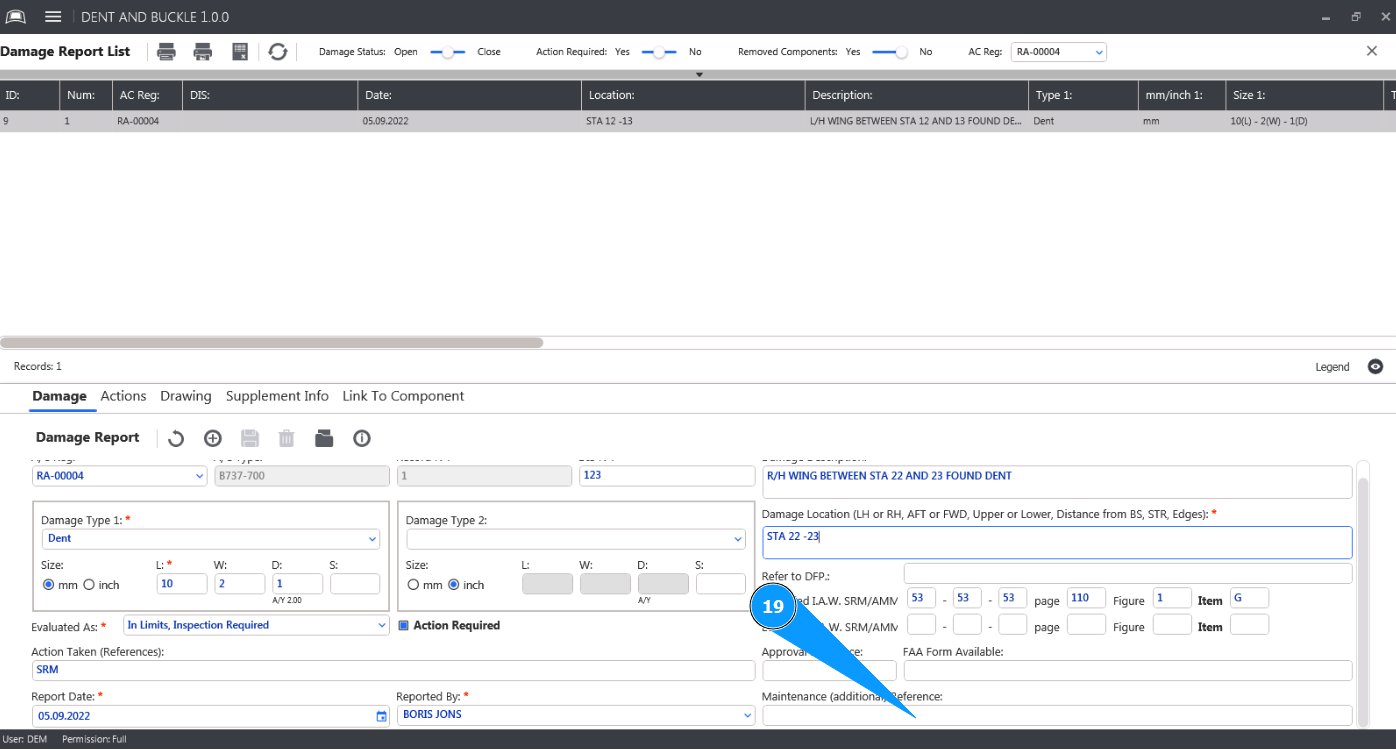
19. If necessary, enter additional technical references in the field "Maintenance (additional) Reference".
20. Click on the button "Add" to enter damage data into the program.
21. Click on the button "Yes" to confirm entering damage data into the program.

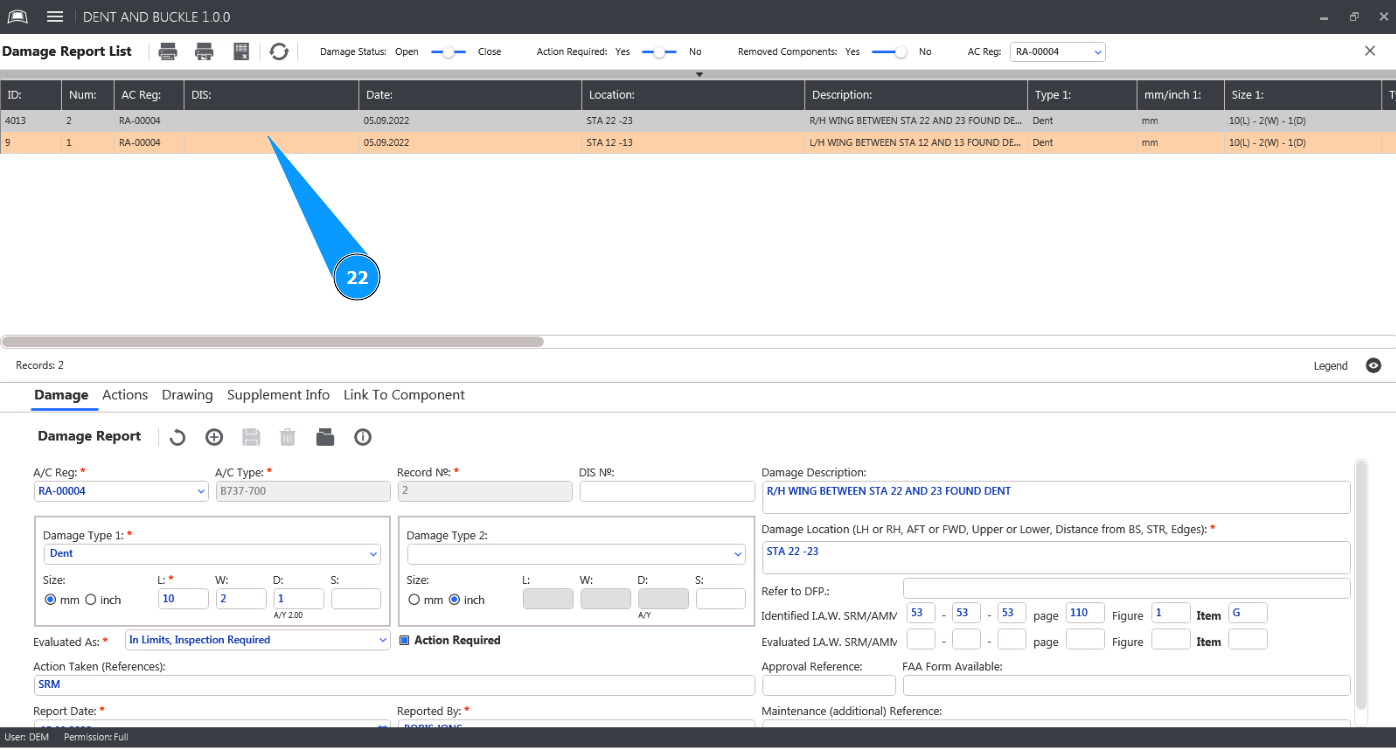
22. Check that the new report with the damage created is displayed in the window "Damage Report List".