How to upload a manual
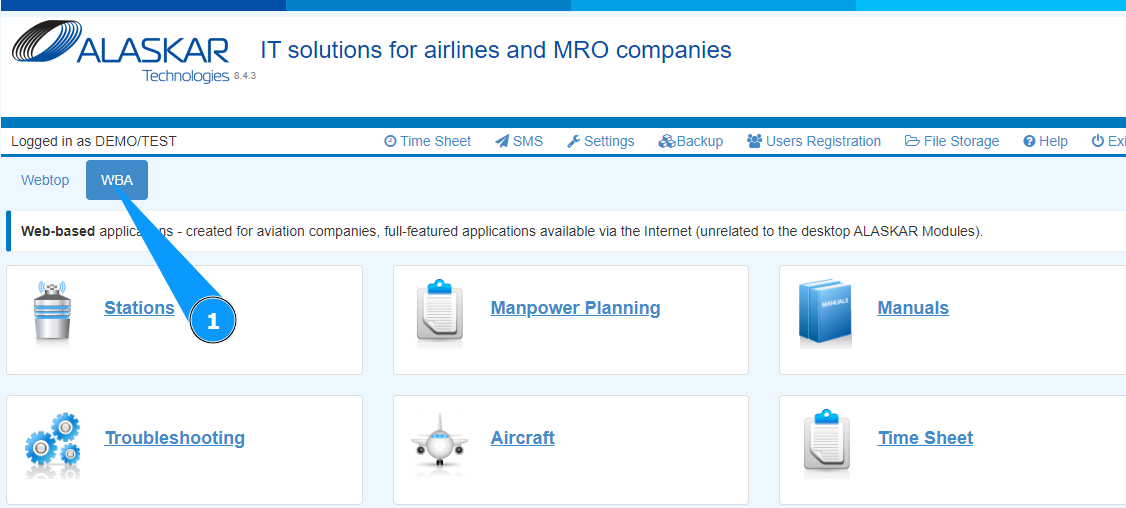
1. In order to upload a manual, go to the tab "WBA".
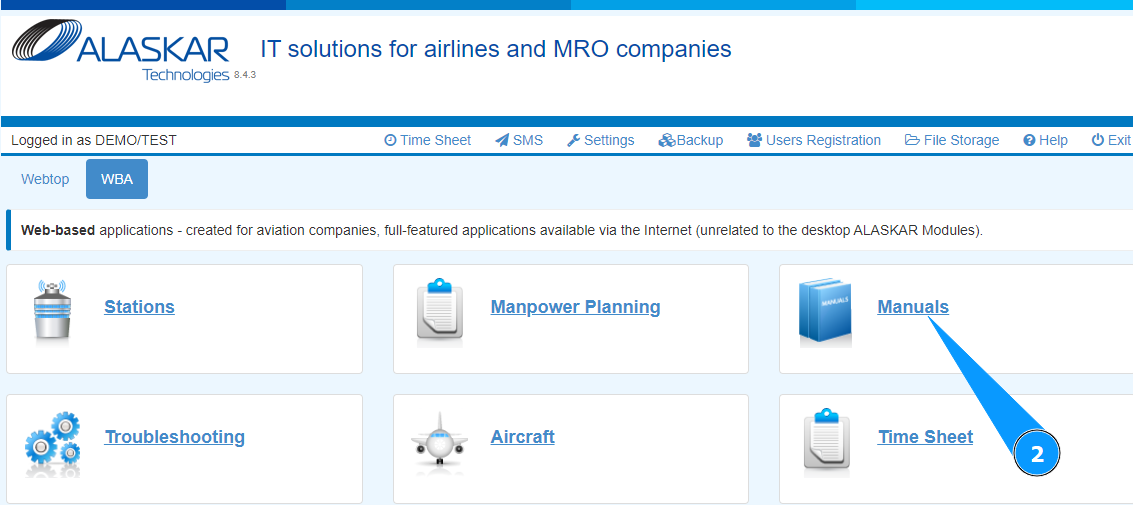
2. Go to the submodule "Manuals".
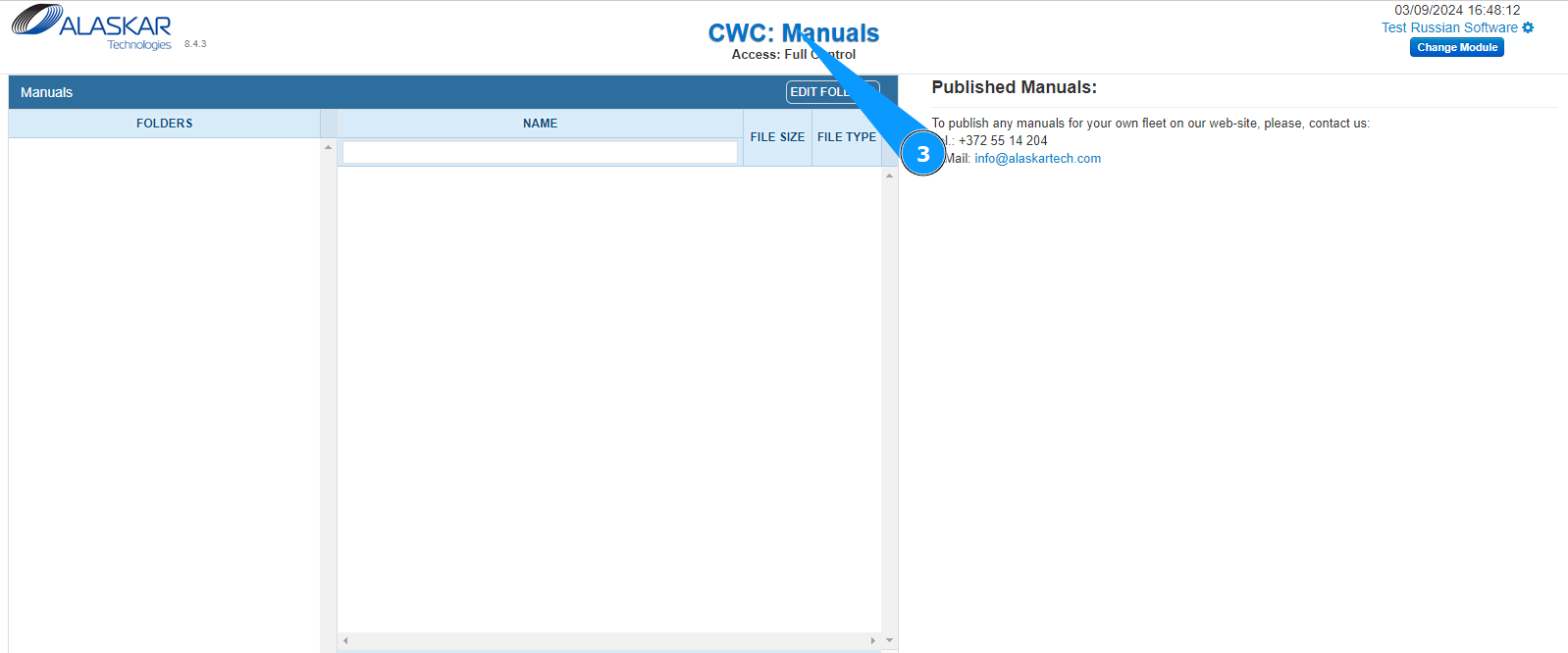
3. Check that the window for working with manuals has opened and is available in the window "CWC:Manuals".
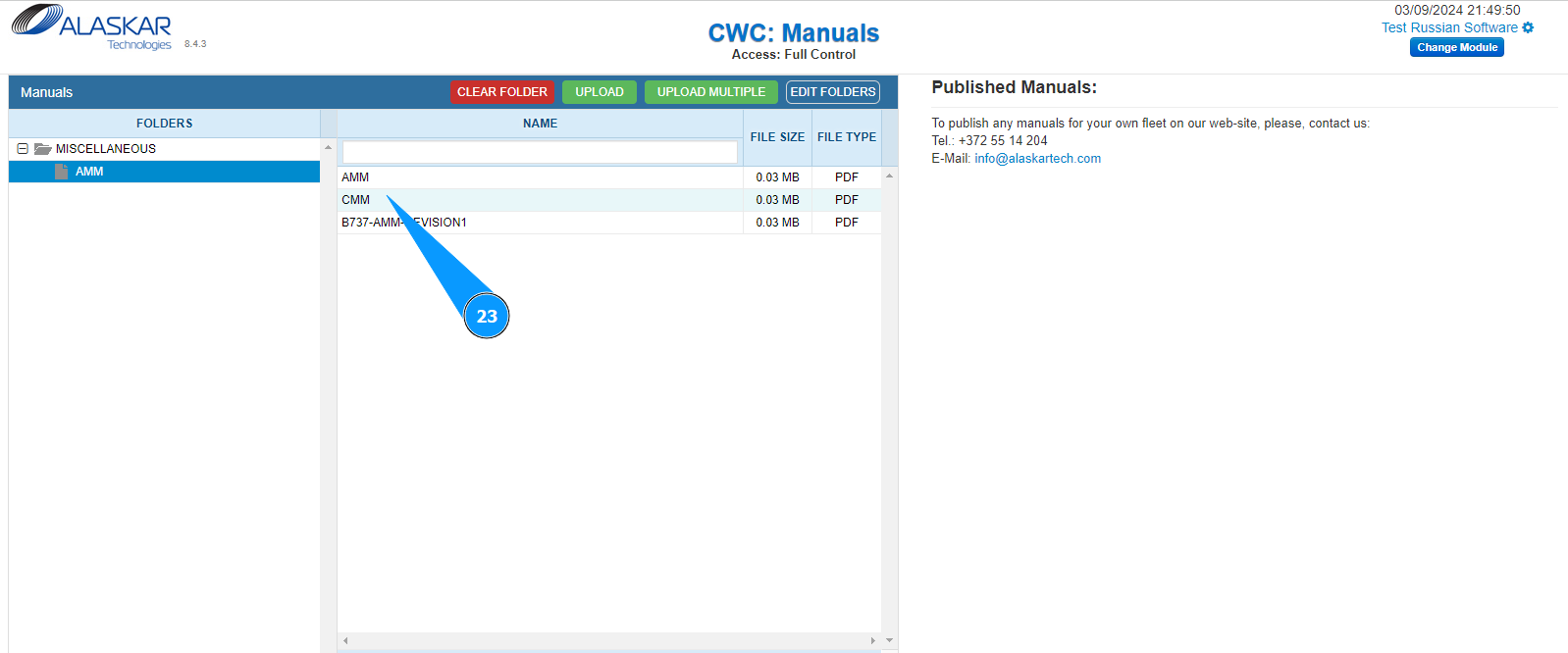
4. Select the folder with the manual where you want to upload the manual, click on the corresponding line.
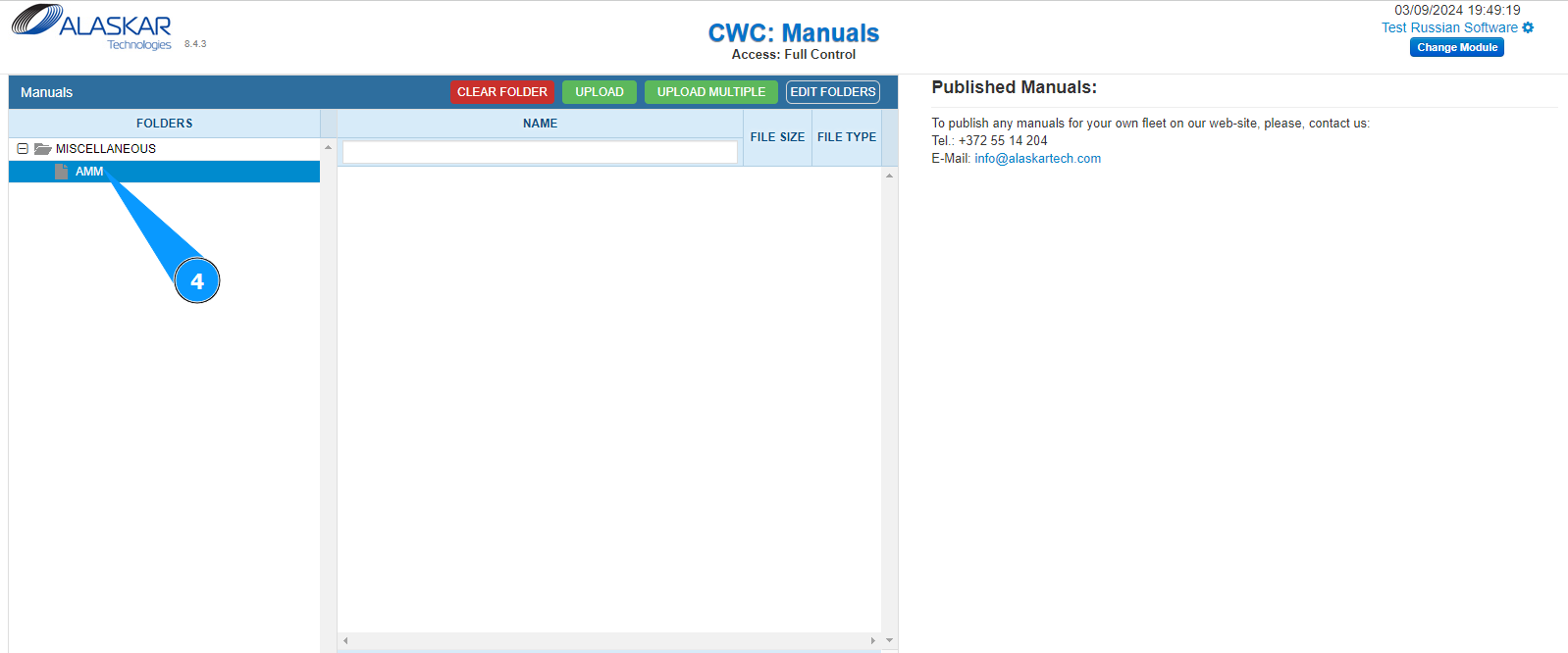
Note:
If you need to upload only one document, please use option #1.
If you need to upload several documents at once, please use option #2.
Option #1.
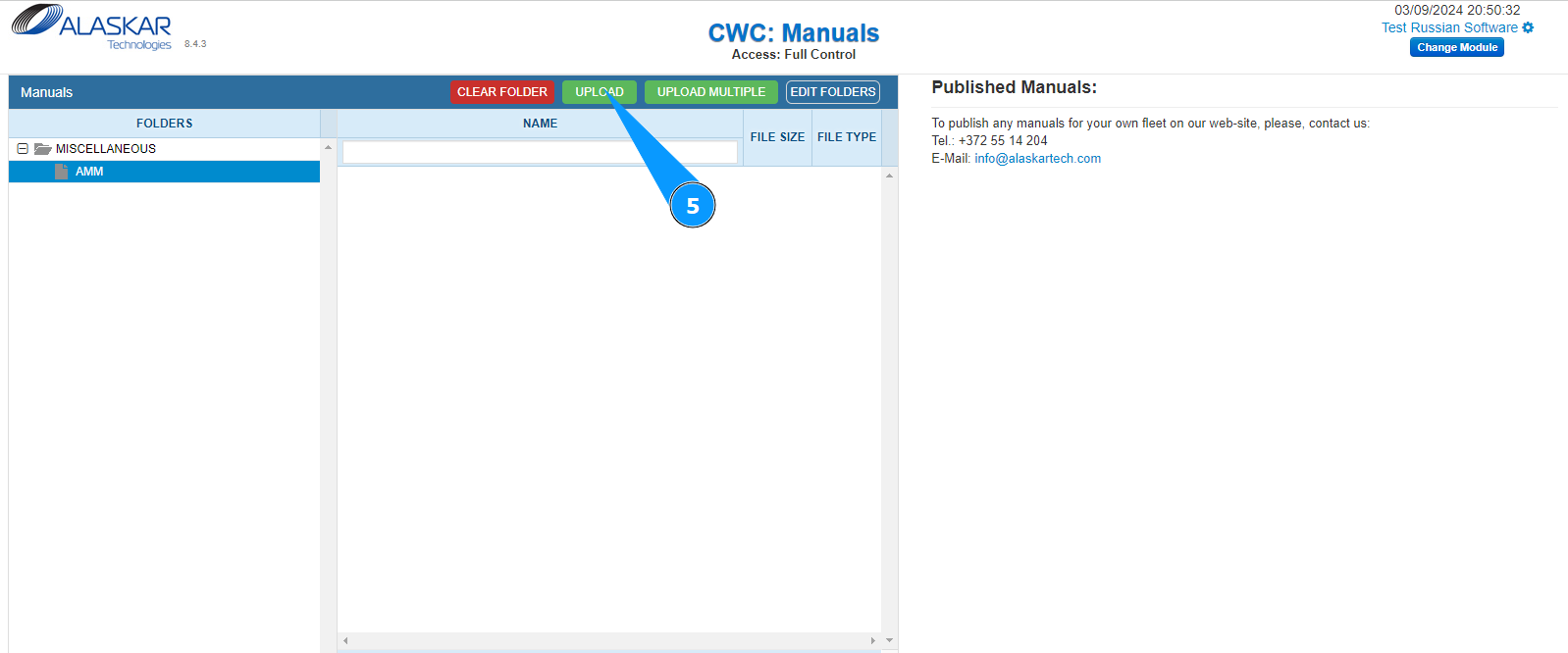
5. Click on the button "Upload" to start uploading the manual.
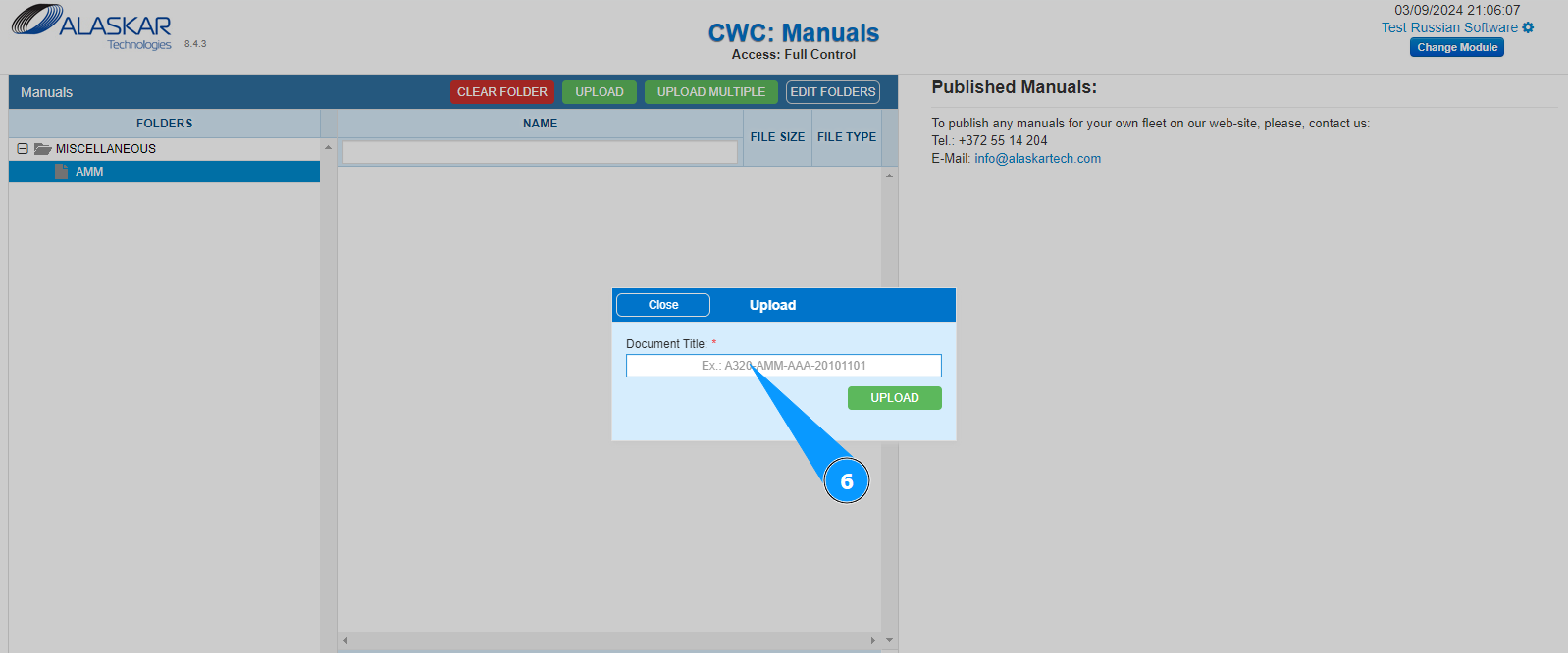
6. Enter the title of the manual in the field "Document Title".
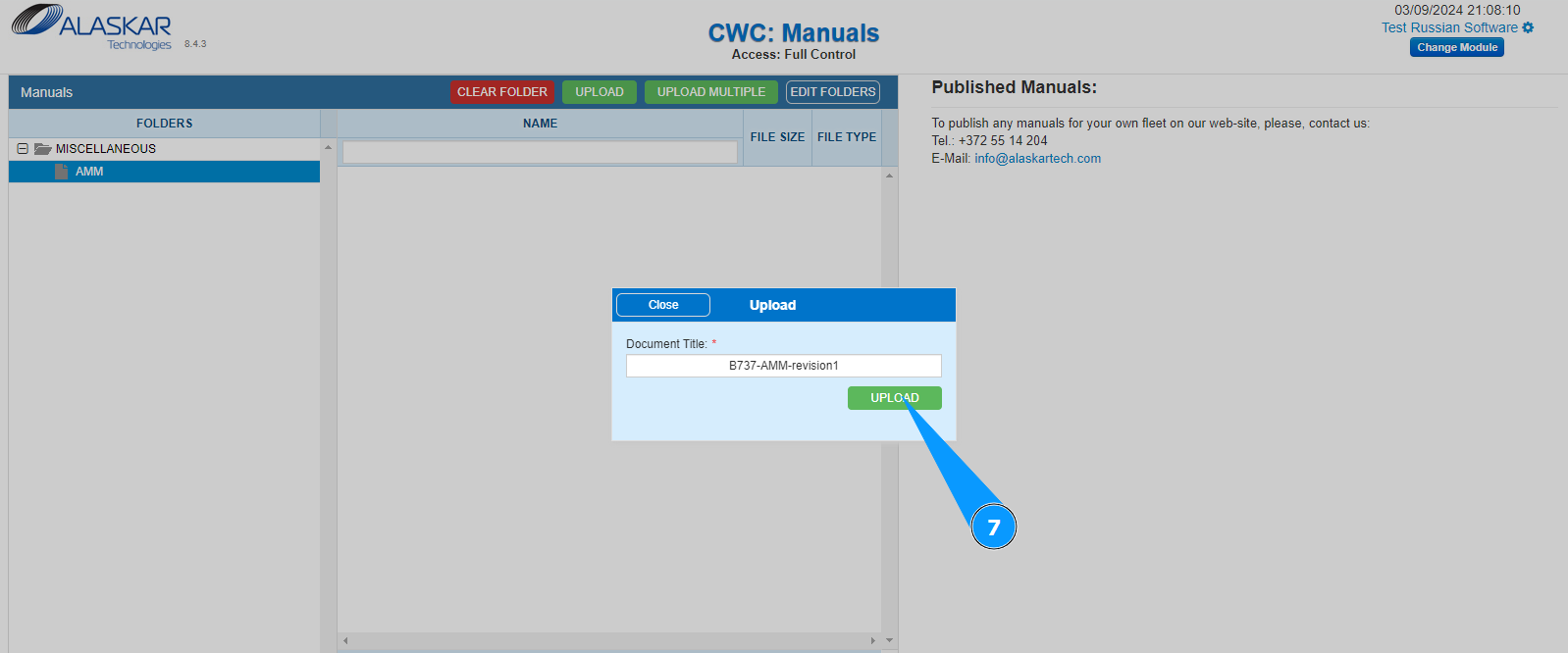
7. Click on the button "Upload" to select a file on your computer.
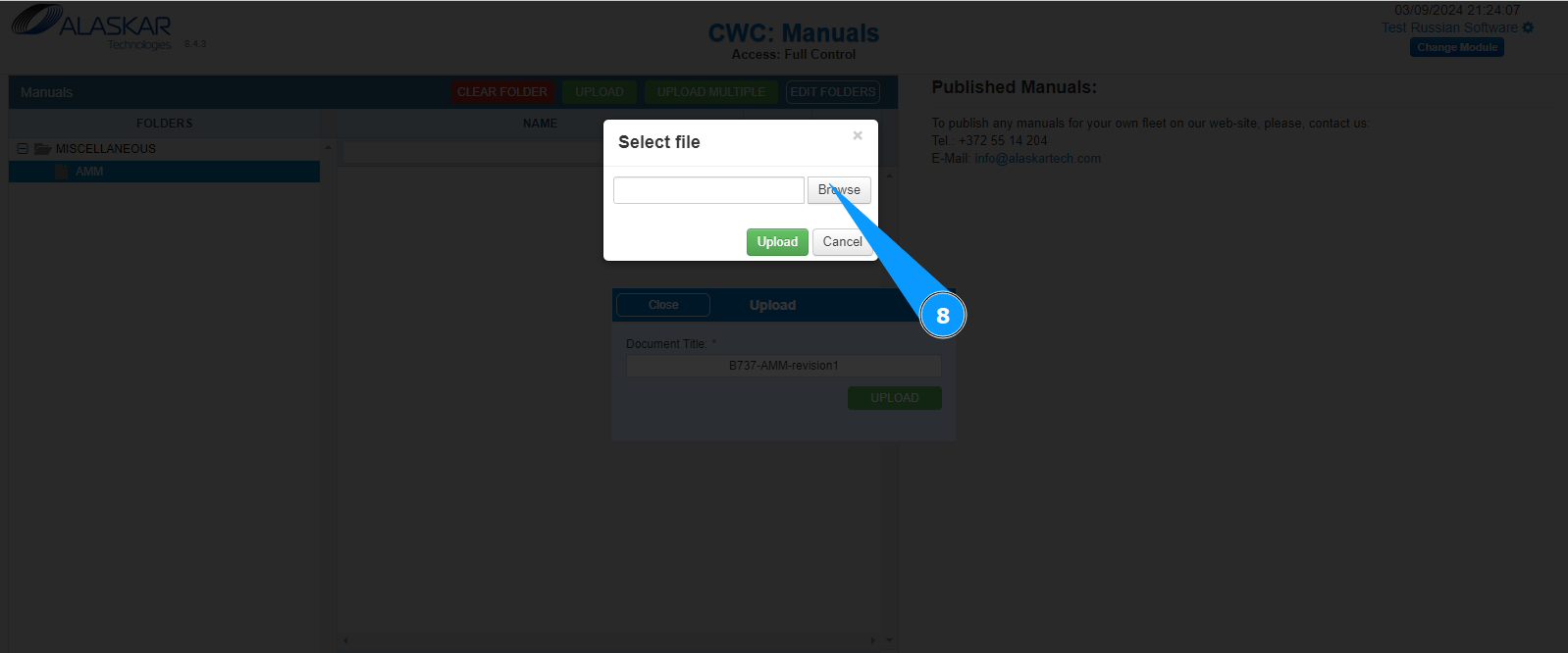
8. Click on the button "Browse" to select a file on your computer.
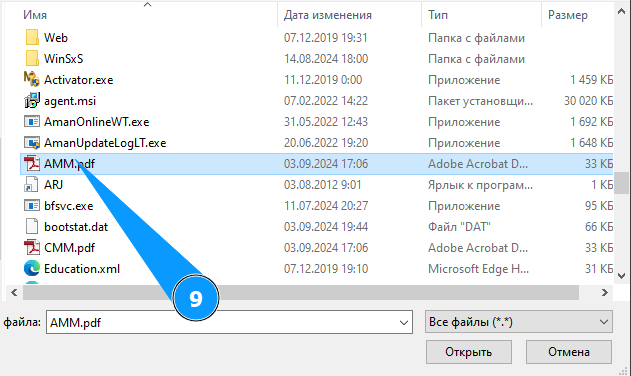
9. Select the file you want to upload on your computer and click on the corresponding line.
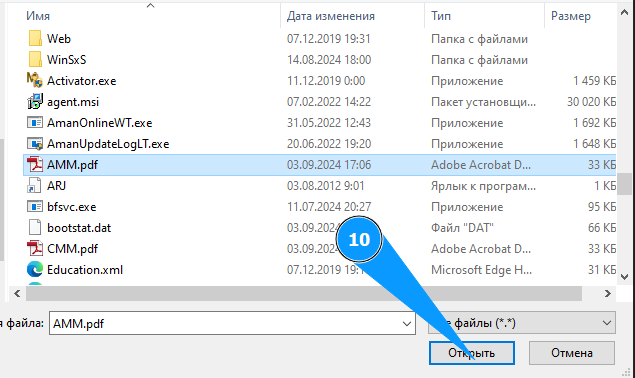
10. Click on the button "Open" to upload the file to the program.
11. Click on the button "Upload" to upload the file to the program.

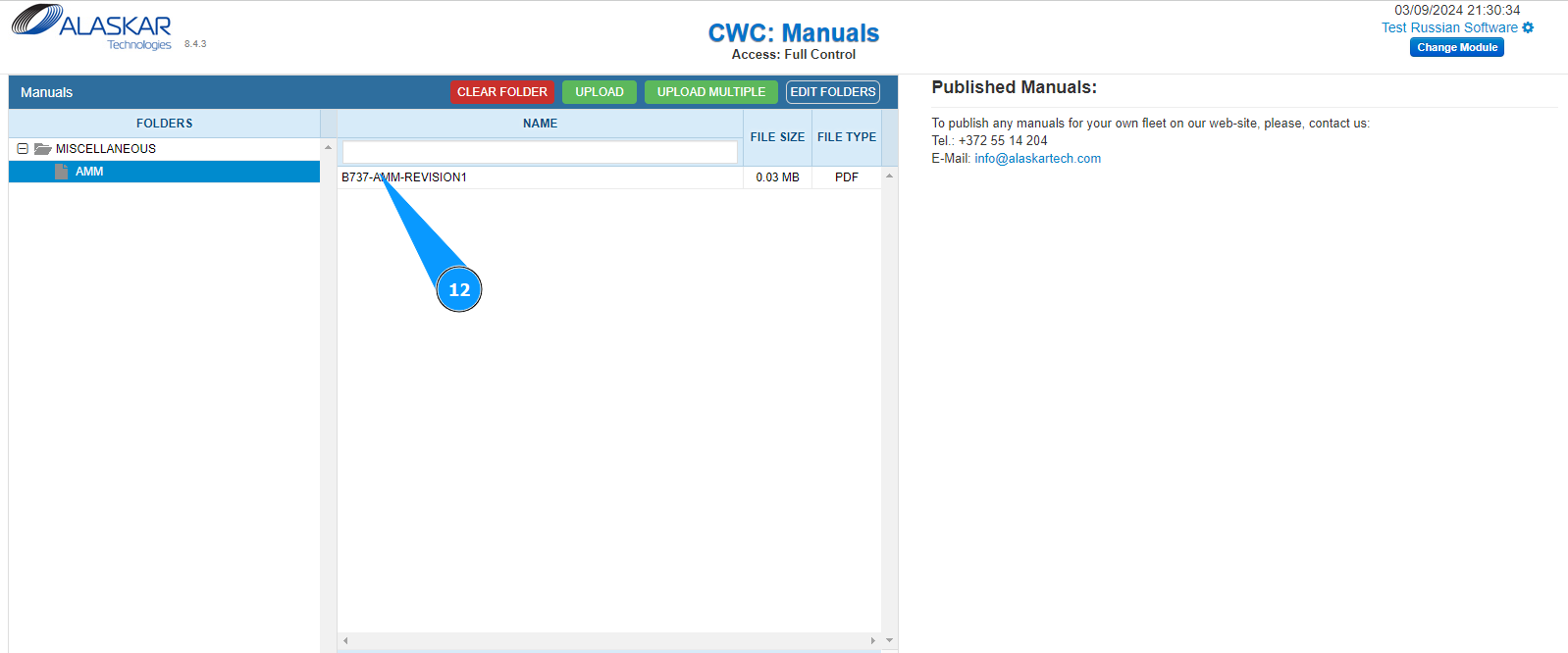
12. Check that the newly uploaded manual is displayed in the window "CWC:Manuals".
Option #2.
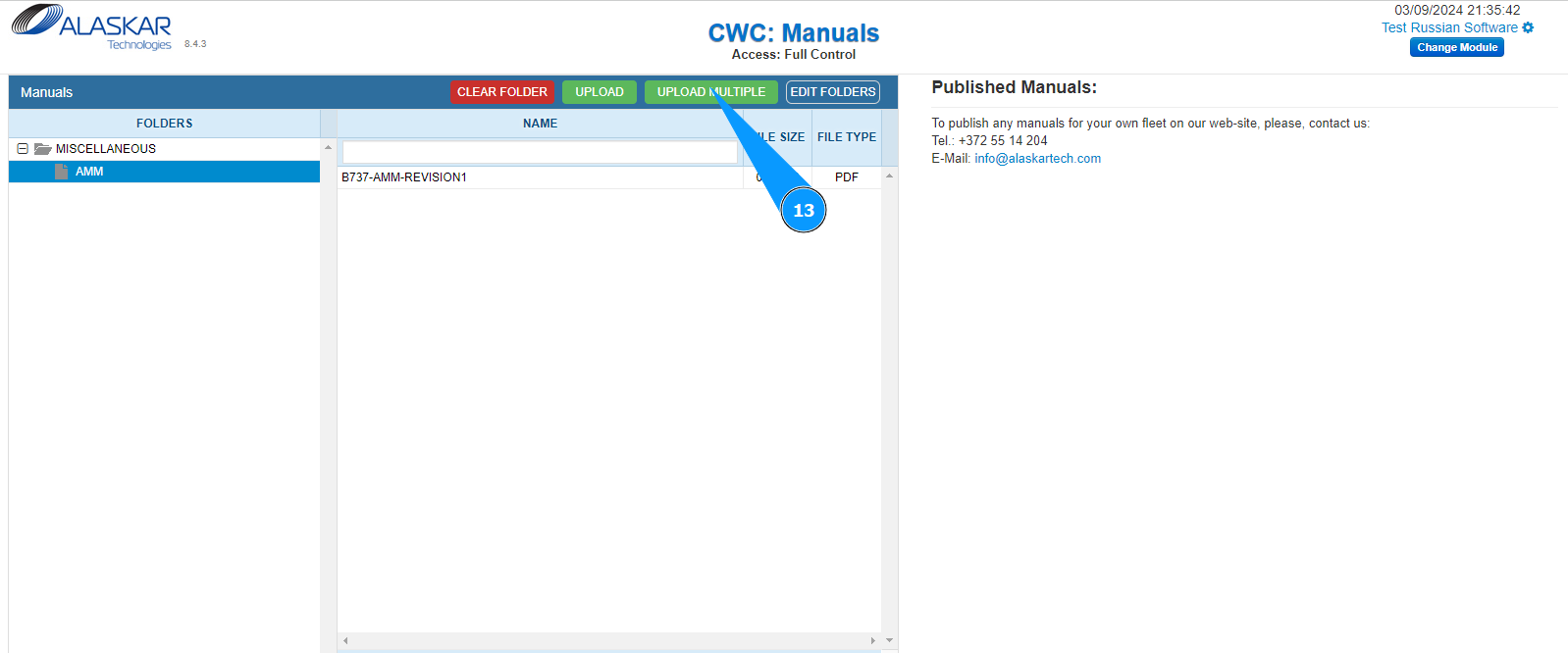
13. Click on the button "Upload Multiple" to start uploading manuals.
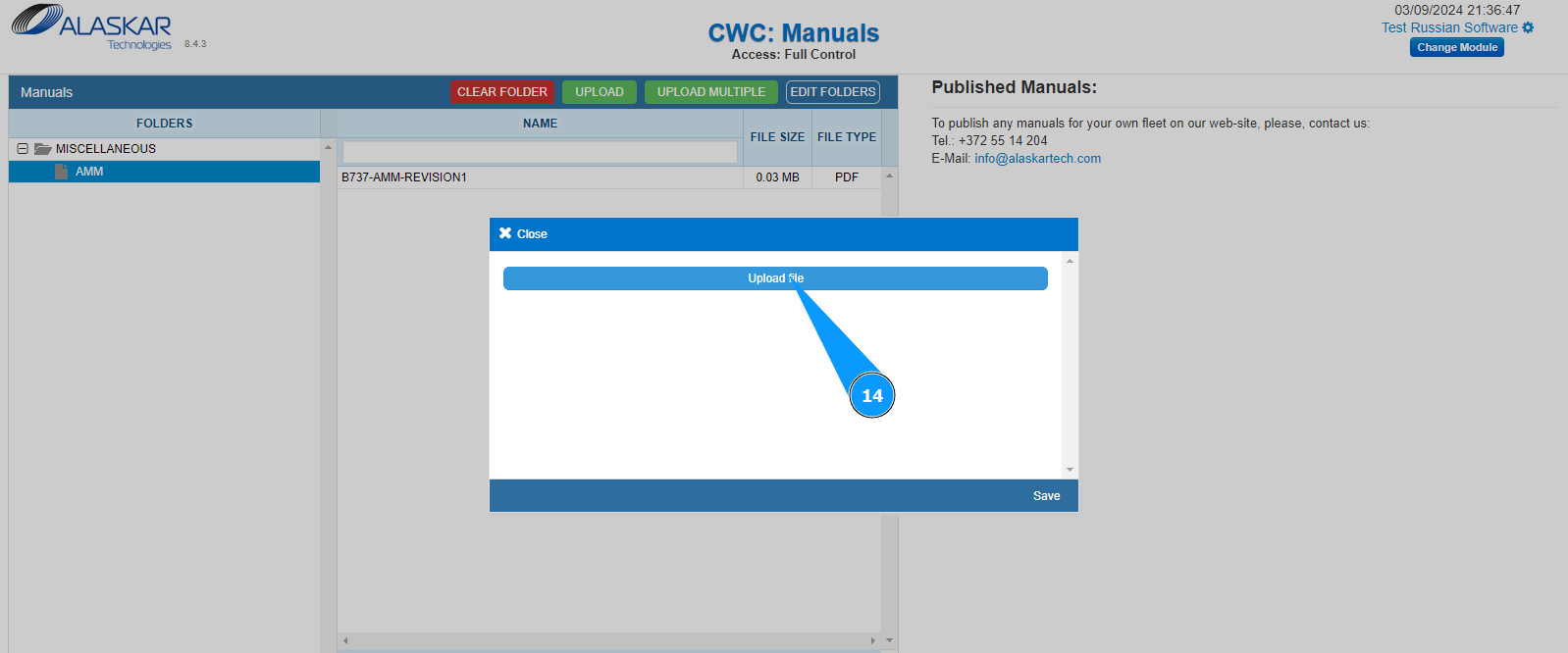
14. Click on the button "Upload File" to select files on your computer.
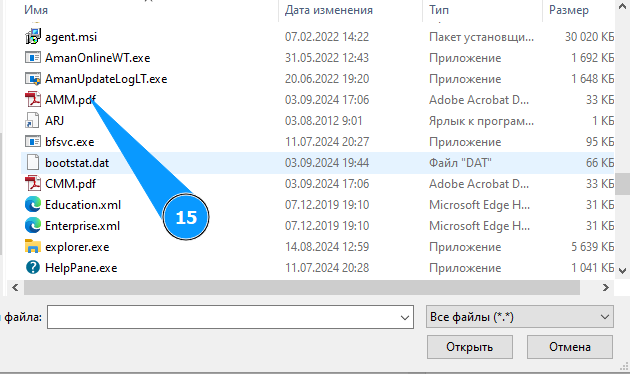
15. Select the file you want to upload on your computer and click on the corresponding line.
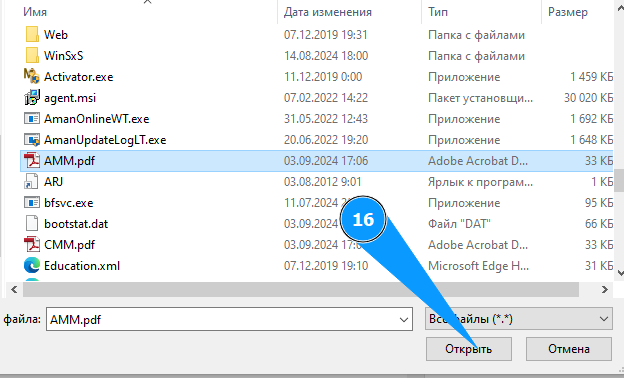
16. Click on the button "Open" to upload the file to the program.
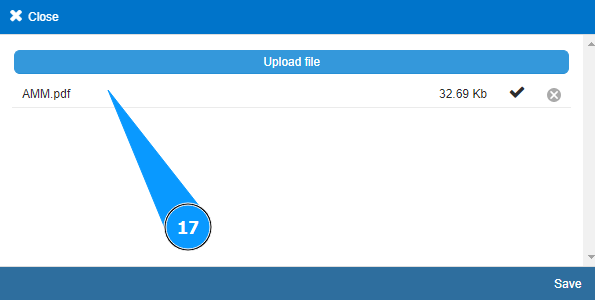
17. Check that the downloaded manual appears.
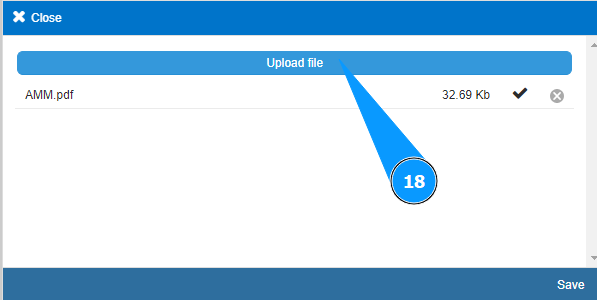
18. Click on the button "Upload File" to select other file on your computer.
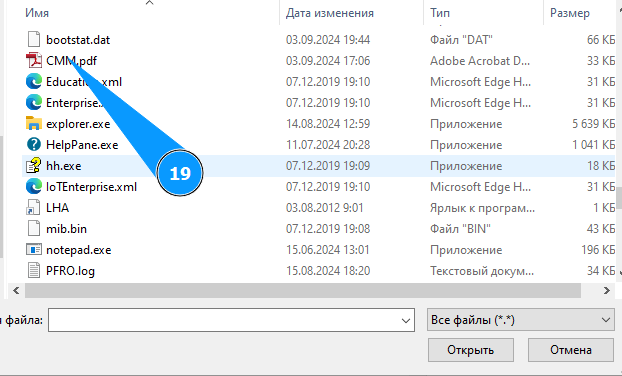
19. Select the file you want to upload on your computer and click on the corresponding line.
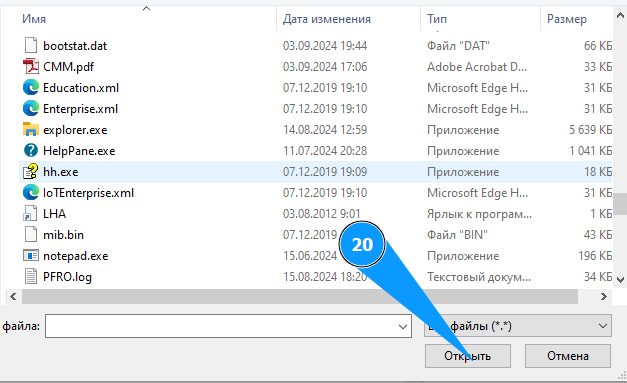
20. Click on the button "Open" to upload the file to the program.
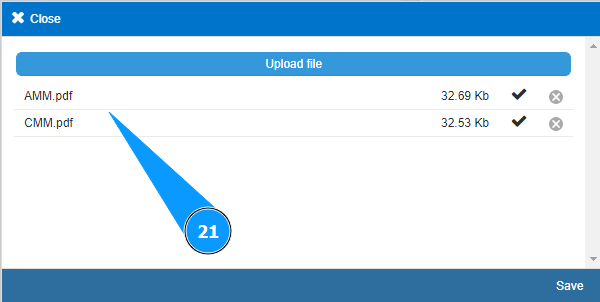
21. Check that the downloaded manual appears.
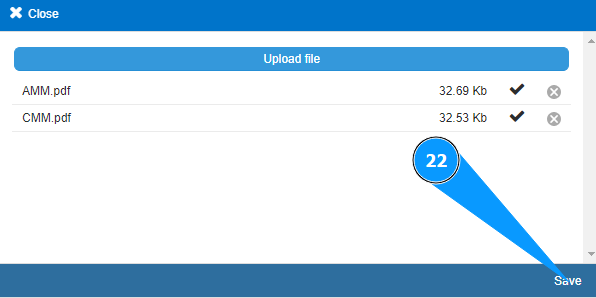
22. Click on the button "Save" to upload the files to the program.
23. Check that the newly uploaded manuals are displayed in the window "CWC:Manuals".