How to save the documents to archive
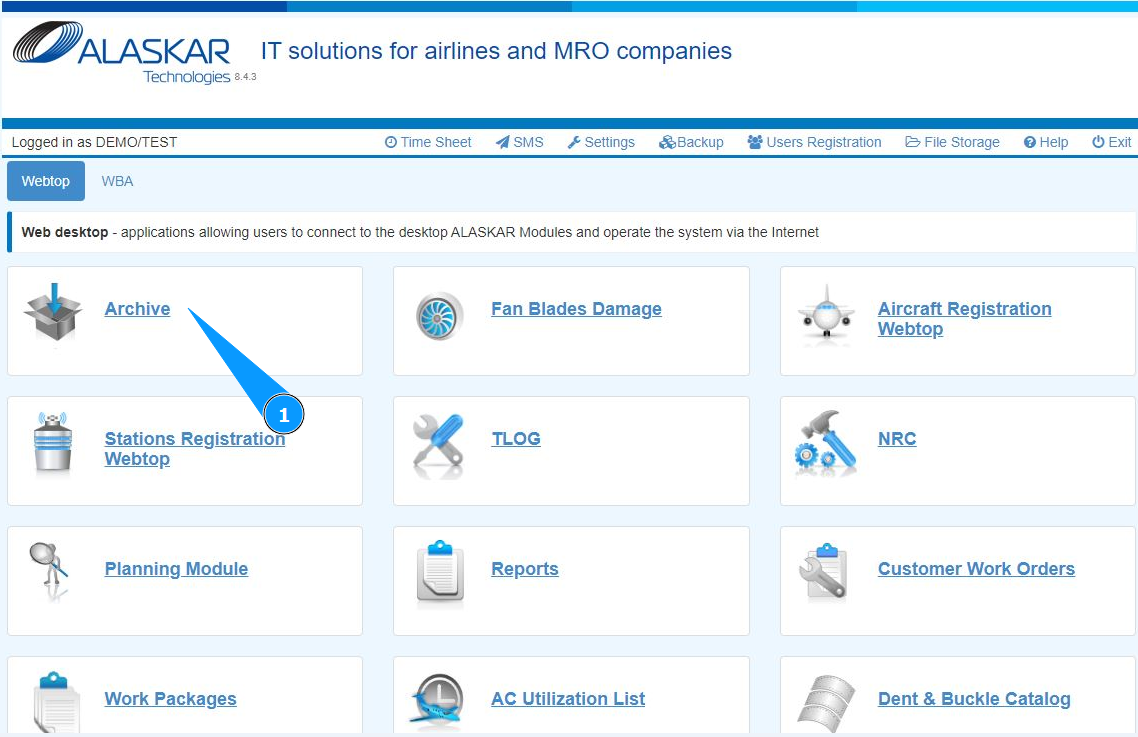
1. In order to save the documents to archive, go to the submodule "Archive".
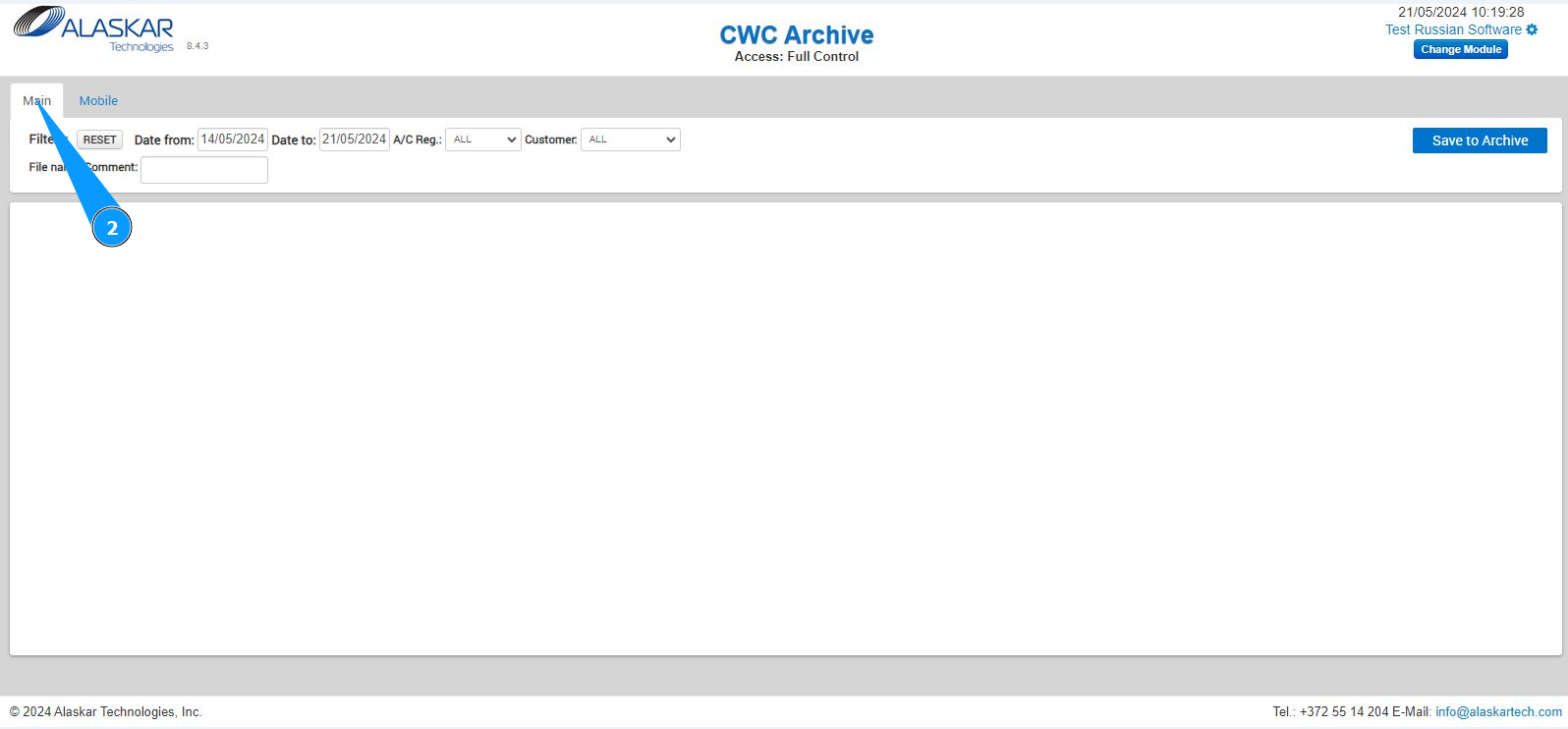
2. Then go to the tab "Main".
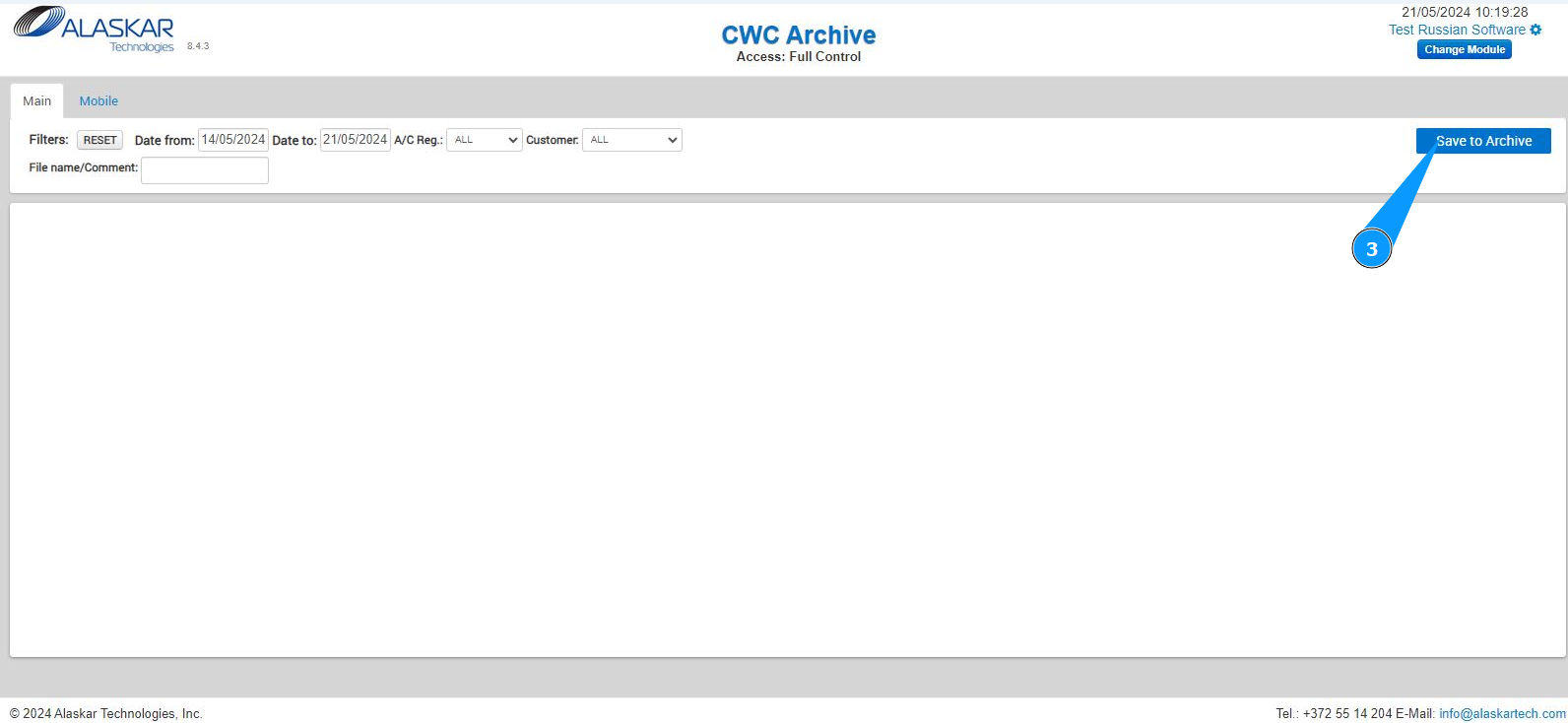
3. Click on the button "Save to Archive", to save your documents to archive.
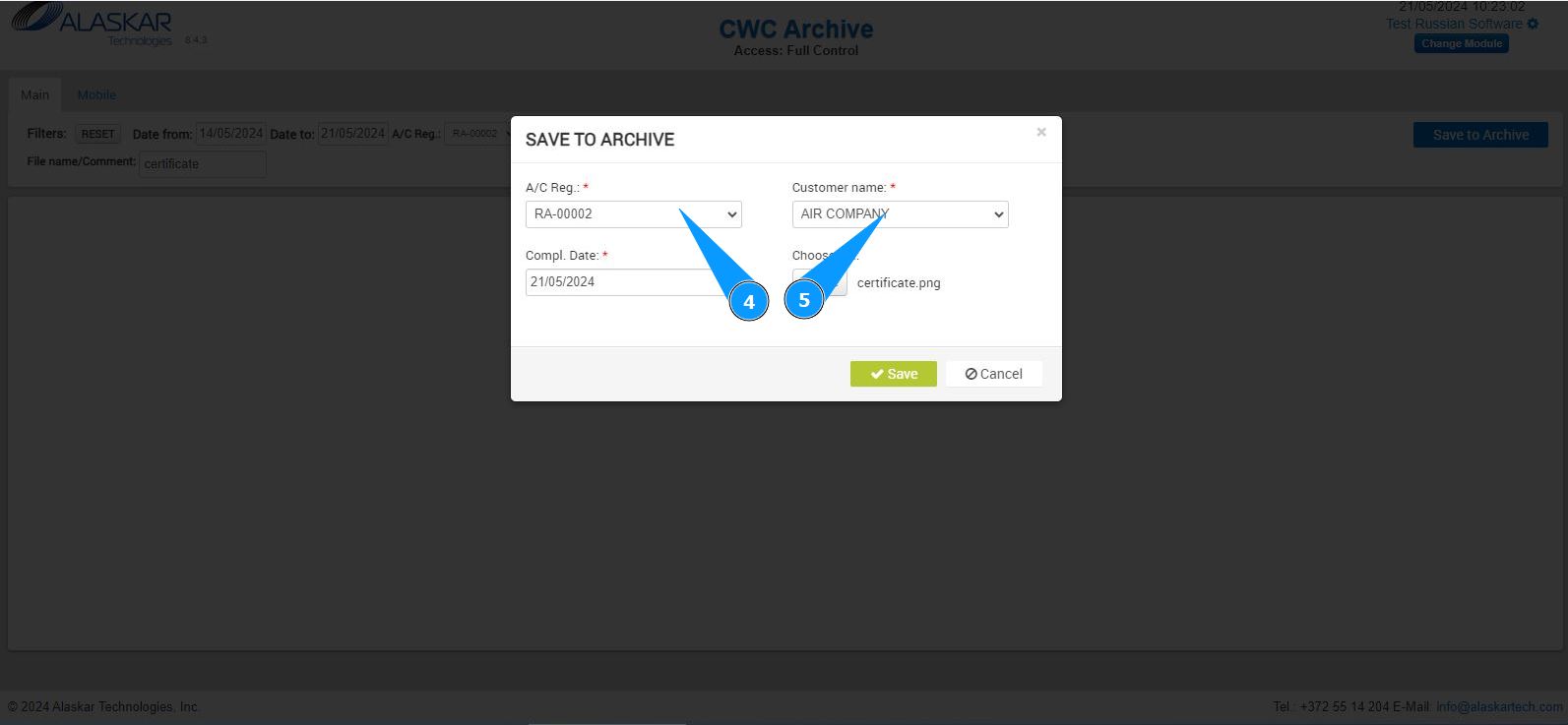
4. Select the aircraft registration number from the dropdown list in the field "A/C reg.".
5. Select the air company name from the dropdown list in the field "Customer Name".
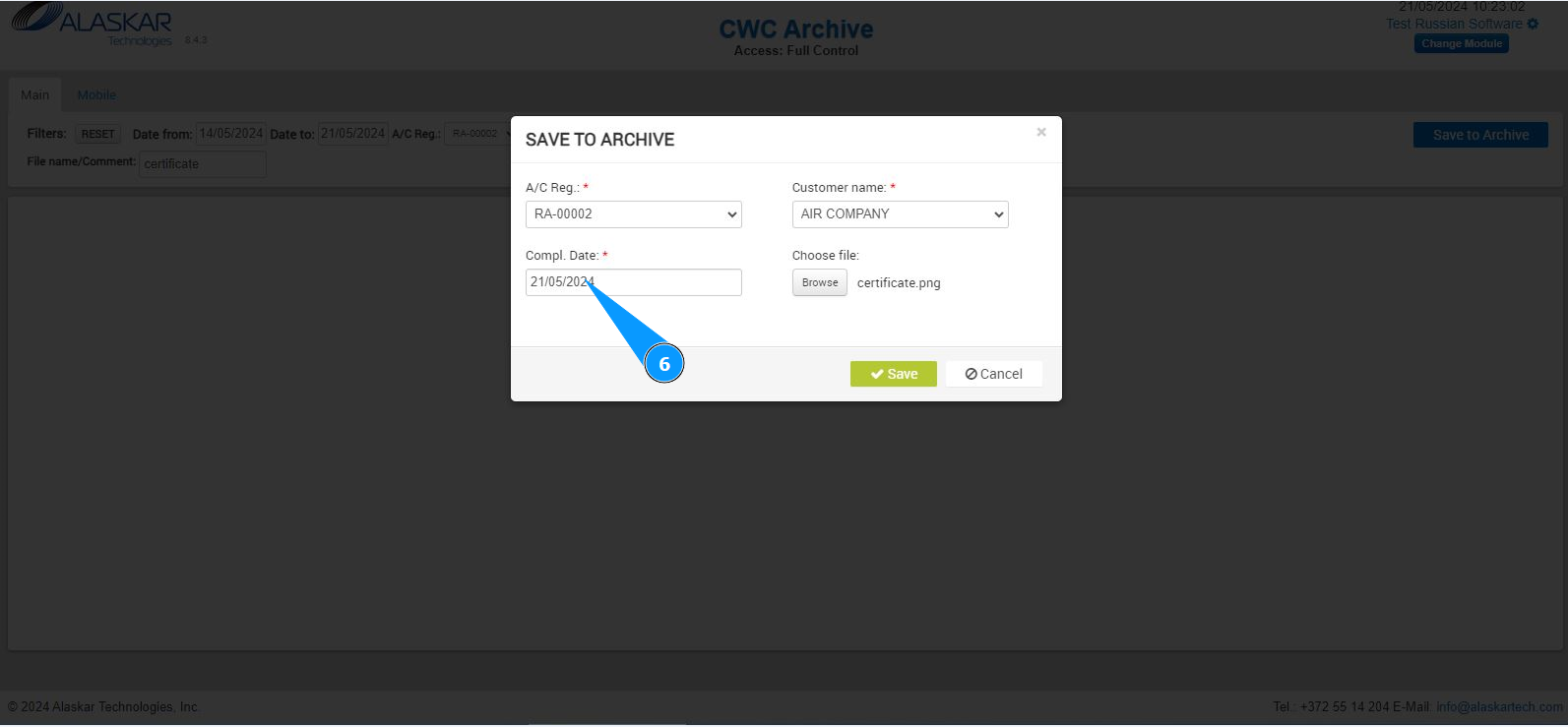
6. Enter the date the archive was added or select manually, click in the field "Compl.Date".
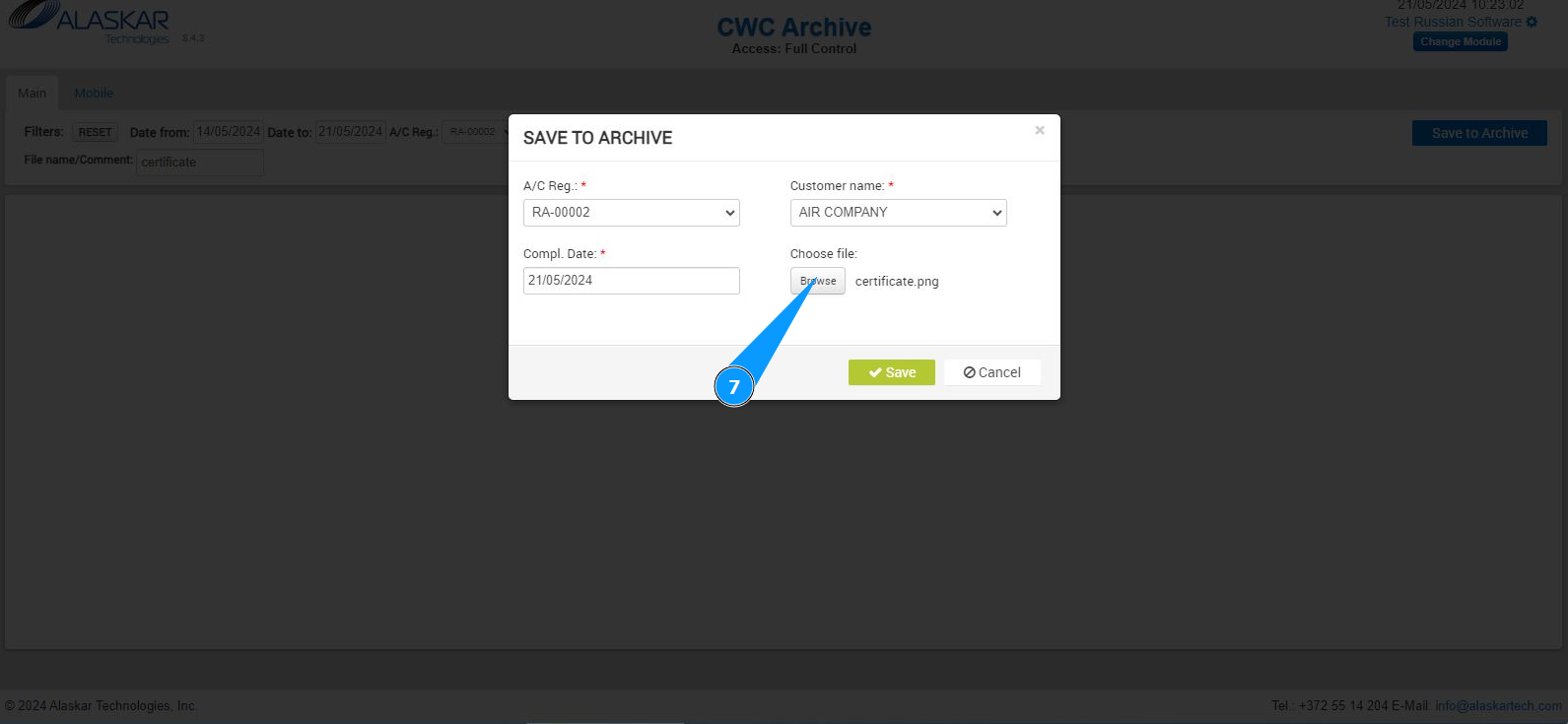
7. Click on the button "Browse", to save documents to the archive.
8. Select the required file to download from your computer.

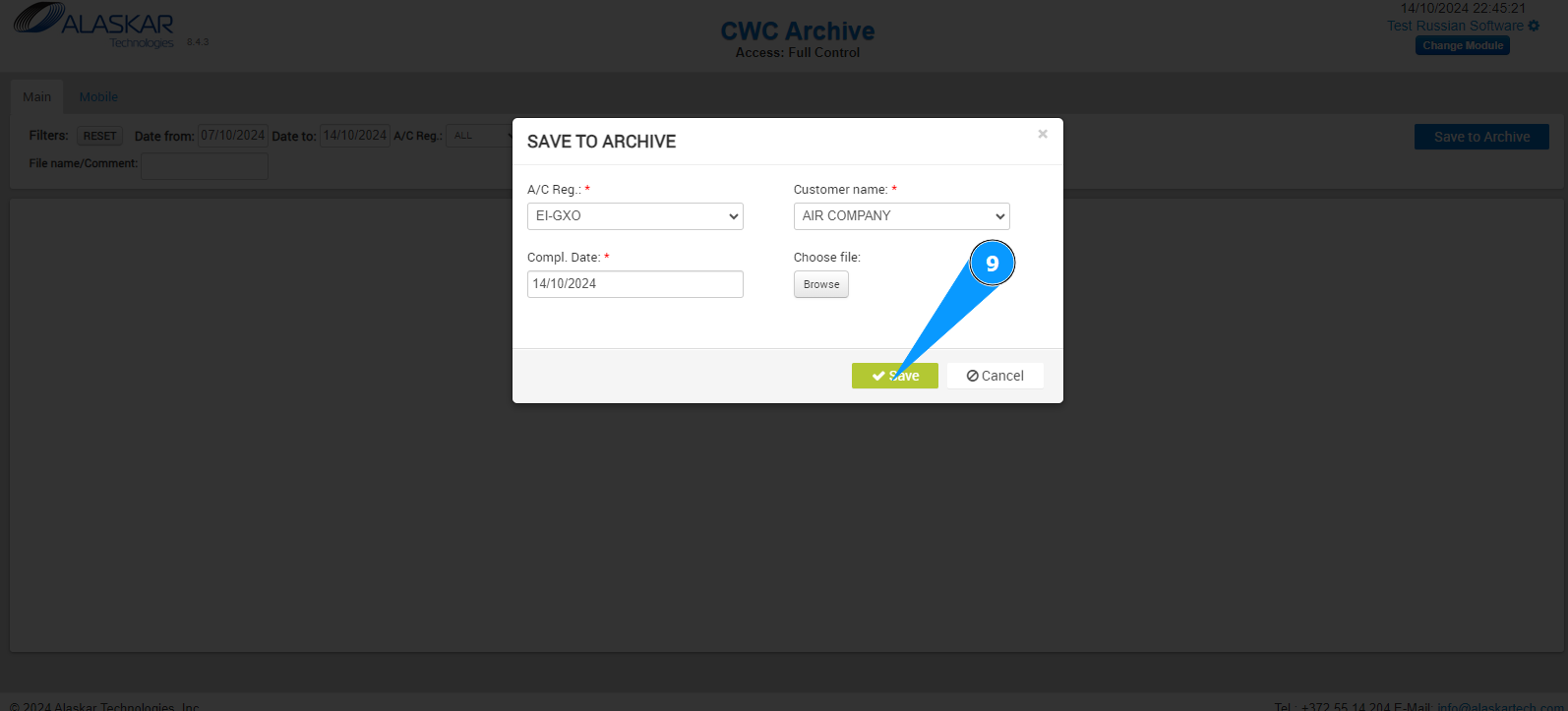
9. Click on the button "Save", to save documents to the archive.
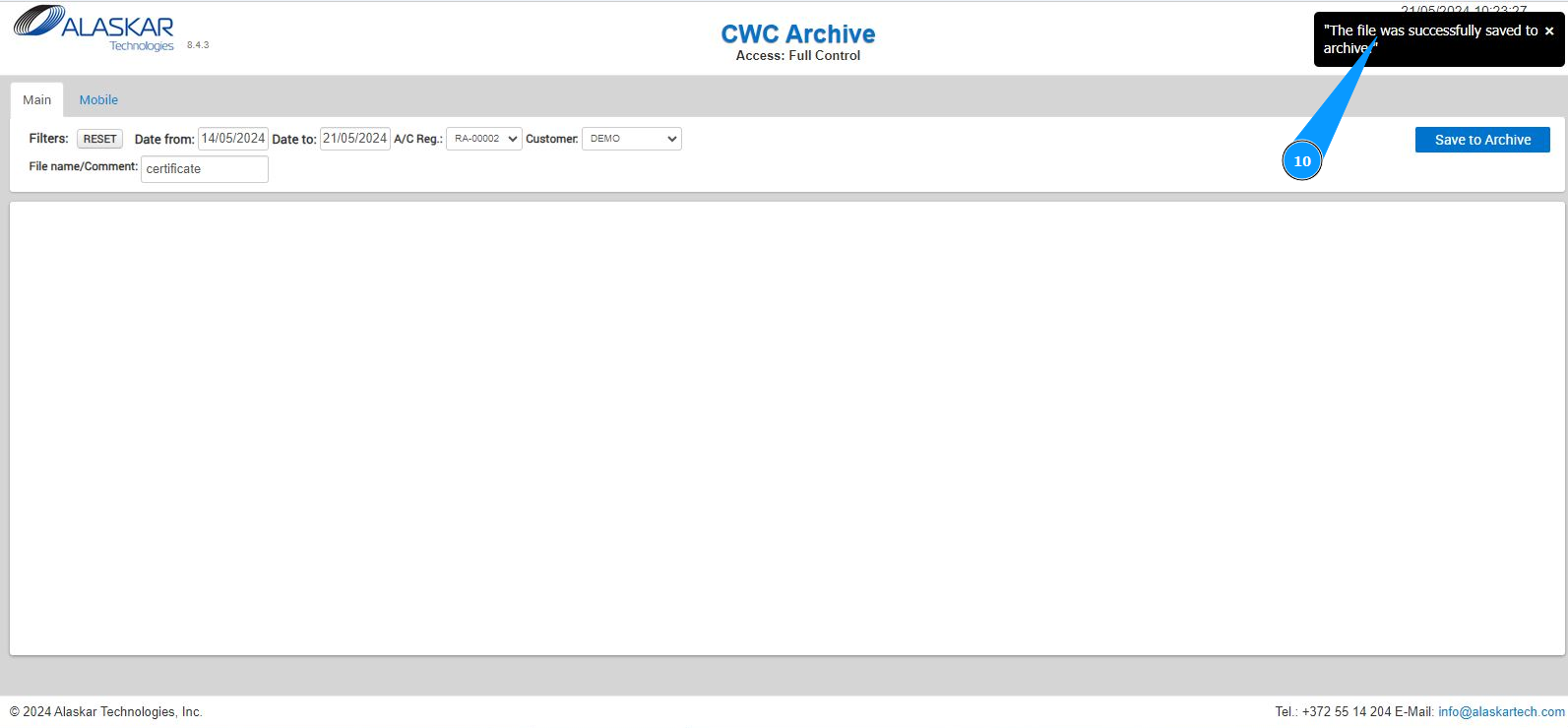
10. Make sure that the data is saved and the corresponding message "The file was successfully saved to archive" is displayed.