How to register a new user
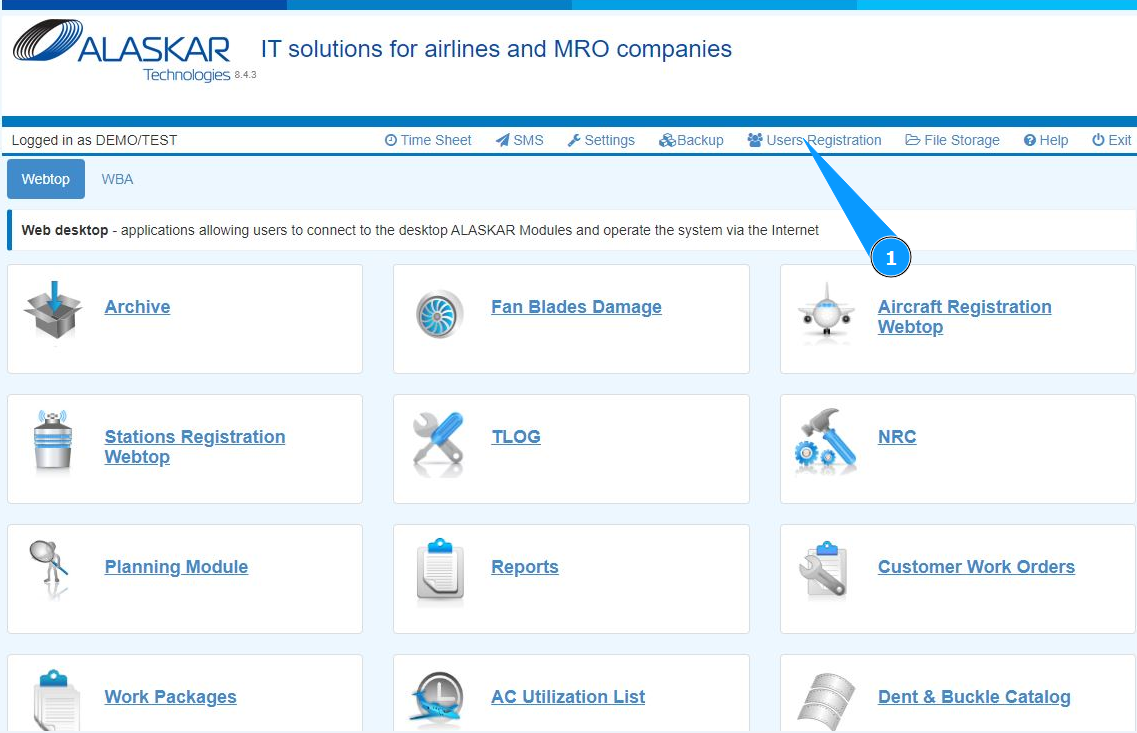
1. In order to register a new user, at the top of the open Web center, go to the submodule "User Registration".
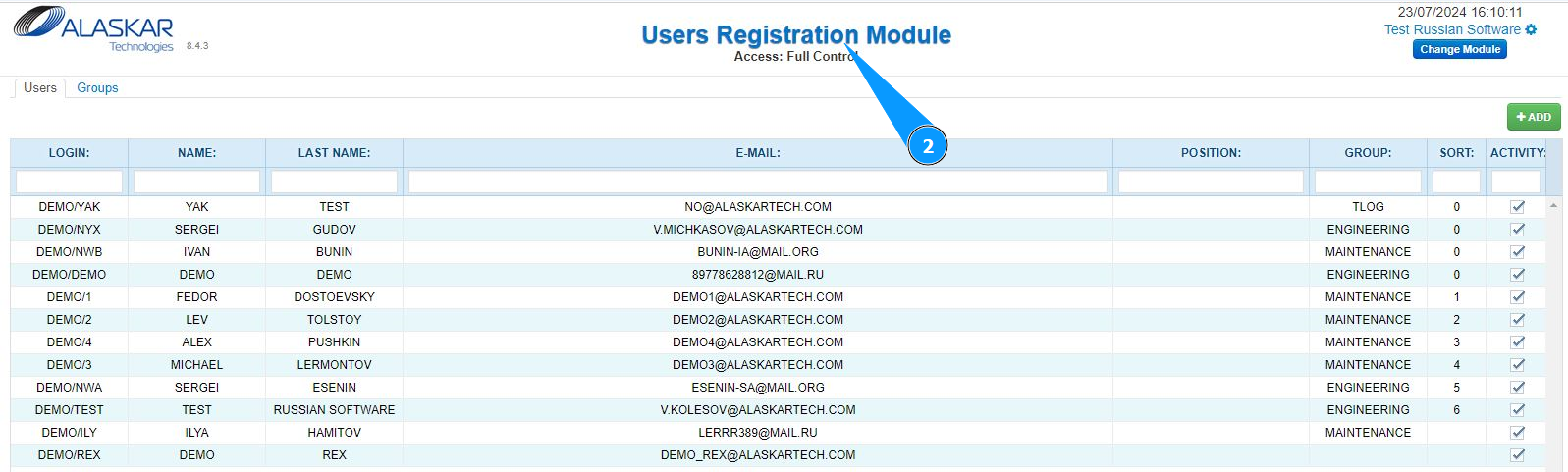
2. Make sure that the window for working with users is open and accessible in the window "User Registration Module".
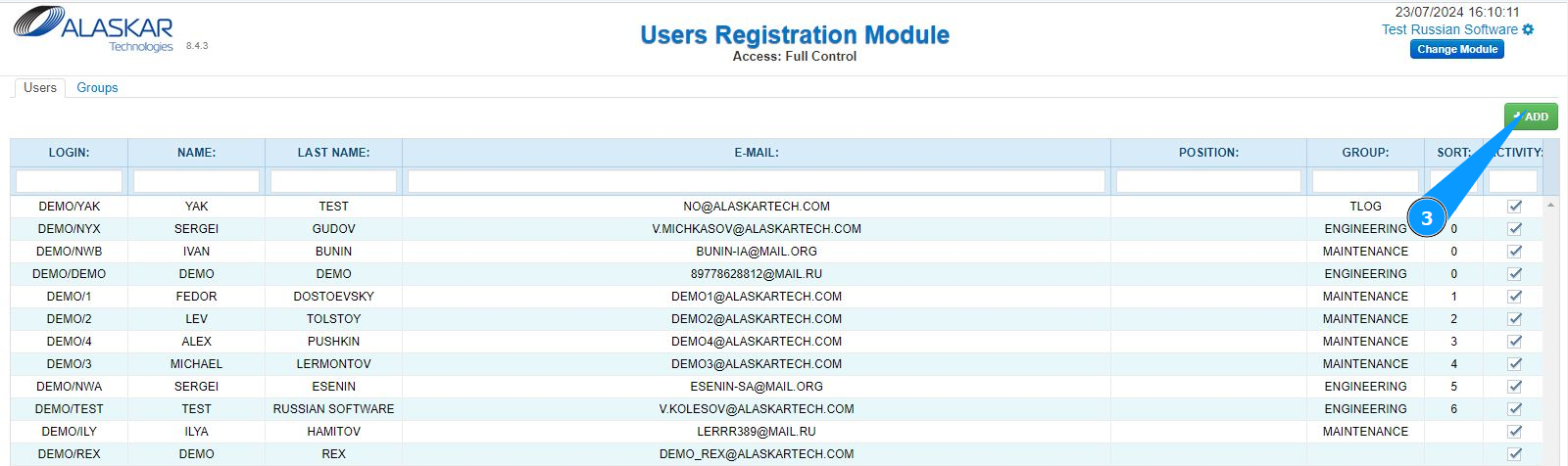
3. In order to register a new user, click on the button "Add".
4. Make sure that the users' work editor is open and accessible in the window "Add user".
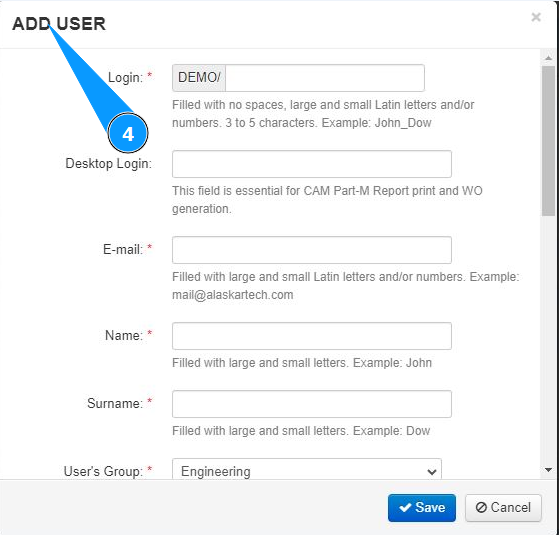
5. Enter the new user's login (in accordance with your company's policy) in the field "Login".
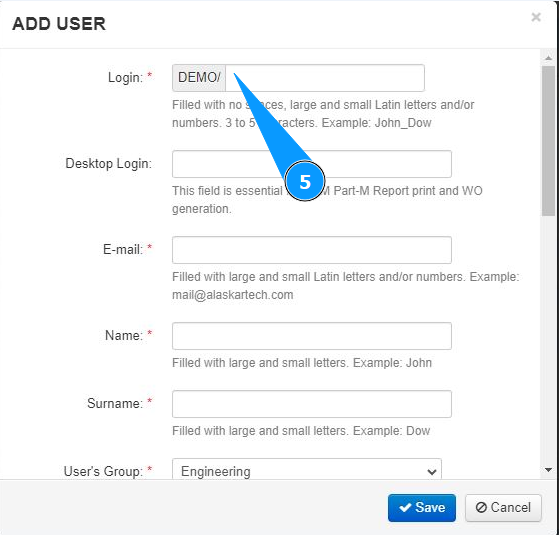
6. If necessary, enter desktop access for the new user's (in accordance with your company's policy) in the field Login to Desktop.
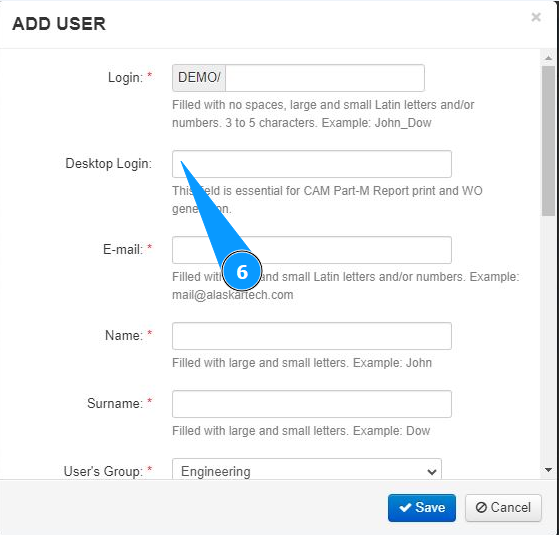
7. Enter the new user's email in the field "E-mail".
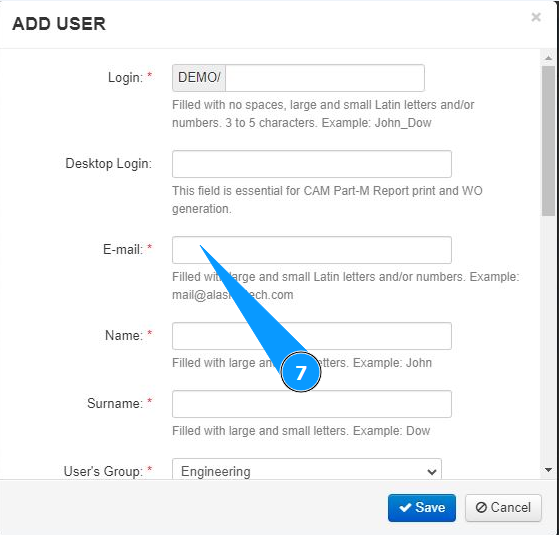
8. Enter the name of the new user in the field "Name".
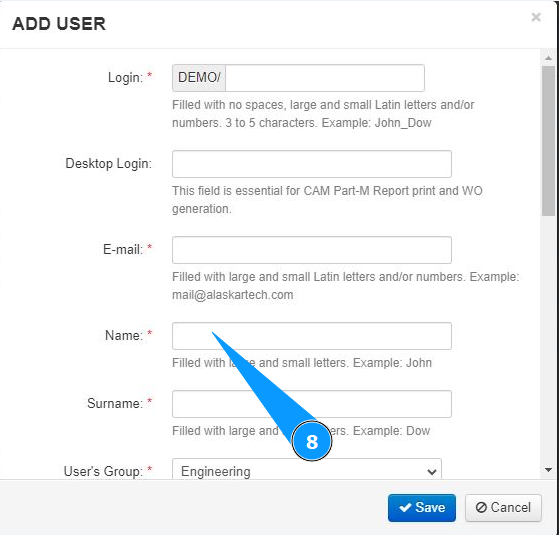
9. Enter the new user's last name in the field "Surname".
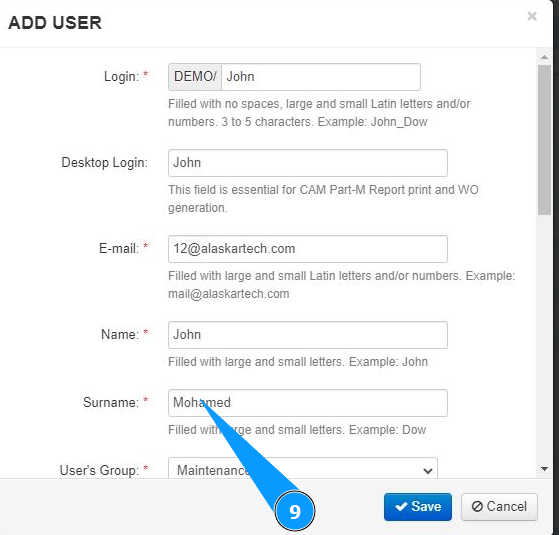
10. Select from the dropdown list which type of aviation activity the new user belongs to in the field "User group".
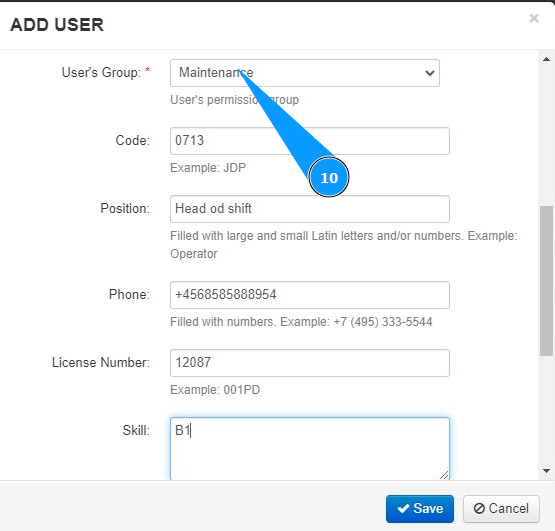
11. If necessary, enter the new user code (in accordance with your company policy) in the field "Code".
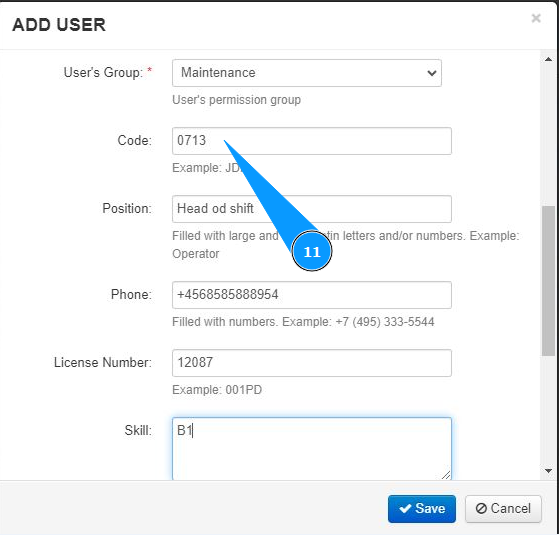
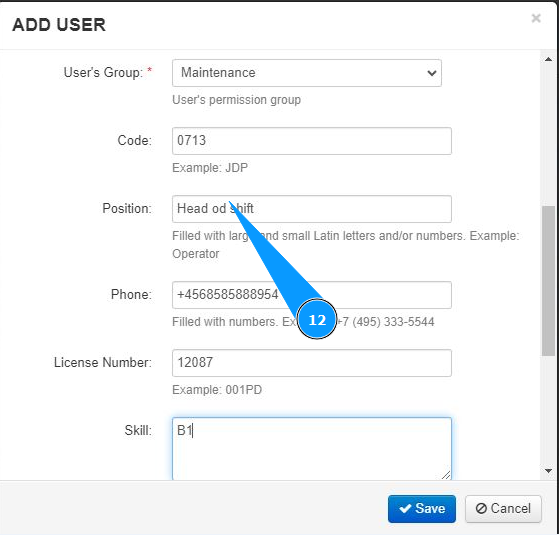
12. If necessary, enter the current position of the new user in the field "Position".
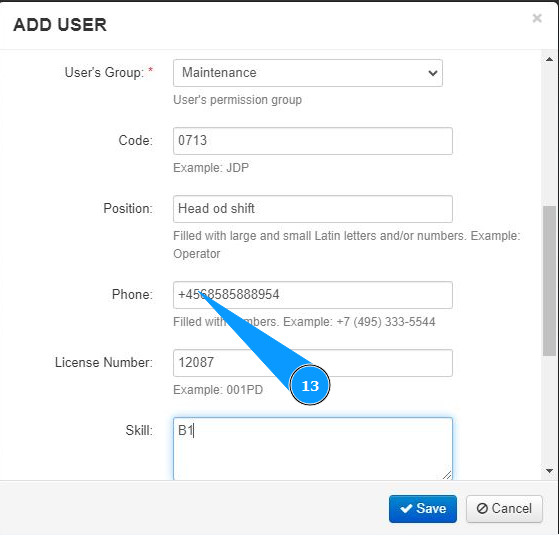
13. If necessary, enter the new user's phone number in the field "Phone".
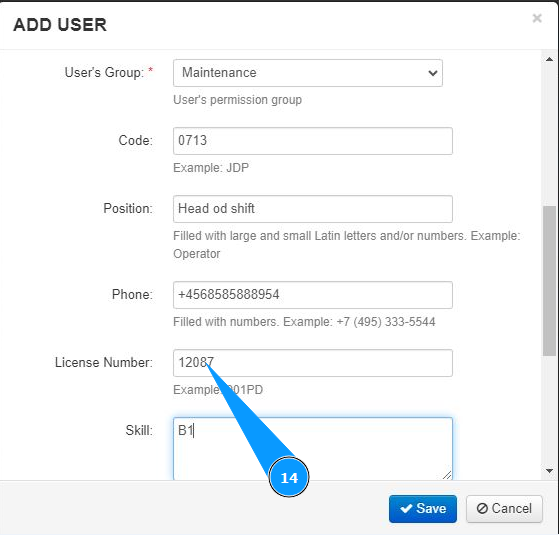
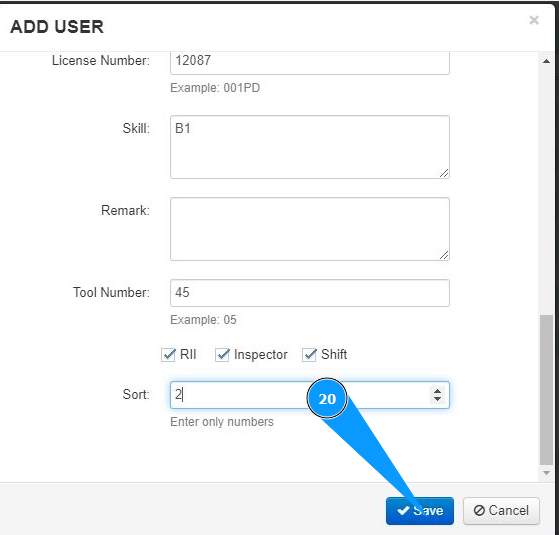
14. If necessary, enter the license number of the new user in the field "License number".
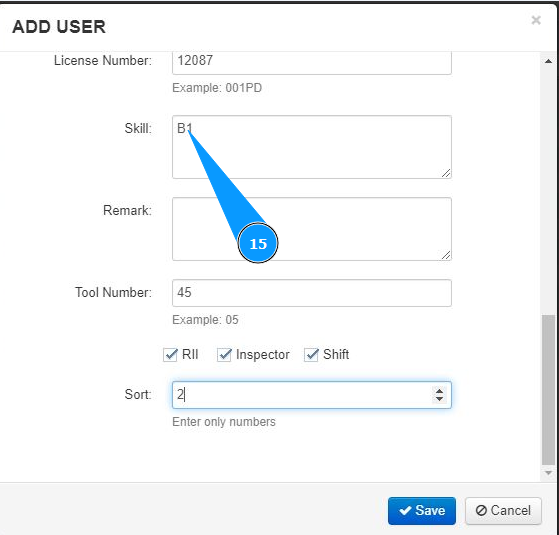
15. If necessary, select the new user's specialization in the field "Skill".
16. If necessary, enter any comments about the new user in the field "Remark".
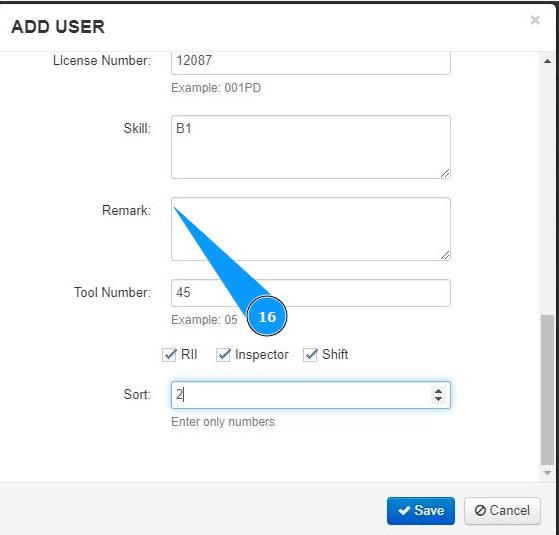
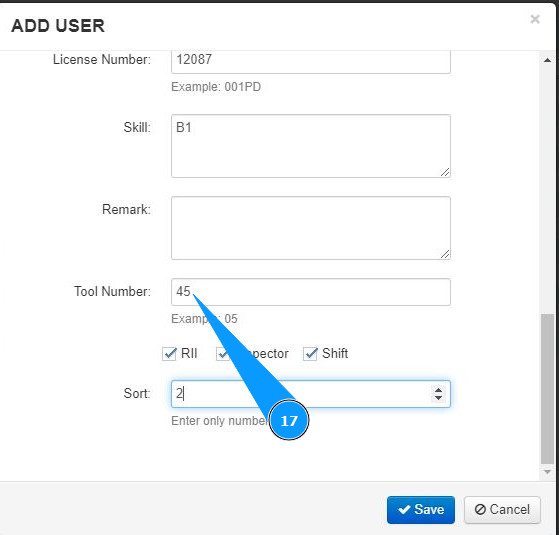
17. If necessary, enter the new user's tool number in the field "Tool number".
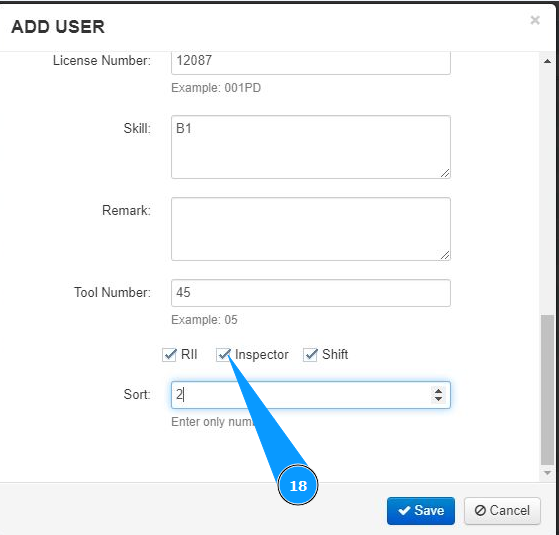
18. If necessary, tick the corresponding field of a new user allowable to perform replacement, inspection, or acting as a shift supervisor (as per your company policy) in the fields "RII", "Inspector", "Shift".
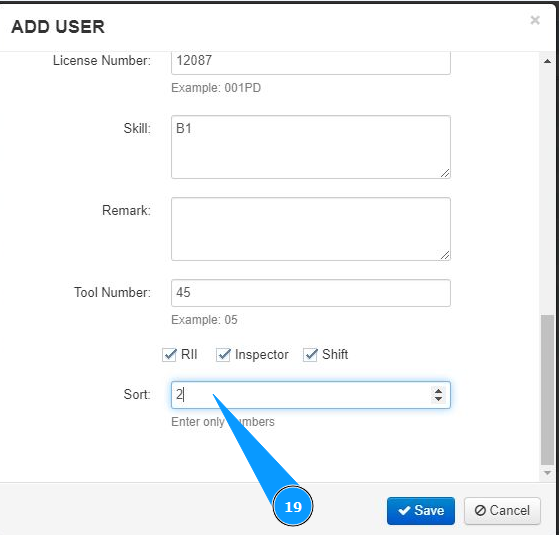
19. If necessary, enter the new user's rank (according to your company policy) into the field Sort.
20. Click on the button Save to add the new user’s data to the program.
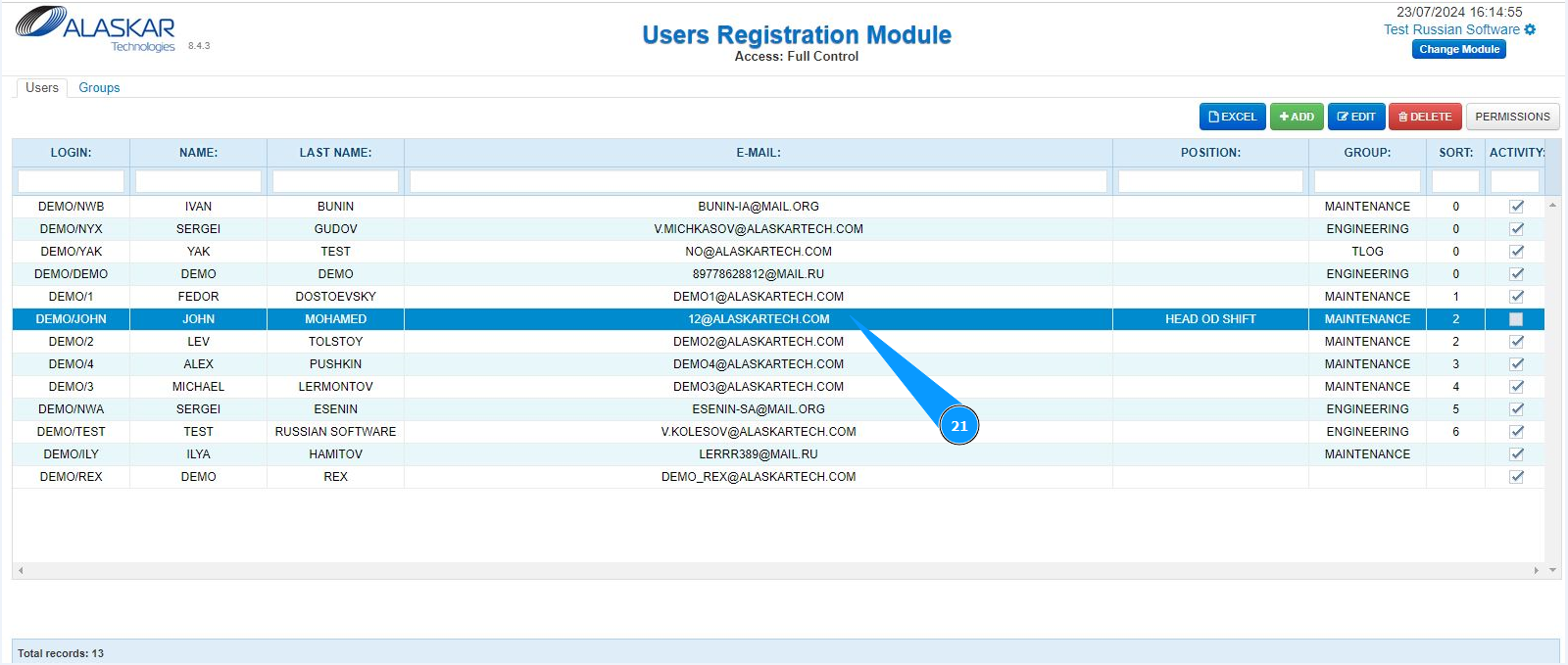
21. Make sure that the entry with the new user entered is displayed in the window "User Registration Module".