How to receive a component into the store
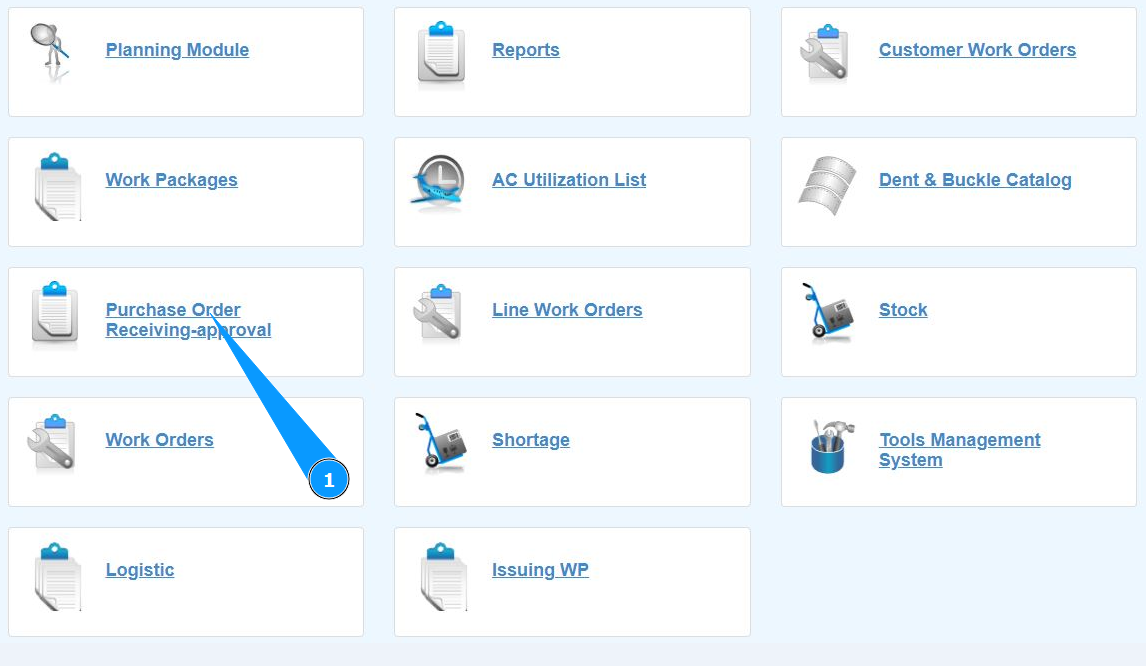
1. In order to receive a component into the store, go to the submodule "Purchase Order Receiving-Approval".
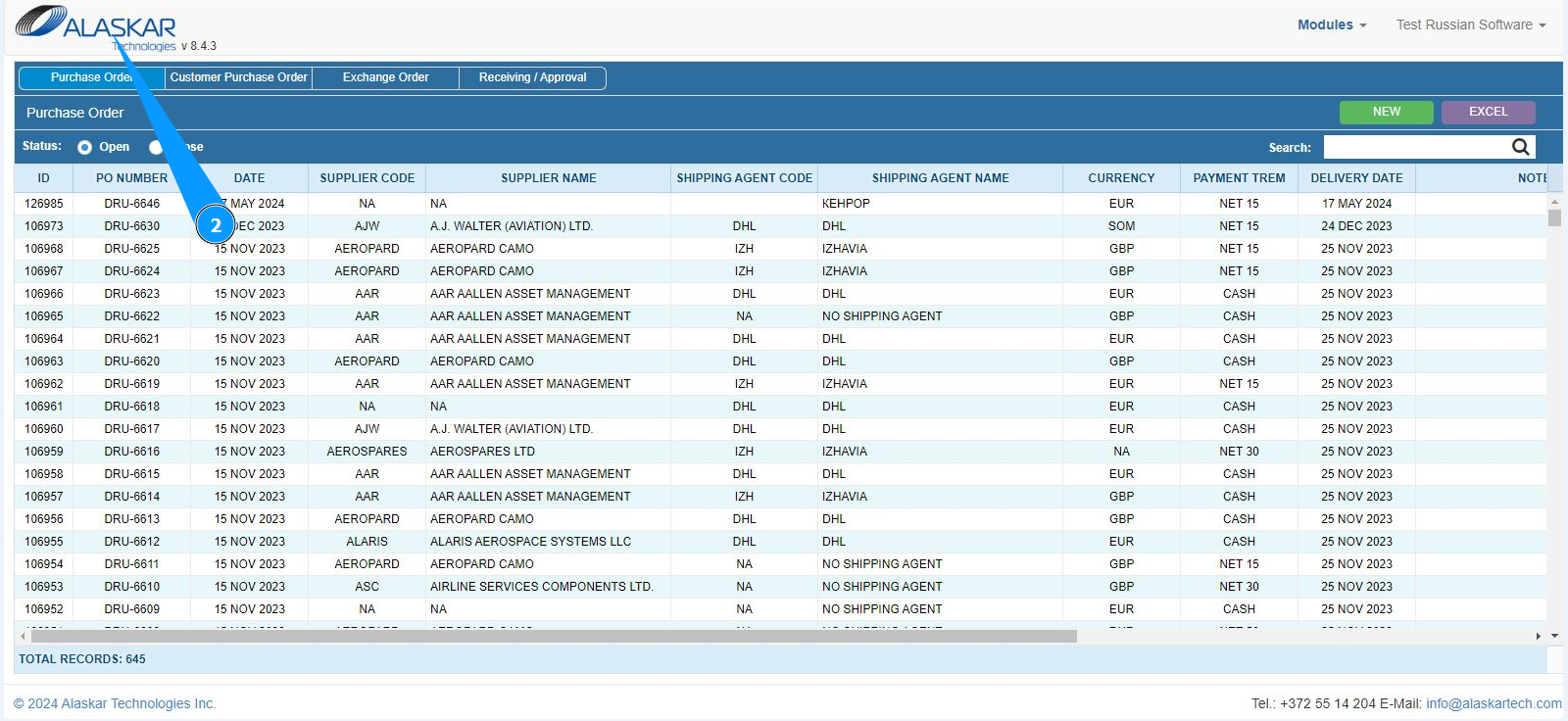
2. Make sure that the window for working with orders has opened and is available in the window "Purchase order".
3. Then go to the tab "Receiving/Approval".
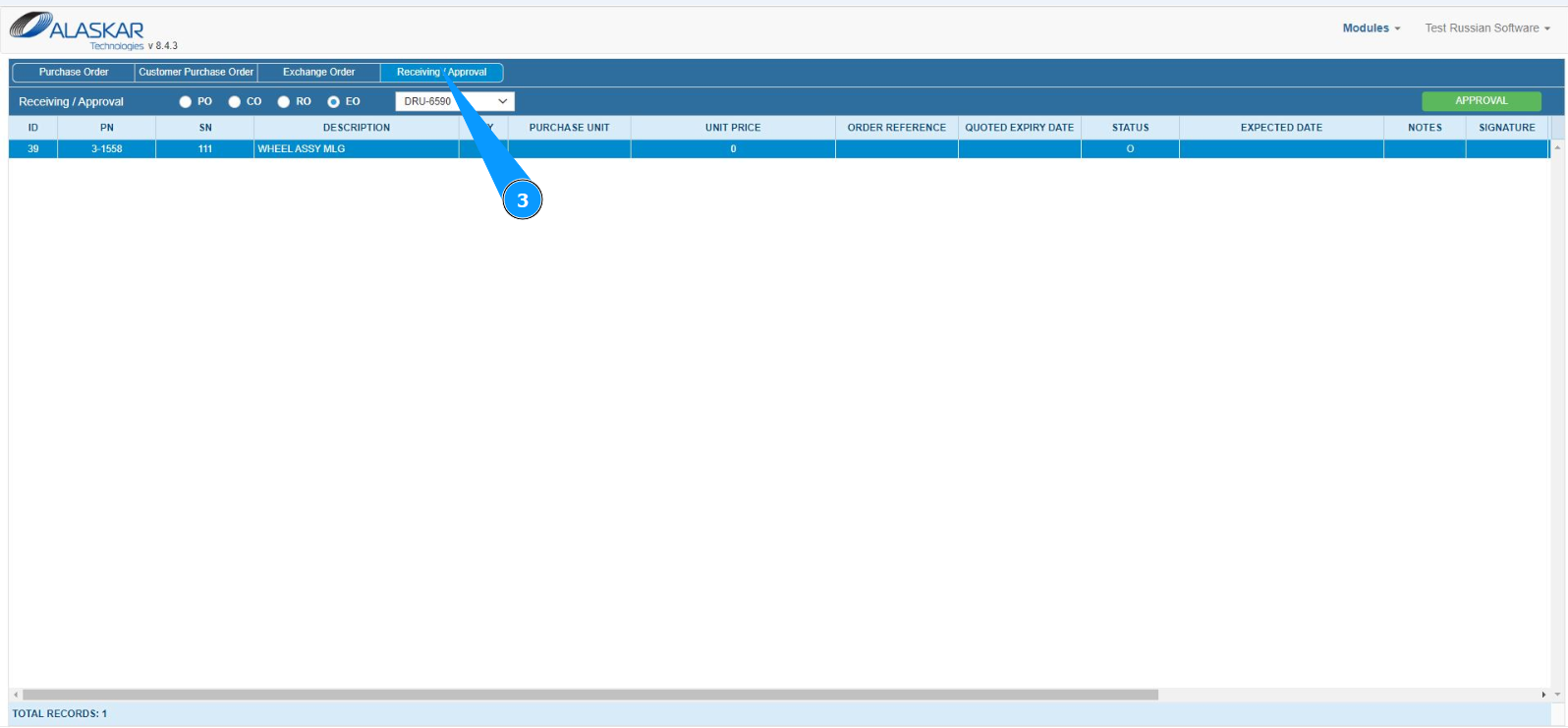
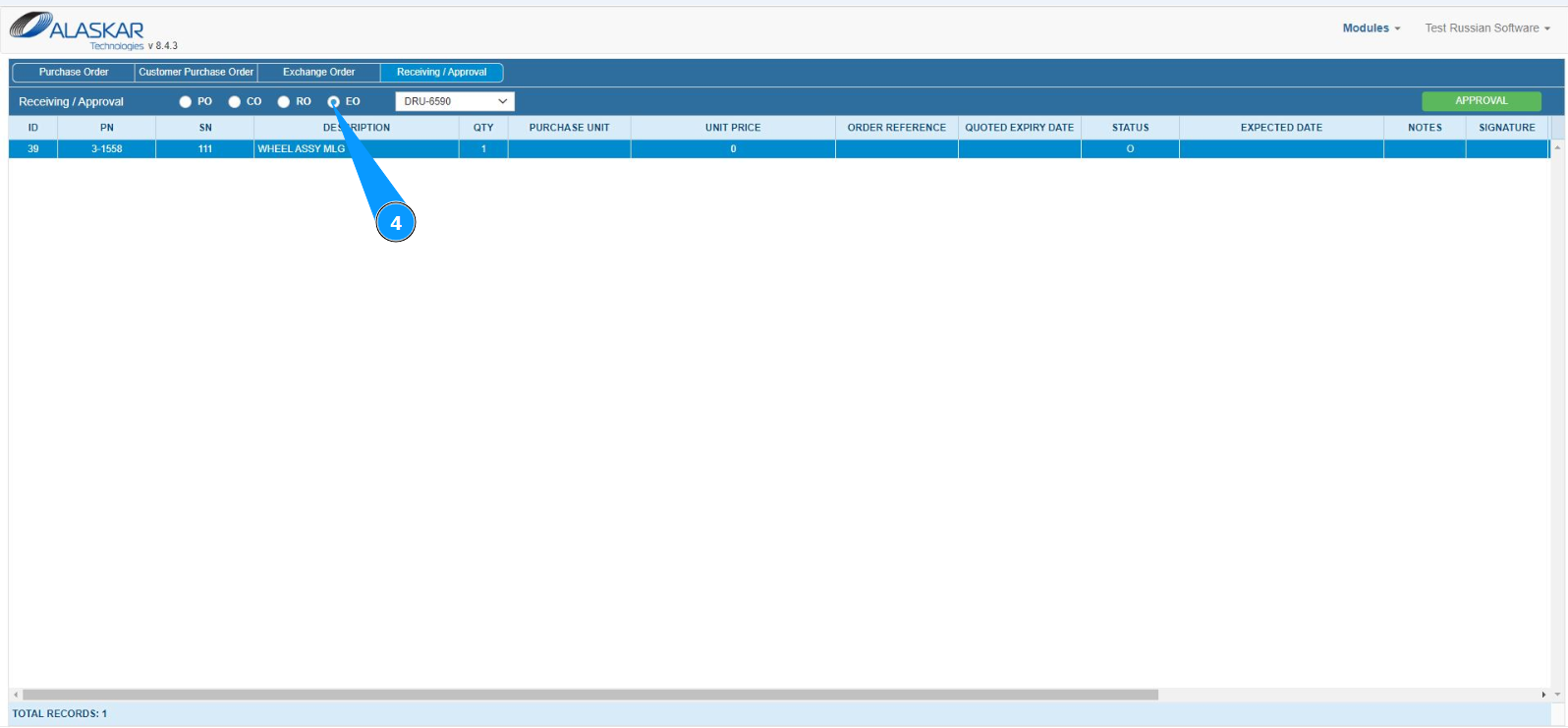
4. Select which type of order you will use for receiving into the store and click in the corresponding.
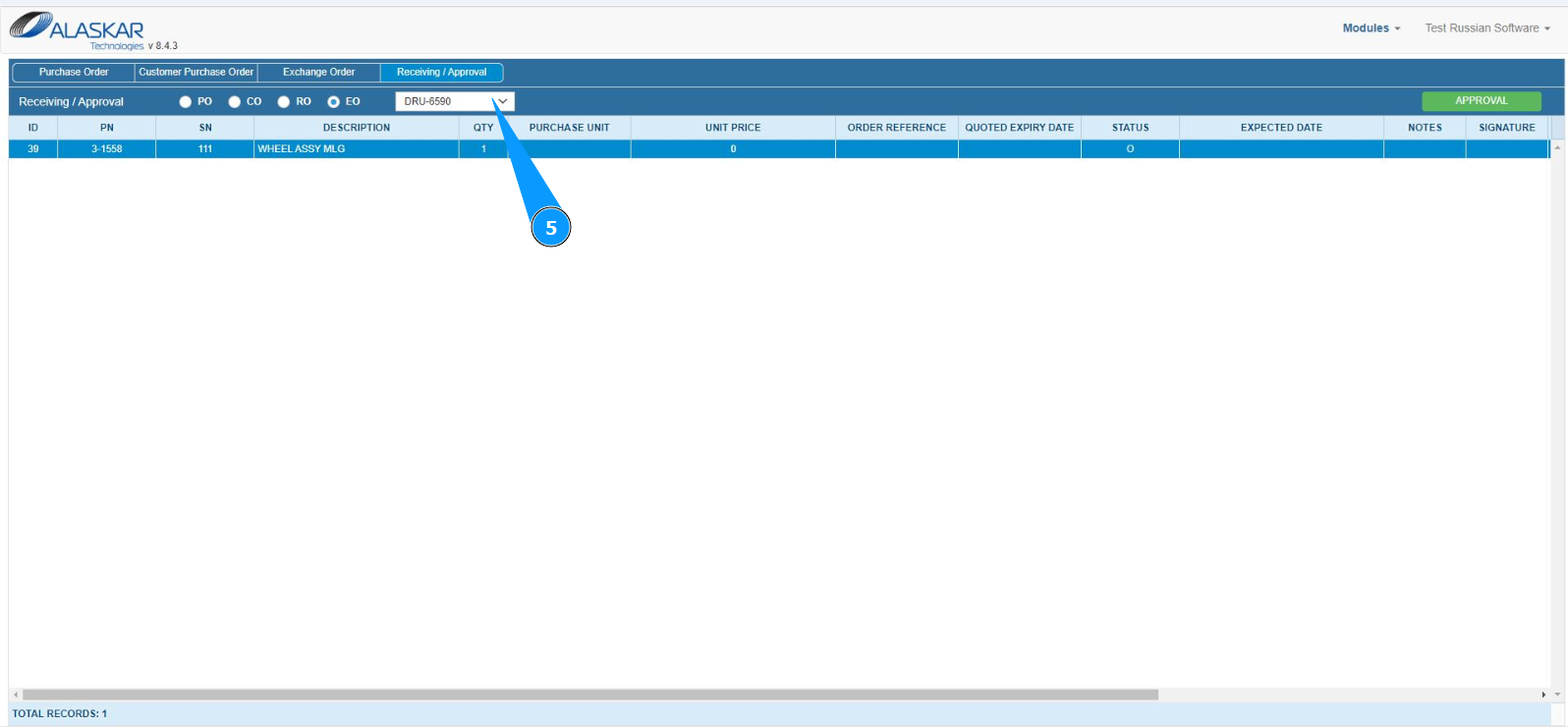
5. Select your order number from the dropdown list.
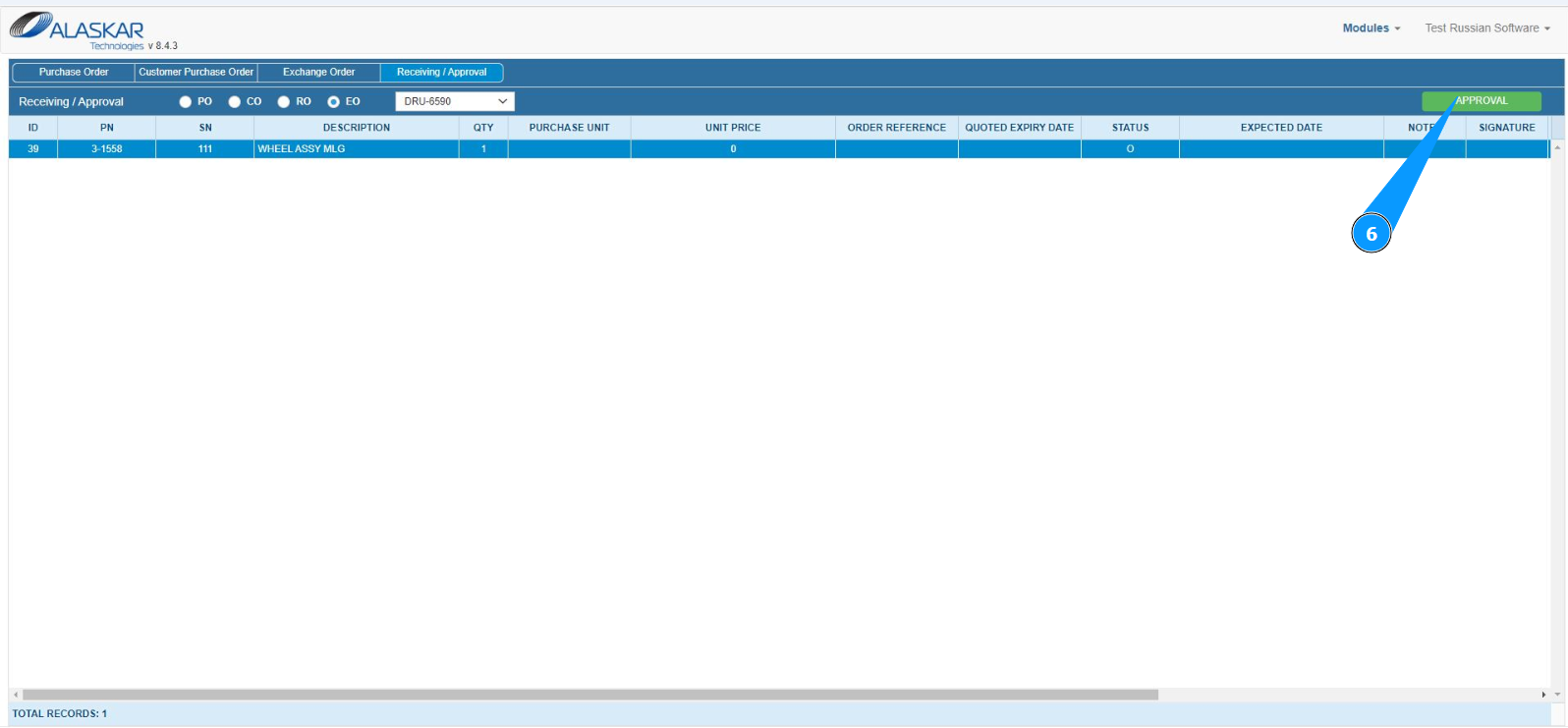
6. Click on the button "Approval" to open the store receiving editor.
7. Check that the store receiving editor is open and accessible in the window "Exchange Order Item Approval". Note: The Batch Number will be entered automatically by the program in the field "Batch Number".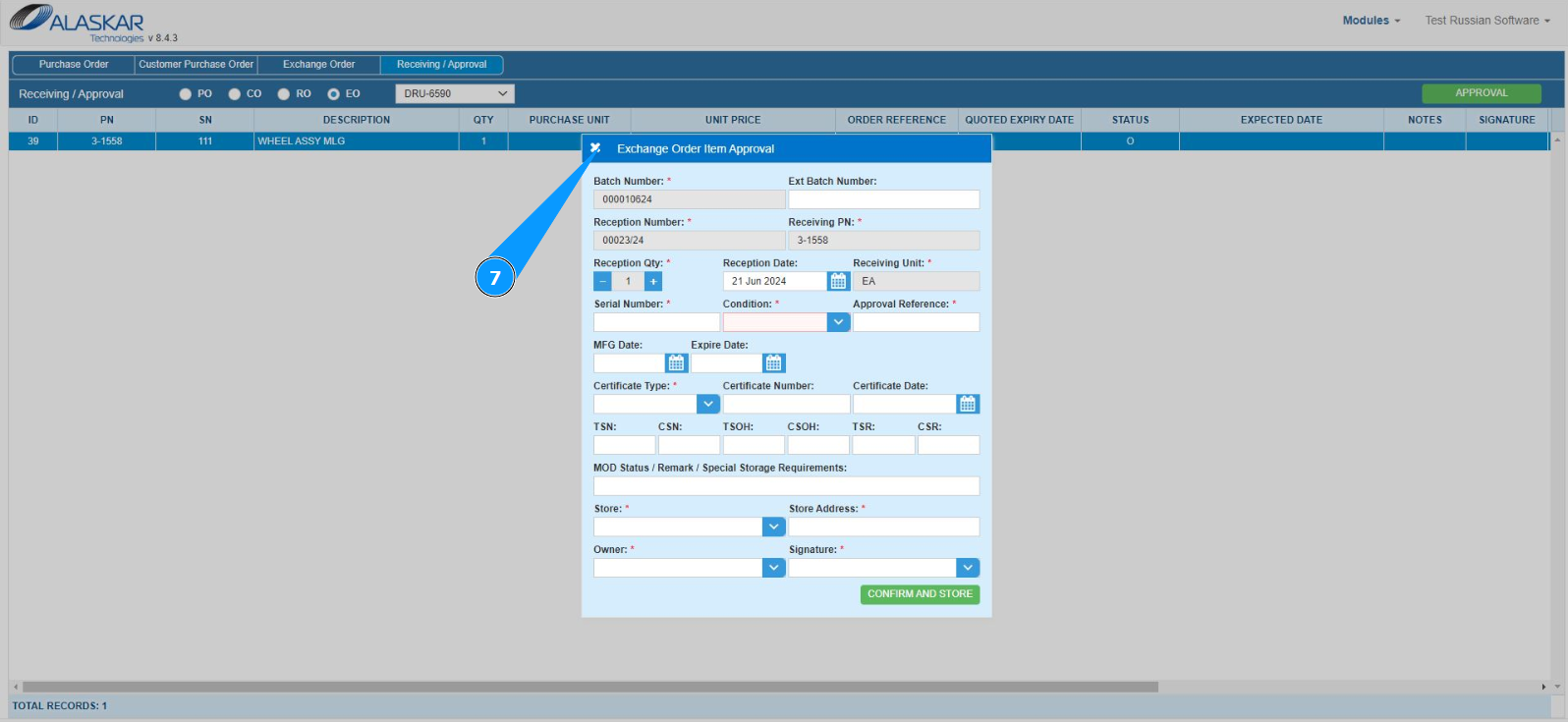
8. If necessary, enter the external batch number in the field "Ext. Batch Number". Note: The receiving number will be entered by the program automatically in the field "Reception Number".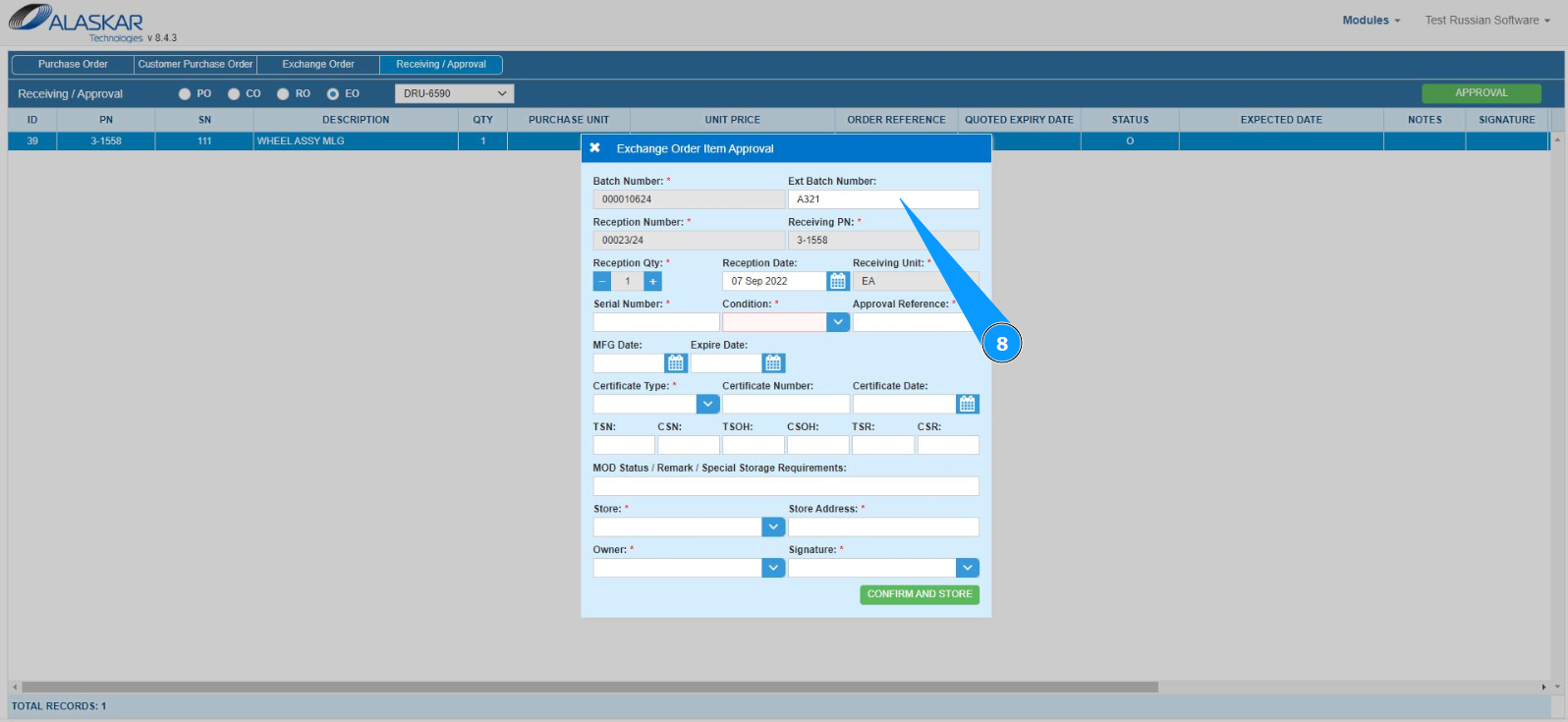
9. Enter the reception date in the field "Reception Date" or select from the calendar. Note: The part number will be taken from the order and entered automatically by the program in the field "Receiving PN".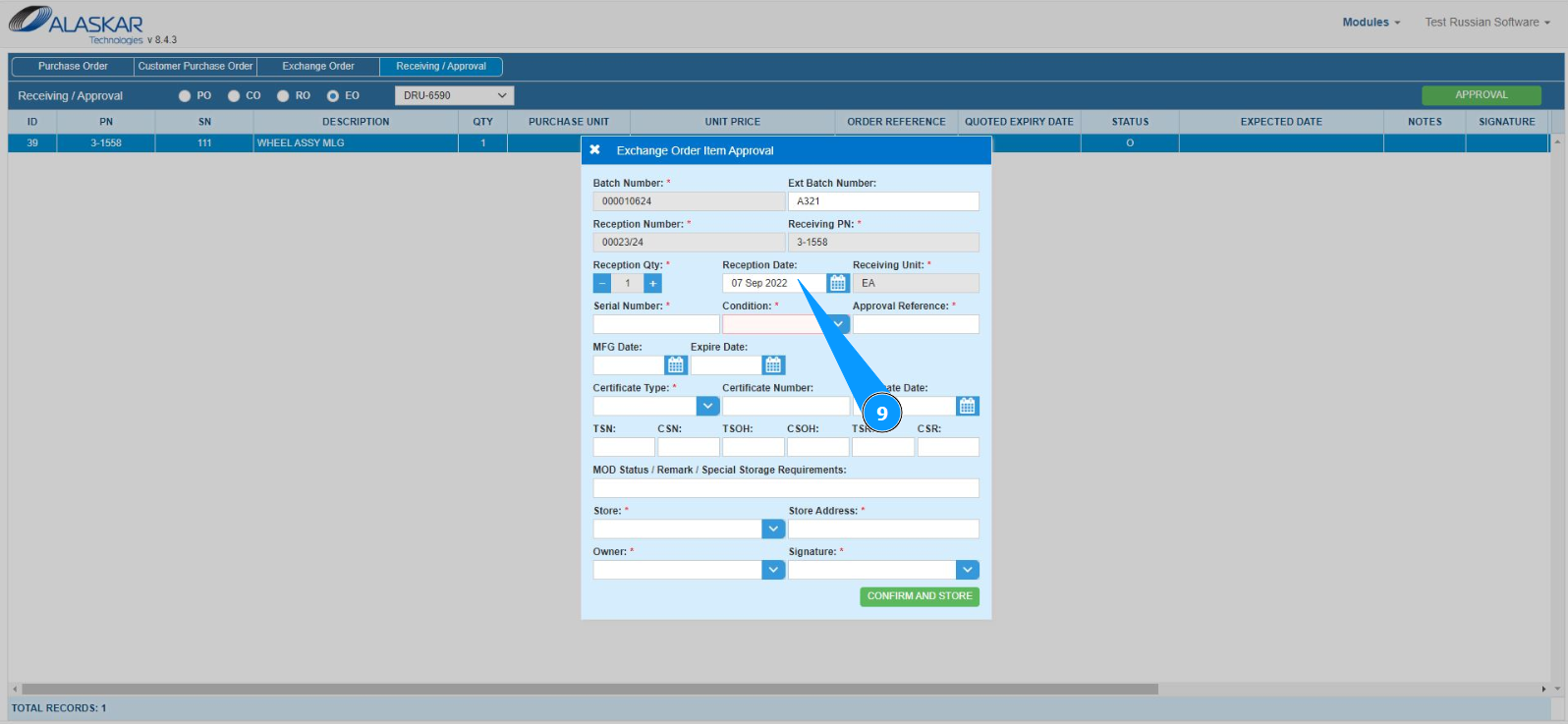
10. Enter the component serial number in the field "Serial Number". Note: The quantity of components will be taken from the order and entered automatically by the program in the field "Reception Qty".
11. Select the component condition from the dropdown list in the field "Condition".
12. Take the approval number from the component certificate and enter it in the field "Approval Reference".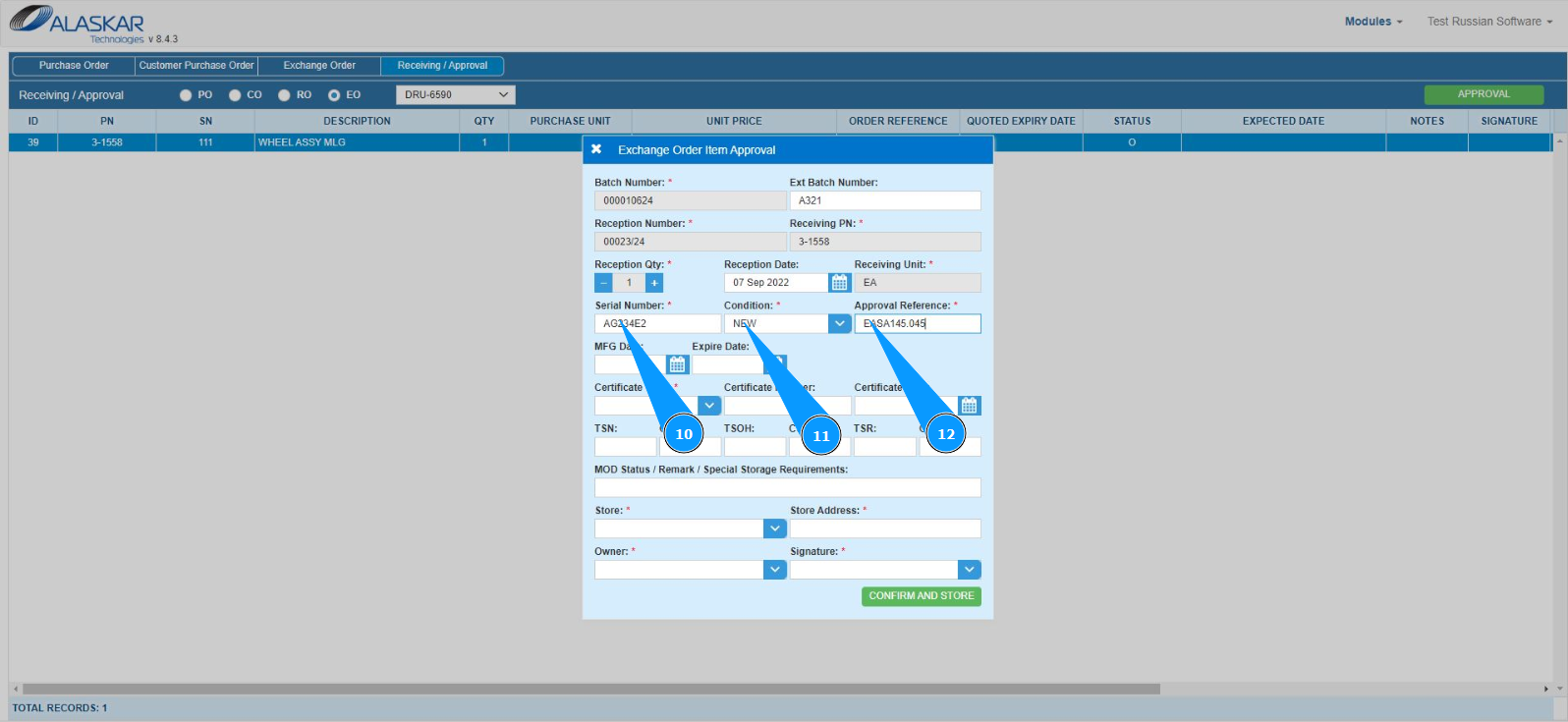
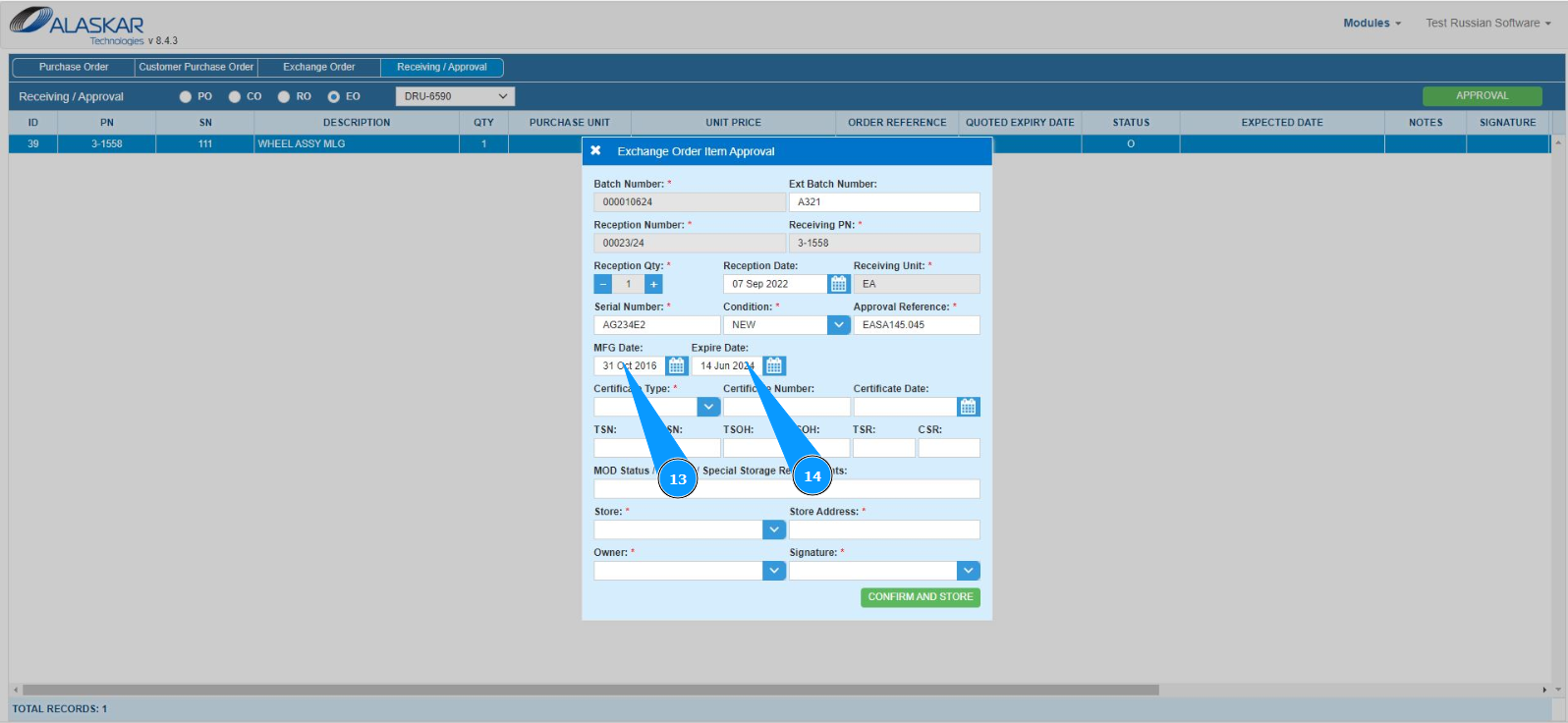
13. If necessary, enter the component's manufacturing date in the field "MFG Date" or select from the calendar.
14. If necessary, enter the component's expiration date in the field "Expire Date" or select from the calendar.
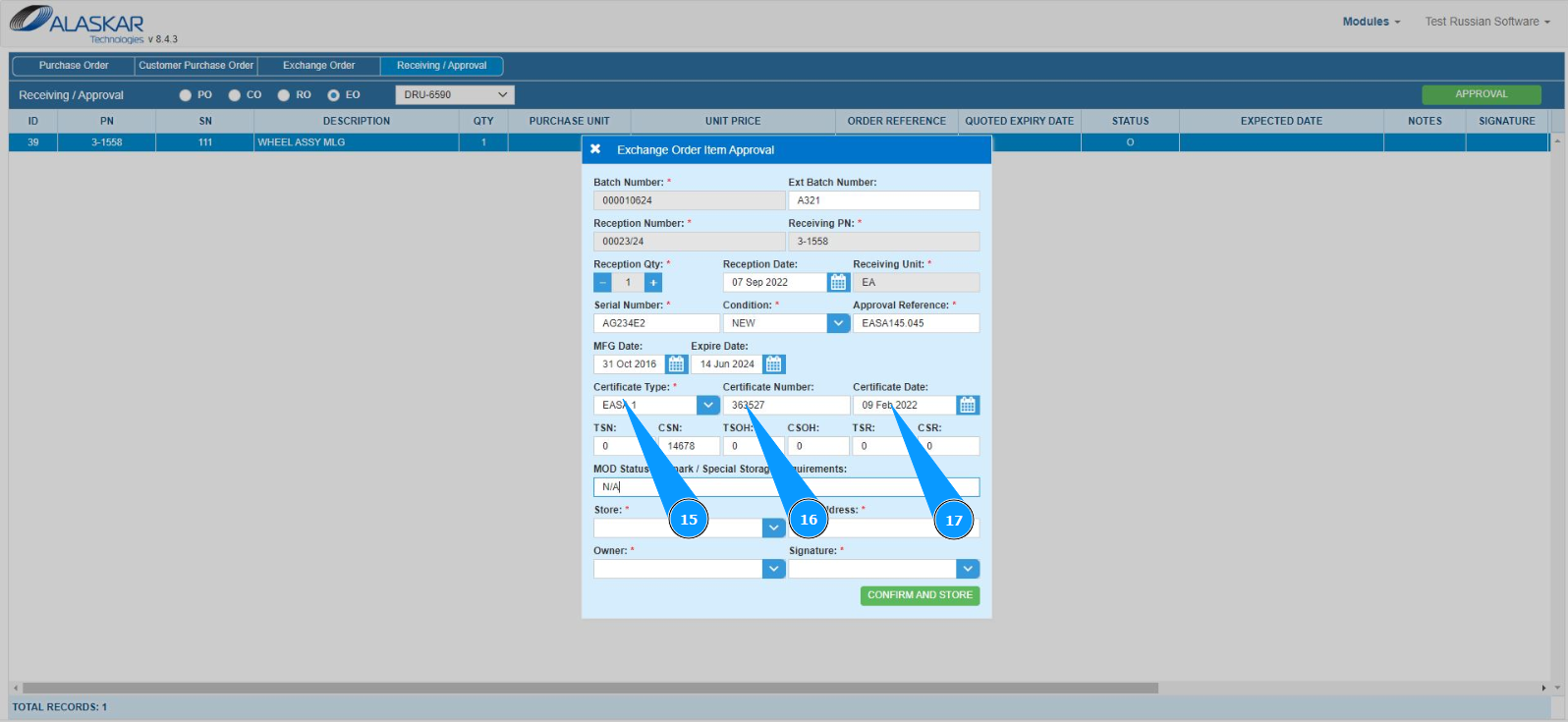
15. Select the component certificate type from the dropdown list in the field "Certificate Type".
16. If necessary, enter the certificate number in the field "Certificate Number".
17. If necessary, enter the component certificate issue date in the field "Certificate Date" or select from the calendar
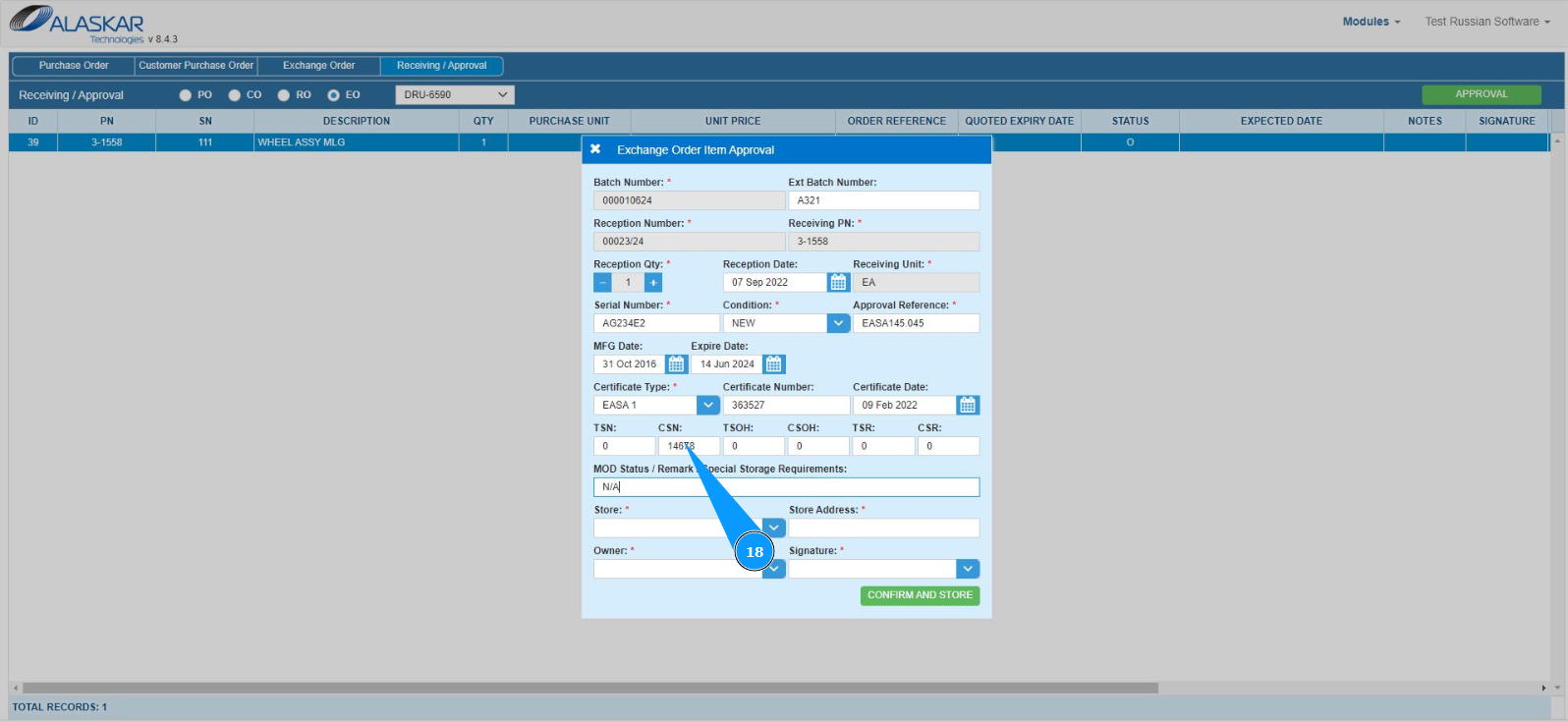
18. If necessary, enter information about the operating time of the component from the first operation, from the date of overhaul, or from the date of repair in the fields: "TSN", "CSN", *"TSOH" *, "CSOH", "TSR", "CSR".
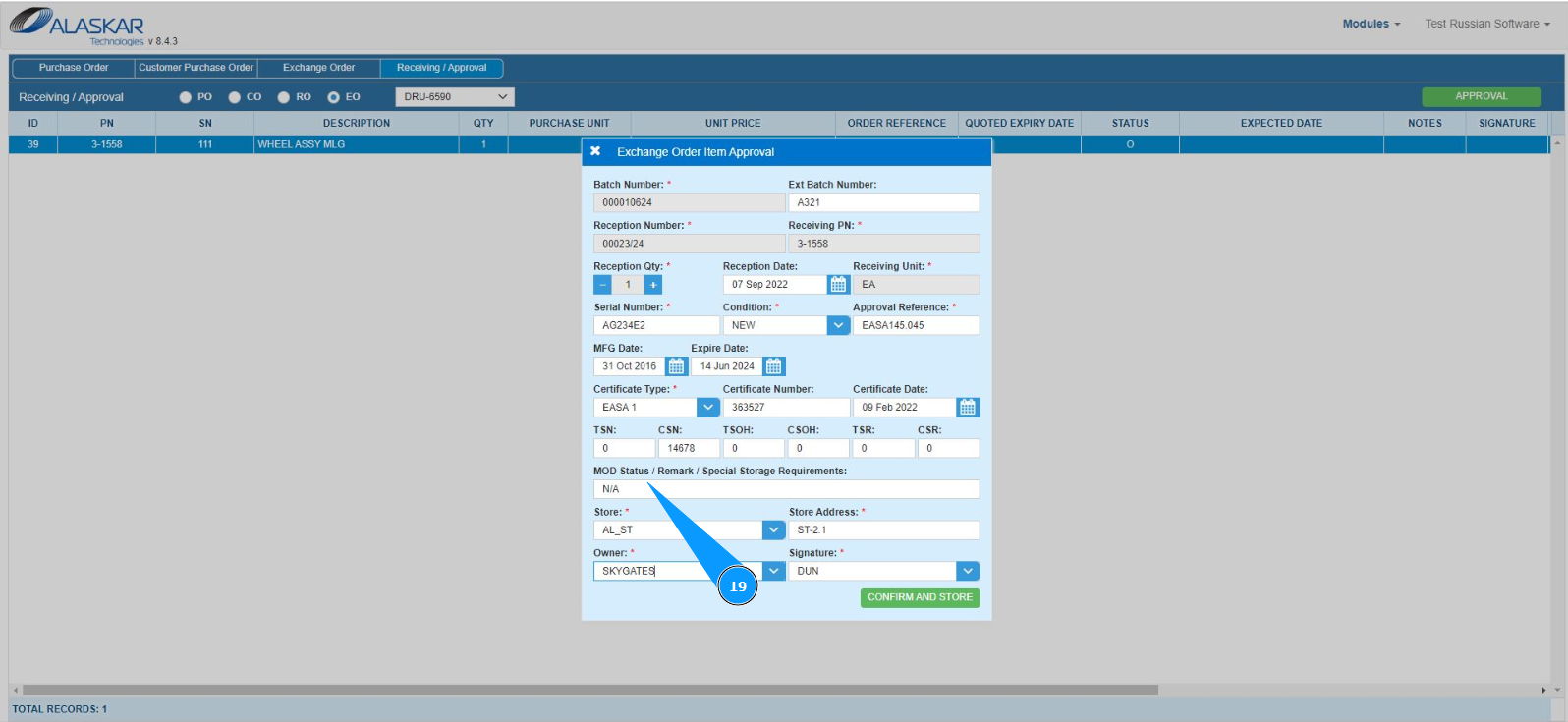
19. If necessary, enter comments on modifications, storage criteria, or other comments in the field "Mod Status/ Remark/Special Storage Requirements".
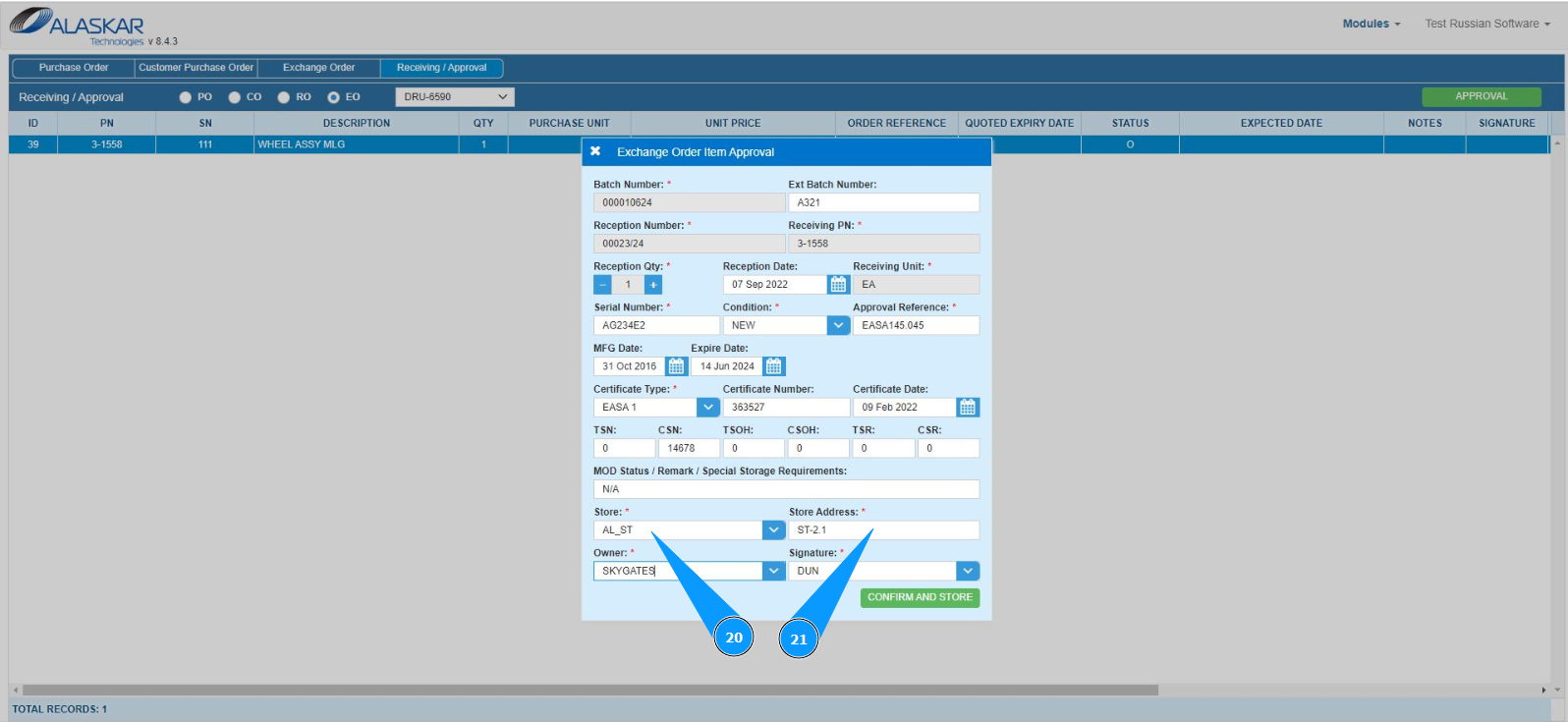
20. Select the name of the store for receiving the component from the dropdown list in the field "Store".
21. Enter the component storage shelf number in the field "Store Address".
22. Select the store organization from the dropdown list in the field "Owner".
23. Select from the dropdown list the login of the personnel who received the component to the store in the field "Signature".
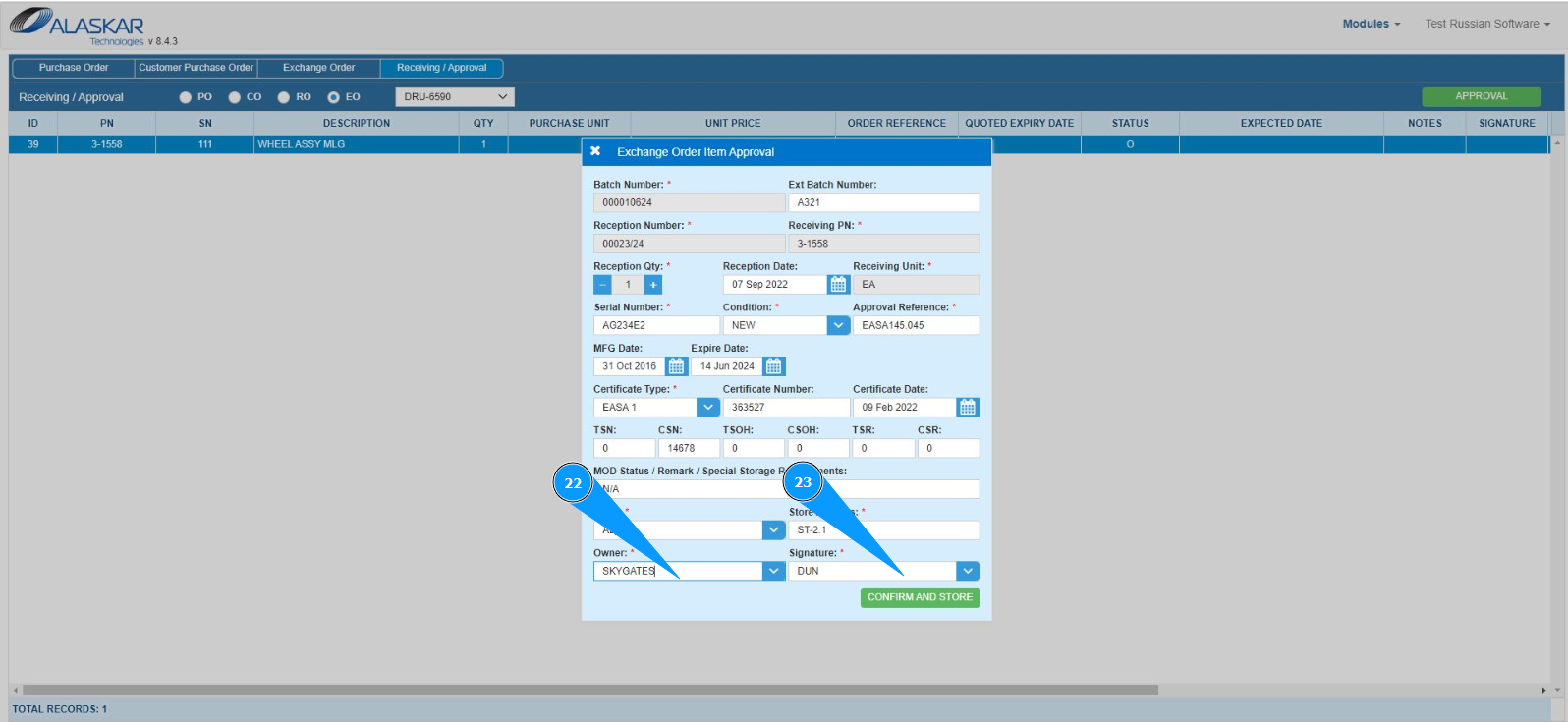
24. Click on the button "Confirm and Store" to add the component receiving data to the program.
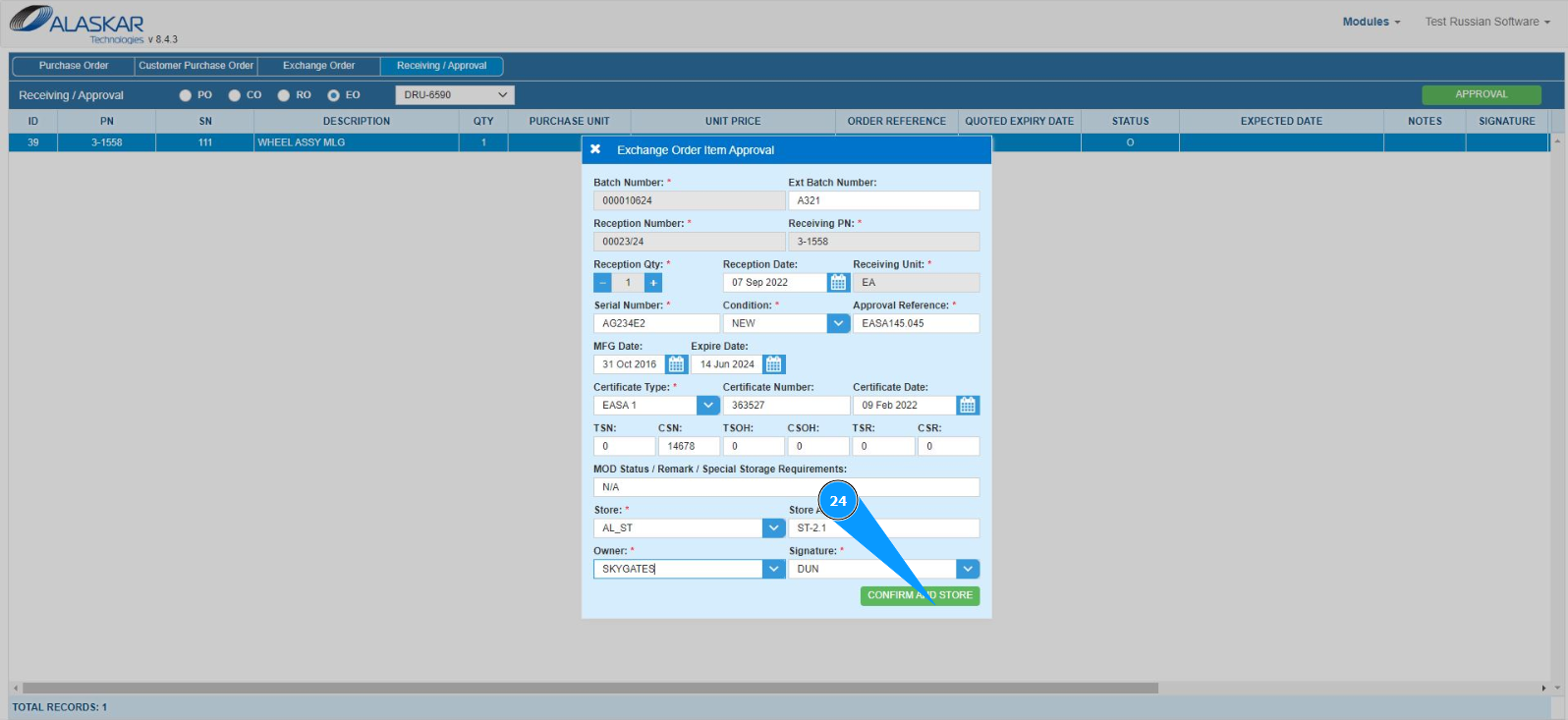
25. Check that the component line has changed color to green. The component has been received into the store.
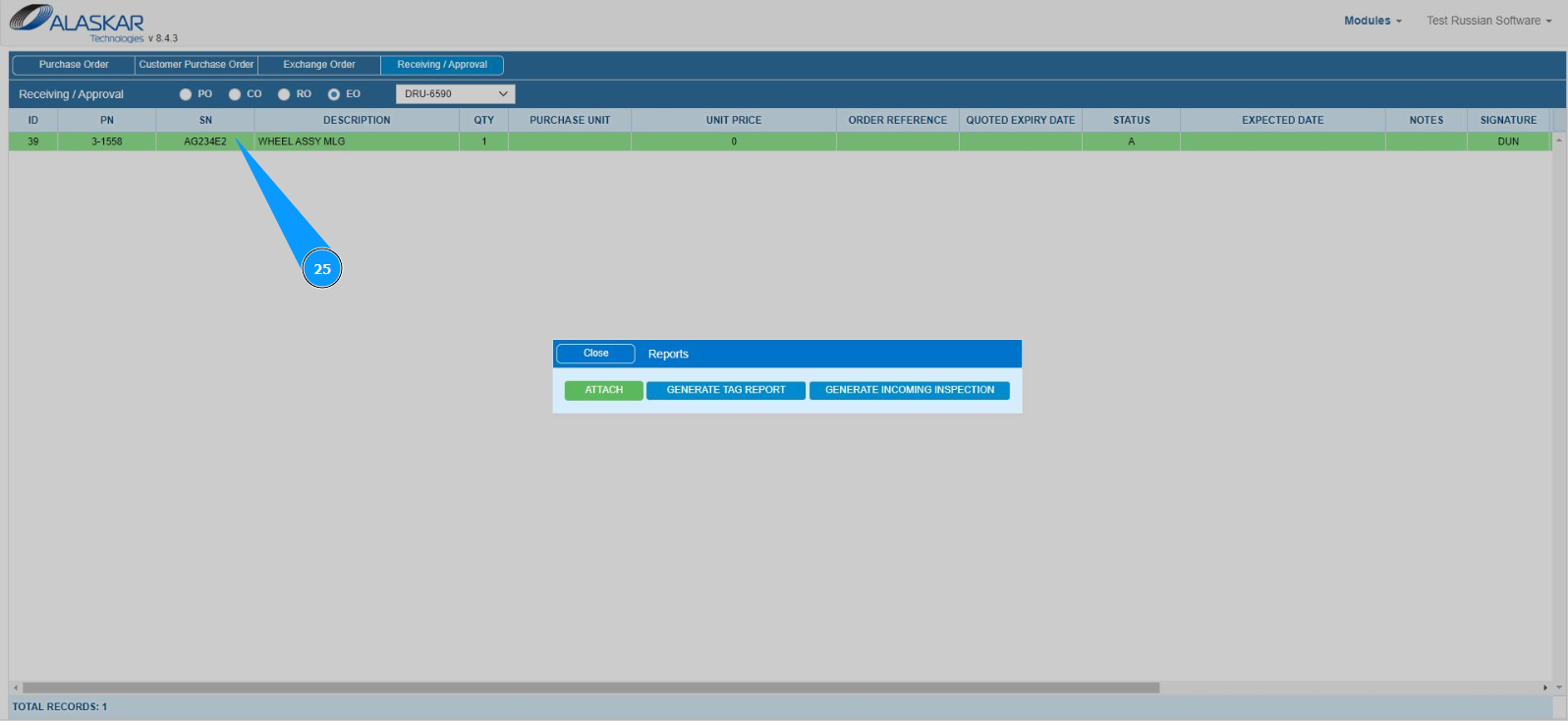
26. If necessary, you can attach a document to a record in the store. Click on the button "Attach" to enter editing mode.
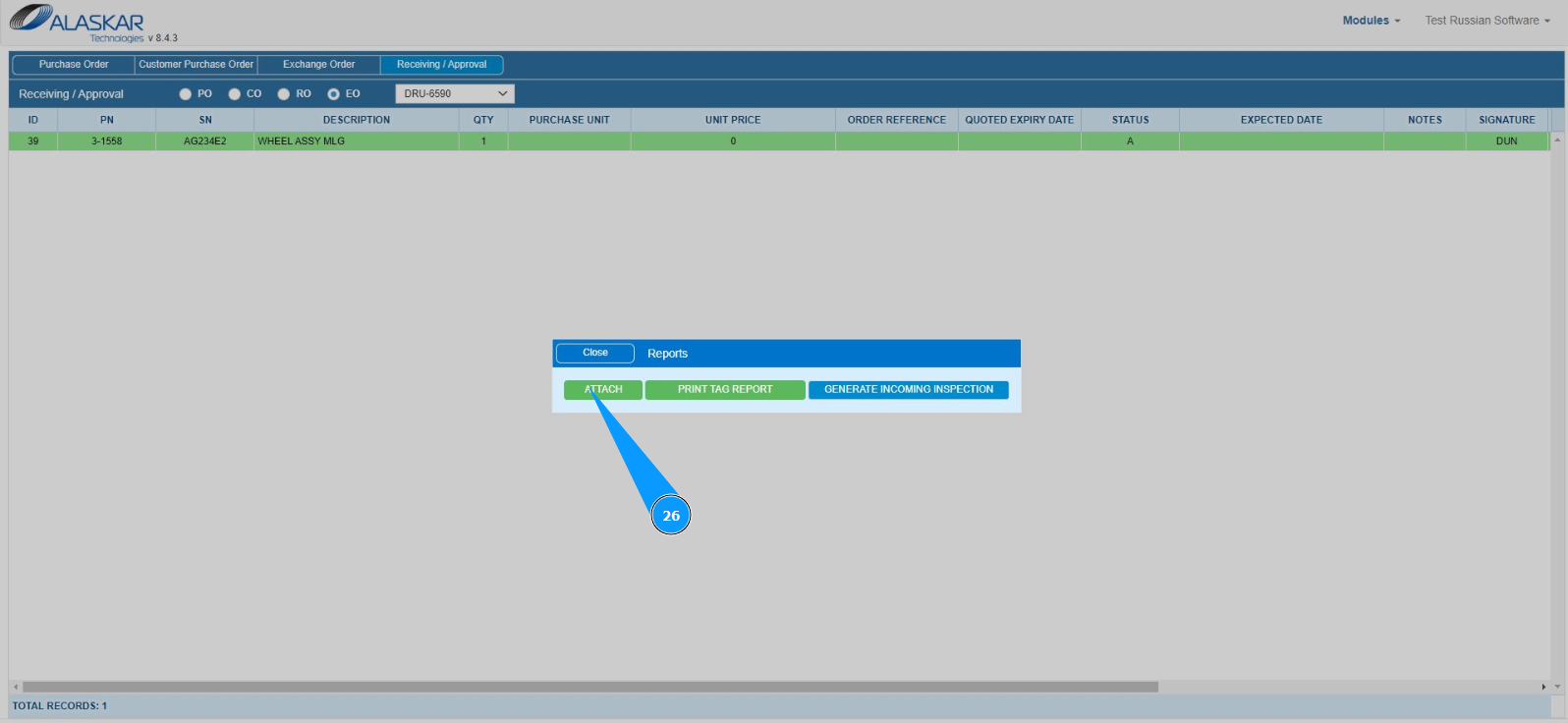
27. Select the type of downloaded graphics from the dropdown list in the field "Select Type".
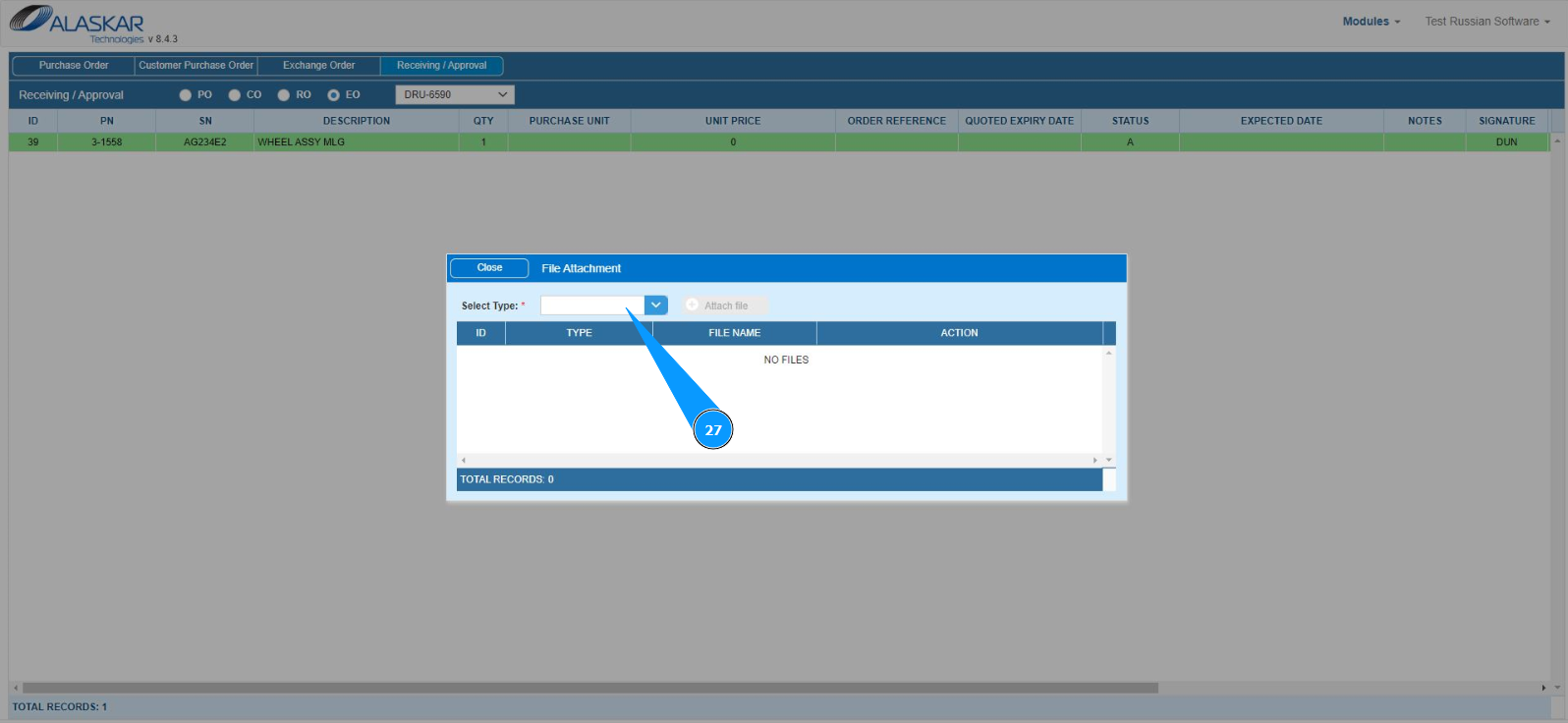
28. Click on the button "Attach File" to find the file you want to attach.
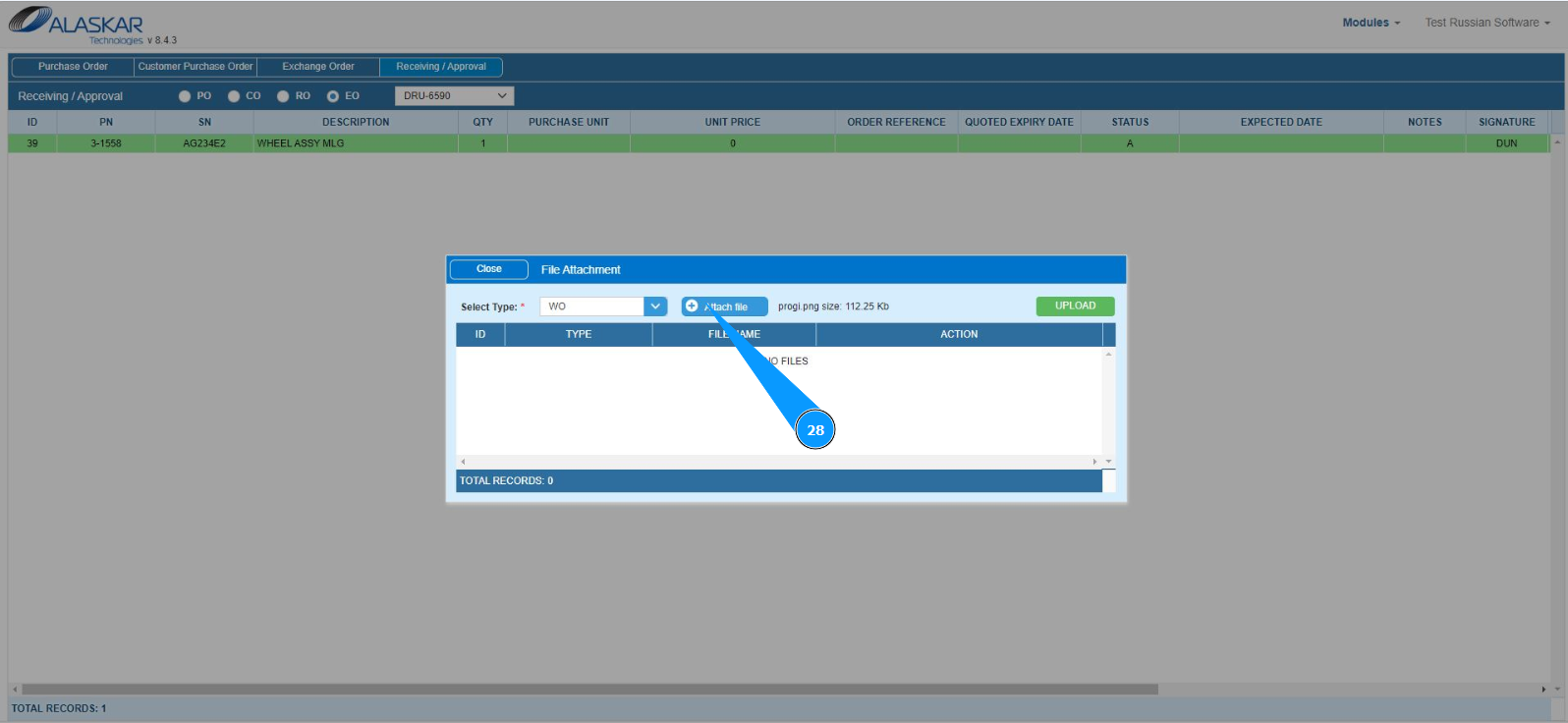
29. Select the required file on your computer, click on the button "Open".
30. Check that the file was successfully selected.
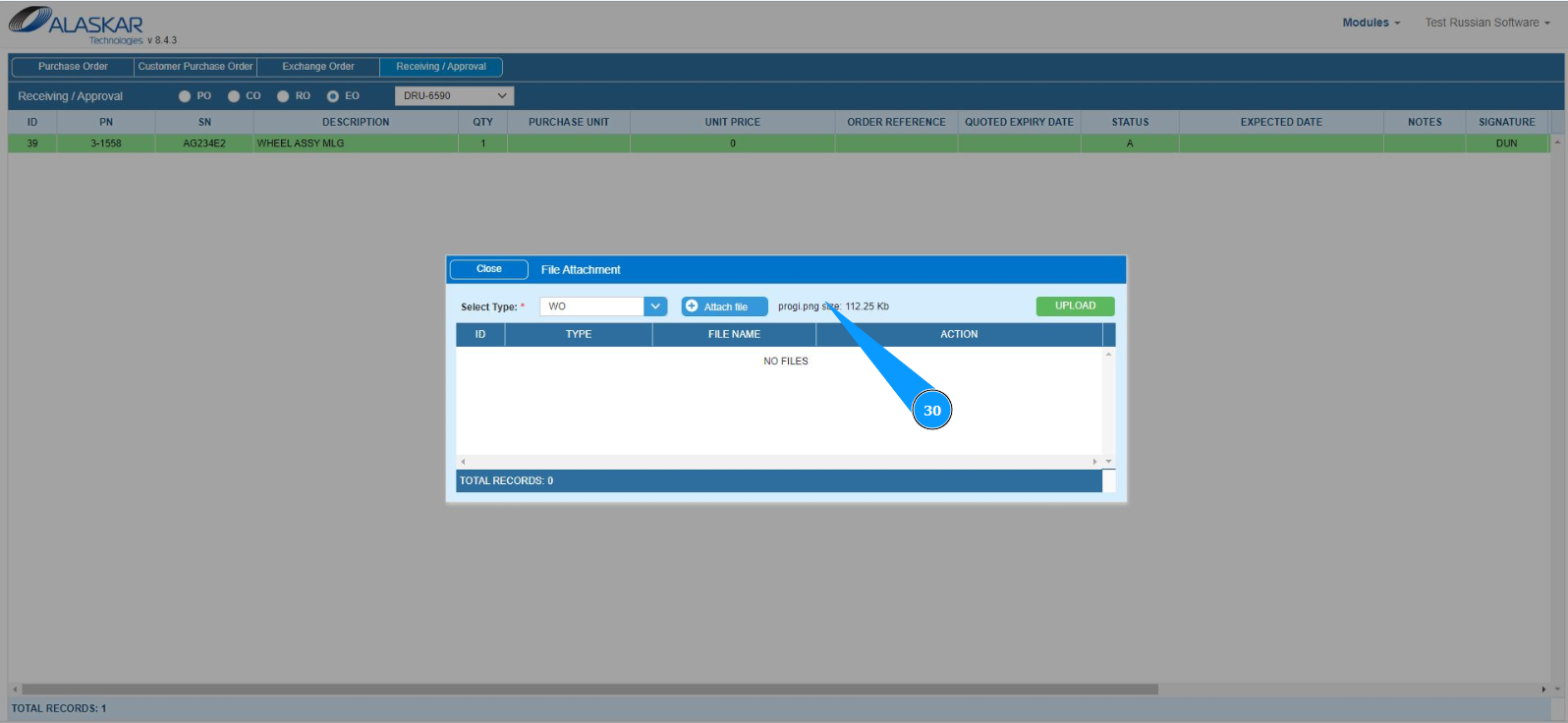
31. Click on the button "Upload" to upload the file.
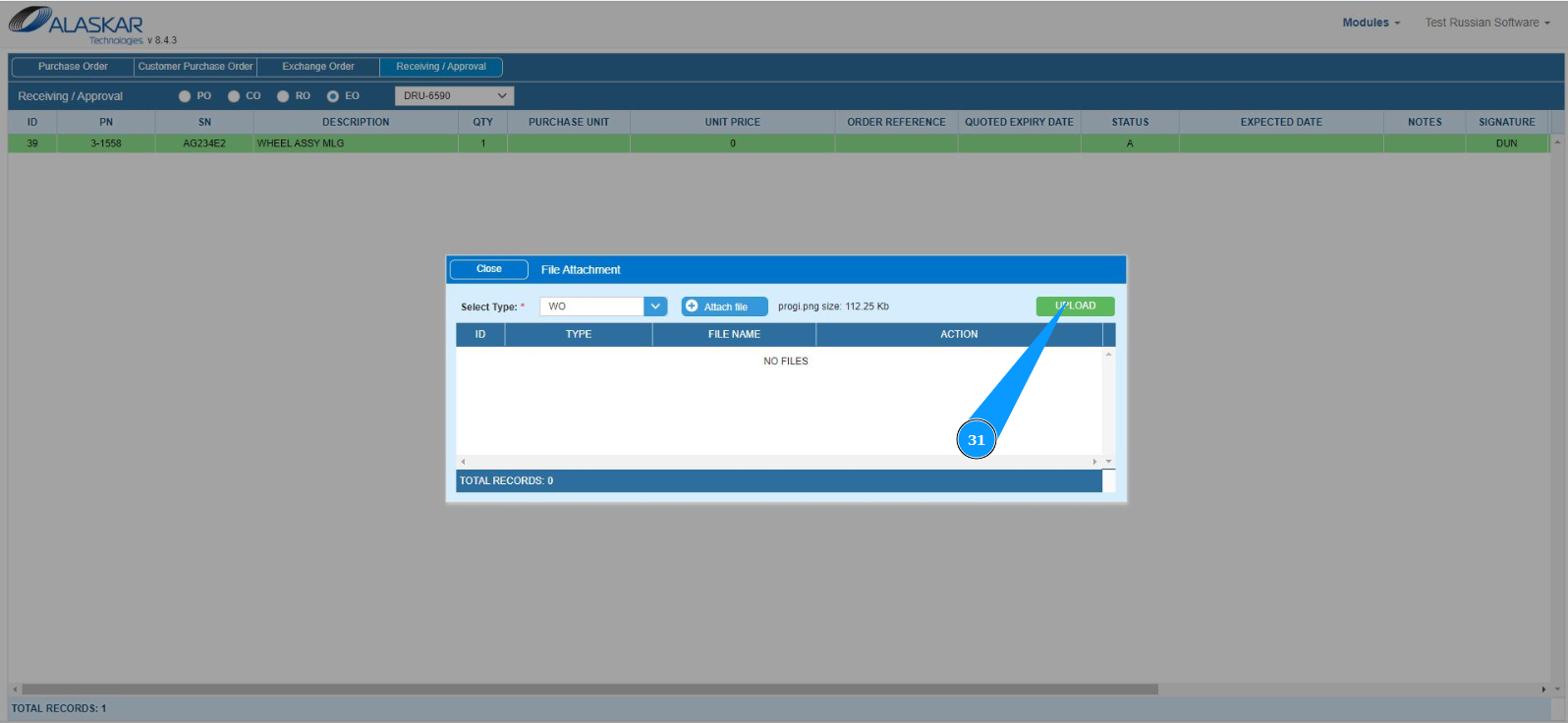
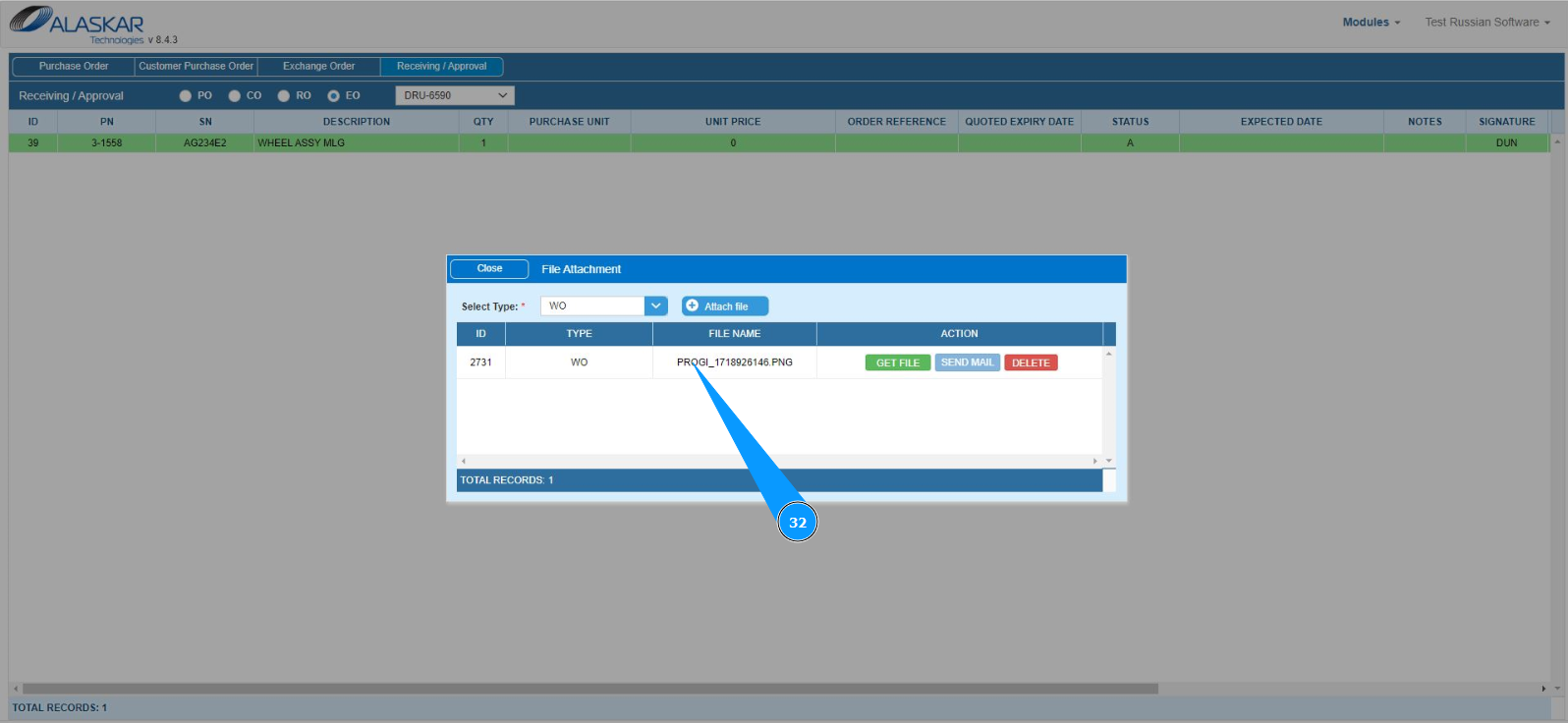
32. Check that the file has been successfully uploaded.
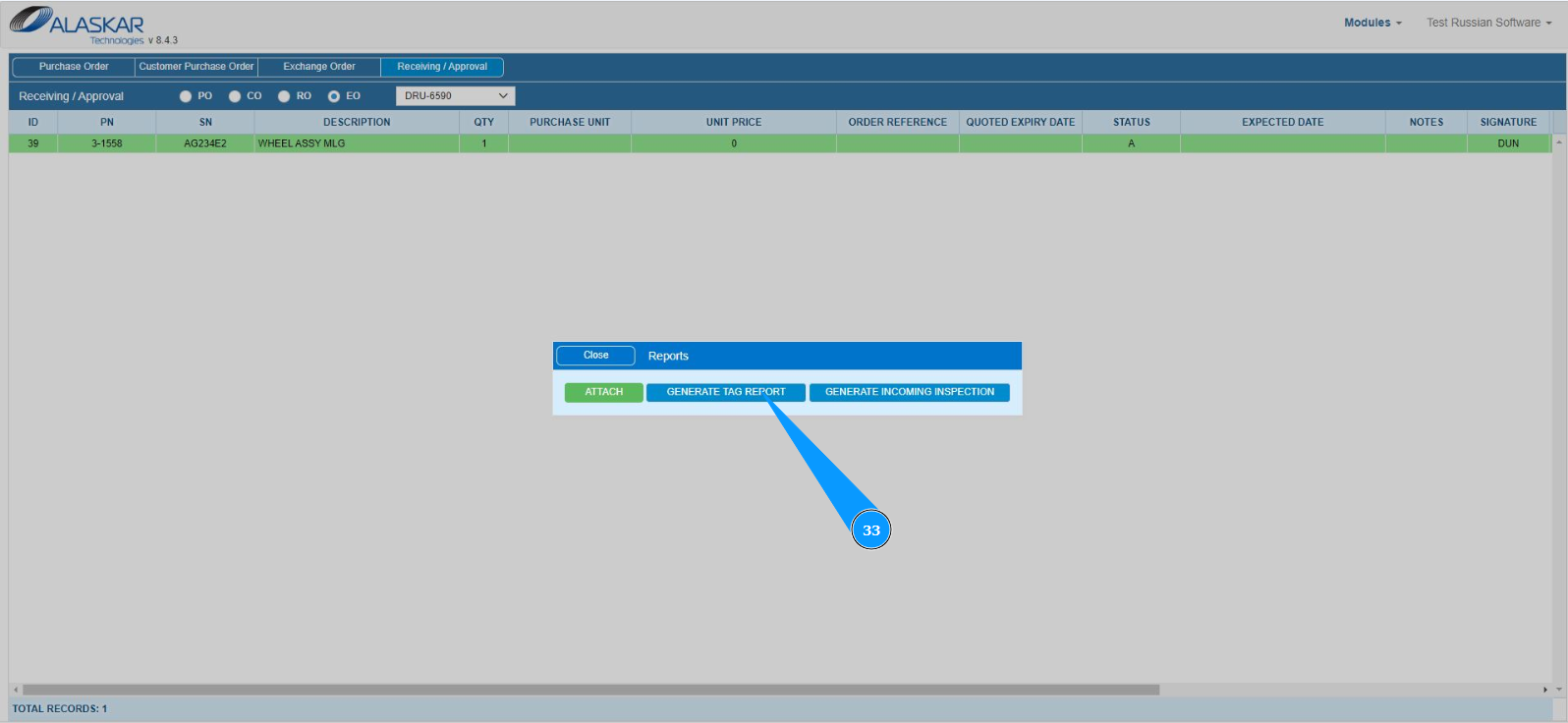
33. If necessary, you can print a component tag. Click on the button "Generate Tag Report" to generate a report (tag).
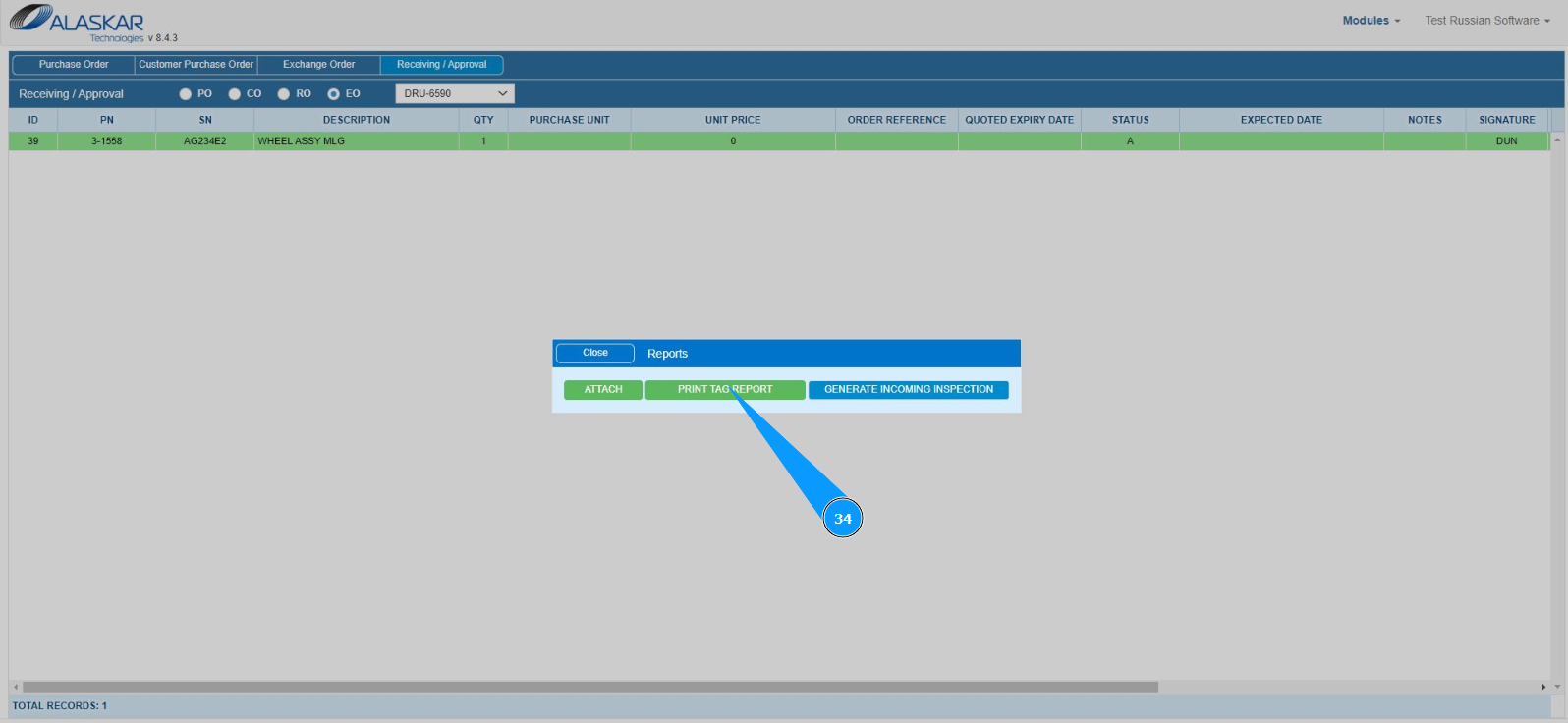
34. Click on the button "Print Tag Report" to display the report (tag) on the screen.
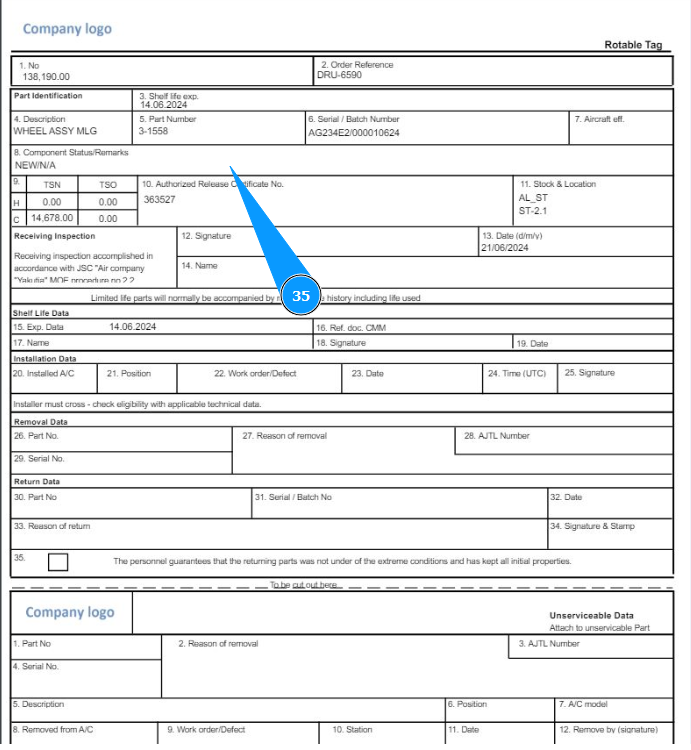
35. Check that the tag form has been successfully generated and is displayed on your screen. If necessary, print out a paper version.