How to check and print the Purchase Order form
1. In order to check and print the Purchase Order form, go to the submodule "Purchase order Receiving-Approval".
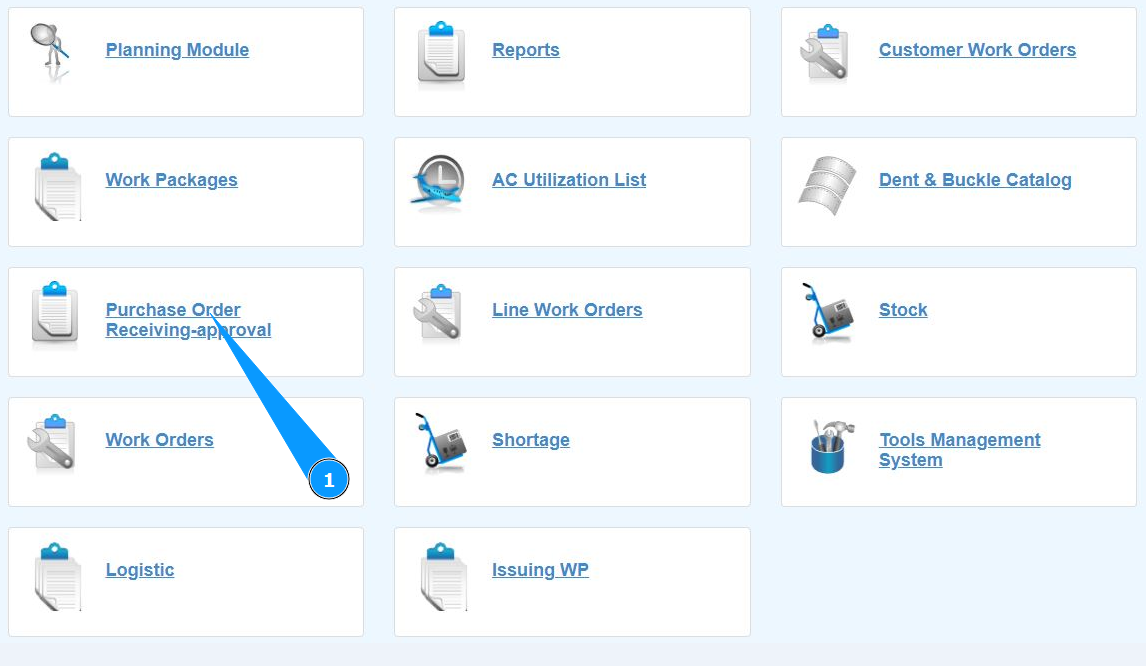
2. Make sure that the window for working with PO is open and accessible in the window "Purchase order".
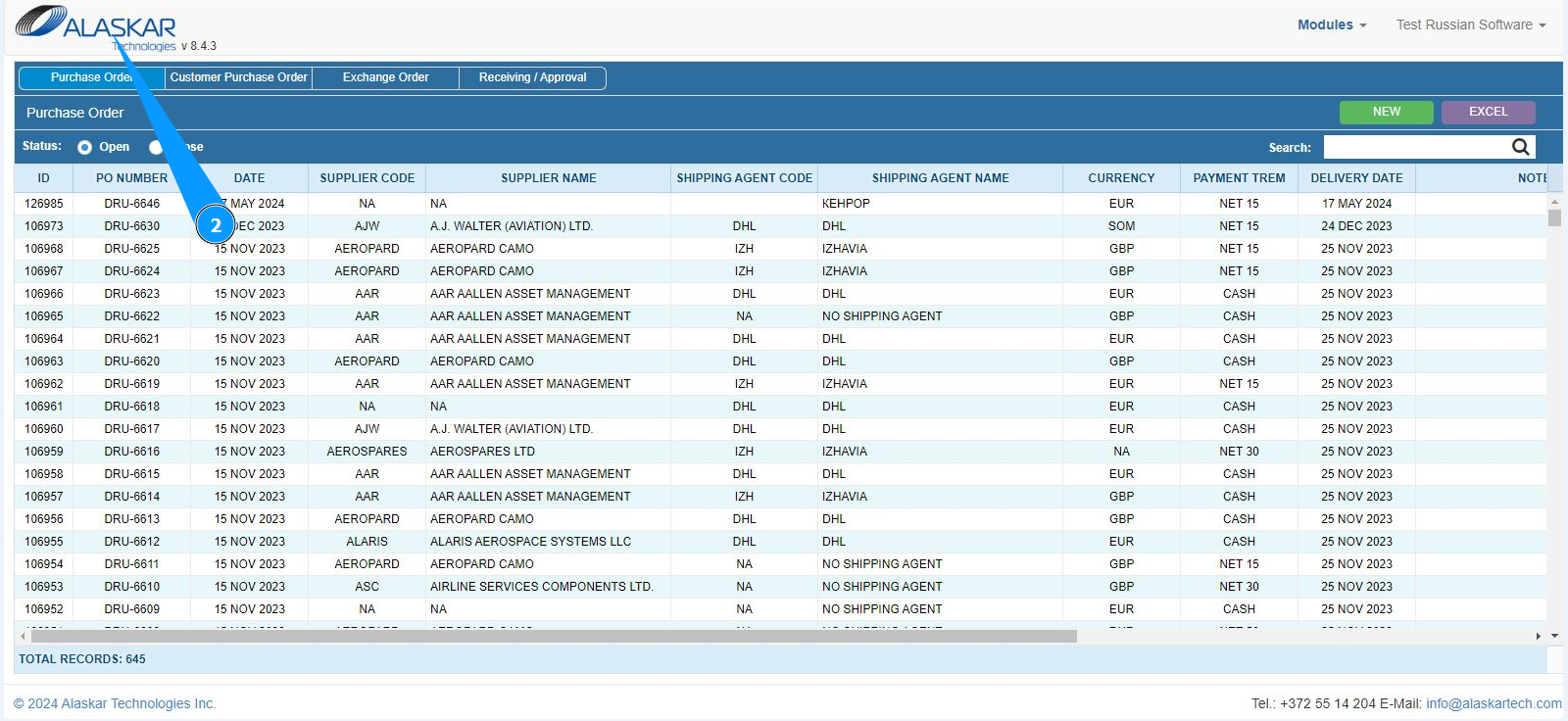
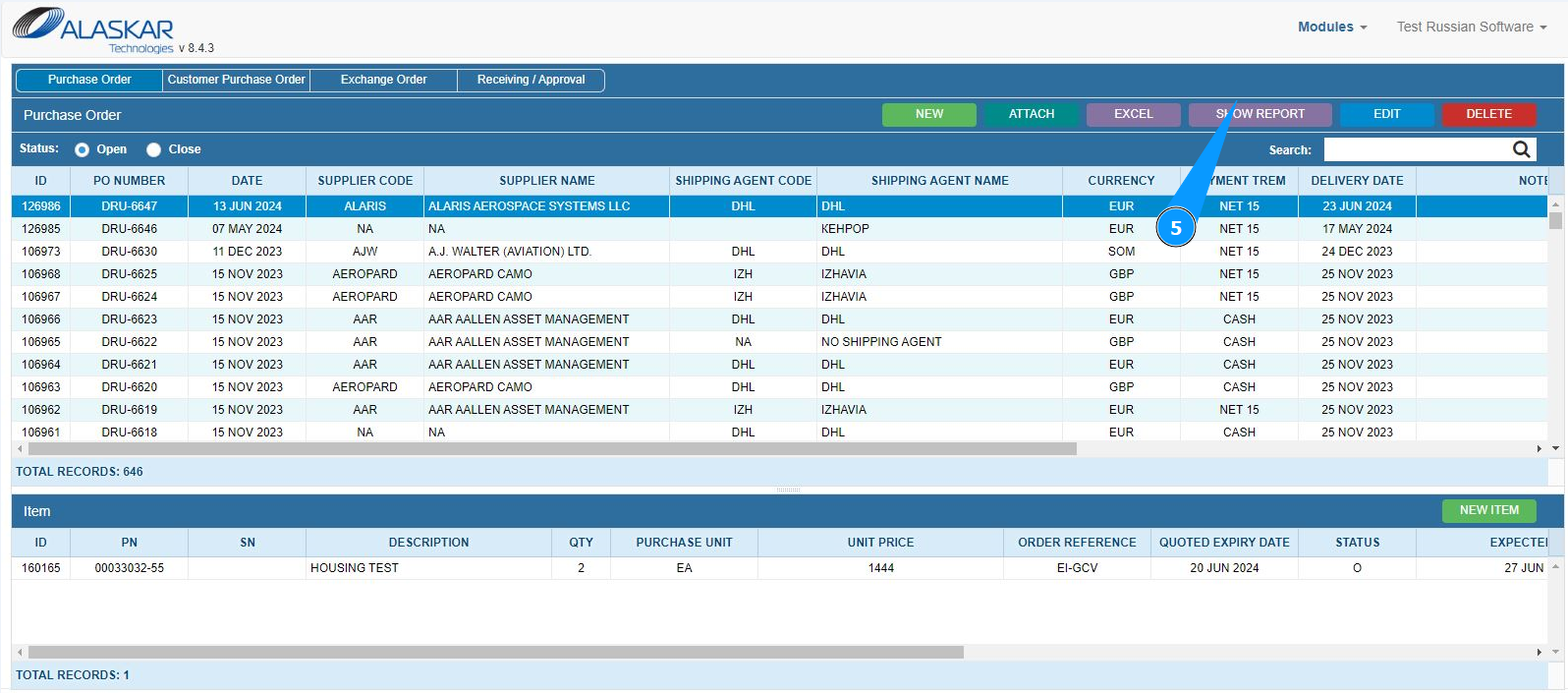
3. Select the required Purchase order for checking or printing report and click on the corresponding line.
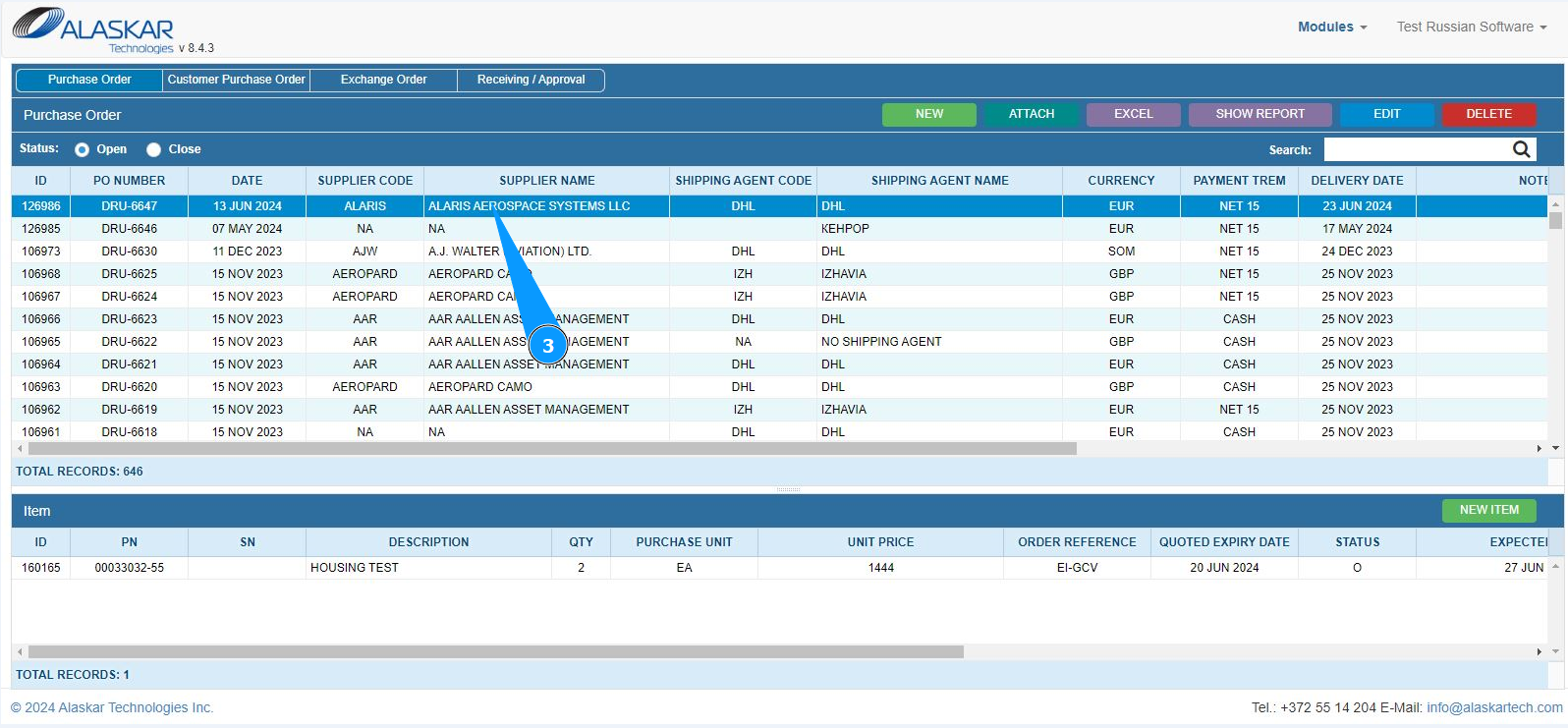
4. Click on the button "Generate Report" to generate the PO report.
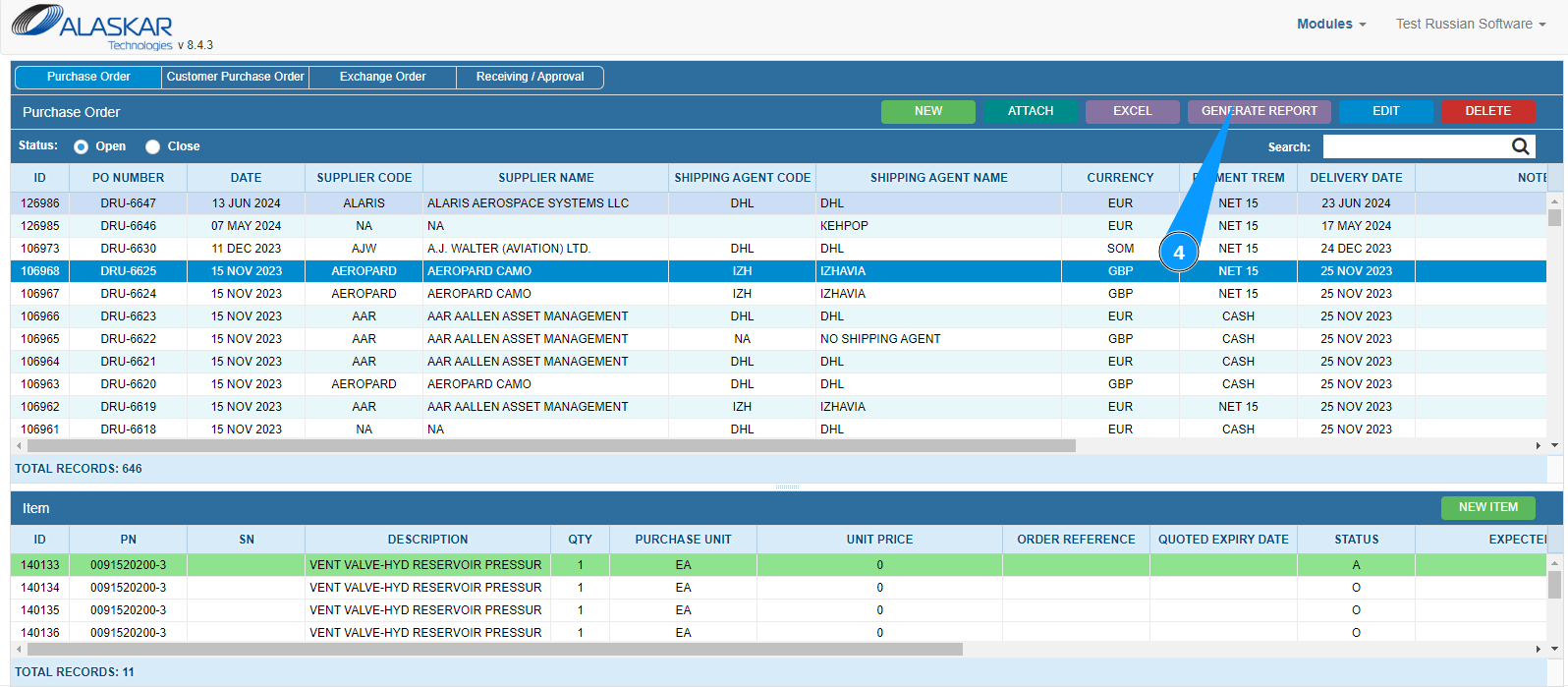
5. Check that the report has been generated and is available. Click on the button "Show Report" to display the PO report on the screen.
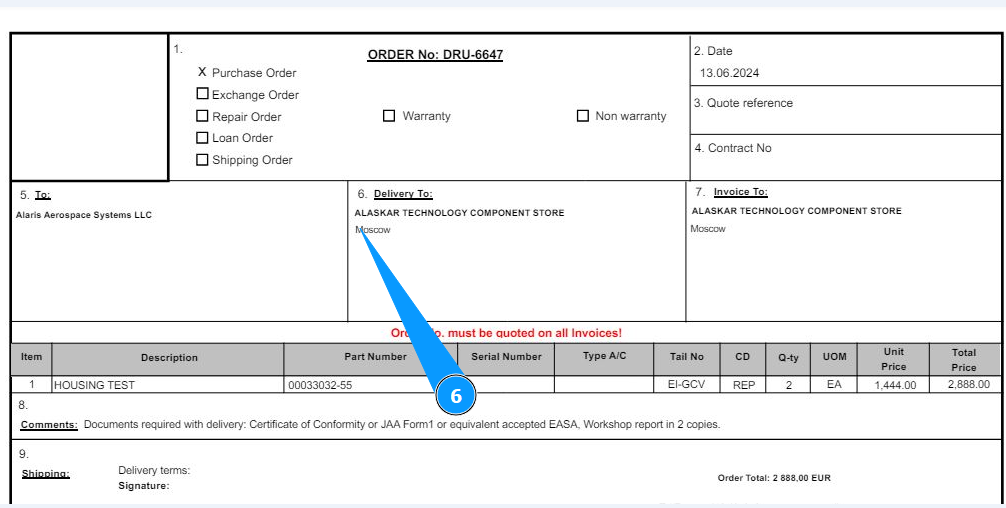
6. Check that the PO report is displayed on your screen. Print out the paper form if necessary.
Note: You can also do other actions with the report if necessary. Hover your mouse over the button "Show Report" and select from the dropdown list:
- "Save to Storage" - to save the report in storage;
- "Save to Archive" - to save the report in the archive;
- "Send to Email"- to send the report by email. Fill in the required fields and click the button "Send".