How to plan personnel resources
1. In order to plan personnel resources, go to the tab "WBA" .
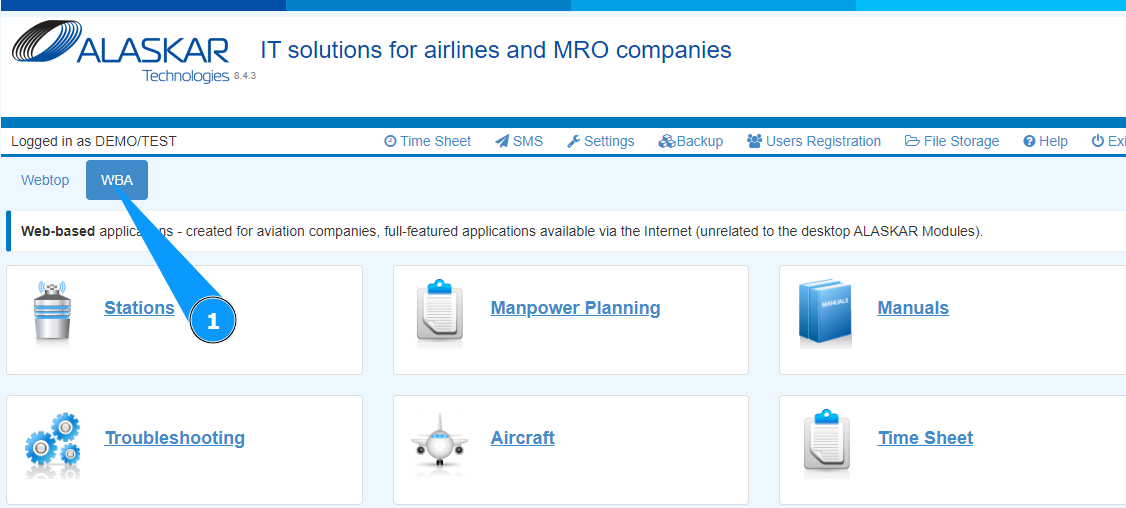
2. Go to the submodule "Manpower Planning".

3. Check that the resource management window has opened and is accessible.
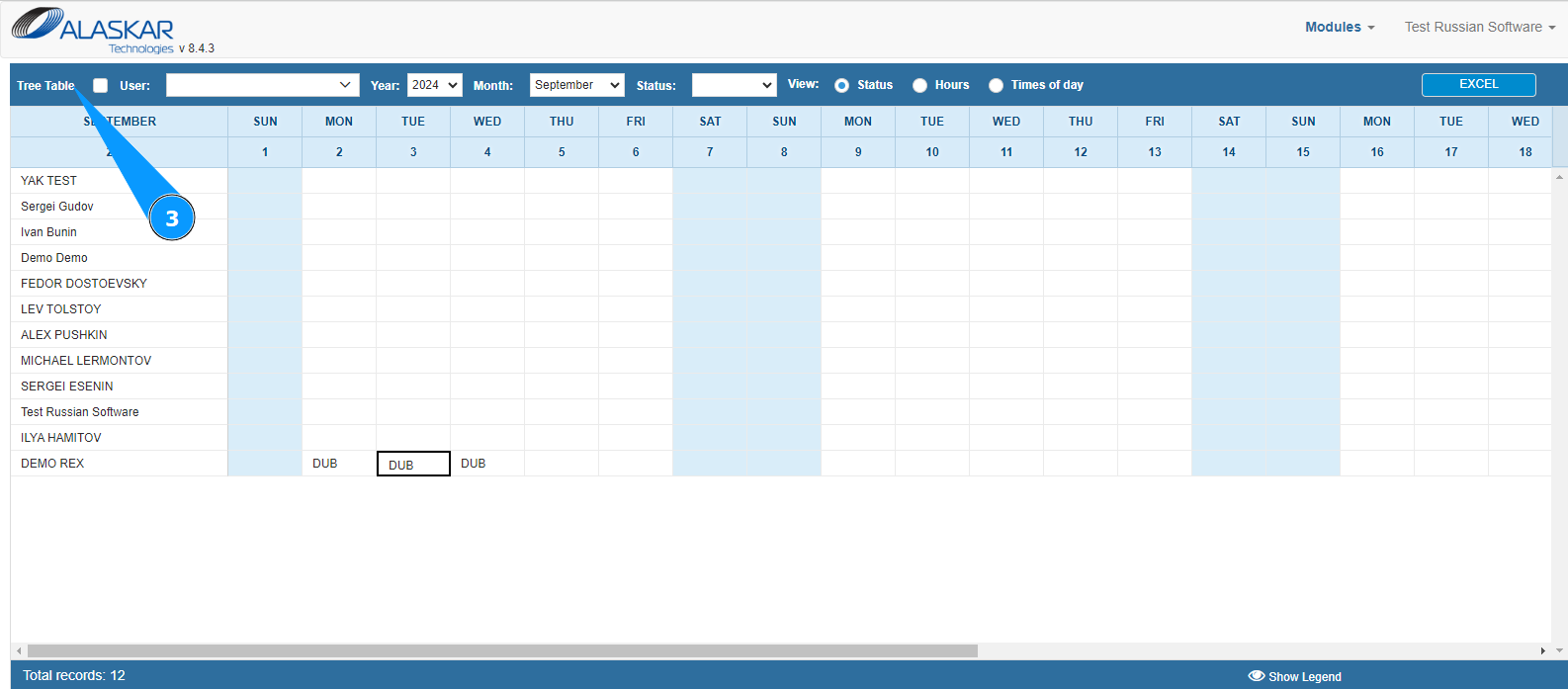
4. Select from the dropdown list the personnel for whom you need to set working hours in the field "User".
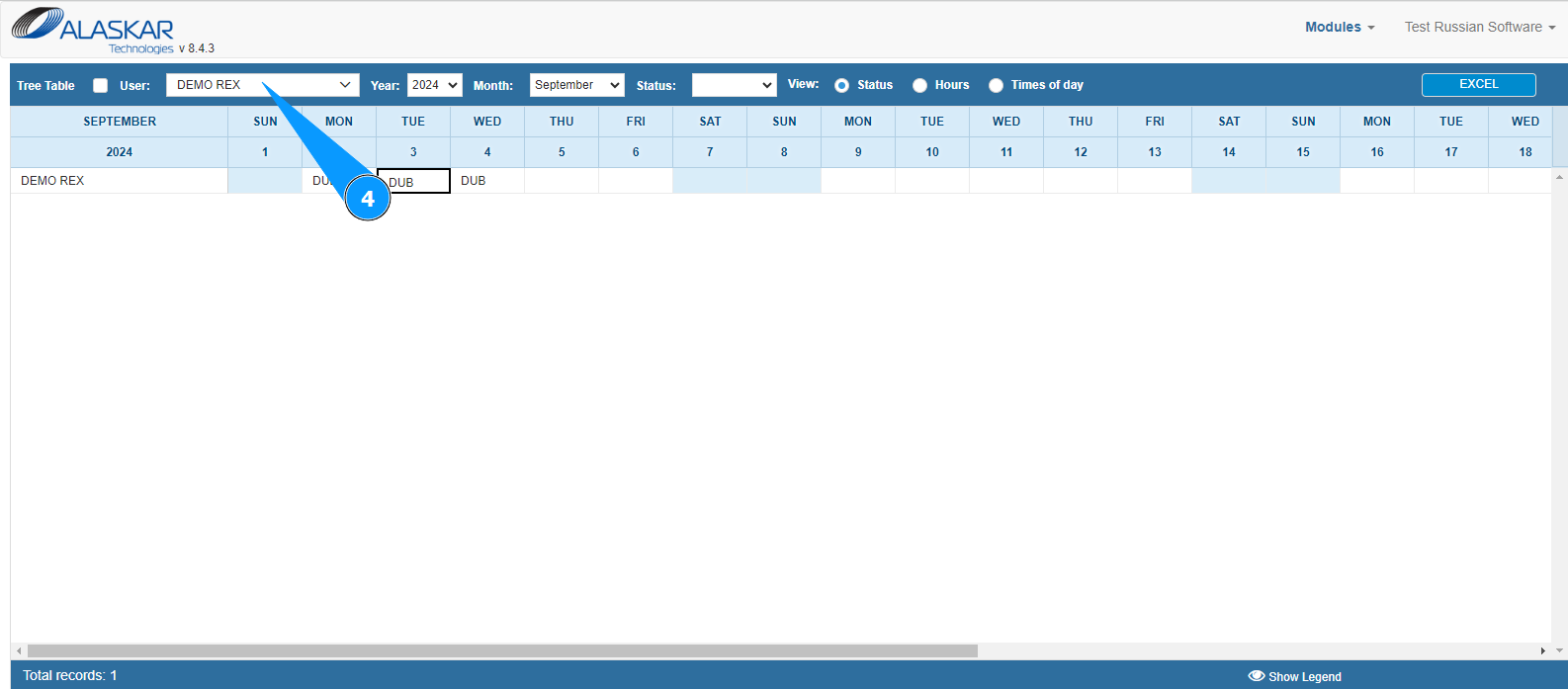
5. In the personnel list, click on the column with the required day to enter working hours.
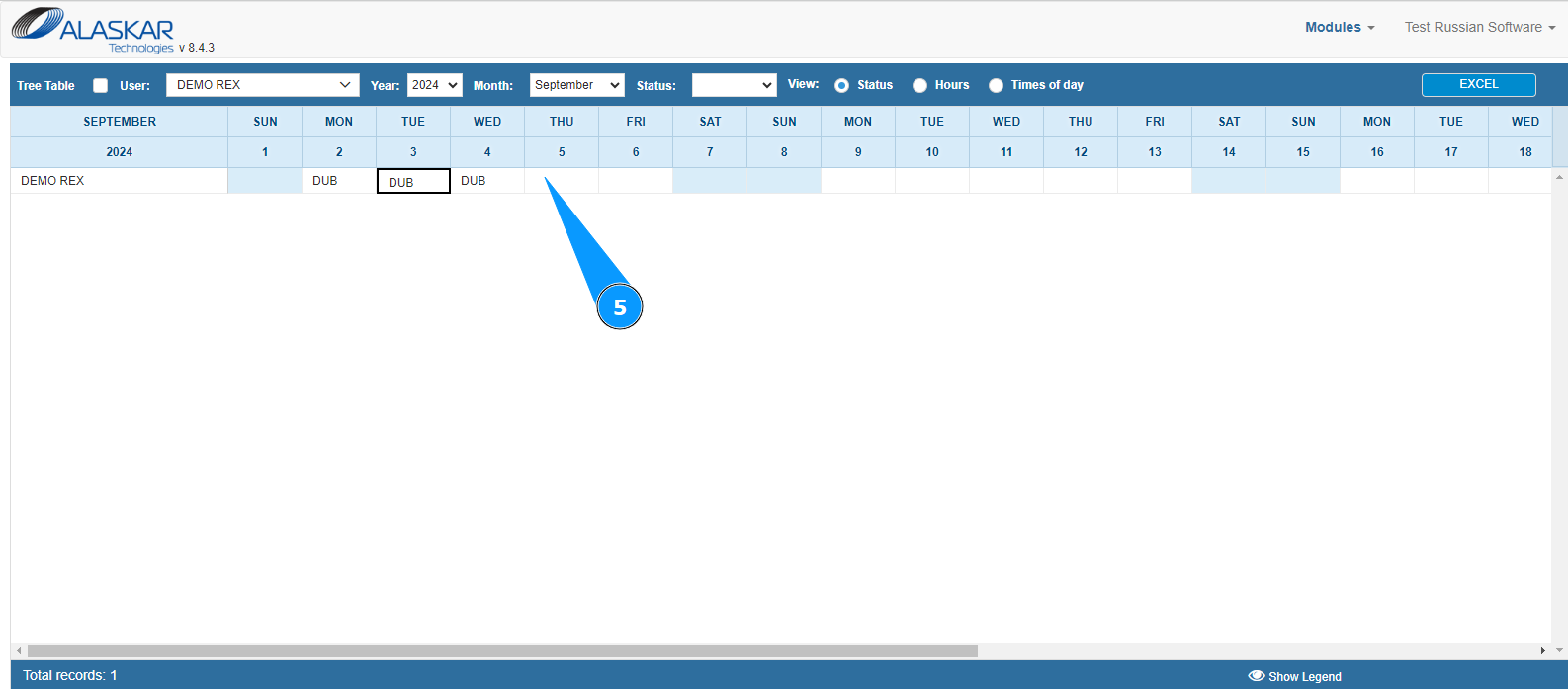
6. Click on the button "Set" to open the editor for entering working hours.

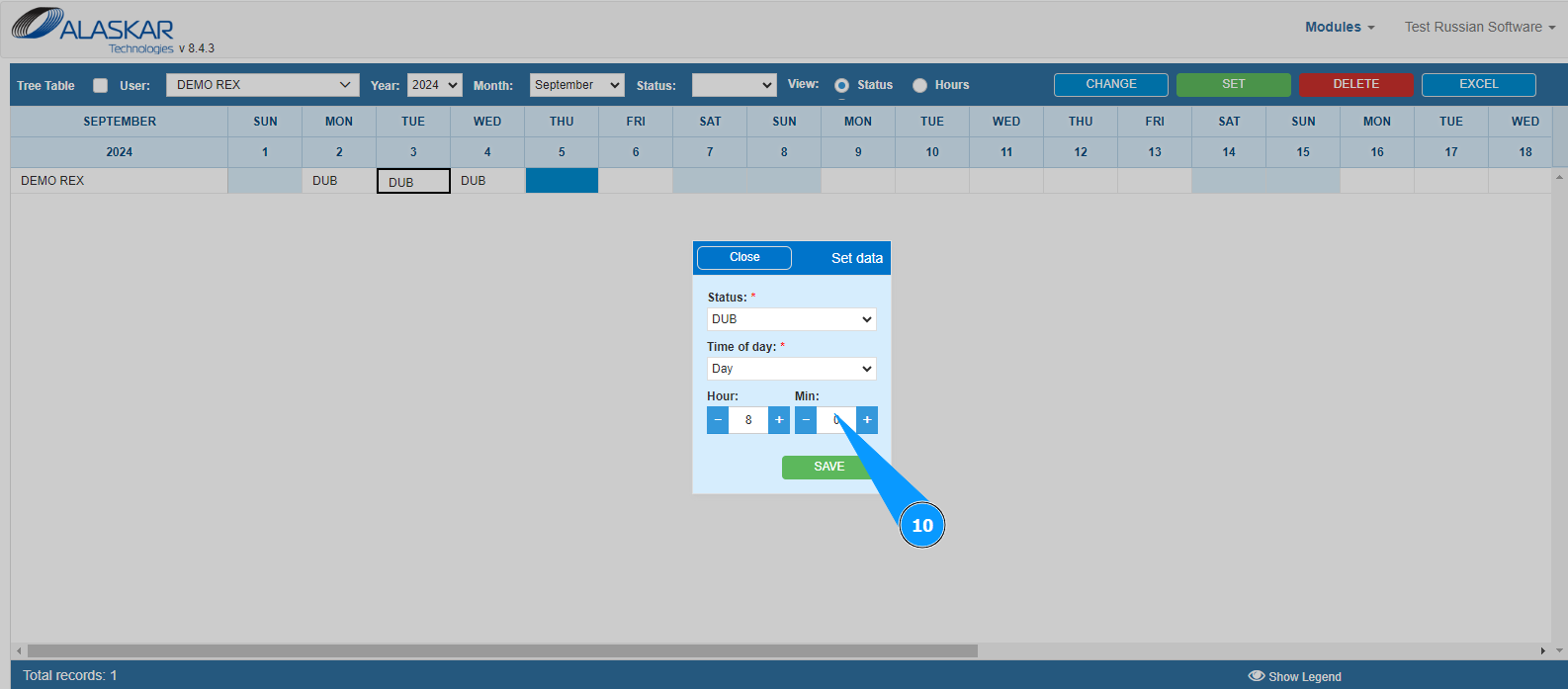
7. Select from the dropdown list the location of the personnel's work in the field "Status".
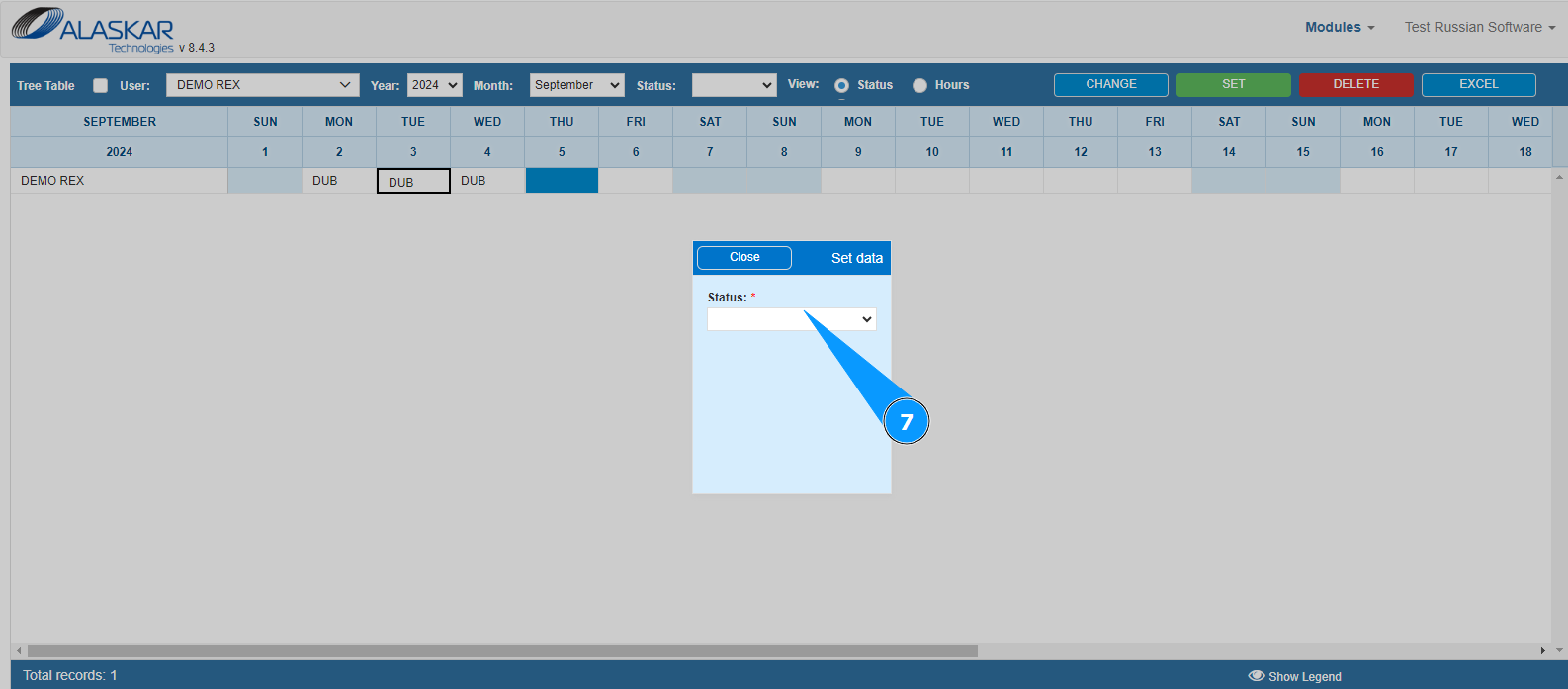
8. Select from the dropdown list the type of time of the personnel's work in the field "Time of day".
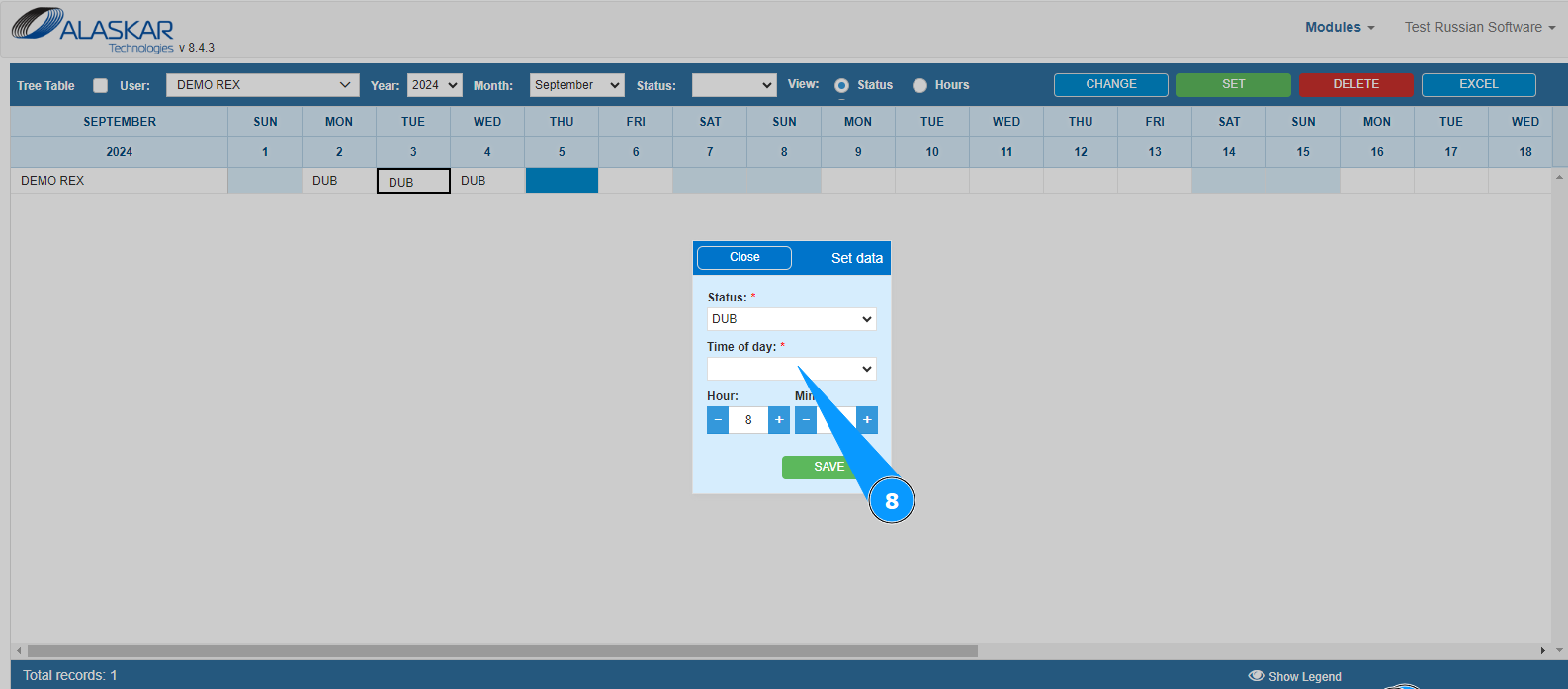
9. Enter the quantity of working time in hours in the field "Hour".
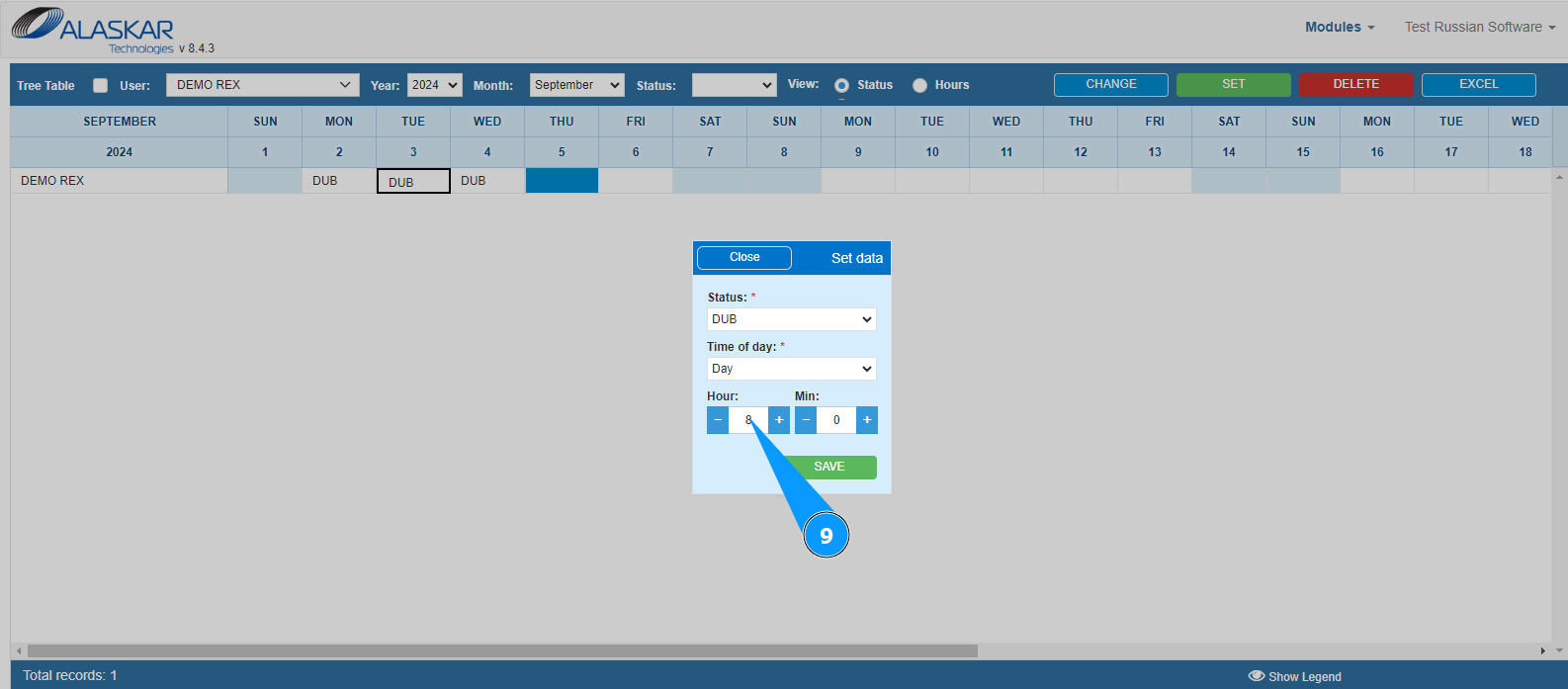
10. Enter the quantity of working time in minutes in the field "Min".
11. Click on the button "Save" to add the data to the program.
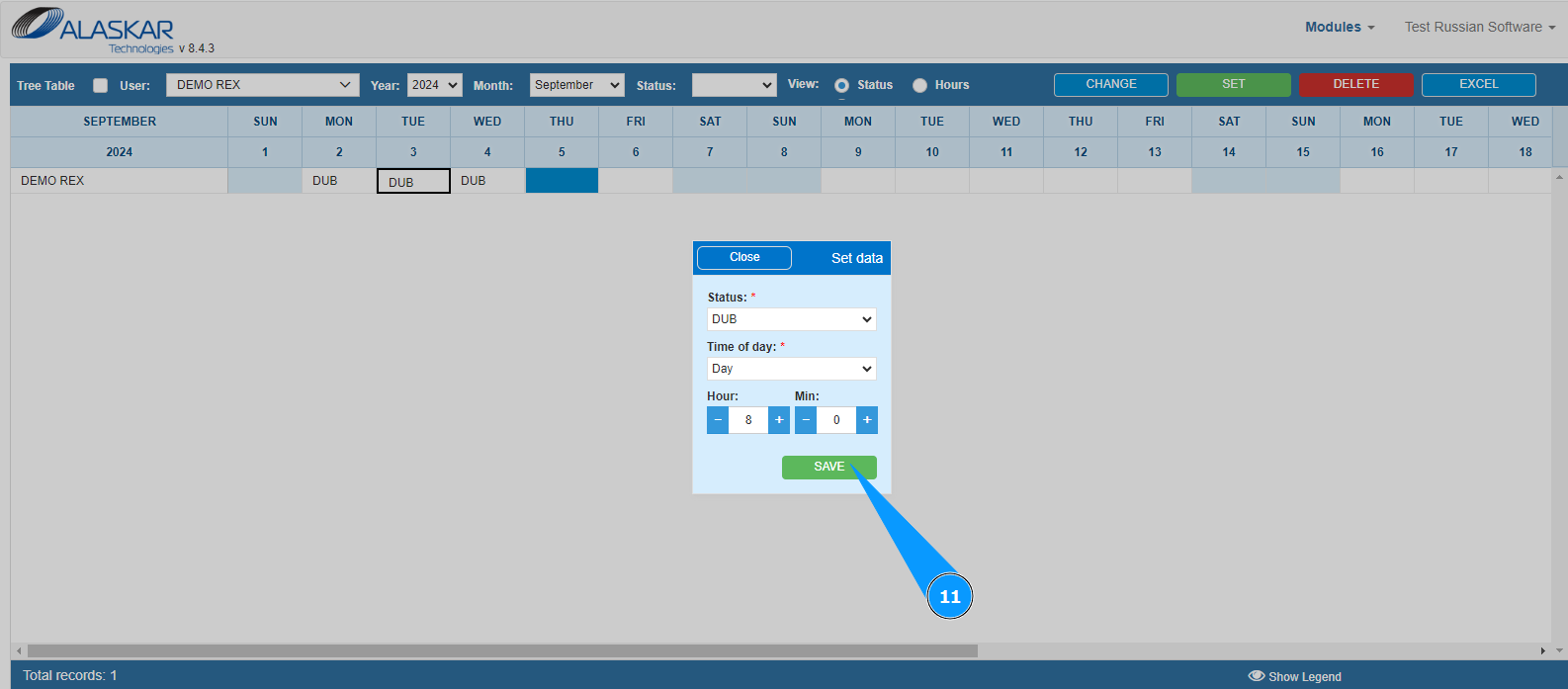
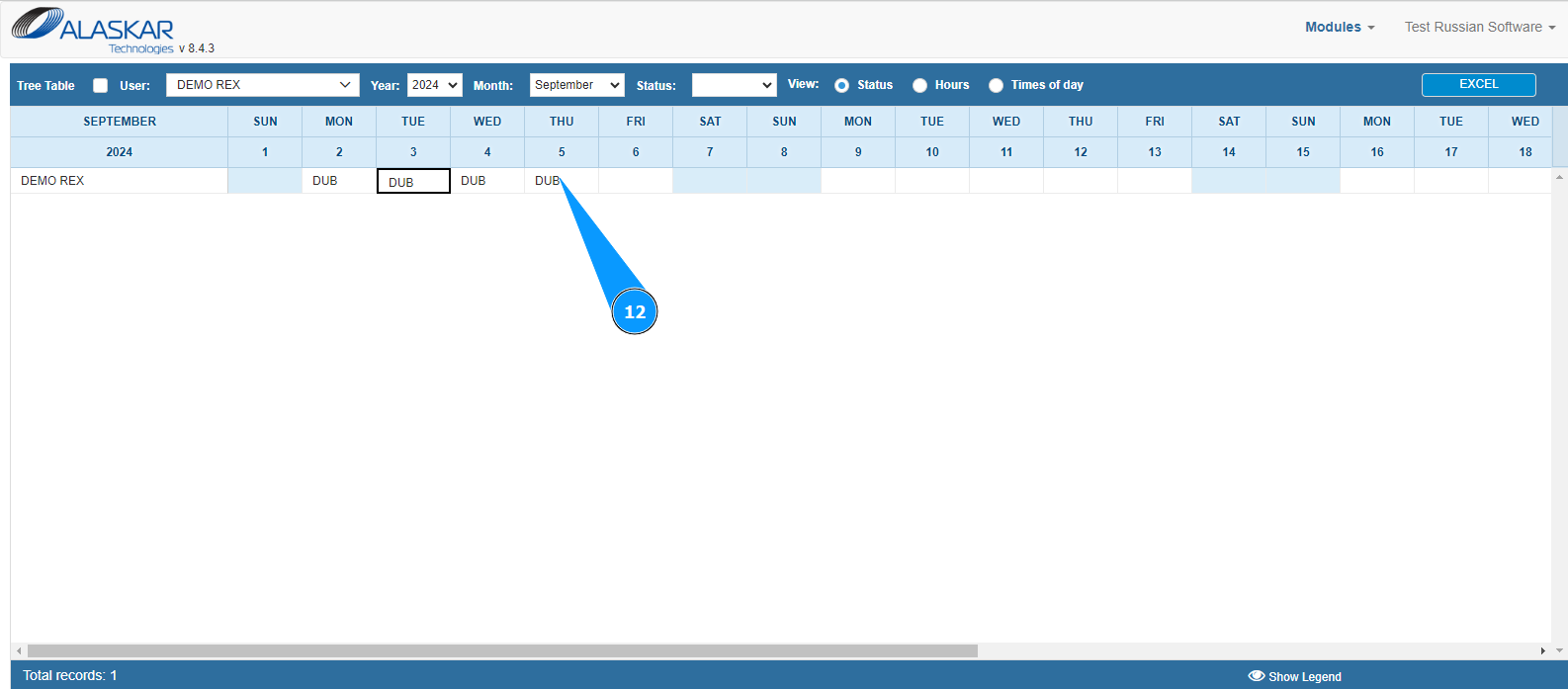
12. Check that the entered location of work by the personnel appears in the previously specified field.