How to manage aircraft utilization
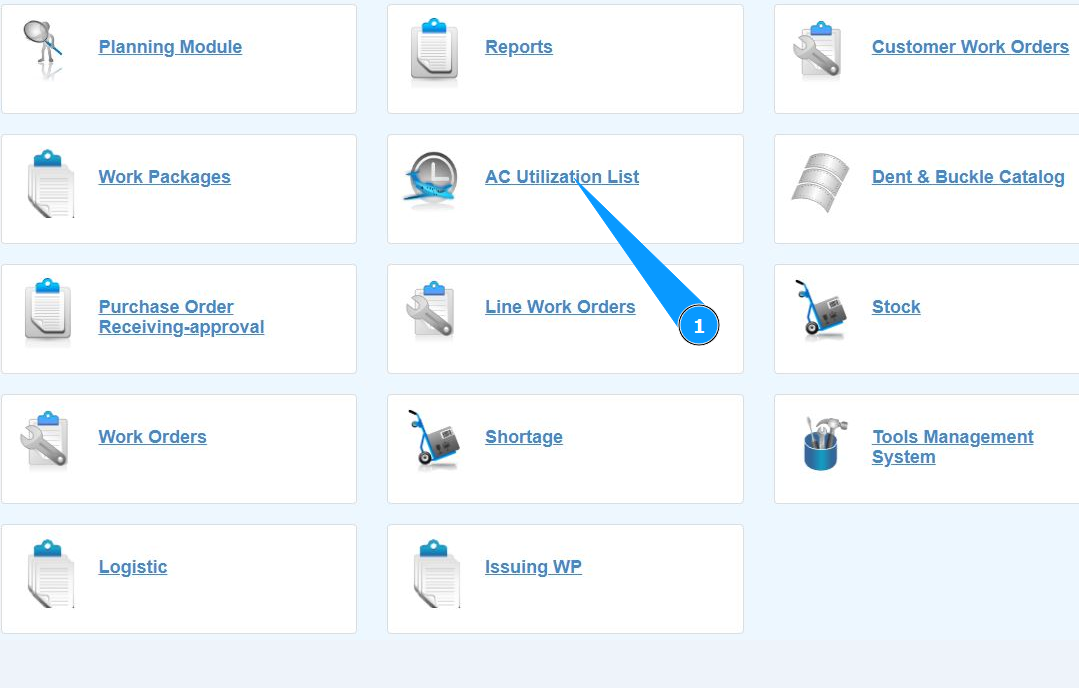
1. In order to manage aircraft utilization, go to the submodule "AC Utilization List".
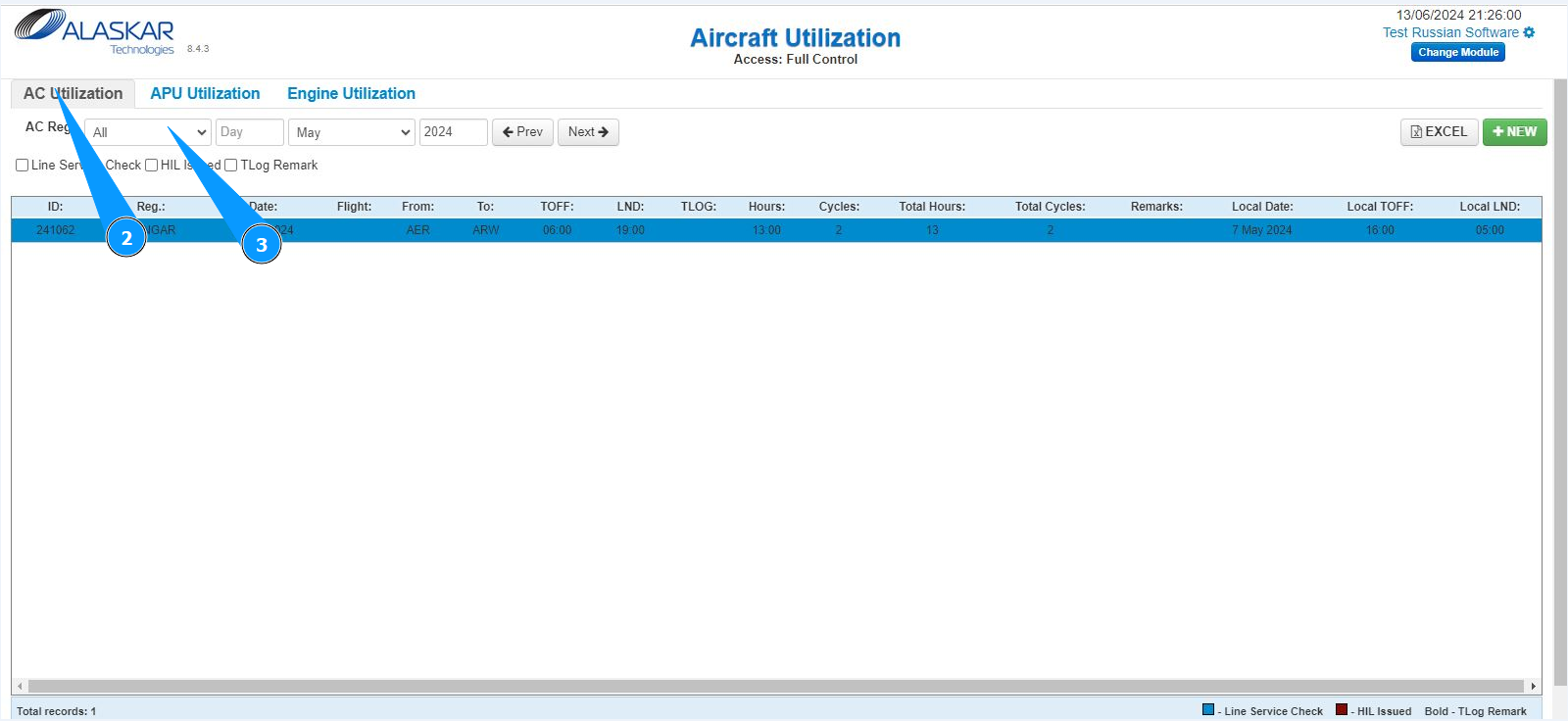
2. Next, go to the "AC Utilization" tab.
3. Select the aircraft registration number from the dropdown list in the field "A/C Reg.".
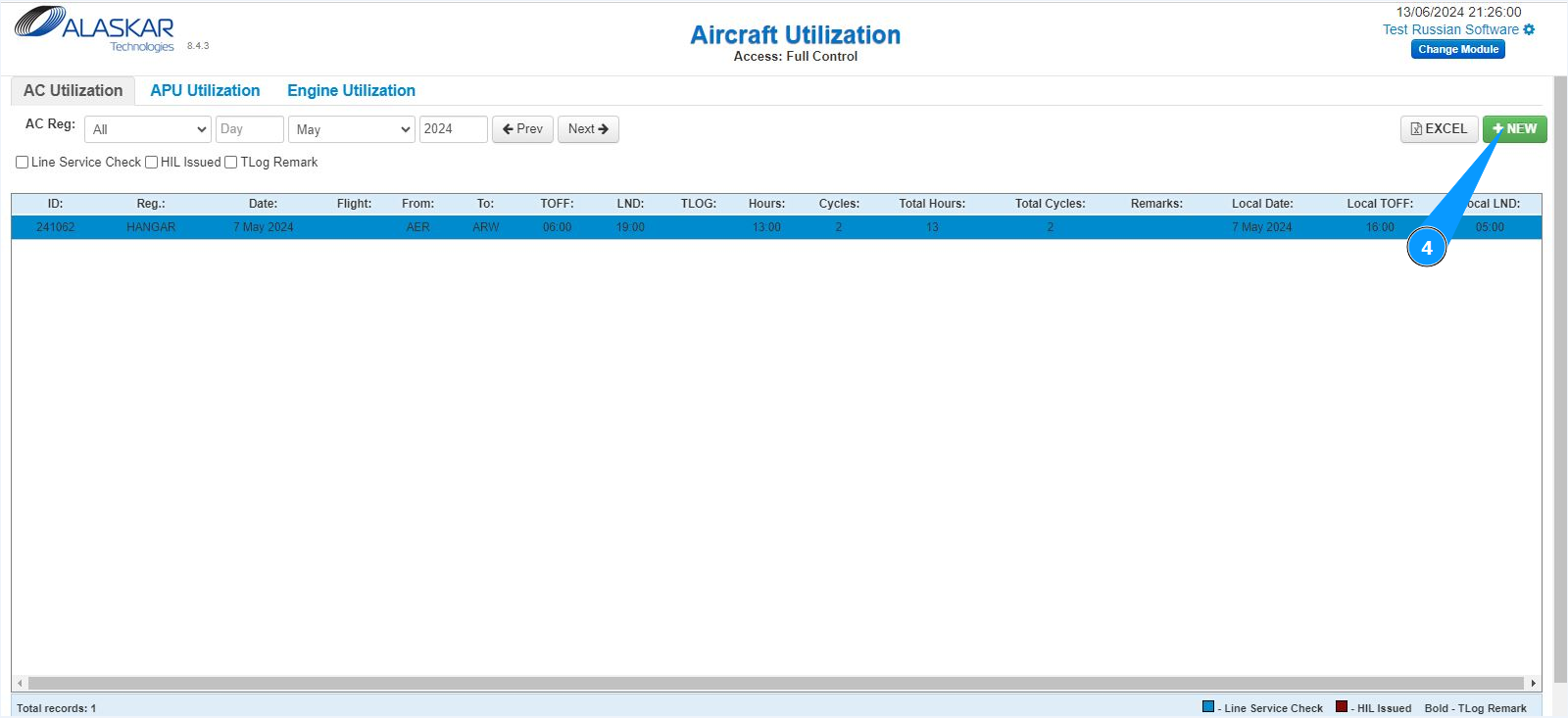
4. Click on the button "New" to open the editor for entering information about aircraft utilization.
5. Check that the AC utilization editor is available in the window "AC Utilization Editor".
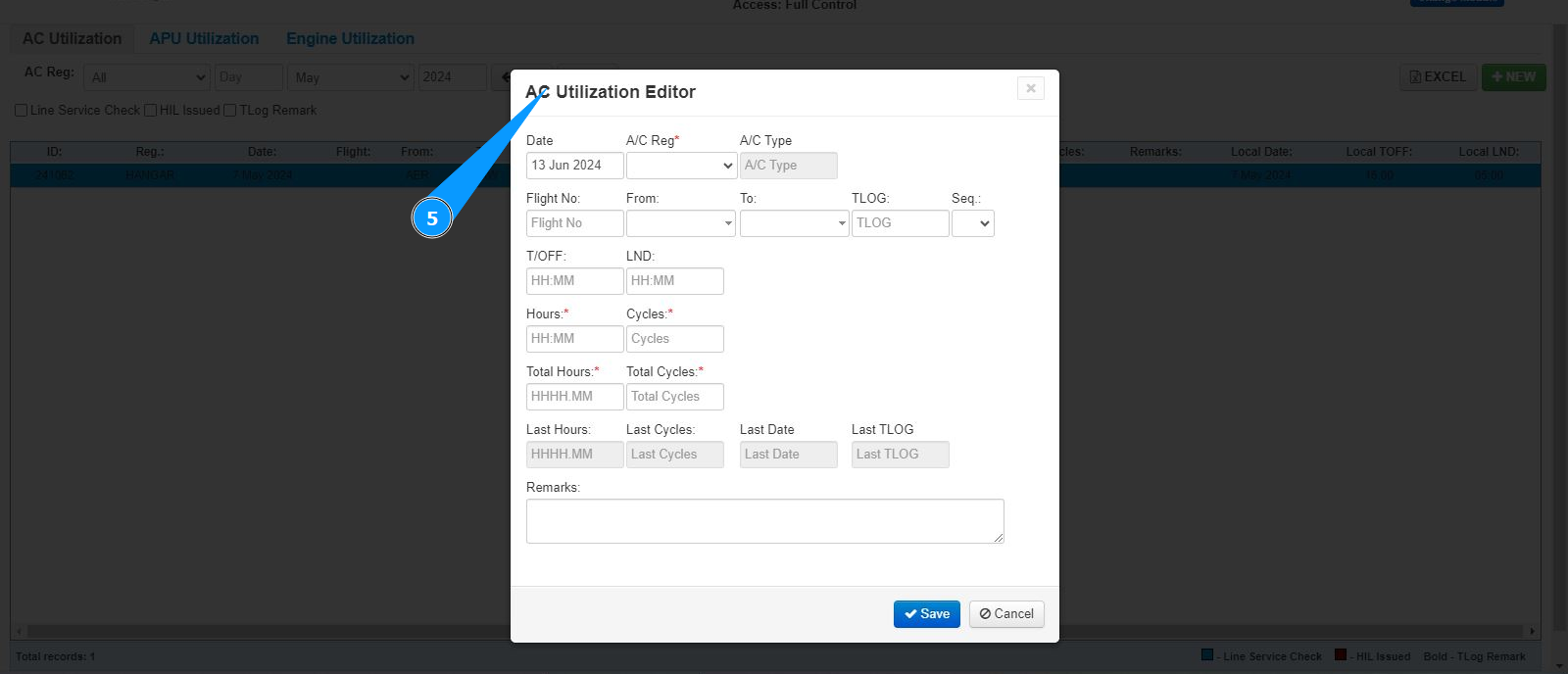
6. If necessary, enter the flight number in the field "Flight No.".
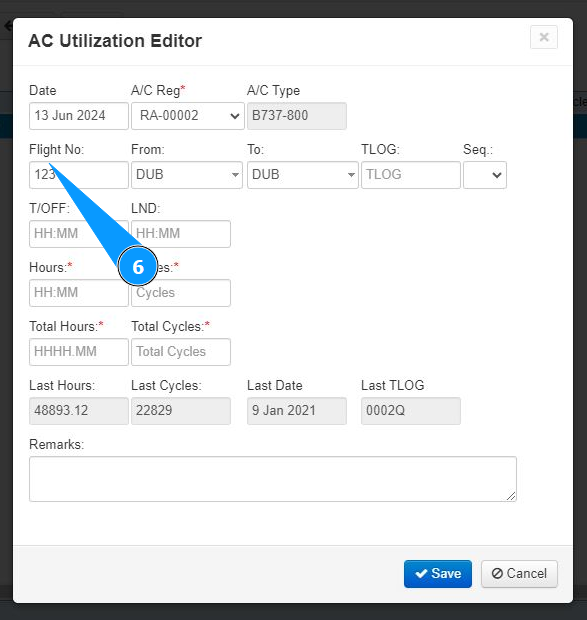
7. If necessary, select from the dropdown list take off airport from in the field "From".
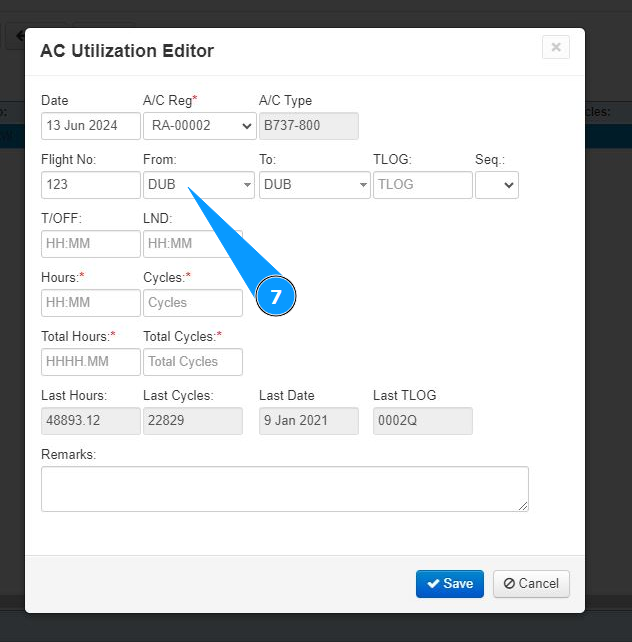
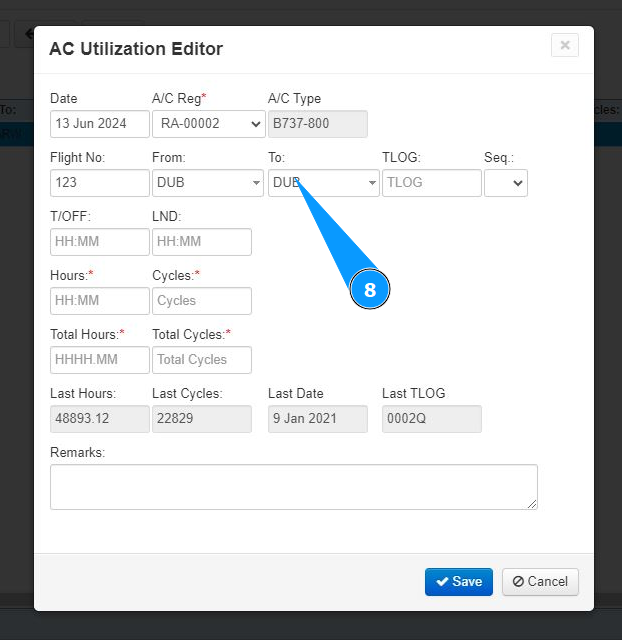
8. If necessary, select from the dropdown list the landing airport in the field "To".
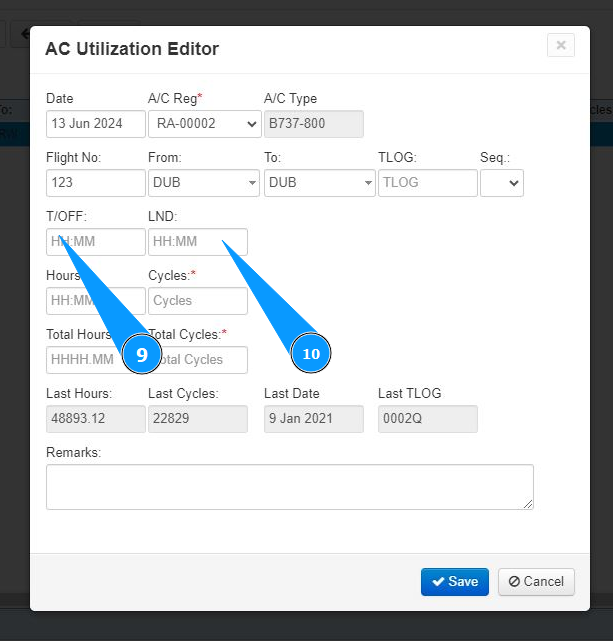
9. Enter the required take-off time in hours and minutes in the field "T/Off".
10. Enter the required landing time in hours and minutes in the field "LND.
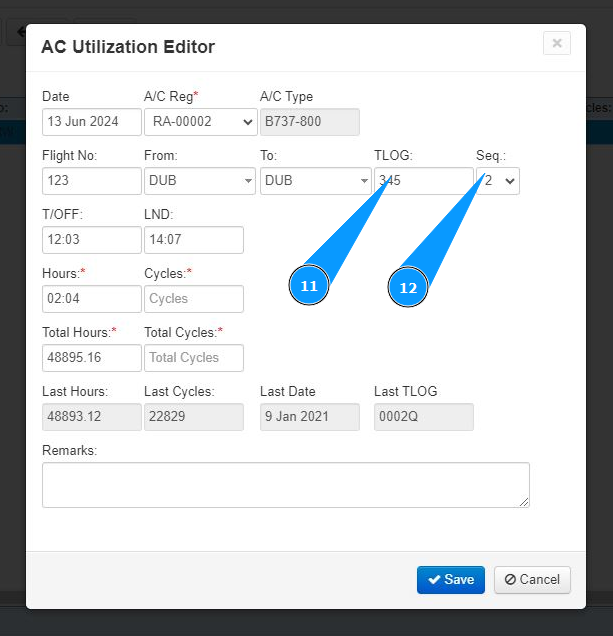
11. If necessary, enter the logbook number in the field "TLOG".
12. If necessary, select the logbook page from the dropdown list in the field "Seq.".
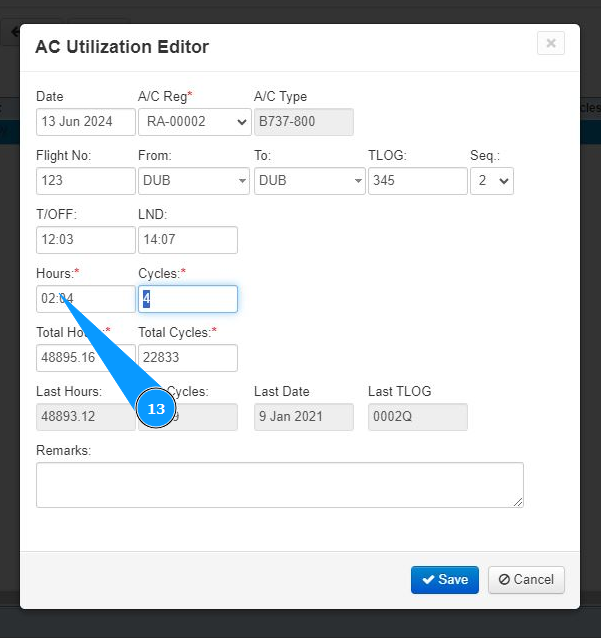
13. Check that the flight time (in hours) is automatically calculated and displayed in the field "Hours".
14. Enter the flight time in cycles in the field "Cycles.
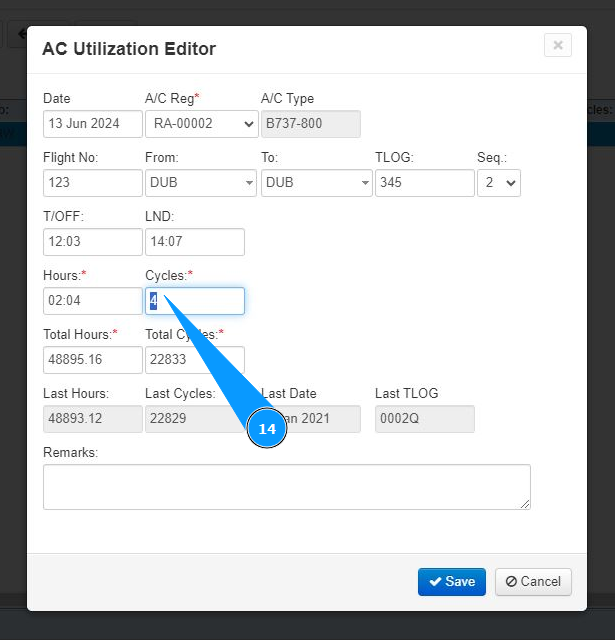
15. Check that the aircraft's total operating hours in hours are calculated and displayed in the field "Total Hours".
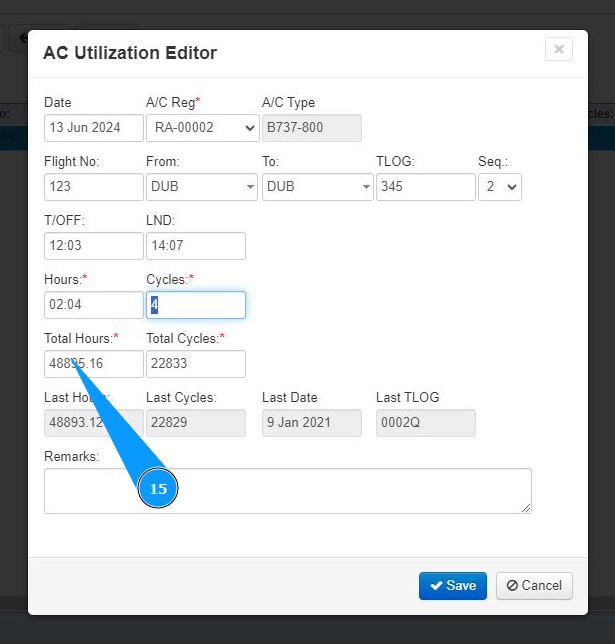
16. Check that the aircraft's total operating time in cycles is calculated and displayed in the field "Total Cycles".
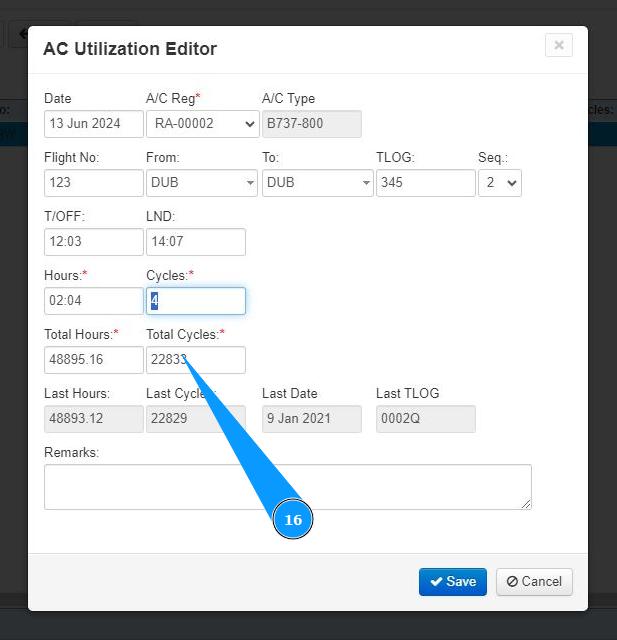
17. If necessary, add additional comments to the record in the field "Remarks.".
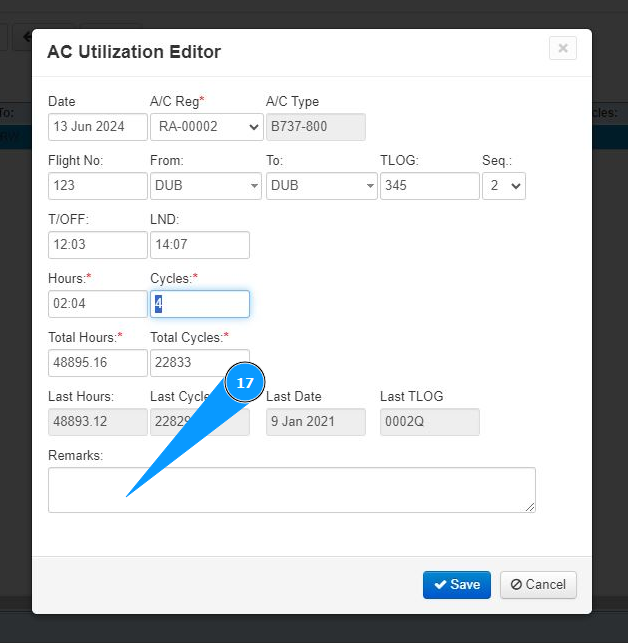
18. Click on the button "Save to add data to the program.
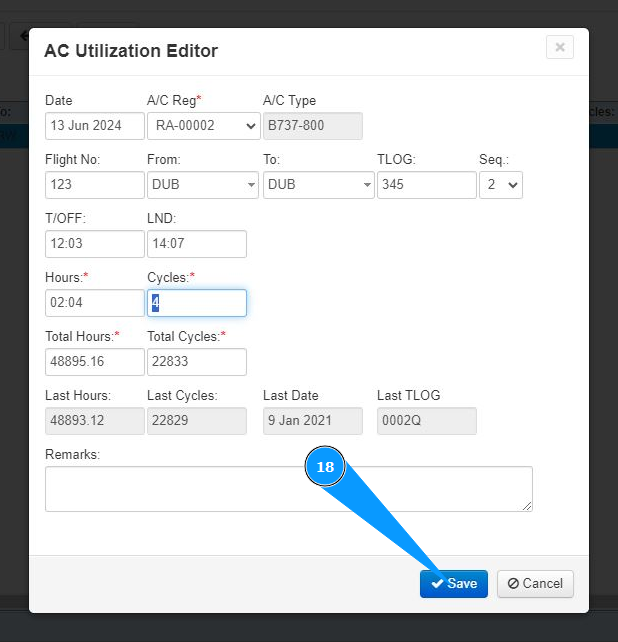
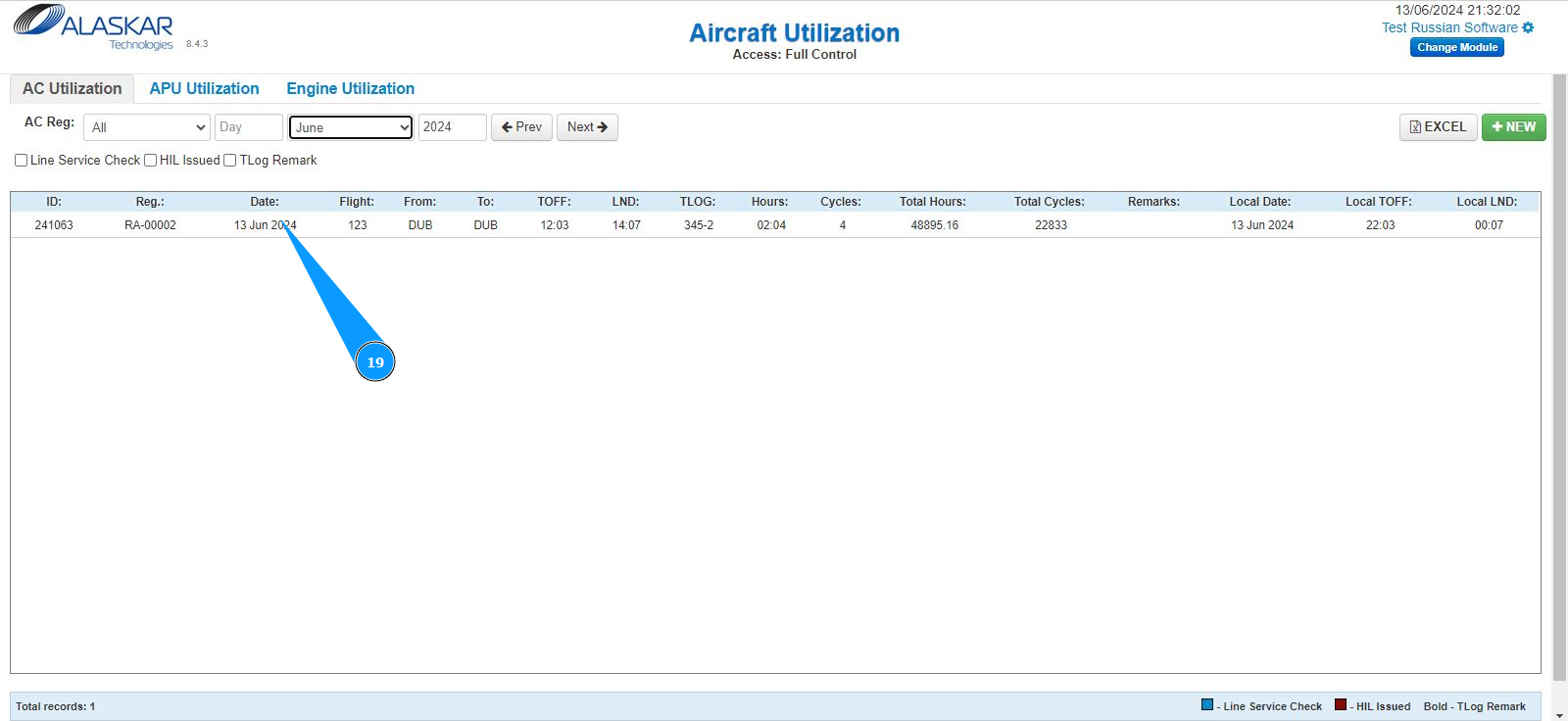
19. Check that the new line with the entered data is displayed in the window "AC Utilization".
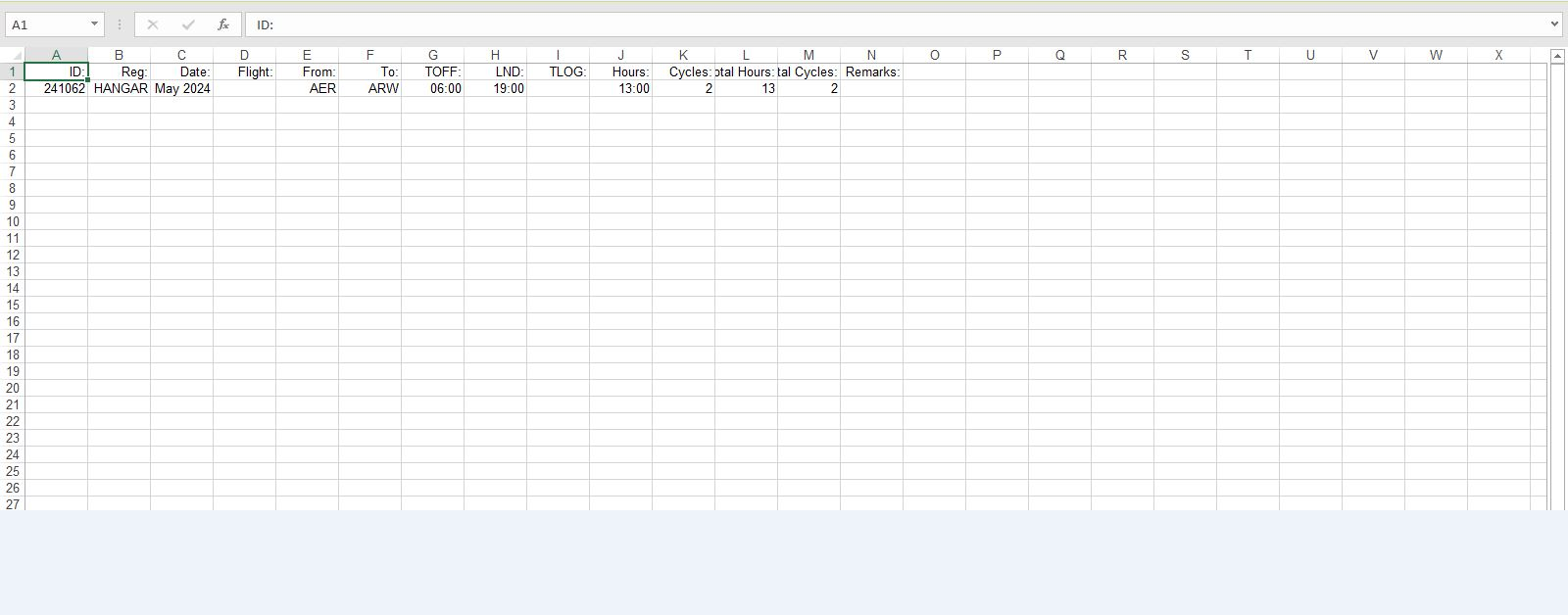
Note: If necessary, you can download the results of the aircraft utilization in Excel format. Click the appropriate "Excel" button and check that the report is well displayed.