How to issue a certificate of conformity
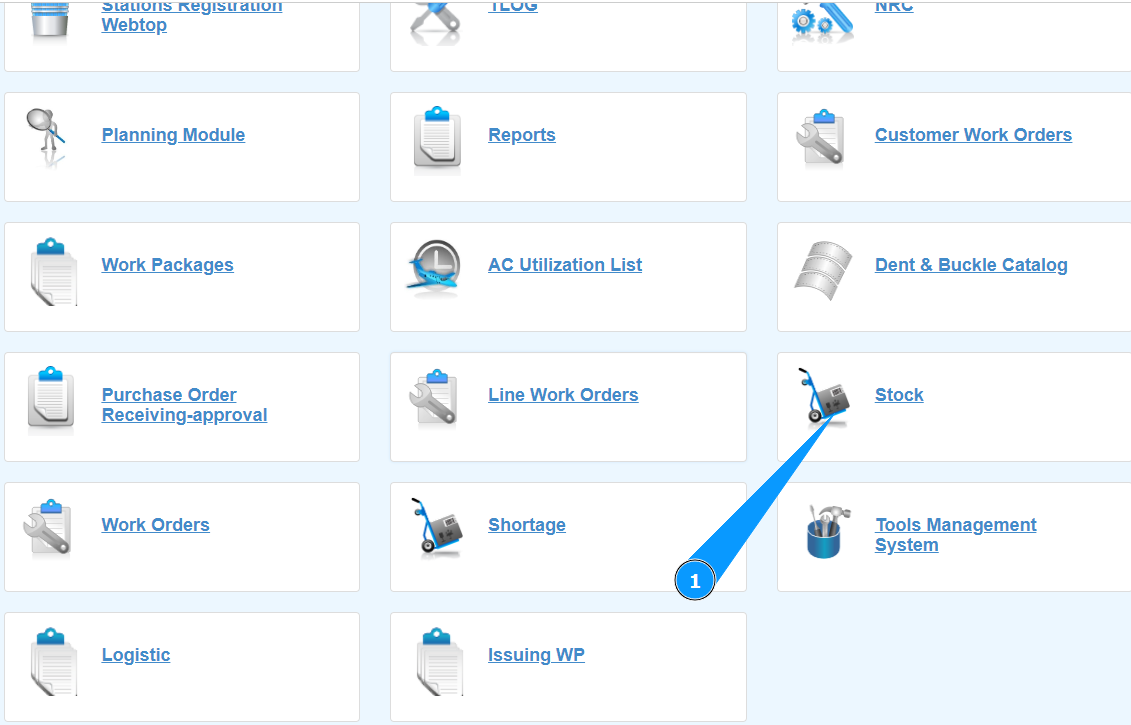
1. In order to issue a certificate of conformity, go to the submodule "Stock".
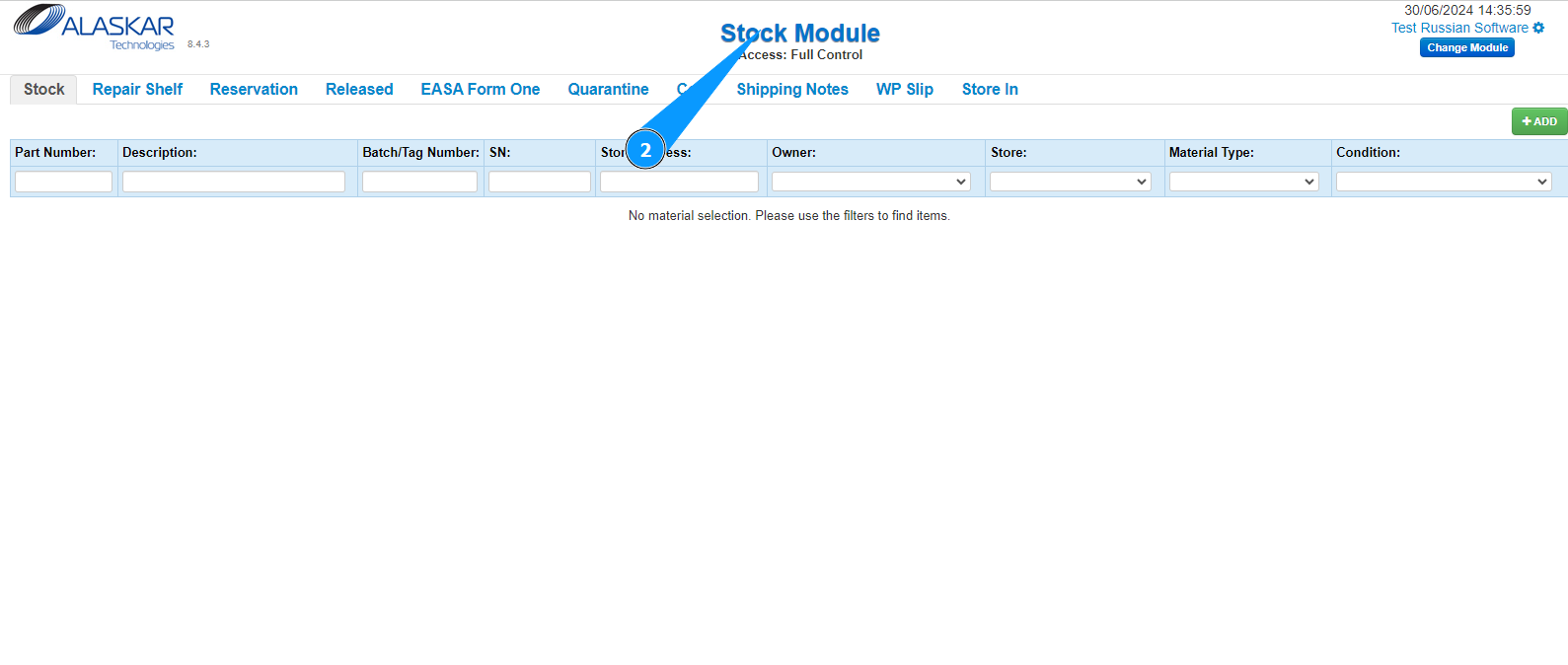
2. Make sure that the window for working with the warehouse has opened and is available in the "Stock Module".
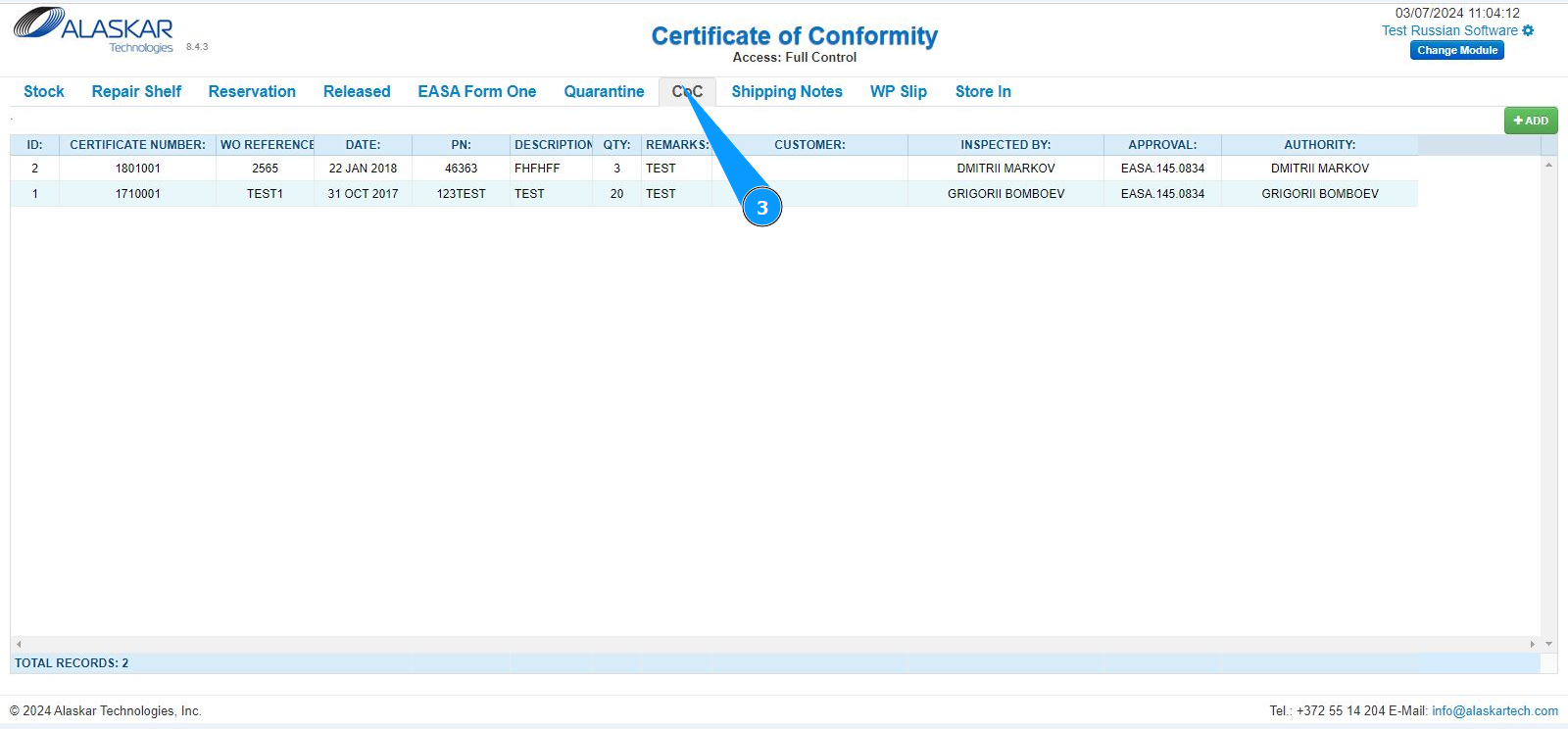
3. Then go to the tab "CoC".
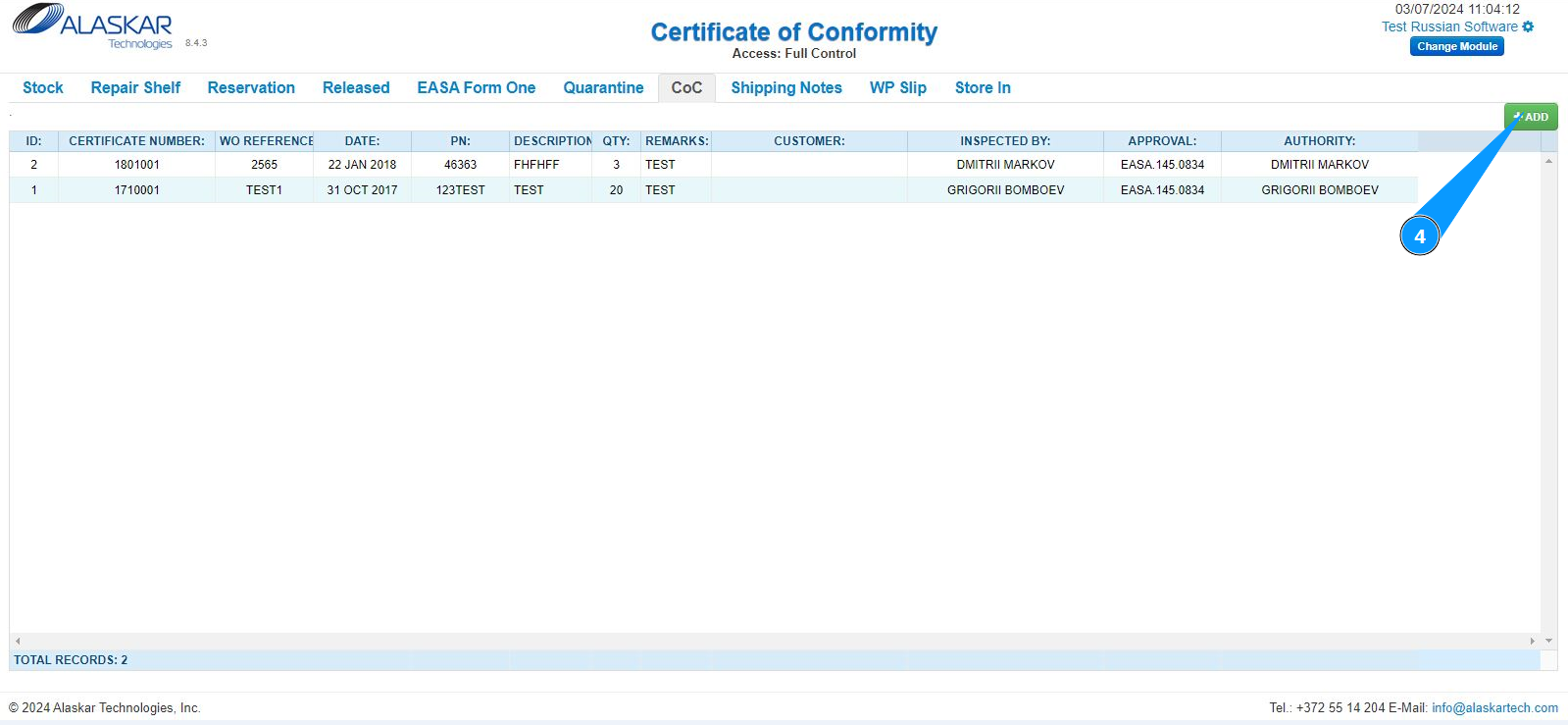
4. Click on the button "Add" to open the certificate creation editor.
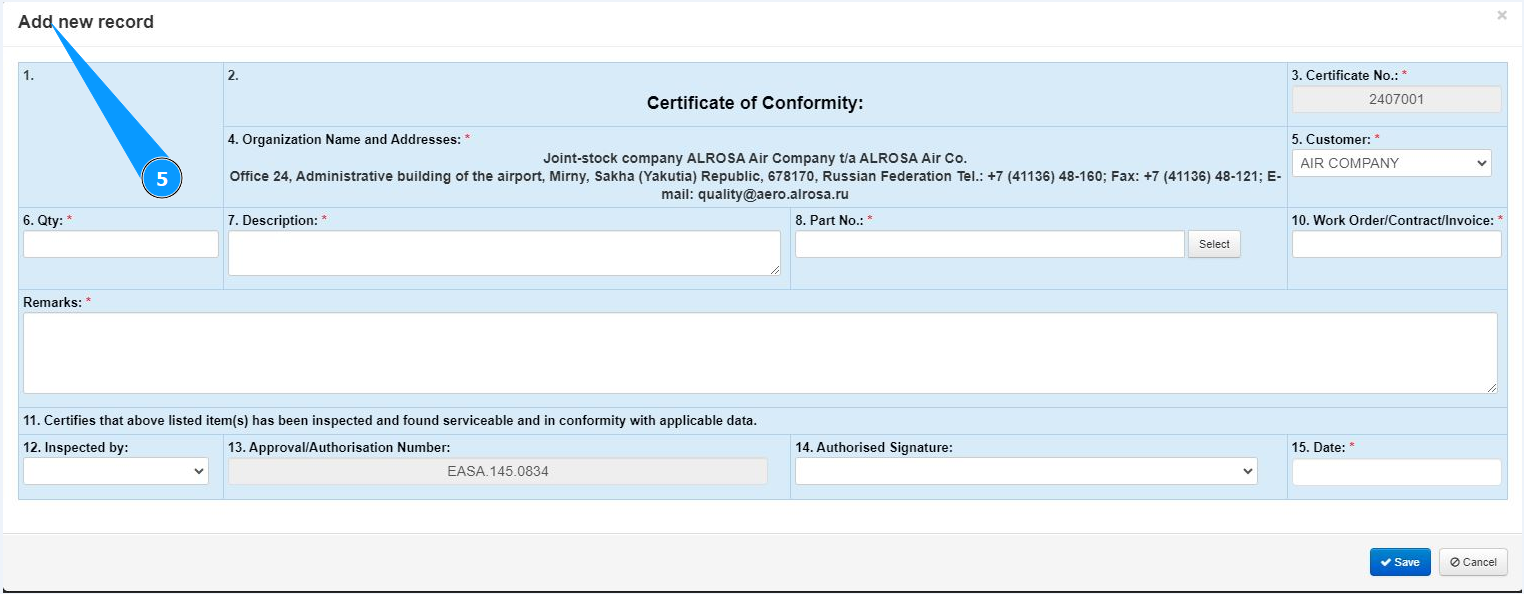
5. Make sure that the certificate creation editor is open and accessible in the window "Add new record".
6. Select an organization name from the dropdown list in the field "Customer". Note: The certificate number will be entered automatically in the field "Certificate No.".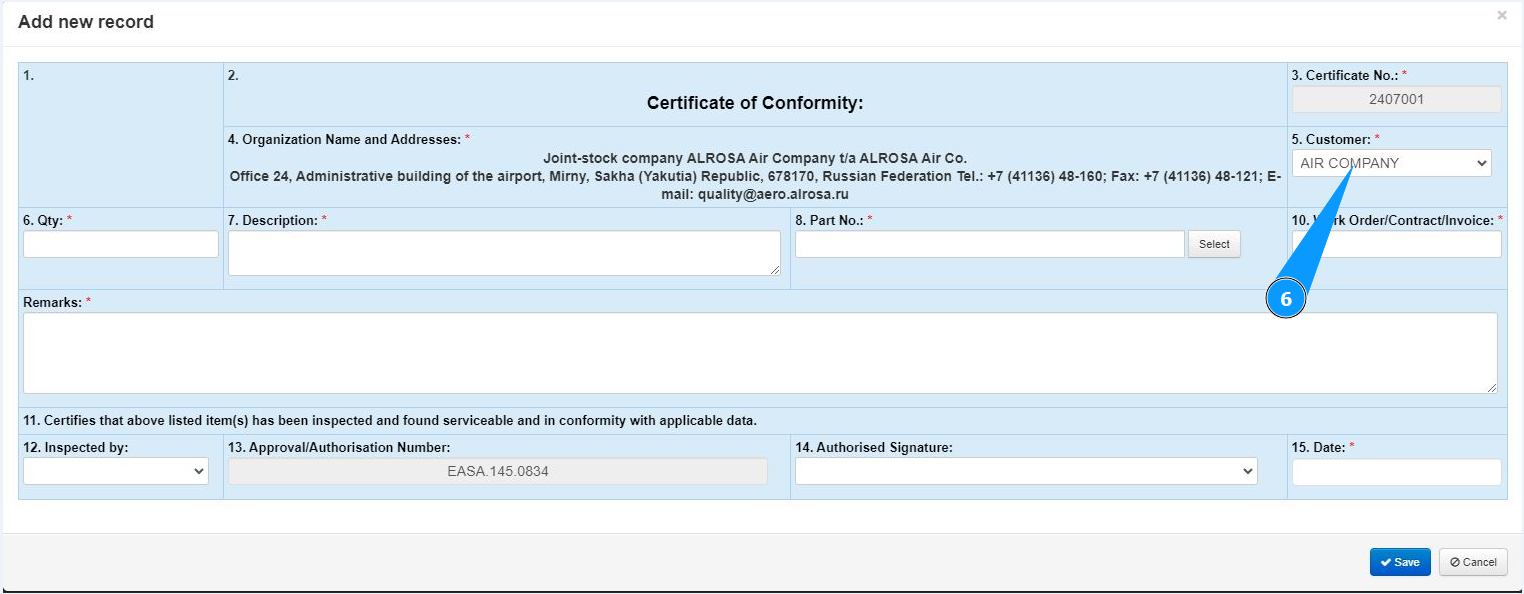
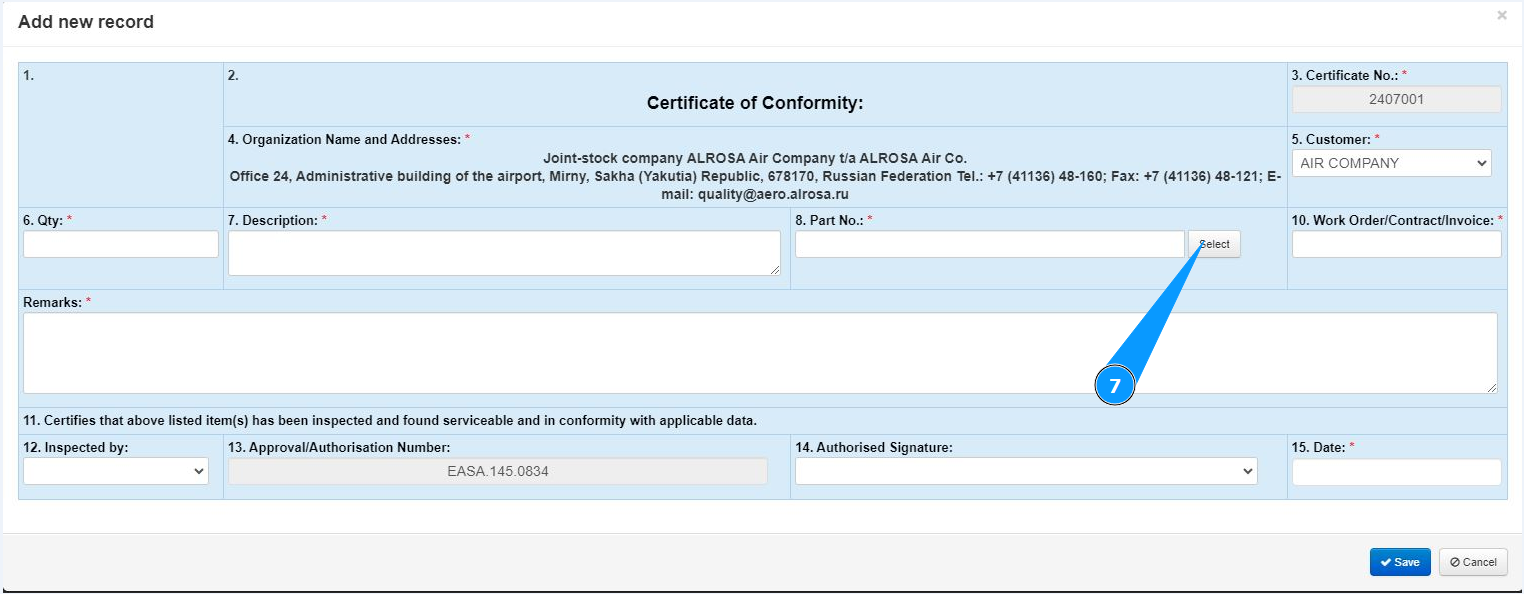
7. Click on the button "Select" to select p/n.
8. Enter the part number of the component in the field "PN" and press the button "Enter" on your keyboard.
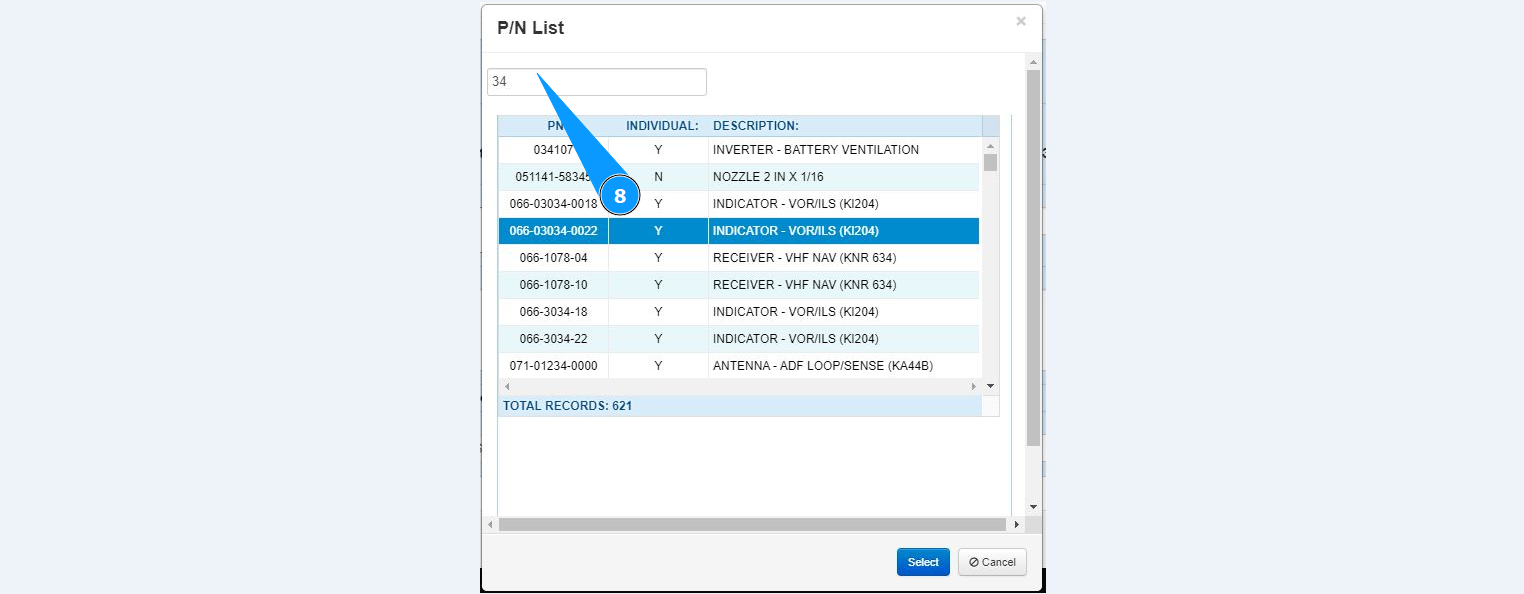
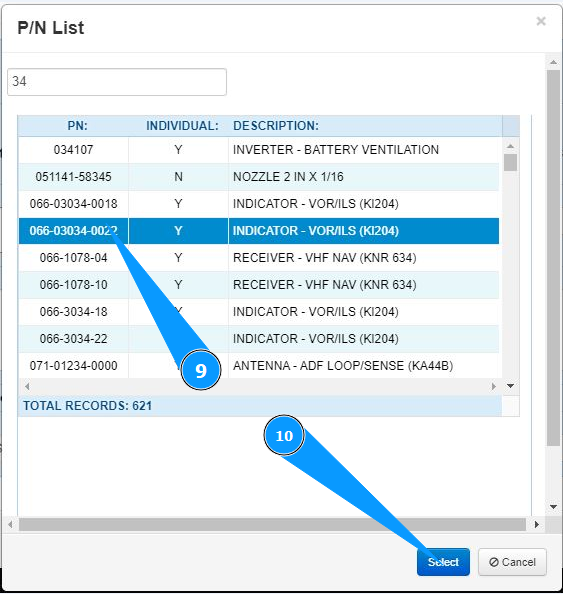
9. Select the required part number and click on the line.
10. Click on the button "Select" to select p/n.
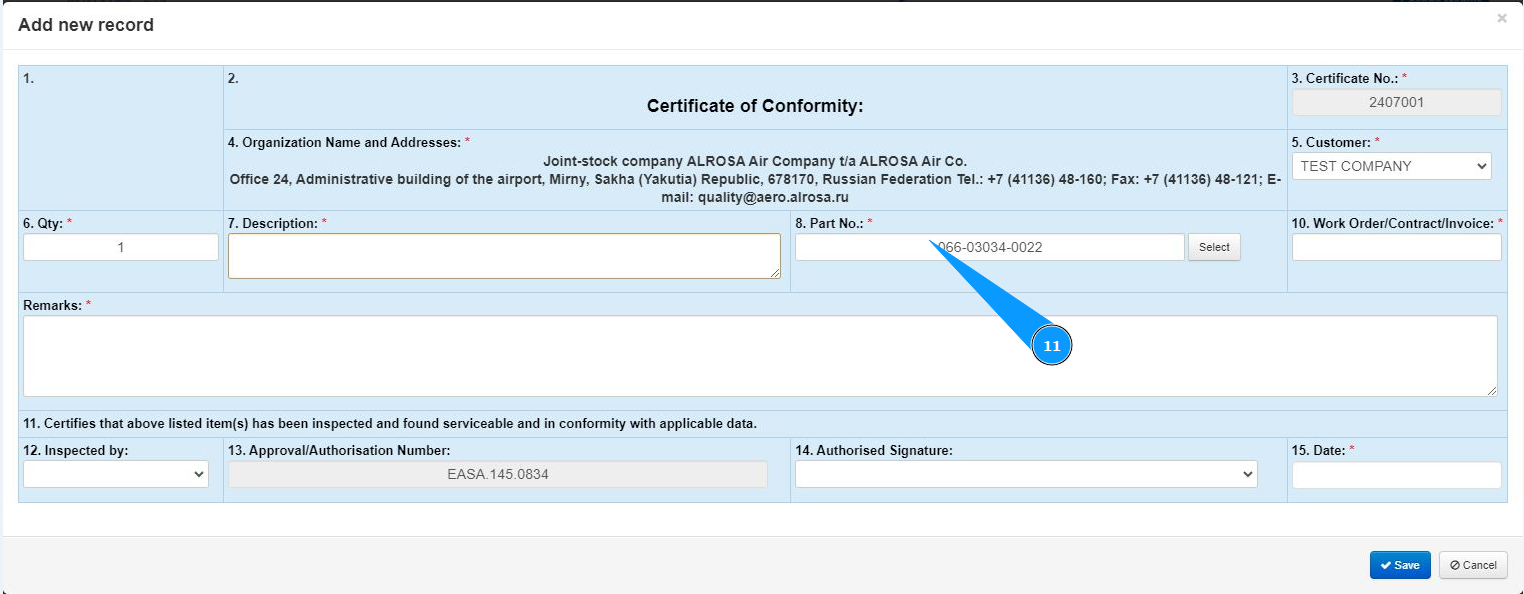
11. Make sure that the required part number is selected in the field "PN".
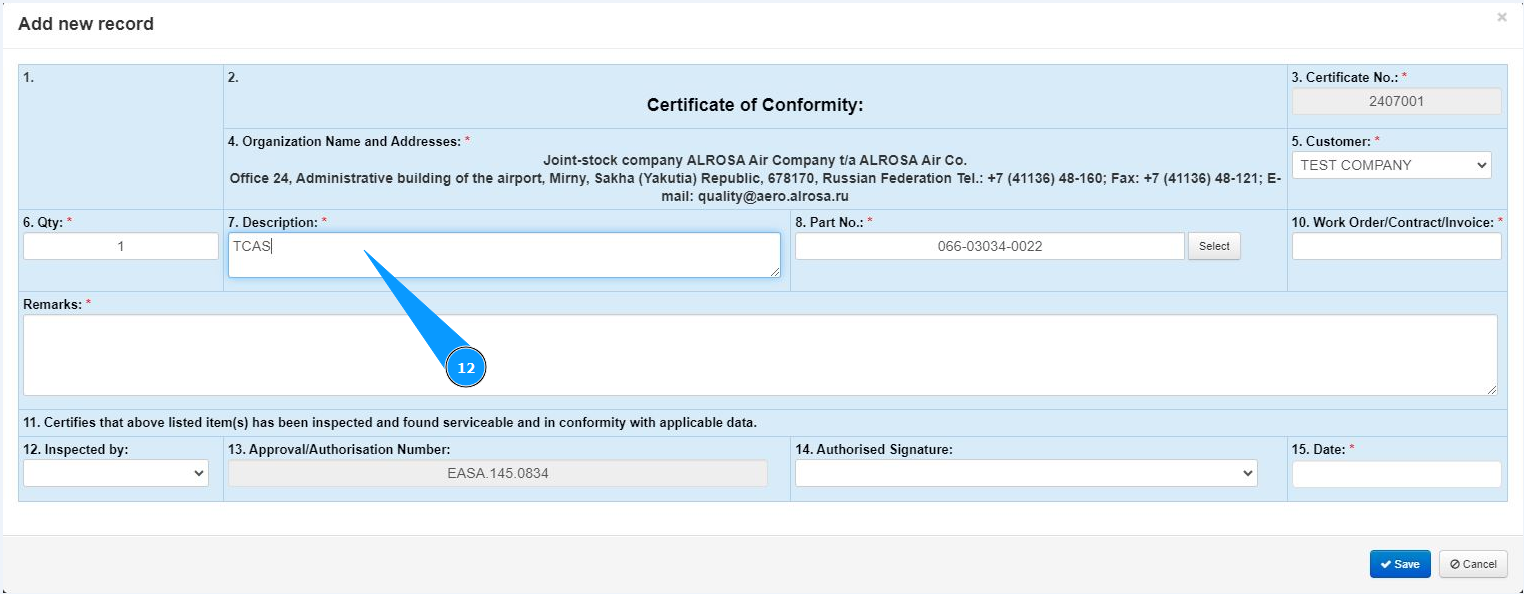
12. Enter a description of the component in the field "Description".
13. Enter the quantity of products in the field "Qty".
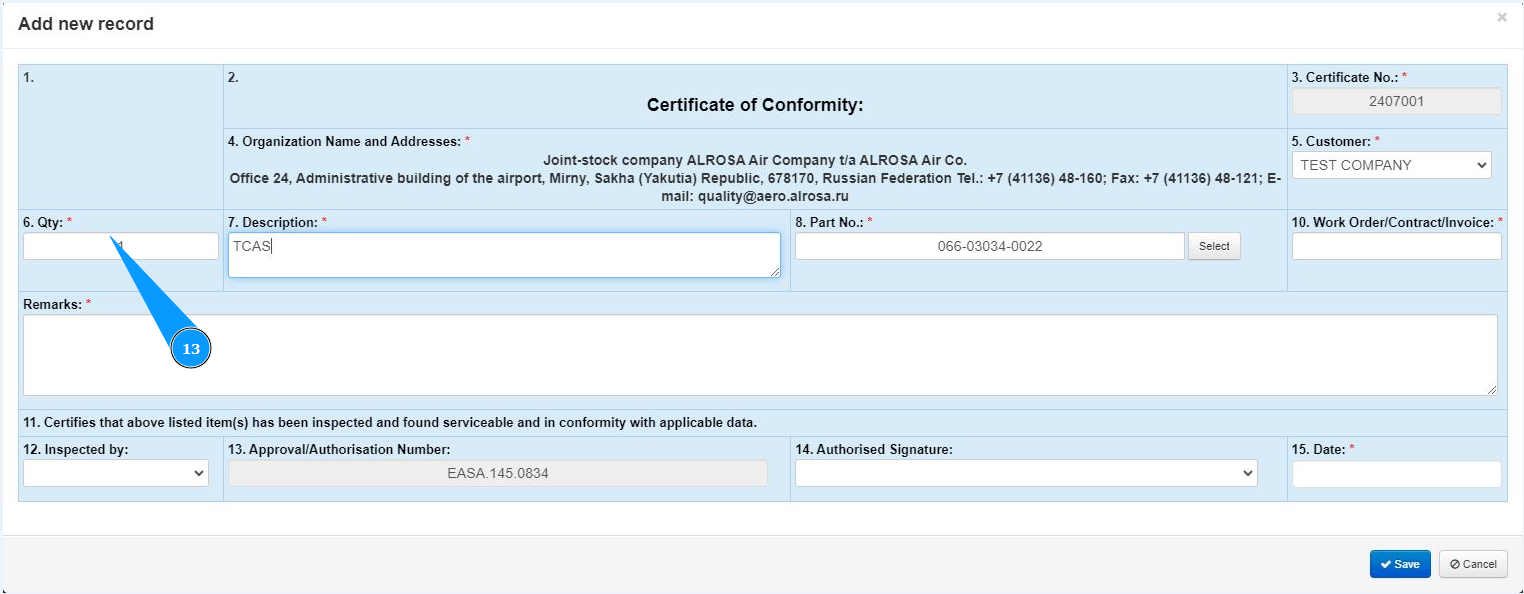
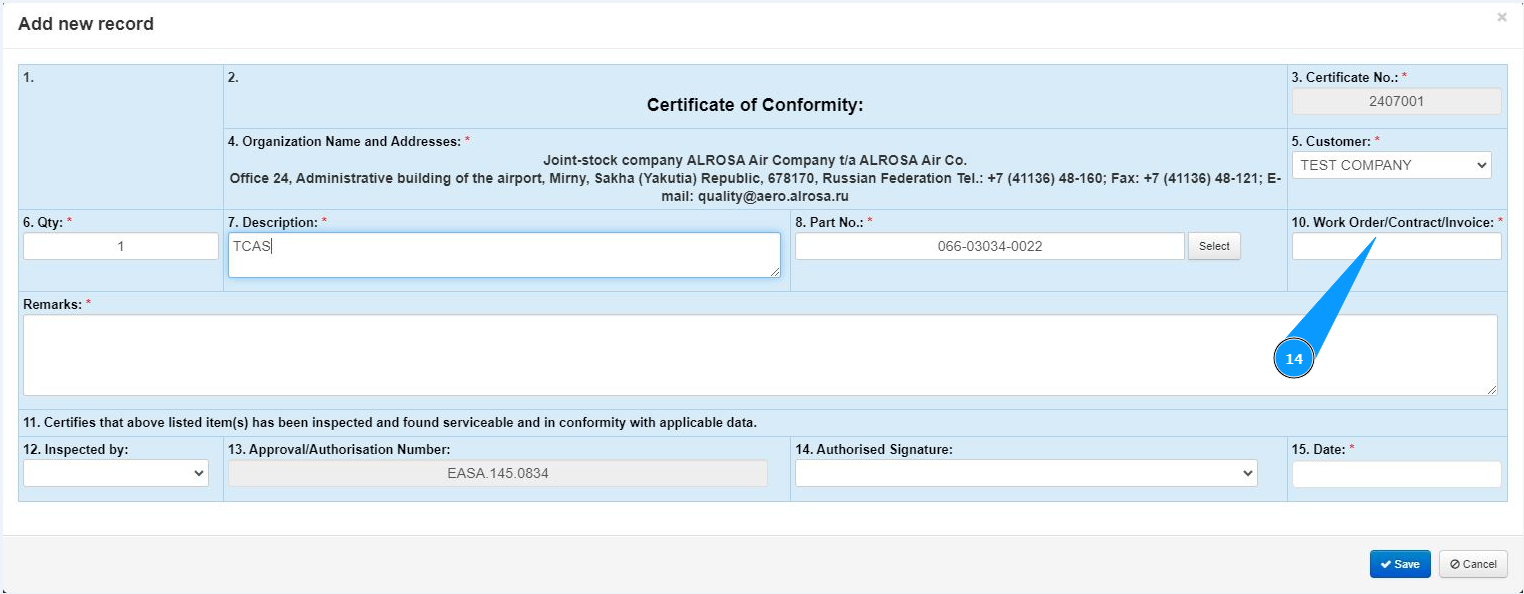
14. Enter the contract number, work order number or invoice number in the field "Work Order/Contract/Invoice".
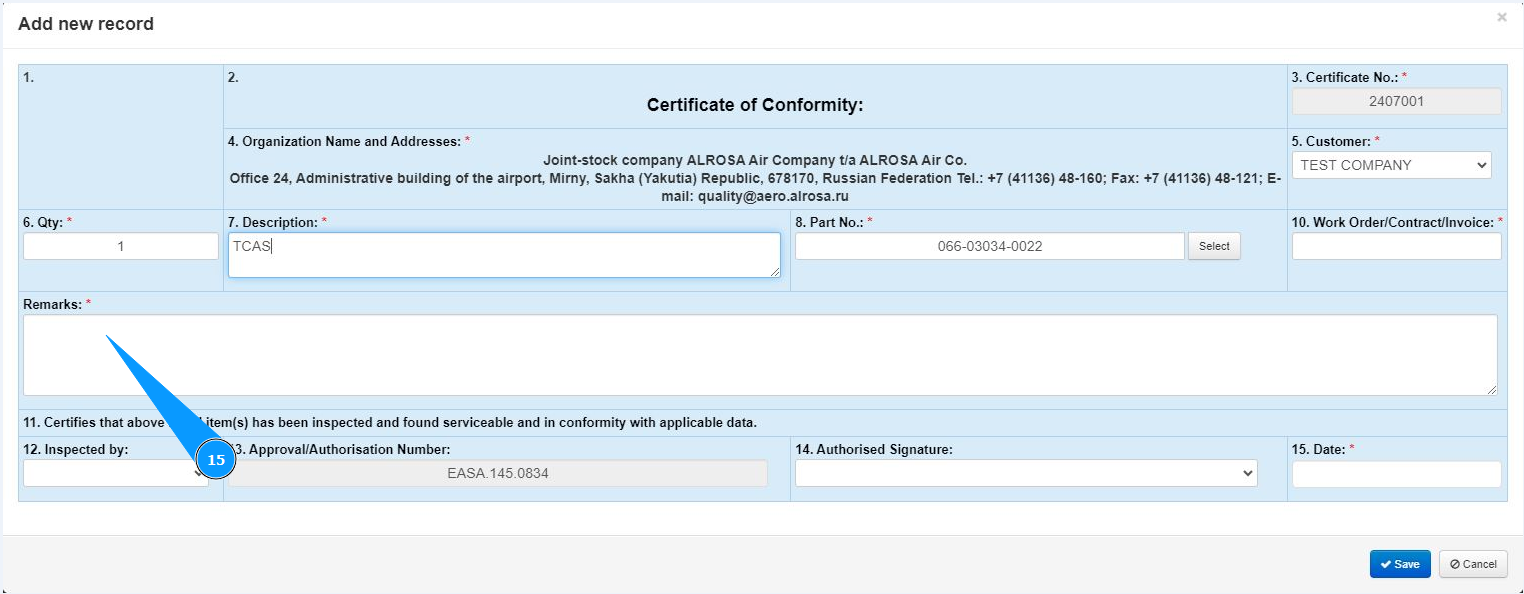
15. Enter a list of completed works or other comments in the field "Remarks".
16. Select from the dropdown list the personnel who performed the inspection in the field "Inspected by".
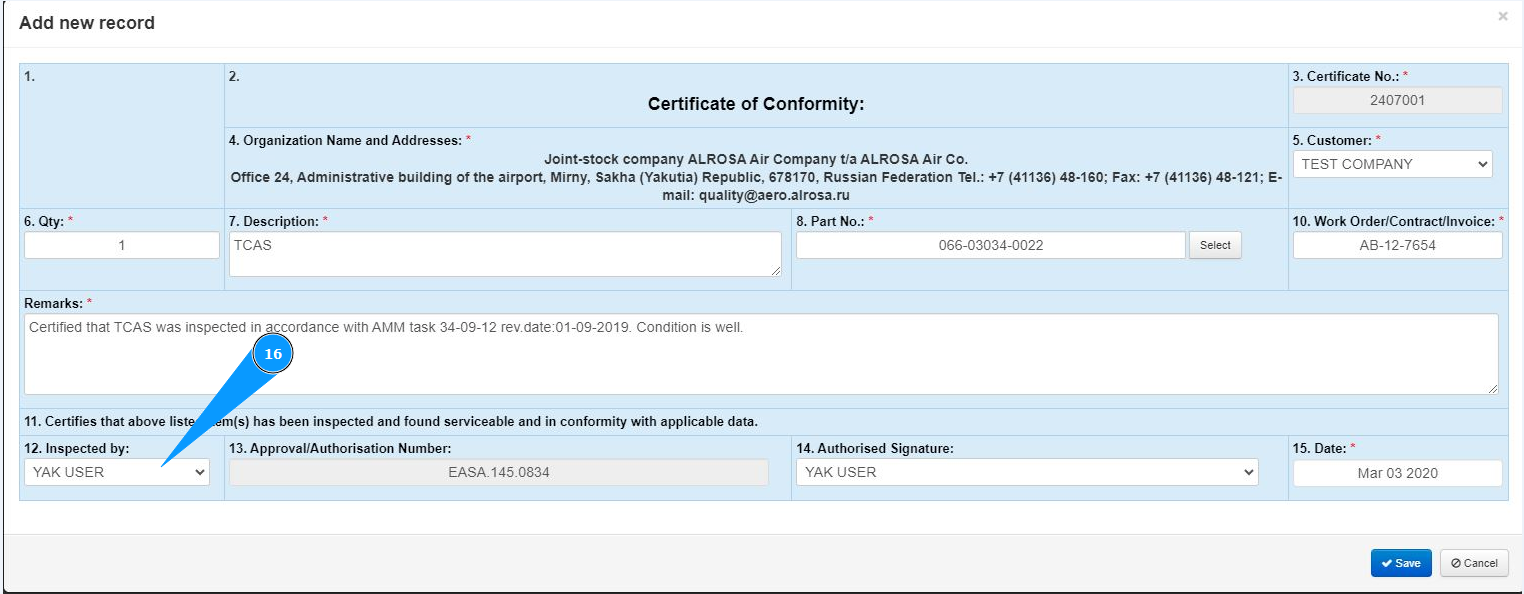
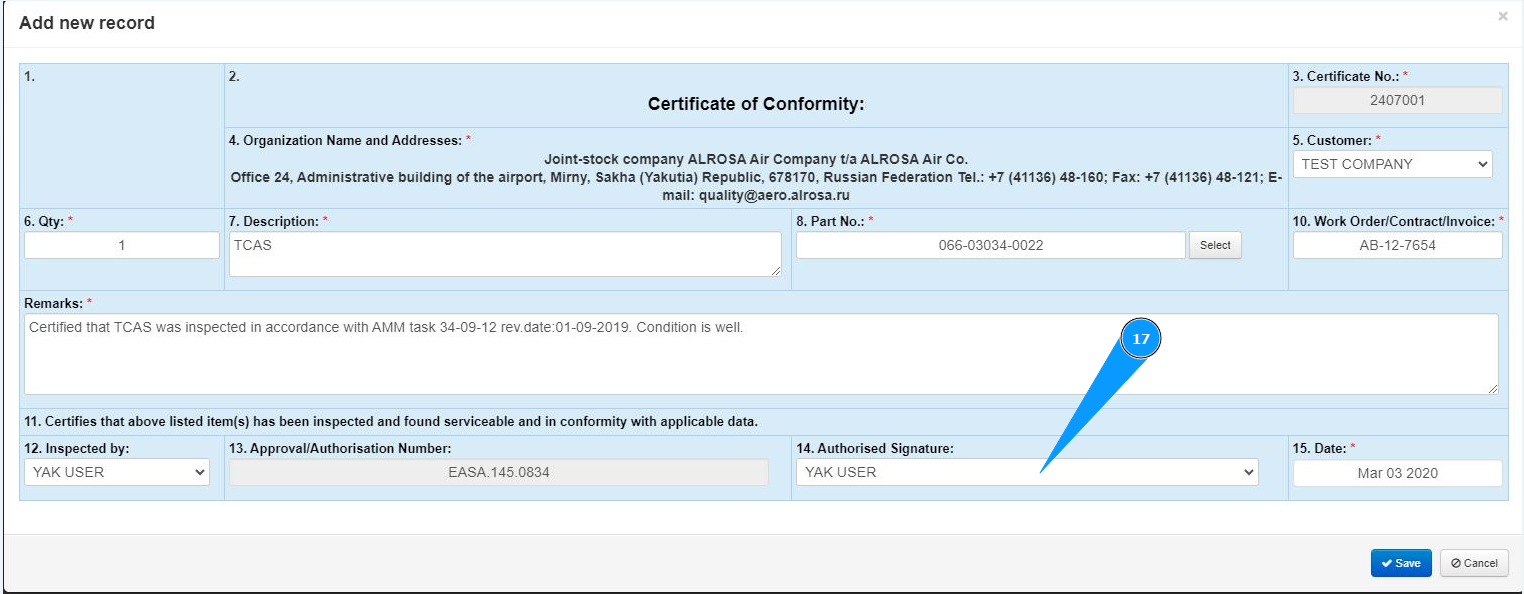
17. Select from the dropdown list the personnel who certified the product in the field "Authorized Signature".
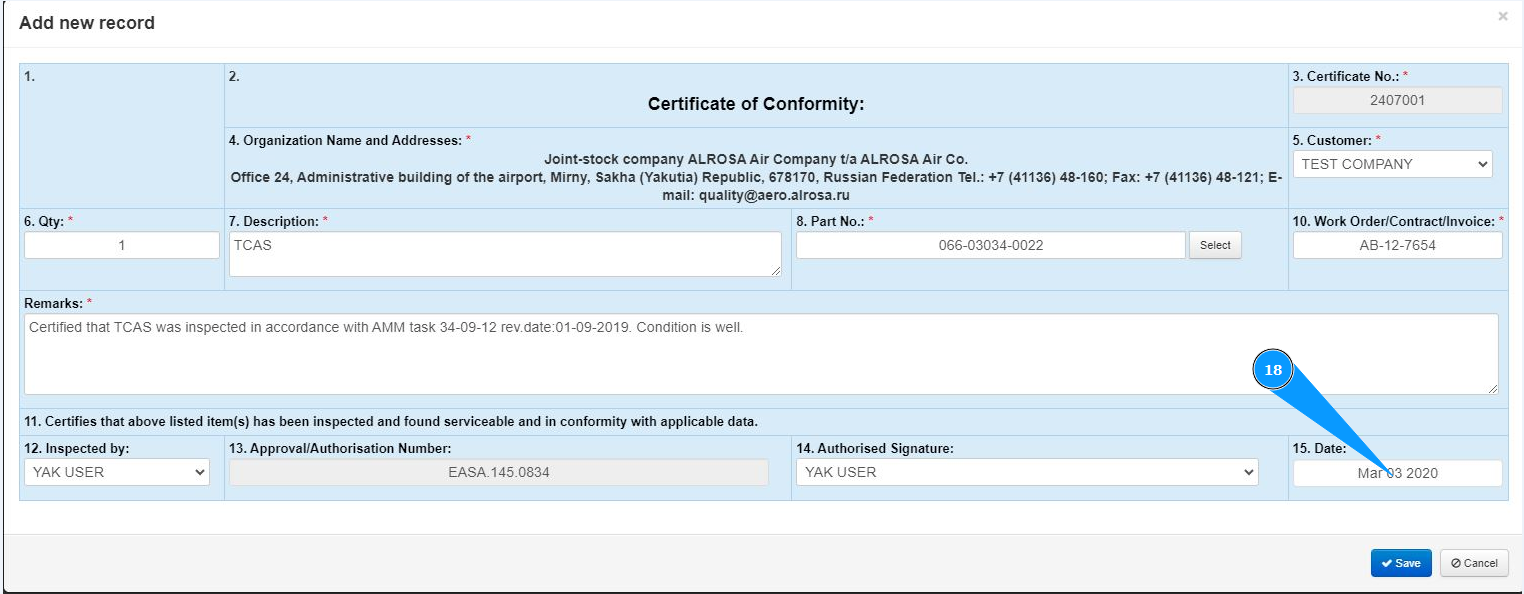
18. Enter the component certificate issue date in the field "Date" or select from the calendar.
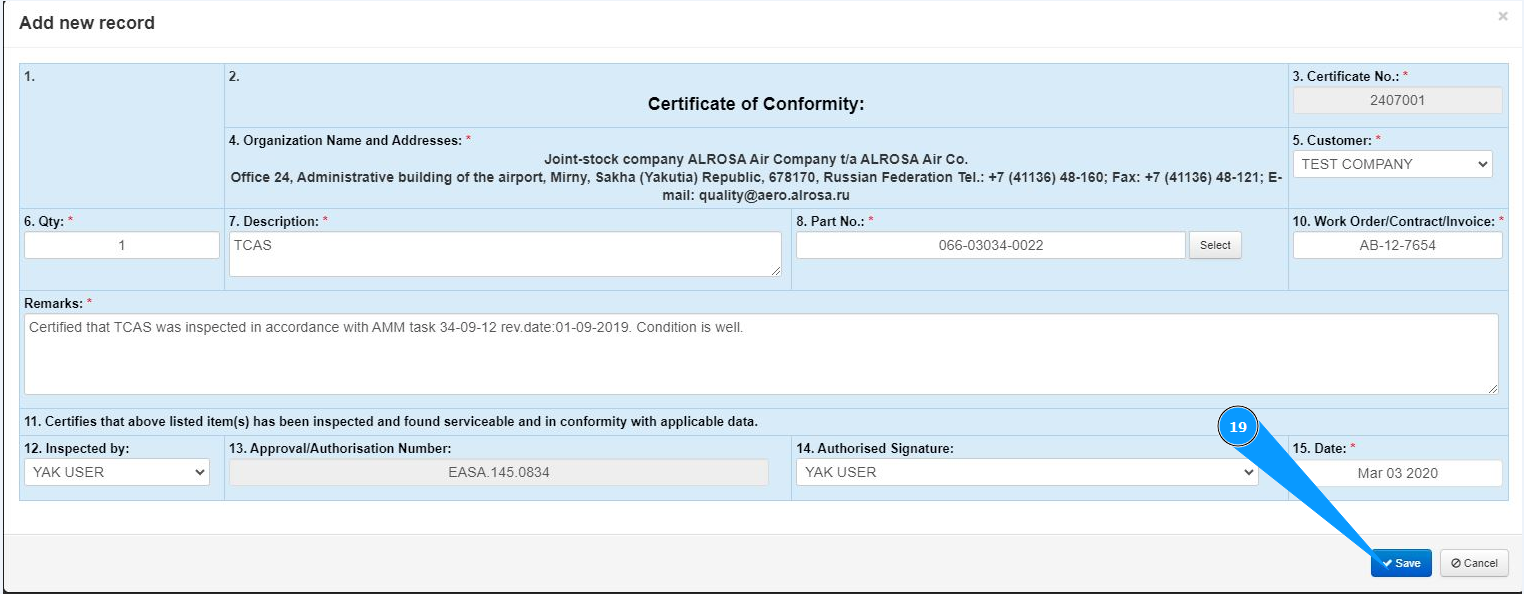
19. Click on the button "Save" to add the component certificate data to the program.
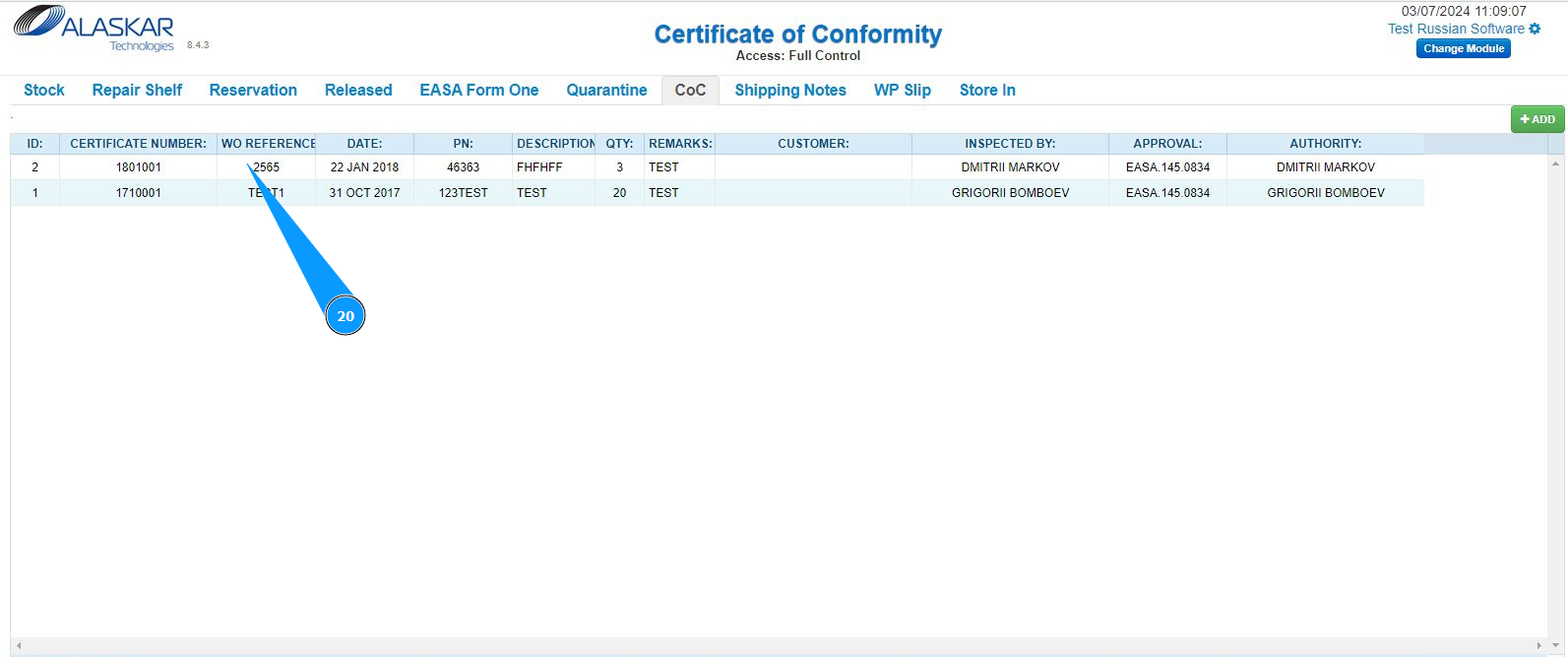
20. Check that the record with the component and its certificate is displayed in the list in the window "Certificate of Conformity".