How to delete a task from a work package
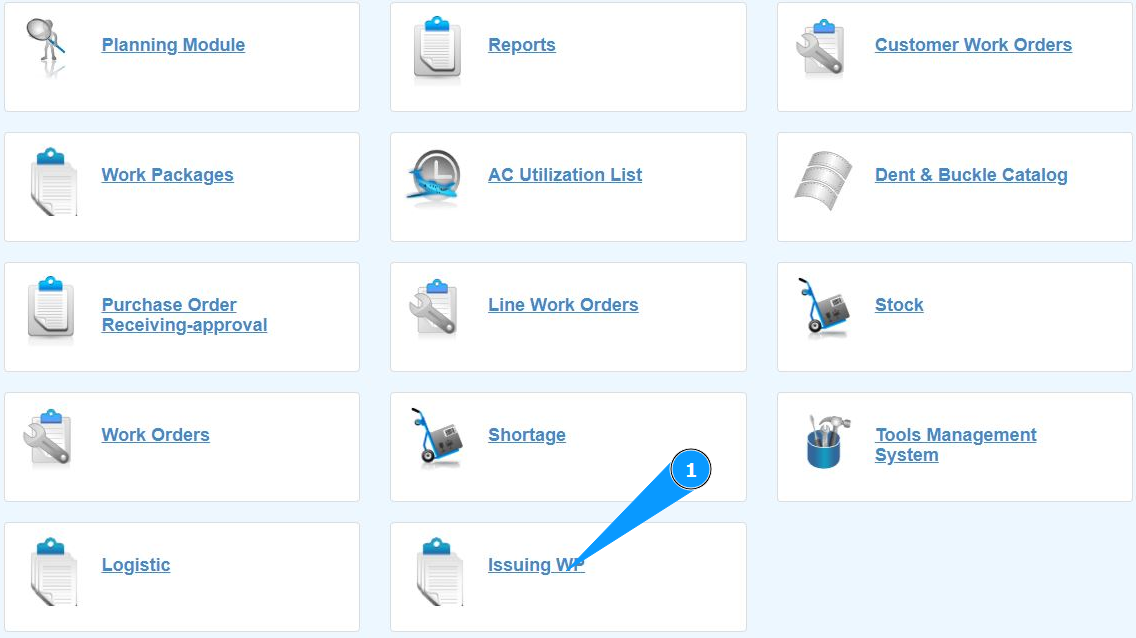
1. In order to delete a task from a work package, go to the submodule "Issuing WP".
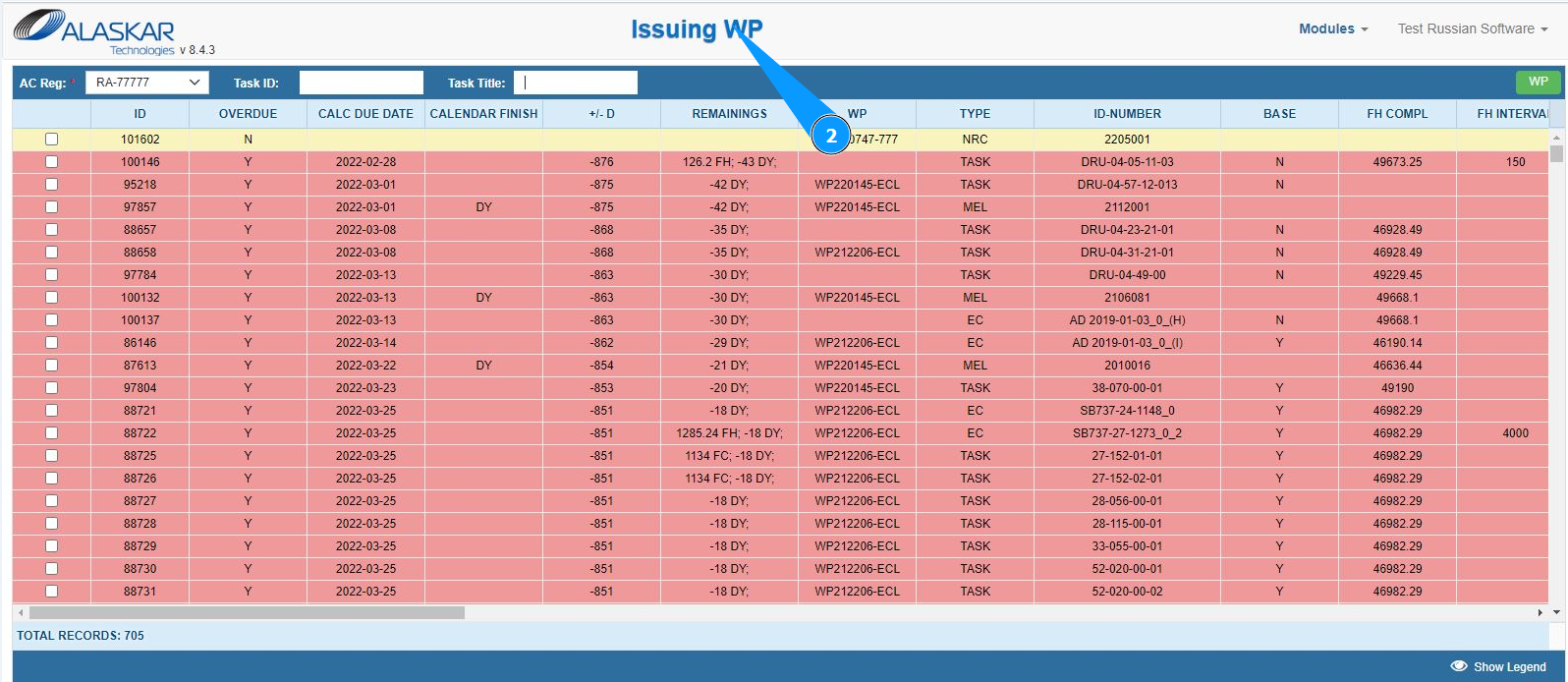
2. Make sure that the window for working with packages is open and accessible in the window "Issuing WP".
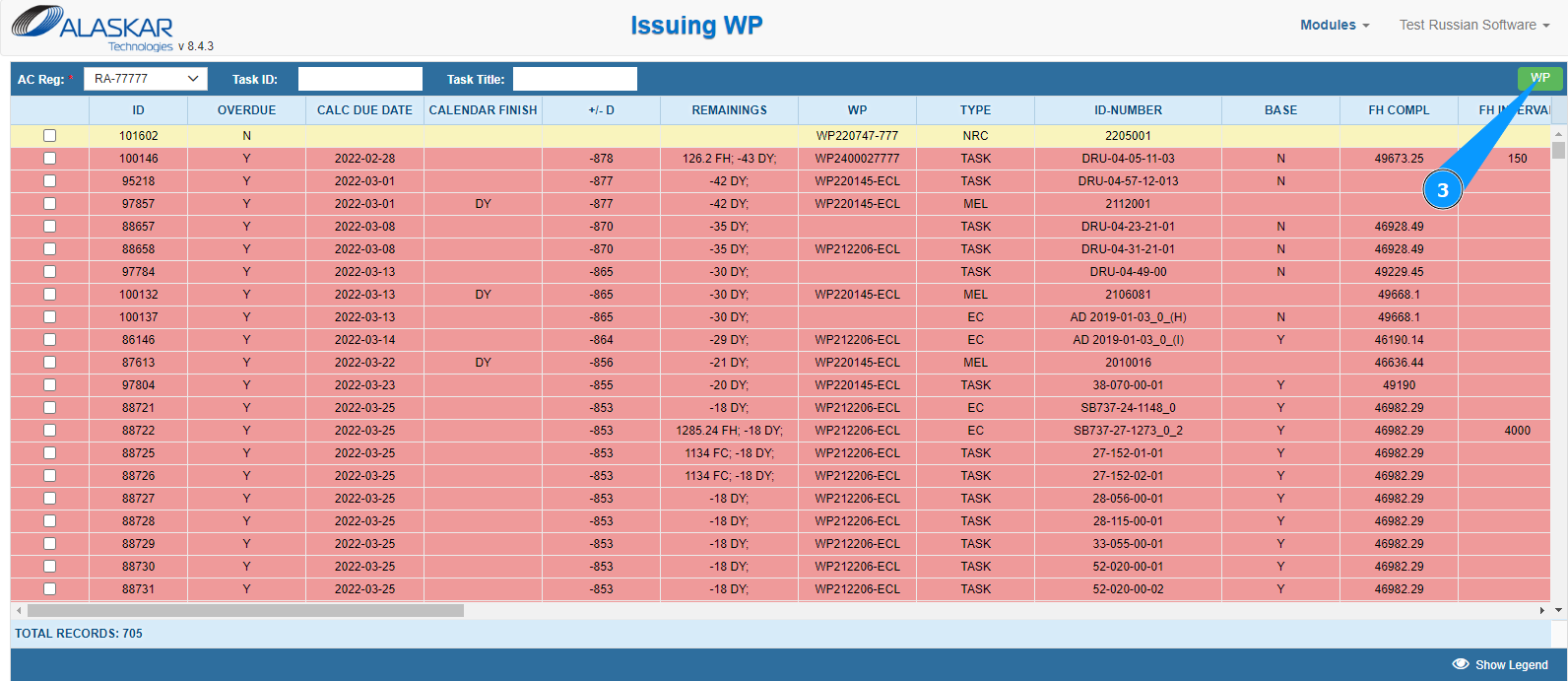
3. Click on the button "WP" to open the WP editor.
4. Make sure that the package editor is open and accessible in the window "Work Package Editor".
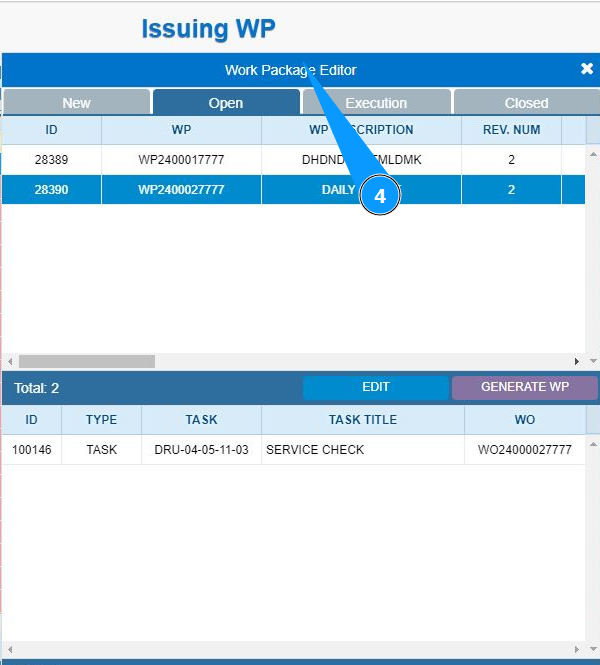
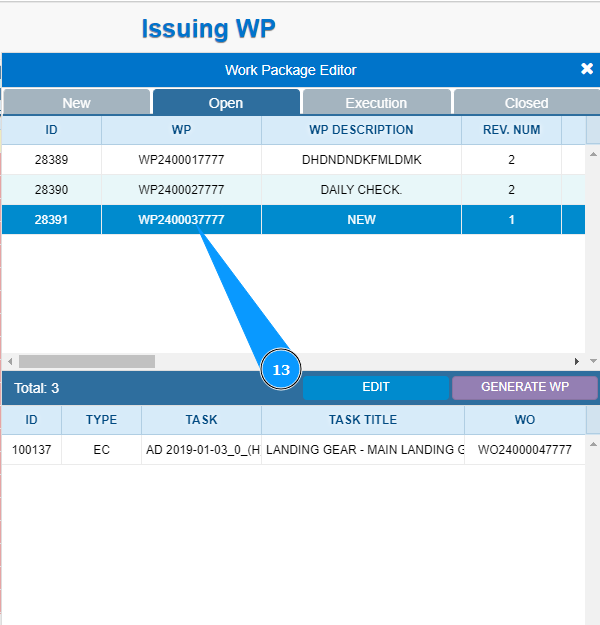
5. Then go to the open packages tab and click on the tab "Open".
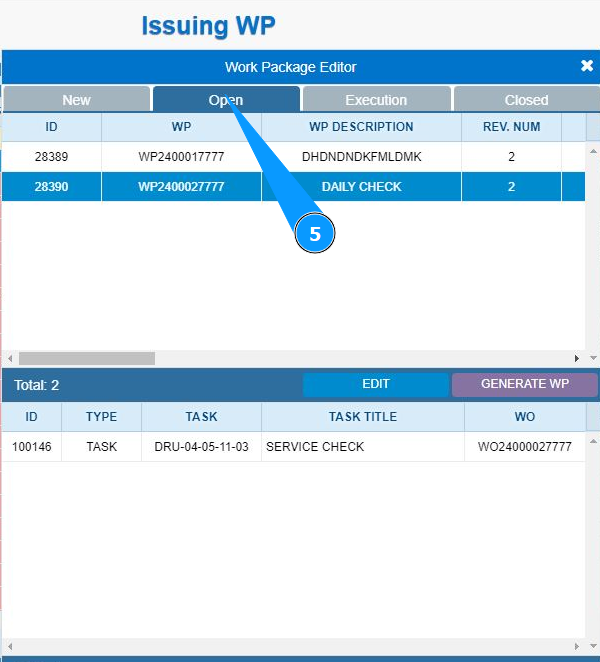
6. Select the work package required for editing from the list and click on the corresponding line.
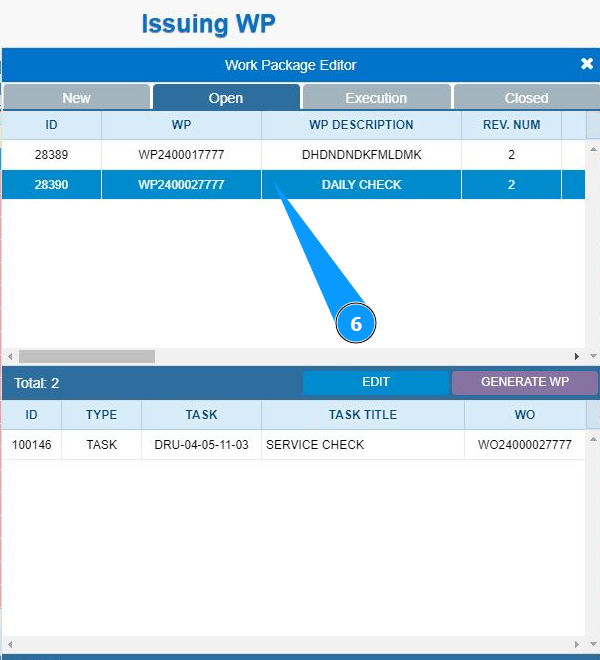
7. Click on the button "Edit" to open the package editor.
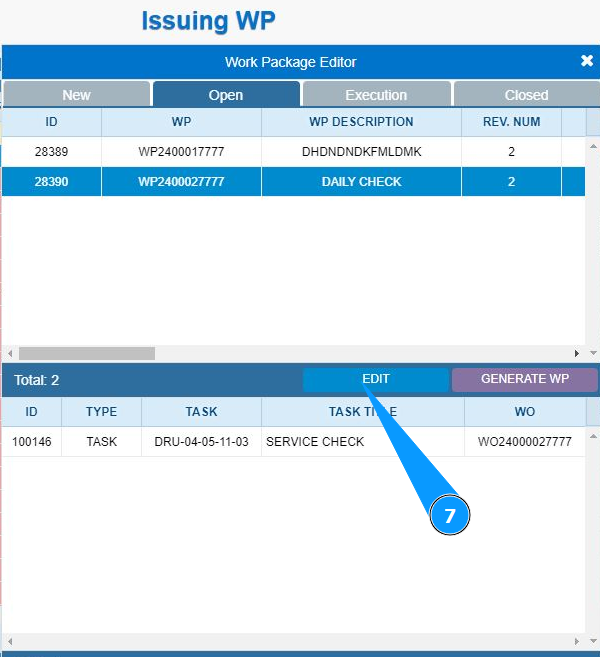
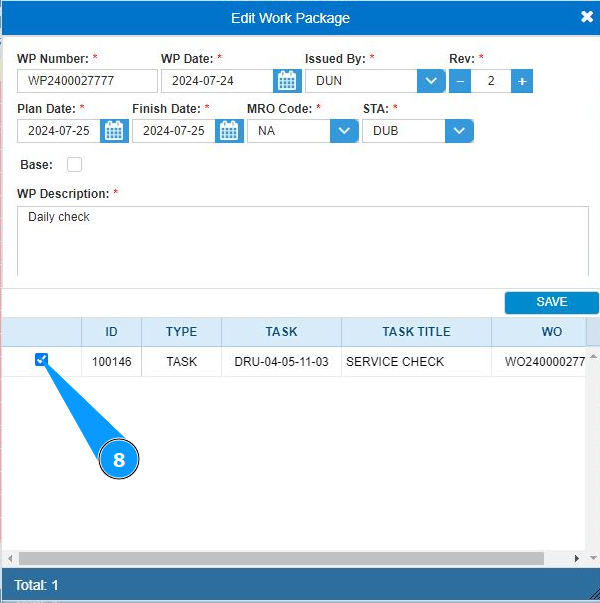
8. Click in the field next to the "ID" column to deselect the task.
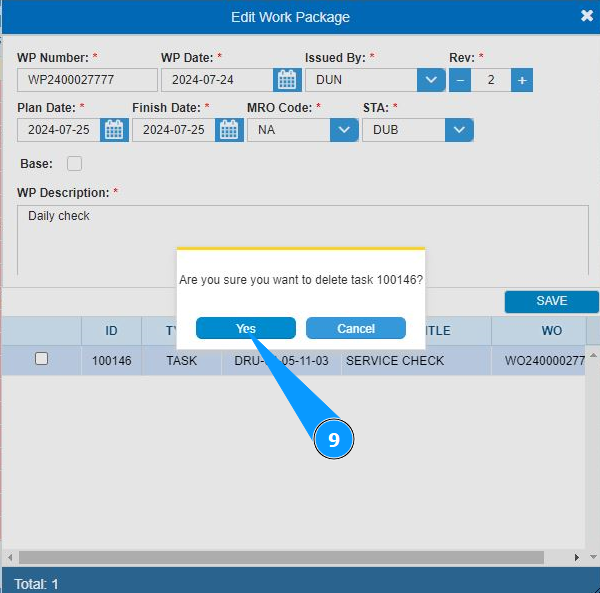
9. Click on the button "Yes" to confirm deleting this task from the work package.
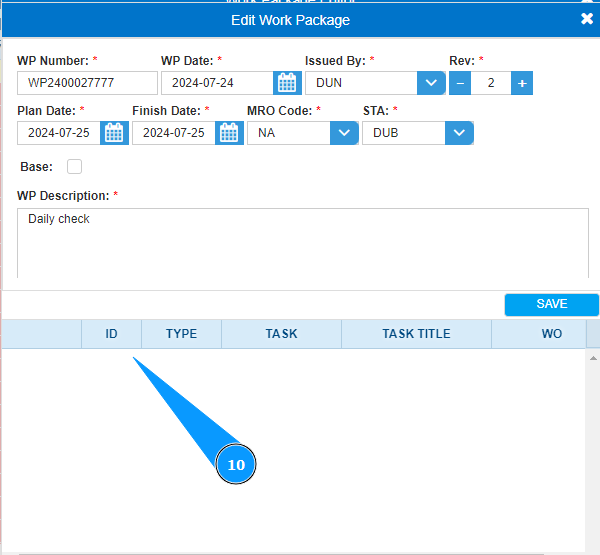
10. Check that the task has disappeared from the work package list.
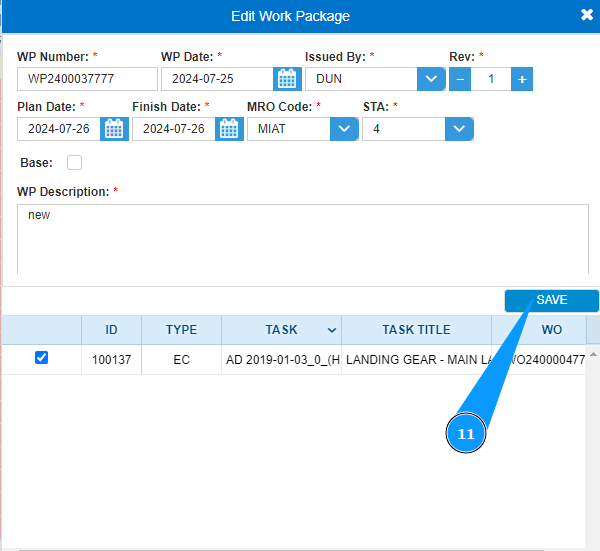
11. Click on the button "Save" to save the data to the program.
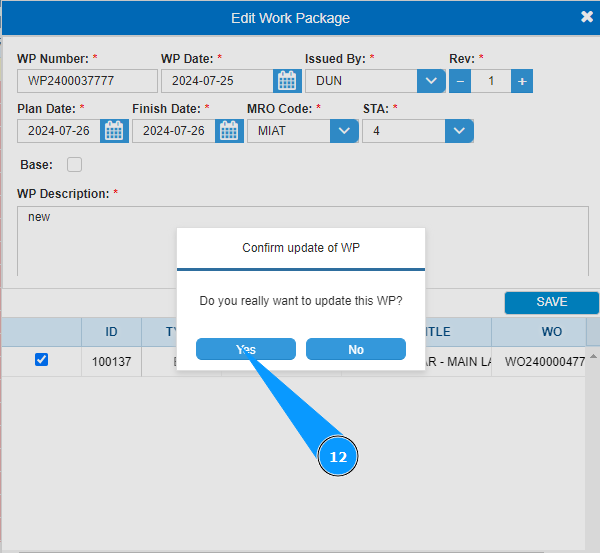
12. Click on the button "Yes" to confirm entering the data into the program.
13. Make sure that the Work Package is displayed in the tab "Open".