How to create a template of task in a work order
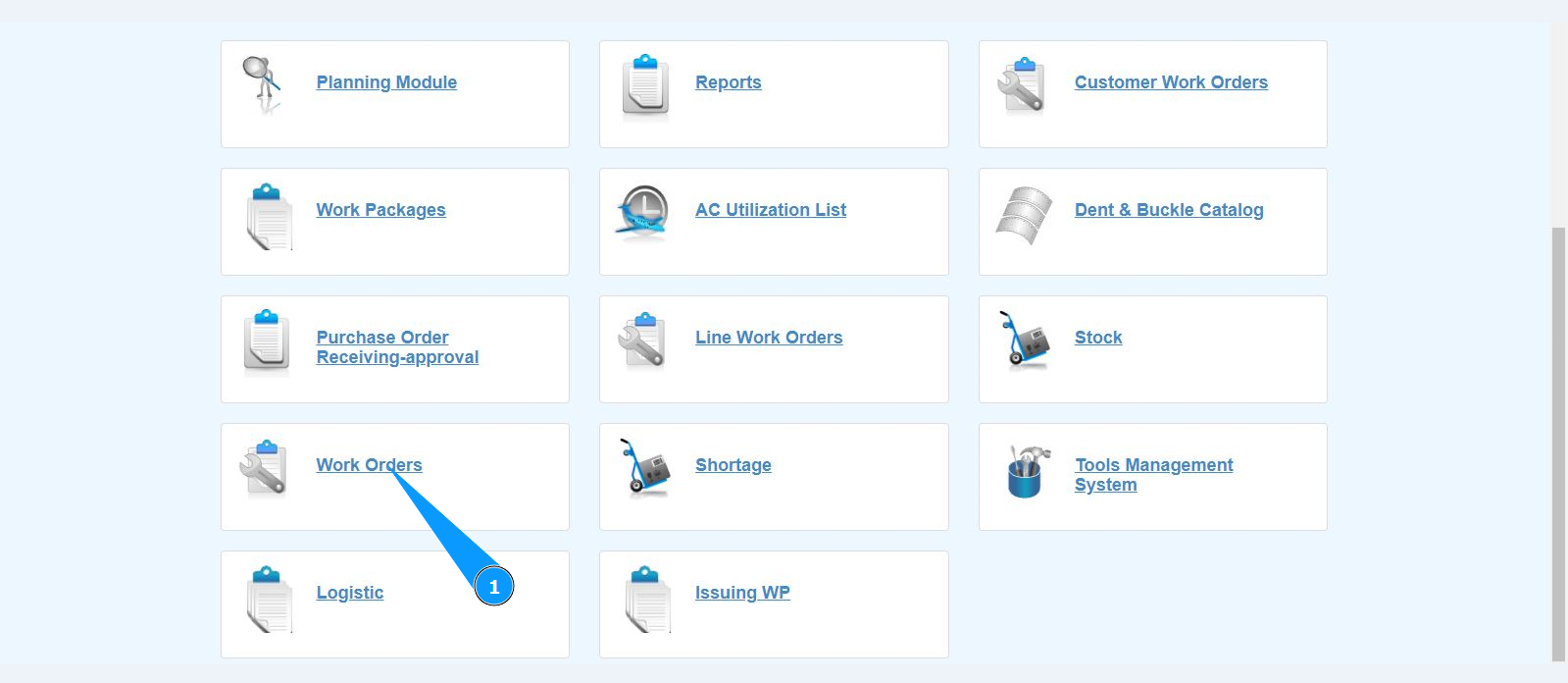
1. In order to create a template task in a work order, go to the "Work Orders" submodule.
2. Make sure that the window for working with WO is open and accessible in the window "Work Orders".
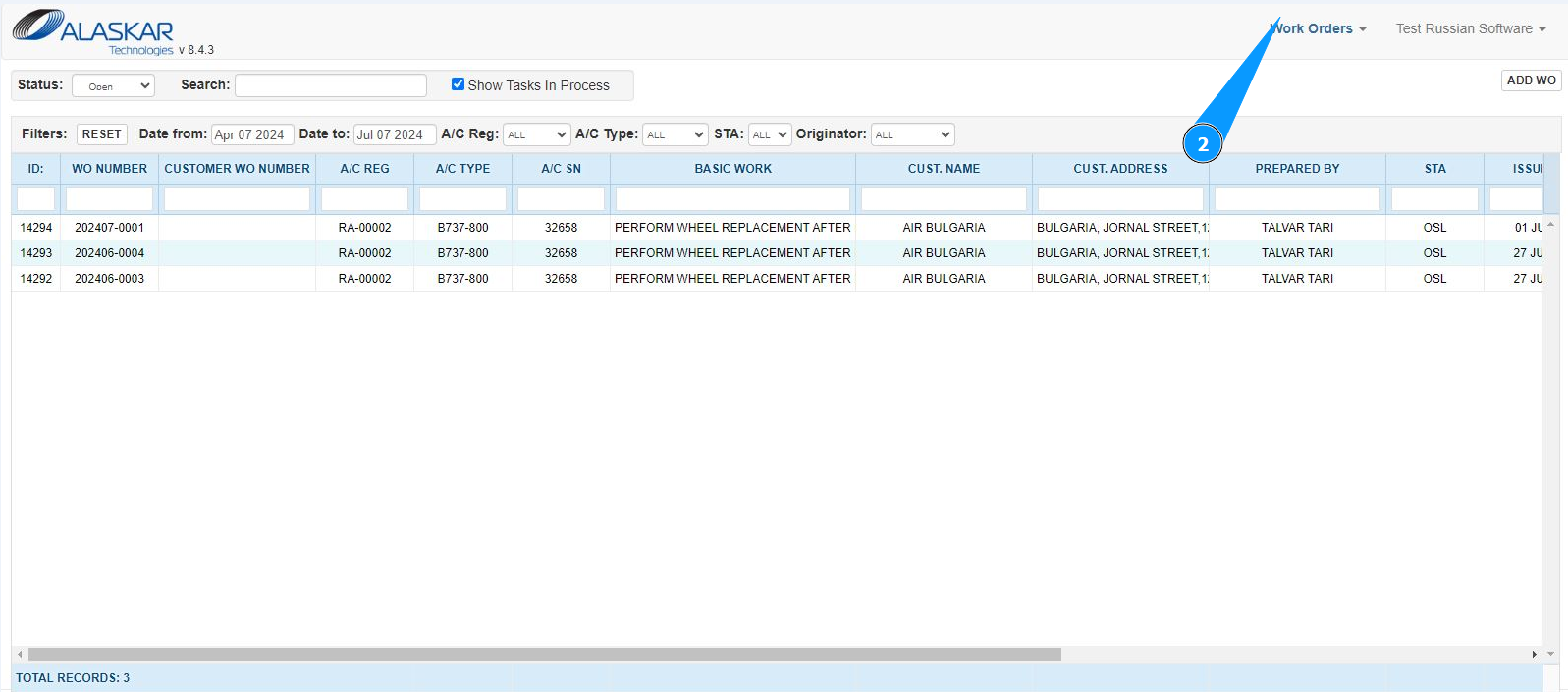
3. Select the required work order and click on the corresponding line. Note: If necessary, use the available filters in the fields: "A/C Reg.", "A/C Type", "STA" and so on.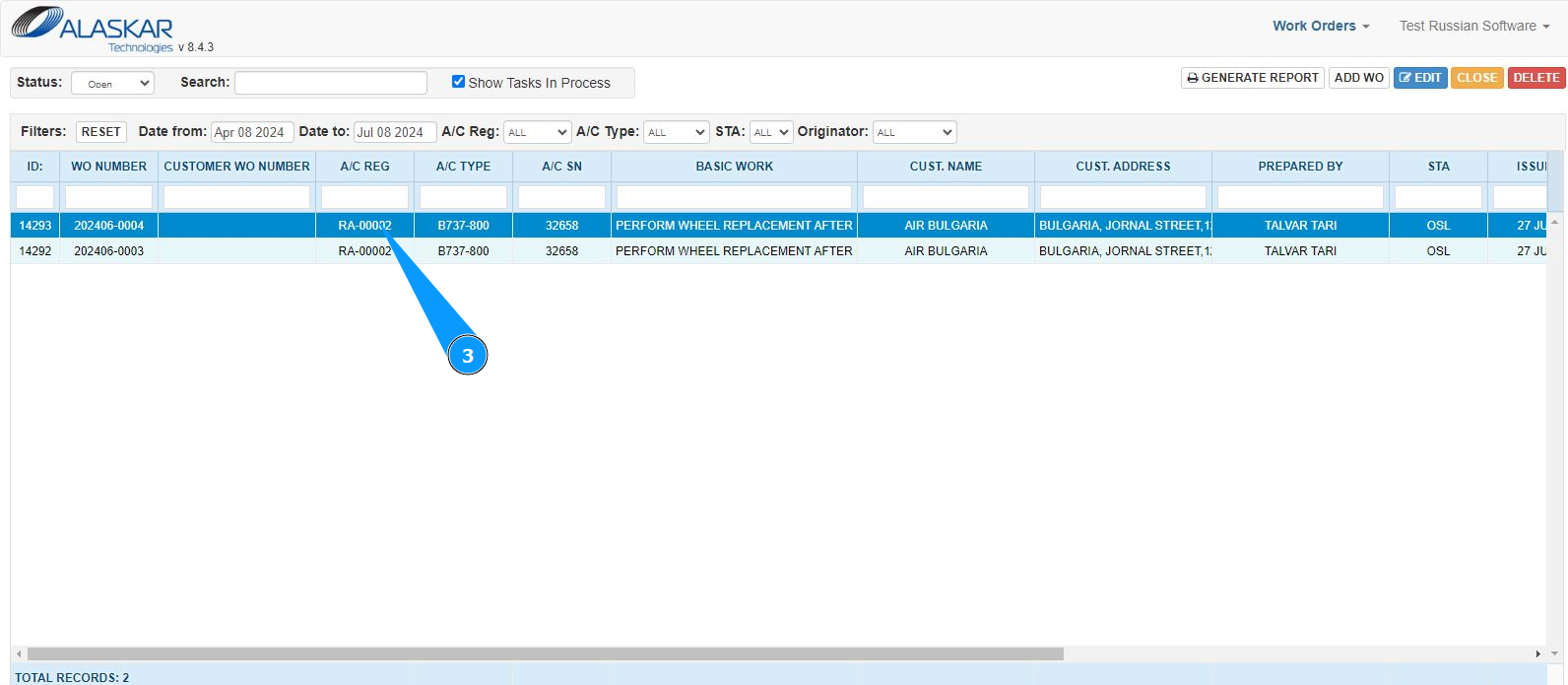
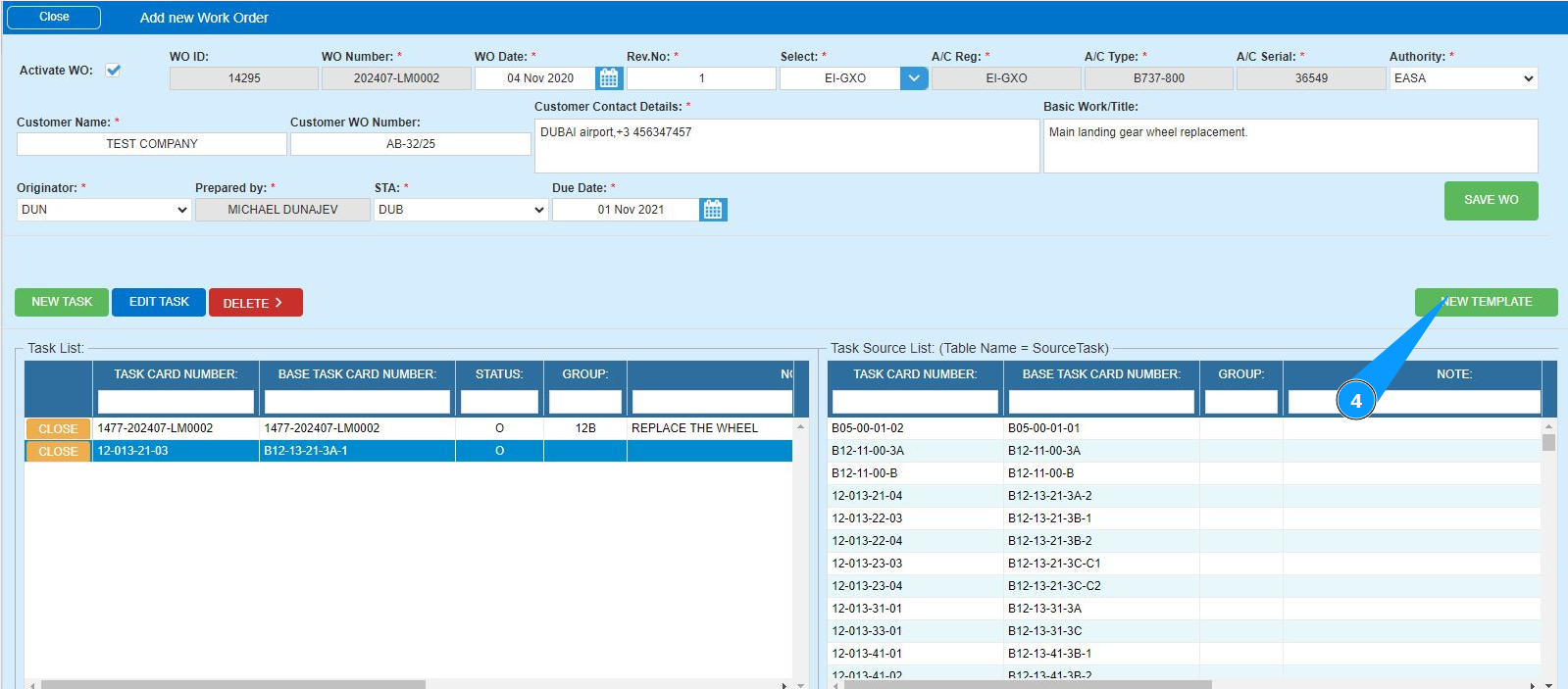
4. Click on the button "New Template" to open the mode for creating a template task.
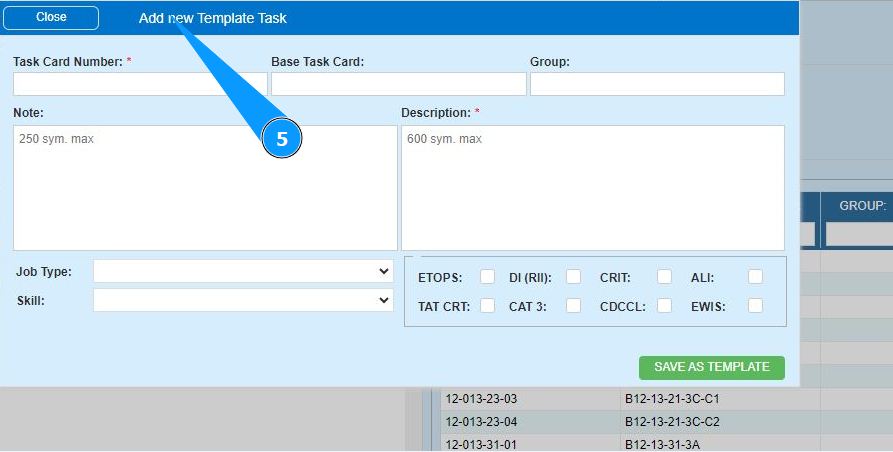
5. Make sure that the window for working with templates has opened and is available in the window "Add new Template Task".
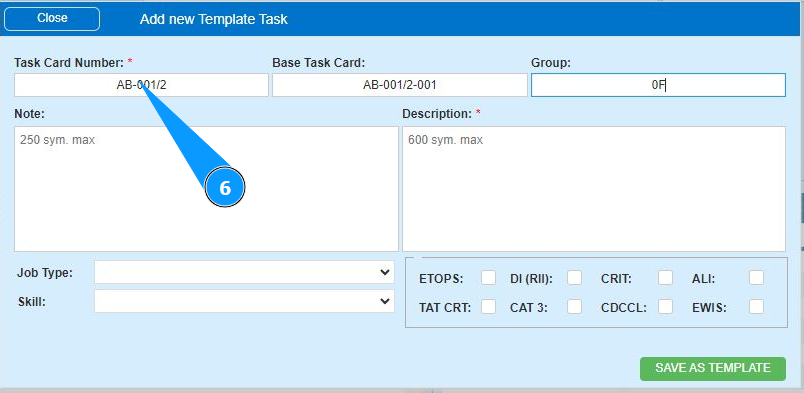
6. Enter the task number in the field "Task order Number".
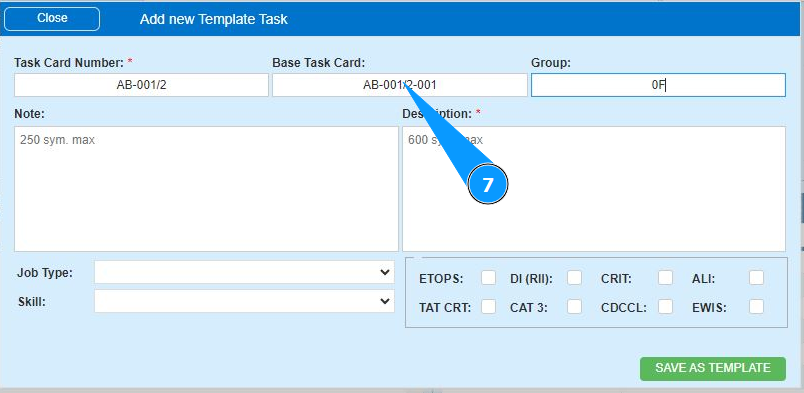
7. If necessary, enter the name of the basic task in the field "Basic Task order".
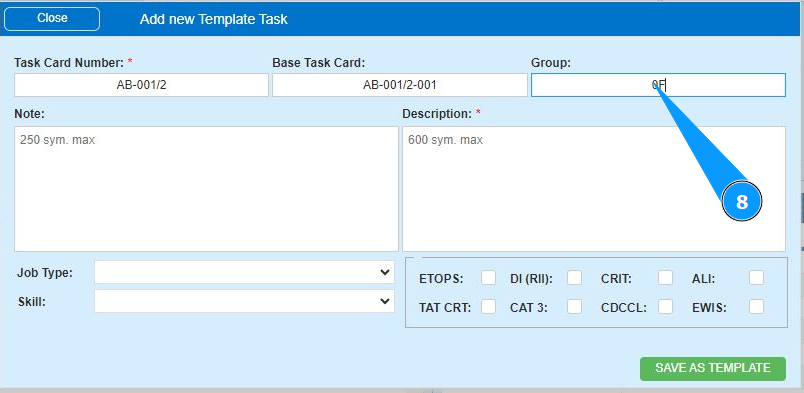
8. Enter the number of the task group and click in the field "Group".
9. Select the task group number from the list in the window "Group Name" and click on the corresponding line.

10. Click on the button "Select" to select the group number.

11. If necessary, add any comments in the field "Note".
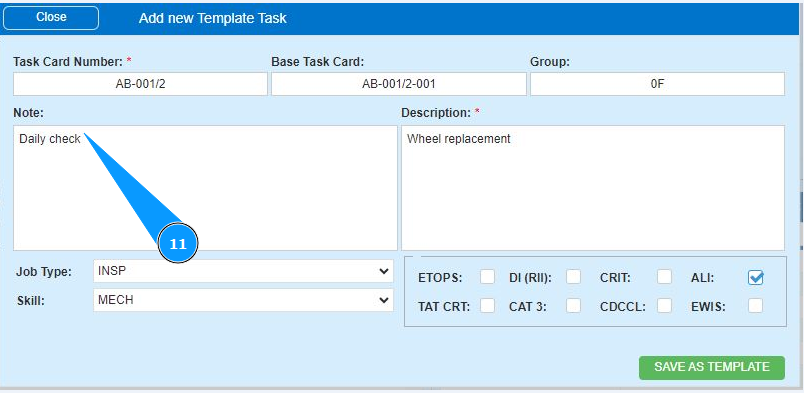
12. Enter a description of the task in the field "Description".

13. If necessary, select the task type from the dropdown list in the field "Job Type".

14. If necessary, select the task specialization from the dropdown list in the field "Skill".

15. If necessary, enter additional criteria for completing the task in the fields: "Etops", "DI(RII)", "CRIT" and so on.

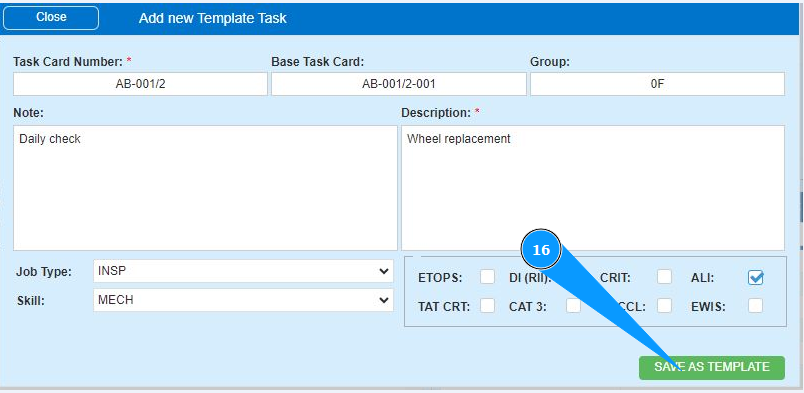
16. Click on the button "Save Task" to save the task template data.
17. Make sure that the new template task is displayed in the window "Task List". Note: If necessary, to add a task to the work order, click on the button "Add Task".