How to create an NRC (Non-routine card) from a Technical logbook
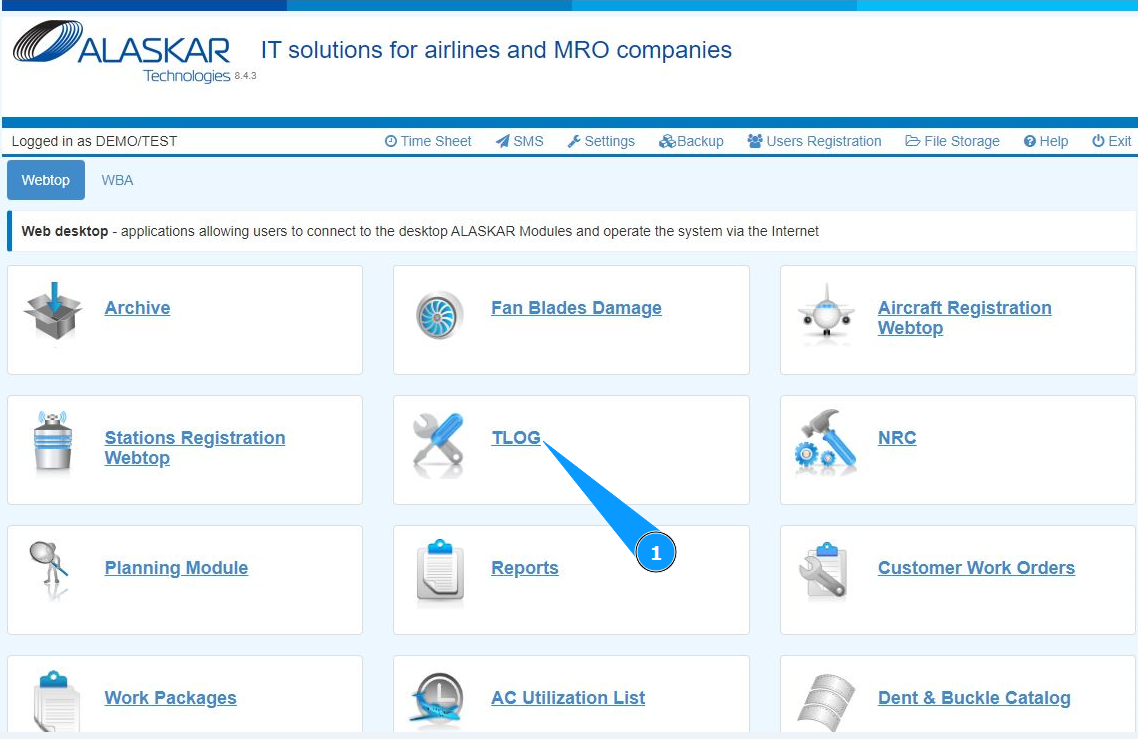
1. In order to create an NRC (Non-routine card) about a defect or malfunction from a technical logbook, go to the "TLOG" submodule.
2. Select the required logbook record and click on the corresponding line. Note: If necessary, use the available searching filters in the fields: "AC Reg.", "Date From", "Date To".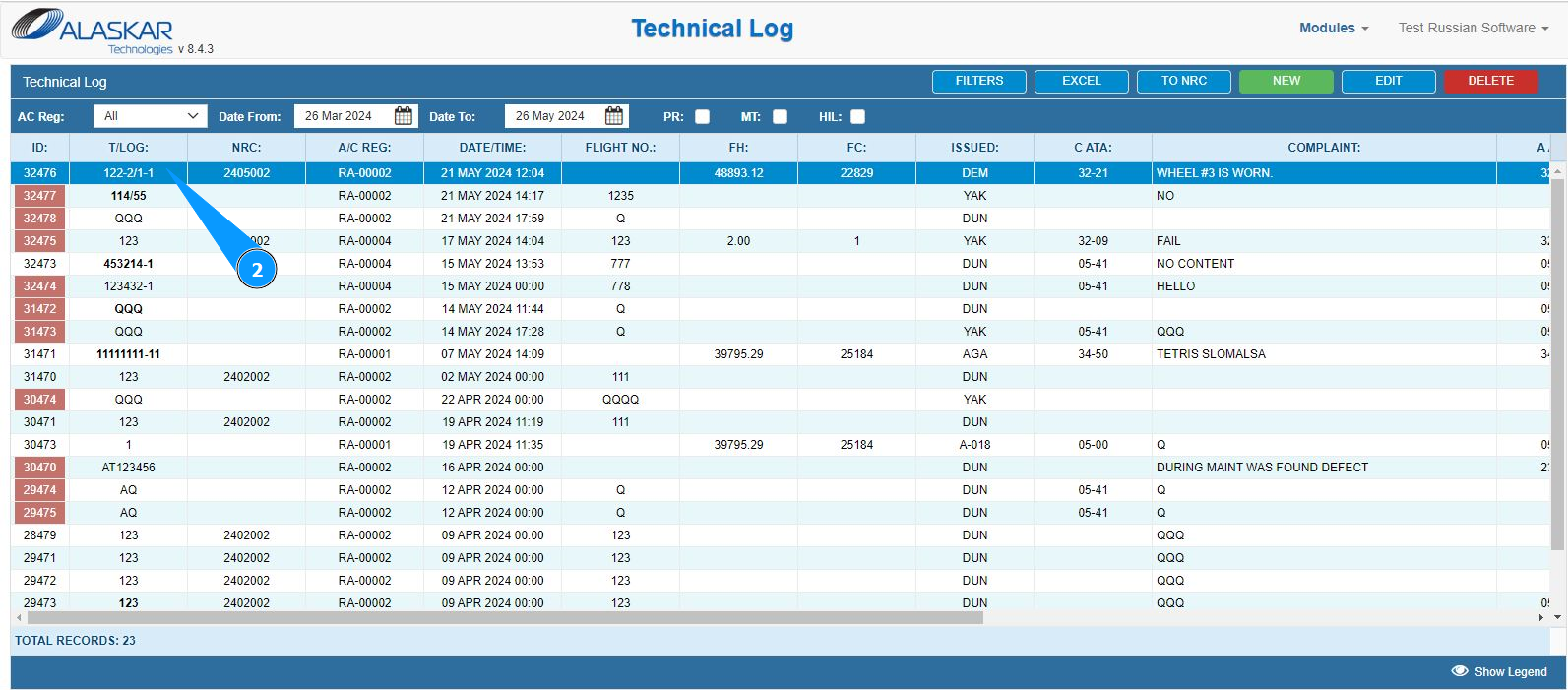
3. Press the button "NRC" to open the NRC record editor.
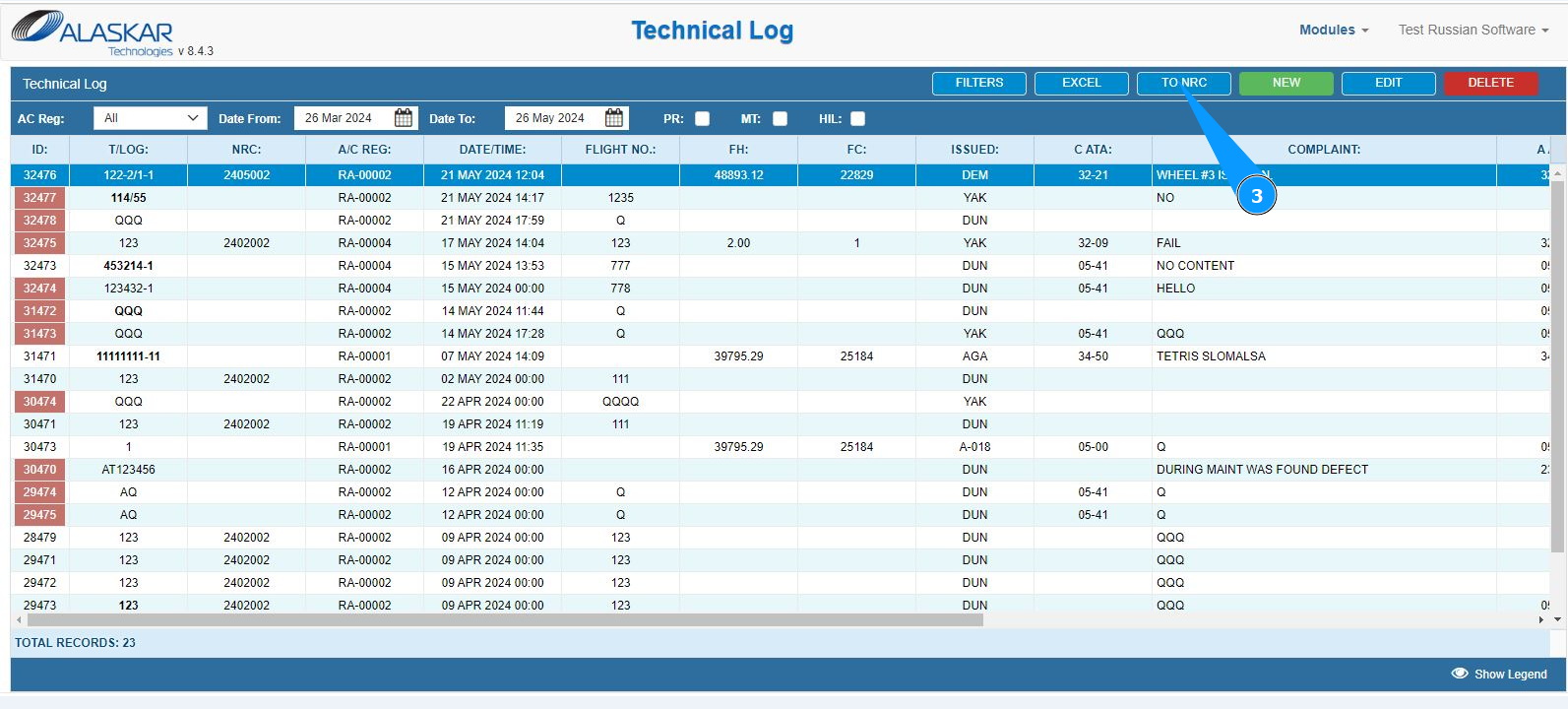
4. Click the button "Yes" to confirm creating an NRC from Tech. Log.

5. Make sure that the NRC editor is open and accessible in the "NRC Editor" window. Note: The number of NRC is automatically generated with Alaskar in the field "Non-Routine Card No.".
6. If the aircraft is on the ground and cannot be used for flight withpot maintenance, click in the field "AOG", defining the "aircraft on the ground" state.

7. If necessary, enter a marker for recording a defect or deviation in the fields: "Pr.", "Mtx", "Schd", *"ETOPS" *, "NEF", "WIL".

8. If necessary, enter a flight delay marker in the field: "Technical Delay".
9. Enter the reason or flight delay code in the field: "Delay Note".

10. Enter the aircraft registration number in the field "A/C Reg." field or select from the dropdown list.
11. Enter the aircraft type in the field "A/C Type" field.
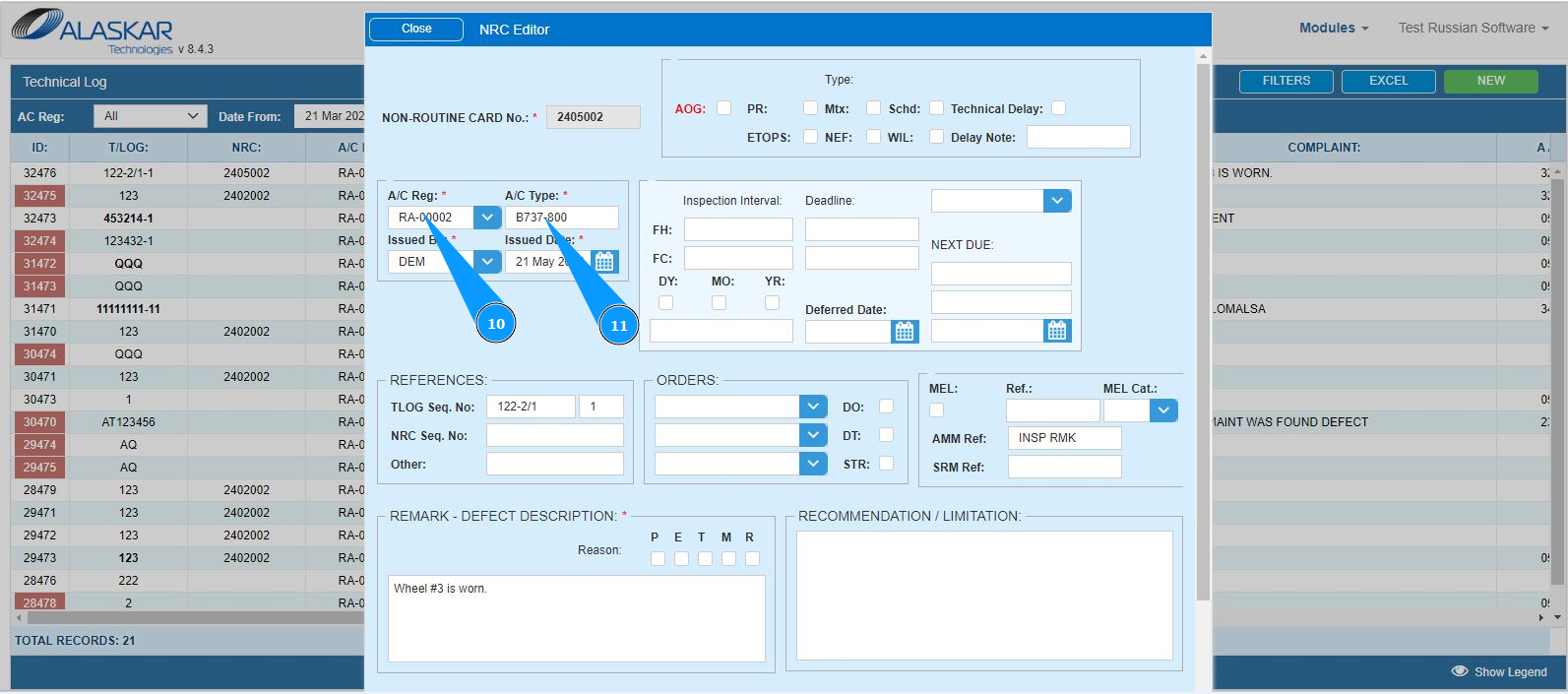
12. Enter the initials of the artist or creator of the NRC (in accordance with your company policy) in the field **"Issued by" ** or select from the dropdown list.
13. Enter the NRC issue date in the field "Issue Date" field or select from the calendar.
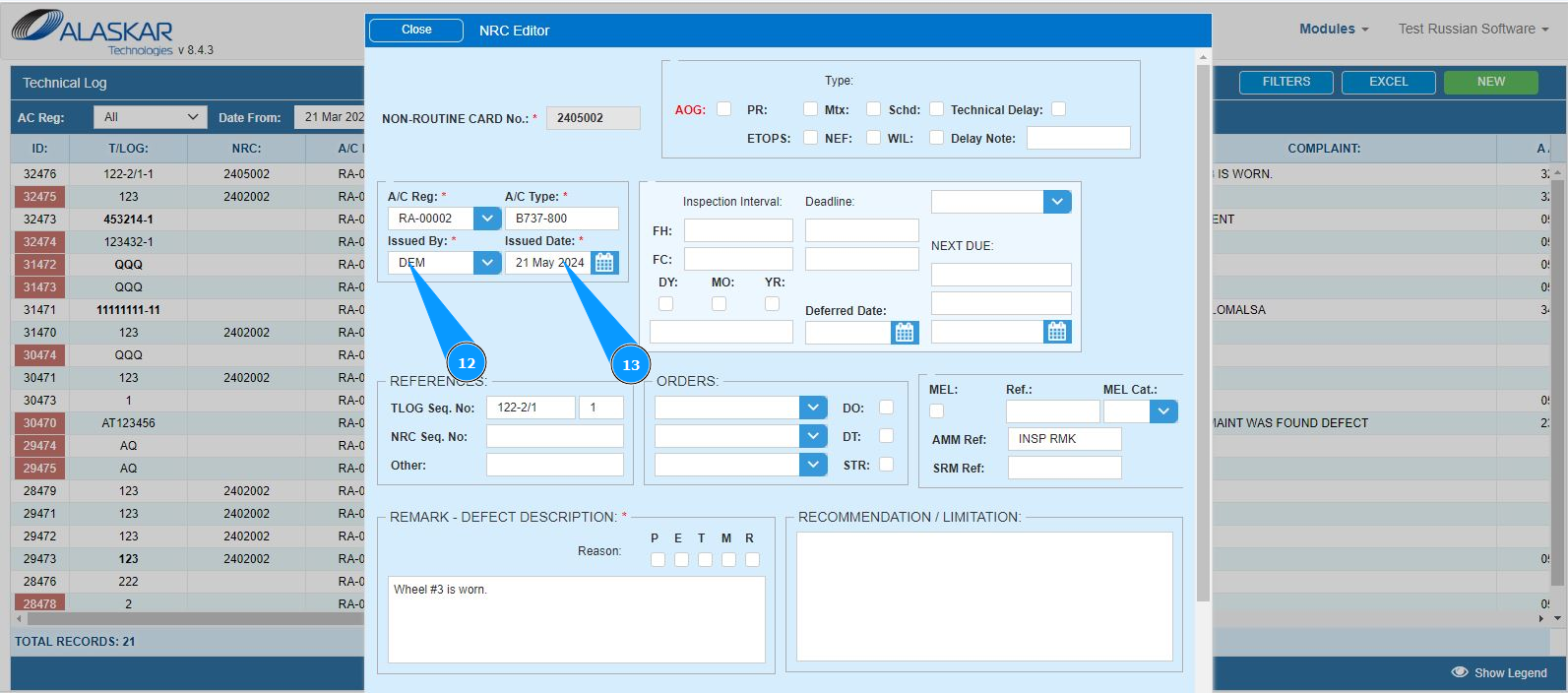
14. If necessary, enter NRC repeatability criteria in the fields: "Inspection Interval", "Deadline", "Next Due".

15. If necessary, the date of the deferred NRC in the field: "Deferred Date".

16. If necessary, fill in the reference fields in the window: "References". Note: The logbook number will be entered automatically by the program in the field "T/Log Seq. No." field.
17. If the NRC was delayed by MEL, fill in the corresponding fields in the window: "MEL".

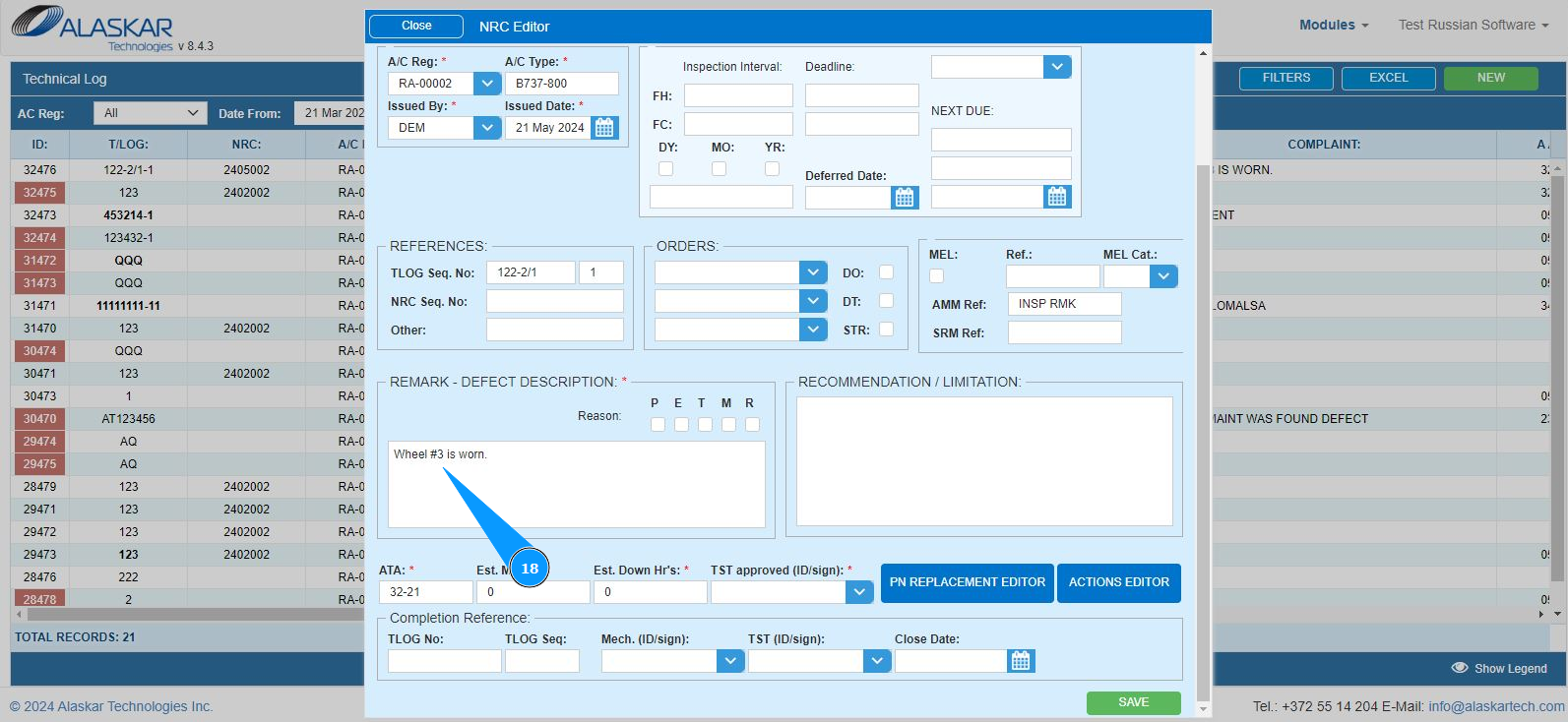
18. Enter the necessary information about the defect in the window "Remark-Defect Description".
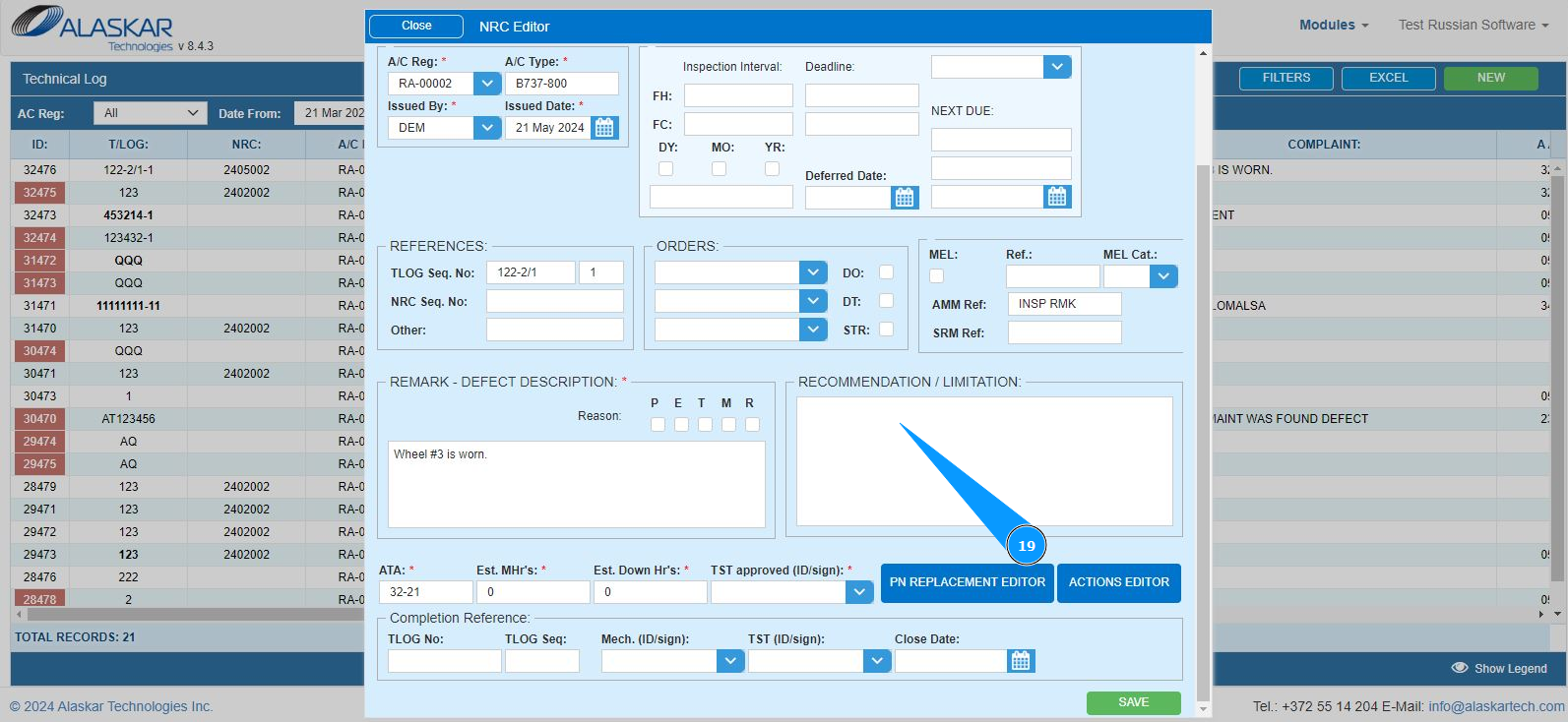
19. Enter the required information about recommended maintenance actions on the aircraft in the field "Recommendation/Limitation".
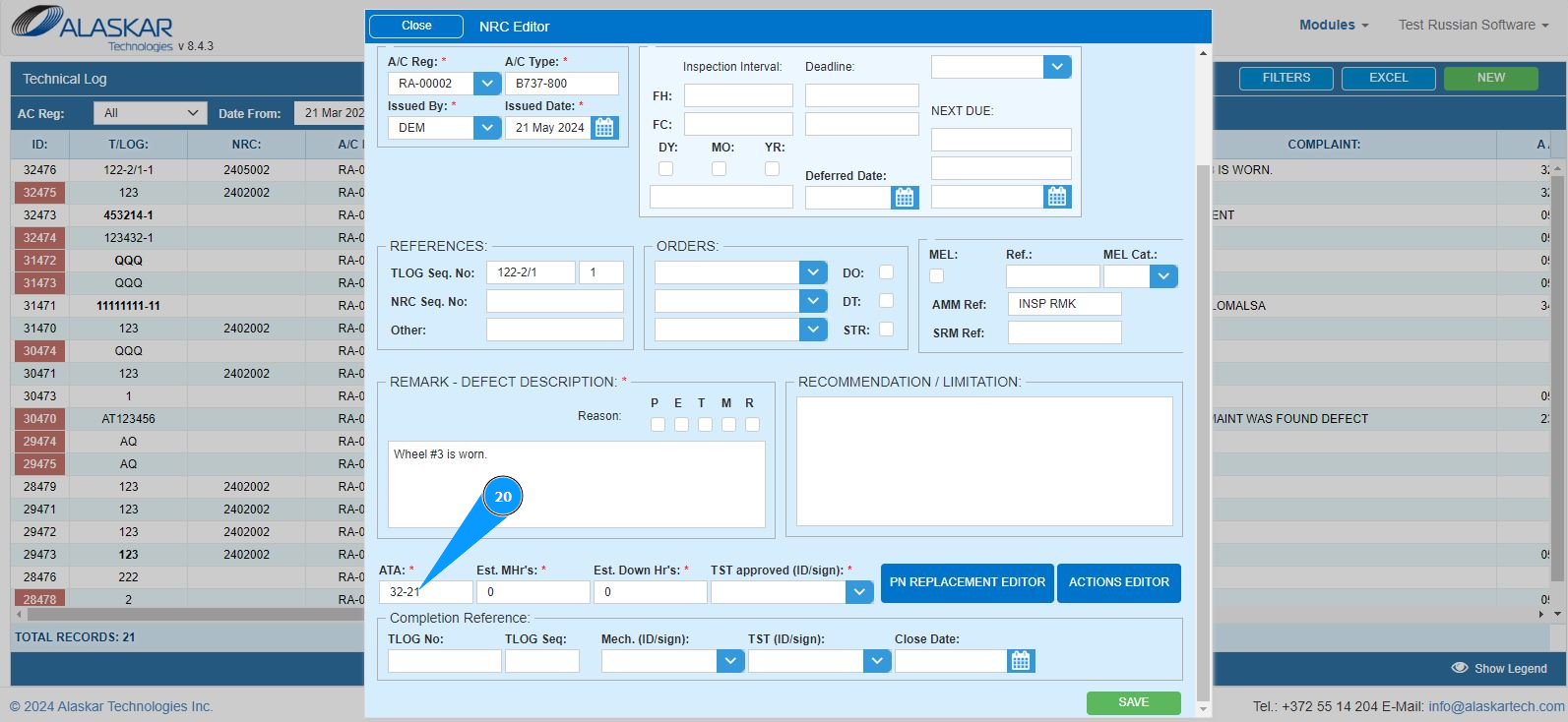
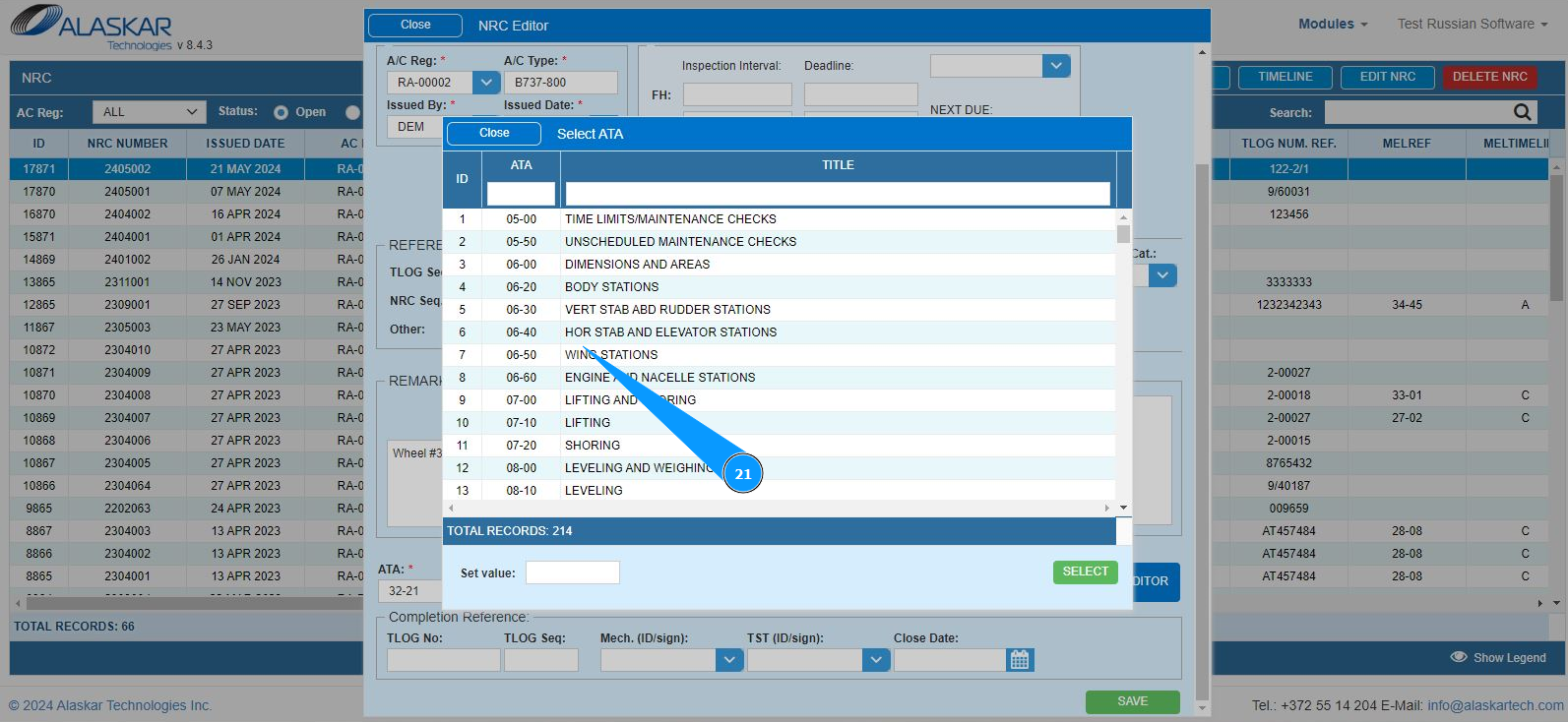
20. In order to enter the ATA number, click on the field "ATA".
21. Select the required line with ATA from the dropdown list by scrolling, double click on the corresponding line.
22. Enter the planned quantity of man-hours in the field "Est.MHr's".
23. Enter the predicted aircraft downtime in the field "Down Hr's".
24. Enter the data of the NRC executor or creator (in accordance with your company policy) in the field "TST approved (ID/Sign) Certifying Staff" or select from the dropdown list.

25. Click the button "Save" to add NRC to the program.

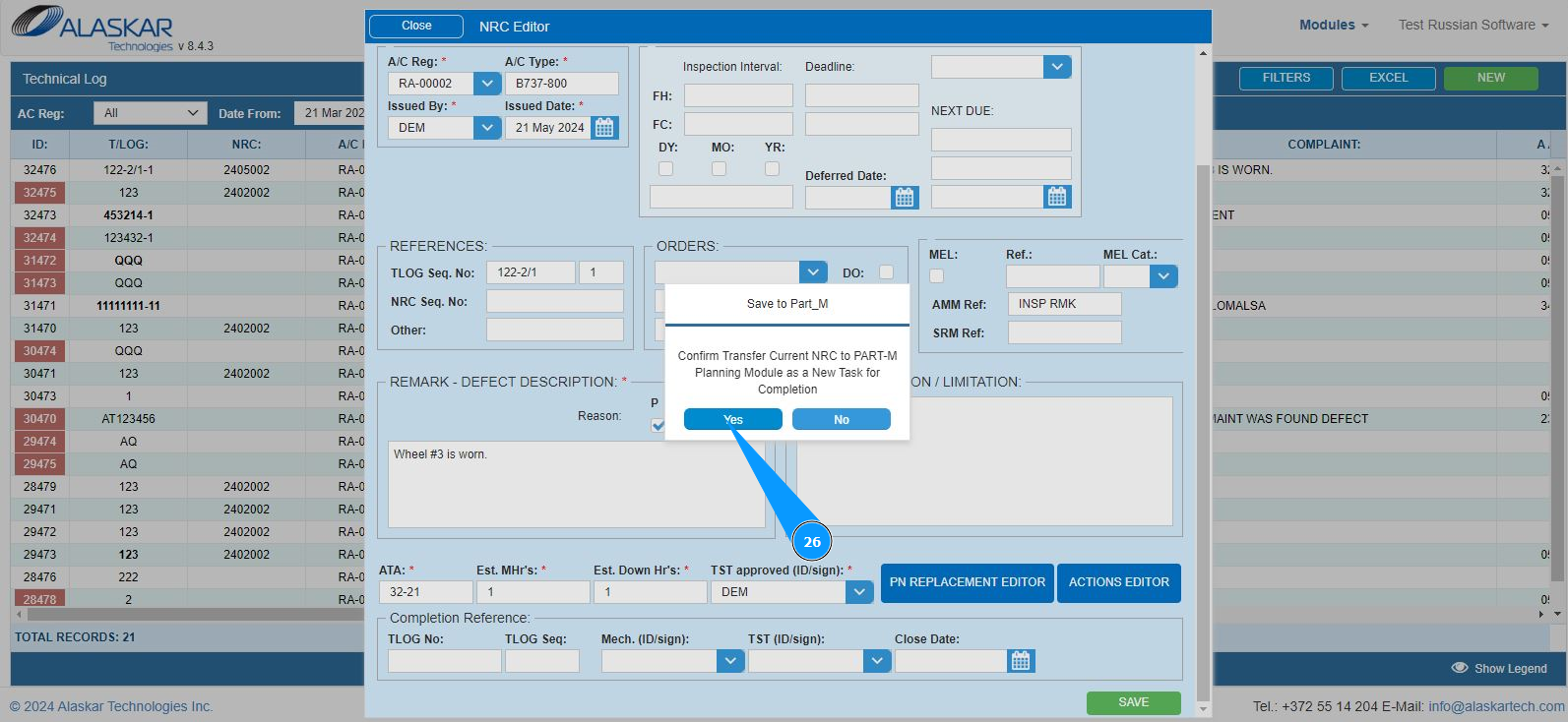
26. Click the button "Yes" if you want your NRC to be included in the submodule "Planning" for use by the planning department.
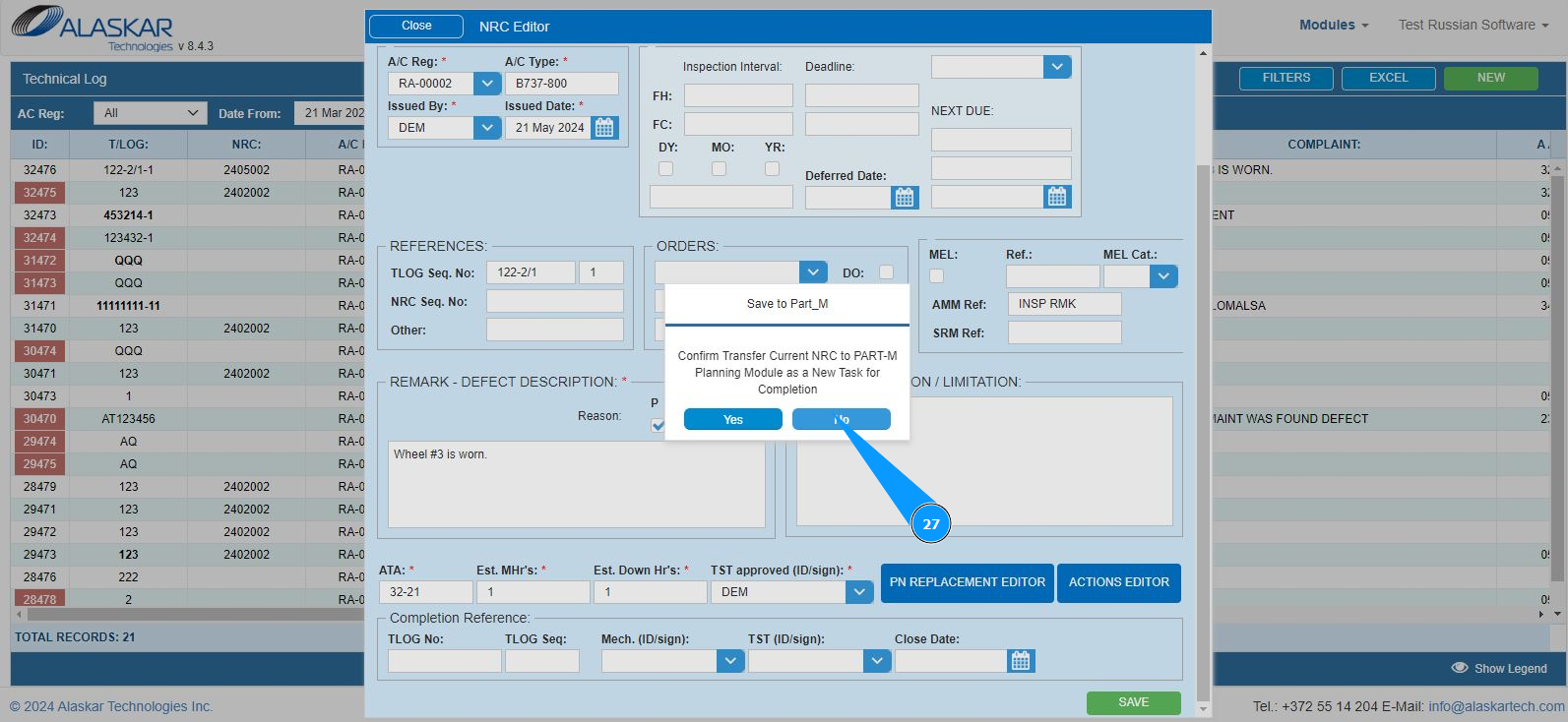
27. Click the button "No" if you want your NRC not to be planned and not to be included in the submodule "Planning".
28. Check that the newly created NRC number is displayed in the column "NRC".
