How to create an NRC for a task in a work order
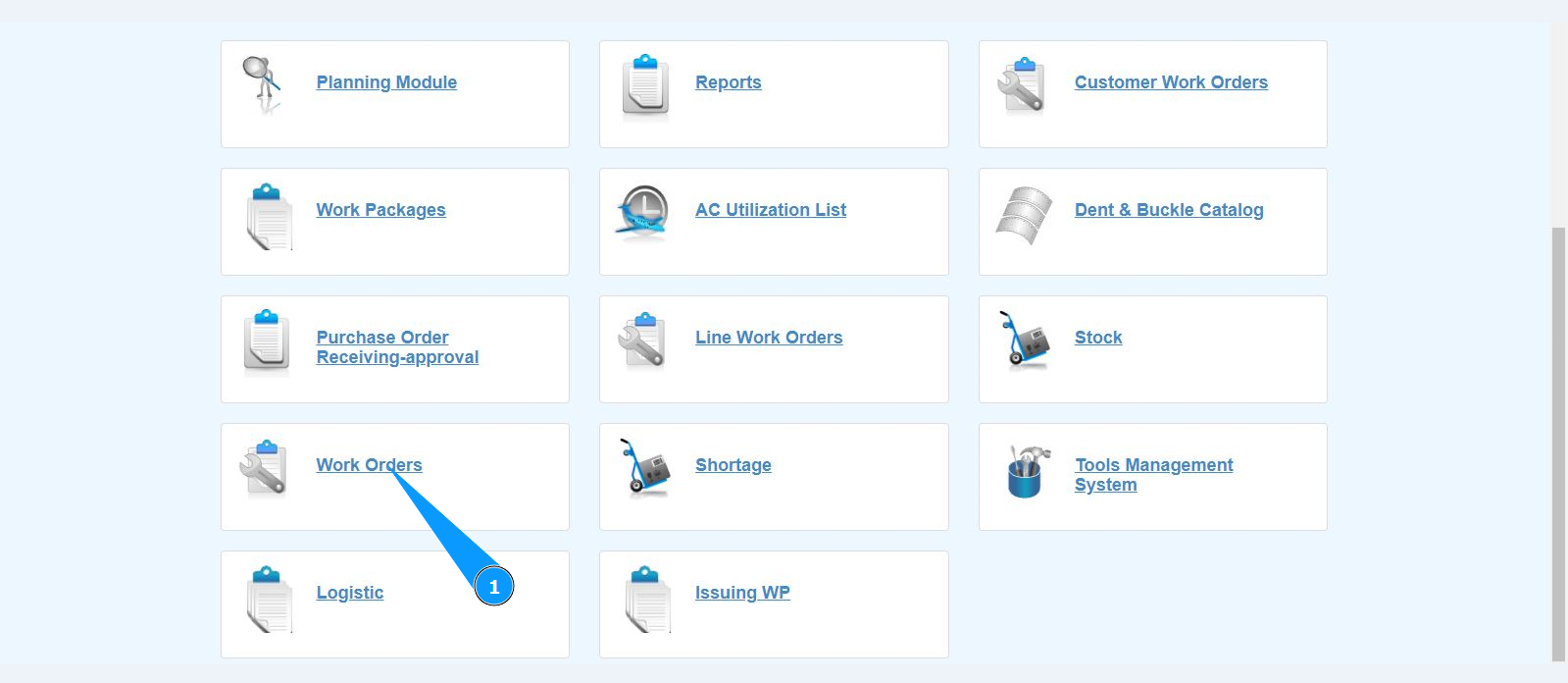
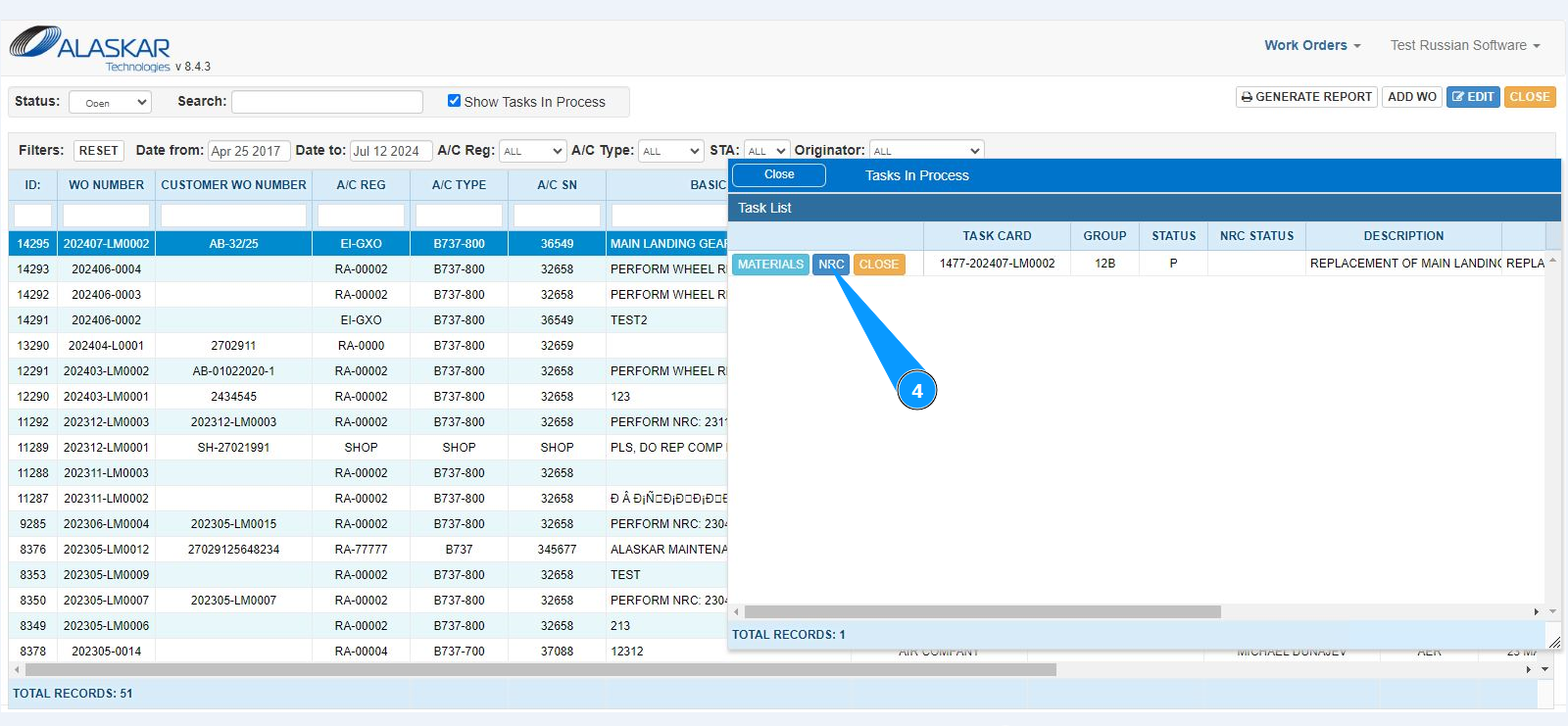
1. In order to create an NRC for a task in a work order, go to the submodule "Work Orders".
2. Select the required work order and click on the corresponding line. Note: If necessary, use the available filters in the fields: "A/C Reg.", "A/C Type", "STA" and so on.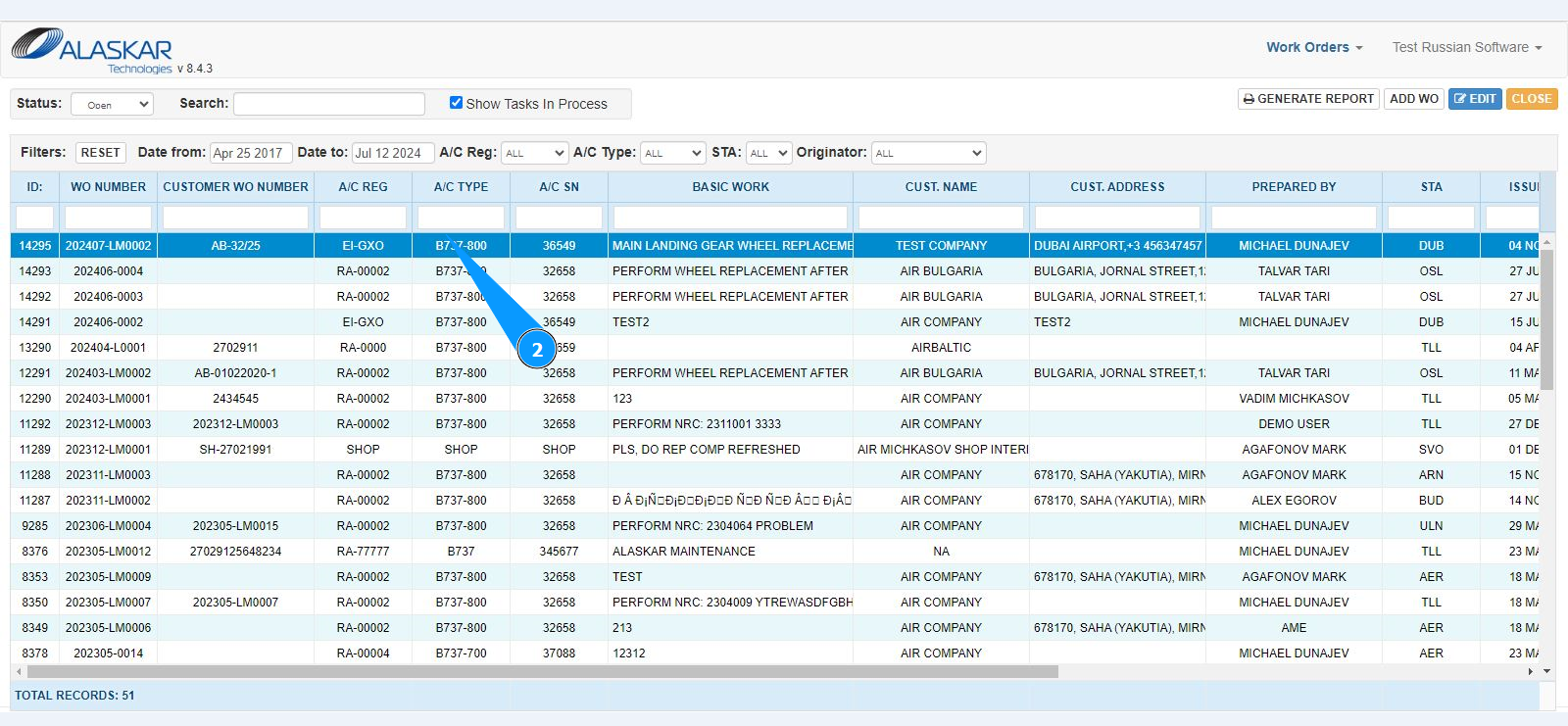
3. Select the required task and click on the corresponding line.
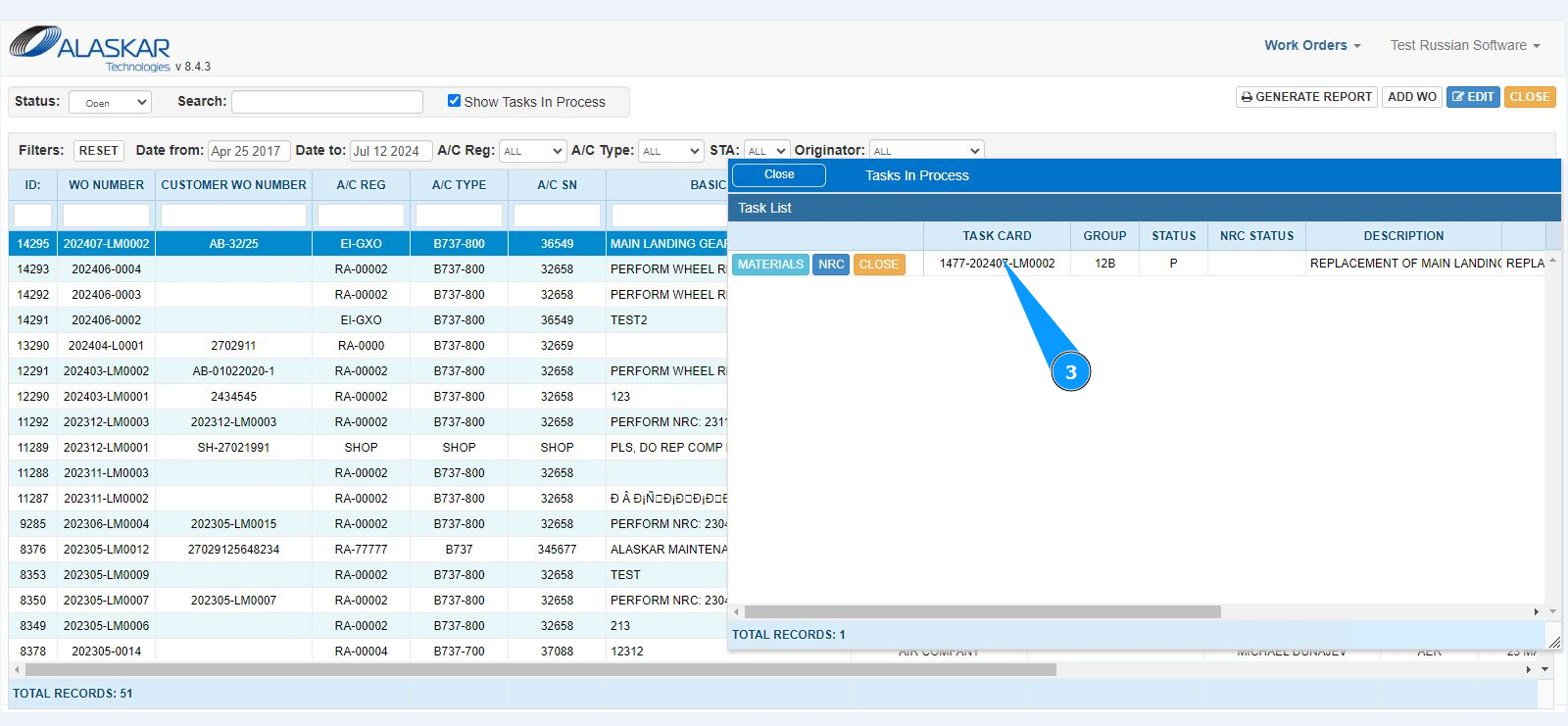
4. Click on the button "NRC" to open the NRC record editor.
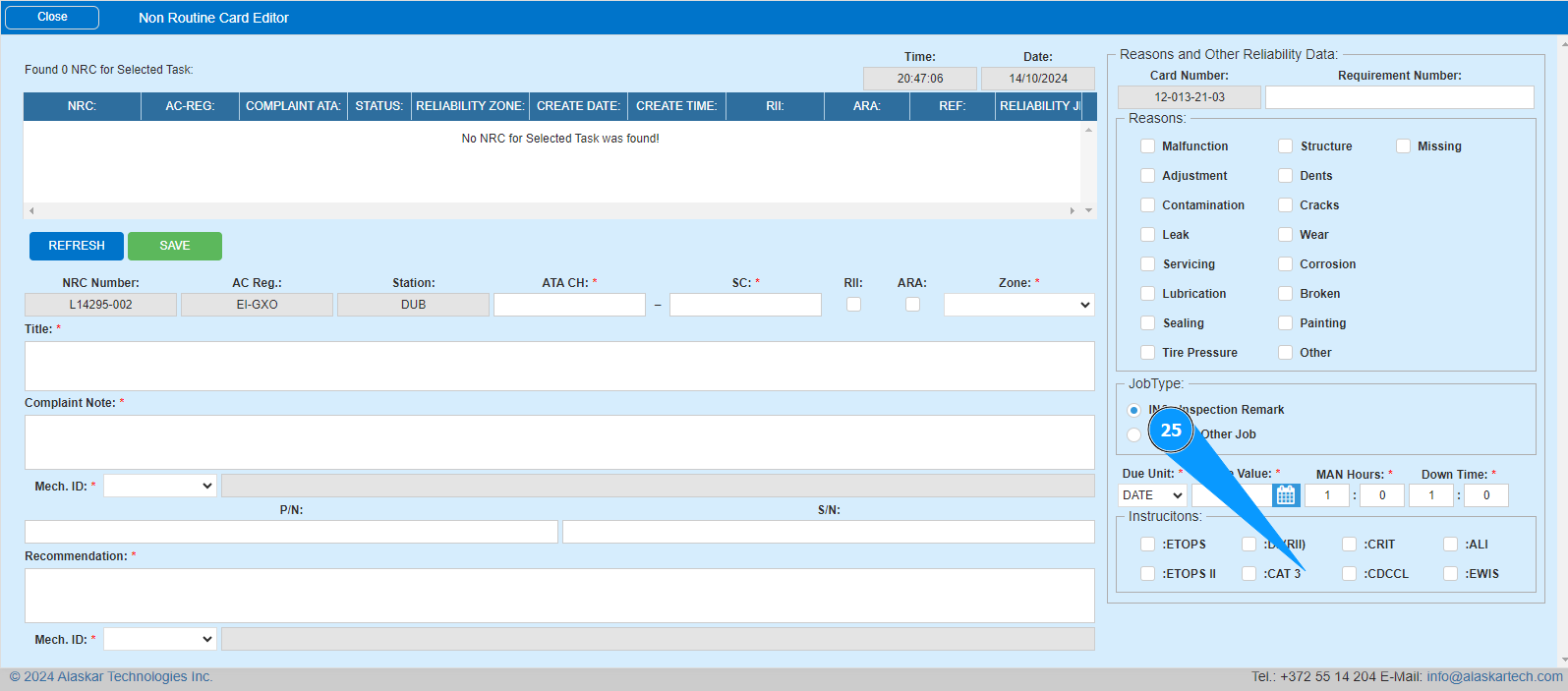
5. Make sure that the NRC creation editor is open and accessible in the window "Non Routine order Editor". Note: The number of the registered NRC is generated automatically in the field "NRC Number".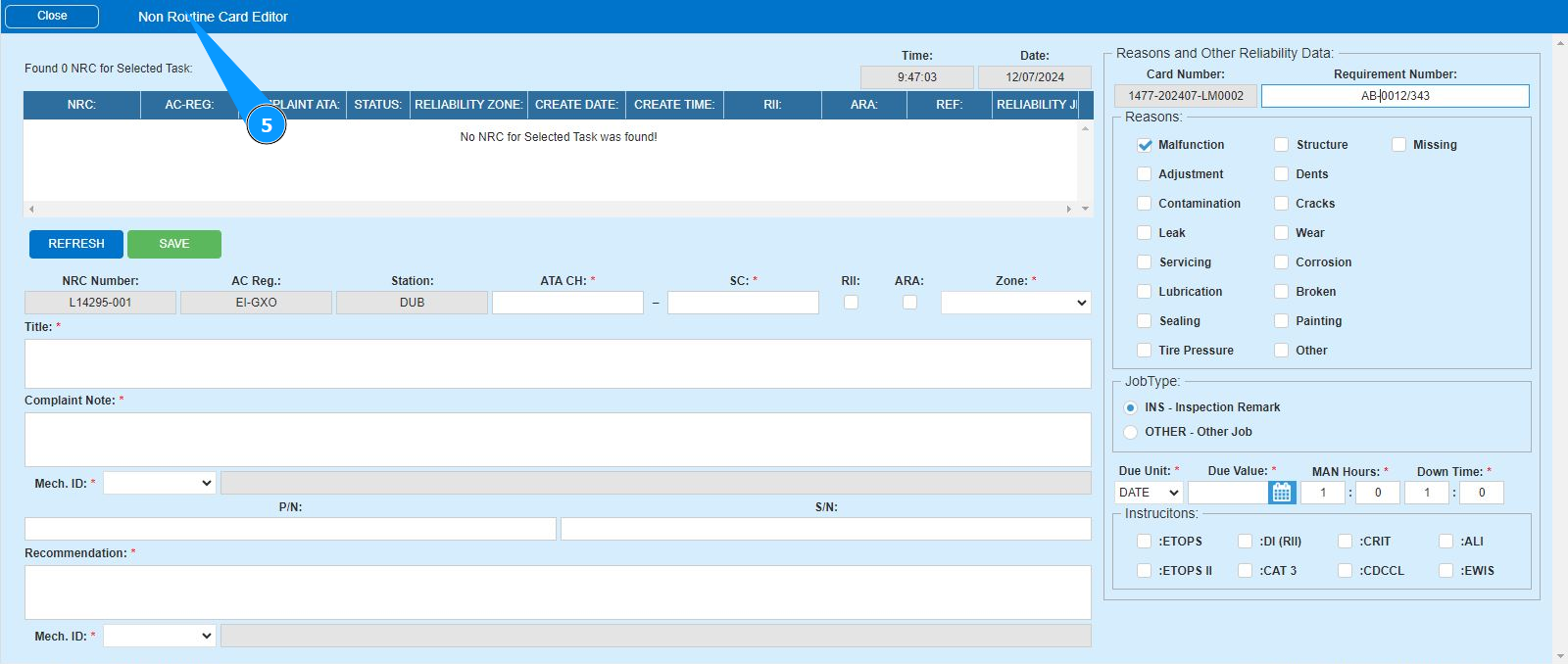
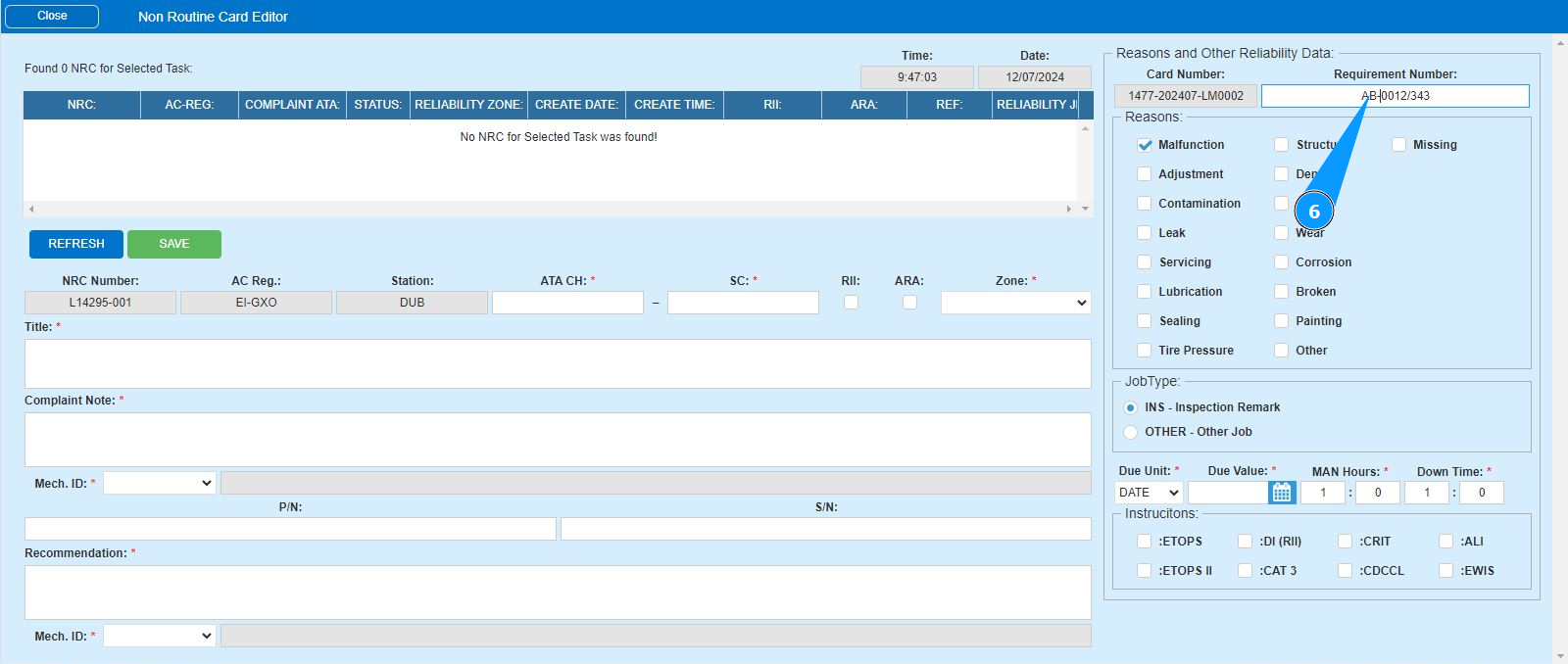
6. If necessary, enter a reference to another number (in accordance with your company's policy) in the field "Requirement Number".
7. Enter data on the ATA chapter number in the field "ATA CH". Note: The aircraft registration number in the field "A/C Reg." and the aircraft type in the field "A/C Type" are displayed automatically by the program.
8. Enter data on the ATA subchapter number in the field "ATA SC".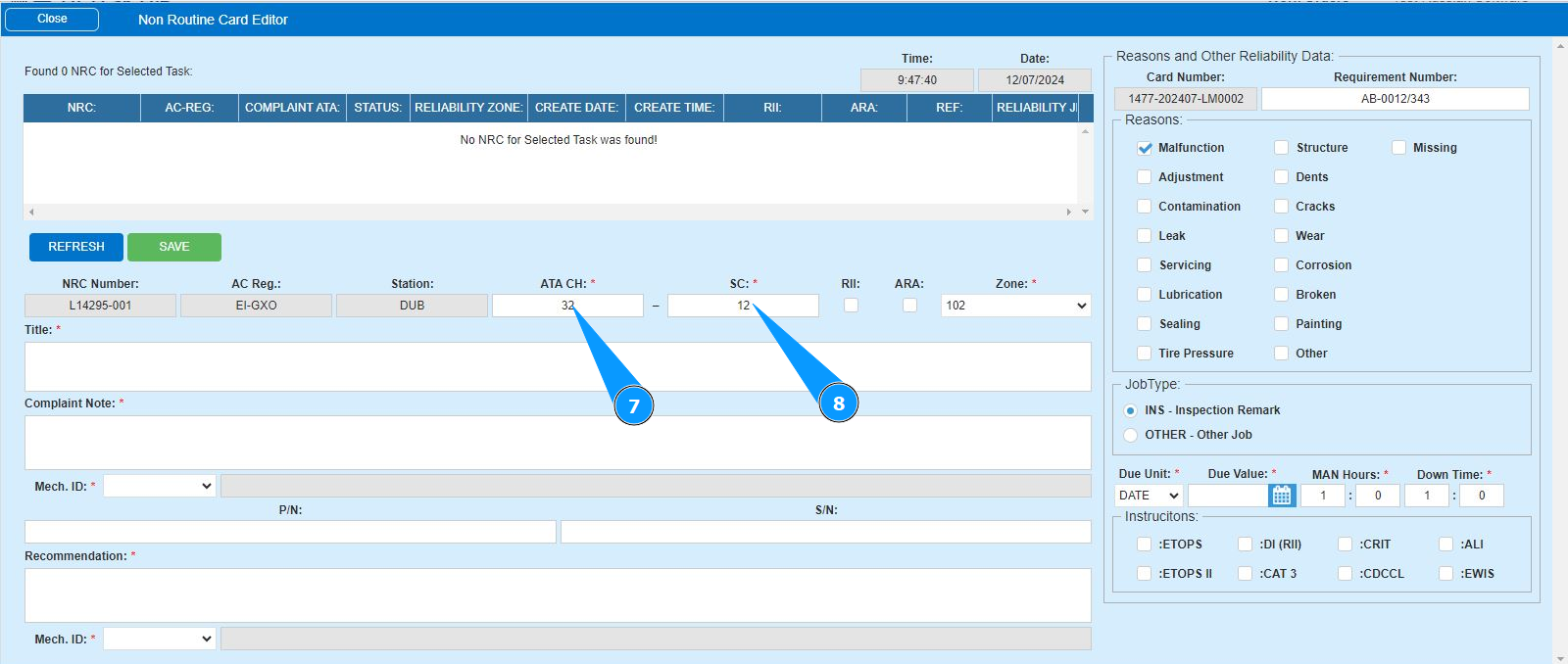
9. From the dropdown list, select the zone for work on the NRC in the field "Zone".
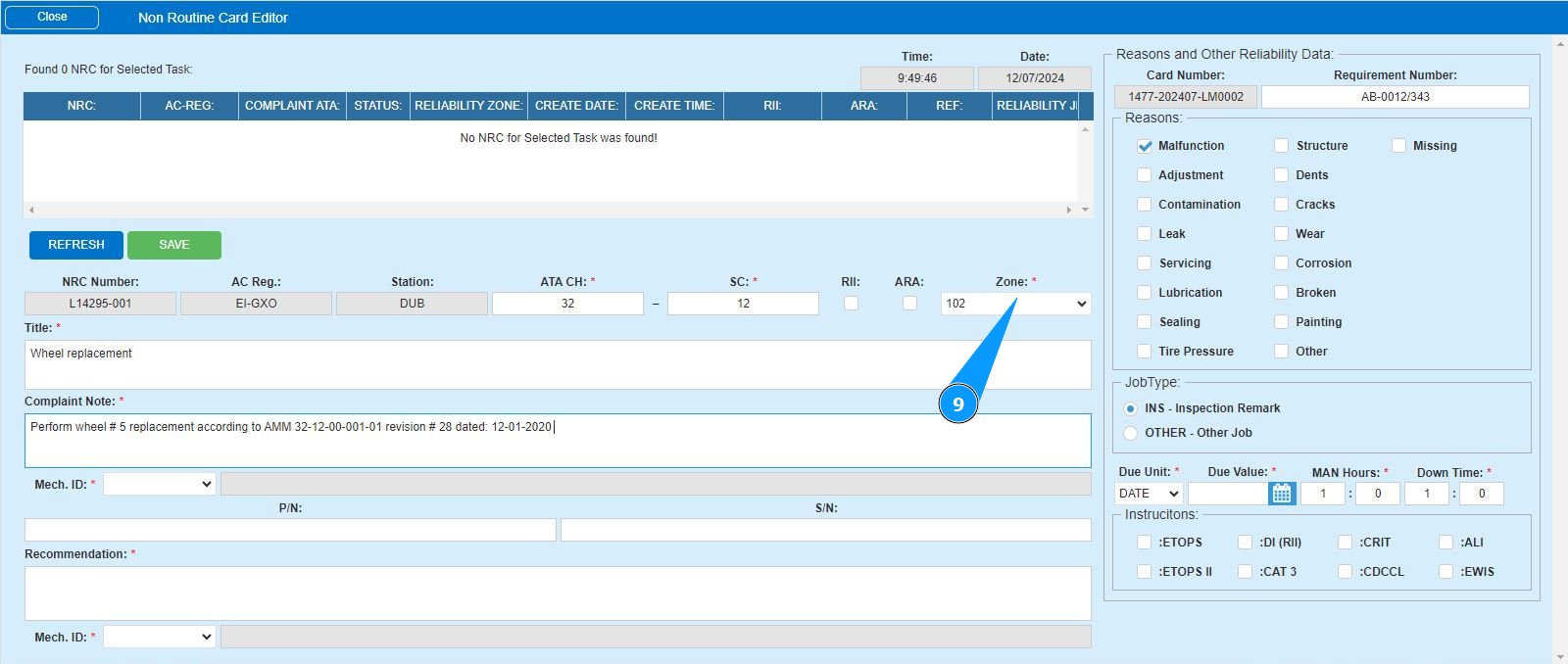
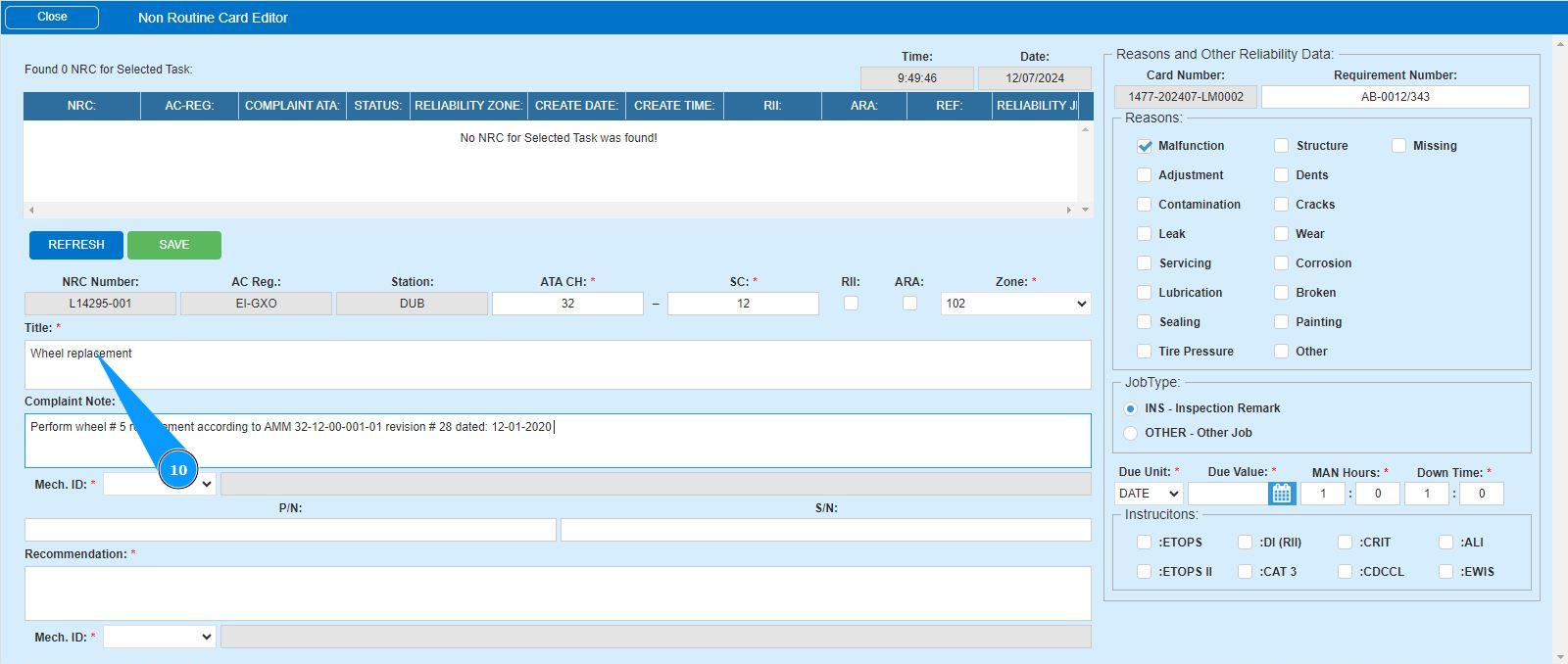
10. Enter the title of the NRC in the window "Title".
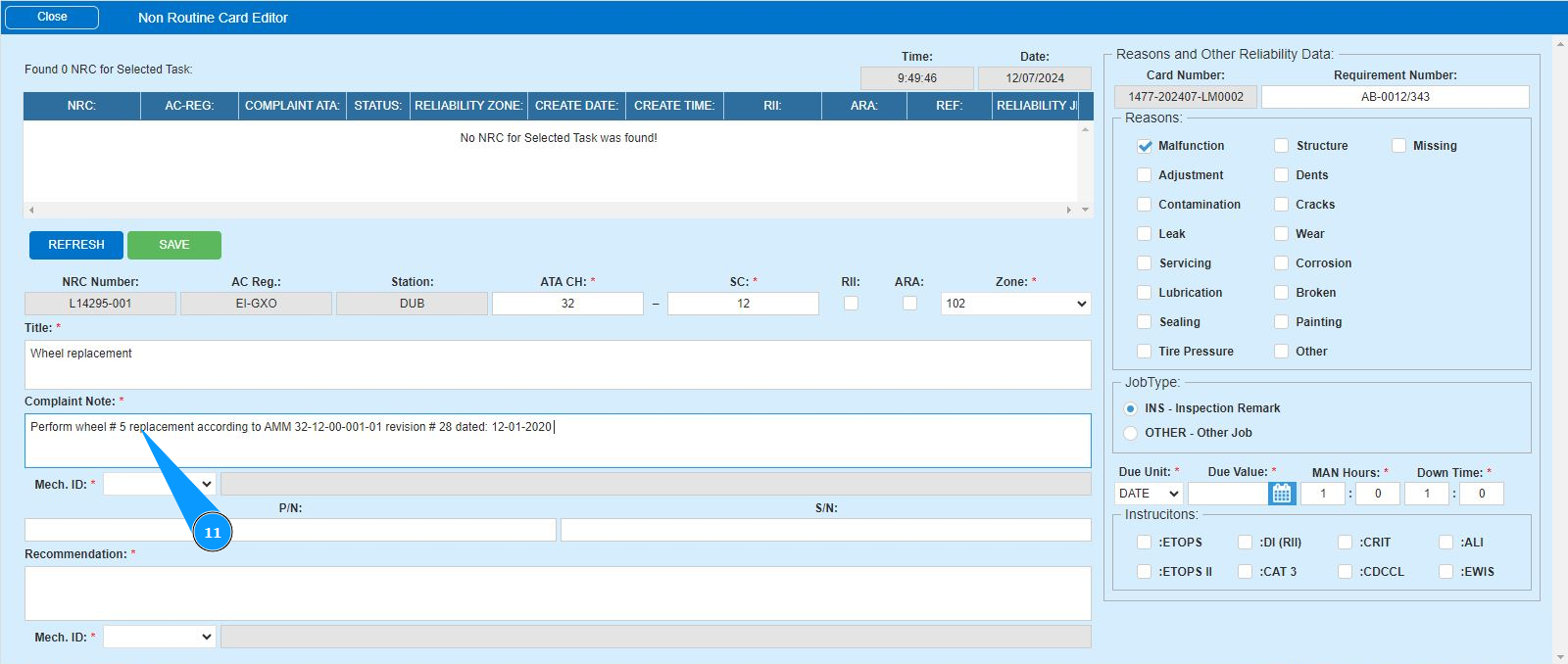
11. Enter the necessary information on the specifics of performing a NRC in the window "Complaint Note".
12. Enter the initials of the executor or creator of the NRC (in accordance with your company policy) in the field "Mech.ID" or select from the dropdown list. Note: The last and first names of the personnel are displayed automatically by the program.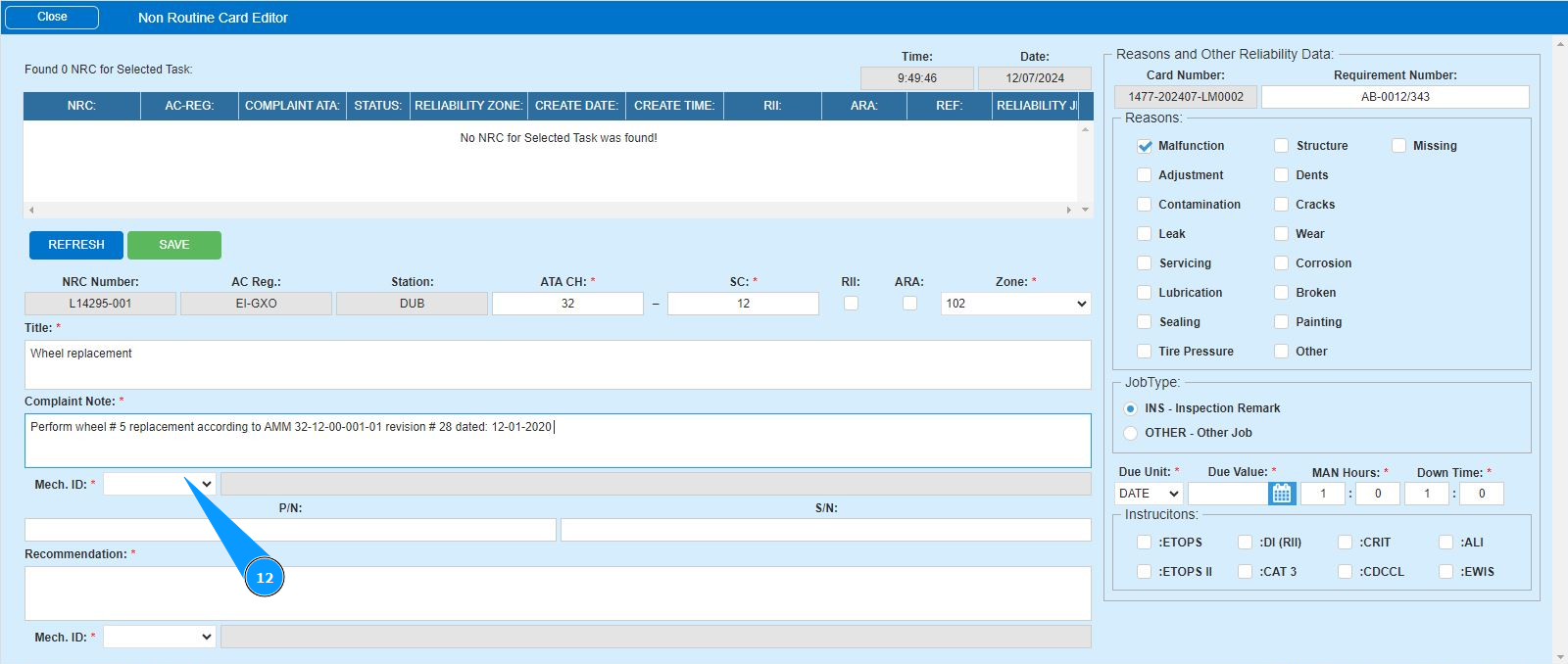
13. If necessary, enter the part number of the component required for elimination in the field "P/N".
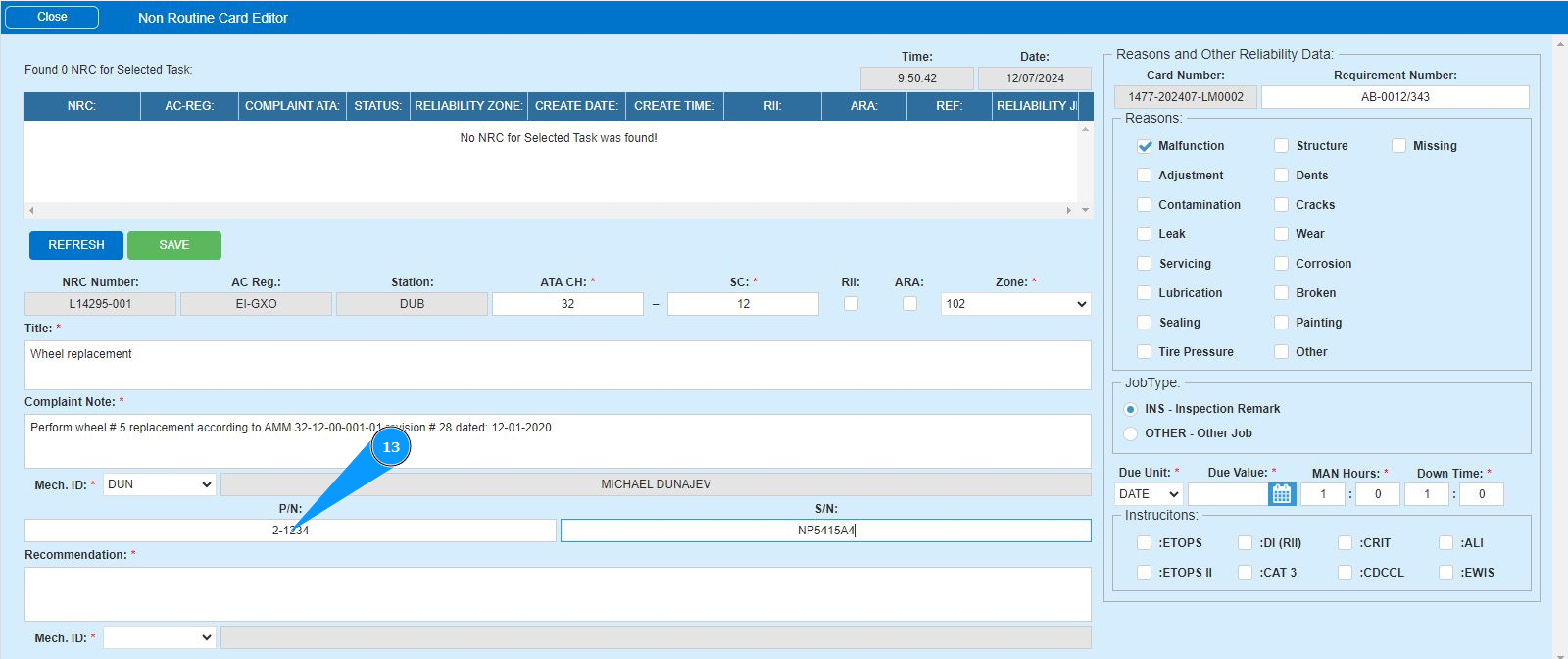
14. If necessary, enter the serial number of the component required to be eliminated in the field "S/N".
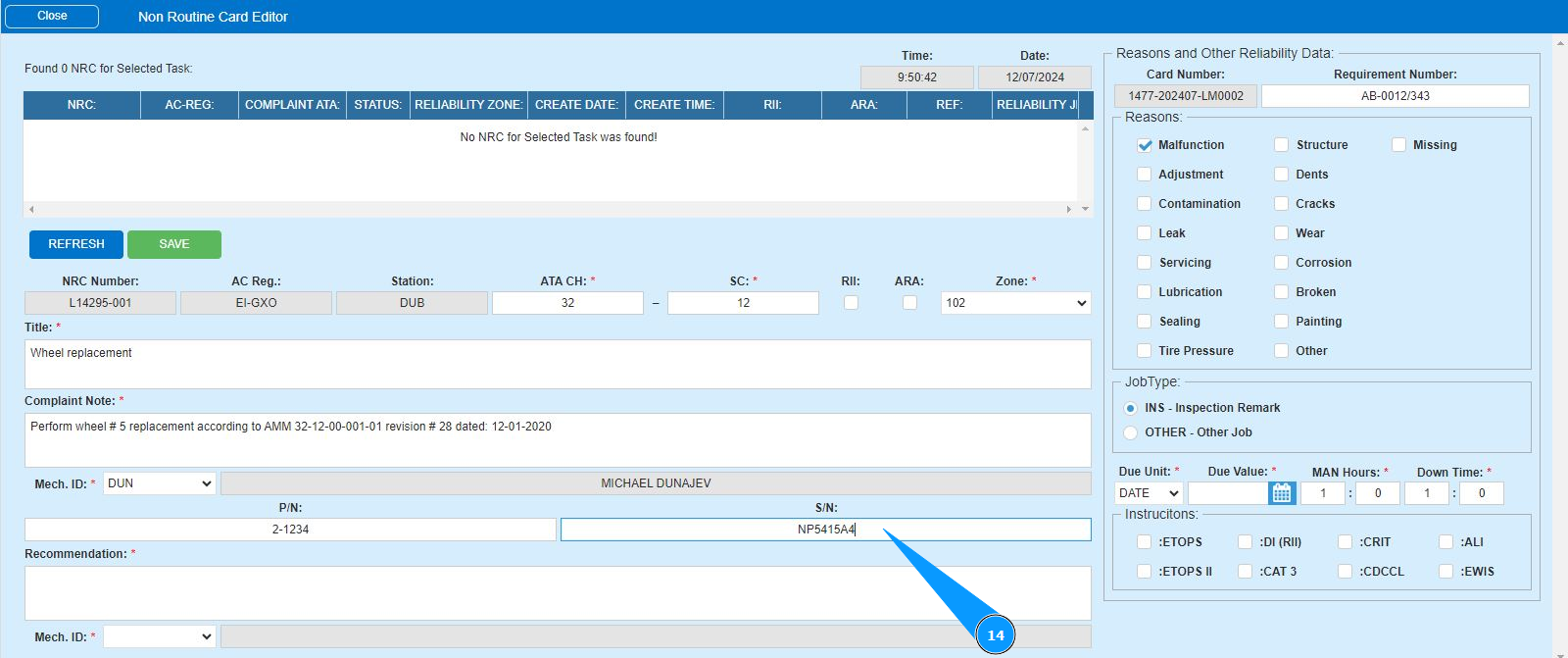
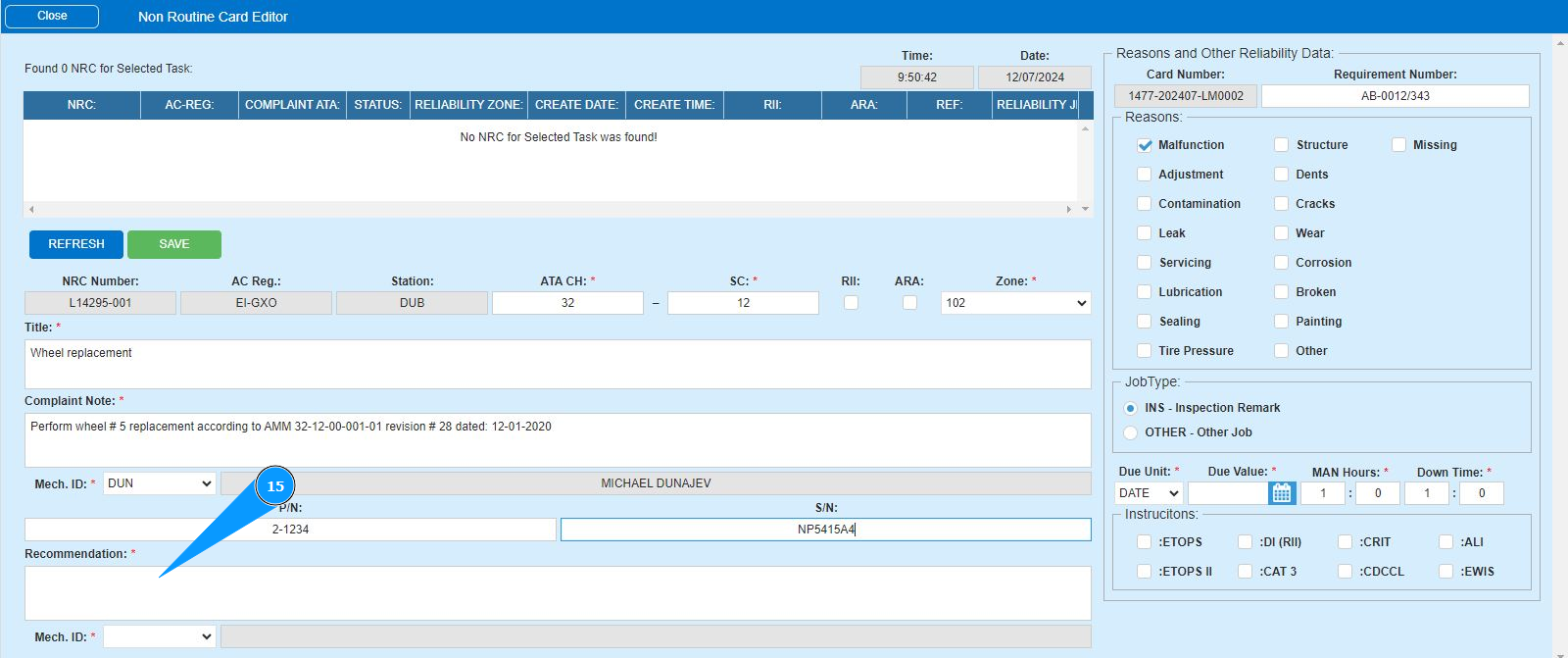
15. Enter the necessary information on the recommended performance of a set of works on the aircraft in the field "Recommendation".
16. Enter the initials of the executor or creator of the NRC (in accordance with your company policy) in the field "Mech.ID" field or select from the dropdown list. Note: The last and first names of the personnel are displayed automatically by the program.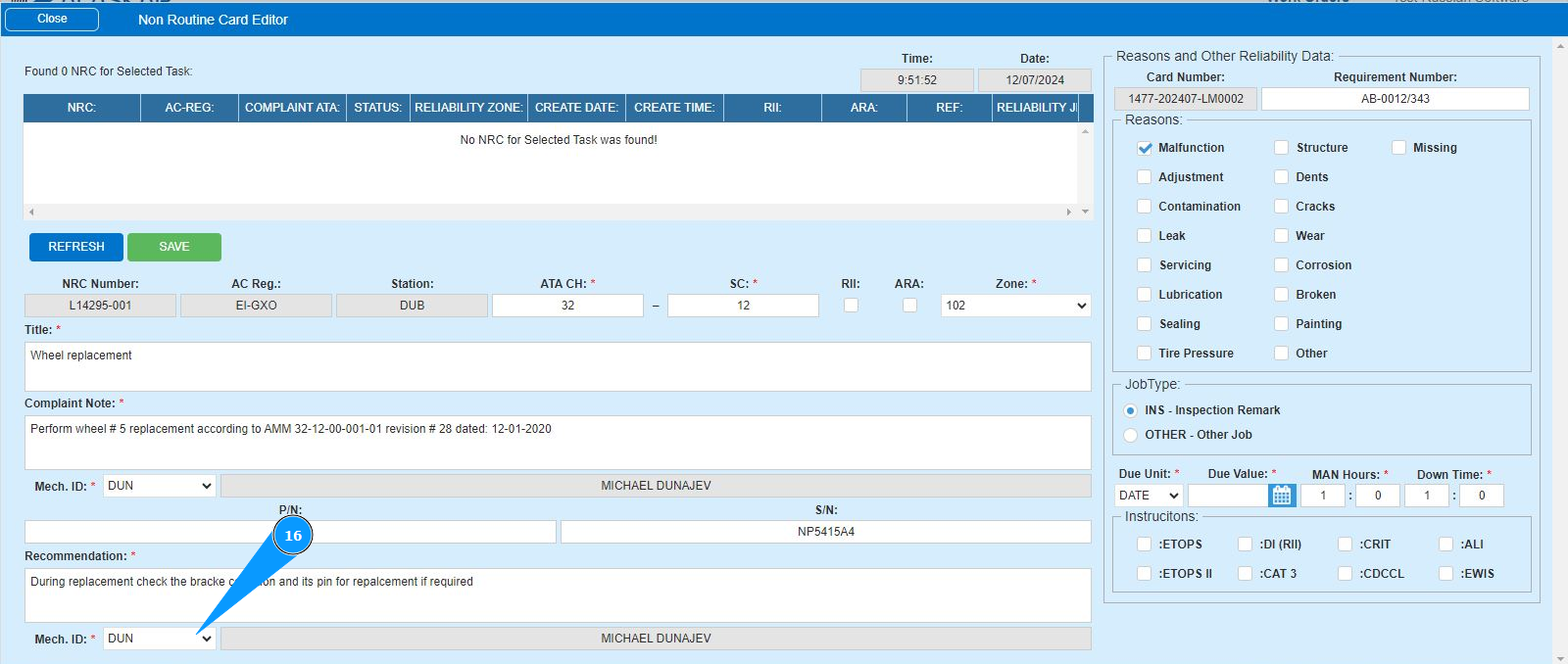
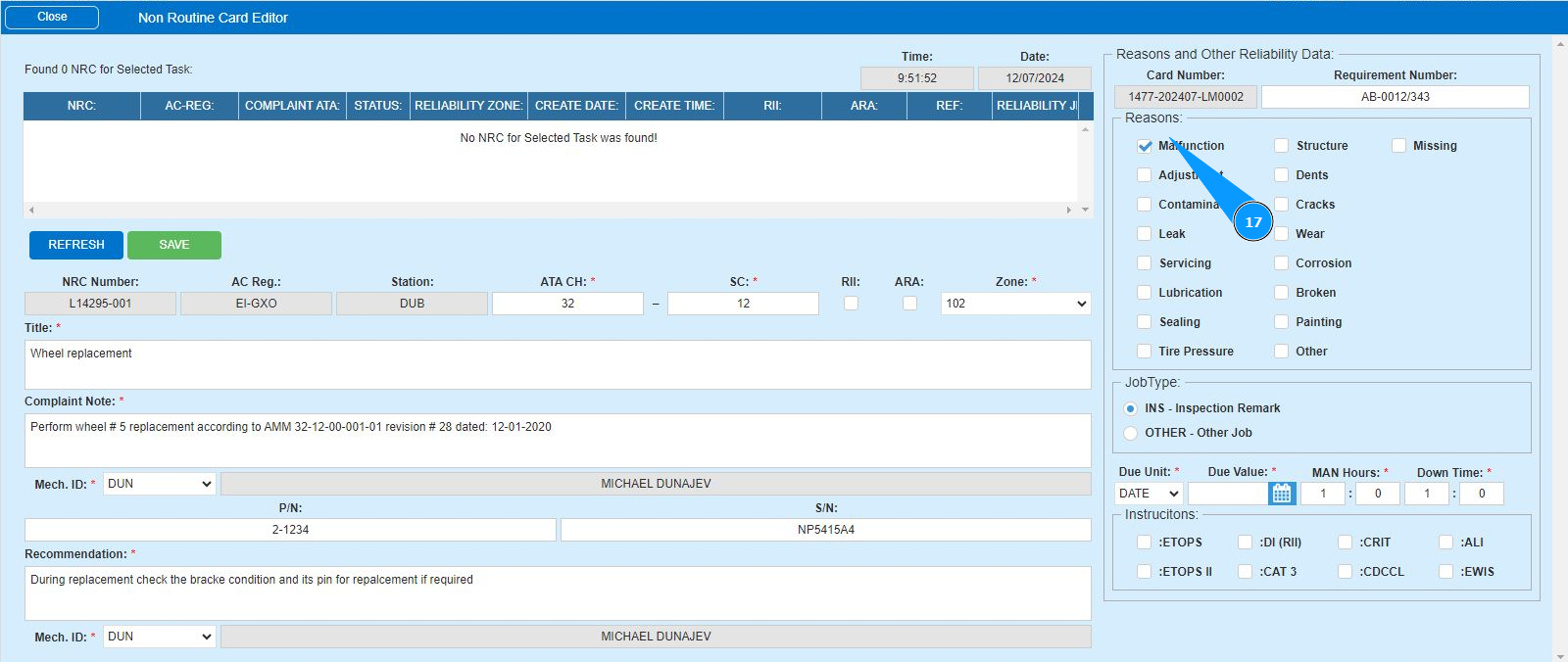
17. Enter the reason for creating the NRC in the field "Reasons" and click in the appropriate.
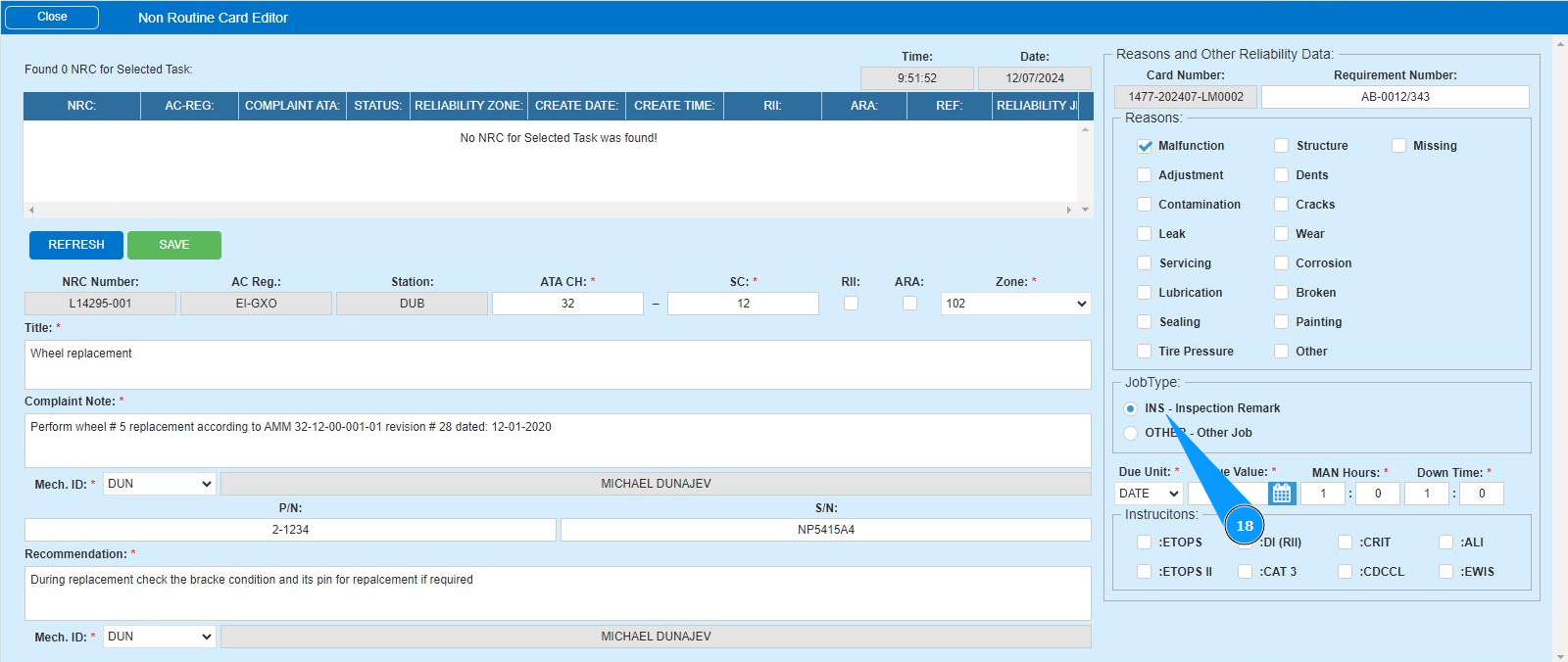
18. If necessary, enter information about the type of job in the field "Job Type".
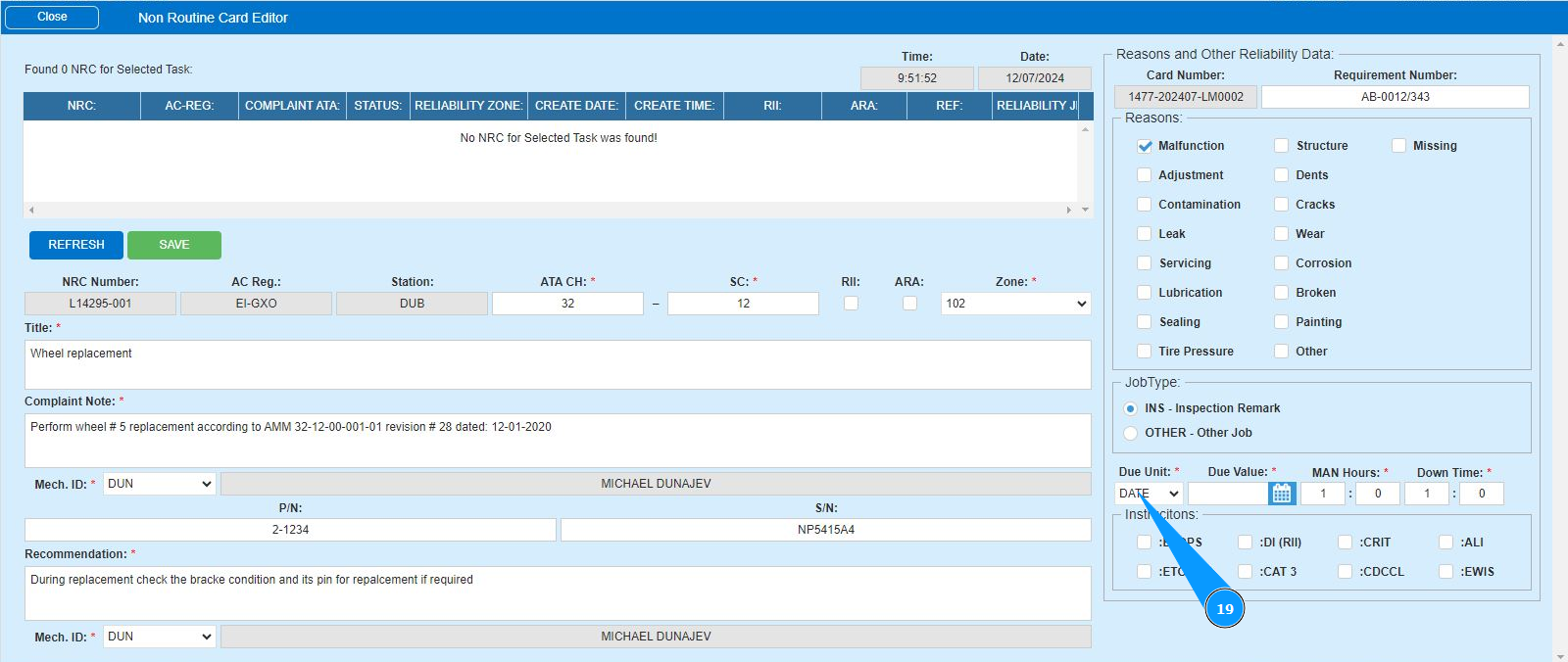
19. Enter the type of delayed unit in the field "Due unit".
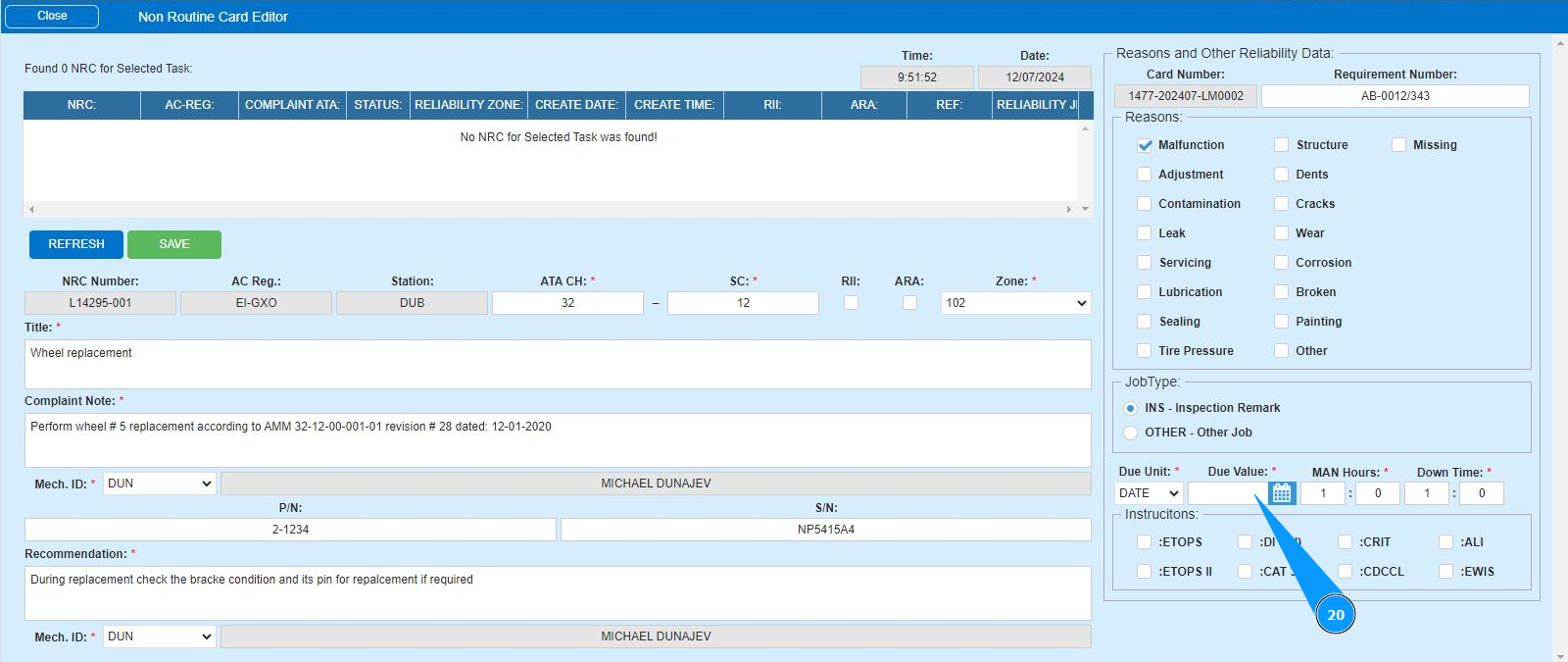
20. Enter the expiration date of the deferred fault in the field "Due Value".
21. Enter the forecasted quantity of man-hours in hours in the field "Man Hours".
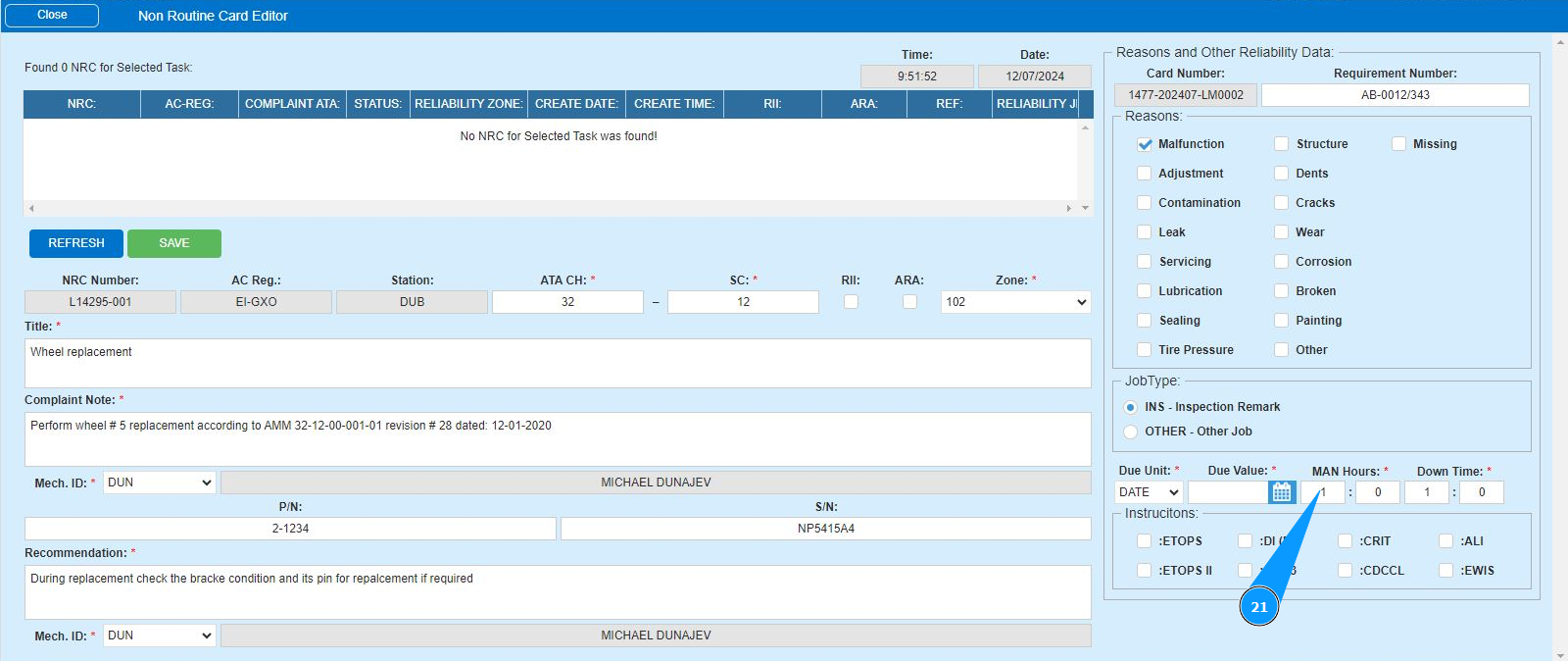
22. Enter the forecasted quantity of man-hours in minutes in the field "Man Hours".
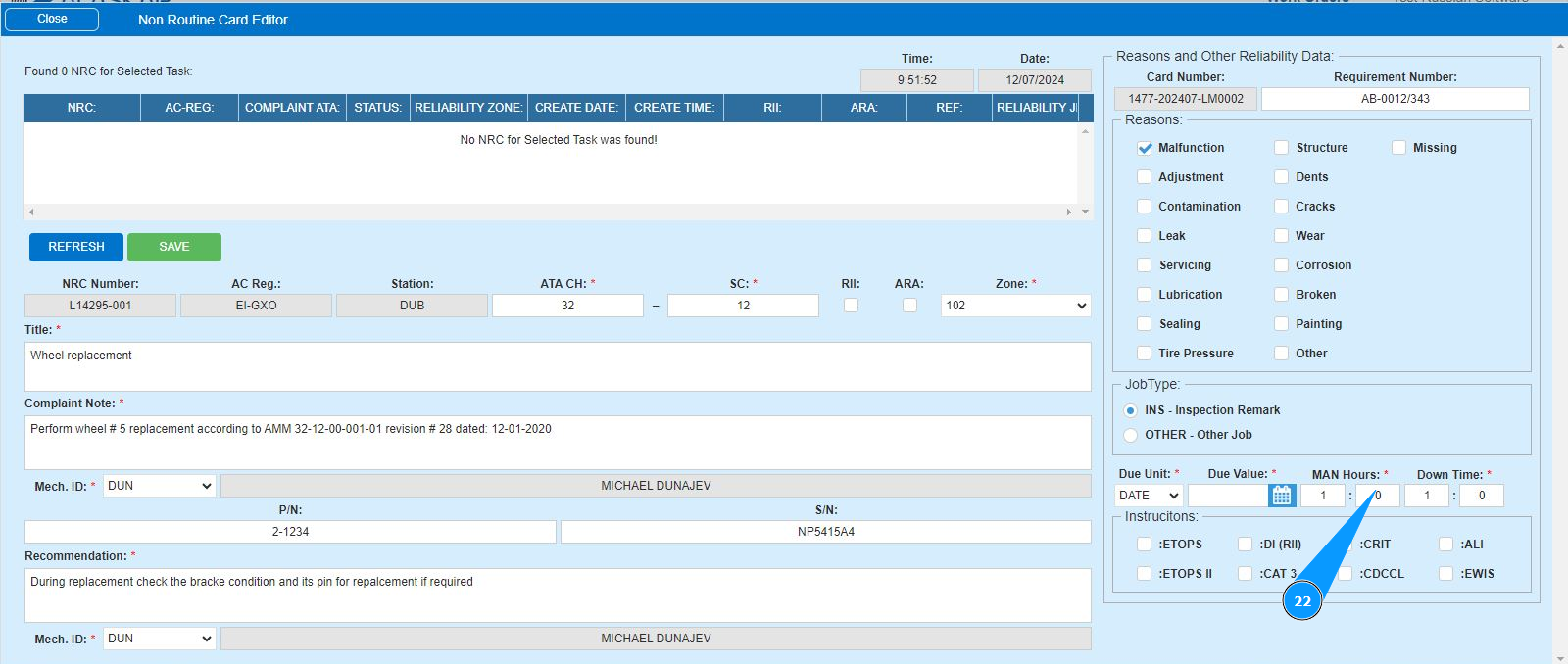
23. Enter the predicted aircraft downtime in hours in the field "Down Time".
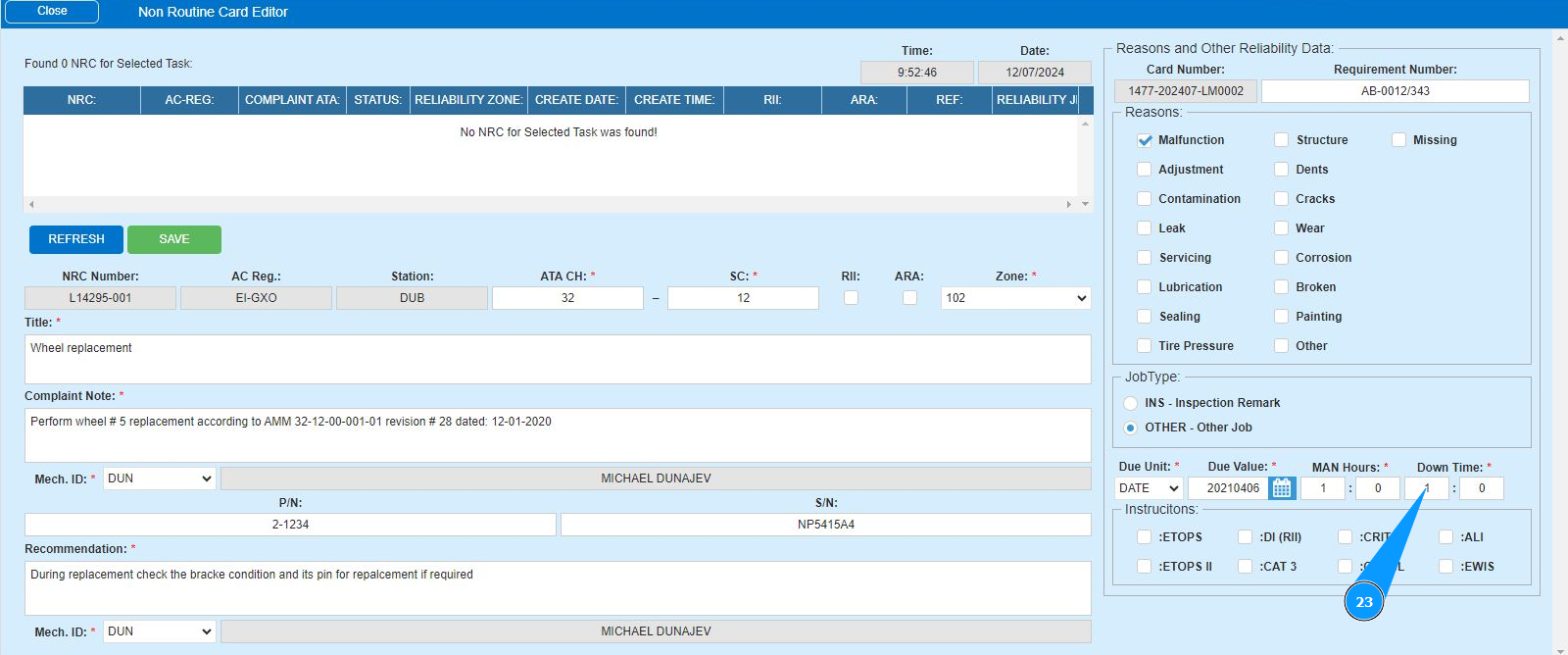
24. Enter the predicted aircraft downtime in minutes in the field "Down Time".
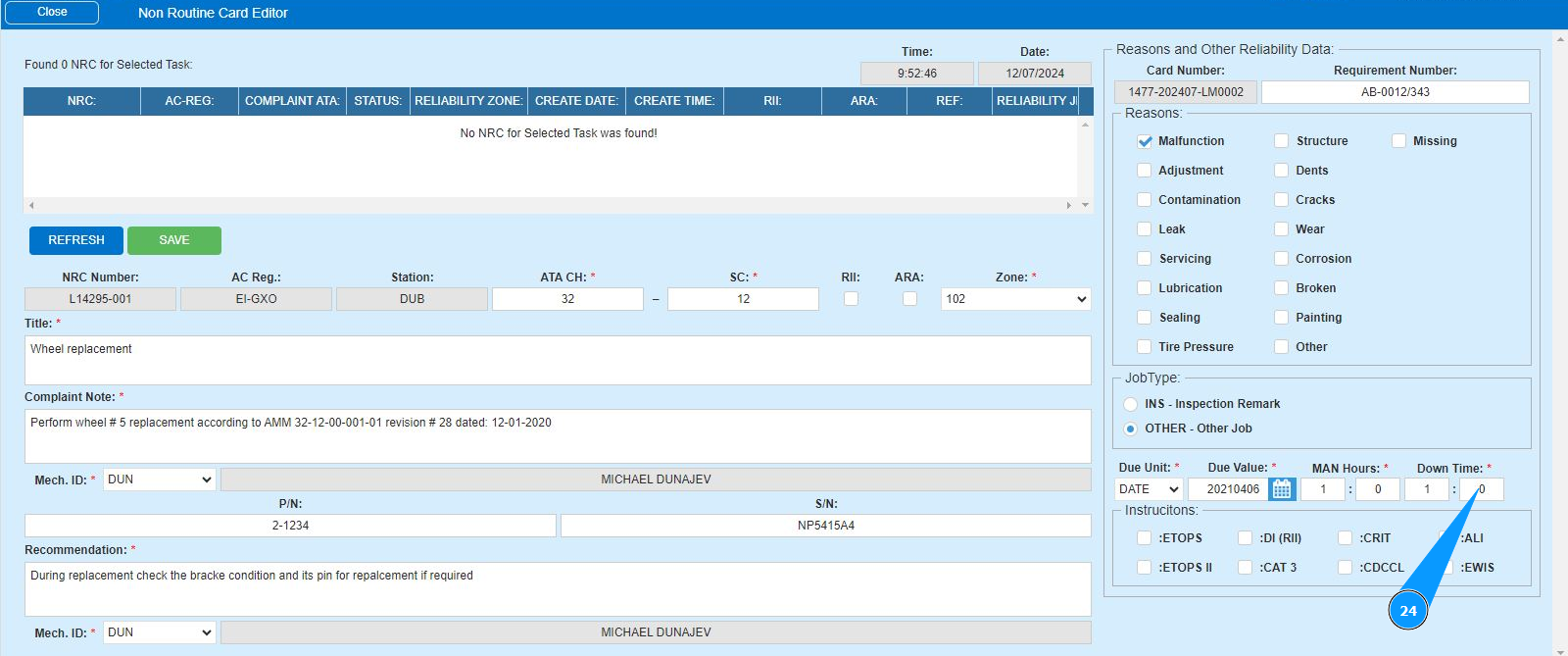
25. If necessary, enter additional criteria for completing the NRC in the fields: "Etops", "DI(RII)", "CRIT" and so on.
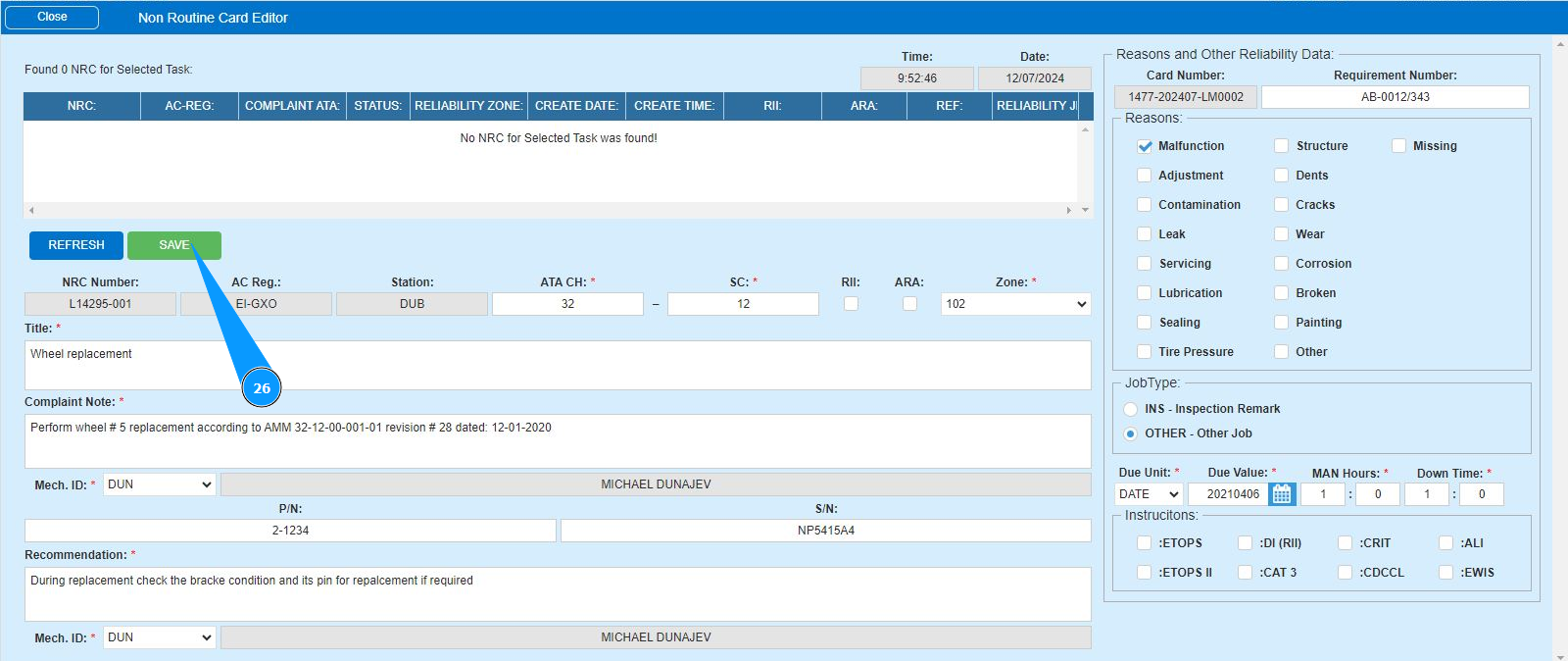
26. Click on the button "Save" to add data to the program.
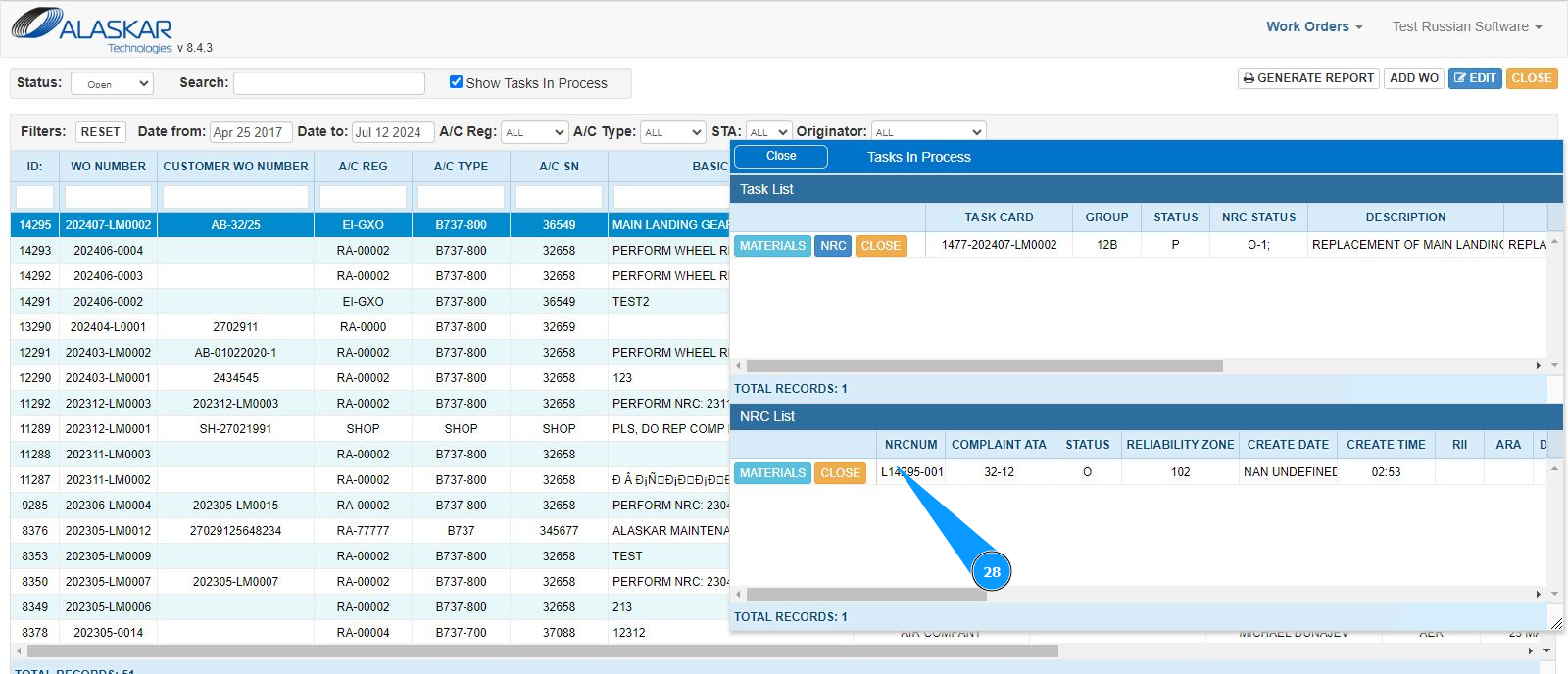
27. Check that the newly created NRC is displayed in the column "NRC".
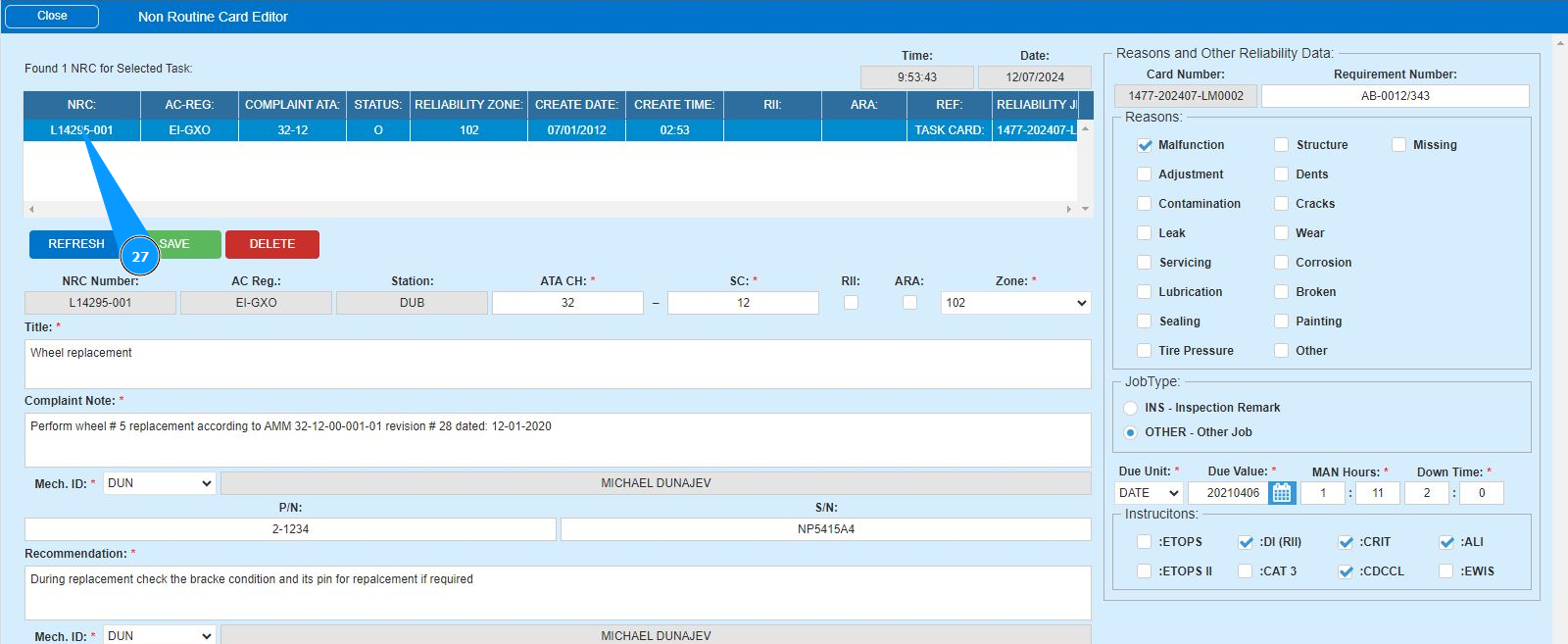
28. Additionally, you can check the creation of NRC in the window "NRC list".