How to create an Exchange Order
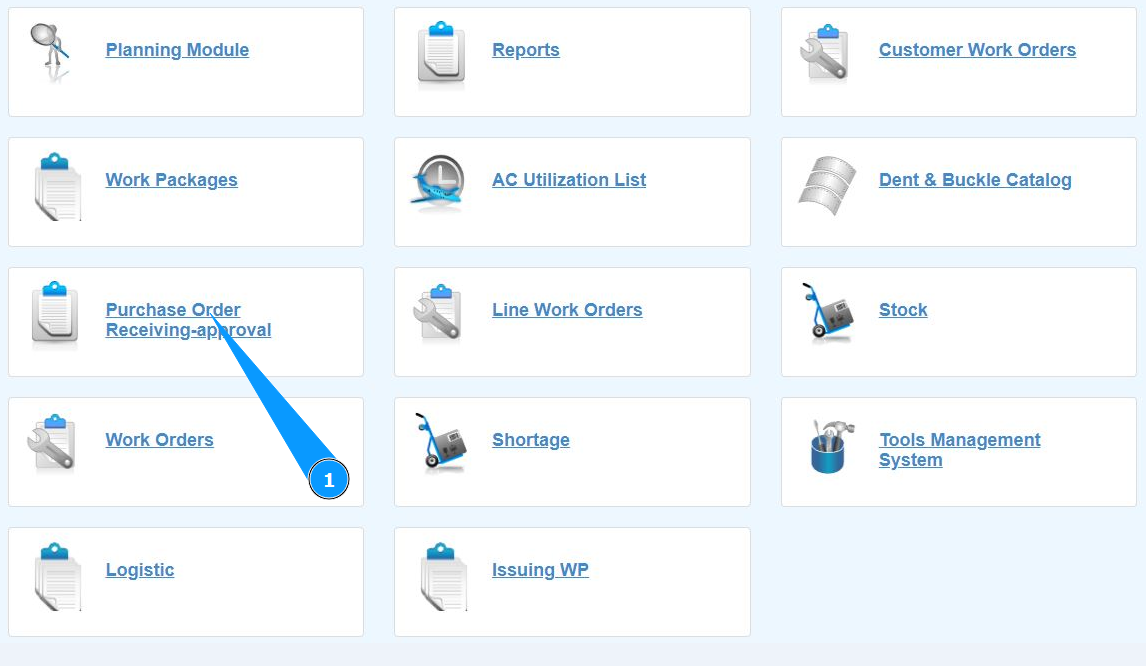
1. In order to create an Exchange Order, go to the submodule "Purchase order Receiving-Approval".
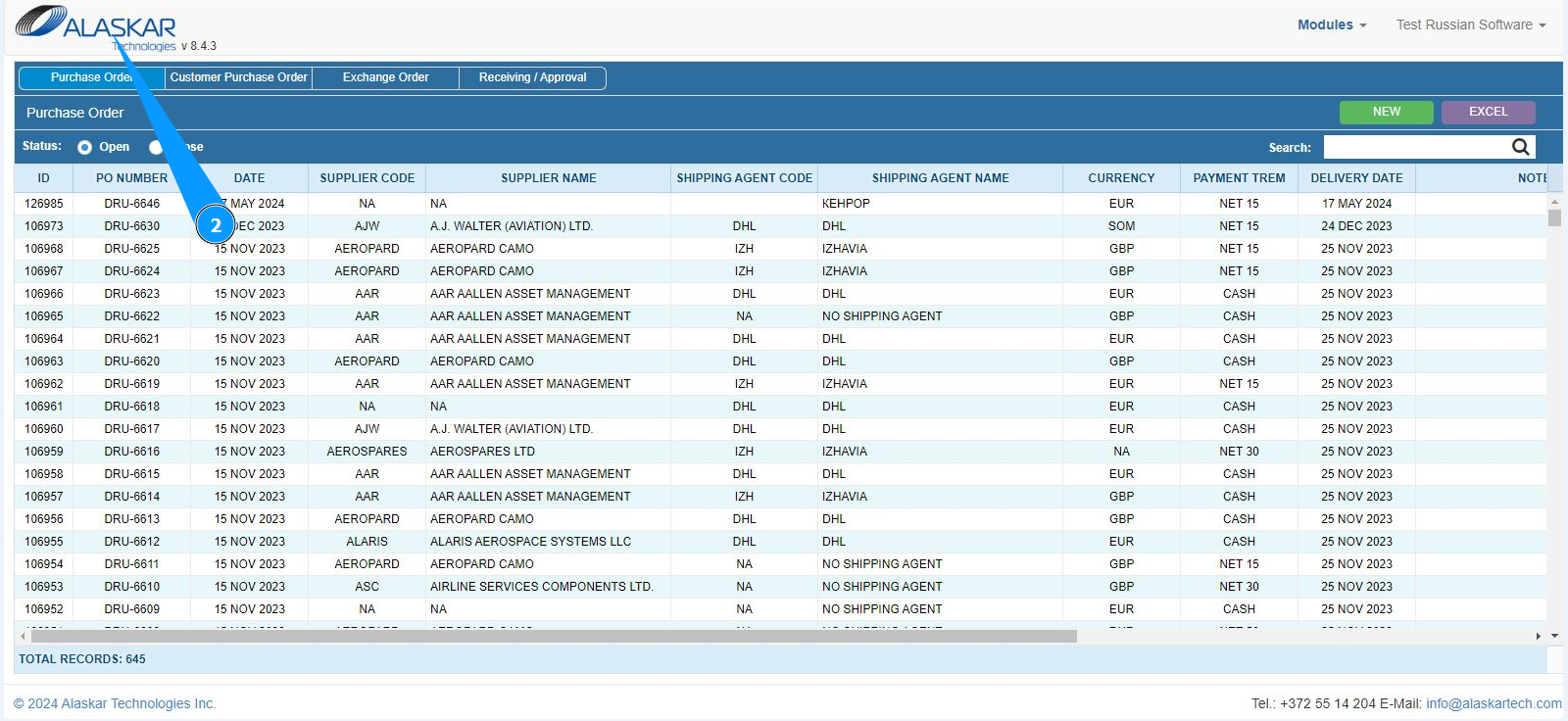
2. Make sure that the window for working with orders has opened and is available in the window "Purchase order".
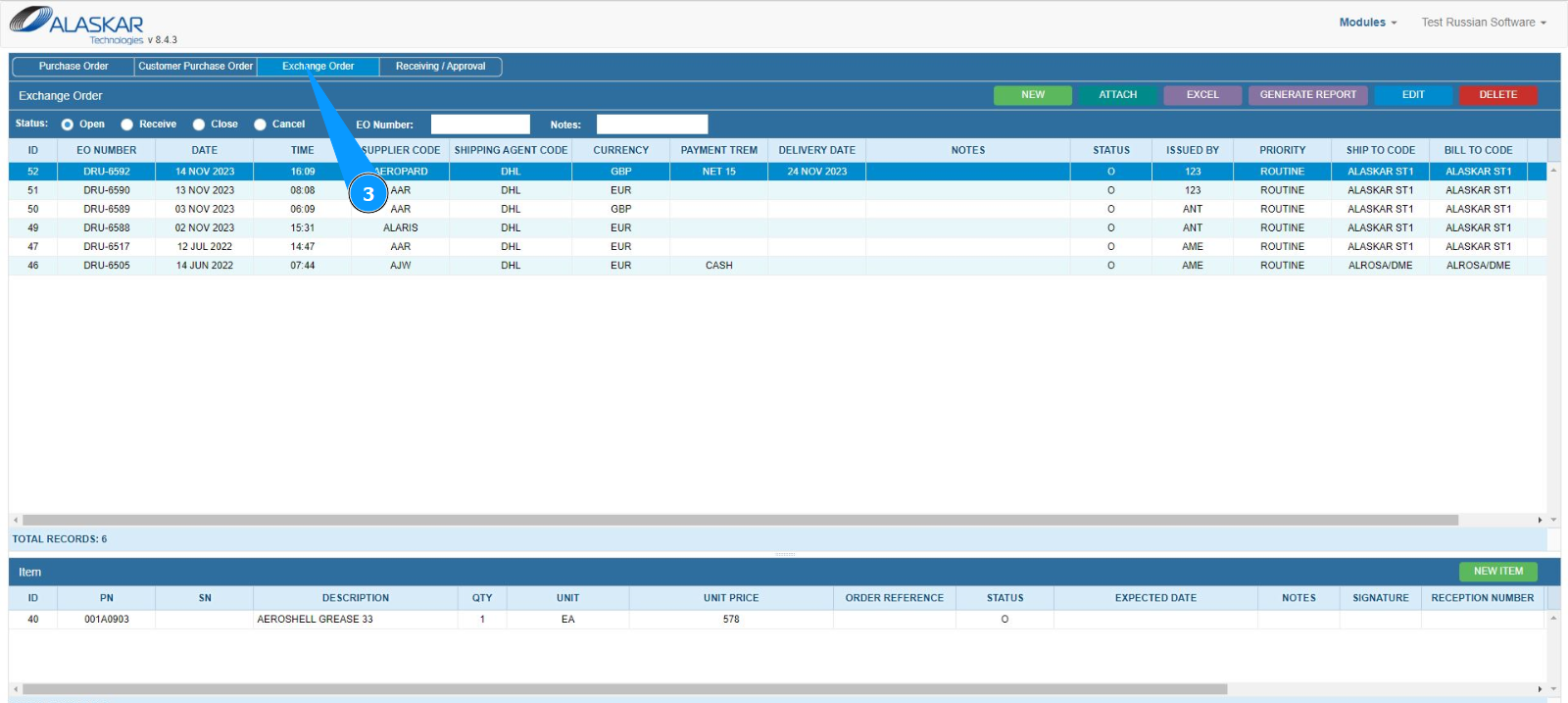
3. Next, go to the tab "Exchange Order".
4. Click on the button "New" to open the exchange order editor.
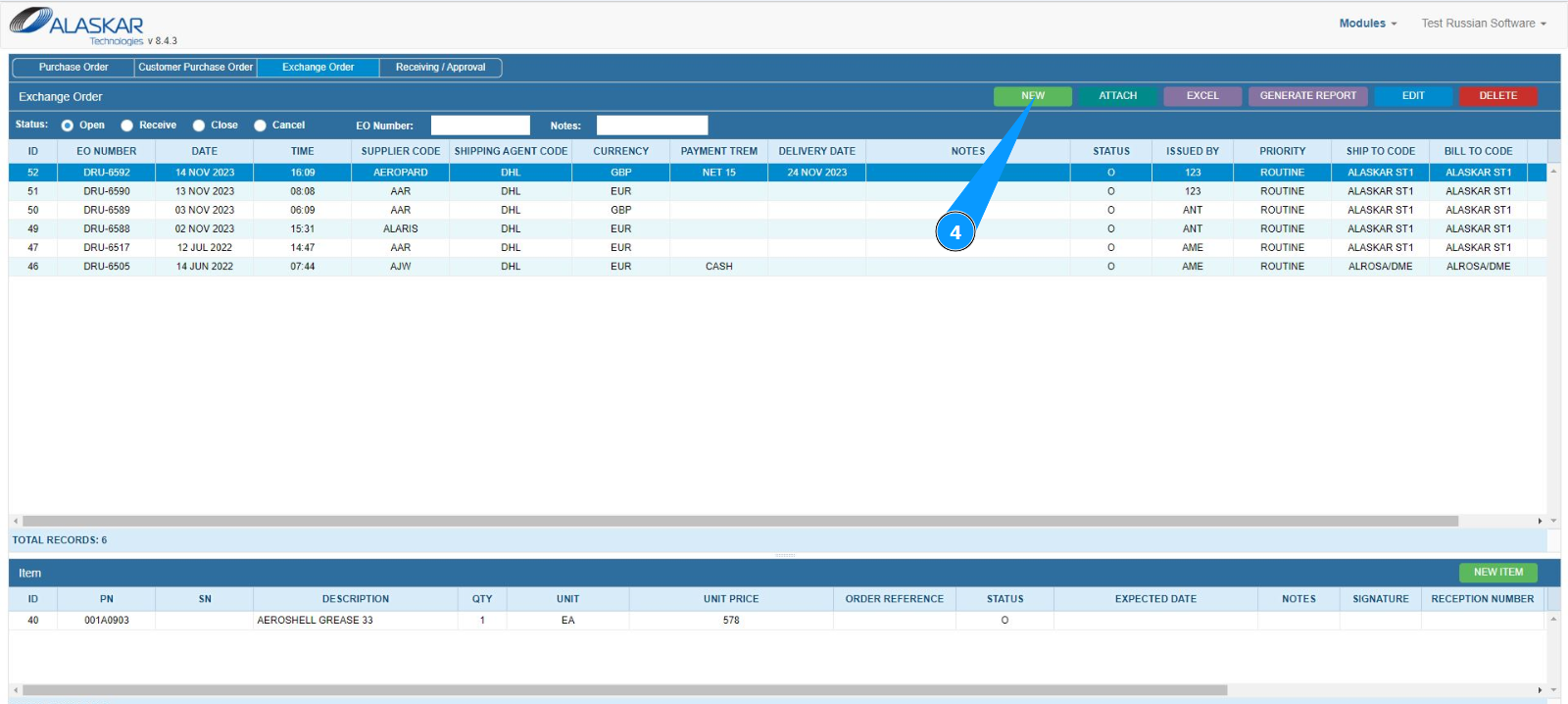
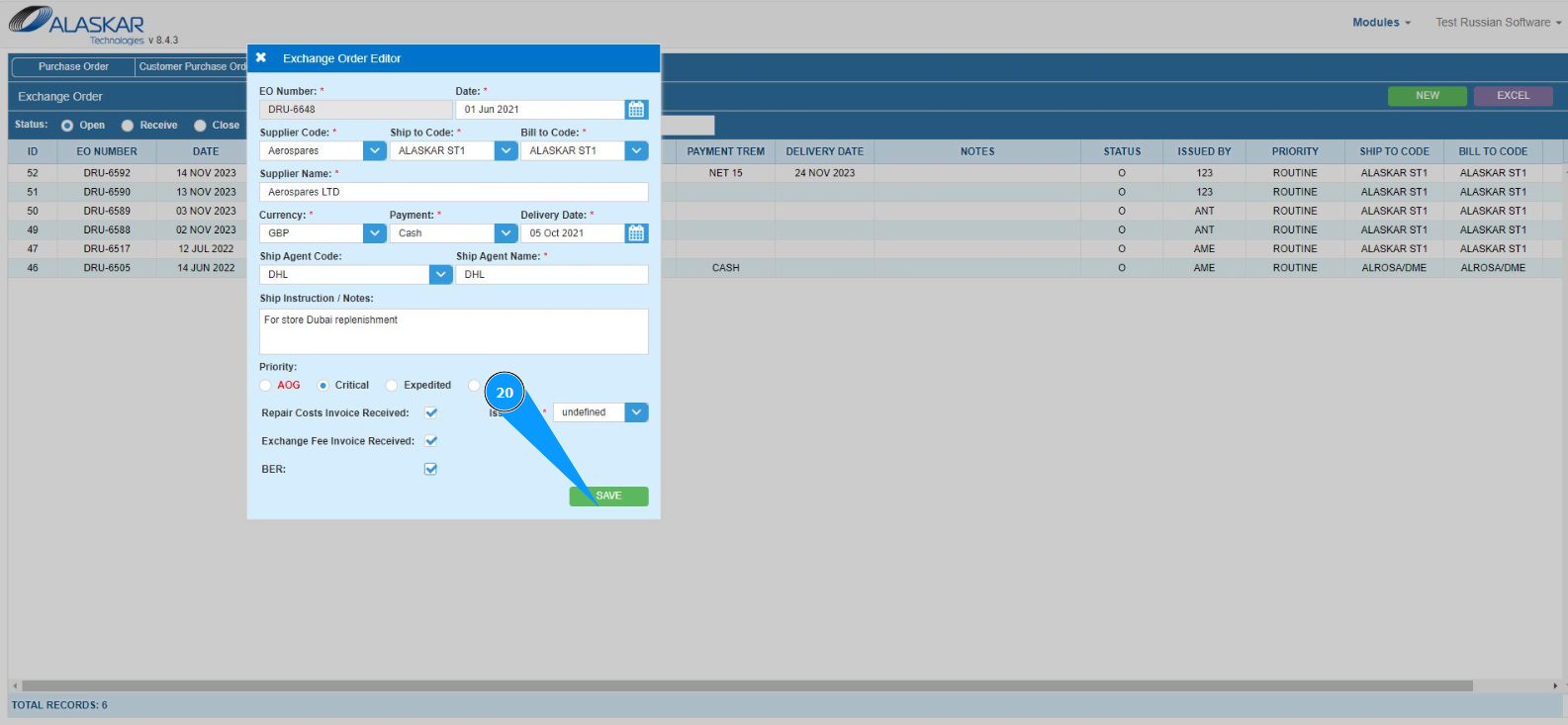
5. Make sure that the Exchange Order creation editor is open and accessible in the window "Exchange Order Editor" . Note: The EO number will be entered automatically by the program in the field "EO Number" .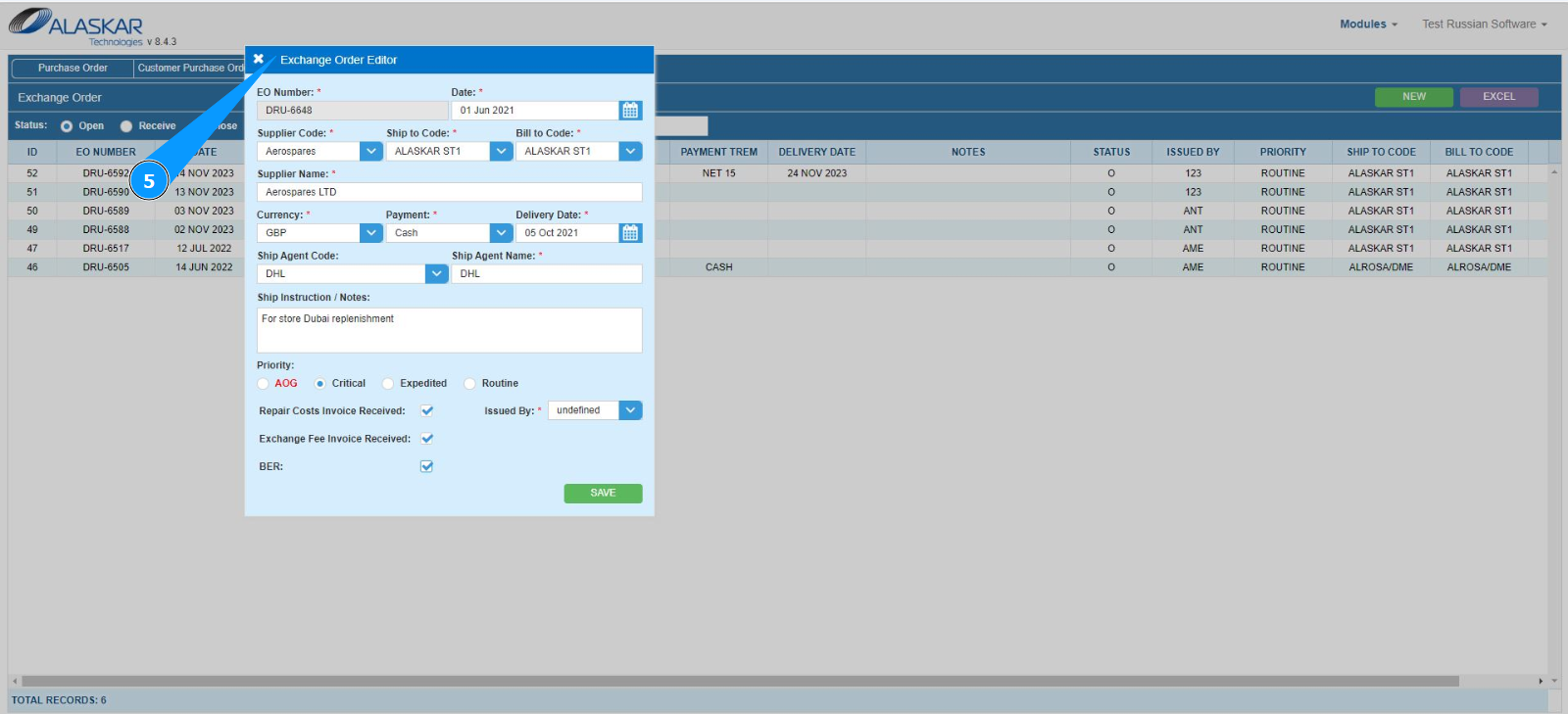
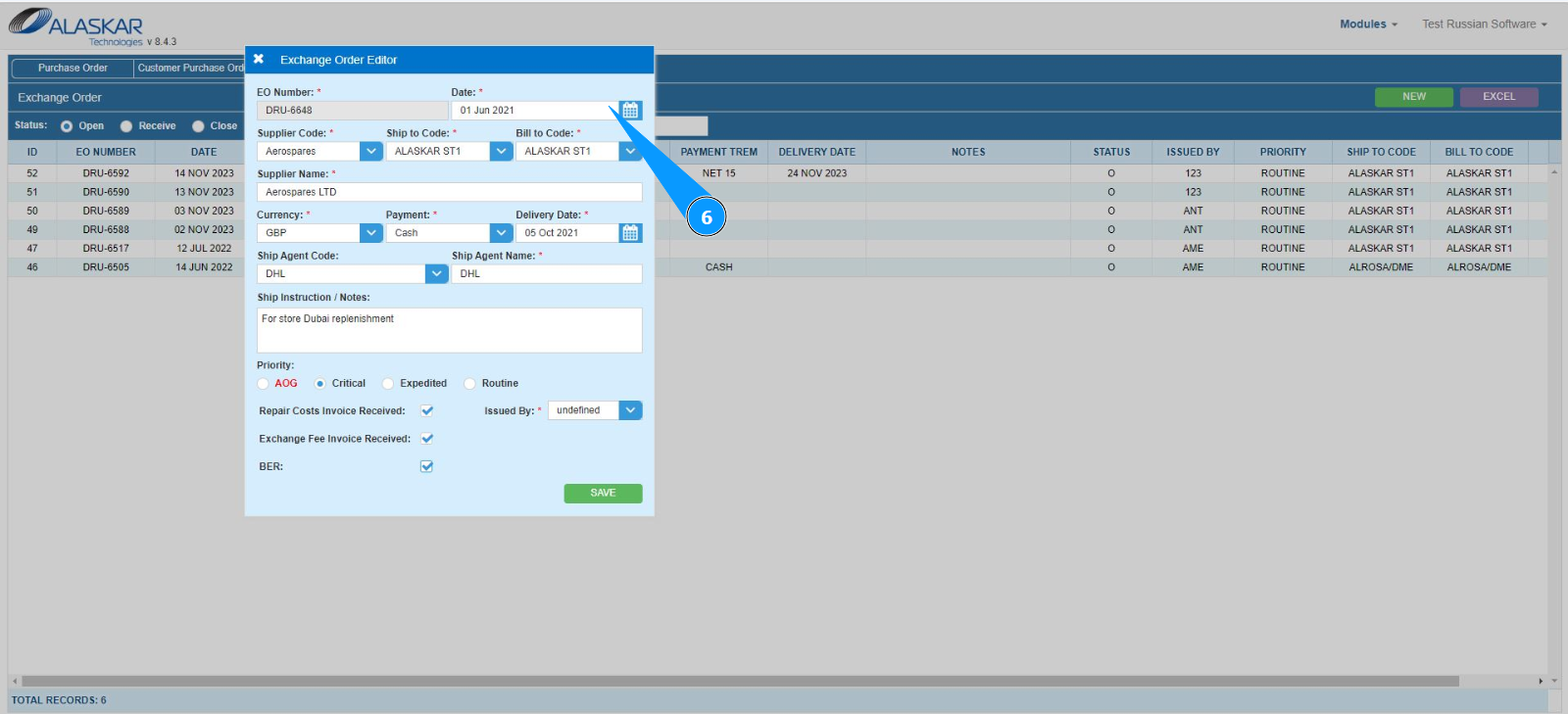
6. Enter the date the EO was created in the field "Date" or select from the calendar.
d
7. Select the supplier code from the dropdown list in the field "Supplier Code". Note: The supplier's name will appear automatically in the field "Supplier Name".
8. Select from the dropdown list where to send the spare part in the field "Ship to Code.
9. Select from the dropdown list where to send the invoice for the exchange in the field "Ship to Code.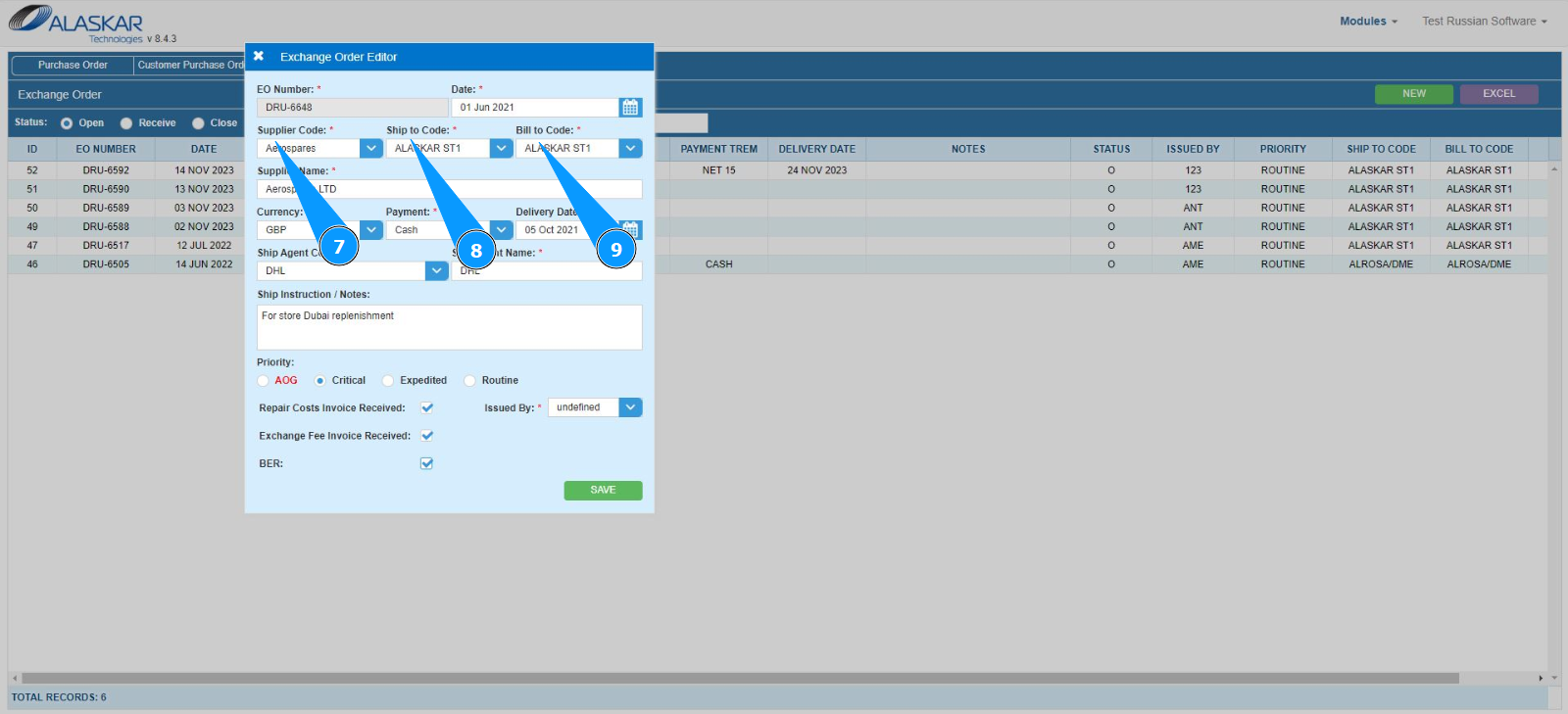
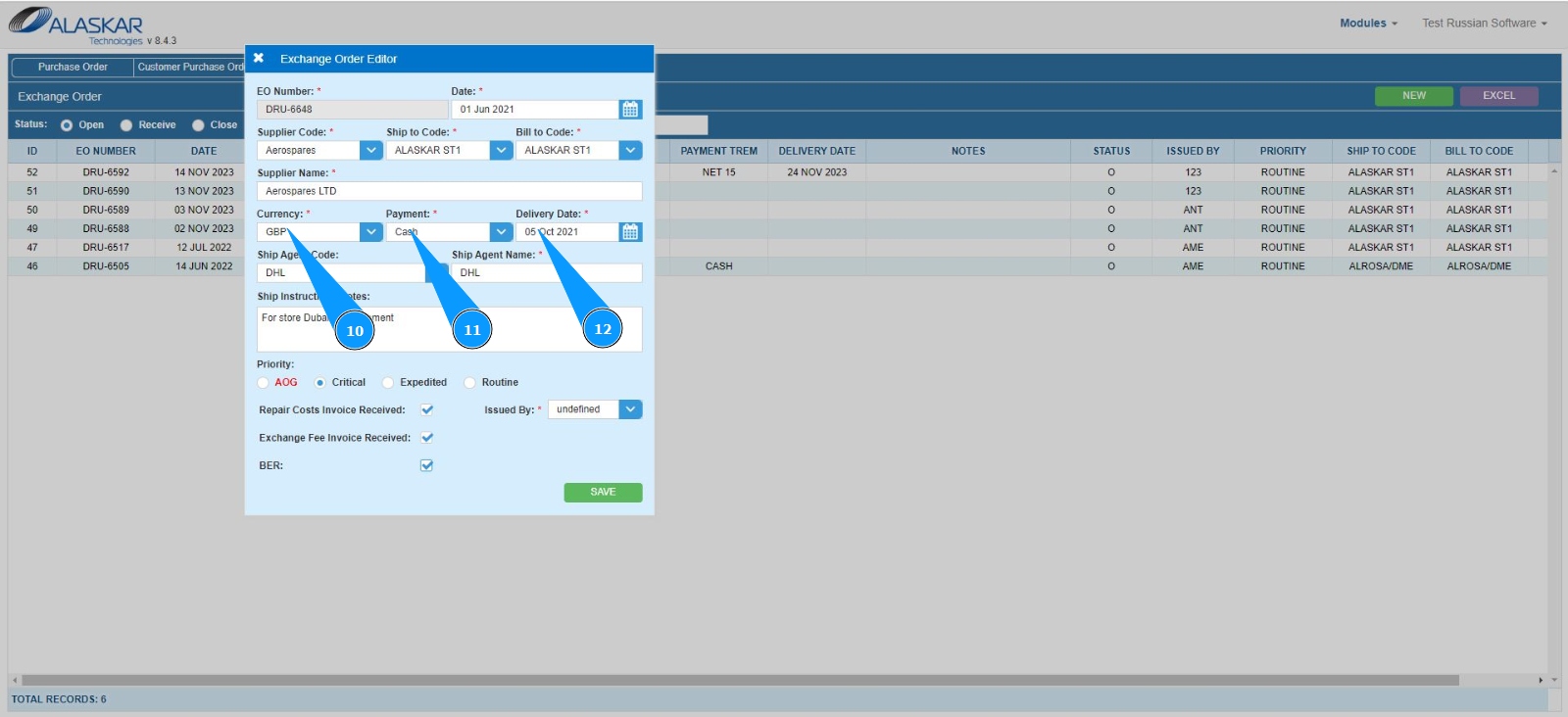
10. Select the currency for payment from the dropdown list in the field "Currency.
11. Select the payment type from the dropdown list in the field "Payment.
12. Enter the forecast EO delivery date in the field "Delivery Date" or select from the calendar.
13. Select the delivery company code from the dropdown list in the field "Ship Agent Code. Note: The shipping company name will appear automatically in the field "Ship Agent Name".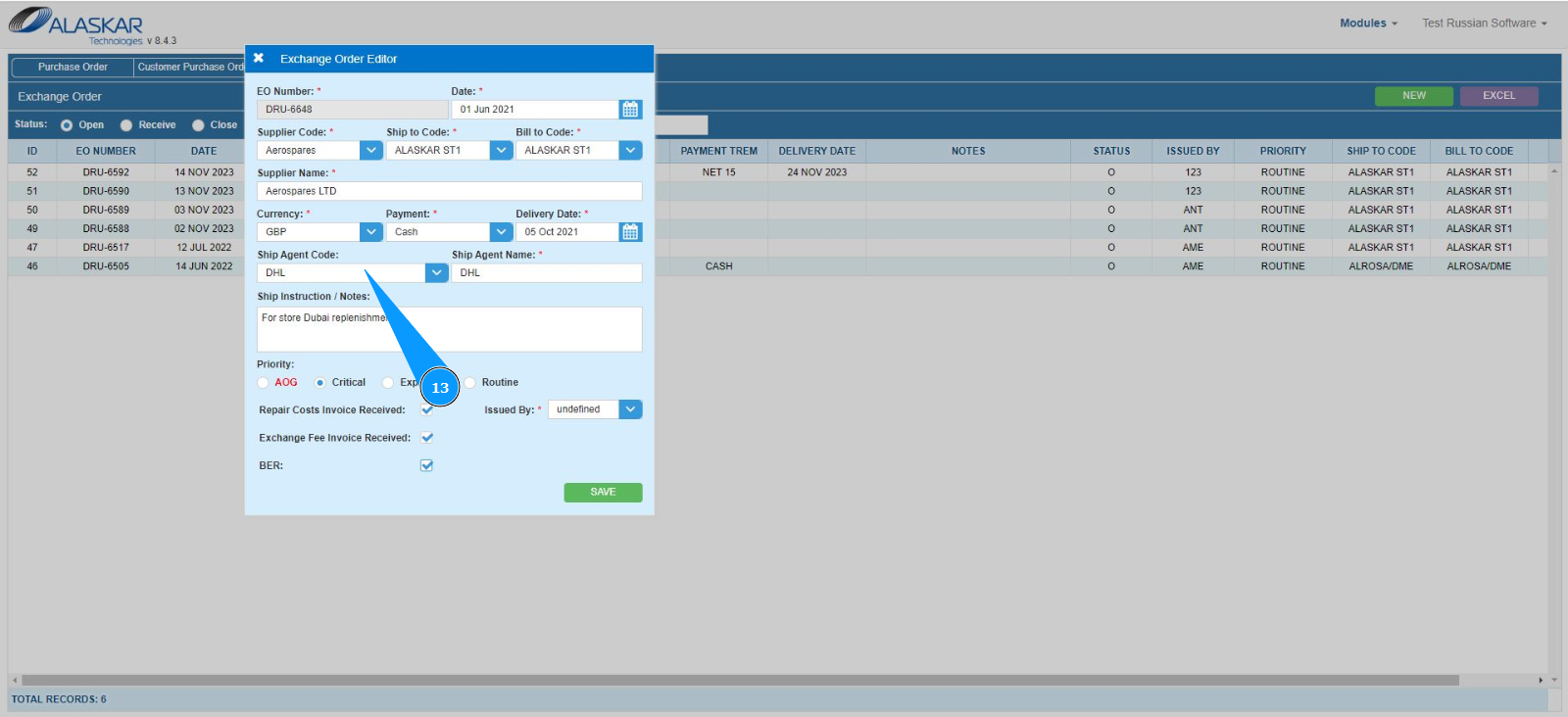
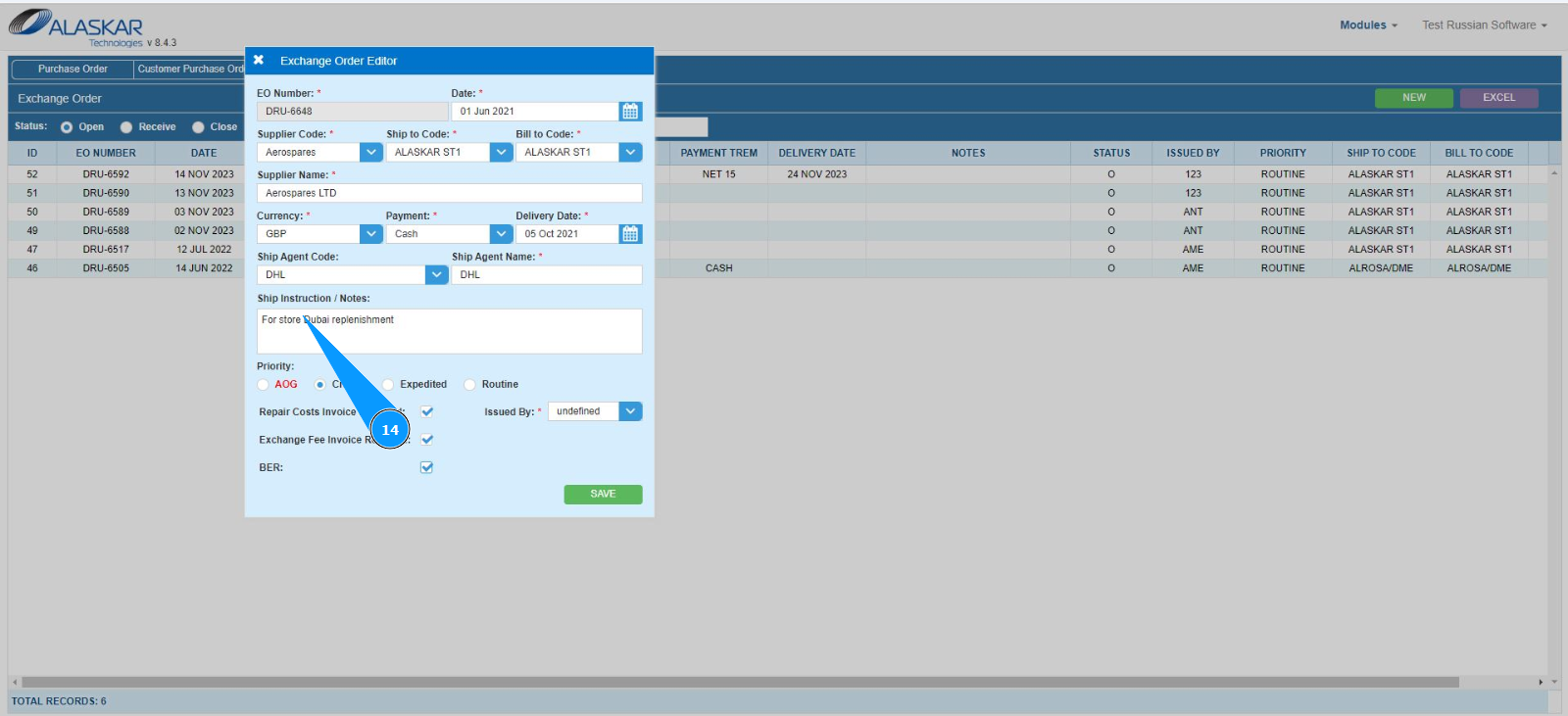
14. If necessary, enter any comments regarding transportation or others in the field "Ship instructions/Note".
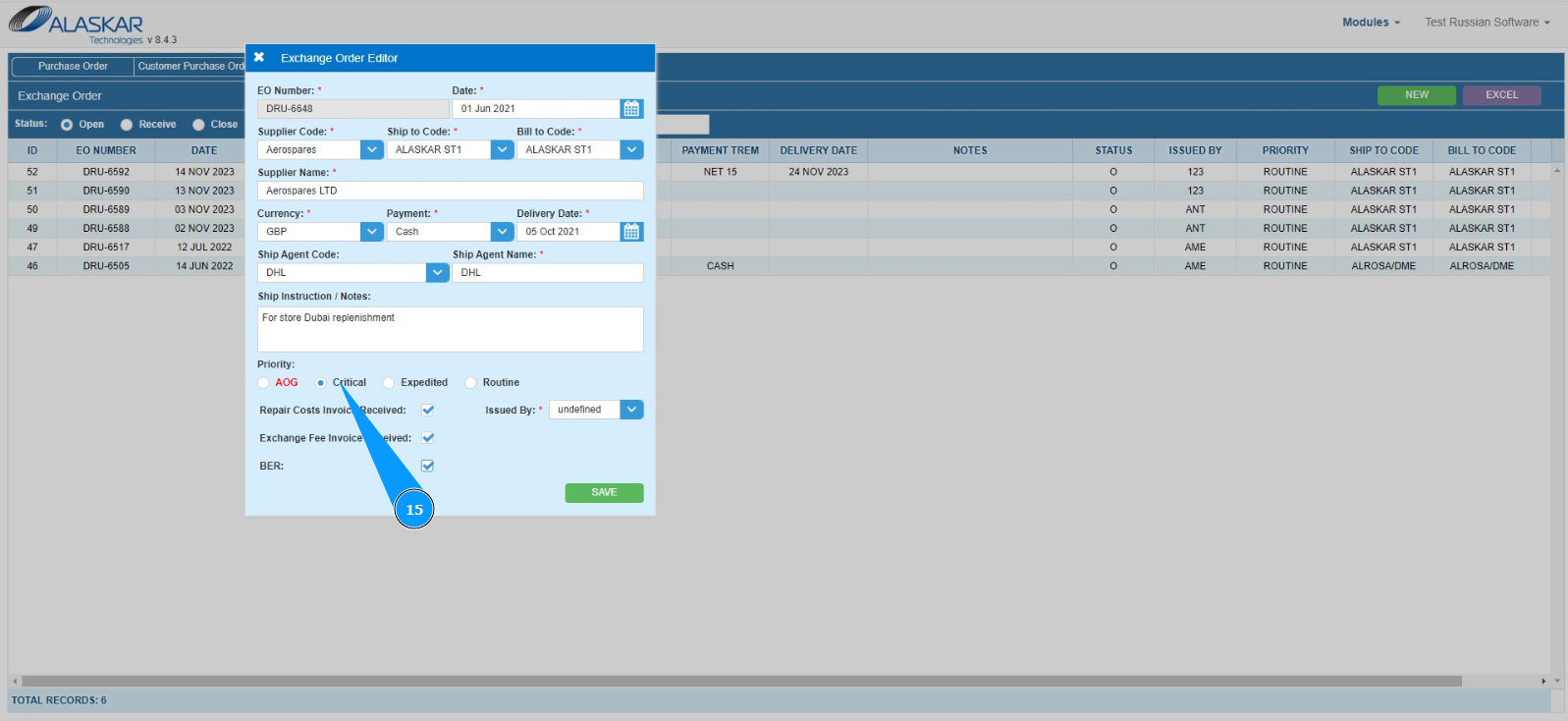
15. If the aircraft is on the ground and departure is impossible, click in the field "AOG", defining the state of "aircraft on the ground" or set other priorities by time.
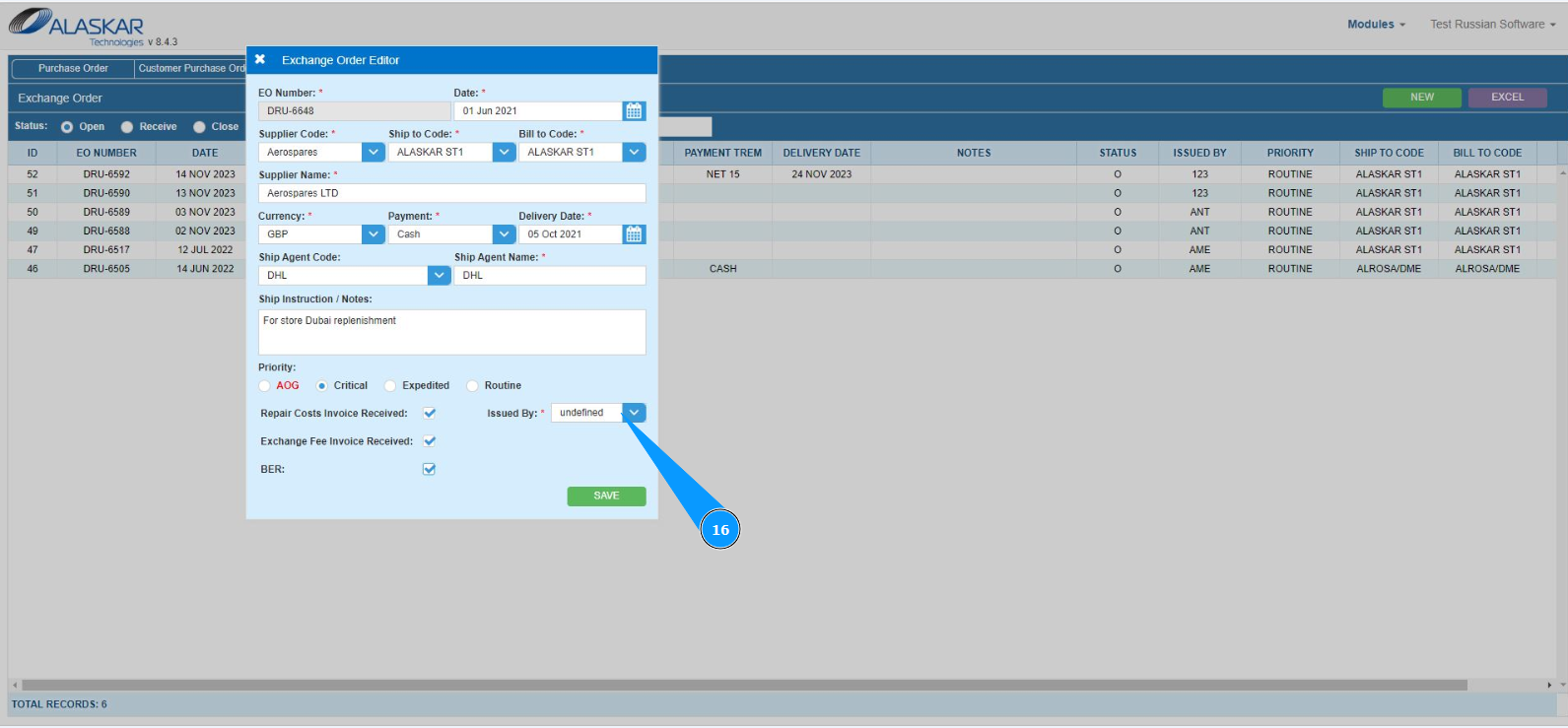
16. Select the initials of the creator EO from the dropdown list in the field "Issued by".
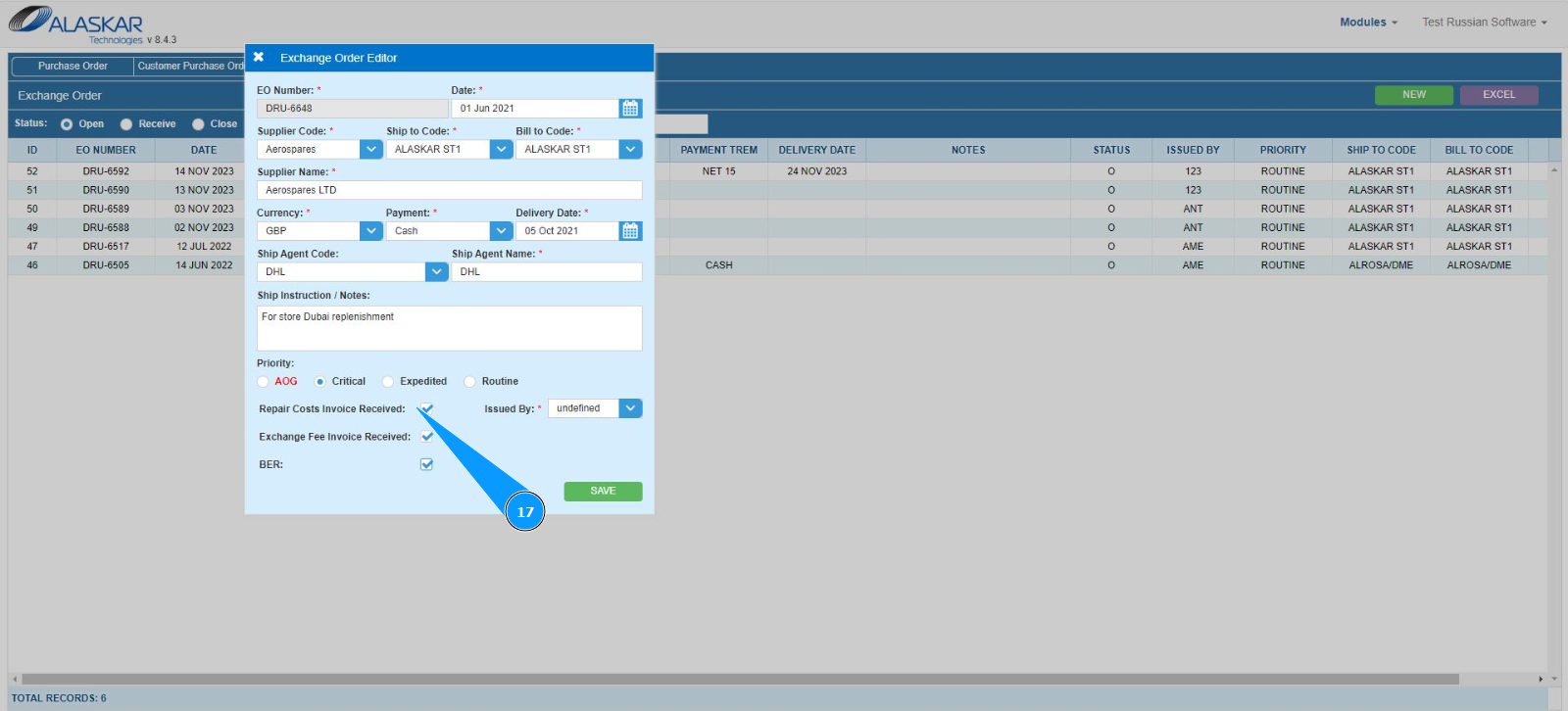
17. If necessary, tick the receipt of the repair invoice in the field "Repair Cost Invoice Received".
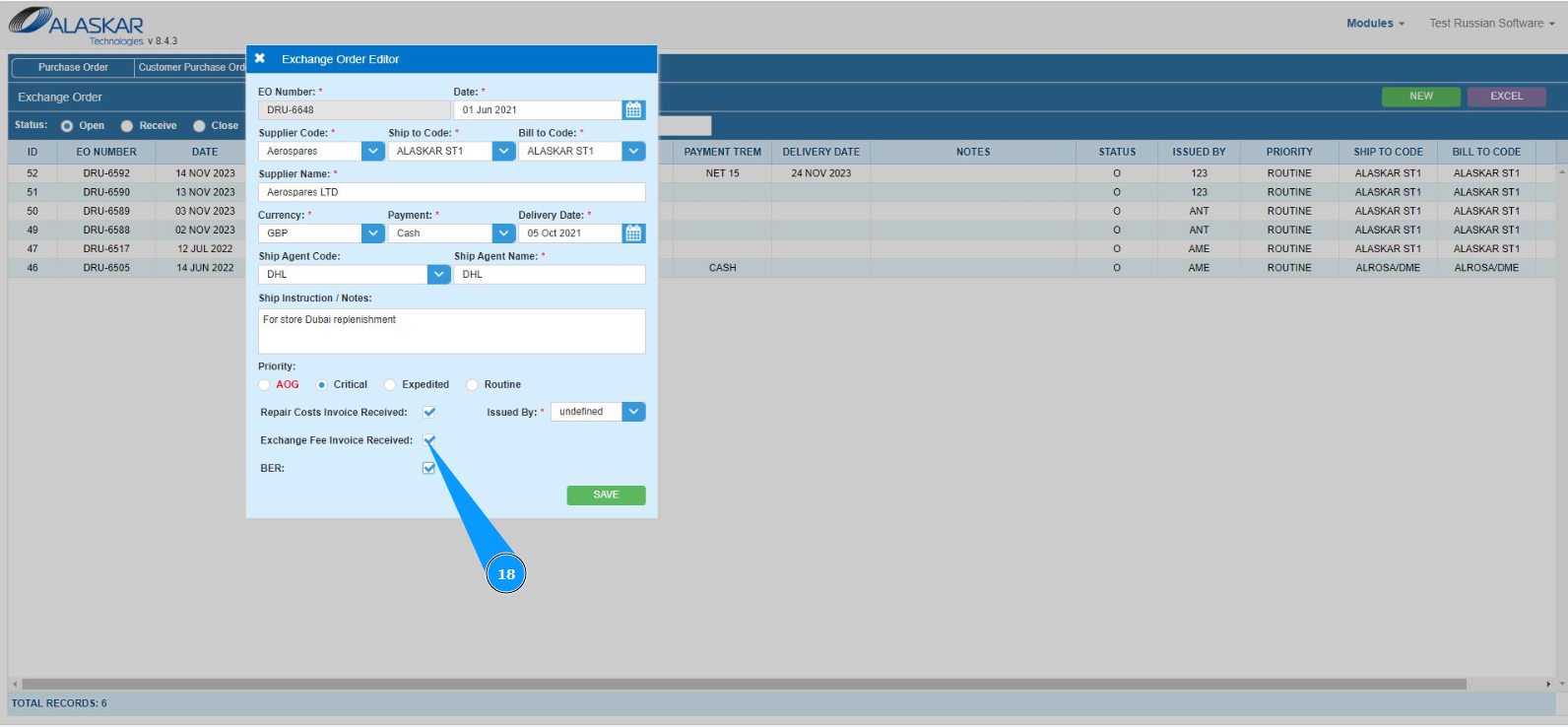
18. If necessary, indicate receipt of the final invoice in the field "Exchange Fee Invoice Received".
19. If necessary, tick the if the cost of repairs above the catalog price of the new product in the field "BER".
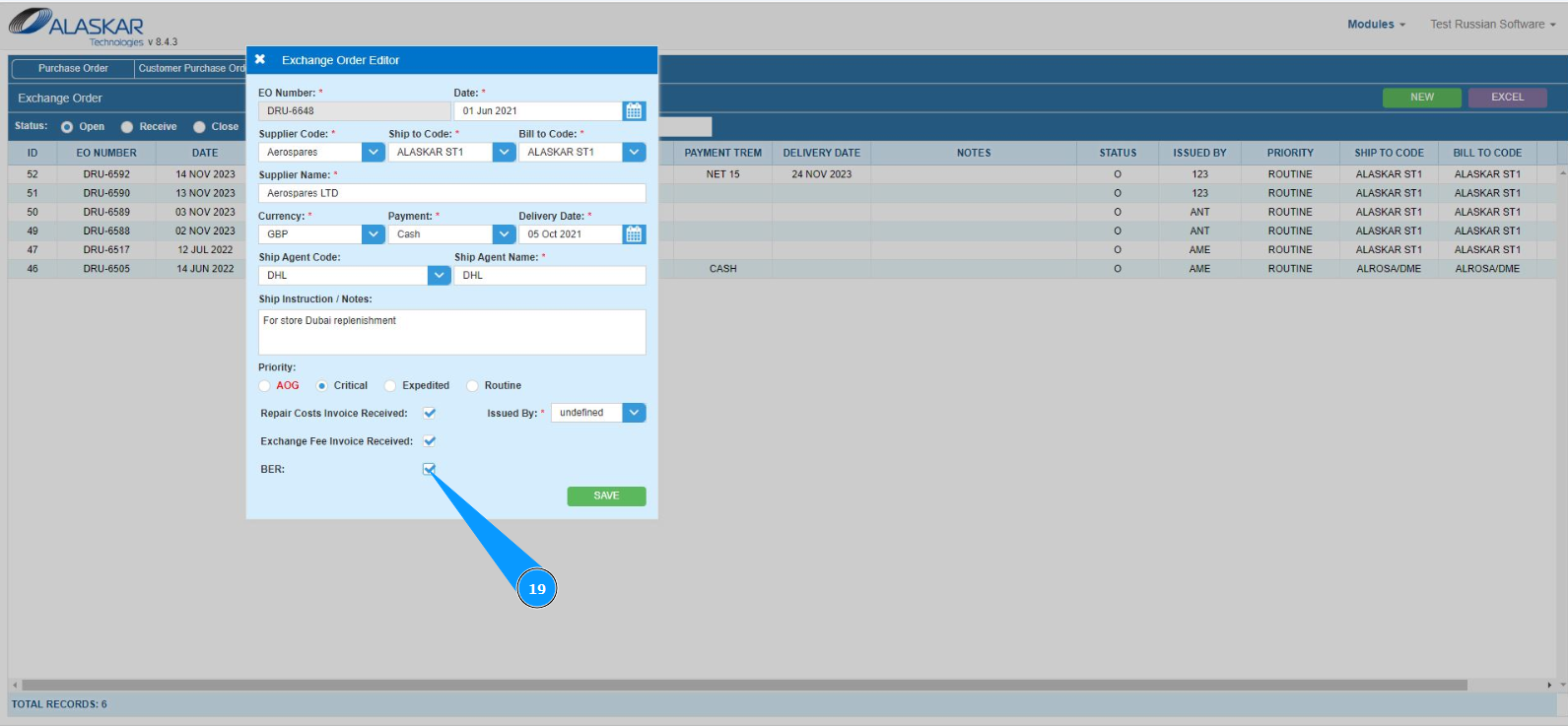
20. Click on the button "Save" to add the EO data to the program.
21. Check that the record about the newly created EO is displayed in the field "Exchange order".
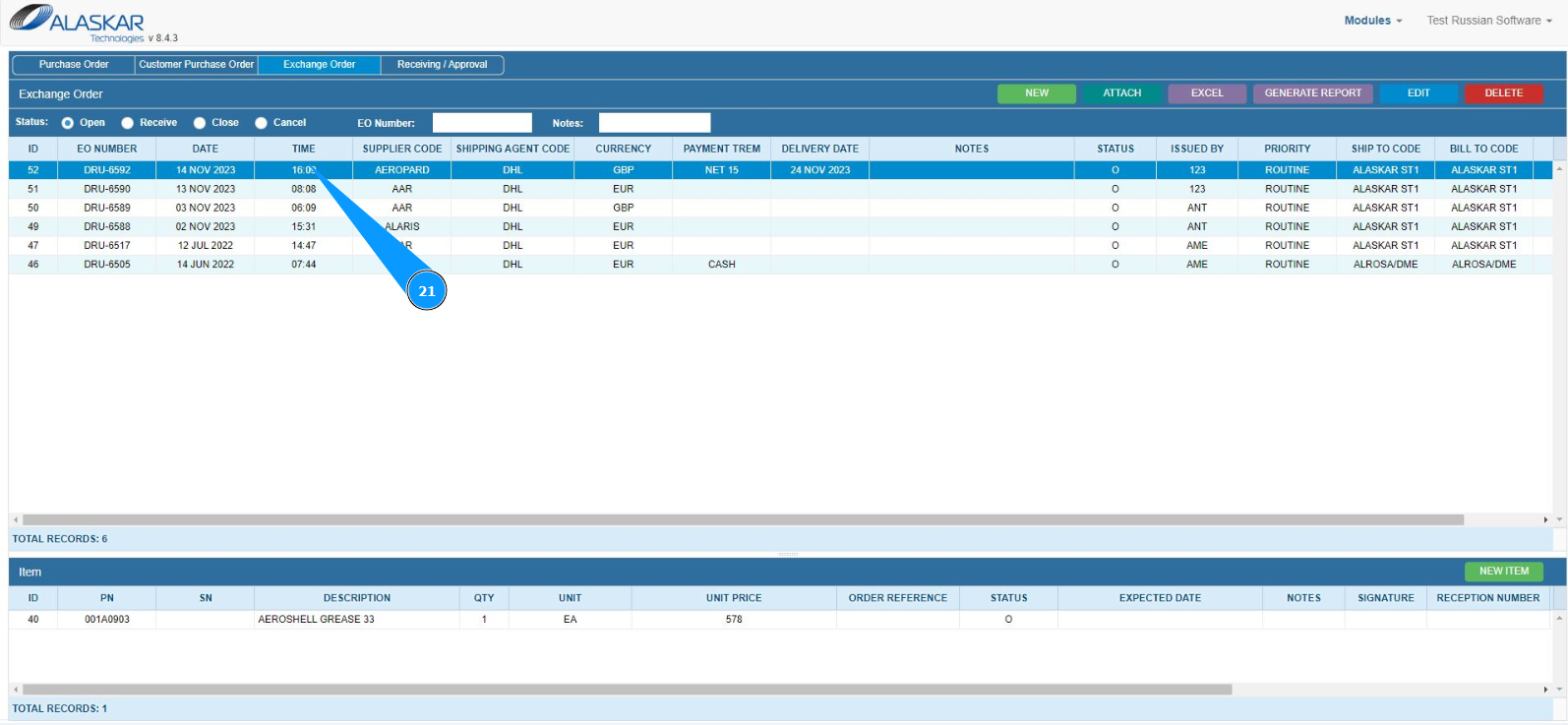
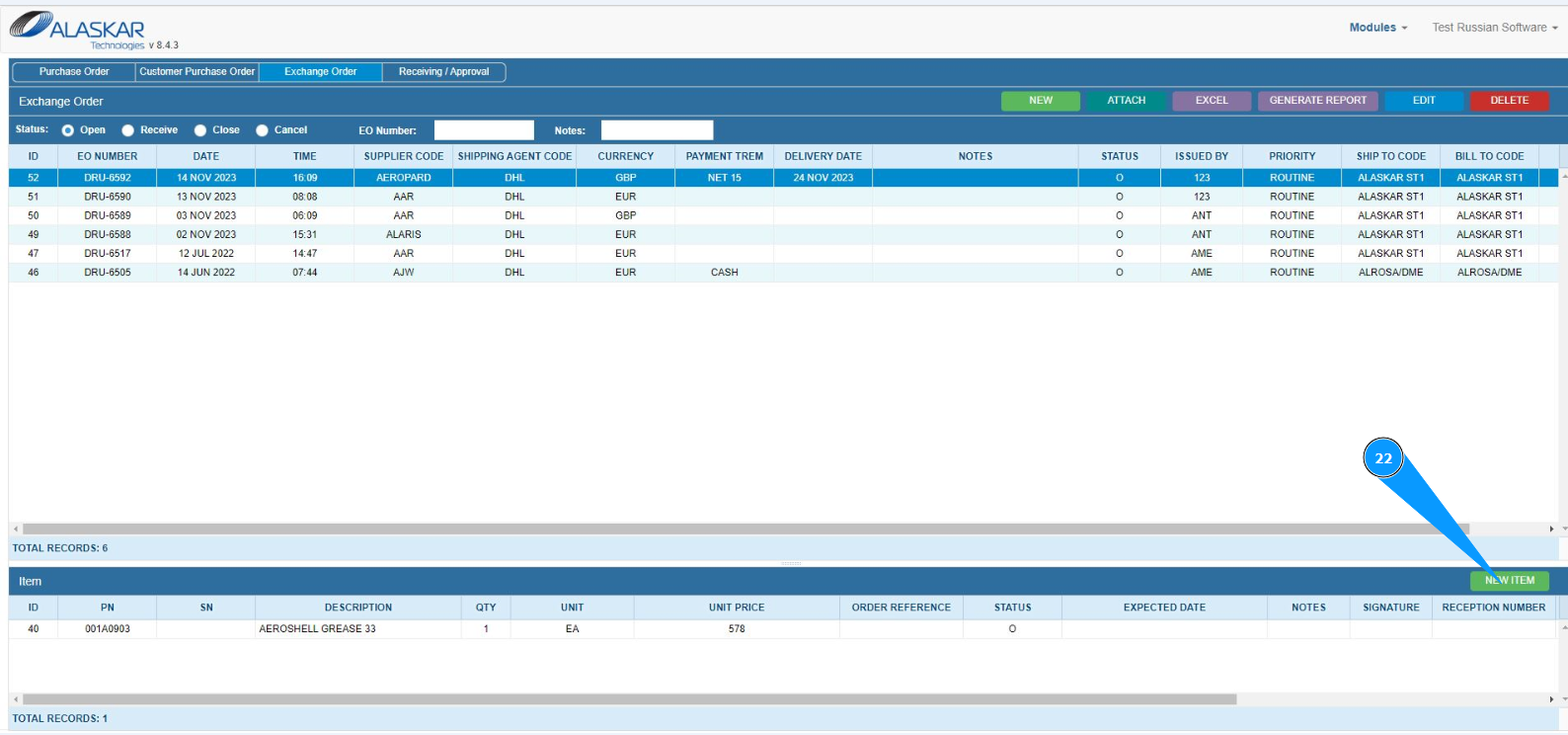
22. Click on the button "New Item" to enter the mode of adding materials to EO.
23. Make sure that the component editor is open and accessible in the window "Exchange Order Item Editor" . Note: The EO number will be entered automatically by the program in the field "EO Number".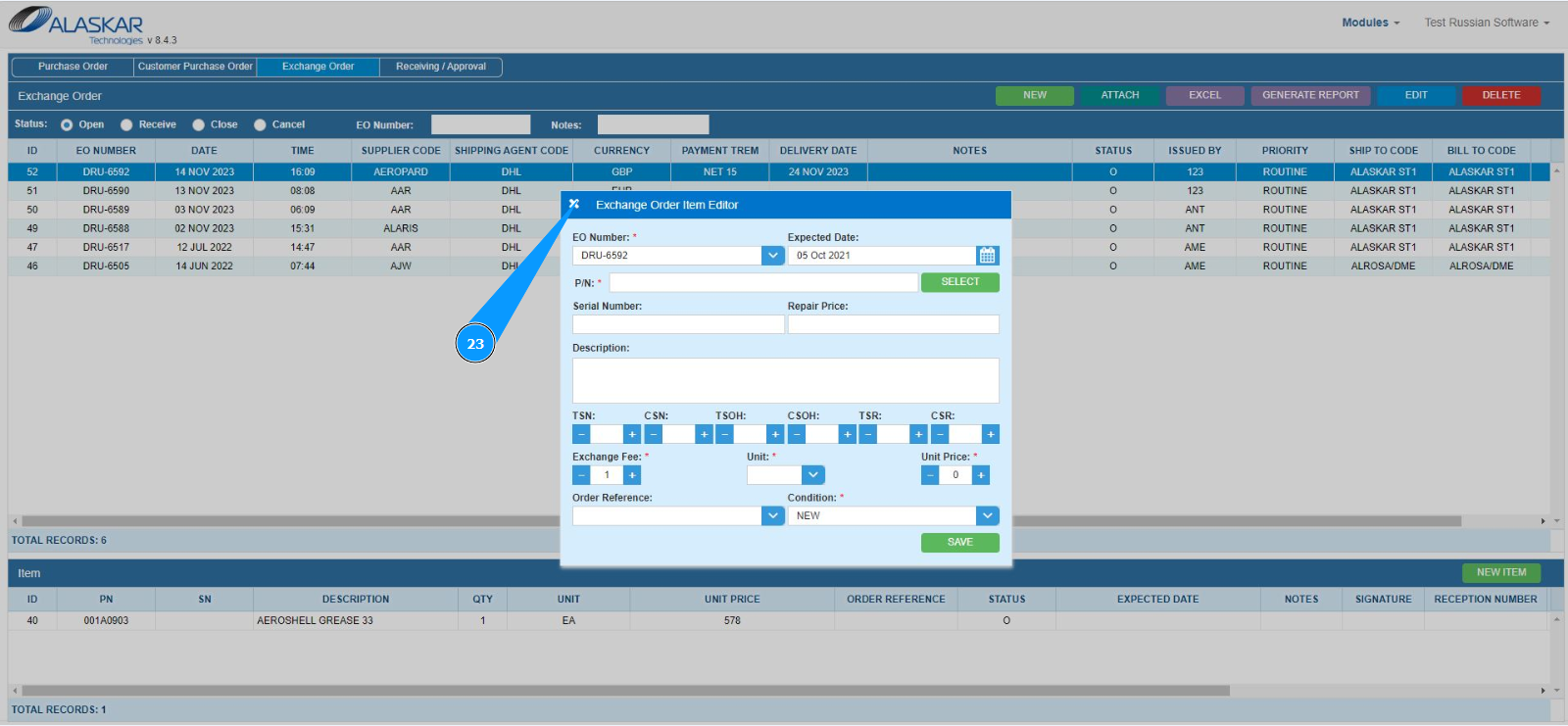
24. Enter the expected delivery date of the component in the field "Expected Date" or select from the calendar.
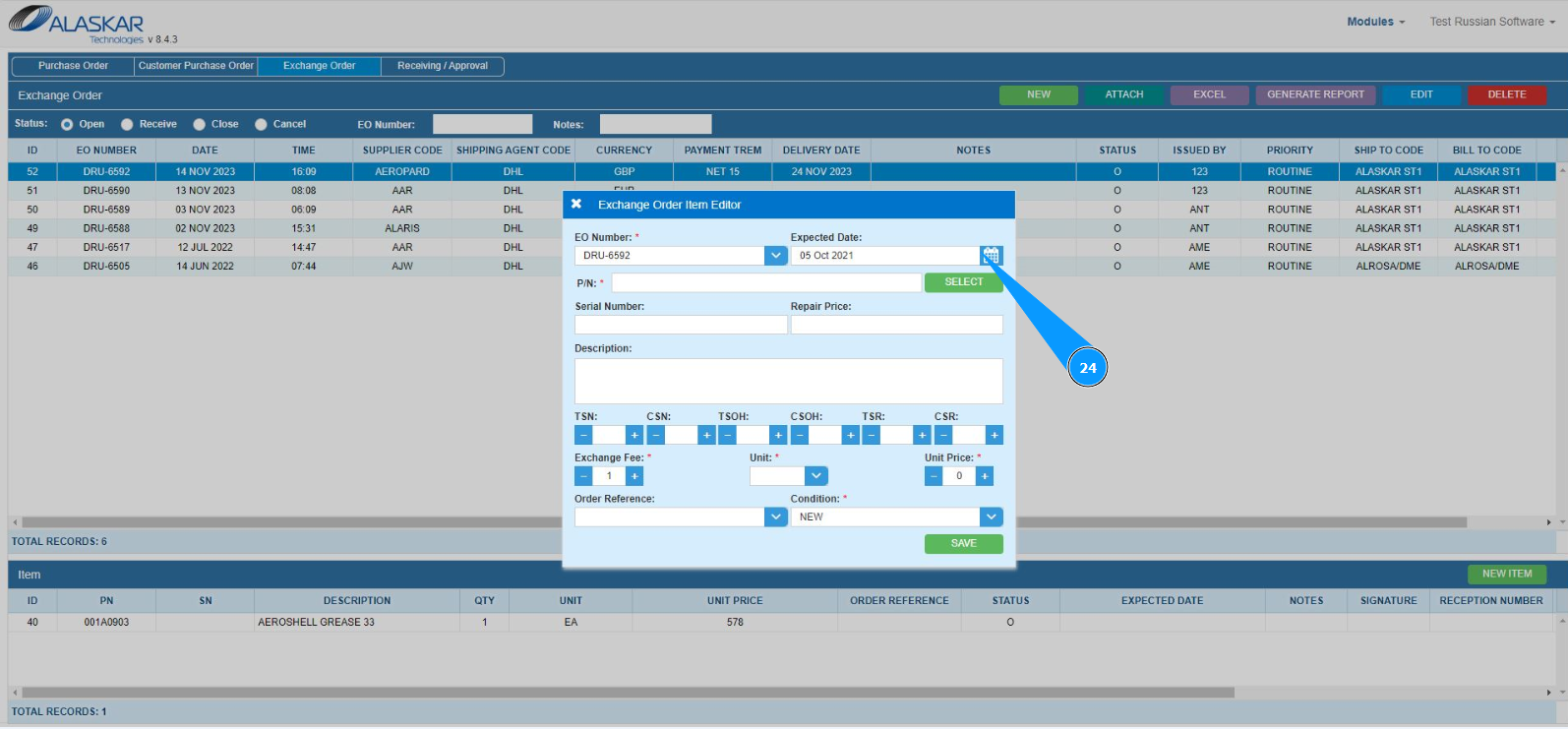
25. In order to select the part number of the component, click on the button "Select".

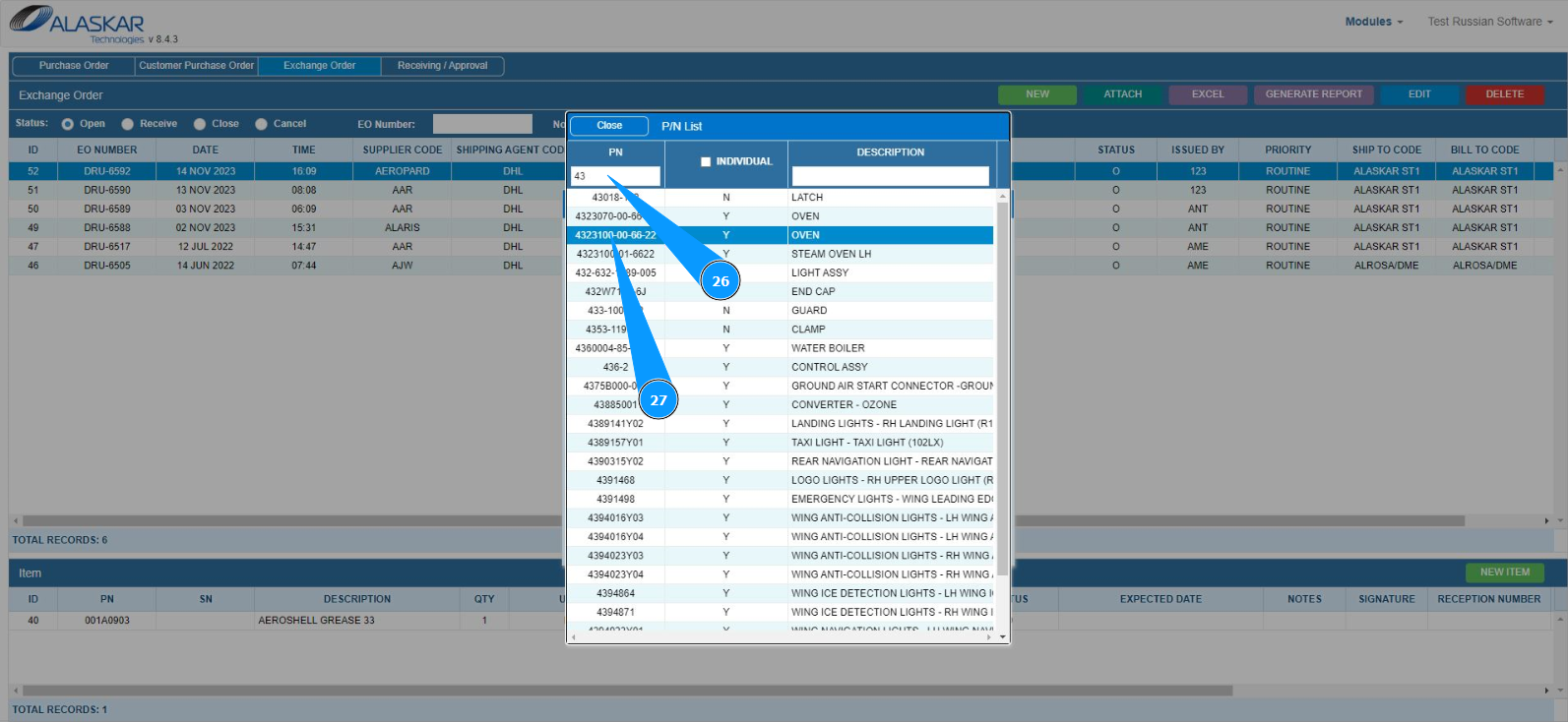
26. In the search field, enter the required part number in the field "PN" and press the "Enter" button on your keyboard.
27. Select the required part number to enter and double click on the corresponding line.
28. Check that the part number is displayed in the field "P/N. Note: The description (name) of the component will be entered by the program automatically in the field "Description".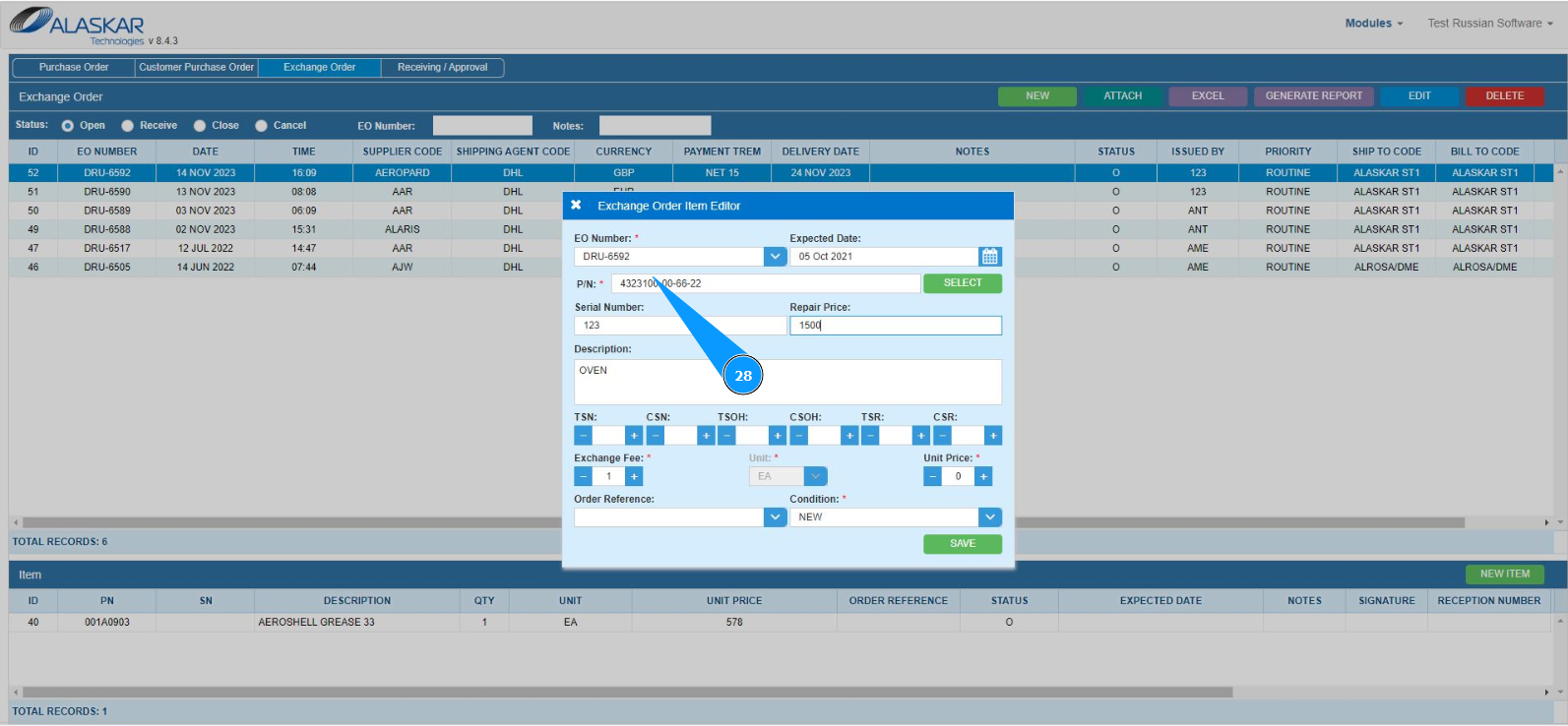
29. If necessary, enter information about the serial number of the component to be exchanged in the field "Serial Number".
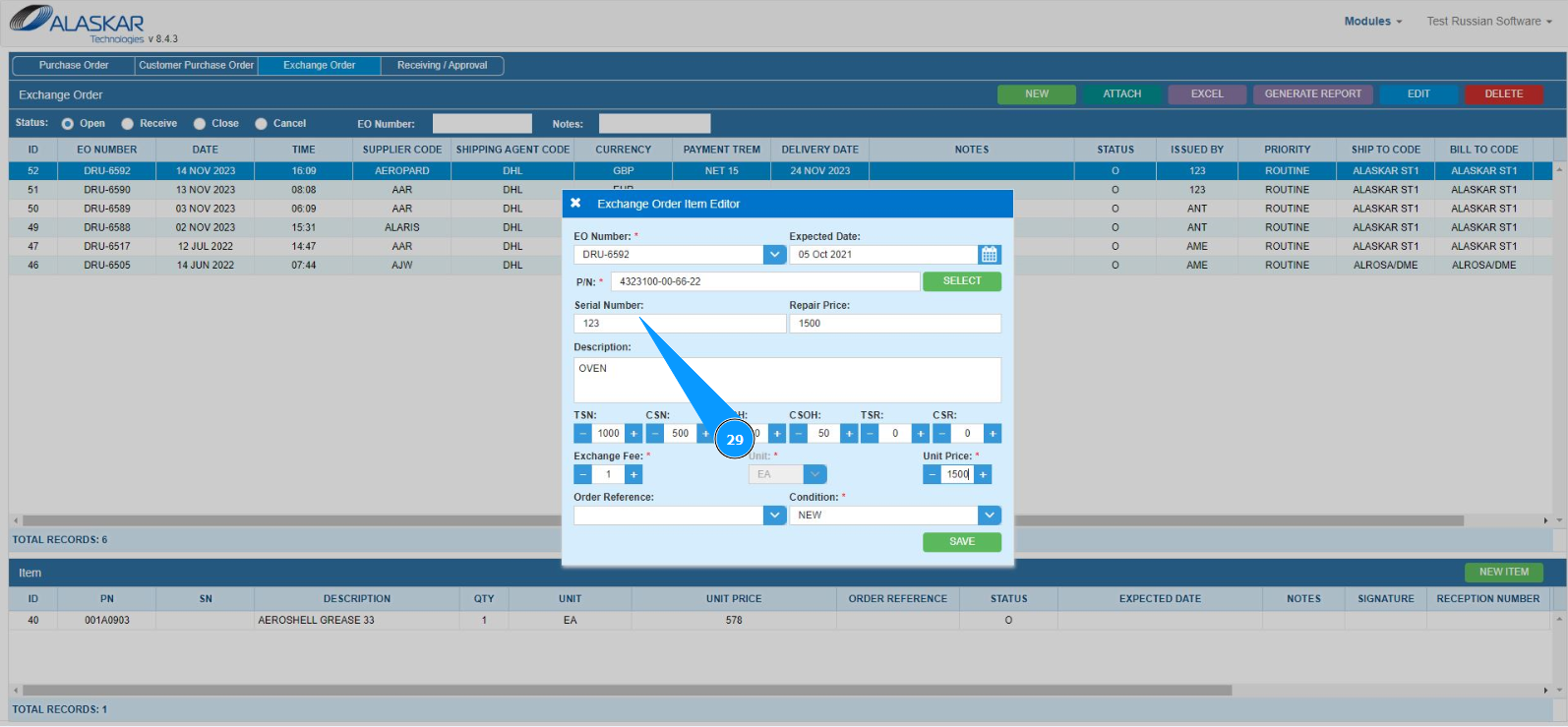
30. If necessary, enter information about the cost of repairs in the field "Repair Price".
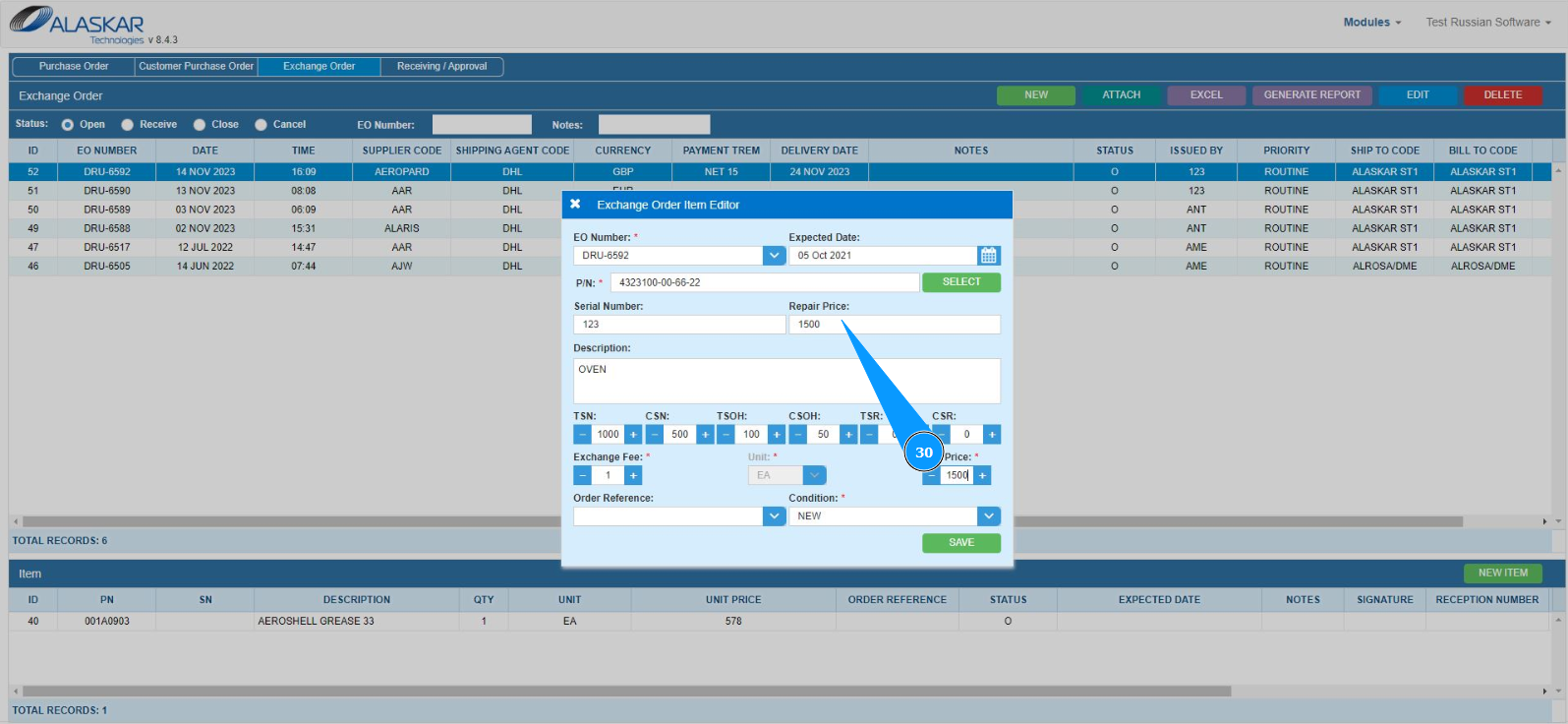
31. If necessary, enter information about the operating time of the component from the first operation, from the date of major overhaul or from the date of repair in the fields: "TSN", "CSN", *"TSOH" *, "CSOH", "TSR", "CSR".
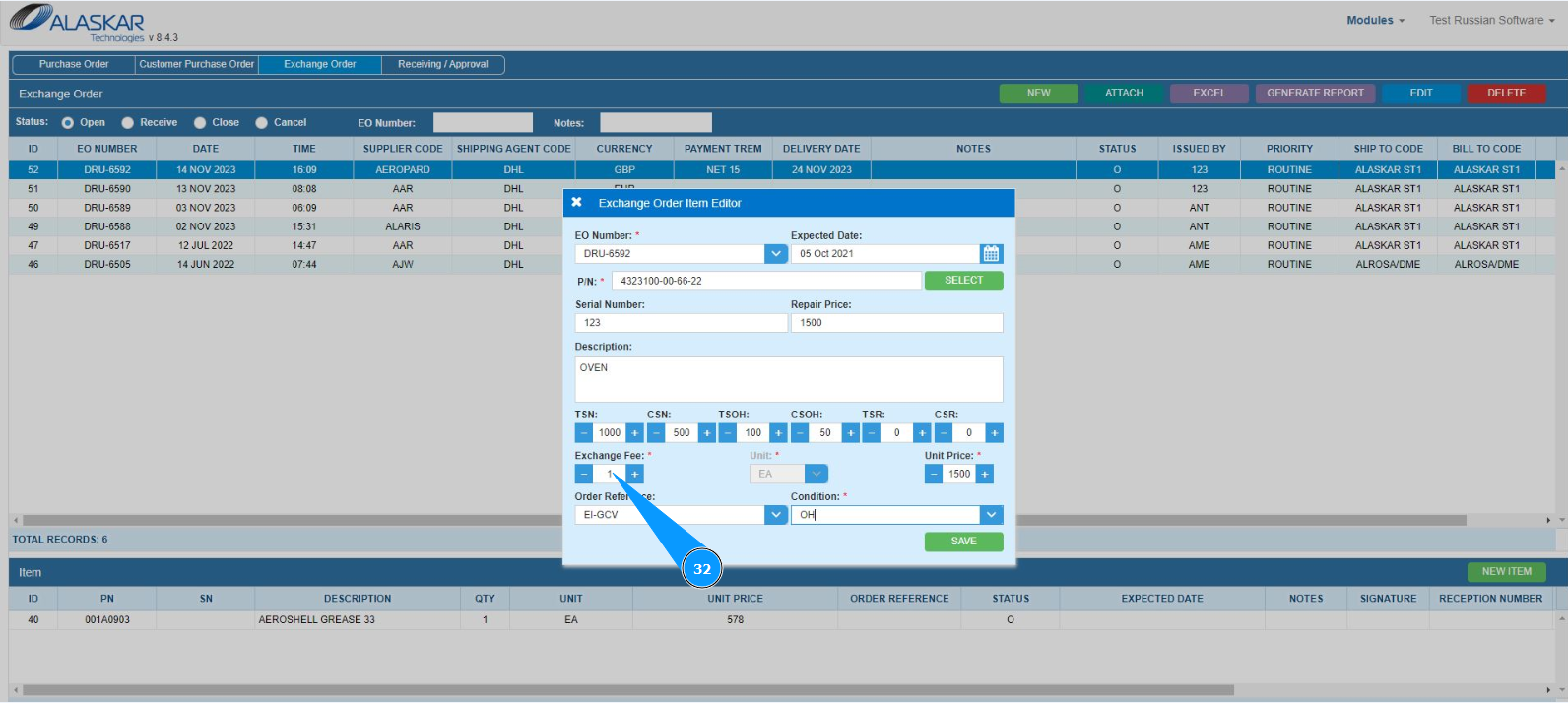
32. Enter the exchange rate in the field "Exchange Fee". You can change the exchange ratio using the plus or minus buttons.
33. Enter the cost per unit of the component in the field "Unit Price". You can change units using the plus or minus buttons. Note: Units of component use: pieces, kilograms, meters, and so on, will be entered automatically by the program in the field "Unit.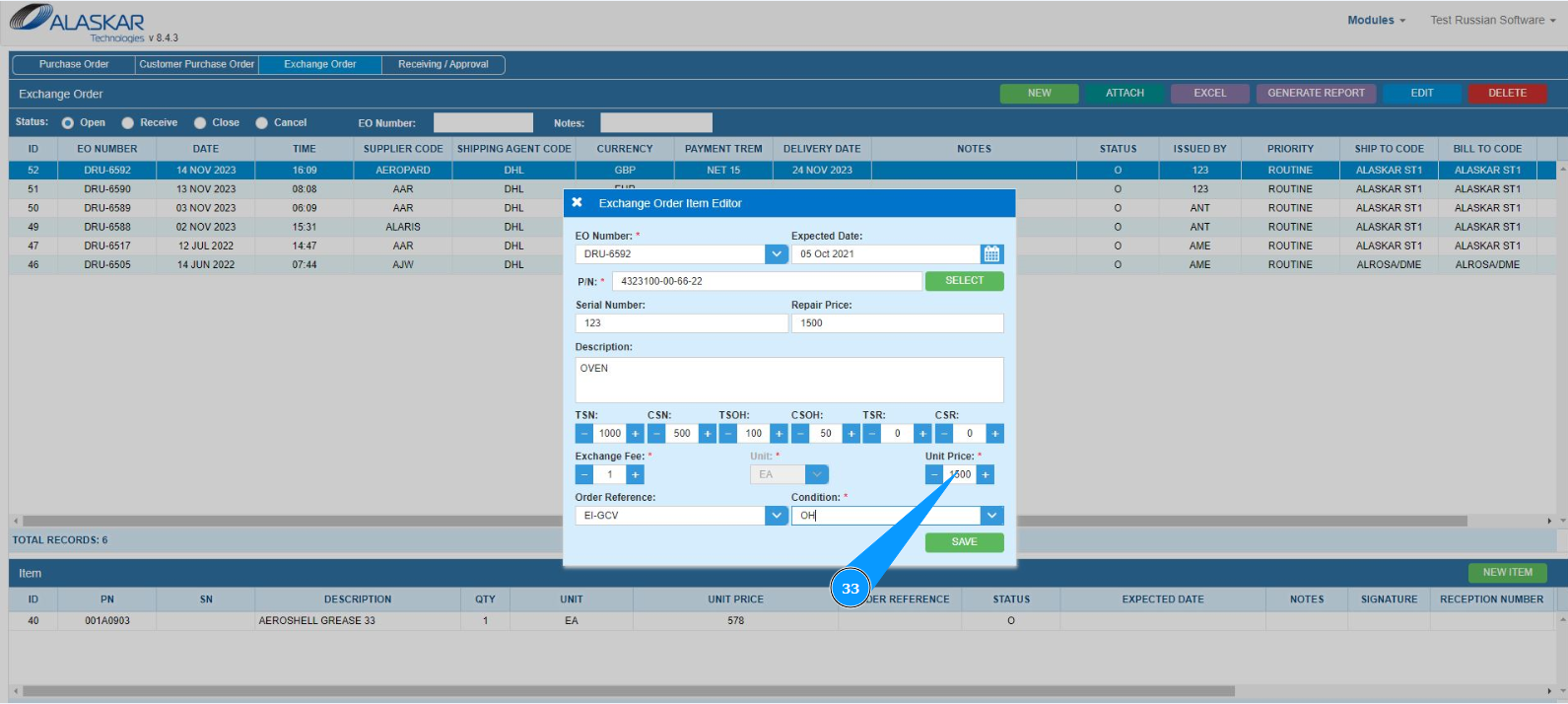
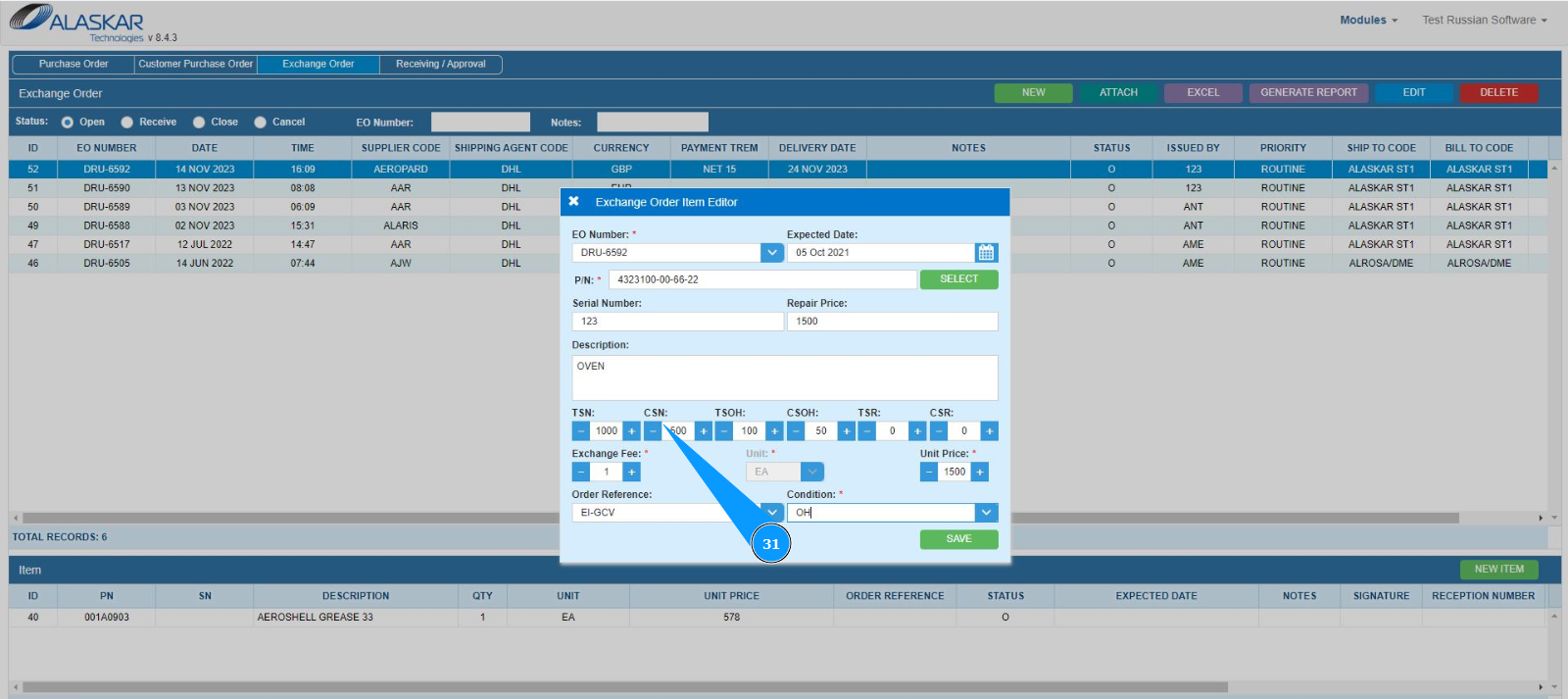
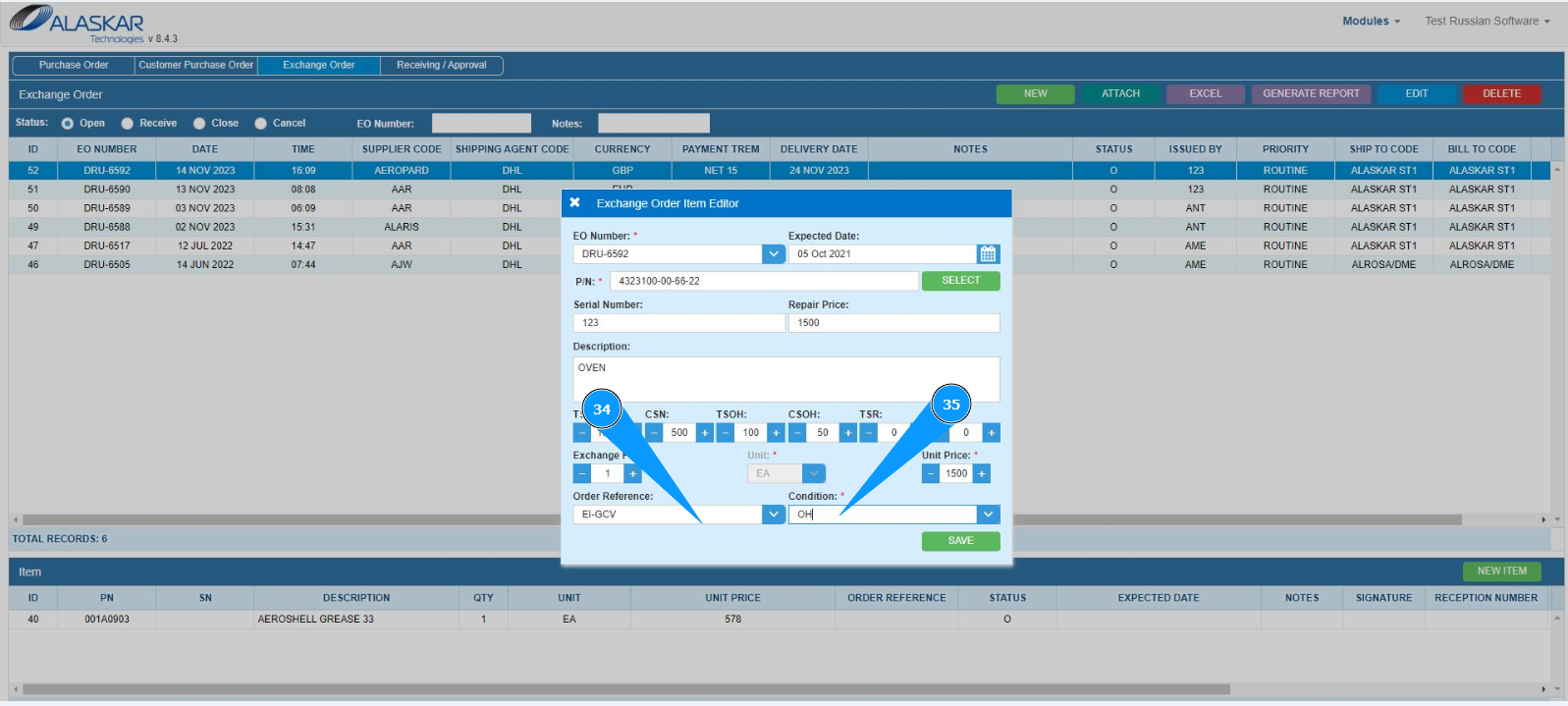
34. If necessary, enter the aircraft in the field: "Order Reference" or select from the dropdown list.
35. Select the condition of the component to be exchanged from the dropdown list in the field "Condition".
36. Click on the button "Save" to save the component data in EO to the program.
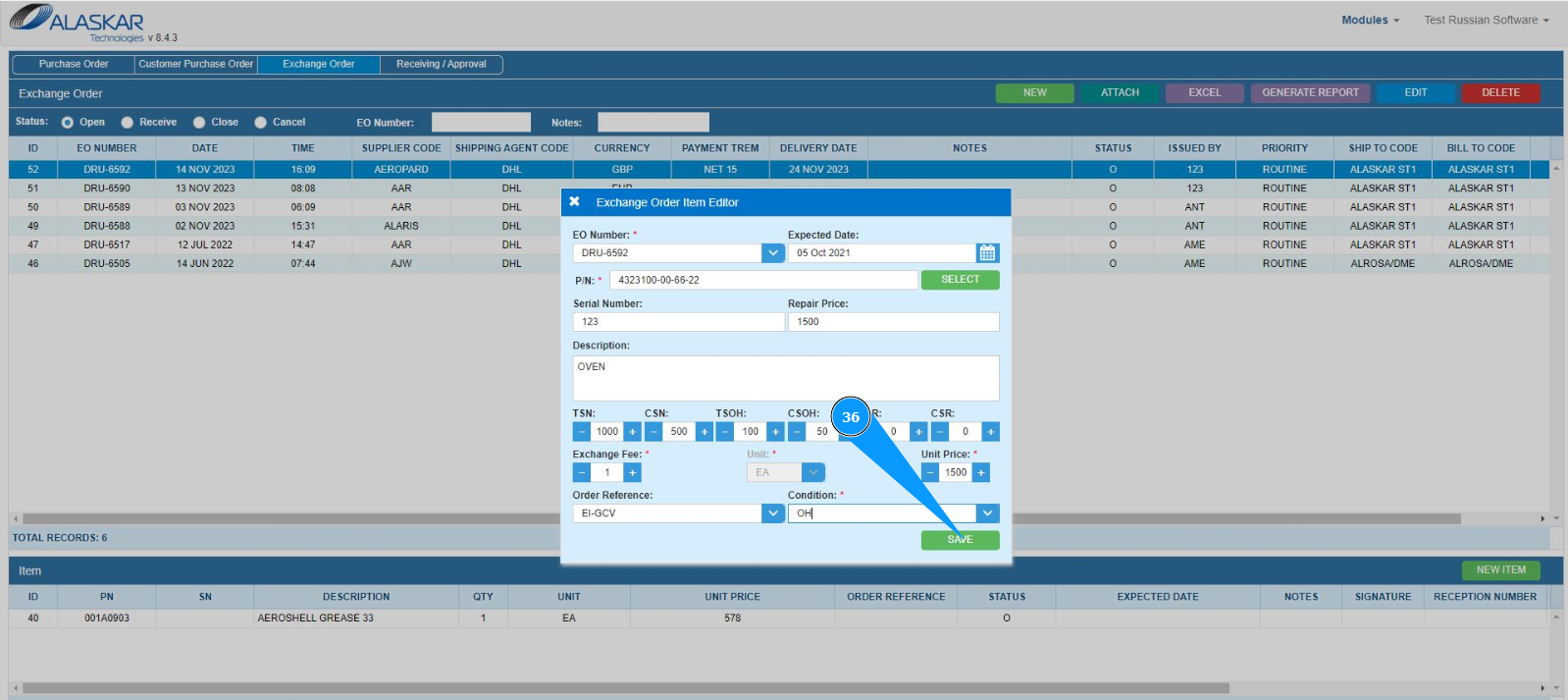
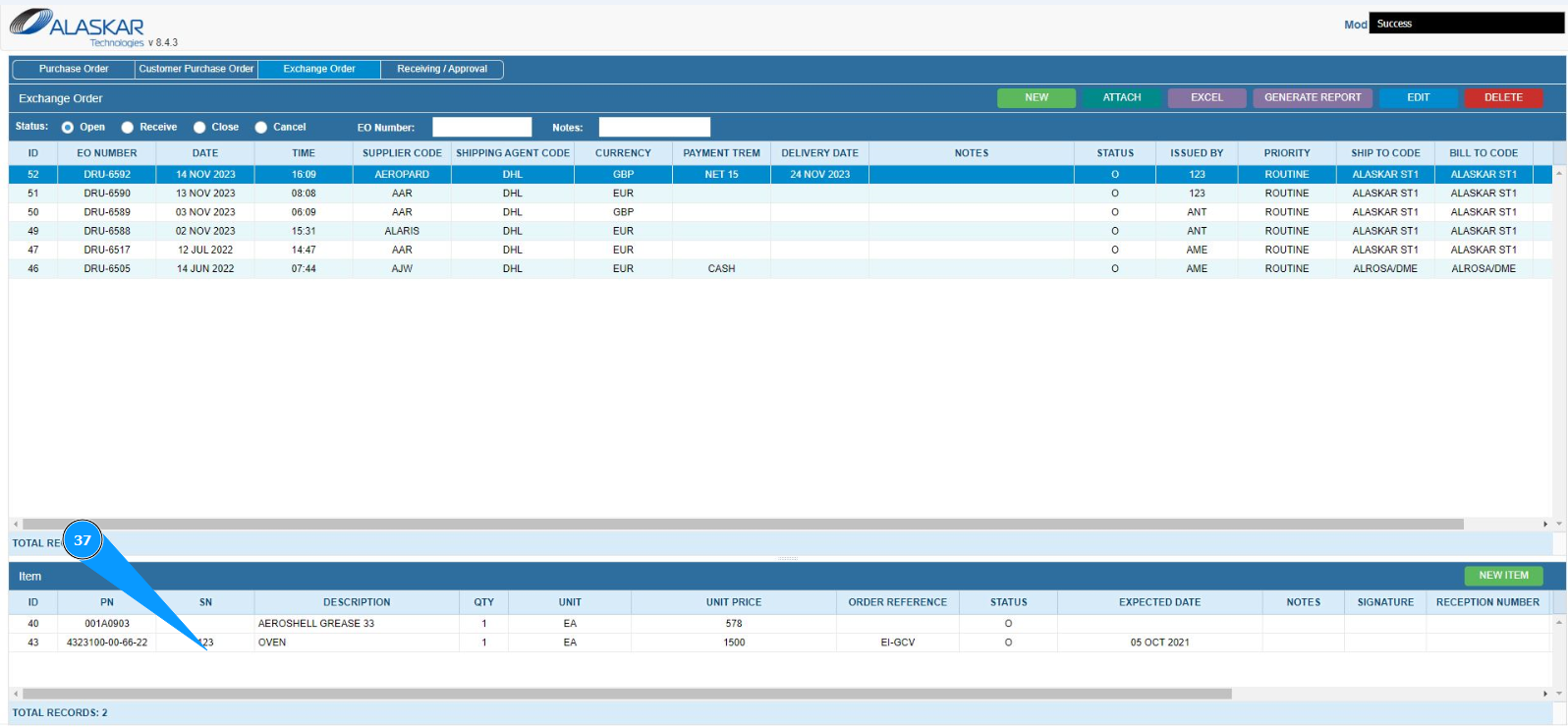
37. Check that the component record is displayed in the window "Item".