How to close a task in a work order
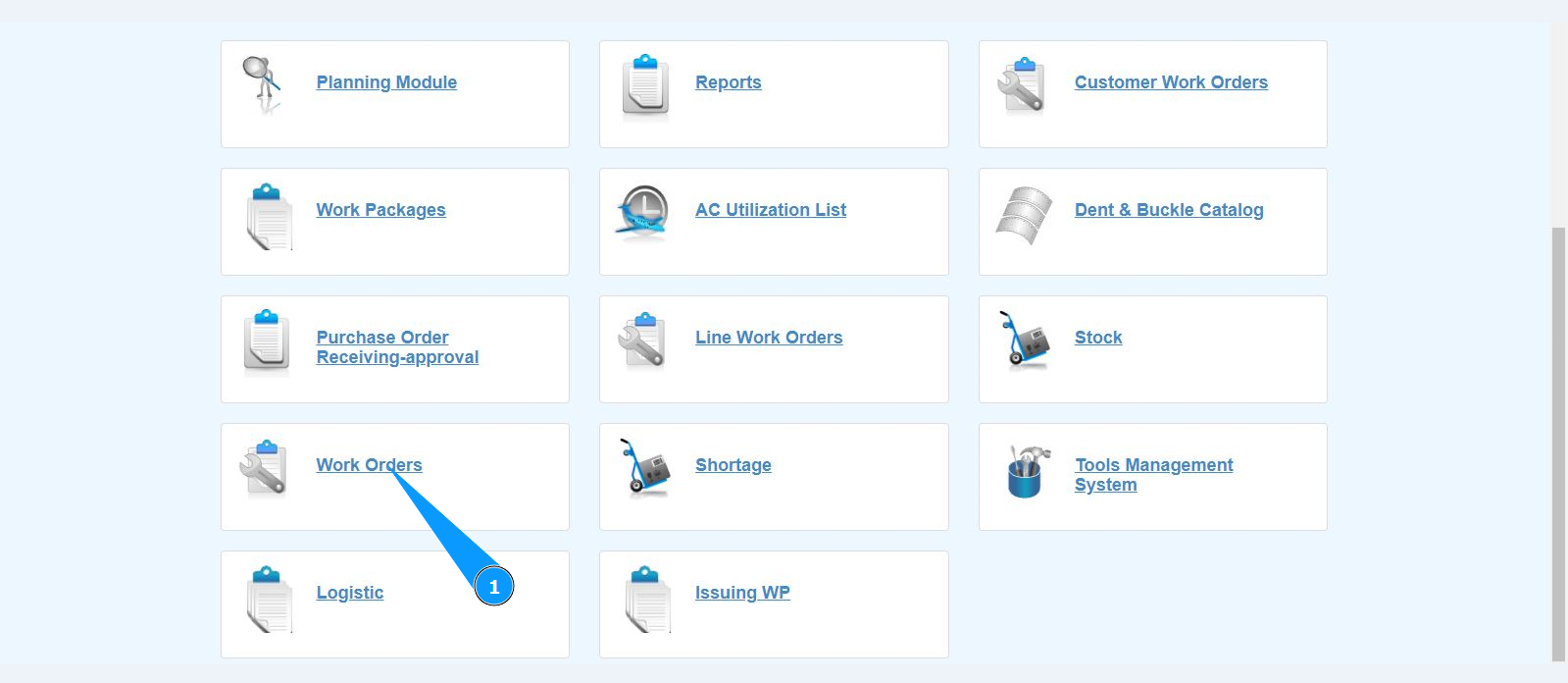
1. In order to close a task in a work order, go to the submodule "Work Orders".
2. Select the required work order and click on the corresponding line. Note: If necessary, use the available filters in the fields: "A/C Reg.", "A/C Type", "STA" and so on.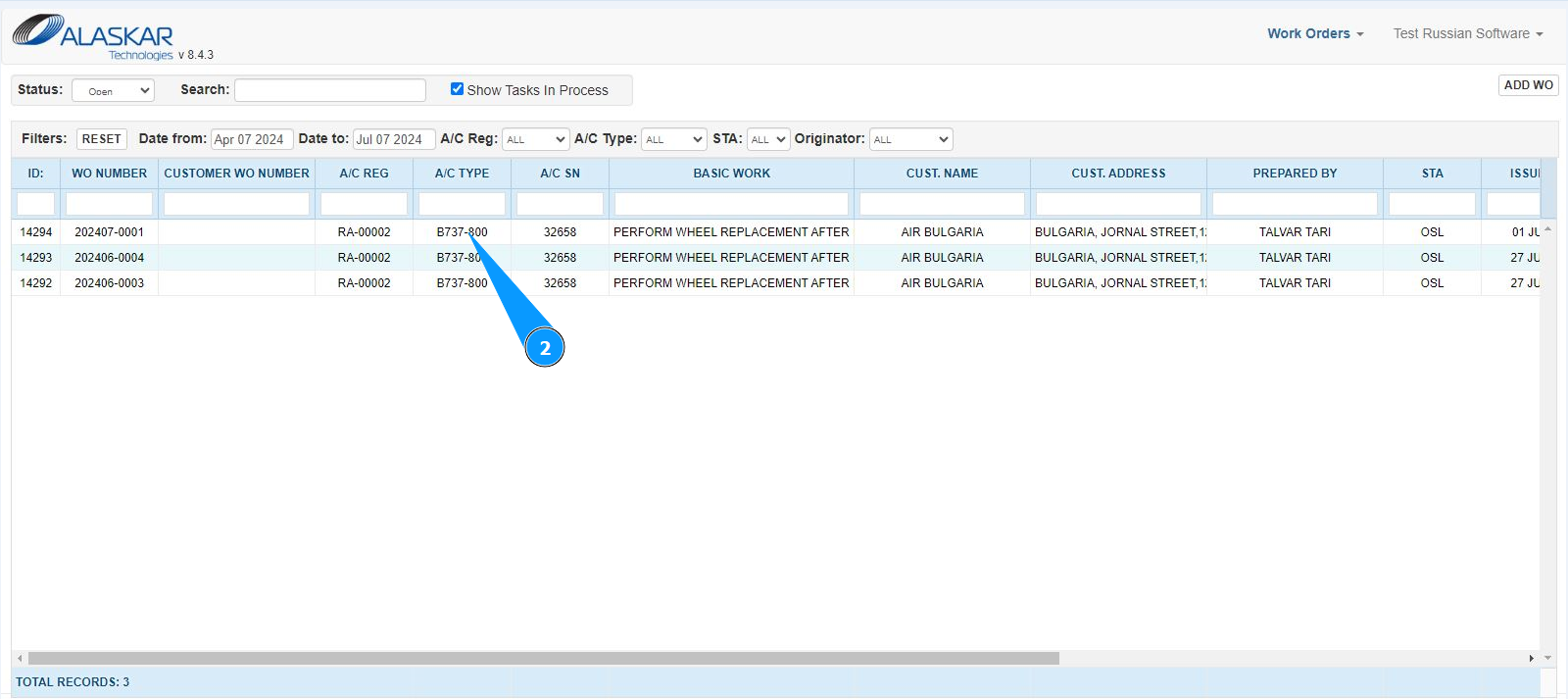
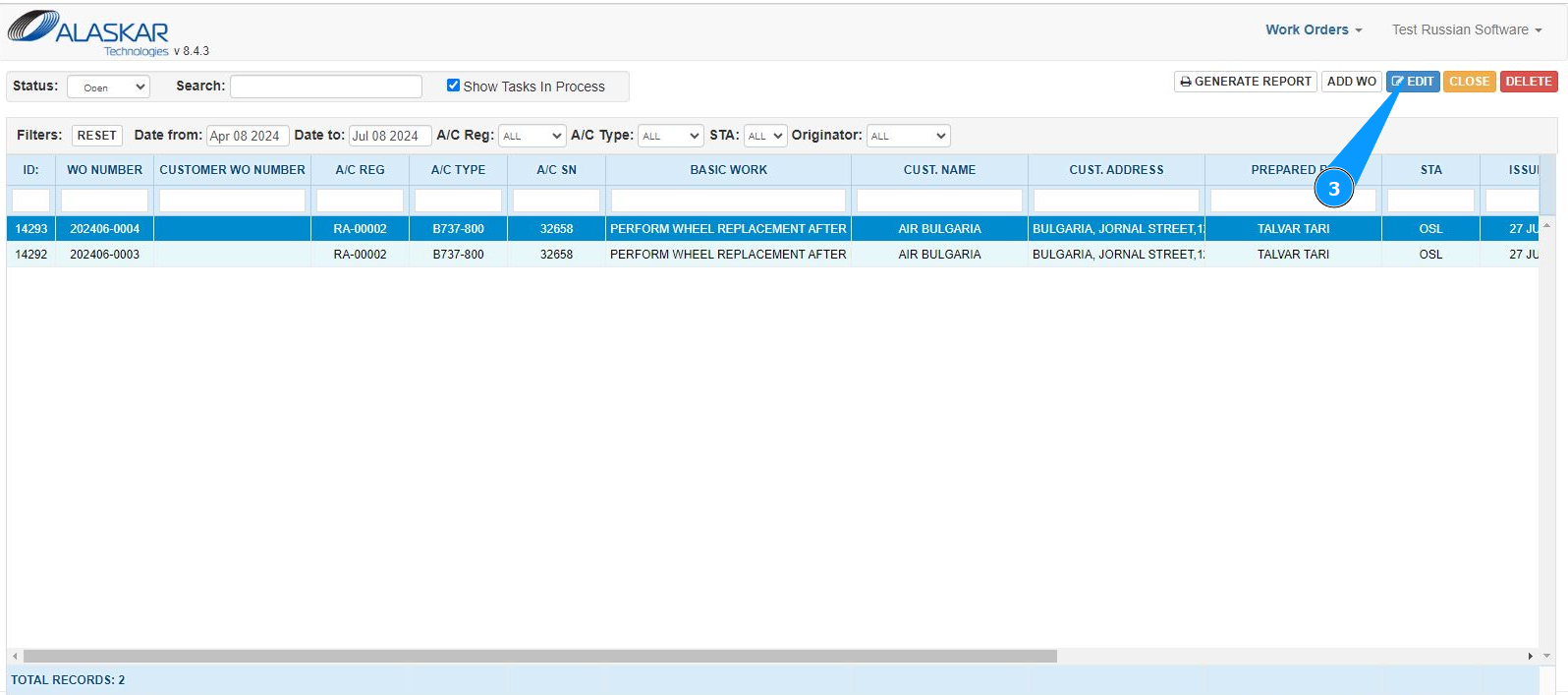
3. Click on the button "Edit" to open the WO editing mode.
4. Select the required task and click on the corresponding line.
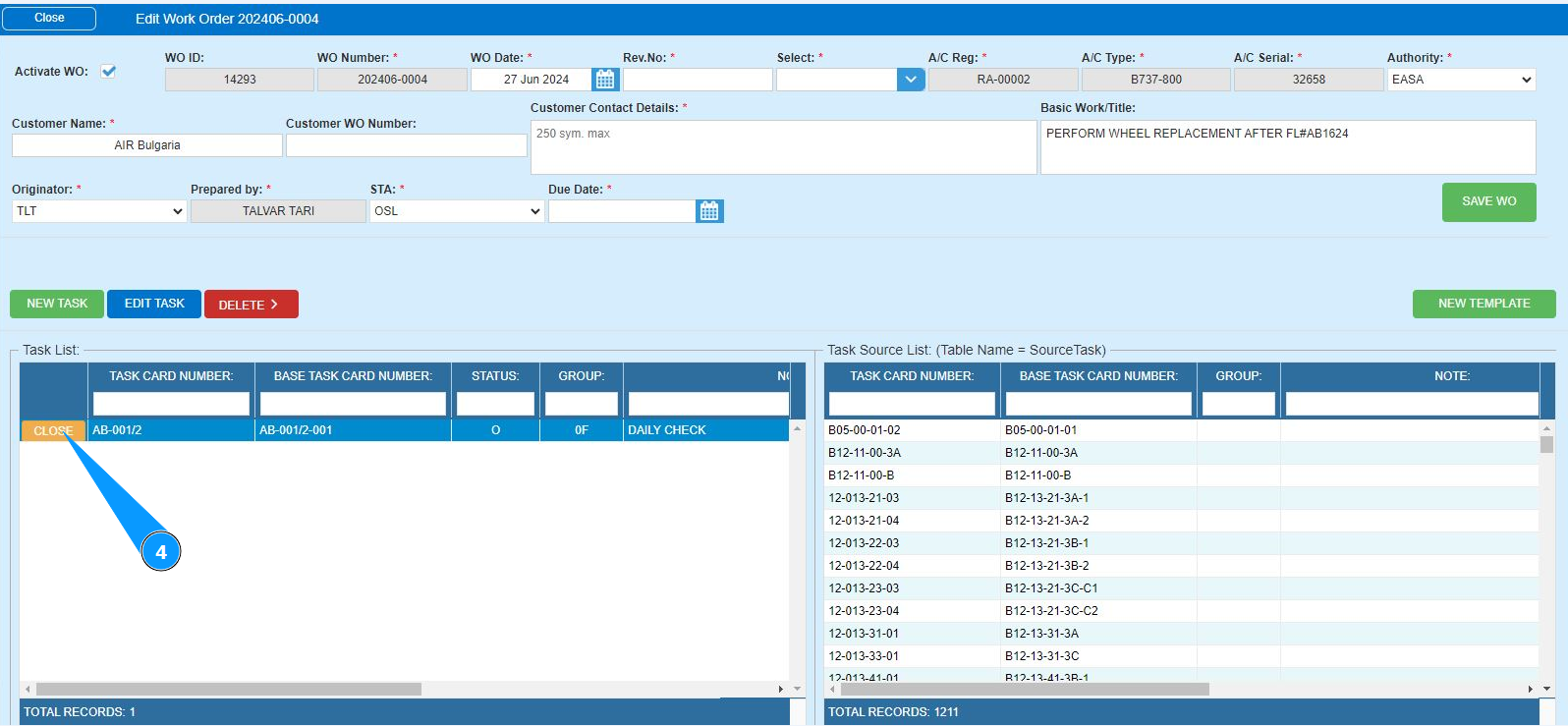
5. Click on the button "Close" to open the close task editor.
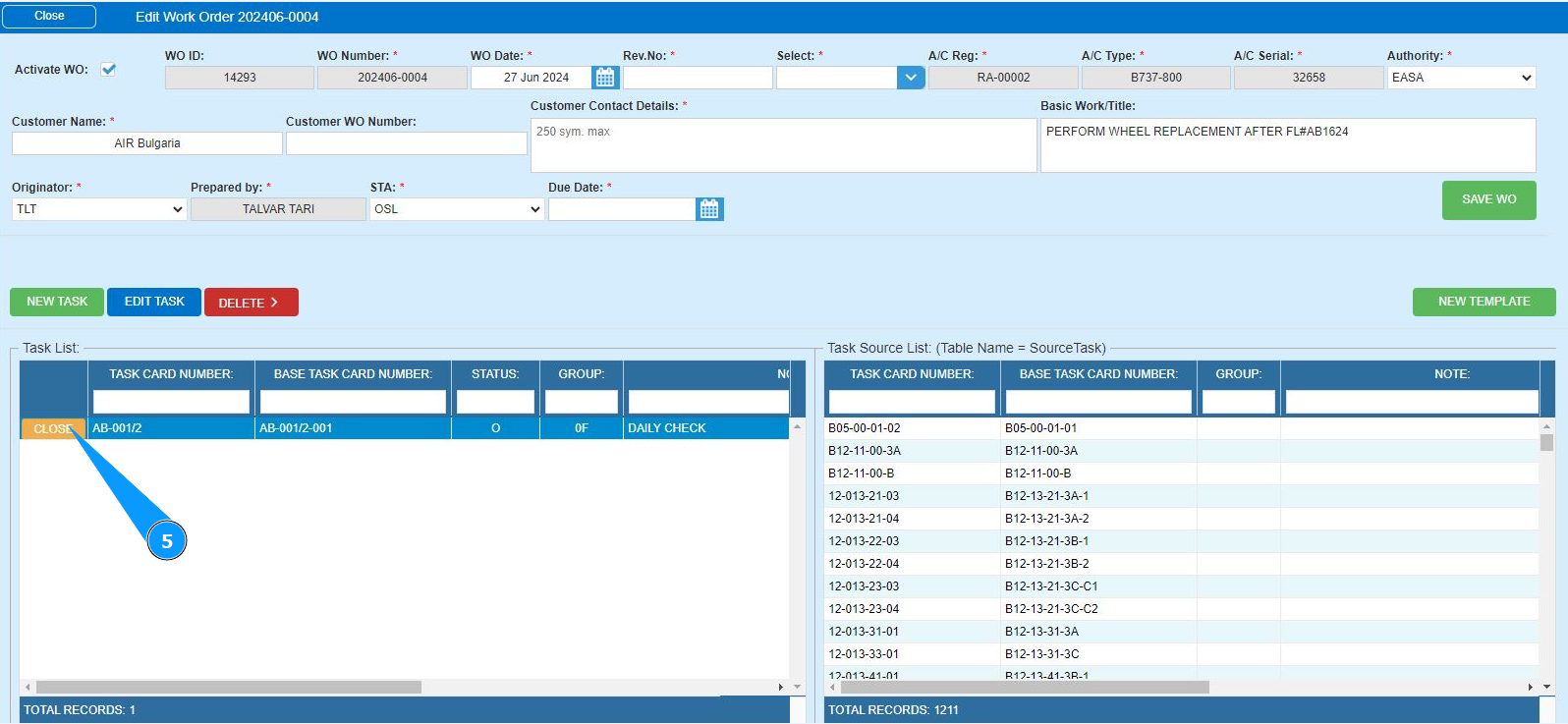
6. Enter the man-hours spent in hours in the field "Hour". Note: The time and date of closing the task will be entered automatically in the fields: "Compl.Date", "Compl.Time".
7. Enter the man-hours spent in minutes in the field "Minute".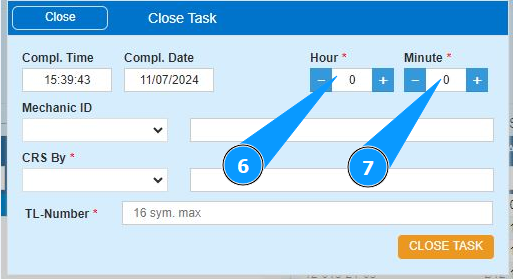
8. Select the login of who completed the task (in accordance with your company policy) from the dropdown list in the field "Mechanic ID".
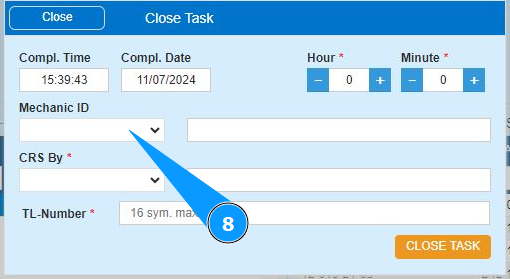
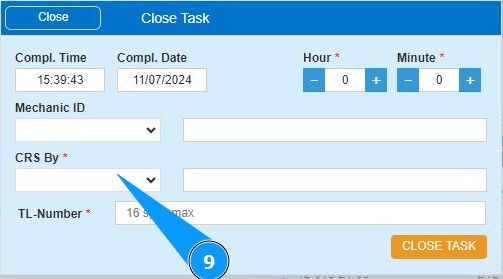
9. Select from the dropdown list the login of who issued the CRS (in accordance with your company’s policy) in the field "CRS.by".
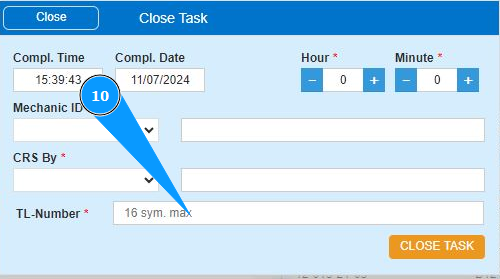
10. Enter the aircraft logbook number in the field "TL-Number".
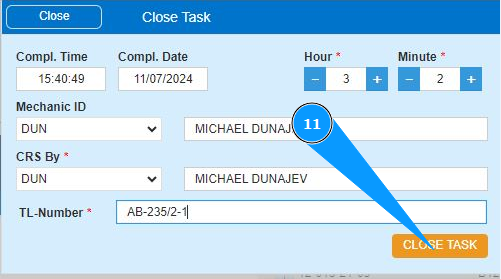
11. Click on the button "Close Task" to close the task.
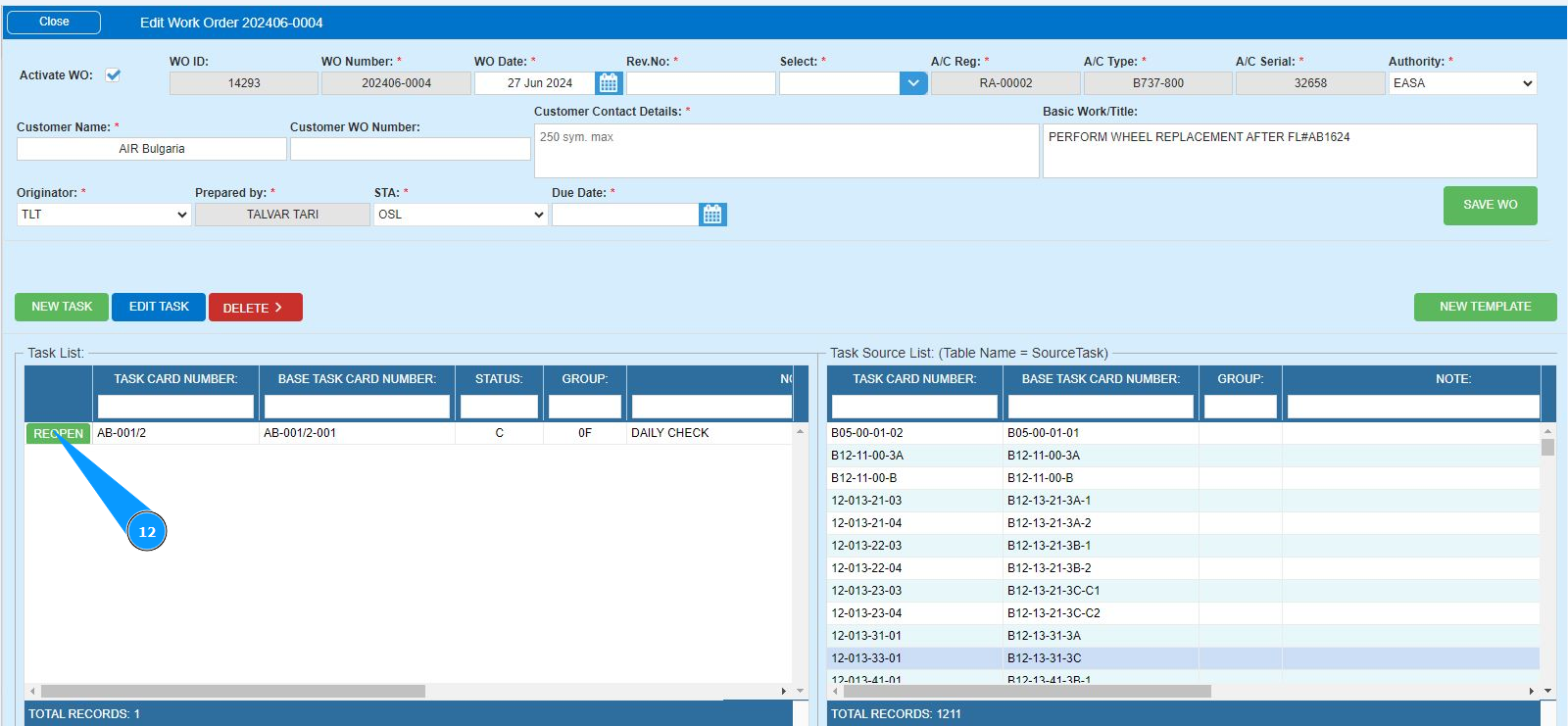
12. Check that the "Reopen" button appears in the window "Task List". The task is closed.