How to check the planning forecast of components with restrictions (hard time, LLP etc.)
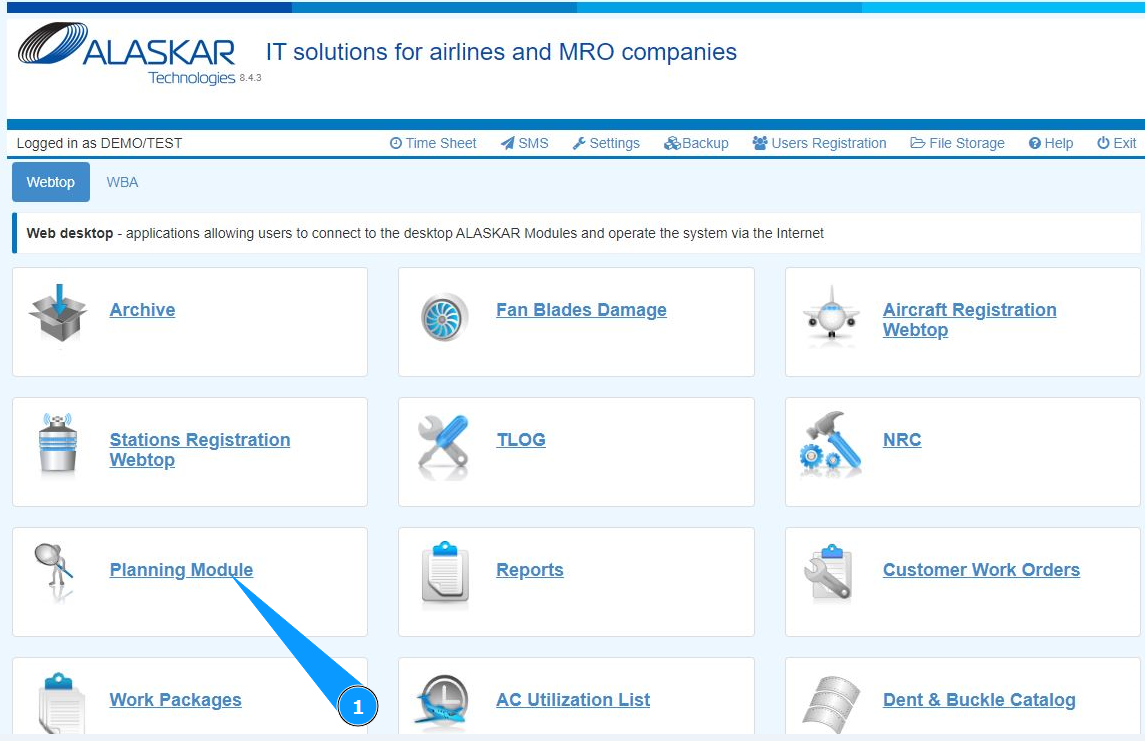
1. In order to check the planning forecast of components with restrictions (hard time, LLP etc.), go to the submodule "Planning Module".
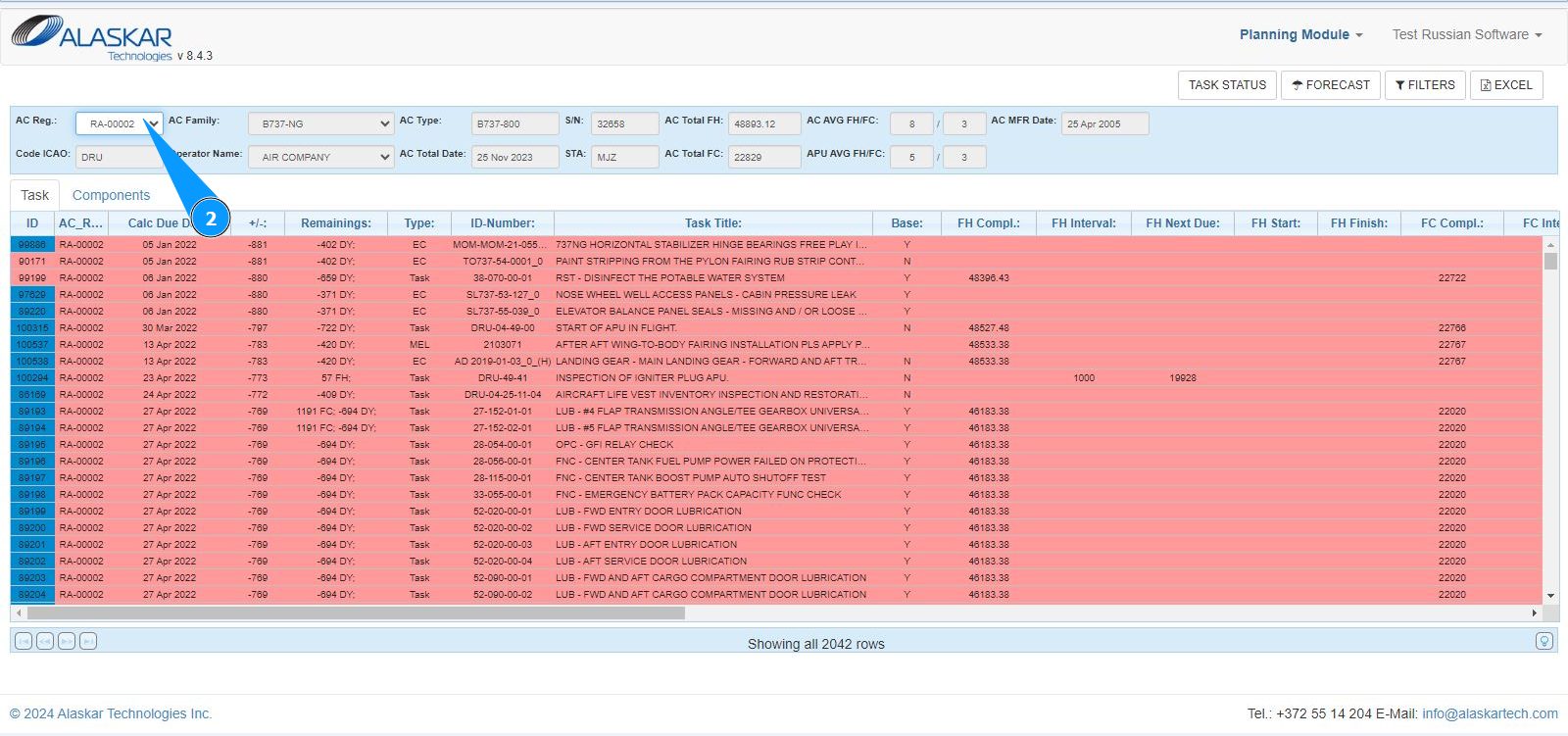
2. Select the aircraft registration number from the dropdown list in the field "AC Reg.".
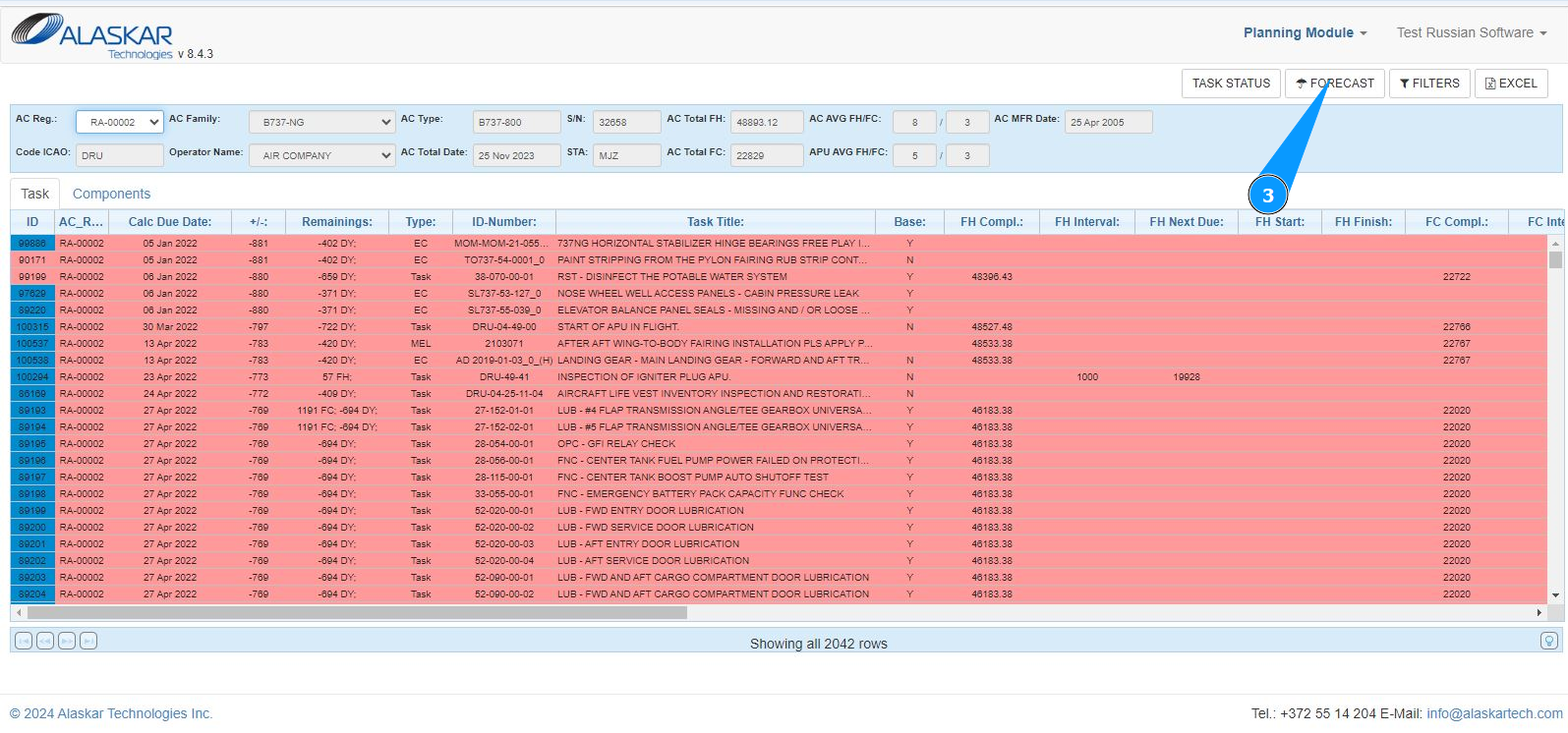
3. Click on the button "Forecast" to open forecast checking mode.
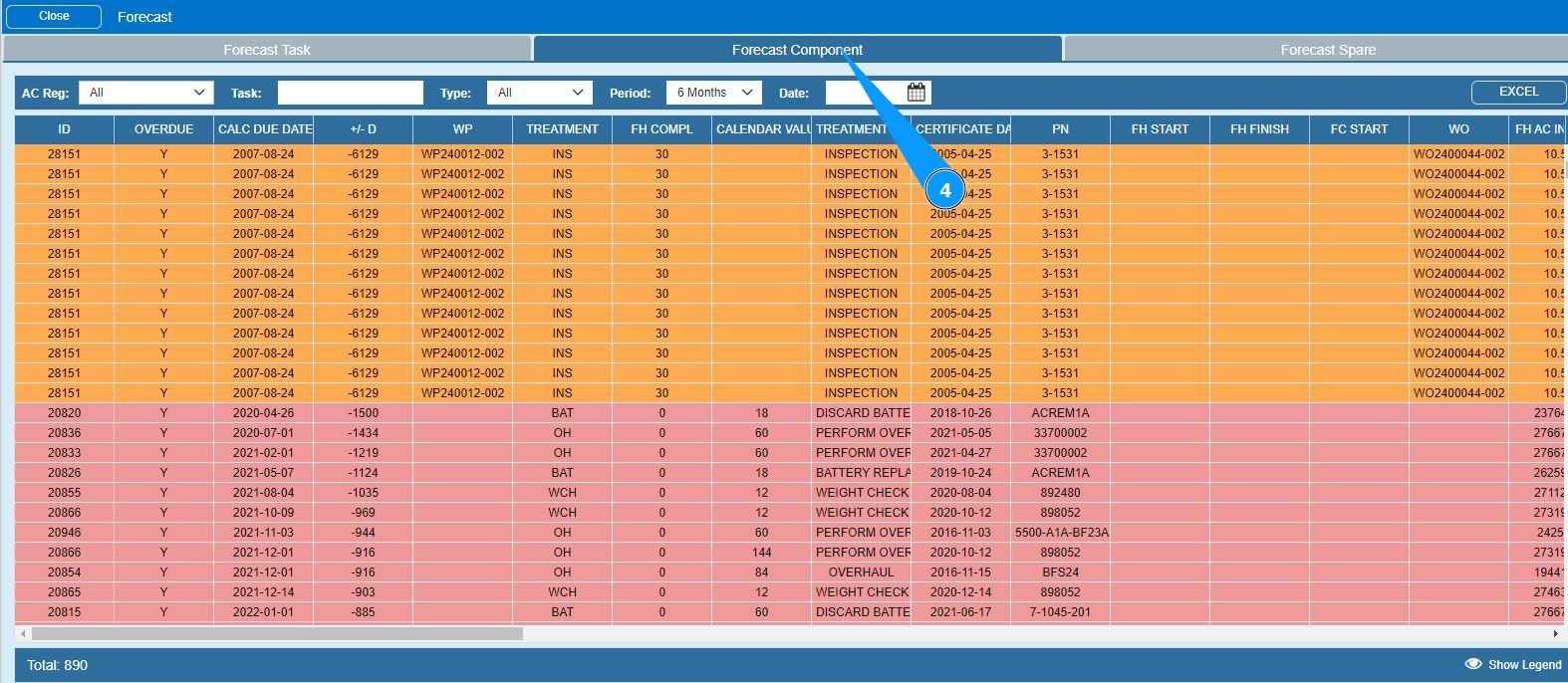
4. Go to the tab "Forecast Component".
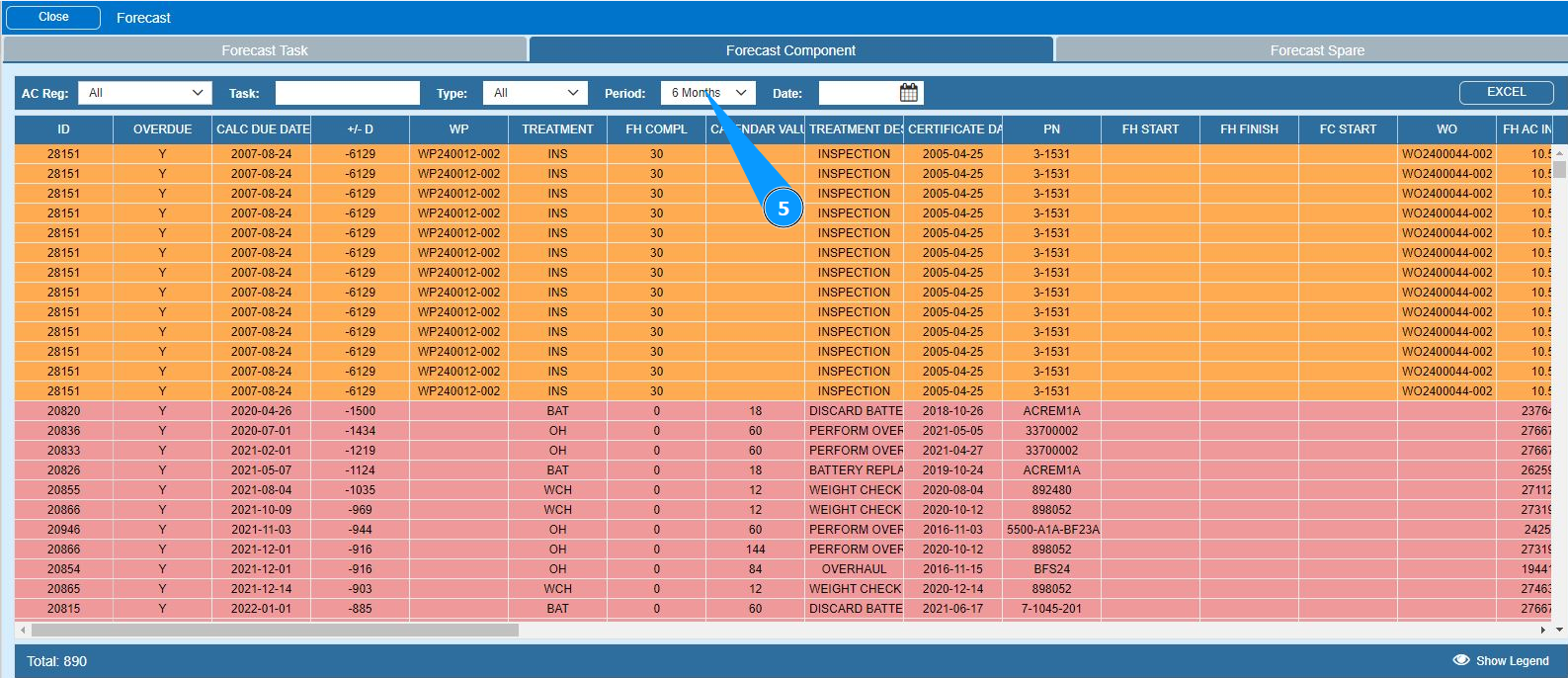
5. Select from the dropdown list the period for which you want to check a forecast. Note: If necessary, set the required forecast date in the field "Date".
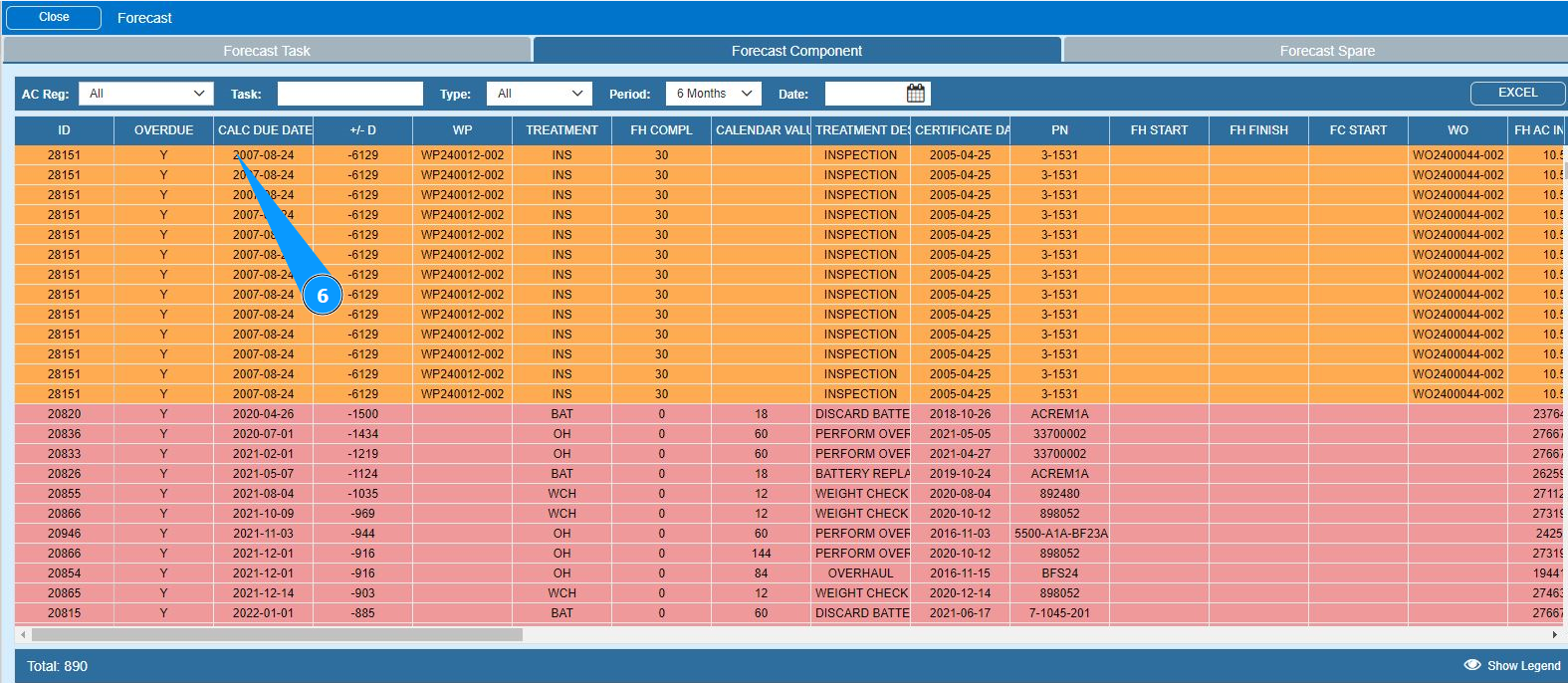
6. Check the formation of the required forecast result in the window "Forecast Components".
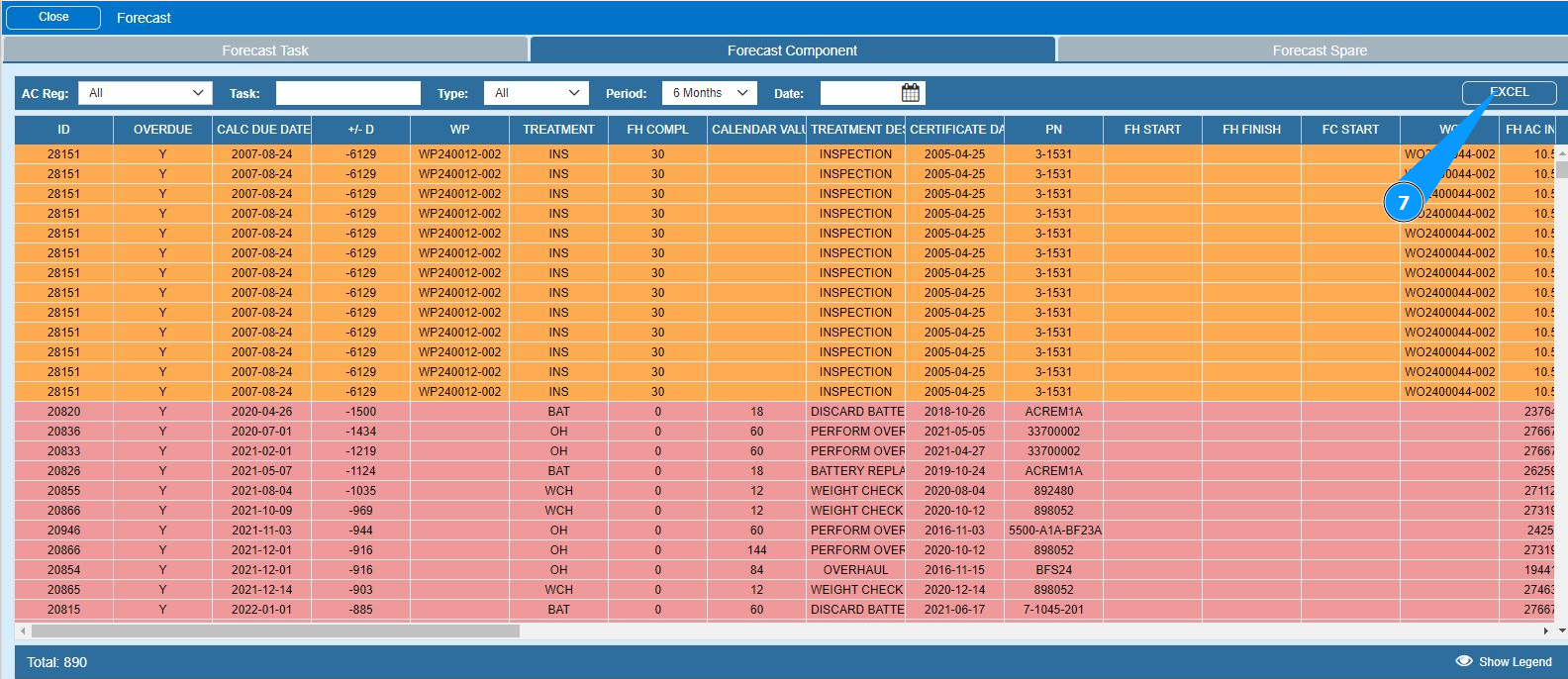
7. If necessary, download the forecast of components in Excel format and click on the button "Excel".
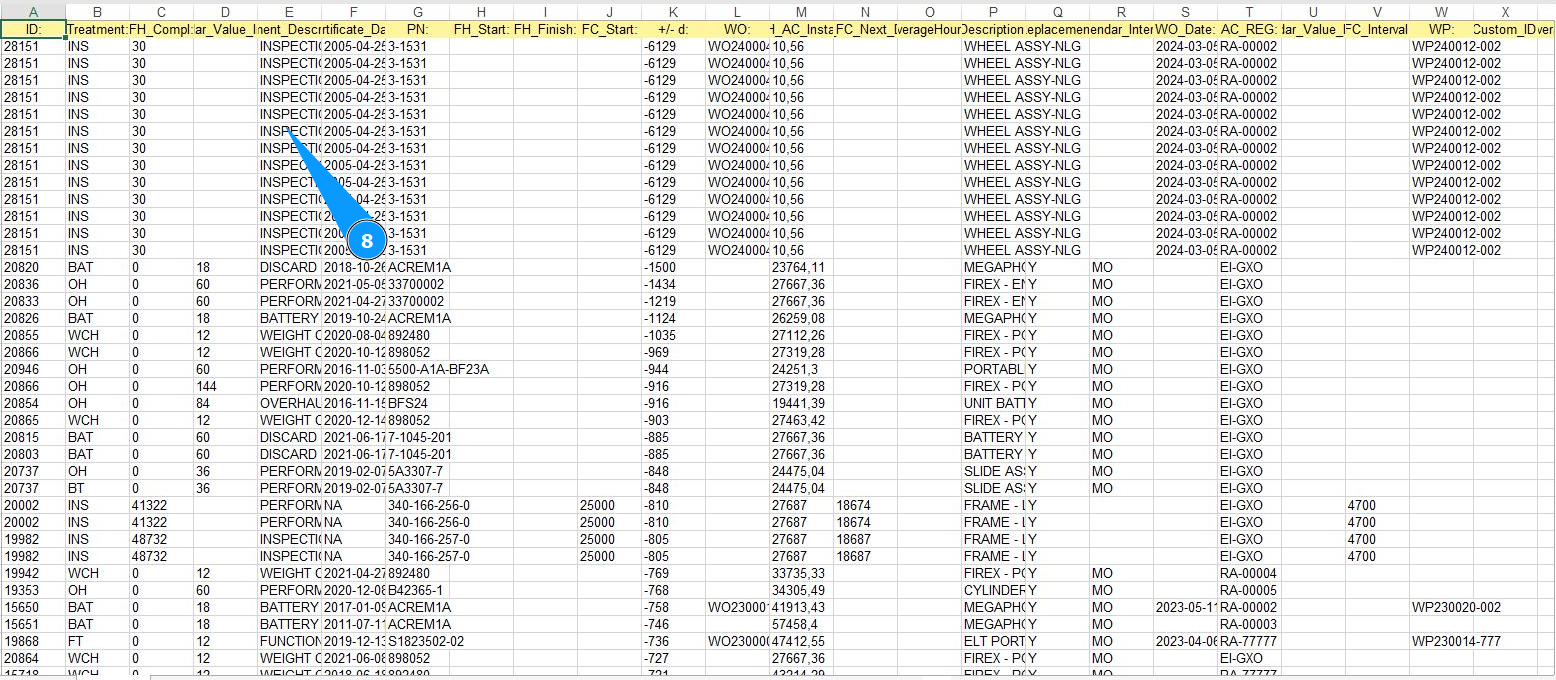
8. Check that the required report in Excel format is generated and displayed.