How to attach a document to Customer WO
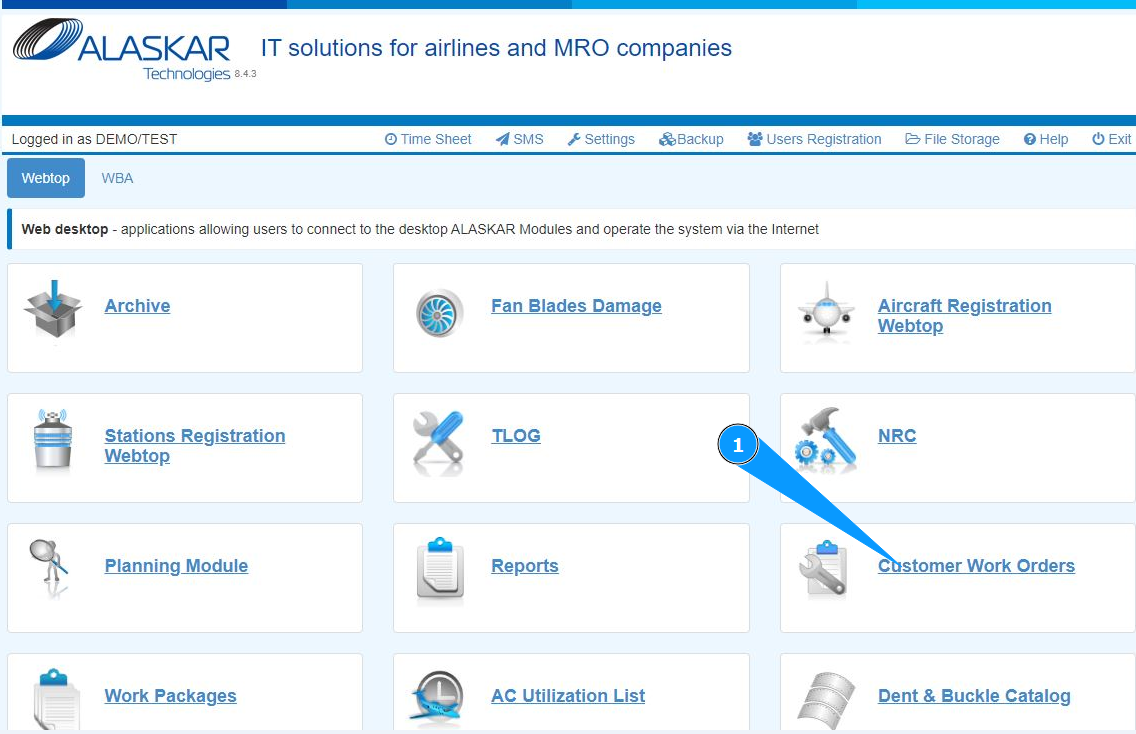
1. In order to attach a document to Customer WO, go to the submodule "Customer Work Orders".
2. Select the required Customer WO and click on the corresponding line. Note: If necessary, use the available filters in the fields: "A/C Reg.", "A/C Type", "STA" and so on.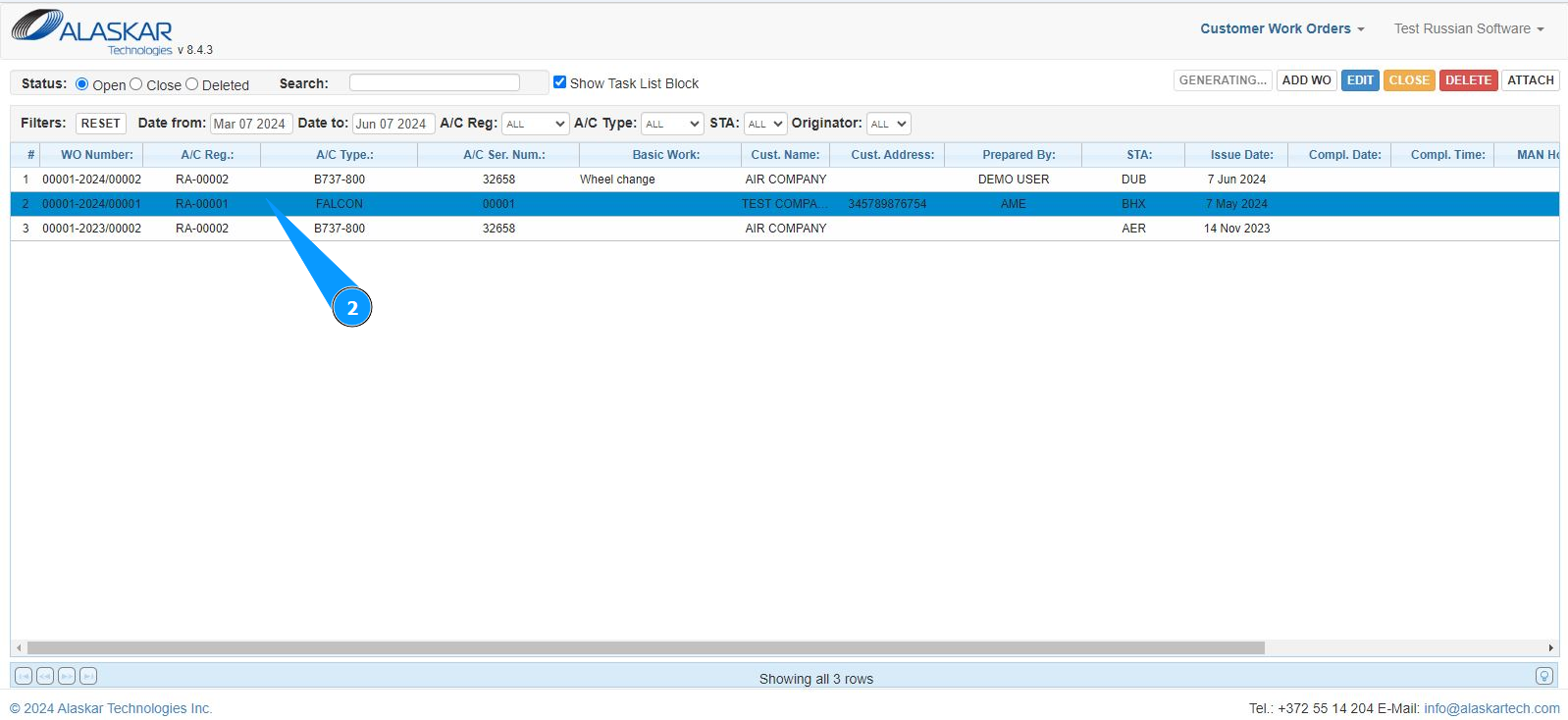
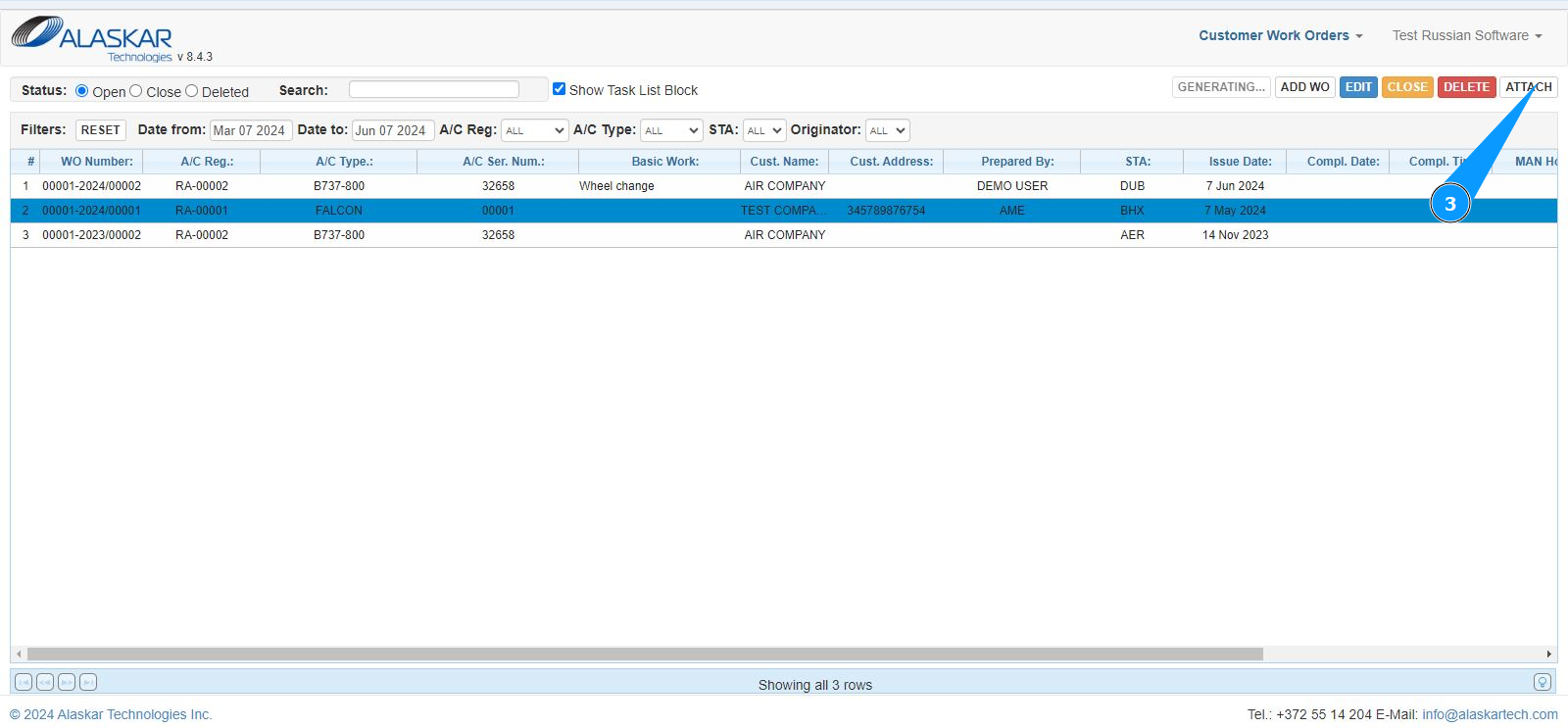
3. Click on the button "Attach" to open editing mode.
4. Select the type of graphics from the dropdown list.
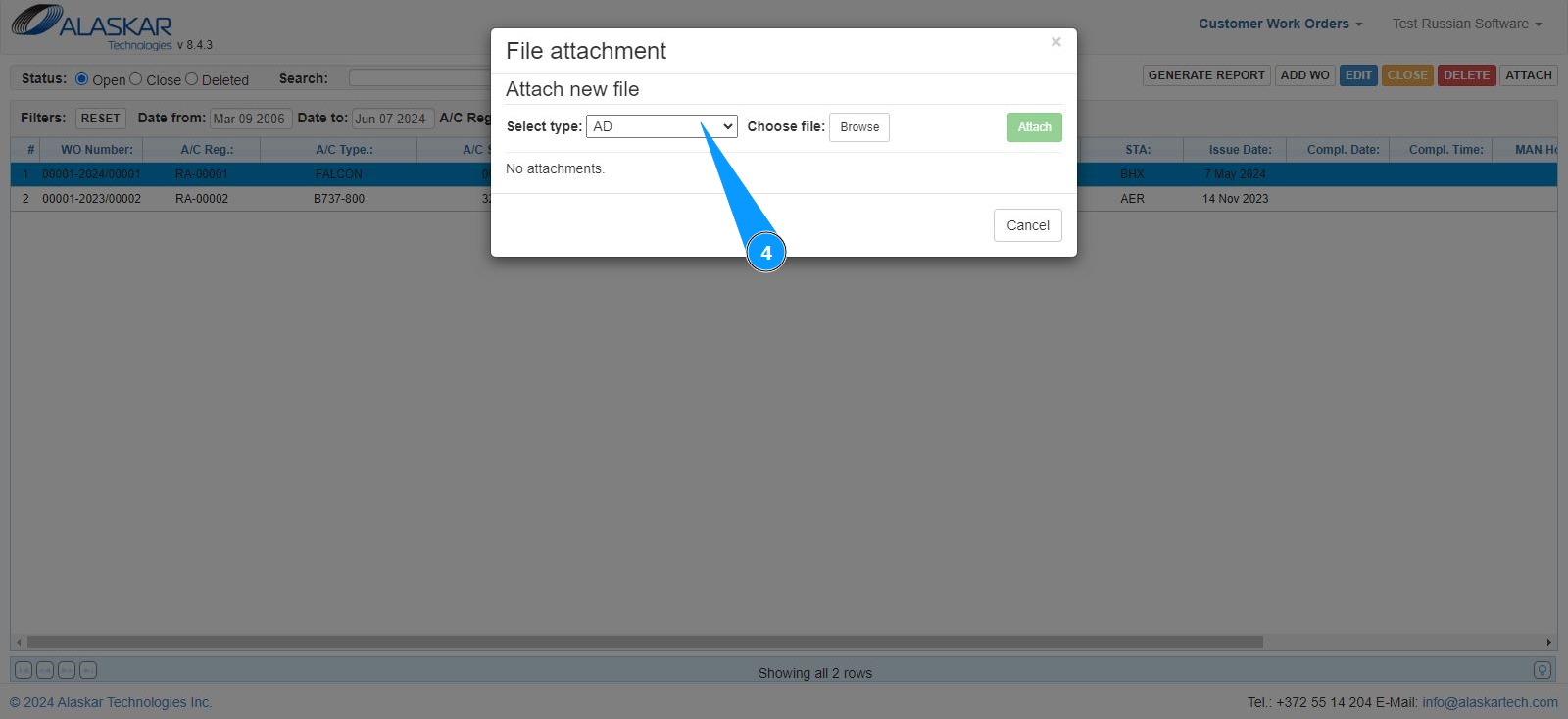
5. Click in the field "Browse" to find the file you want to attach.
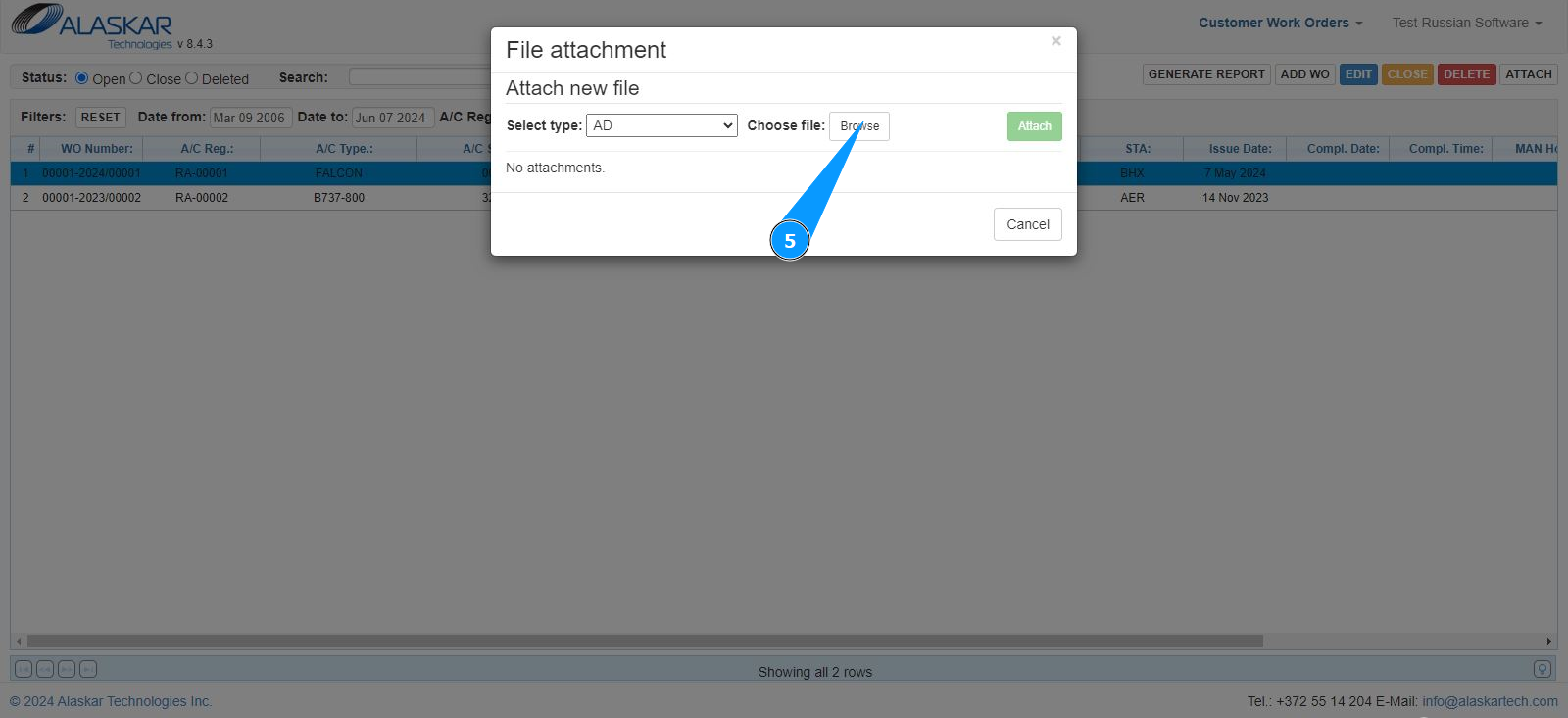
6. Select the required file on your computer and click the button "Ok".
7. Check that the file has been successfully downloaded.
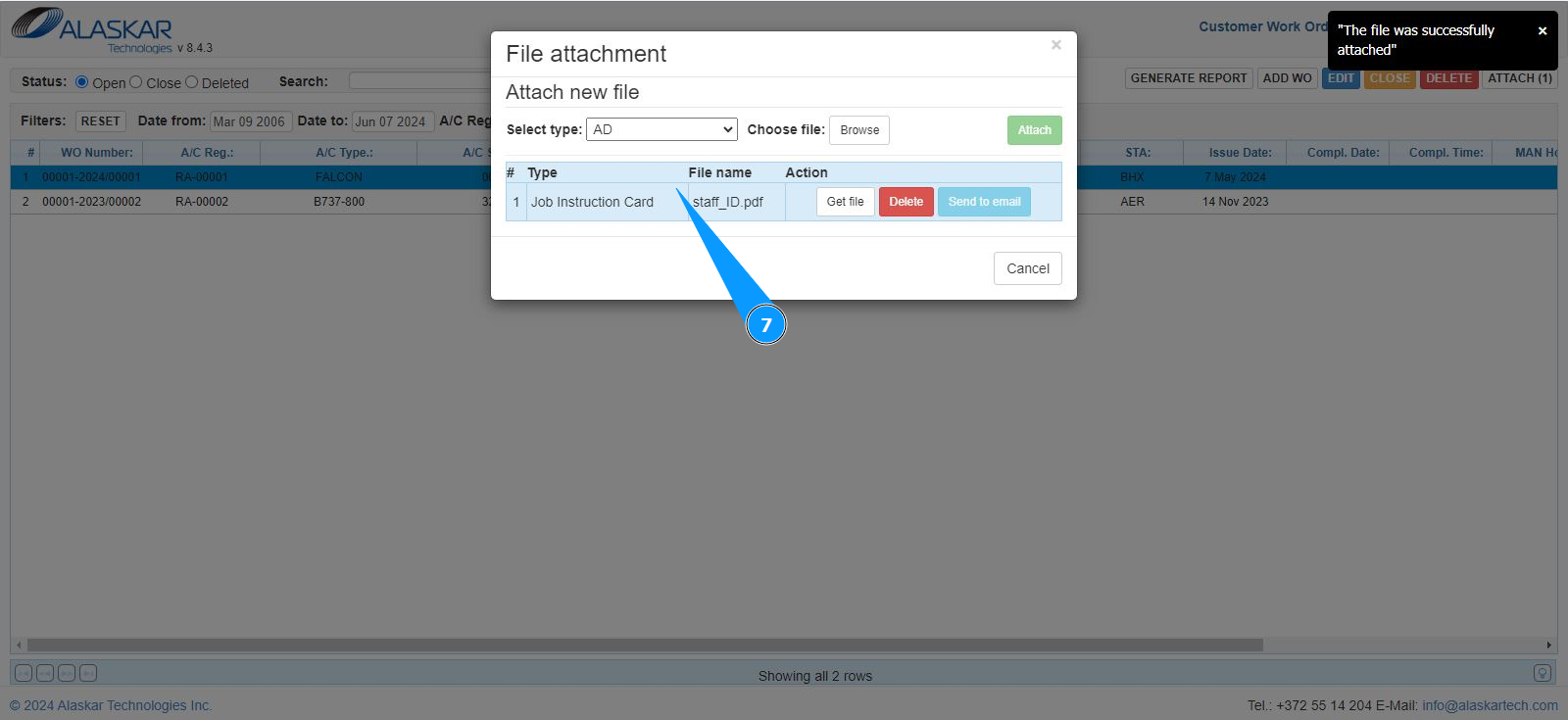
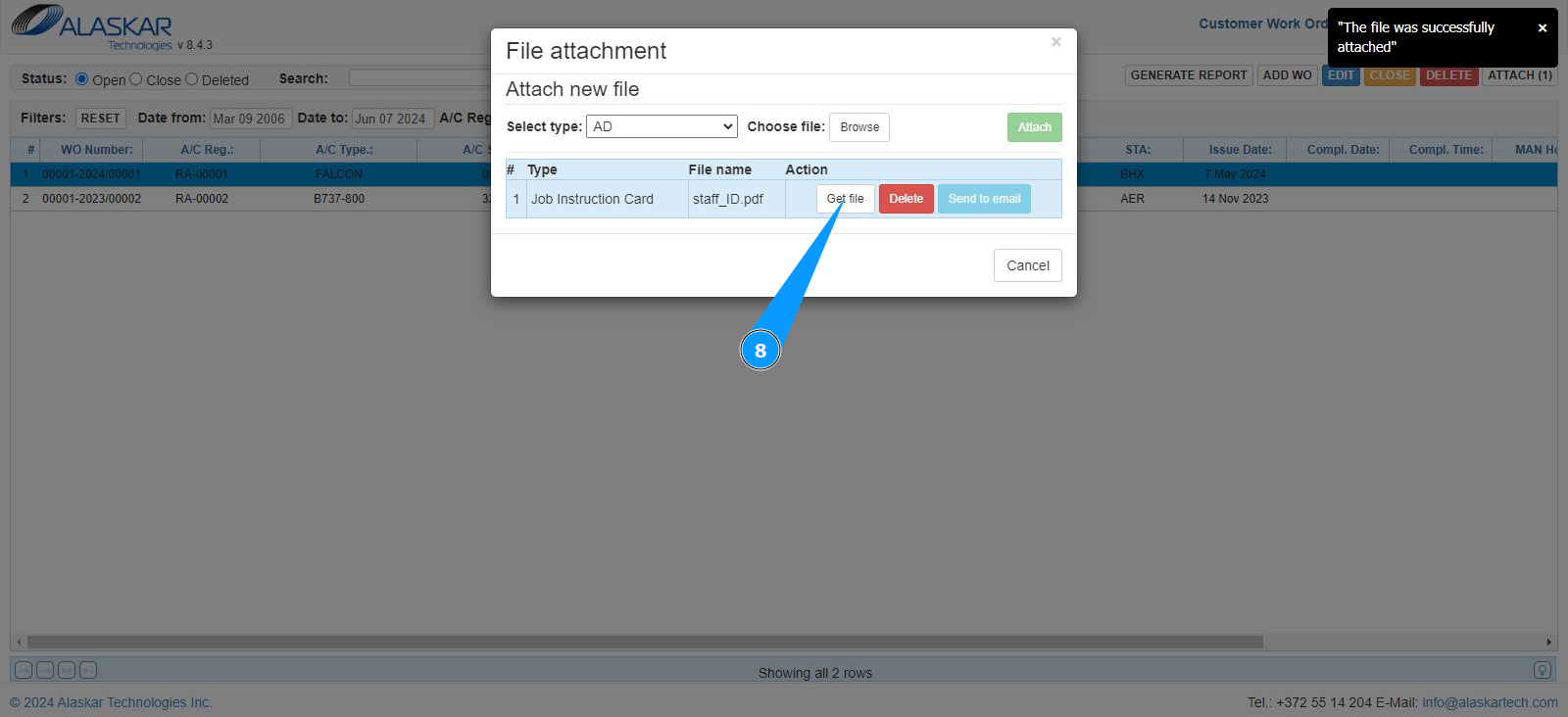
8. If necessary, you can download the file or send it by email. Click in the field "Get File".
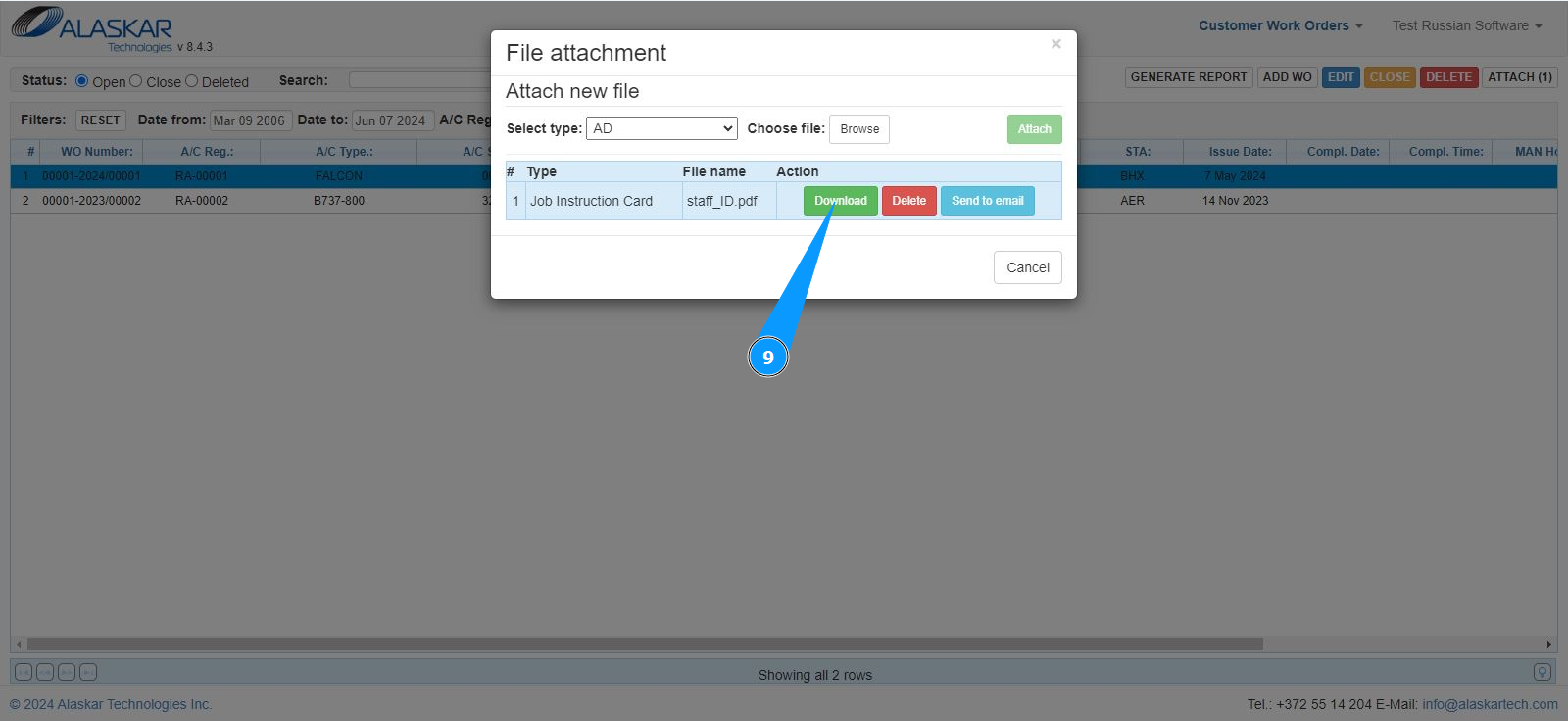
9. Click on the button "Download" to download the file.
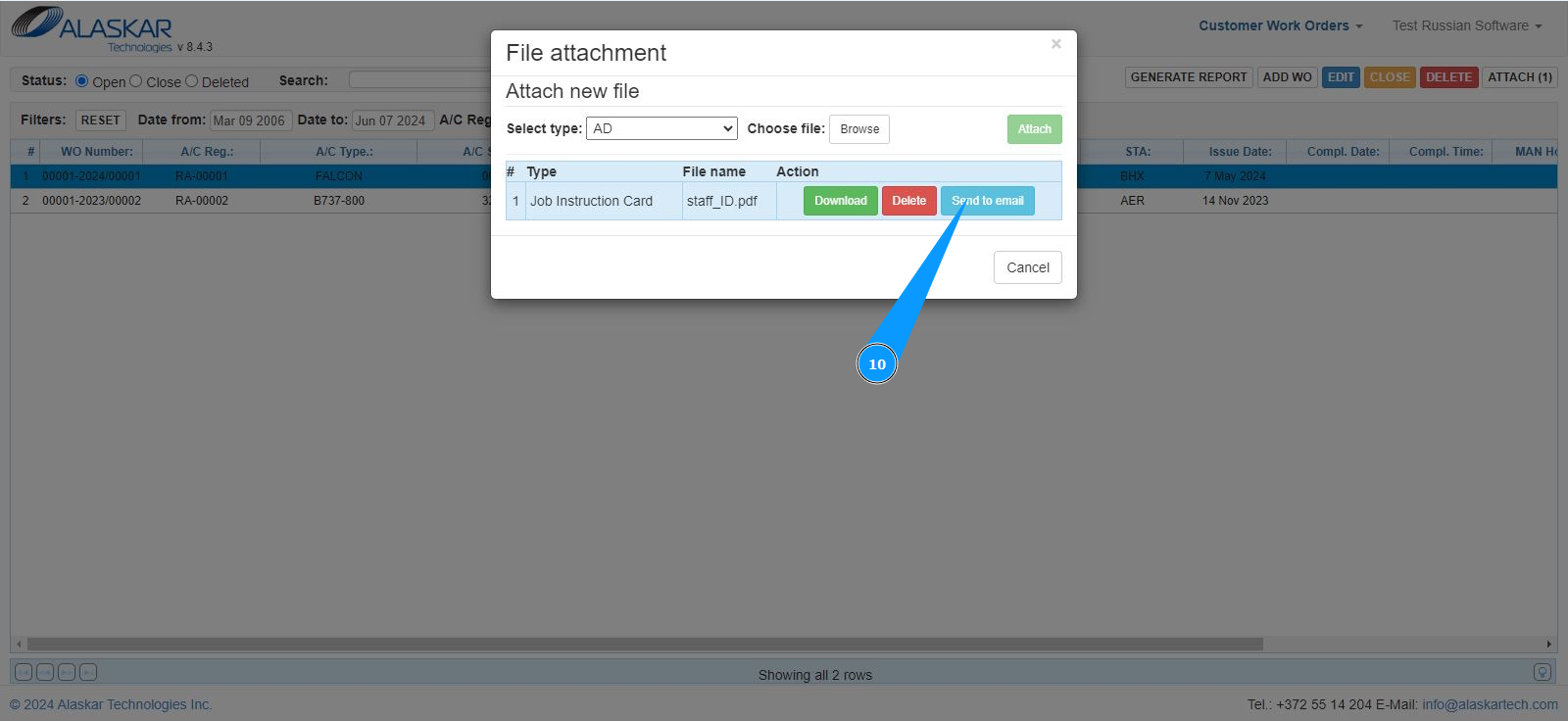
10. Click on the button "Send to email" to open the email sending editor.
11. Fill in the required fields and click on the button "Send" to send the file by email.