How to receive unserviceable component to store
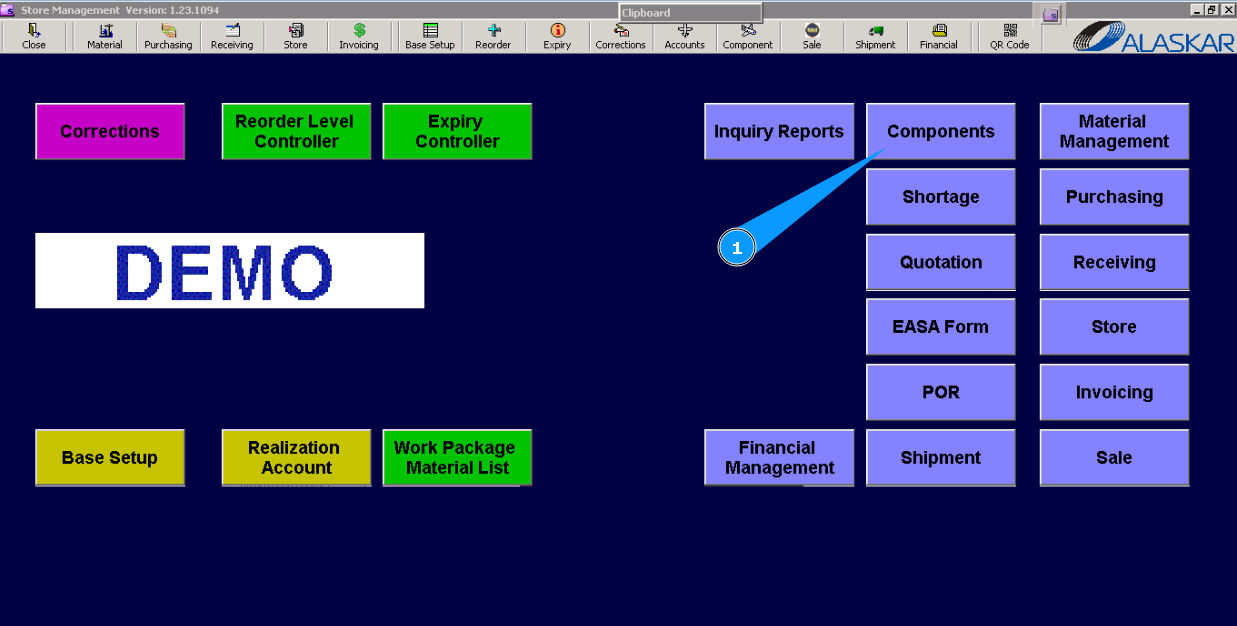
1. For receiving unserviceable component to store, please go to submodule "Components".
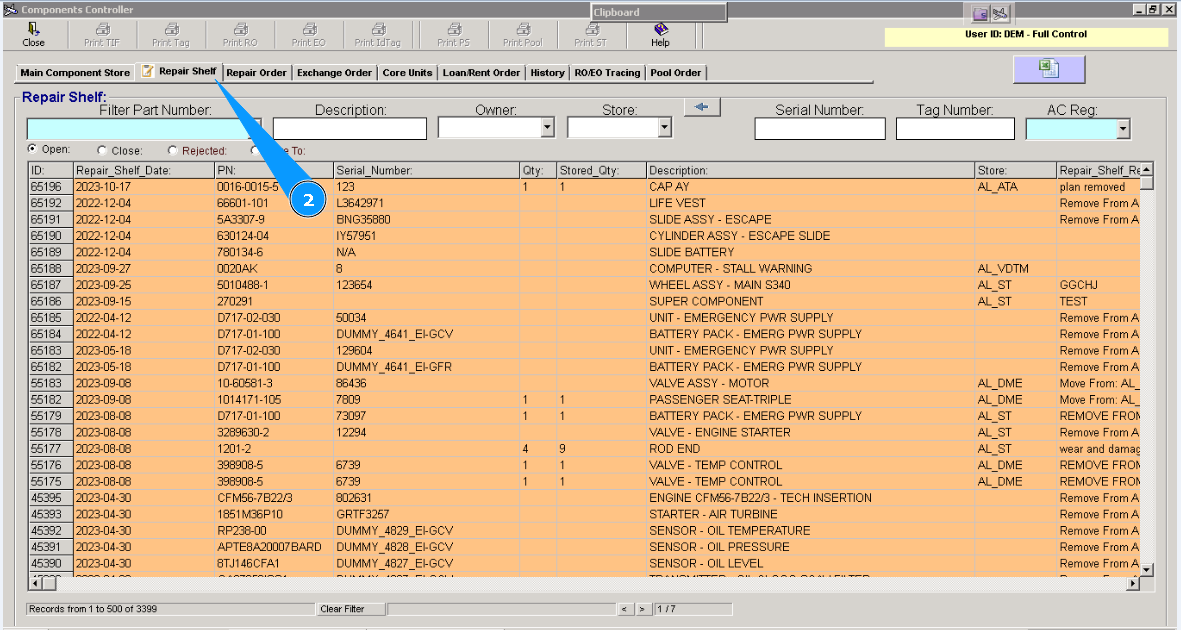
2. Then go to tab "Repair Shelf".
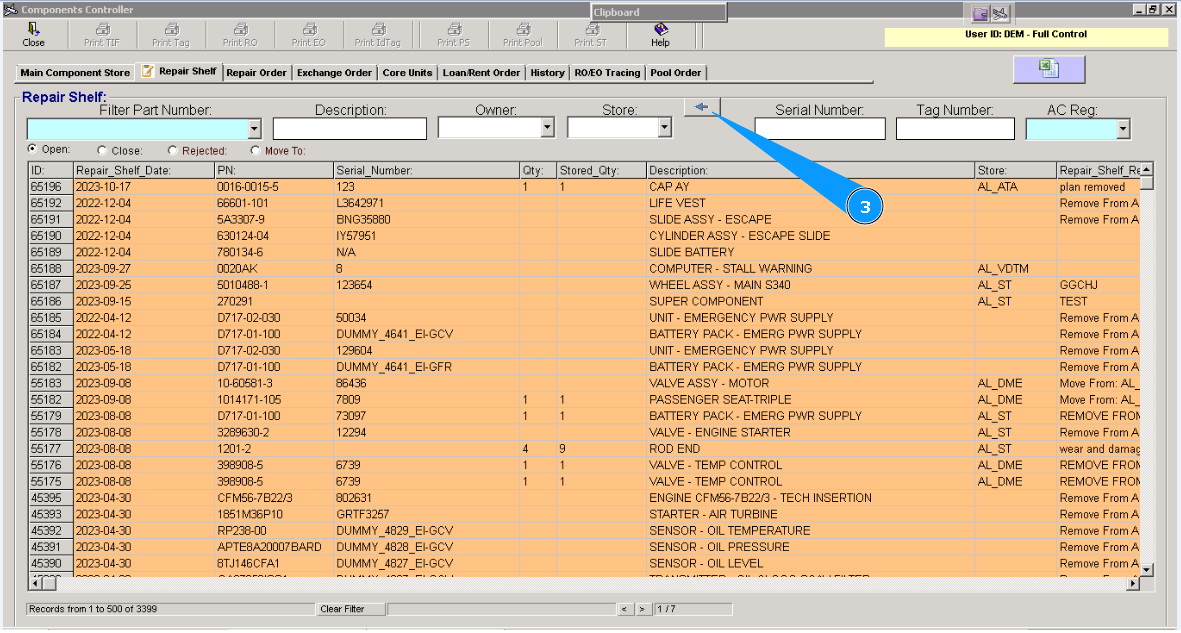
3. Click on the button with arrow to open editor "Repair Shelf Editor".
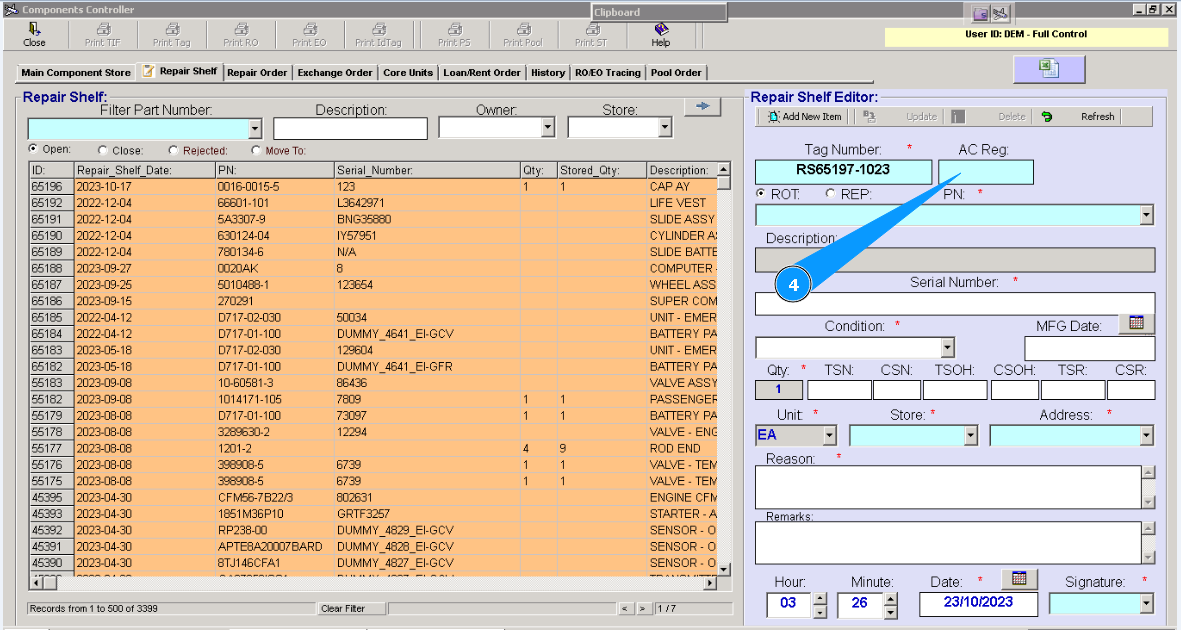
4. Enter aircraft registration number from which the component was removed, in the field "AC Registration".
Note: Tag Number is automatically generated with out possibility to edit.
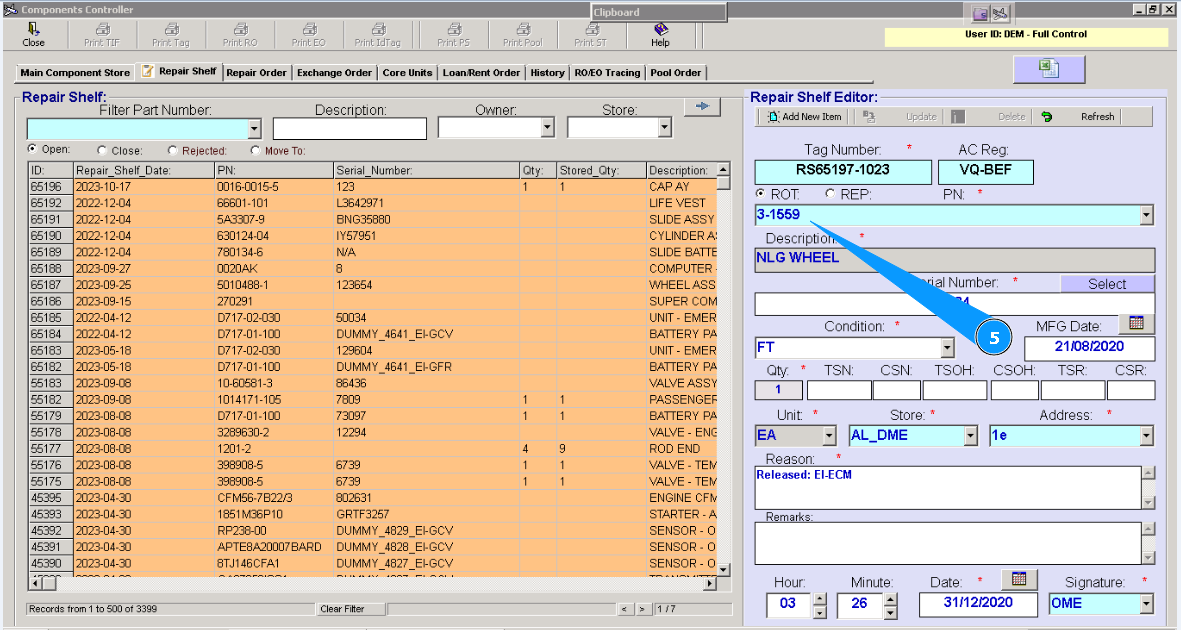
5. Enter part number of component in the field "PN".
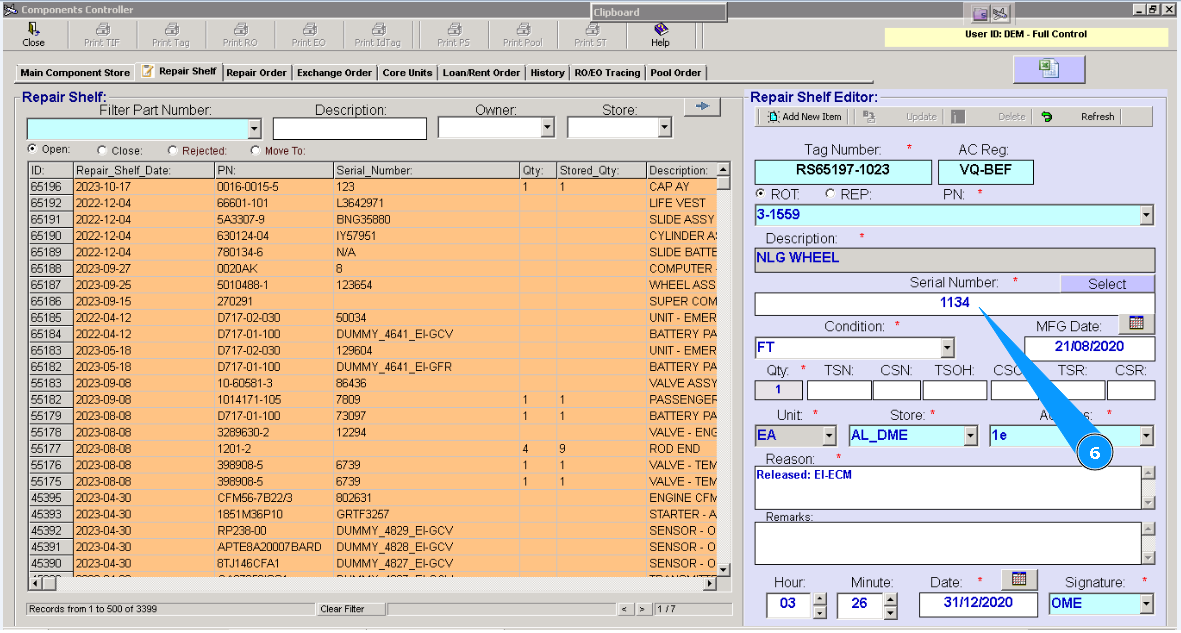
6. Enter serial number of component in the field "Serial Number" or select from list, click on the button "Select".
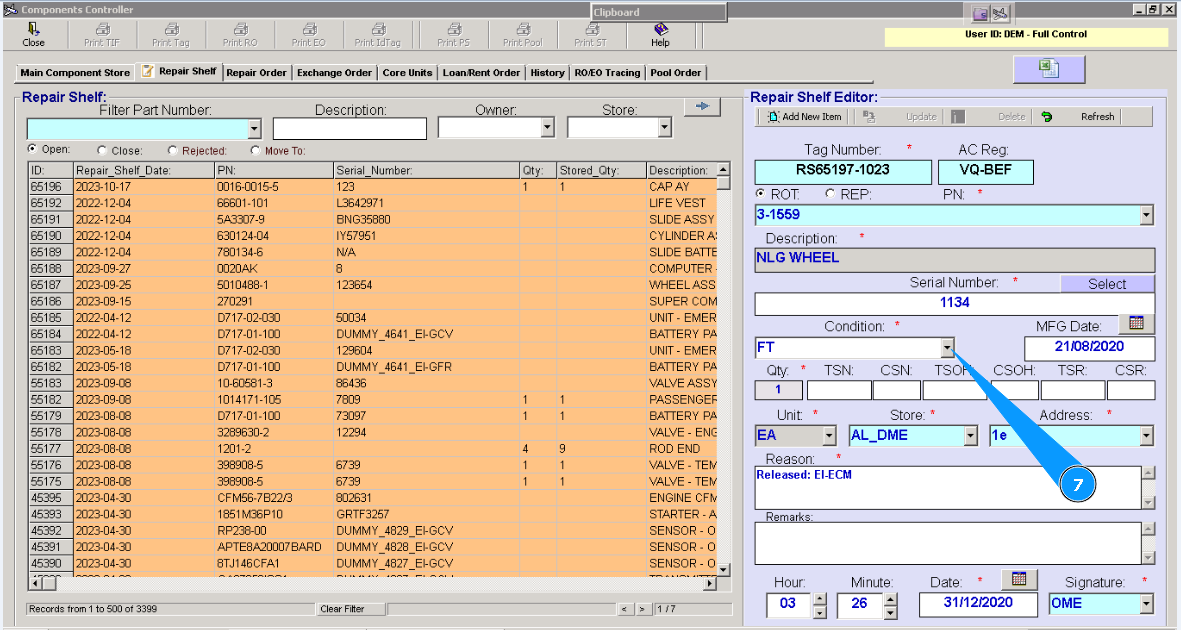
7. Select condition of component from dropdown list "Condition", for example: UNS-unserviceable -by fault, FT-functional test- planed removing for test etc.
8. Select store name of component from dropdown list "Store" , where component will be stored.
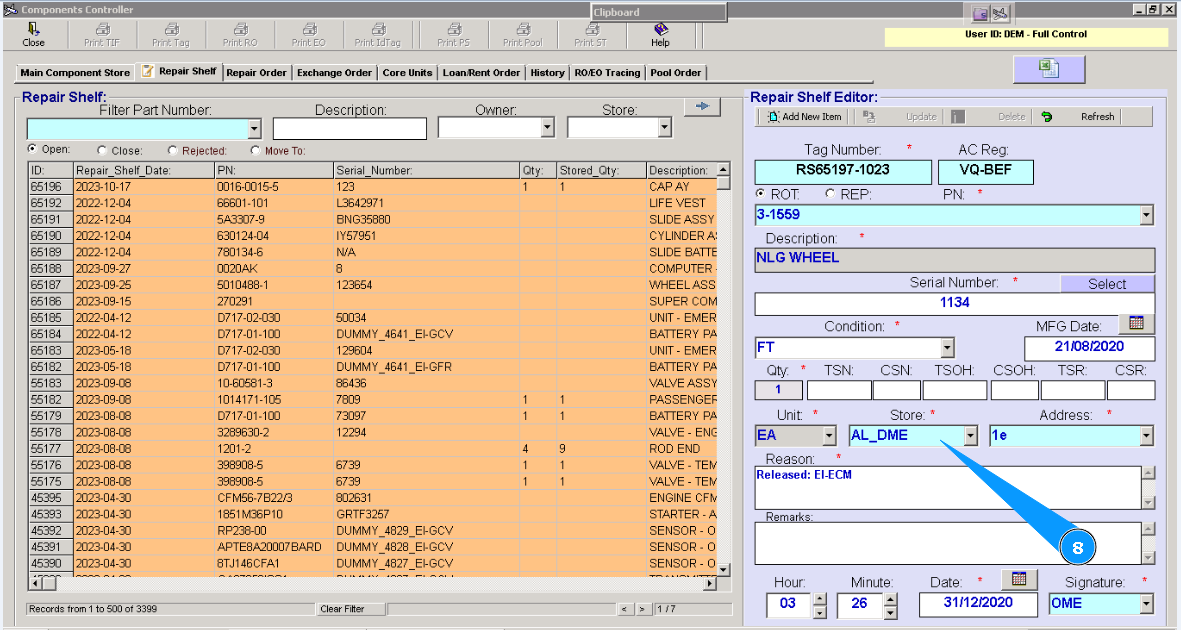
9. Select shelf number of component from dropdown list "Store Address" , where component will be placed.
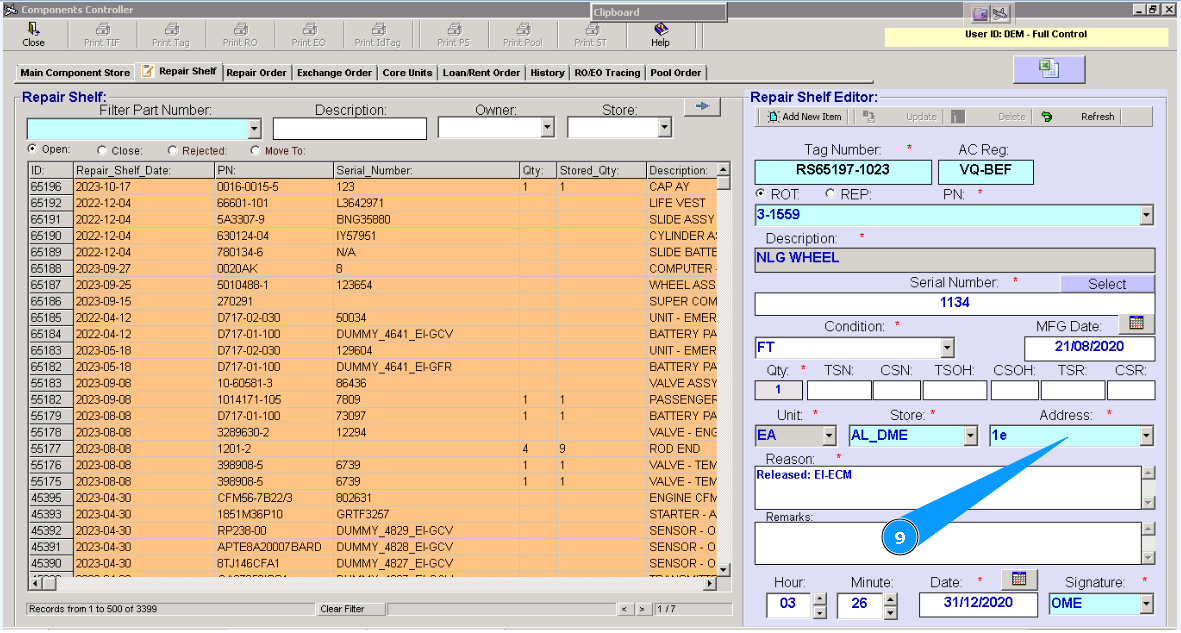
10. If necessary enter additional data about reason of removing from aircraft in the field "Reason"
Note: Fields "Date" and "Signature" are generated automatically. If necessary you can correct their data.
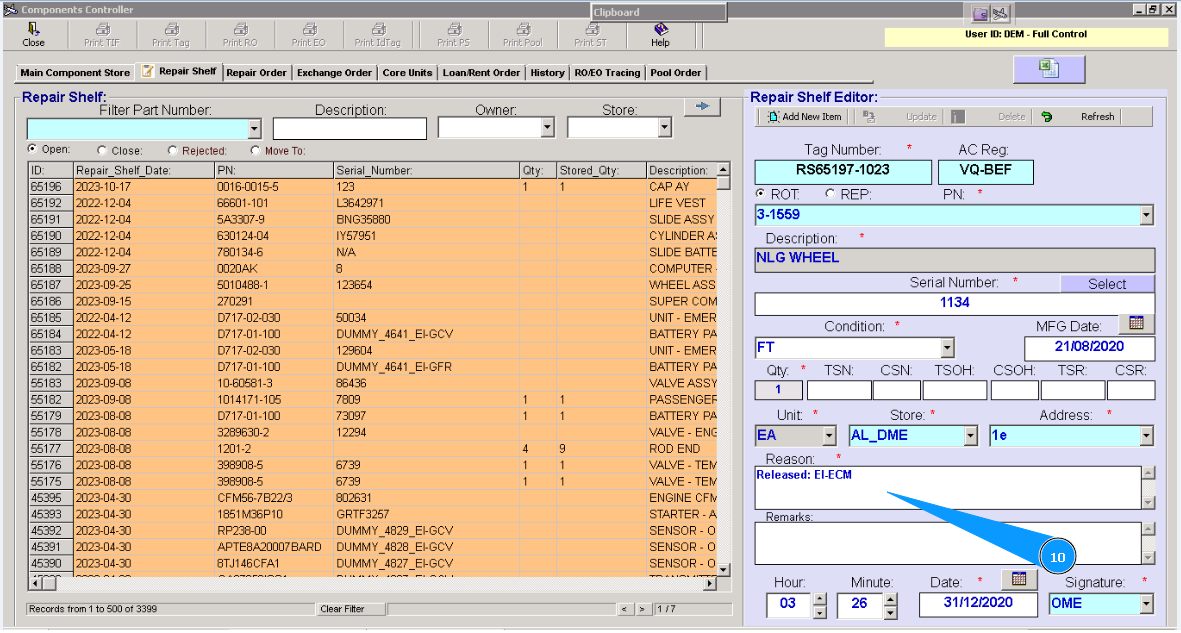
11. Click on the button "Add New Item".
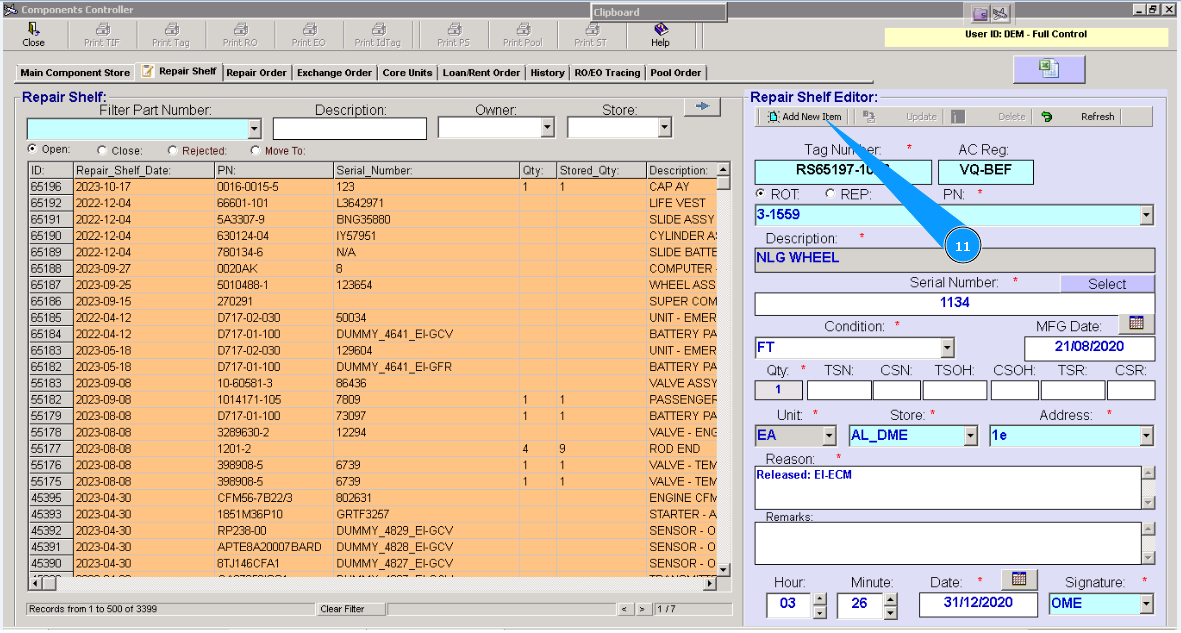
12. Click on the button "Yes", to confirm addition of new item.
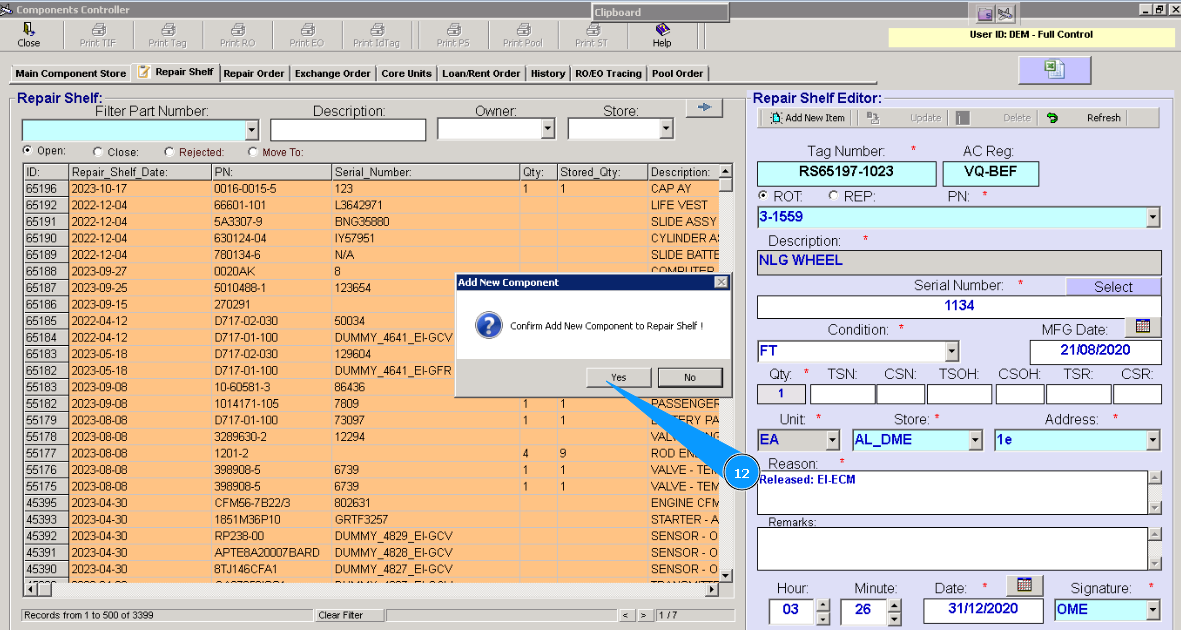
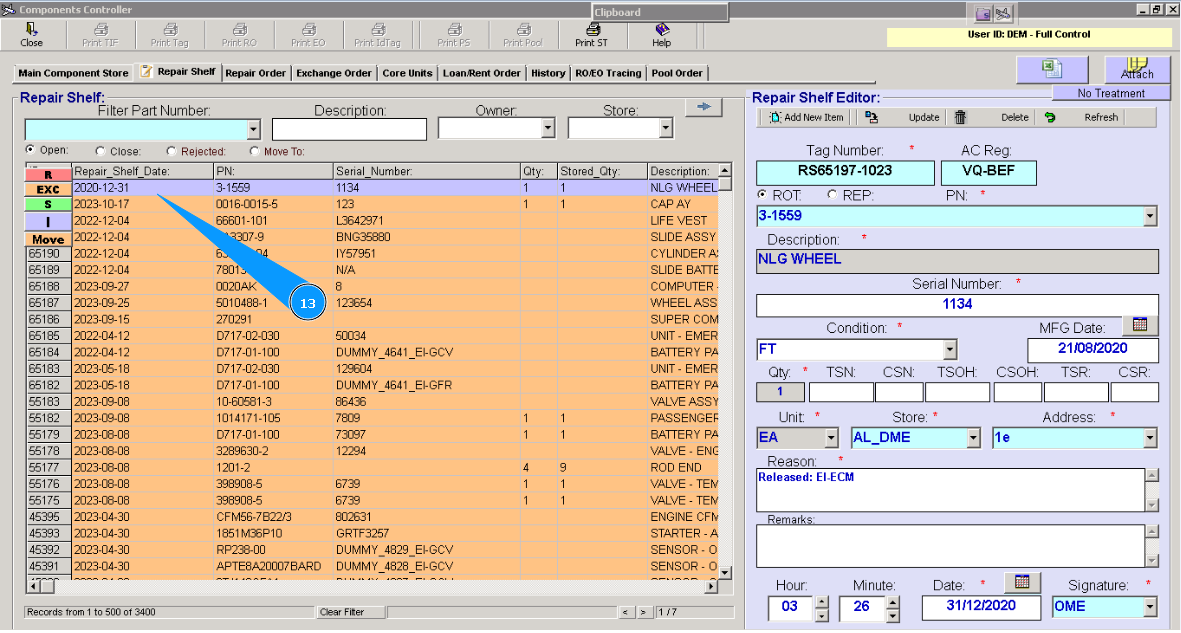
13. Visually check that your added item is appeared in the top of list of unserviceable components.