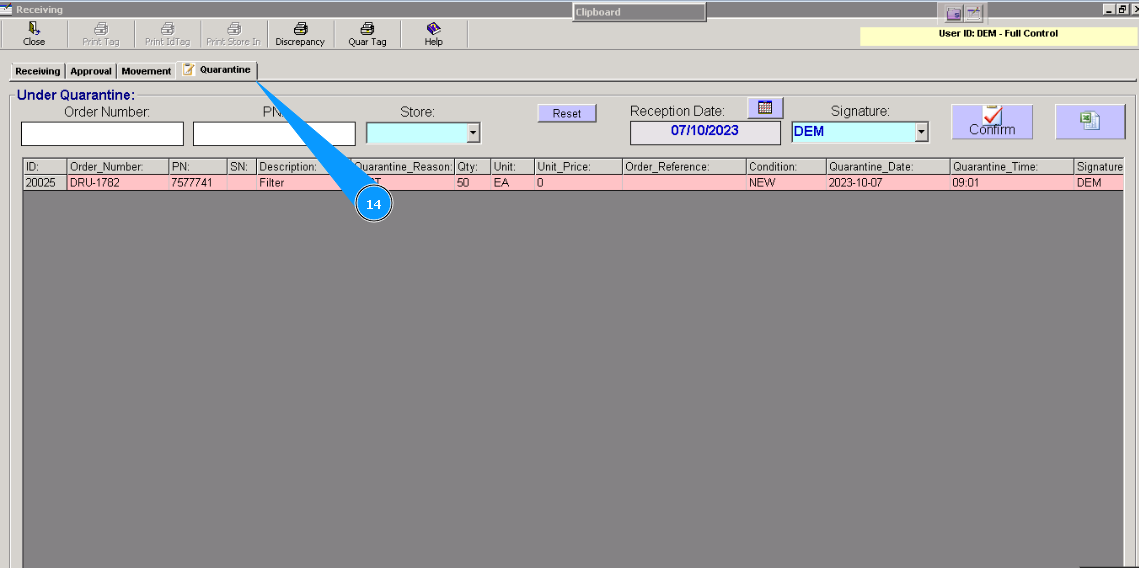
How to place components to Quarantine
Note: This chapter consists of two ways to place components to quarantine: first one is when component will be put in store firstly, and other one is when component has been already received to store.
А. Component has not been received yet.
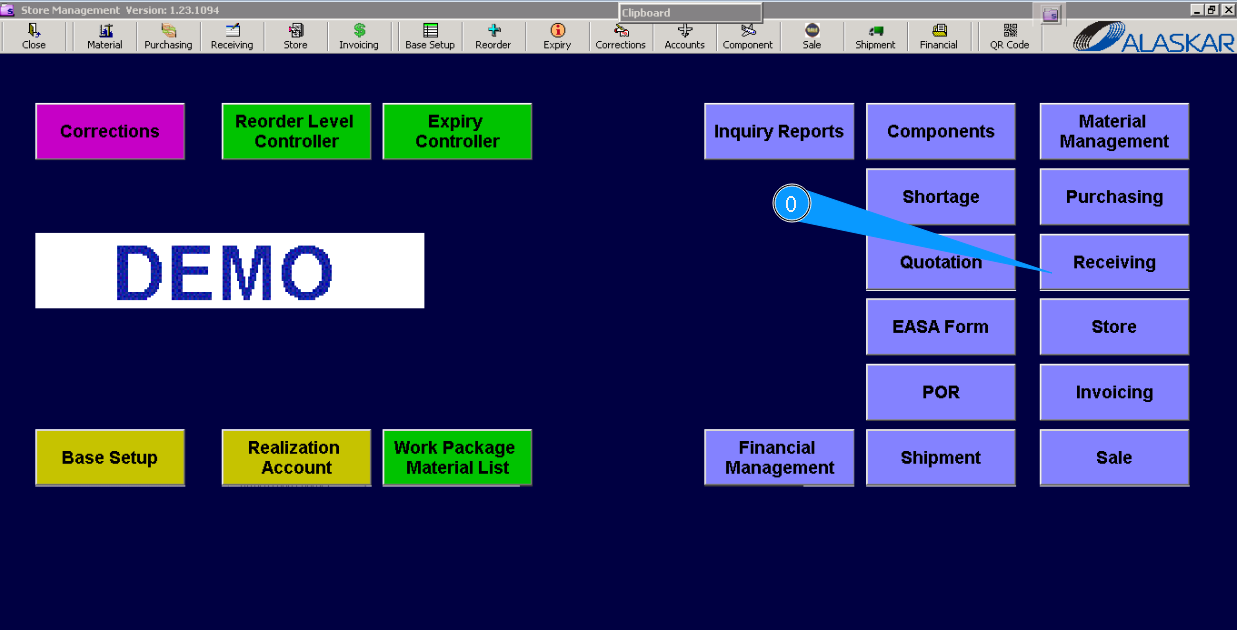
0. For receiving component to quarantine go to submodule "Receiving".
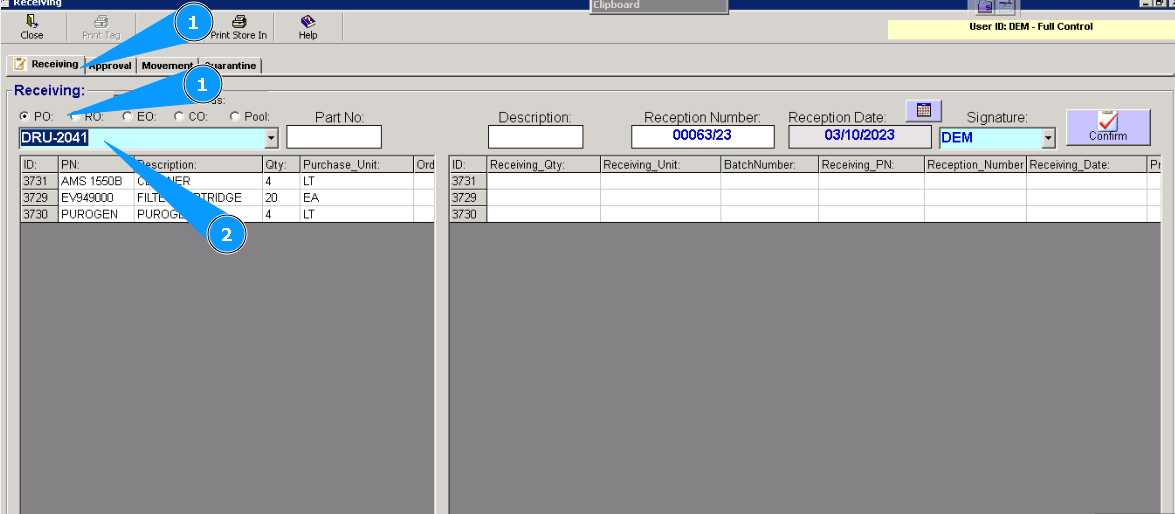
1. Then go to tab "Receiving", select one of the following Order type: PO, RO, EO,CO,Pool.
2. Enter Order number to find line and press button "Enter" on your keyboard or select from dropdown list.
Note: Placing of components to Quarantine is possible if Order number (PO,RO,EO,CO,Pool) is existed..
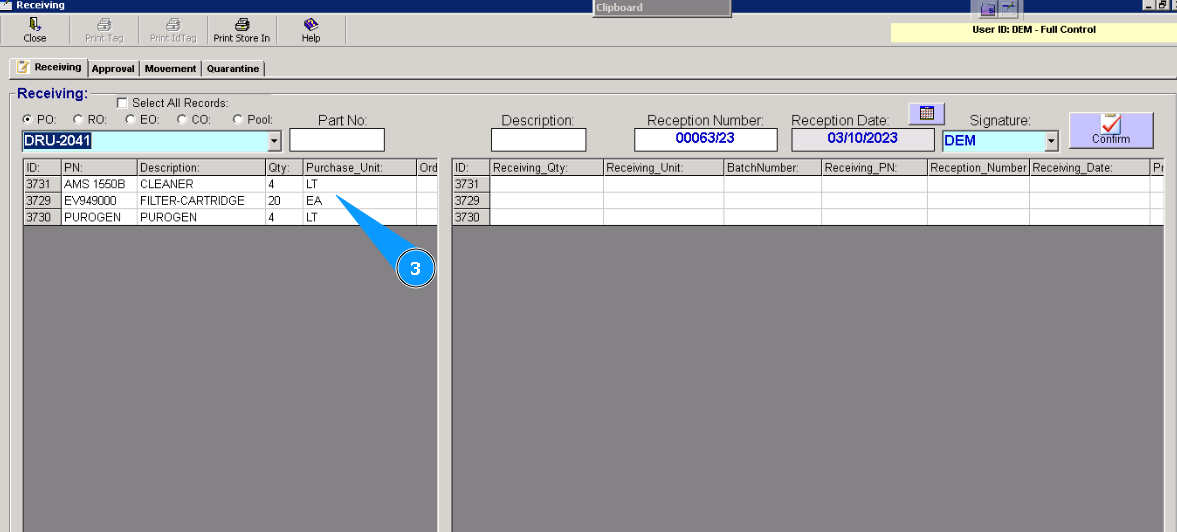
3. Visually cheeck that necessary components are identified in the line below.
4. Highlight necessary line below.
5. Click on the button "Q" (Quarantine).
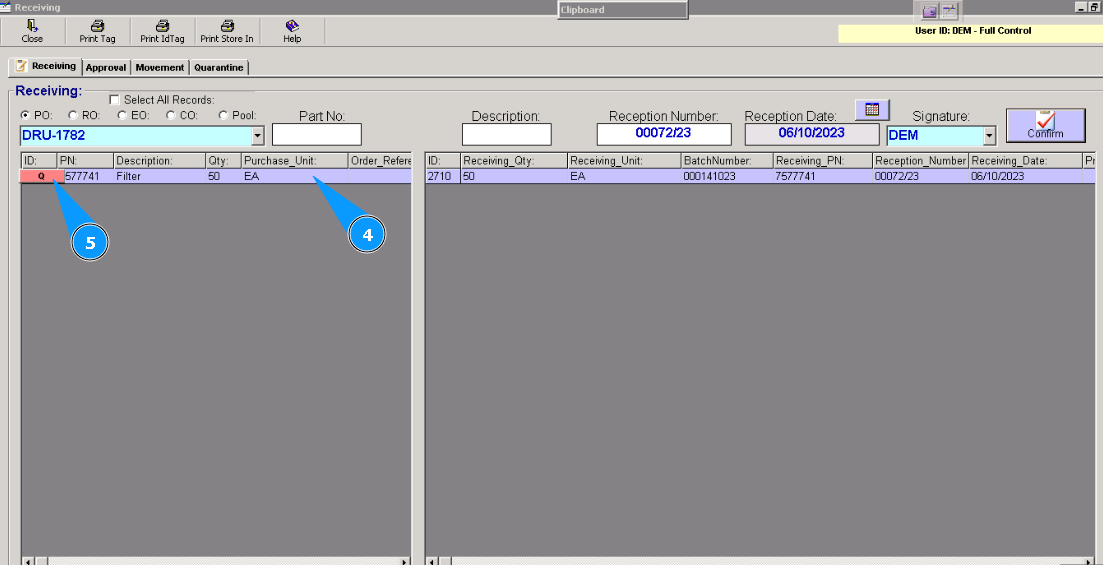
6. Enter data about reason of placing to quarantine (for example: wromg data into documents, certificate is missed etc, damages of unit, all of them are pointed in your incoming control document)in the text field of apperead window "Quarantine Reason".
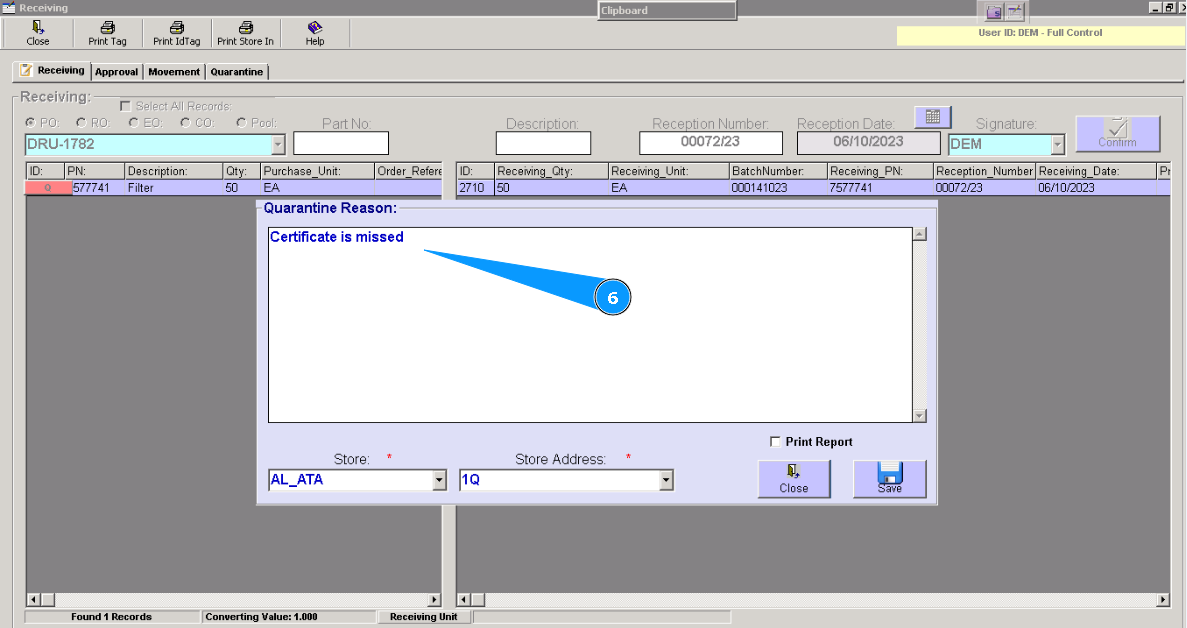
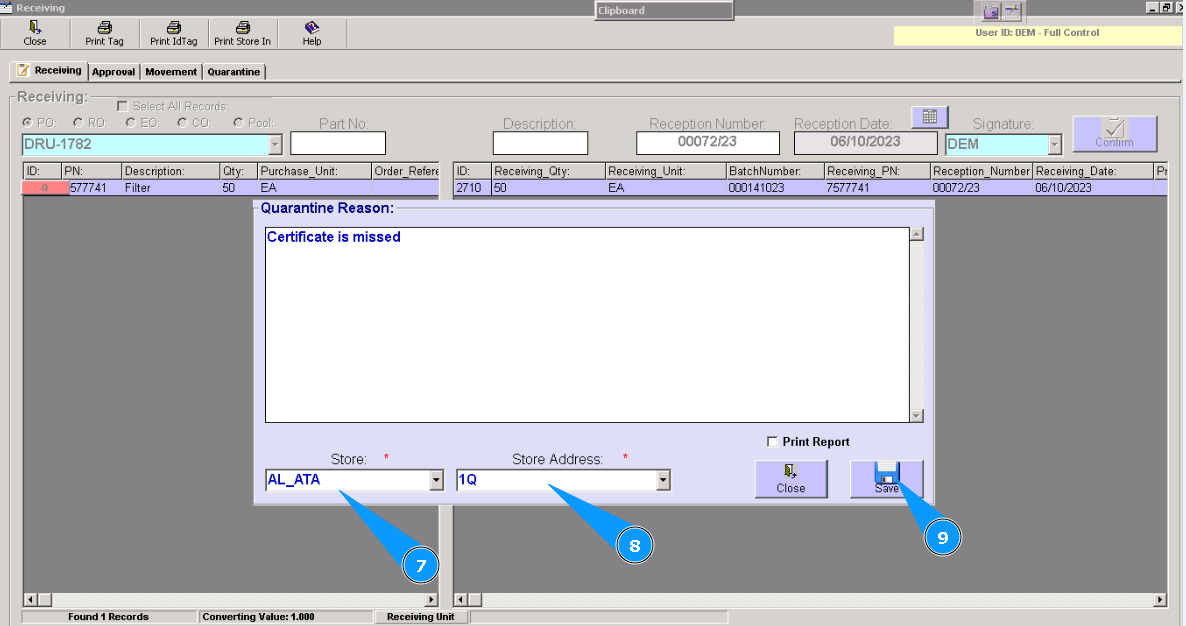
7. Enter store name or select from dropdown list.
8. Enter shelf number(room, rack и etc).
9. Click on the button "Save".
Note: If necessary print quarantine report, click on the field "Print".
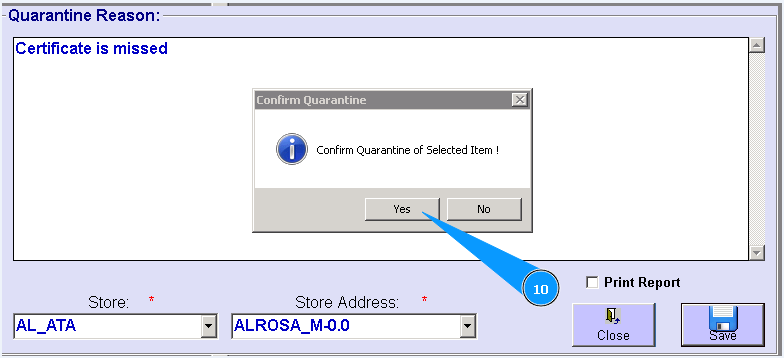
10. Click on the button "Yes", for confirmation loading entered data to programm.
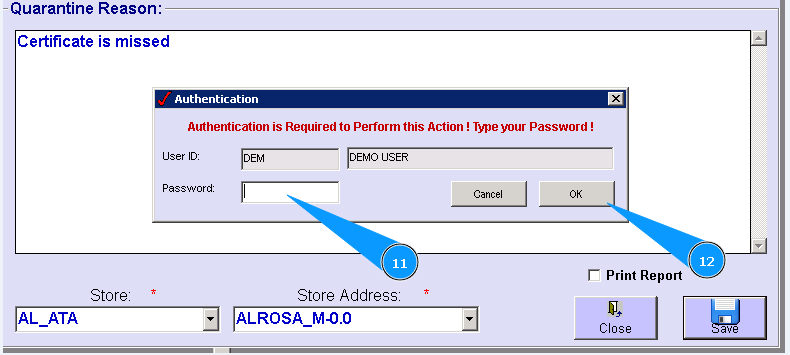
11. Enter your Alaskar password.
12. Click on the button "Ок".
13. Visually cheeck that color of line changed to red color. Component is successfully placed to quarantine.
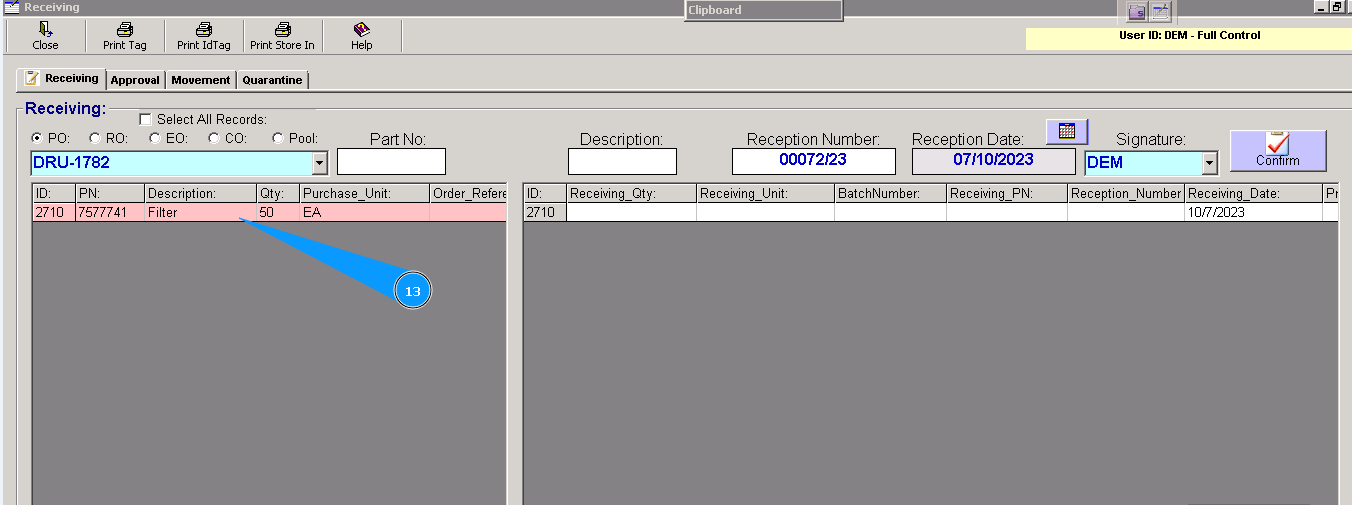
14. If you would like to check all quarantine items go to tab "Quarantine".
B. Component has been already received to store.
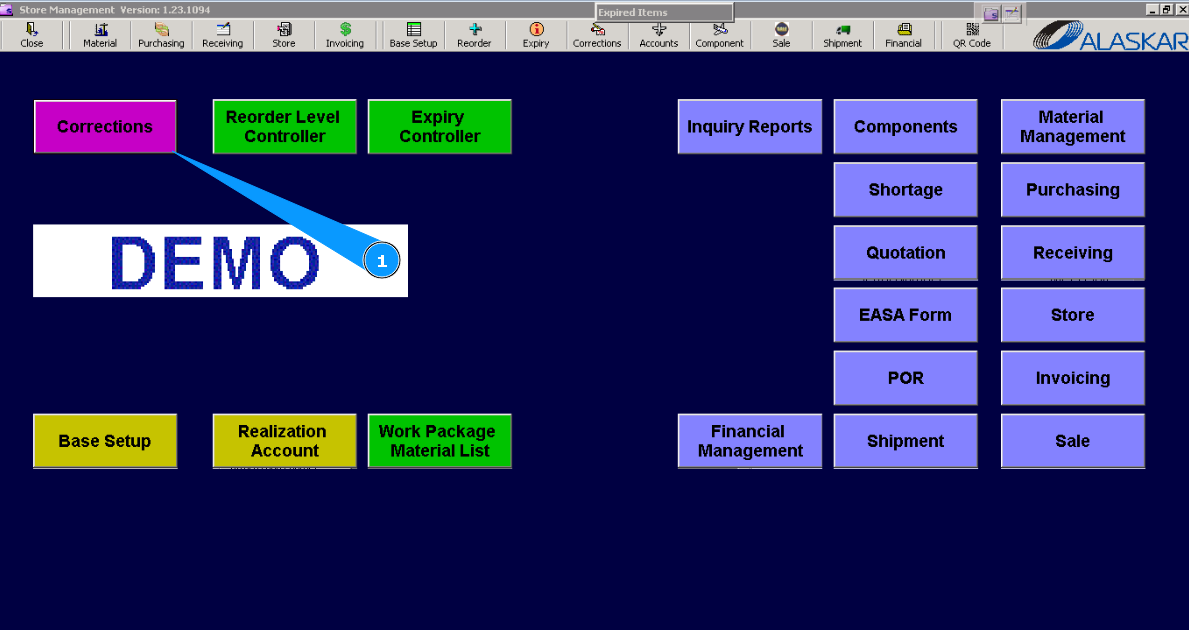
1. For placing component to quarantine, please go to submodule "Corrections".
2. Then go to tab "Fix Store Item".
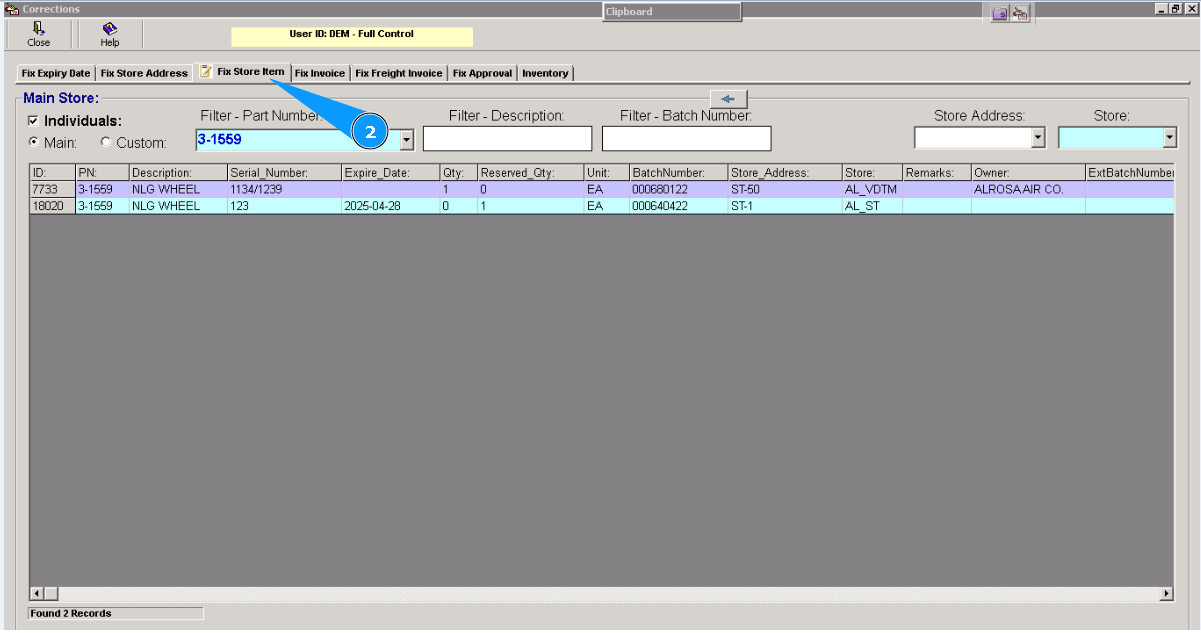
3. Enter part number in the search field "Filter-part number", and press button "Enter" on your keyboard. Note: If necessary you can use other search criteria, fields: "Filter-Description", "Filter-Batch number", "Store Address", "Store"
4. Or select from dropdown list.
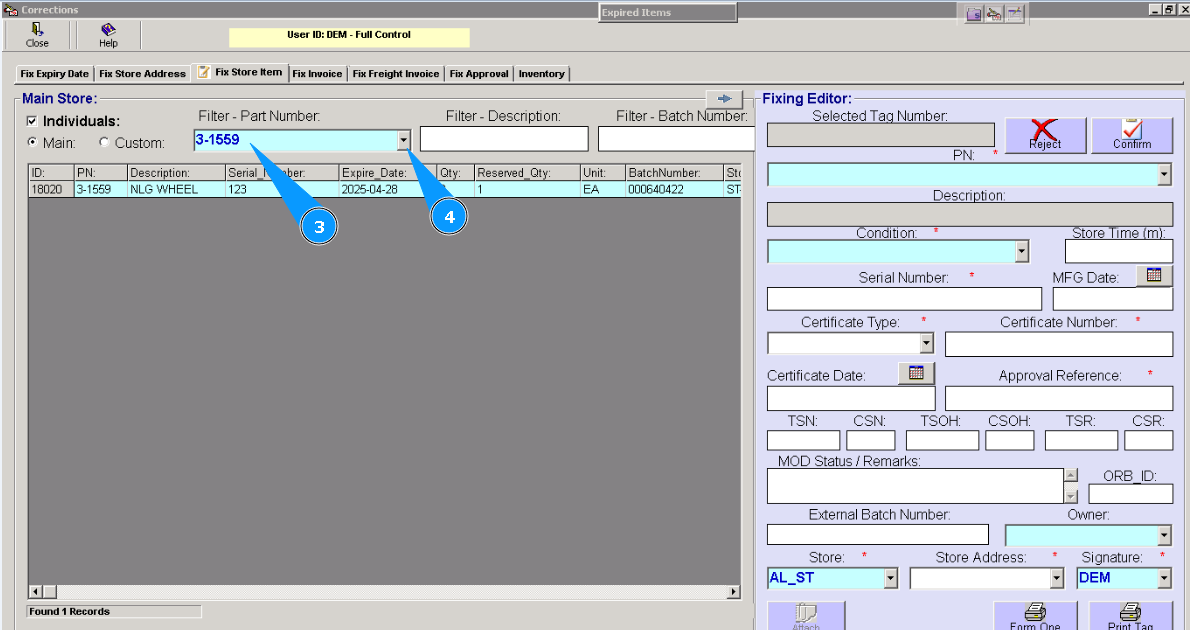
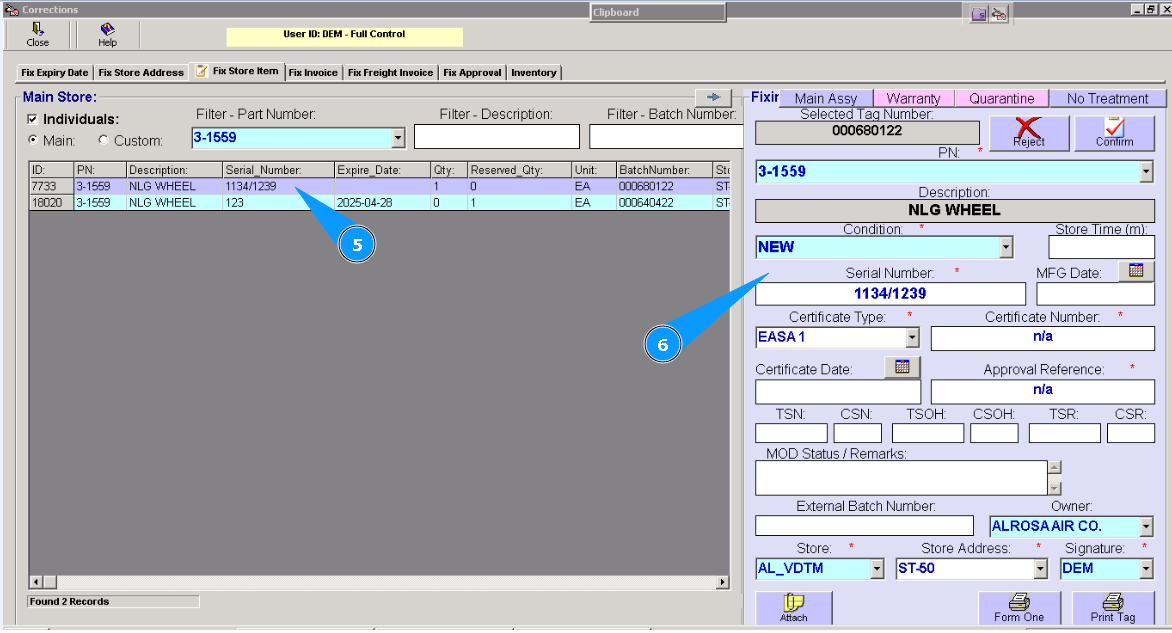
5. Highlight applicable line with component.
6. Visually check that component data is appeared in the editor window.
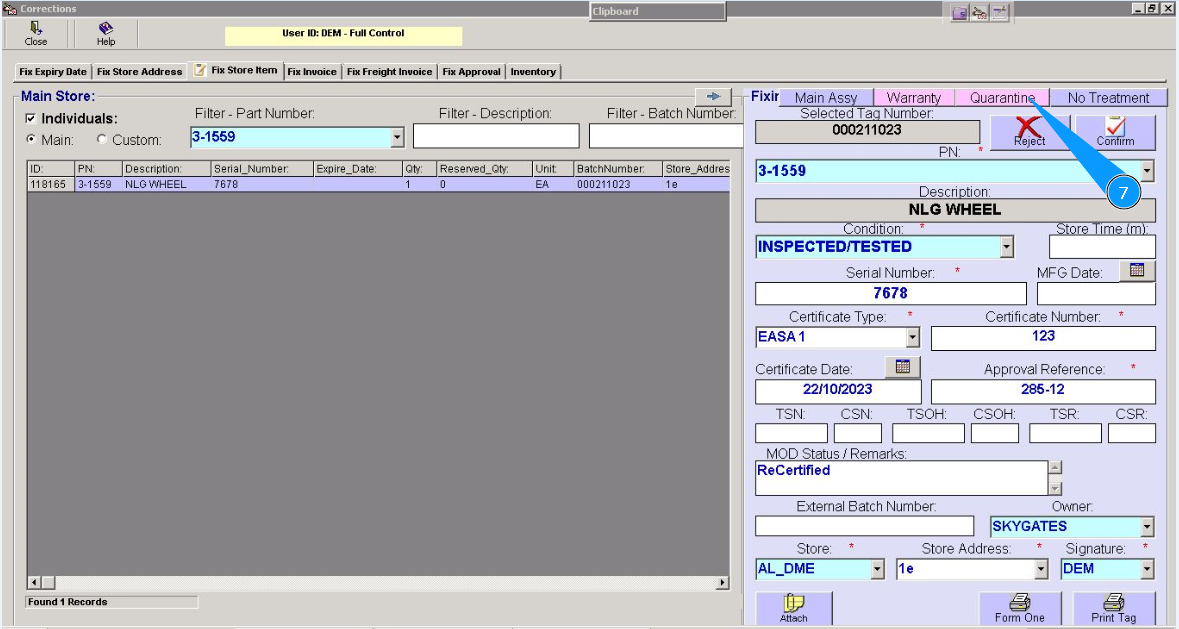
7. Click on the button "Quarantine" .
8. Visually check that window "Quarantine Reason" is opened.
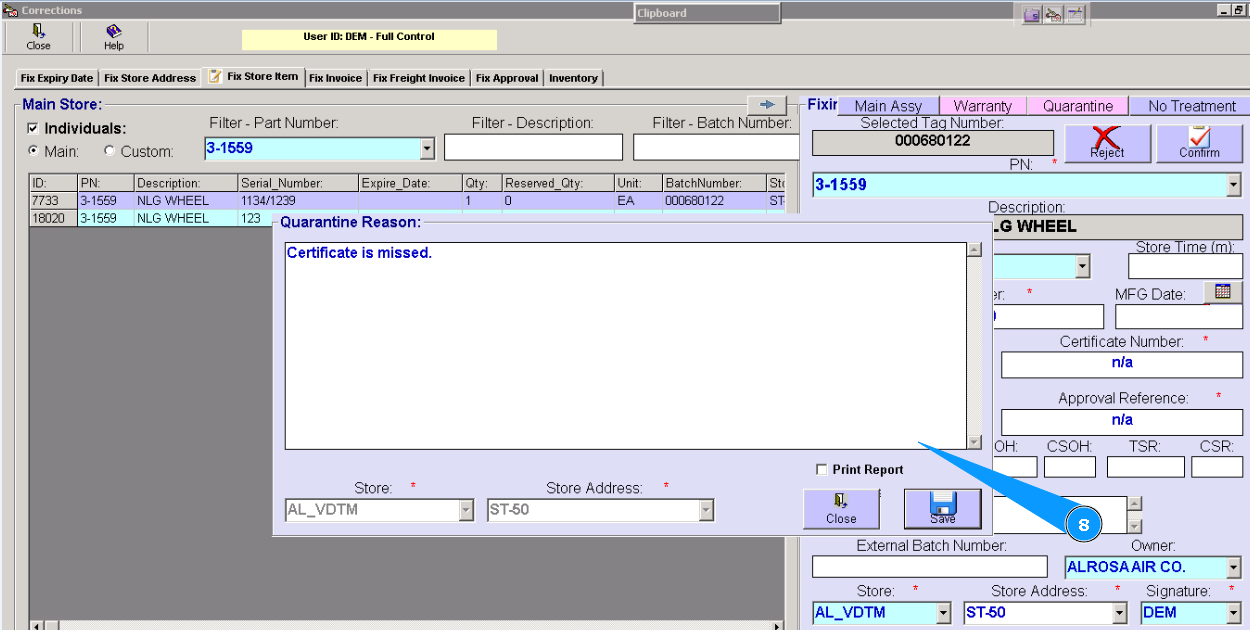
9. Enter information about quarantine reason in the text field of window "Quarantine Reason" (for example: wrong data in certificate, damages, cerificate is missed etc. in according with incoming insection condition).
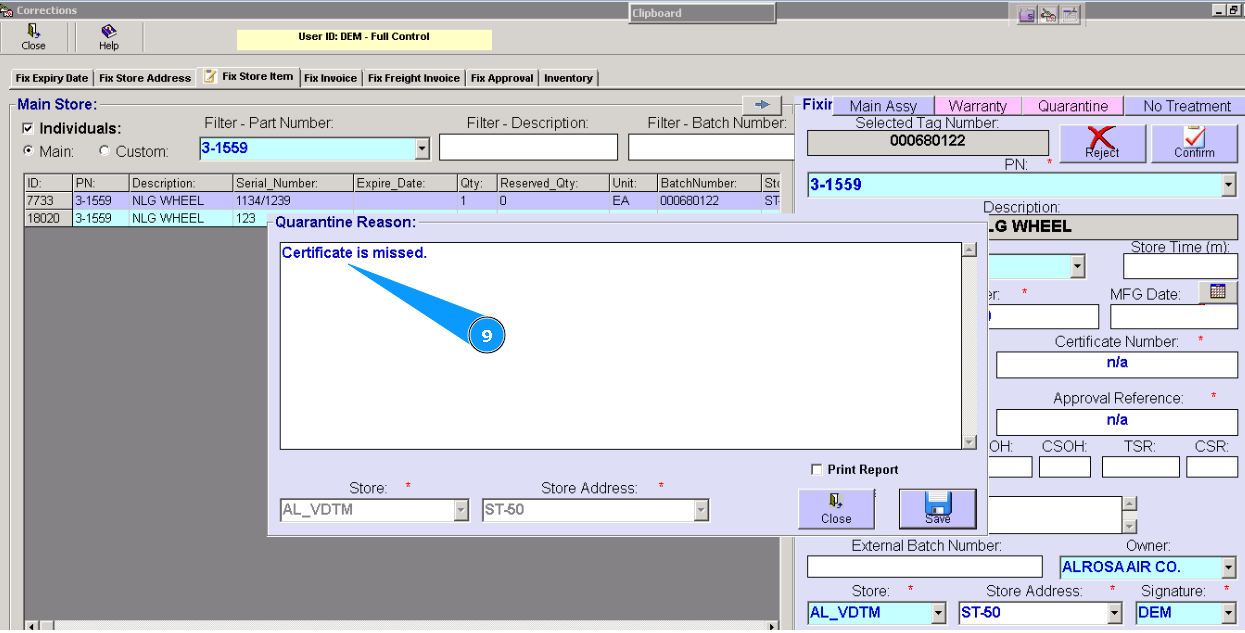
10. Click on the button "Save", to save all data in the programm.
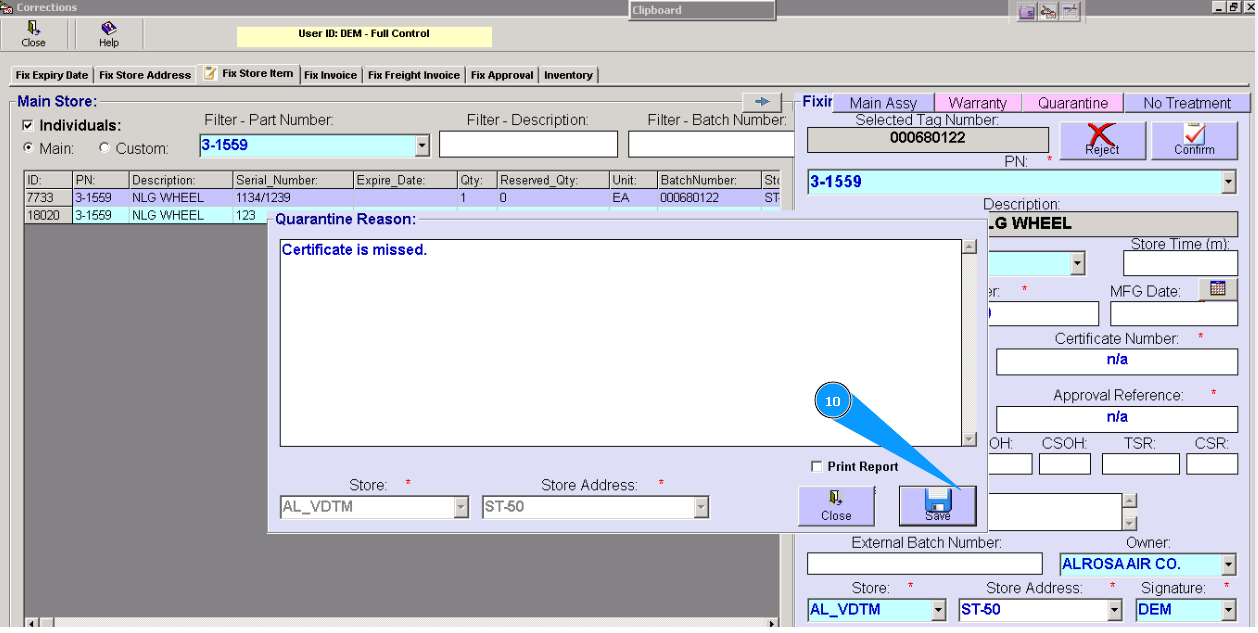
11. Click on the button "Yes", to confirm loading data in the programm.
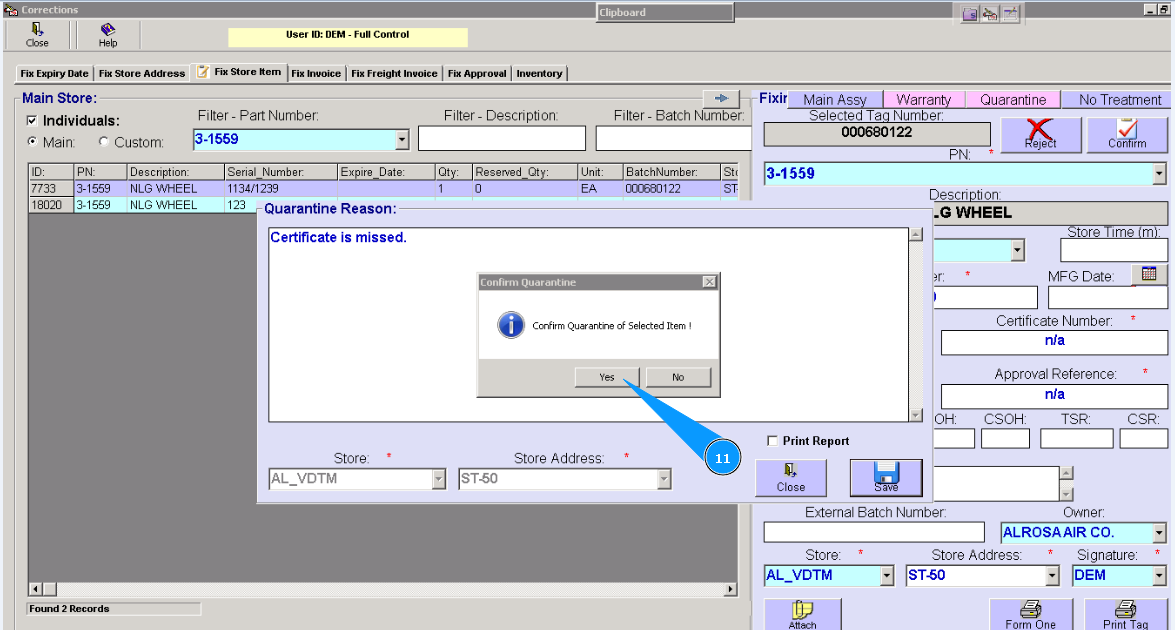
12. Enter your Alaskar password in this field.
13. Click on the button "ОK".
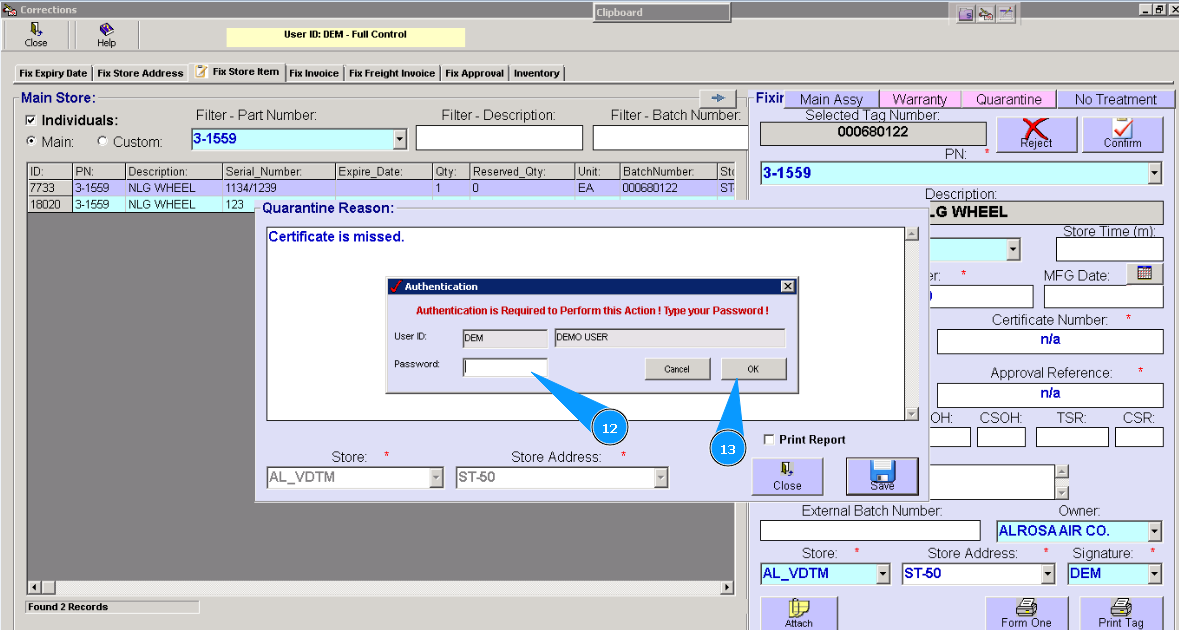
13. Visually check line with component is disappeared. Component is successfully placed to quarantine.
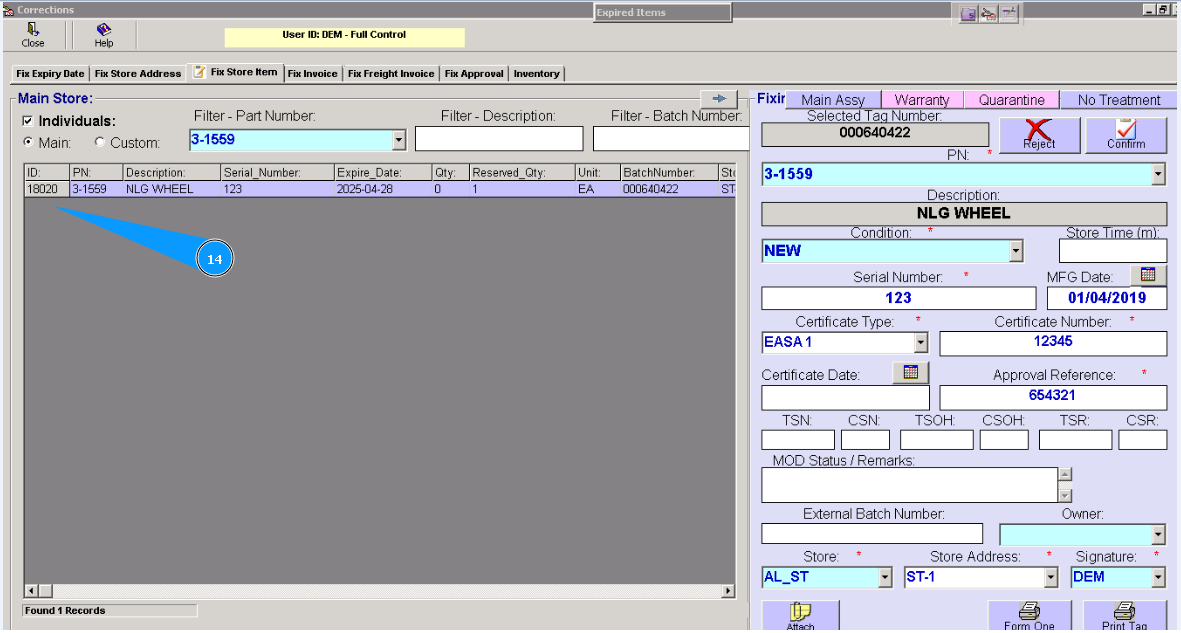
14. You can see all quarantined components in the submodule "Receiving", into tab "Quarantine".