How to move serviceable component from store to shelf of unserviceable componets.
Note : This instruction describes "How to move serviceable component from store to shelf of unserviceable componets". The actions of this instruction are fully the same as in the instruction "How to change serviceable condition of component to userviceable one".
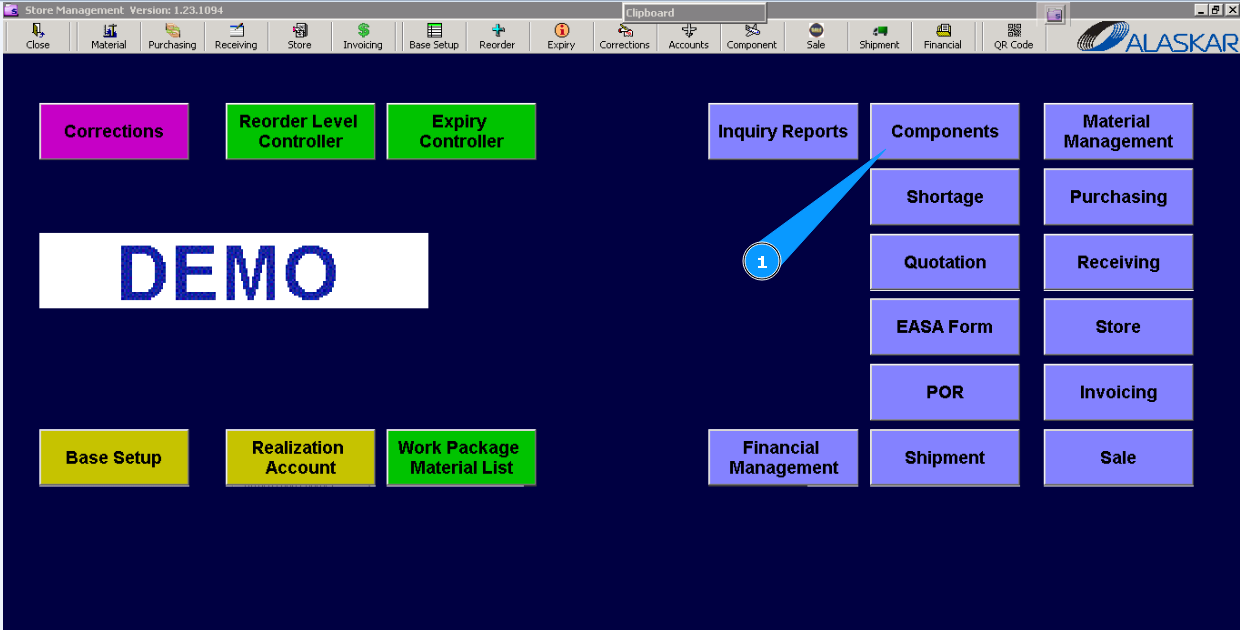
1. To start moving proccess please go to submodule "Components".
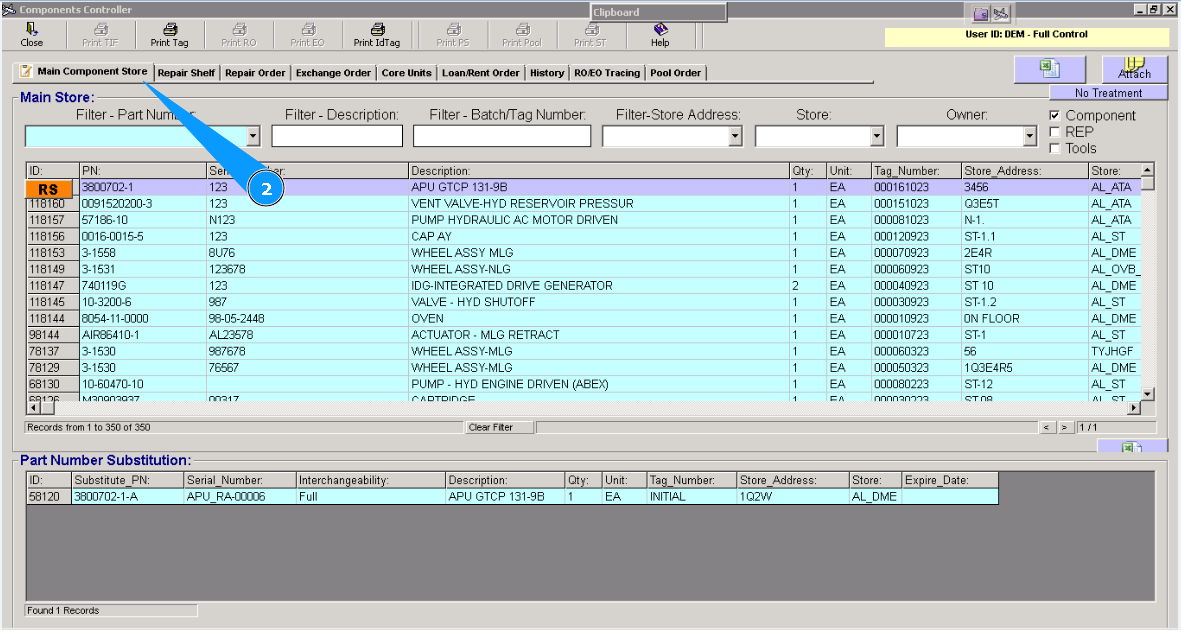
2. Then go to tab "Main Component Store".
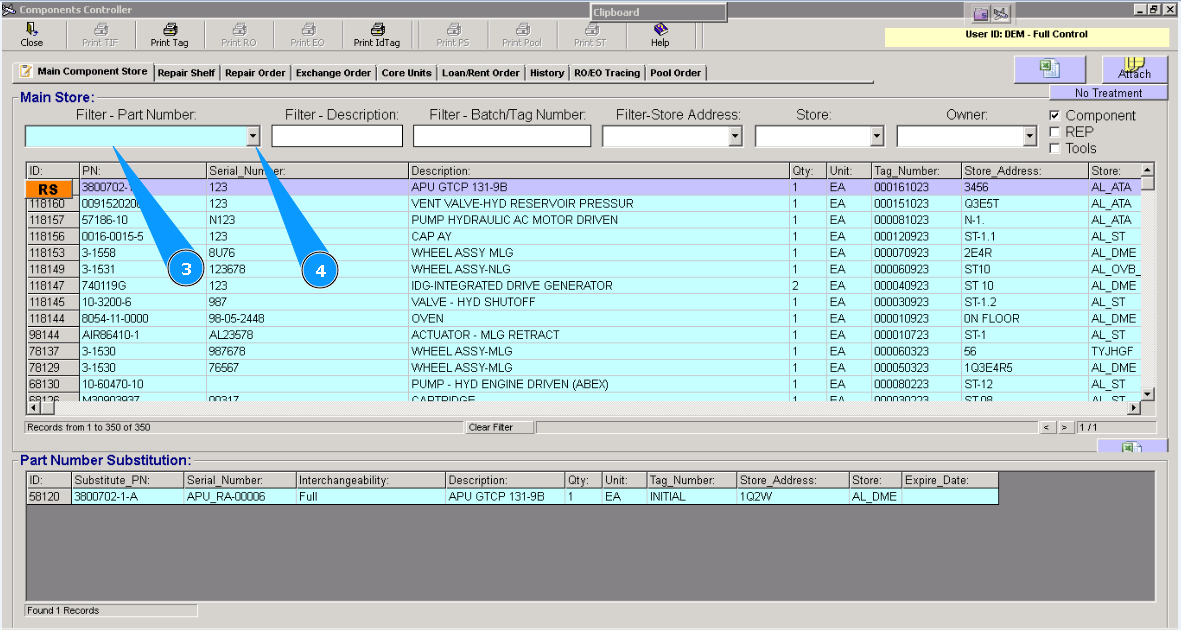
3. Enter part number in the search field "Filter-part number", and press button "Enter" on your keyboard.
4. Or select from dropdown list.
Note: If necessary you can use additional criteria for searching: "Filter-PDescription ", "Store", "Owner" etc.
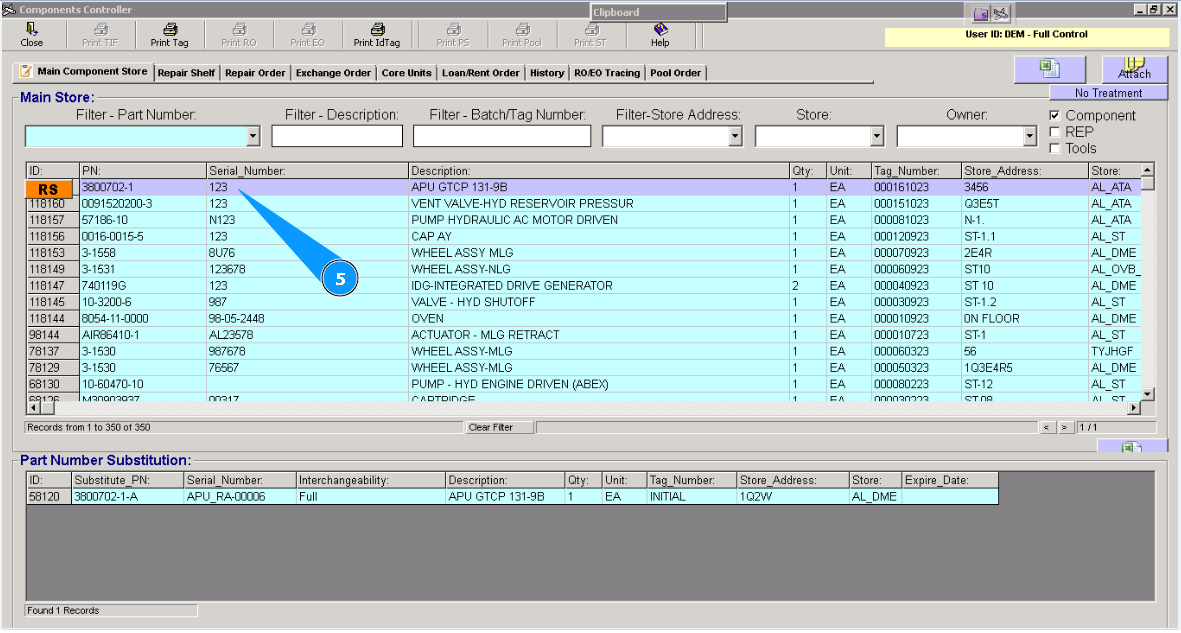
5. Highlight applicable line with found component.
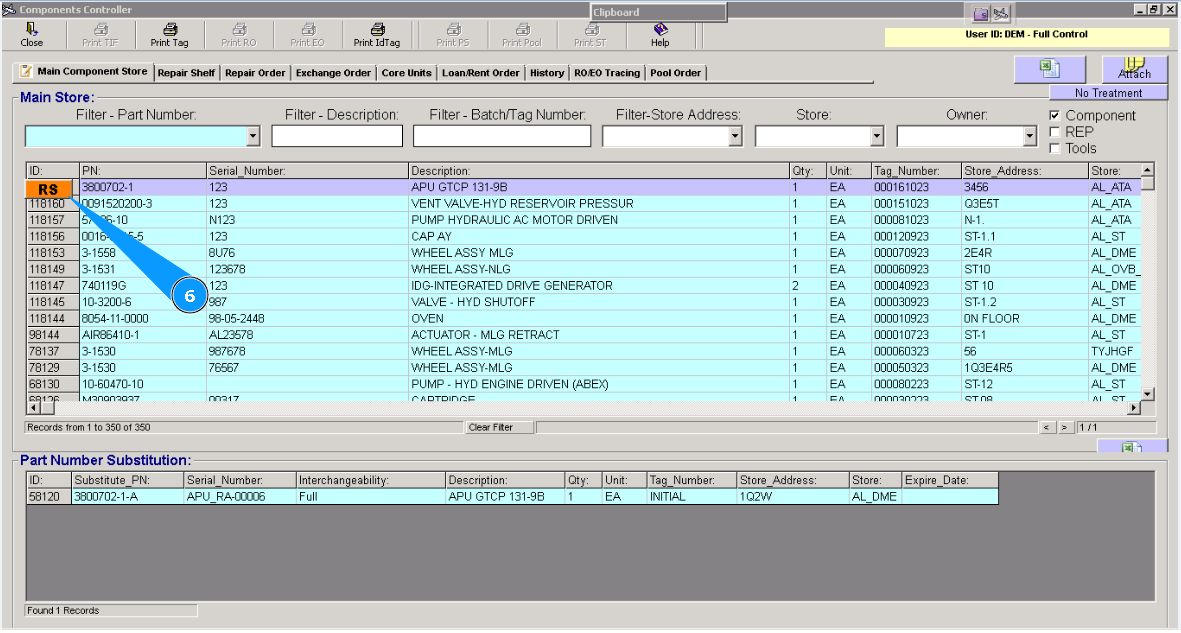
6. Click on the button "RS" (Transfer to Repair Shelf).
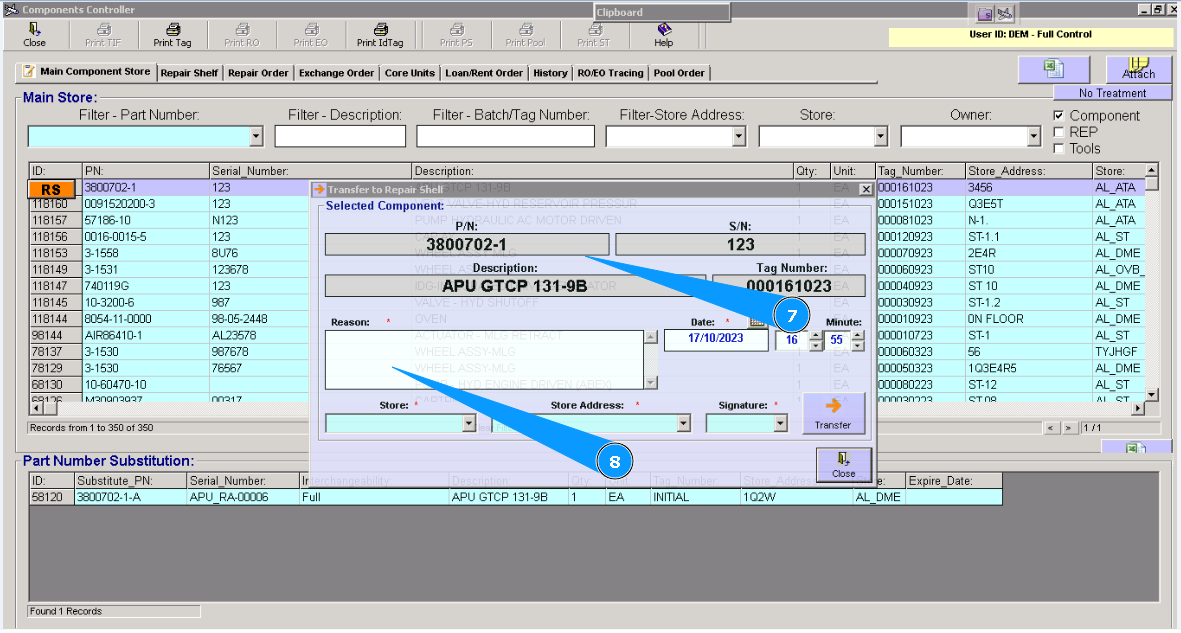
7. Check the component details.
8. Enter the reason of unserviceable condition in the text field "Reason".
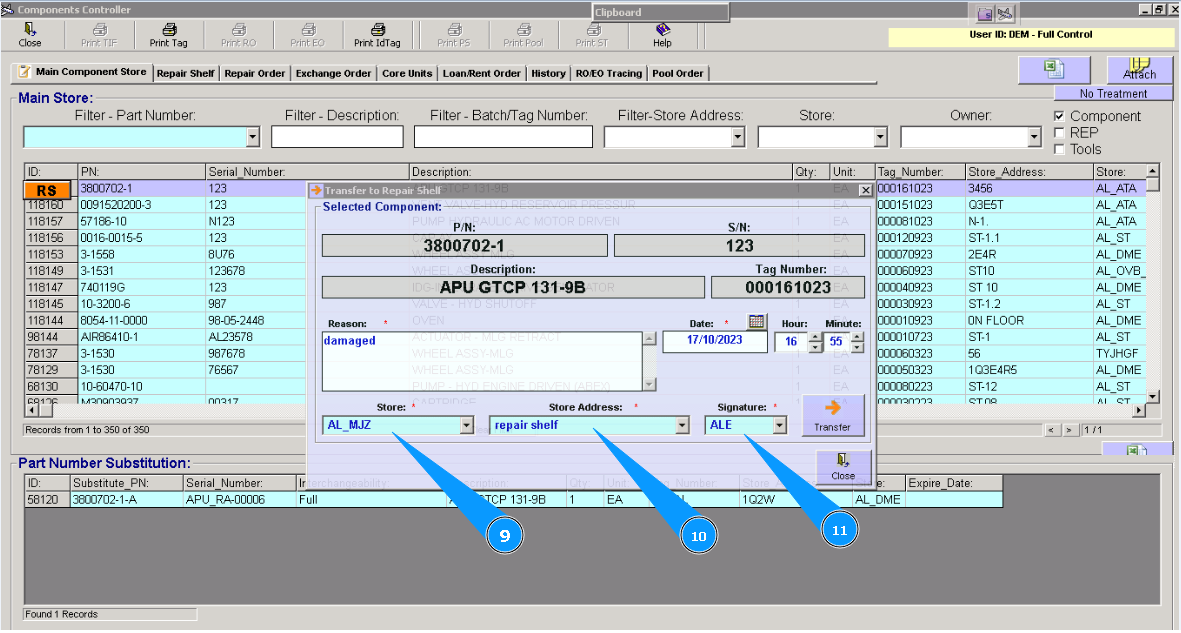
9. Enter store name in the window "Store".
10. Enter shelf nuber "Store Address".
11. Enter your login in the window "Signature".
Note: By default there is present current dateПо. If necessary you can change date and time of moving.
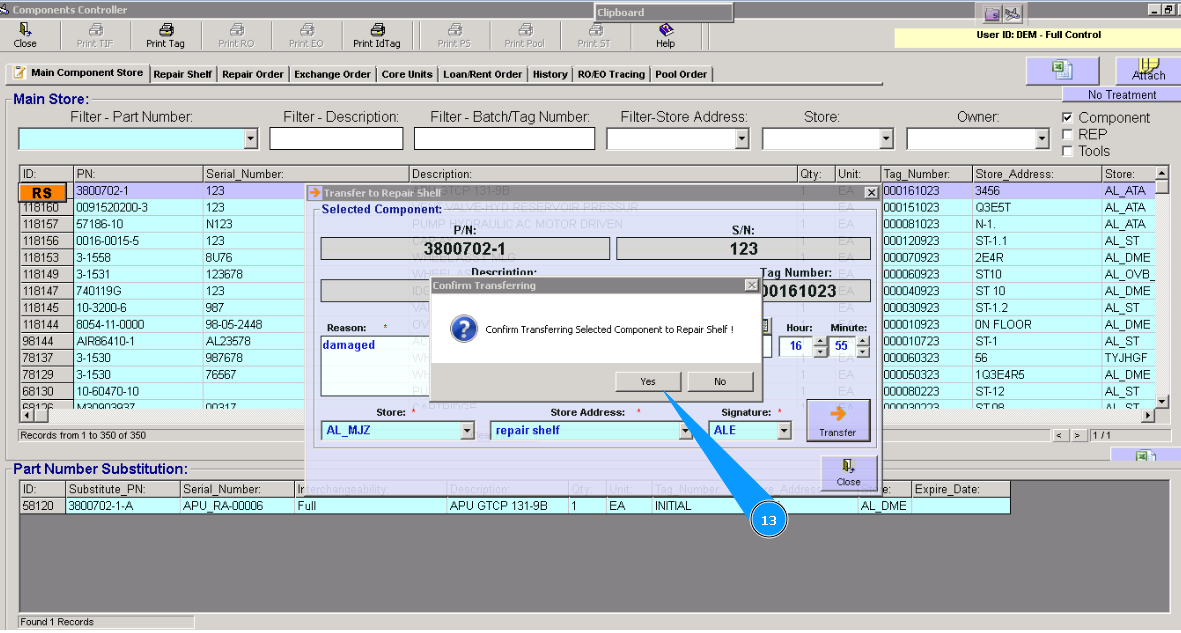
12. Click on the button "Transfer".

13. Click on the button "Yes", for confirmation moving component to unserviceable shelf.
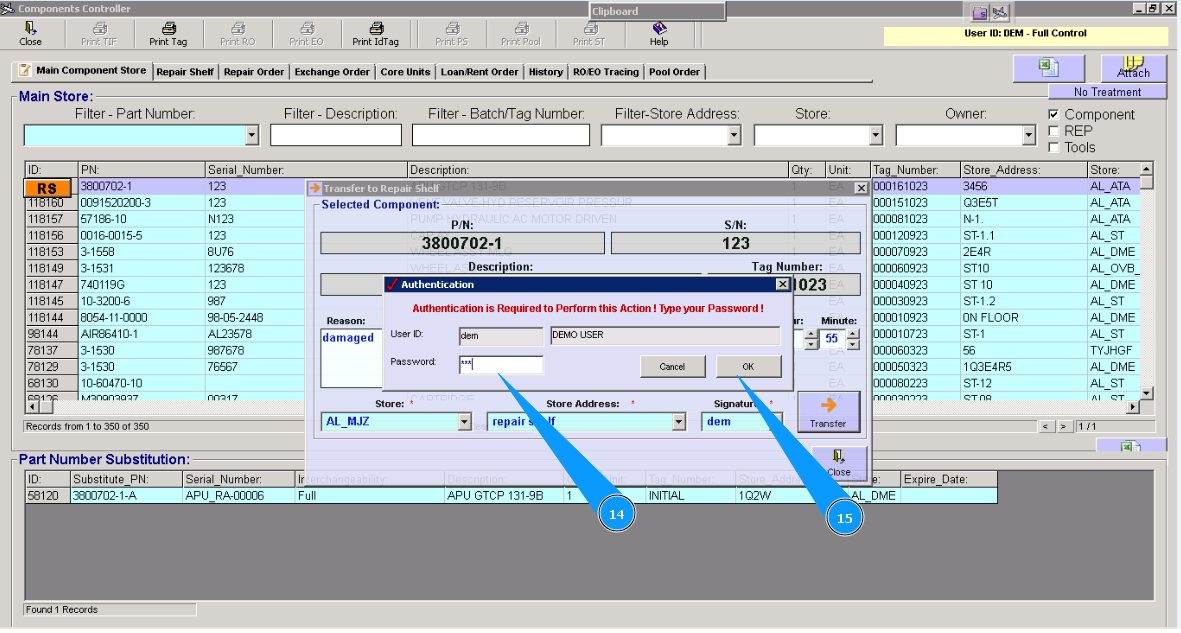
14. Enter your password in this window.
15. Click on the button "OK".
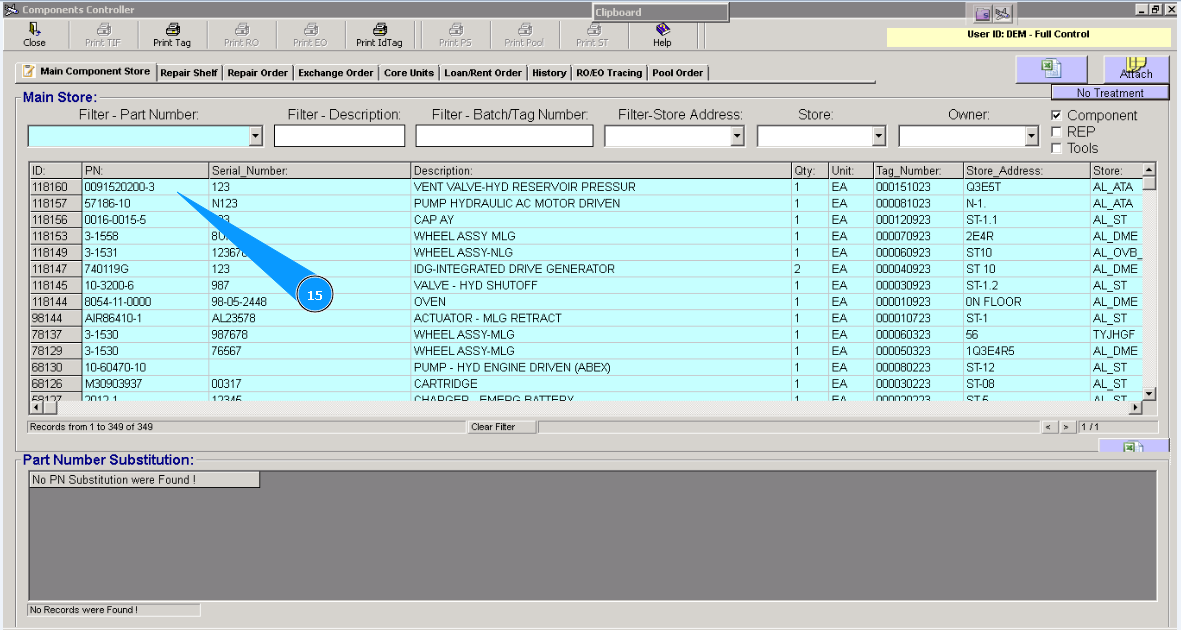
15. ПVisually check that line is disappeared. Moving proccess of component to unserviceable (repair) shelf is successfully completed.
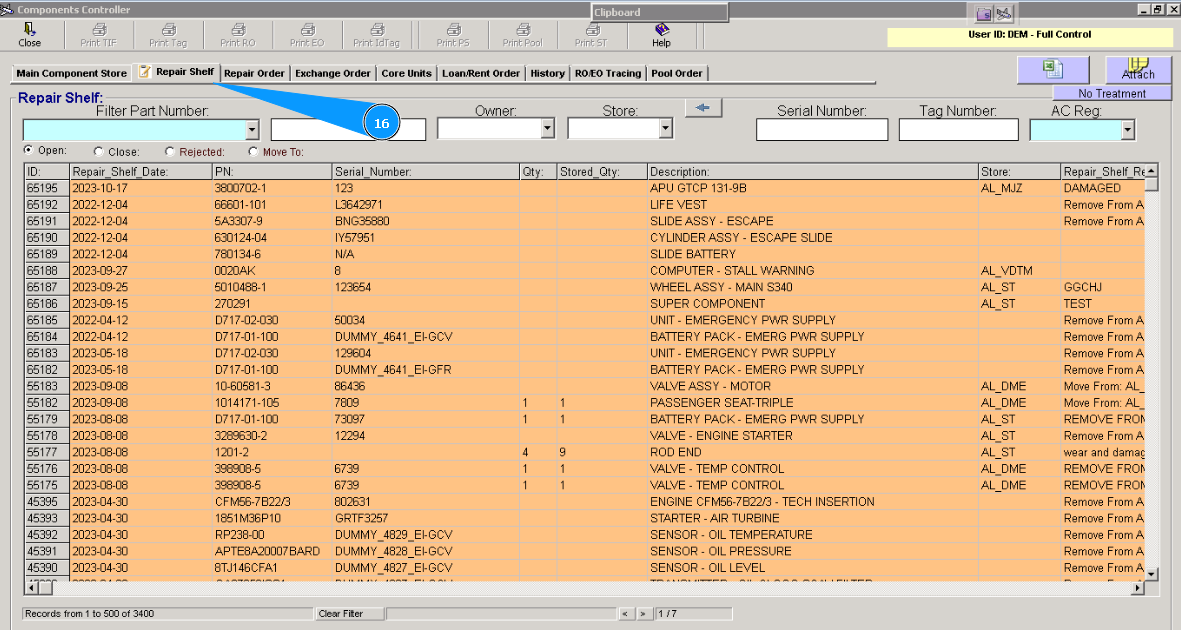
16. If you need you can check and perform additional actions with such component in tab "Repair Shelf".