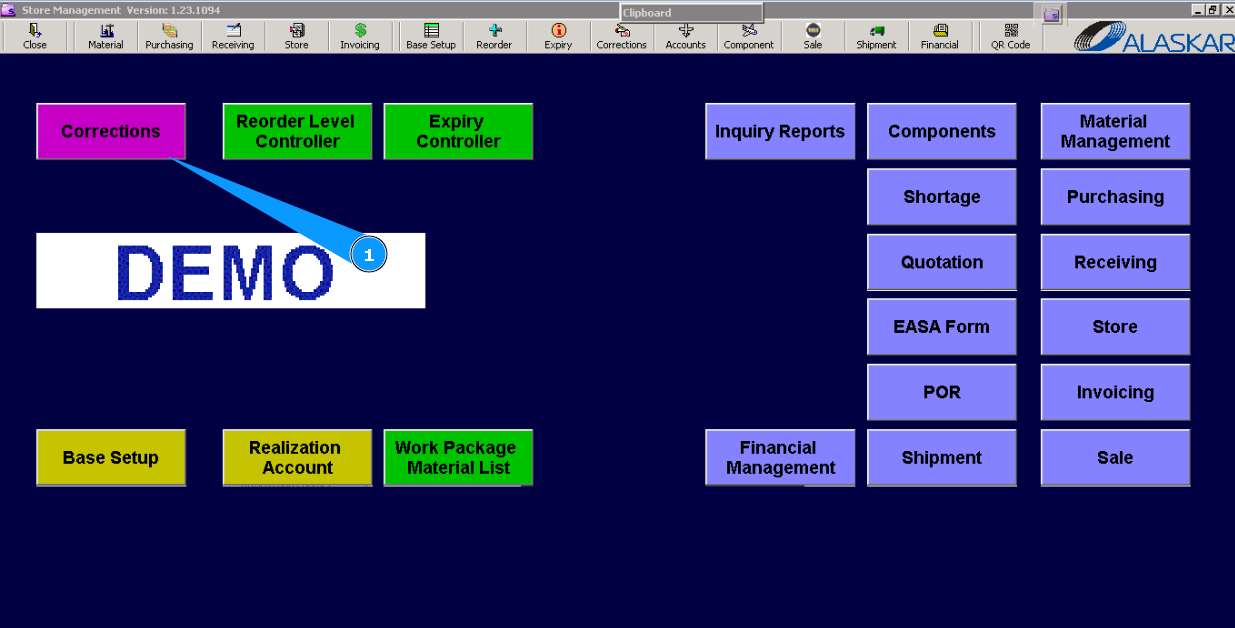
How to transfer component from repair shelf to store
1. For transfering component from repair shelf to store please go to submodule "Components".
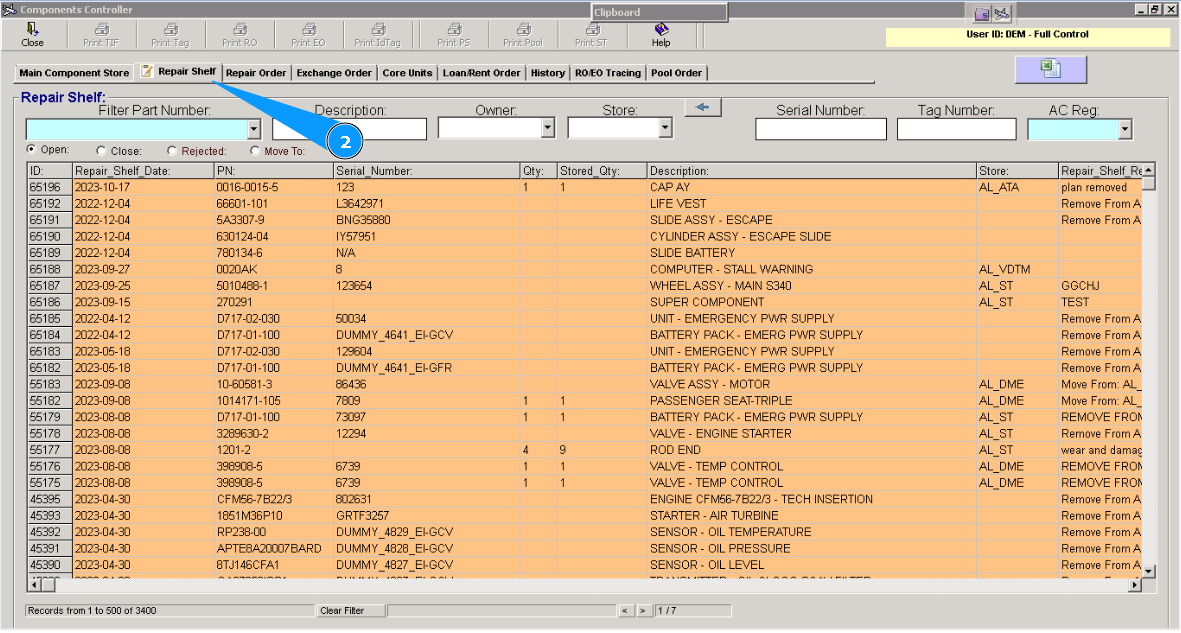
2. Then go to tab "Repair shelf".
3. Enter p/n of commponent in the searching field "Part Number", and press the button "Enter" on your keyboard Note: If necessary you can use additional search creteria, there are fields "Description", "Owner", "Serial Number" etc
4. Or select from dropdown list.
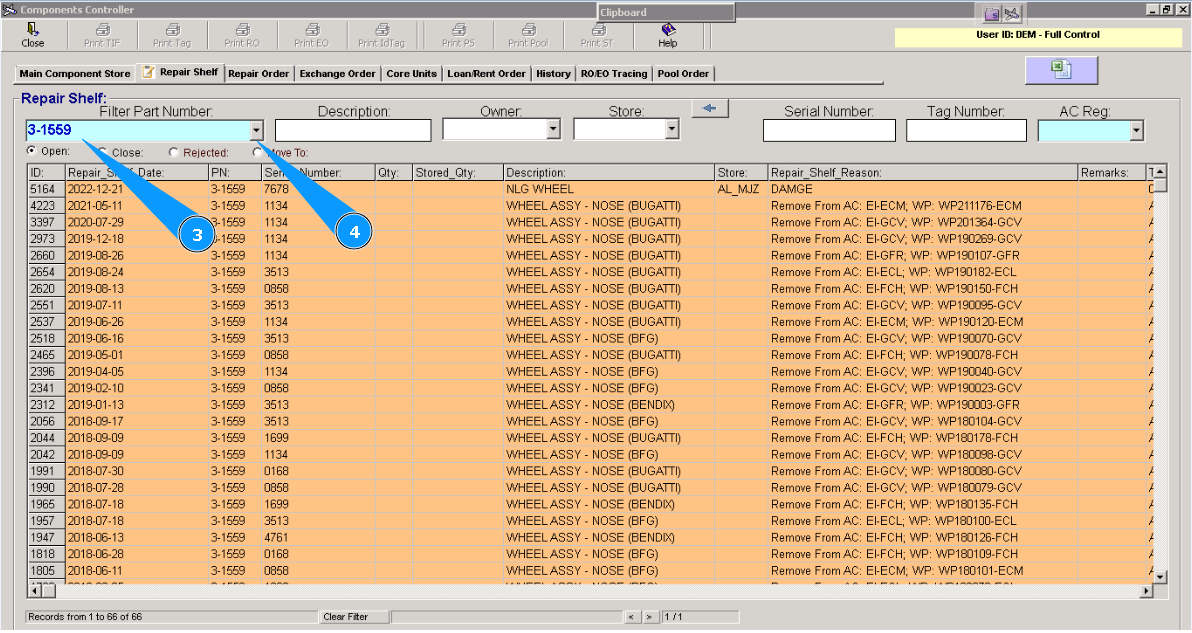
5. Highlight applicable line with component, which should be transfered to store.
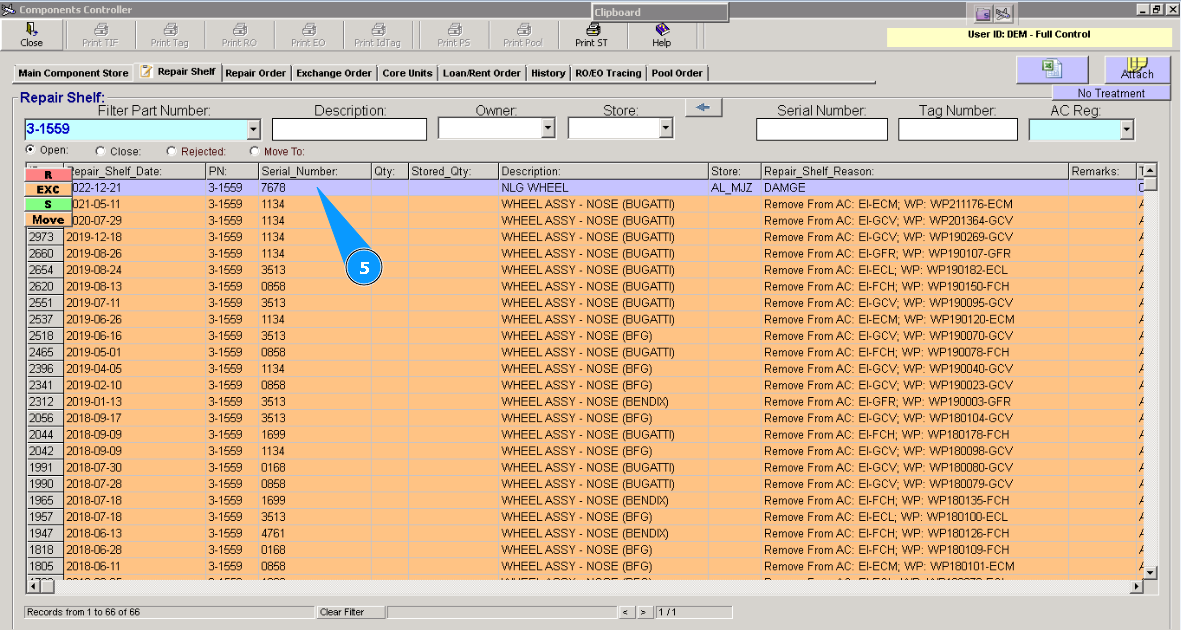
6. Click on the button "S (Re-certification)".
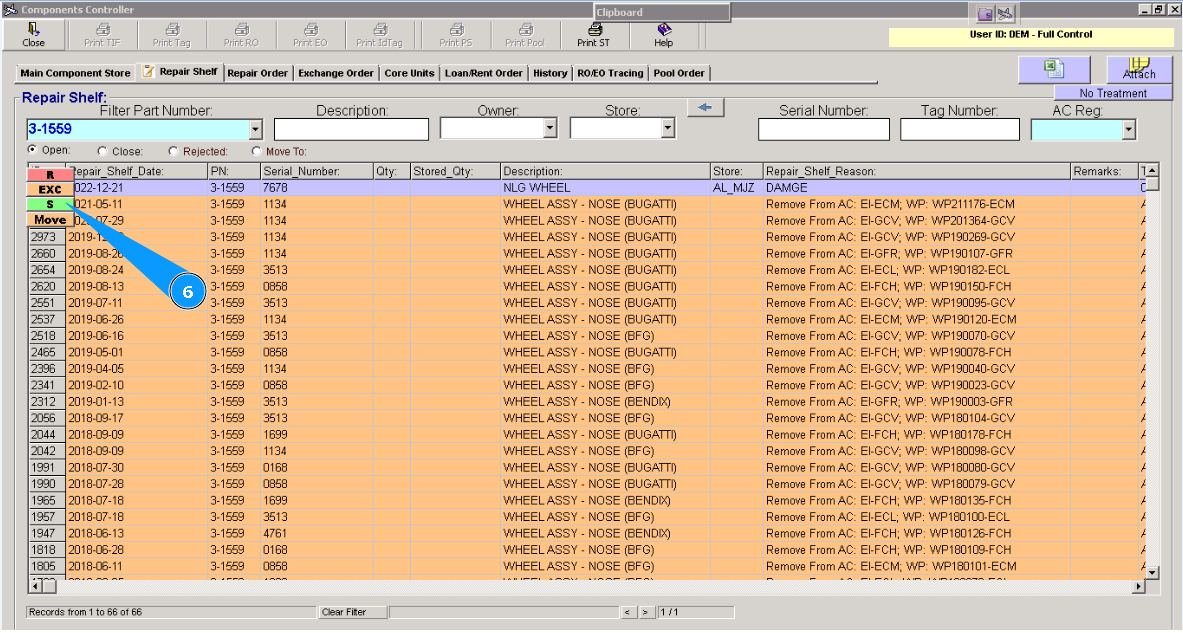
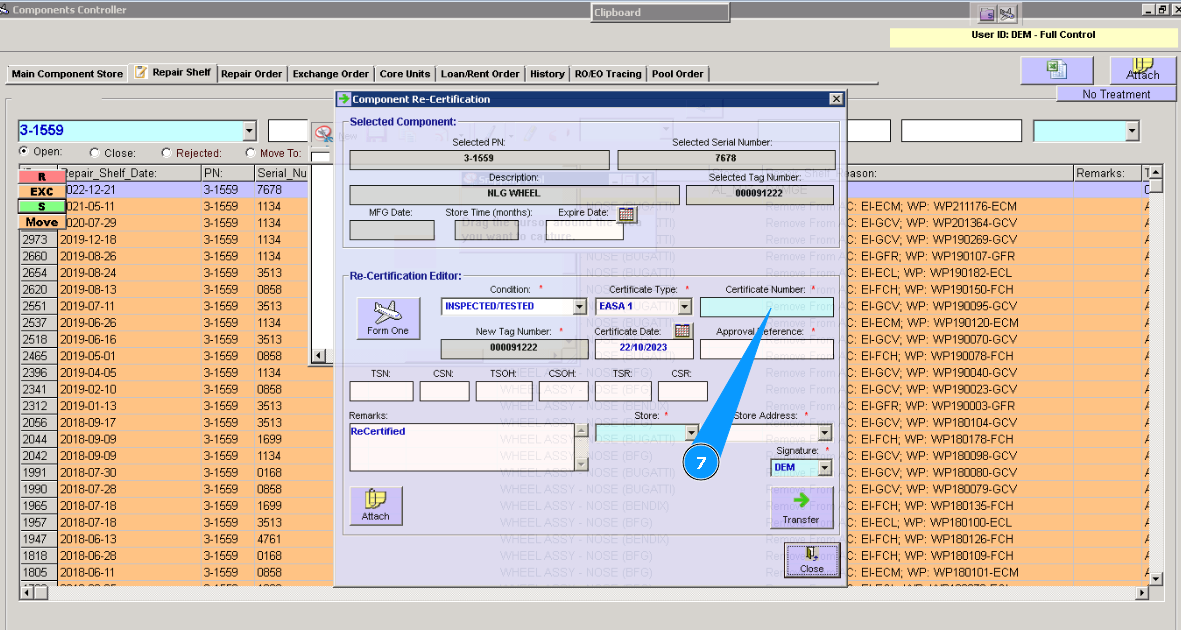
7. Enter certificate number in the opened window "Component Re-certification" , in the field Certificate number"
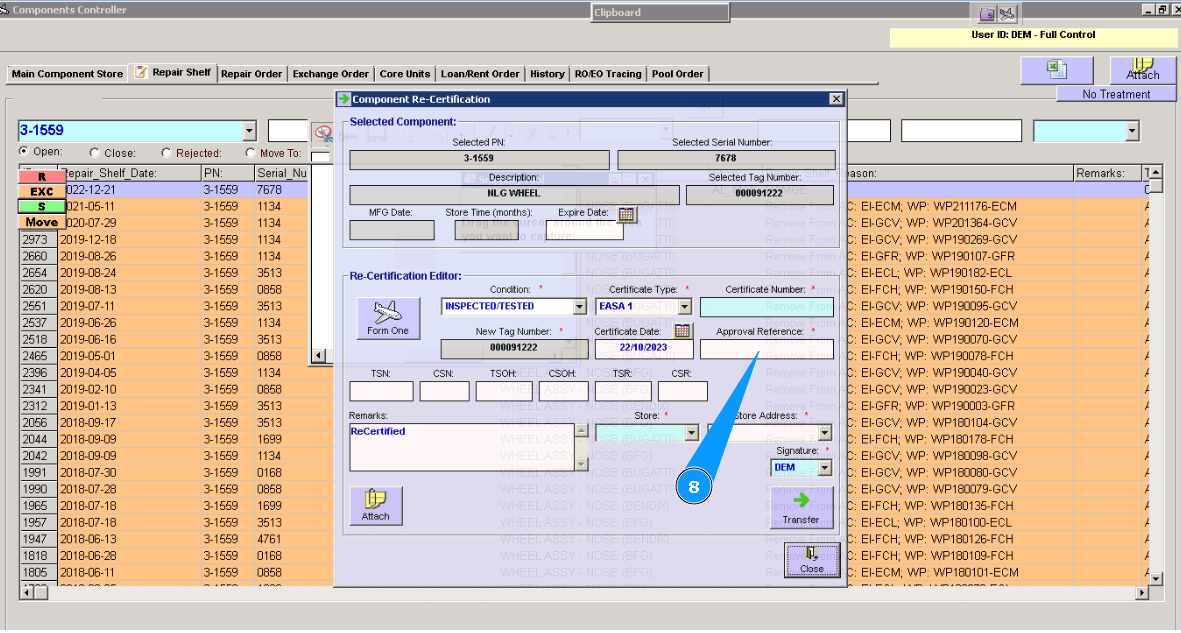
8. Enter approval reference in the field Approval Reference".
Note: If necessary change condition of component in the field Condition" and certificate type in the field Certificate Type".
9. Enter store name in the field Store" or select from dropdown list.
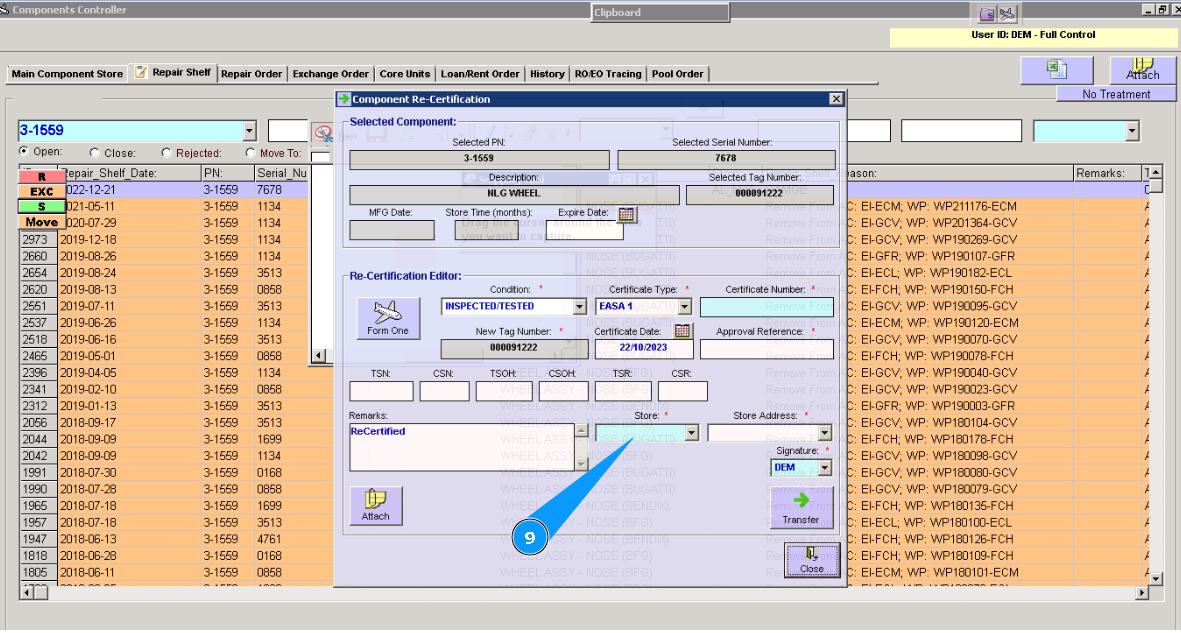
10. Enter shelf number in the field Store Address" or select from dropdown list.
Note: If necessary you can enter other data in the non-mandatory fields.

11. Click on the button "Transfer".
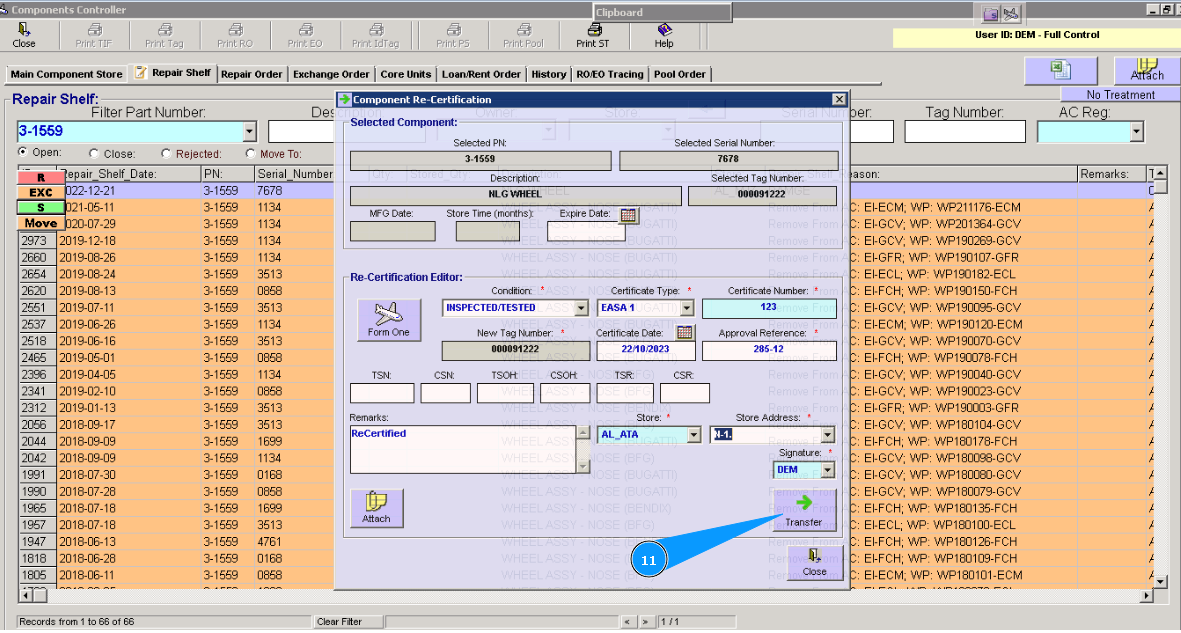
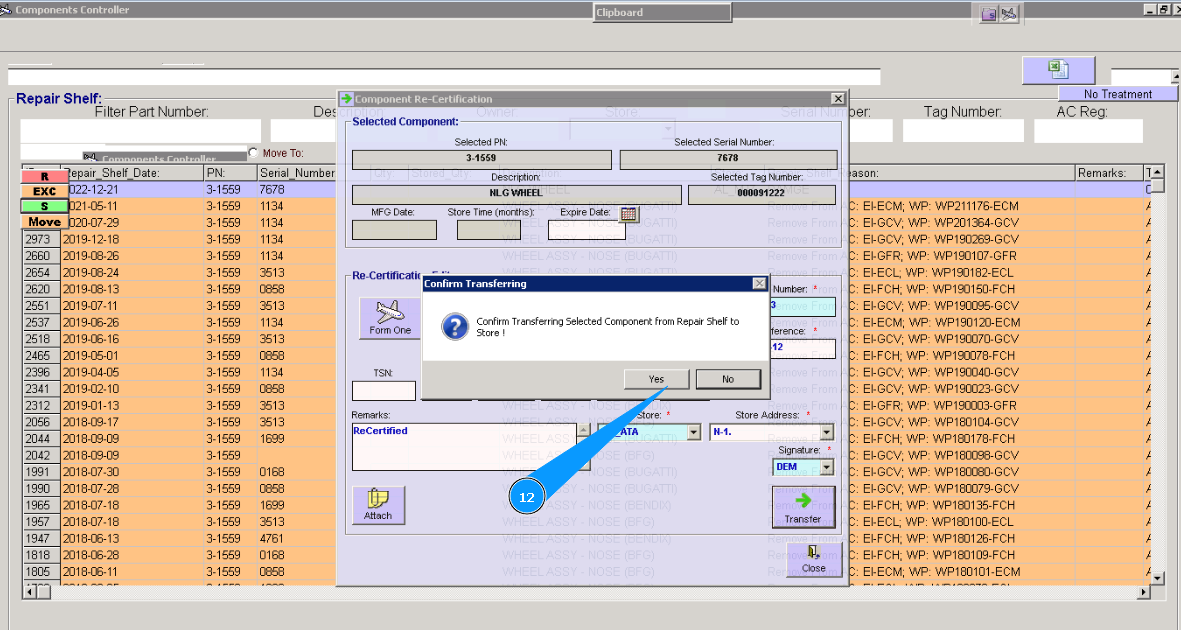
12. Click on the button "Yes", to confirm moving component to store.
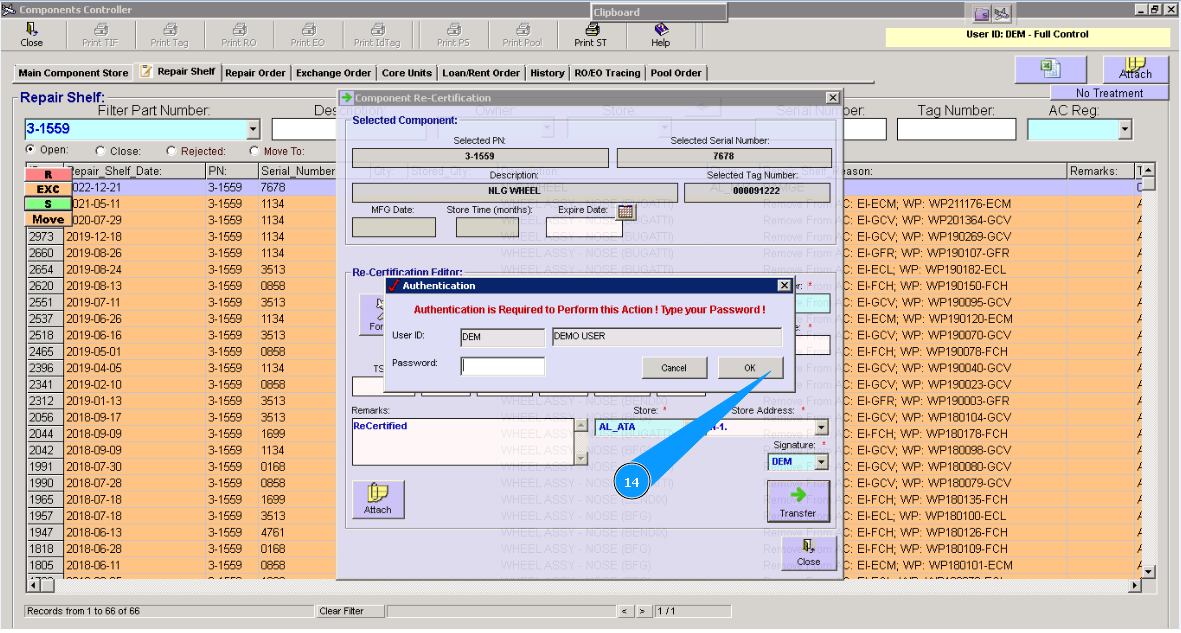
13. Enter your Alaskar password.
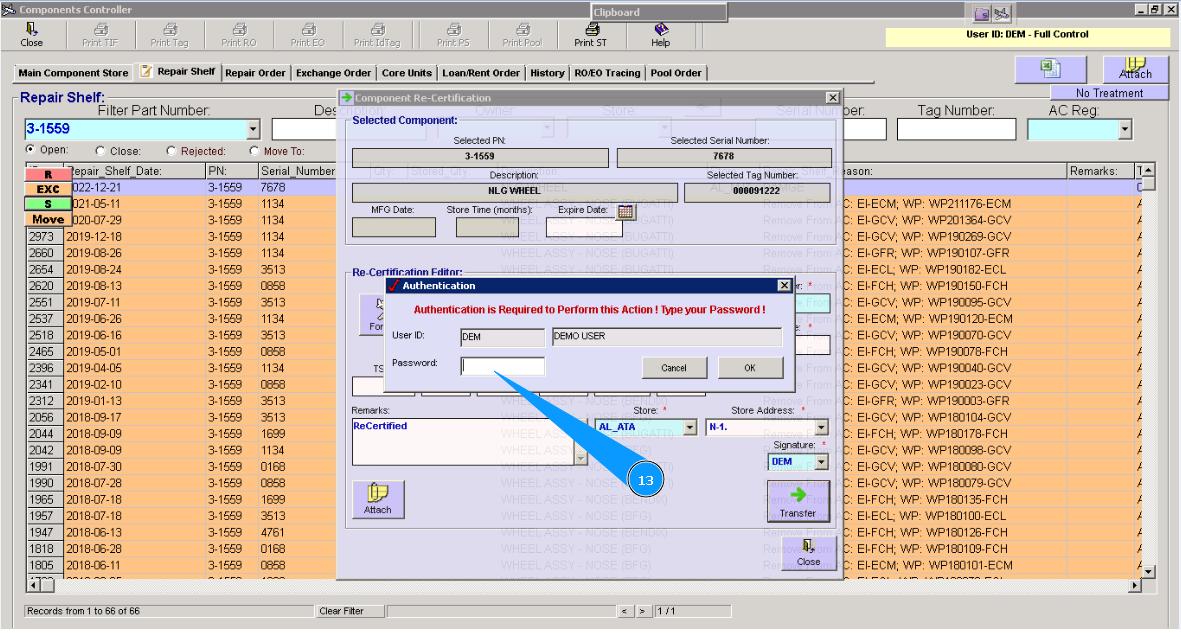
14. Click on the button "OK".
15. Click on the button "OK", component is transfered to store.

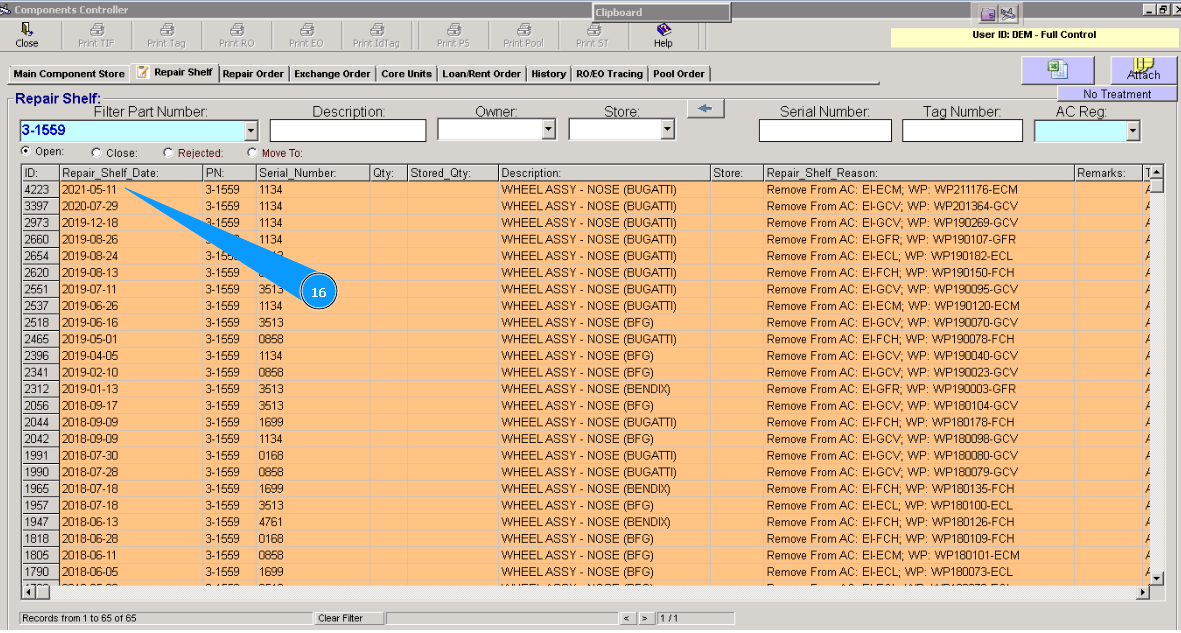
16. Vissually check that line with component is disappeared. Compoent is fully transfered to store.