How to move component between stores
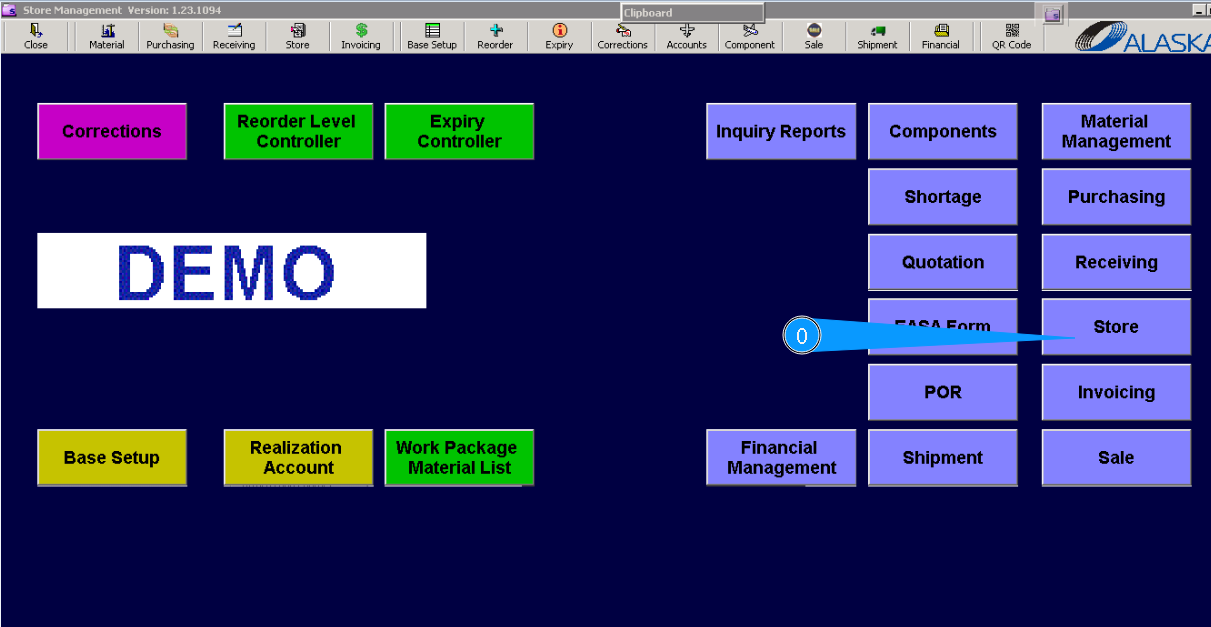
0. To move components between stores, go to the submodule "Store".
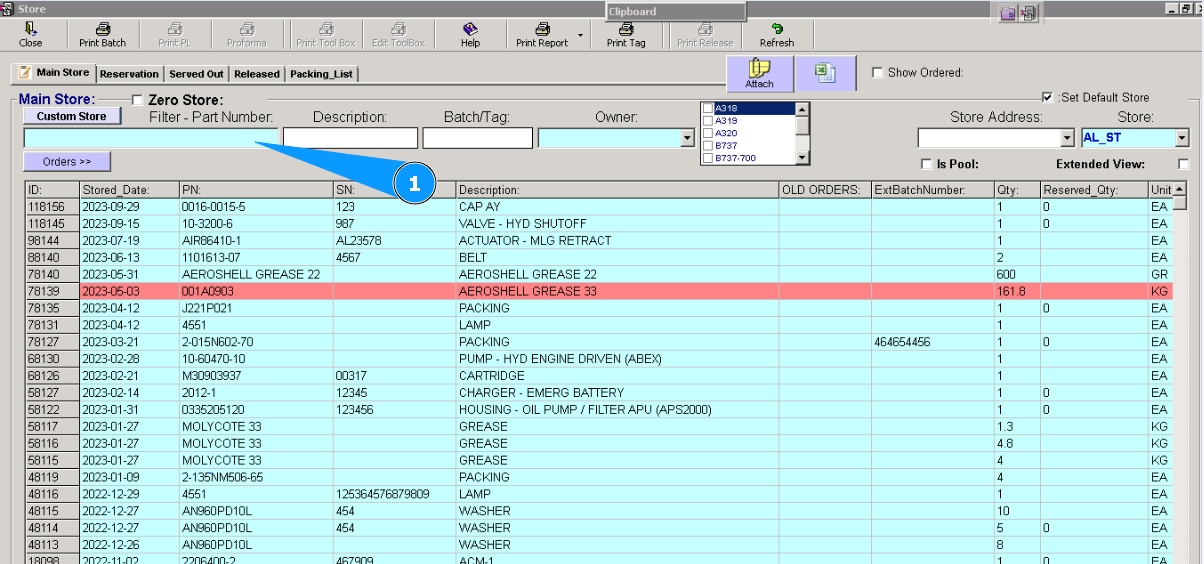
1. Then, go to the tab "Main Store", enter part number of component in search field and press the button "Enter" on your keyboard.
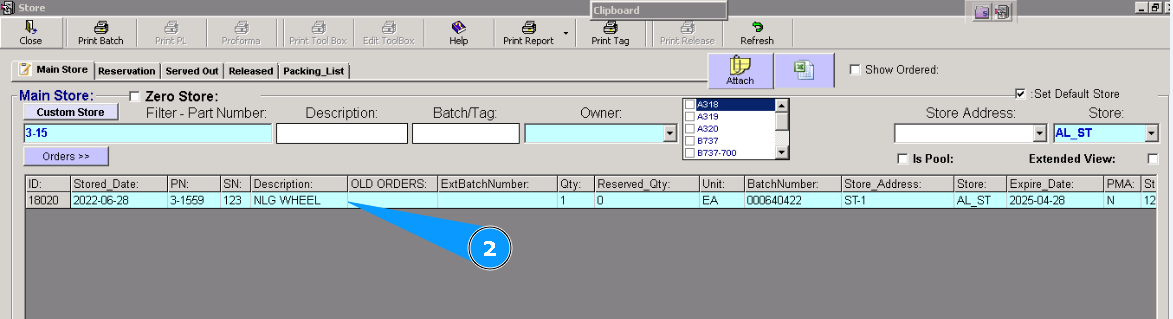
2. Visually check that applicable component is found.
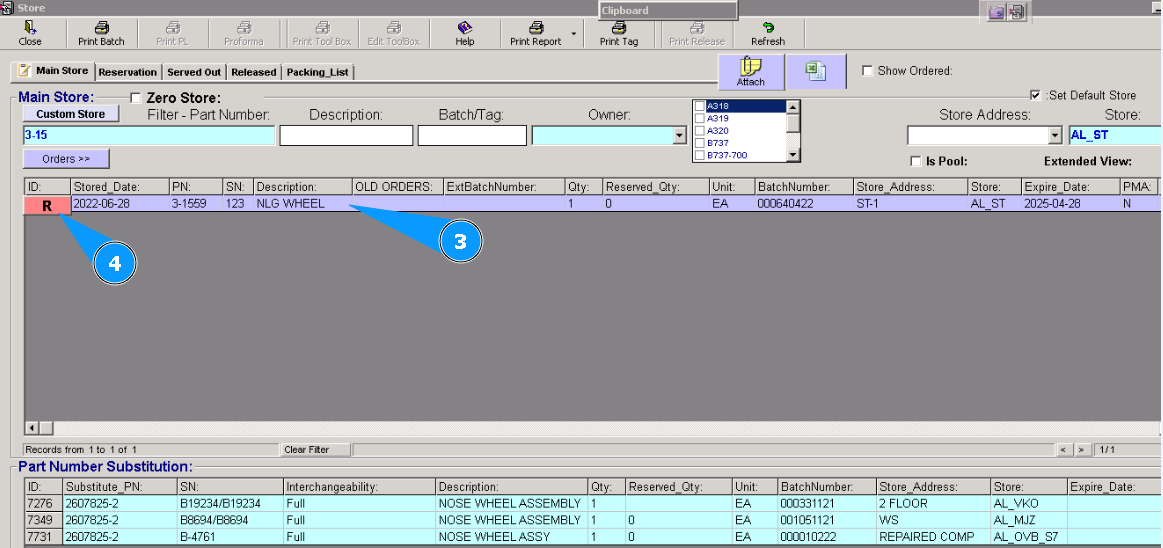
3. Highlight applicable line.
4. Click on the button "R"(Reserve selected item).
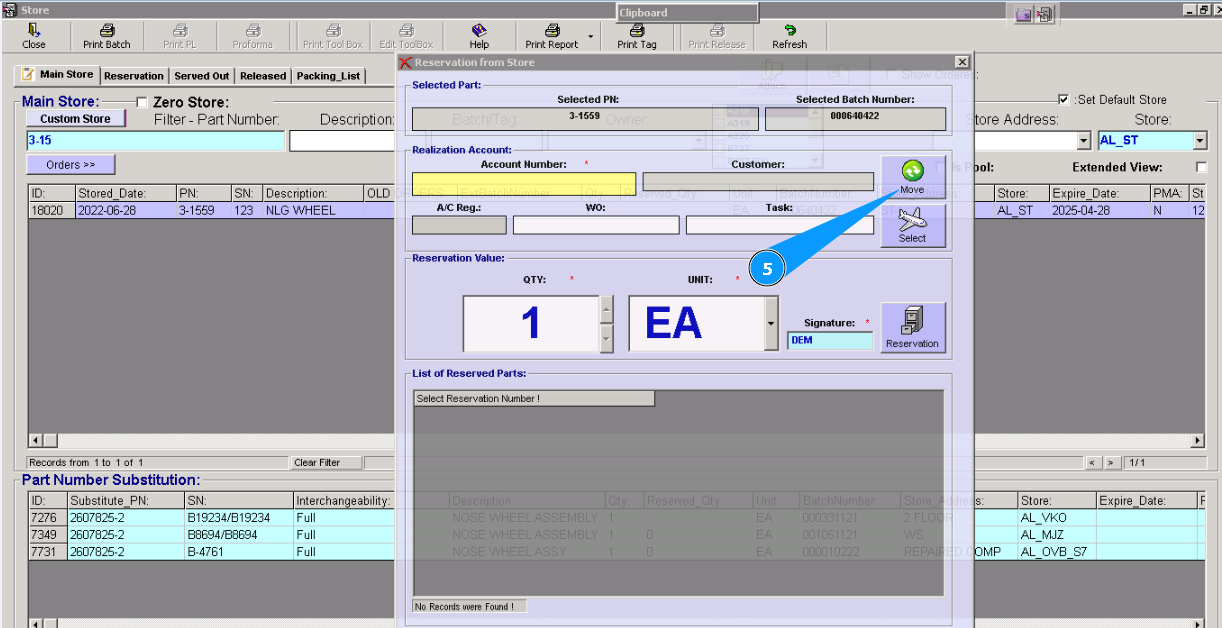
5. Click on the button "Move".
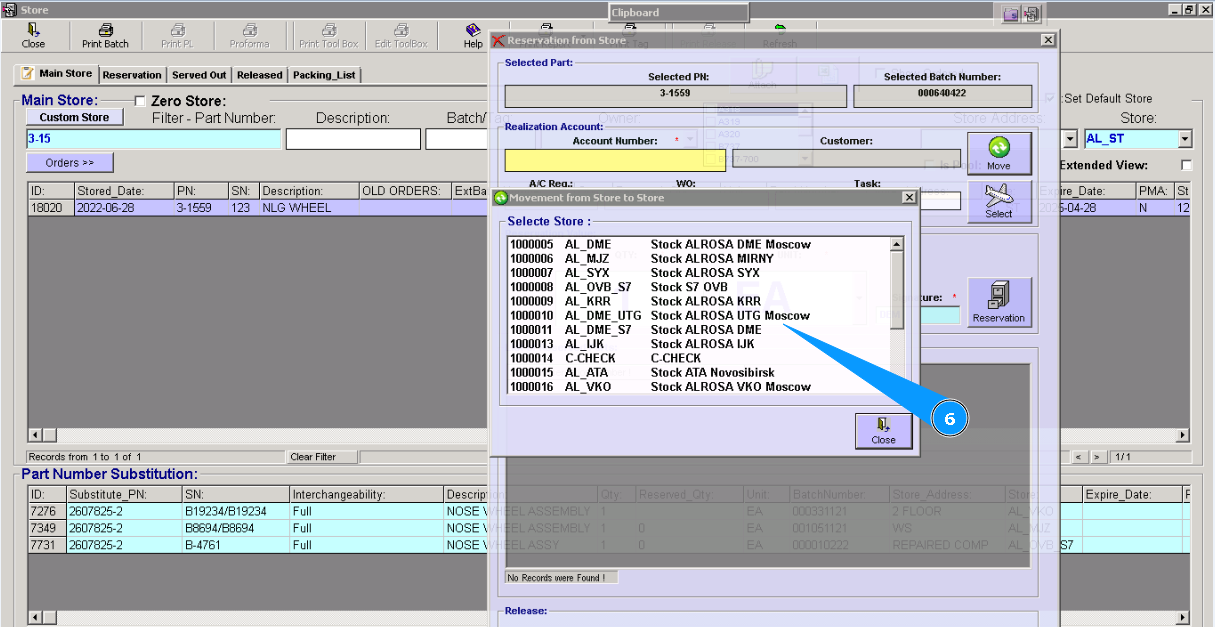
6. In the appeared window select necessary store name where to the component will be transfered. Click twice on the selected line by left button of your mouse.
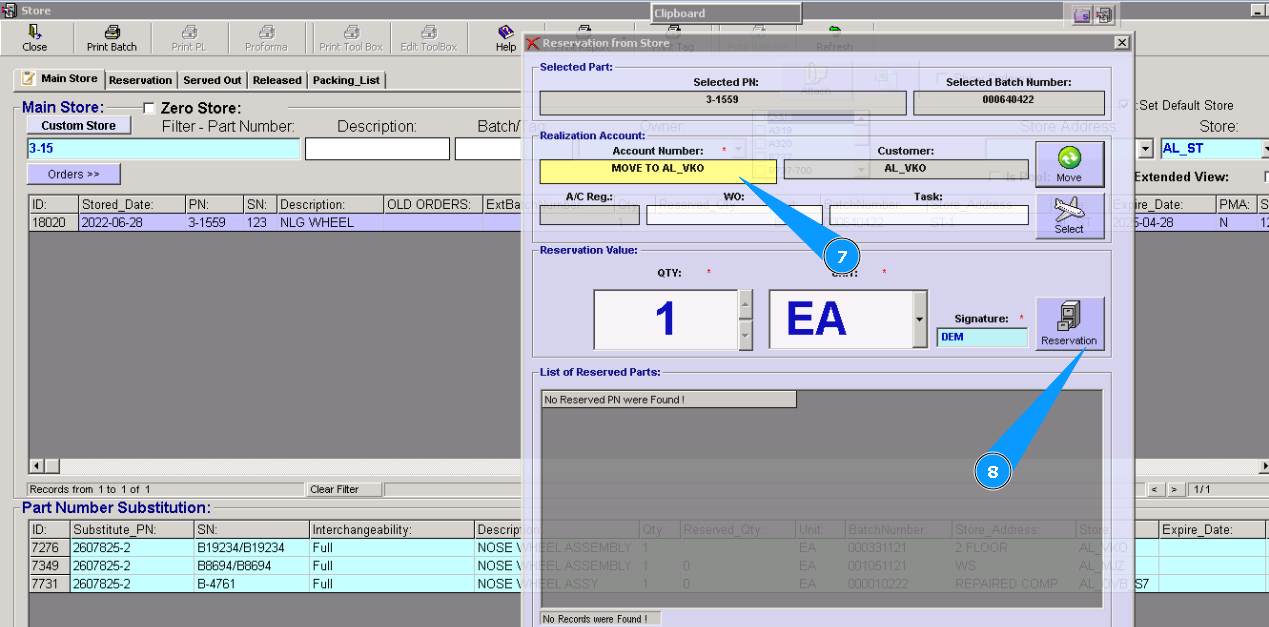
7. Check that applicable store name is appeared.
8. Click on the button "Reservation".
9. To confirm your choice, please click on the button "Yes".
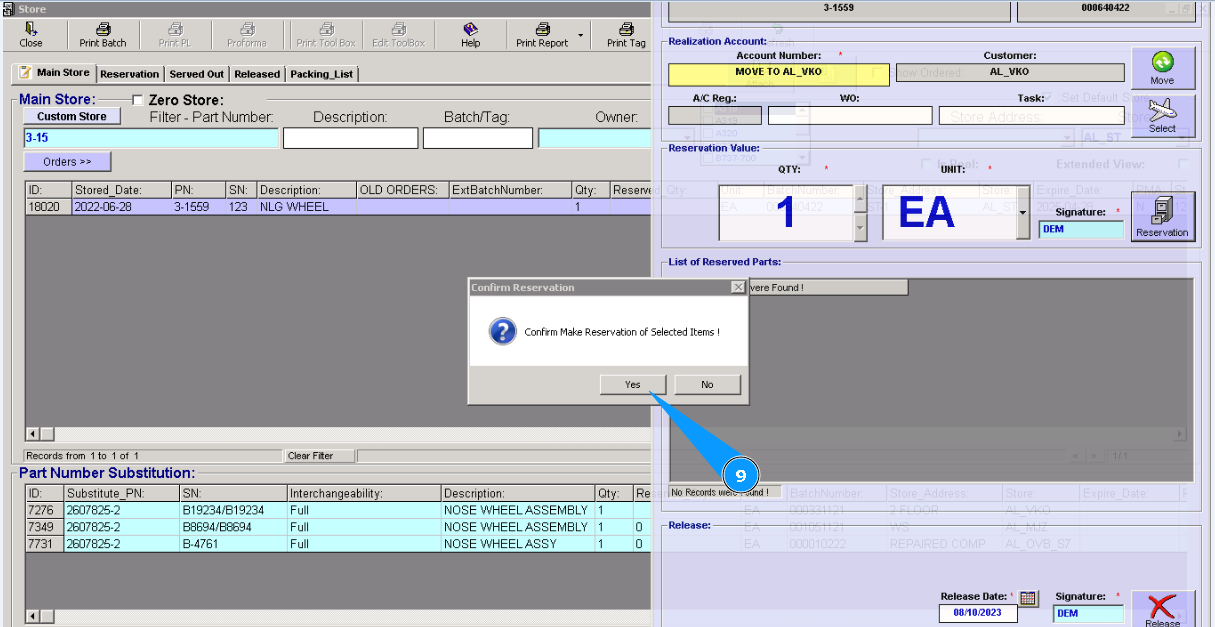
10. Check that your component to appear in the reservation window.
11. Close the reservation window.Click on the button "cross".
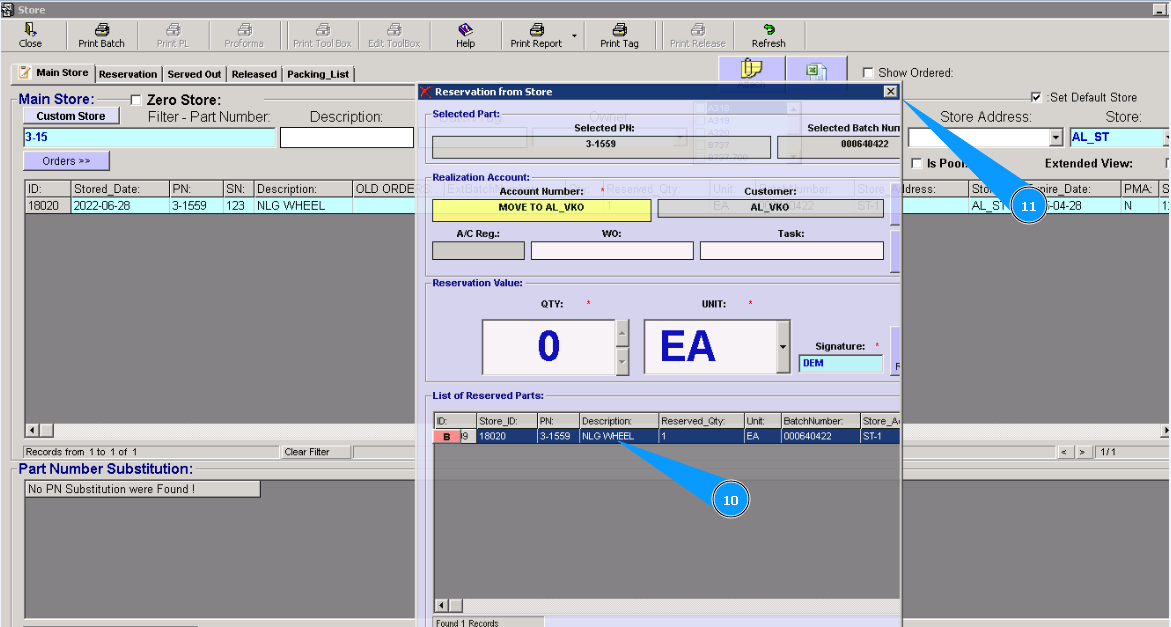
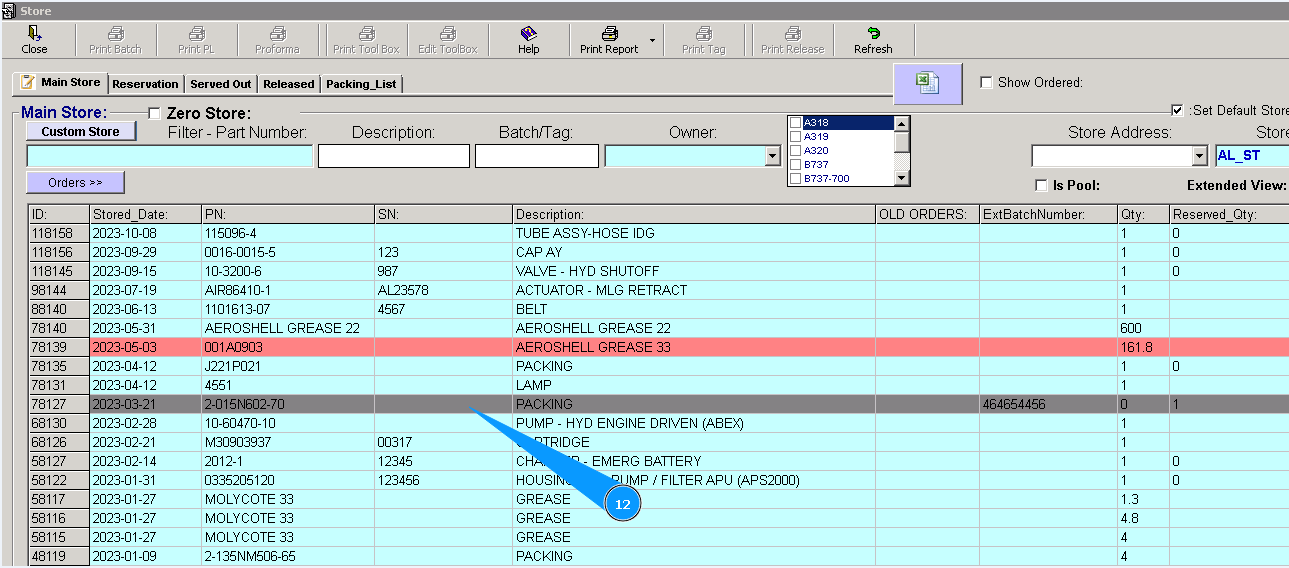
12. Check that color of line is changed. Component was reserved for moving.
13. If necessary you can check reservation of component in the tab "Reservation" Note: If you need to cancel the reservation highlight line with component and click on the button "B" (Back).
14. Highlight your transfering line.
15. Check that applicable component is reserved.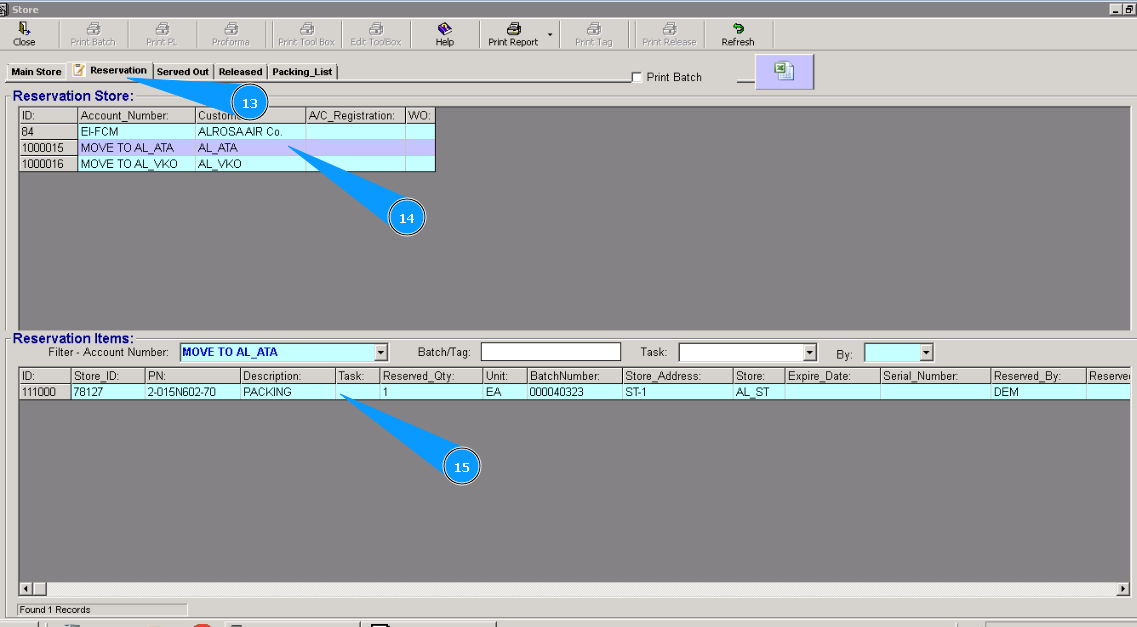
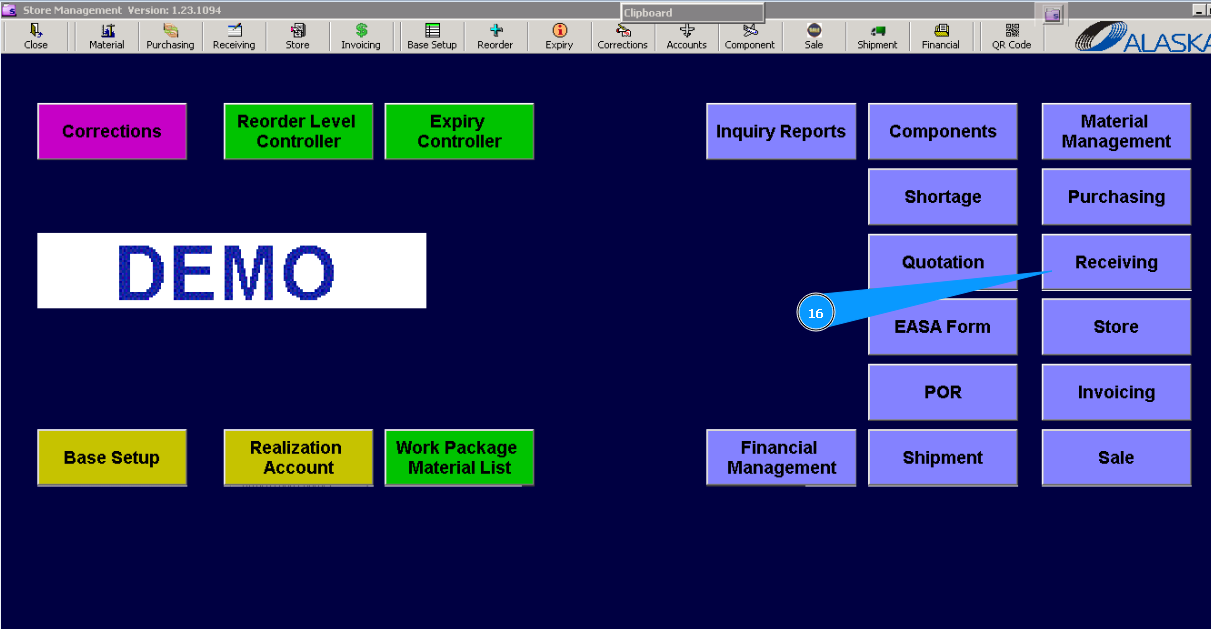
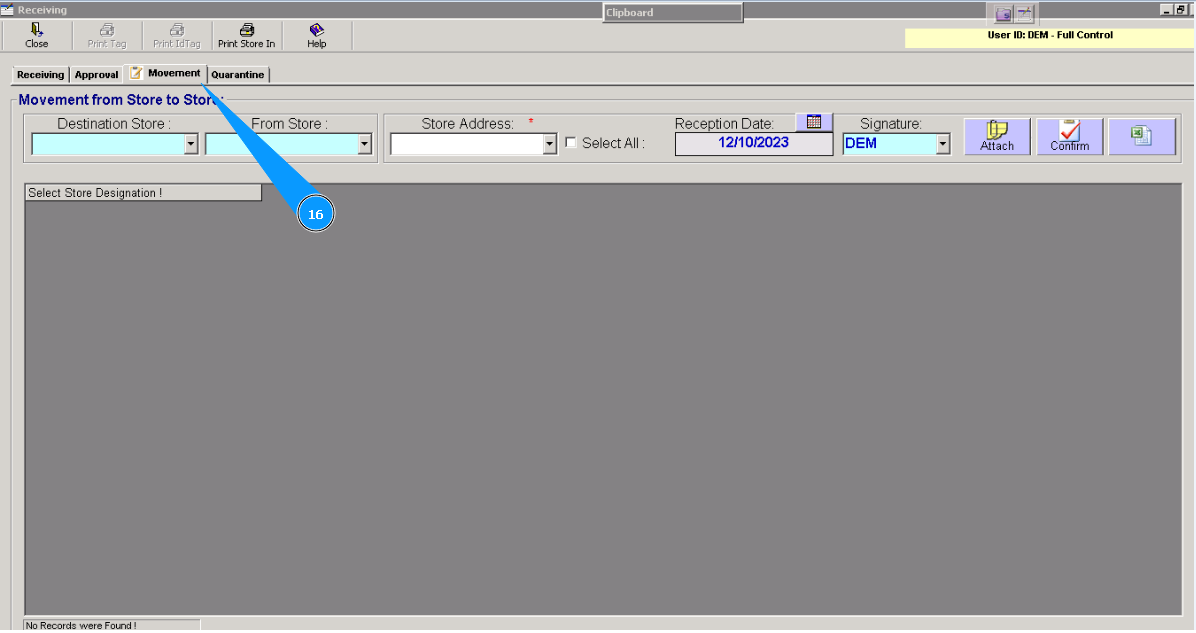
16. For receiving component to moved store go to submodule "Receiving, in the tab "Movement".
For next actions, go to tab "Movement".
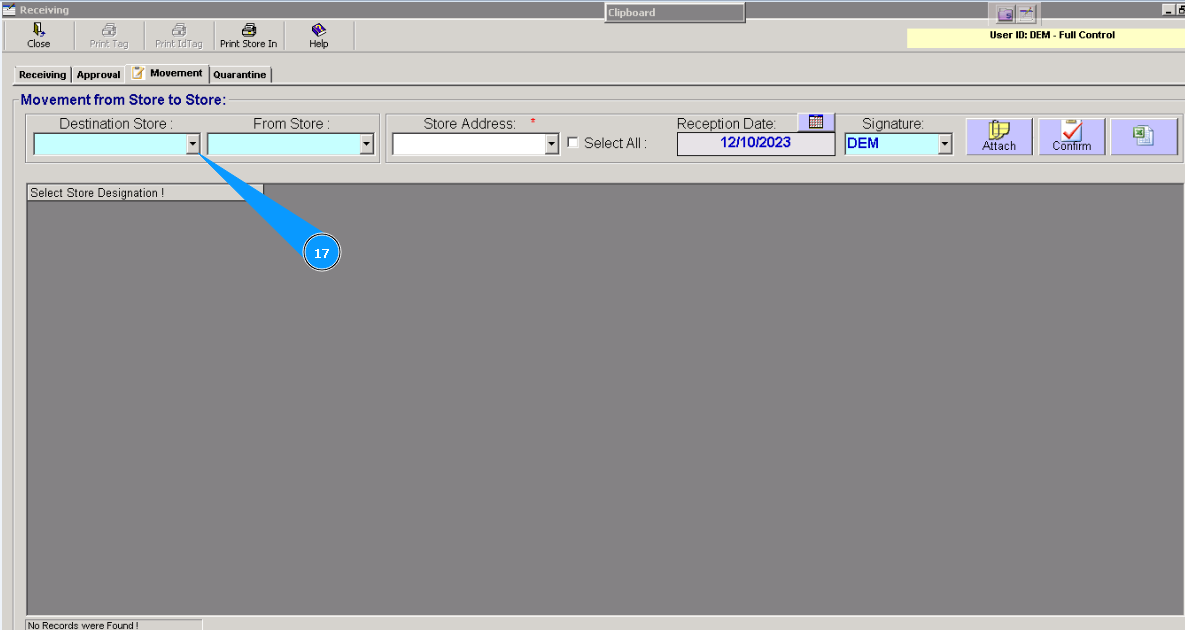
17. Select from dropdown list "Destination Store" destination store name where to component will be transfered.
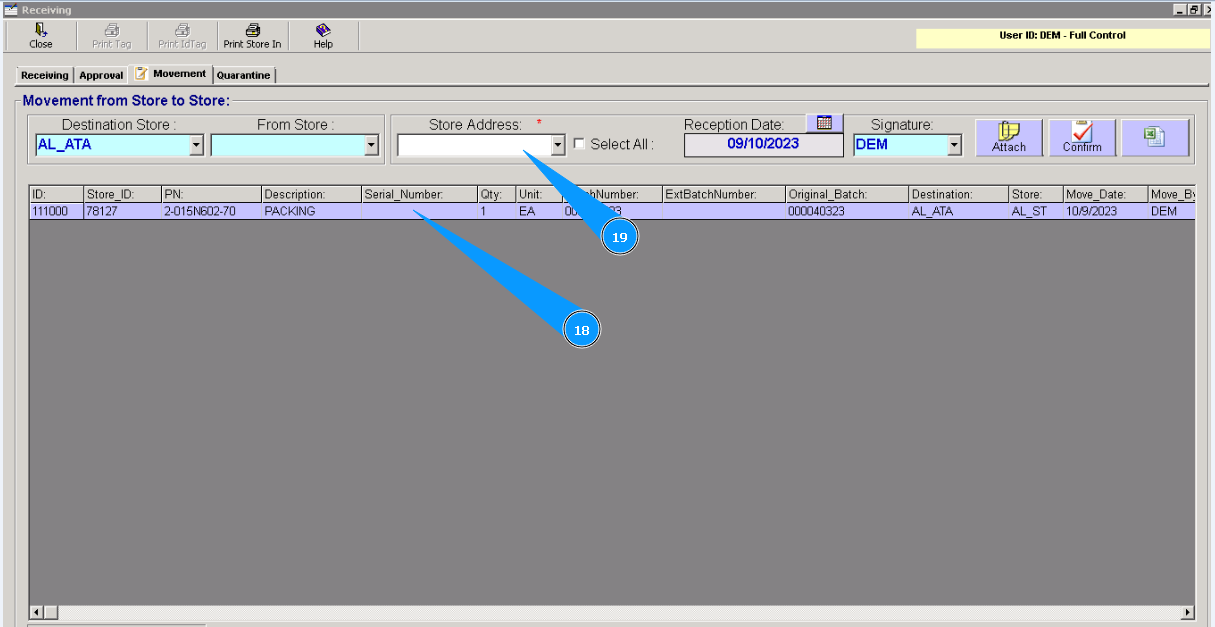
18. Check that some or one line is appeared. Select applicable line for transfering and highlight it.
19. Enter shelf number, rack number , room name etc. from dropdown list.
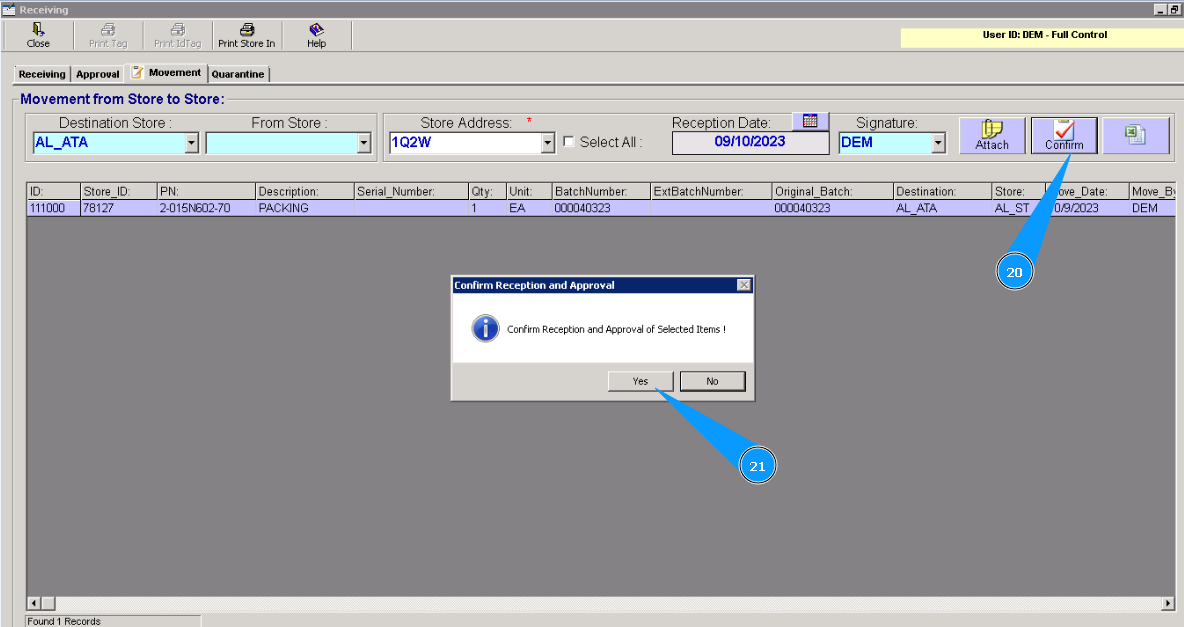
20. Click on the button "Confirm".
21. Click on the button "Yes", confirm your choice to receive to store.
22. If you need to attach some documents click on the button "Yes". ЕIf it is not necessary to do click on the button "No."
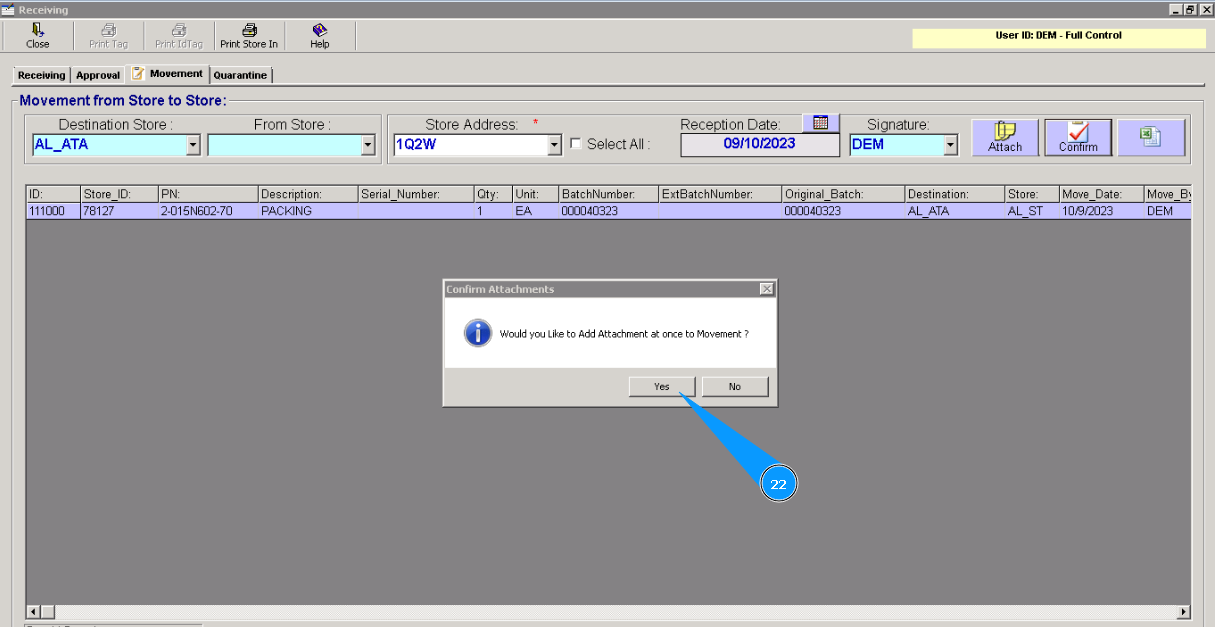
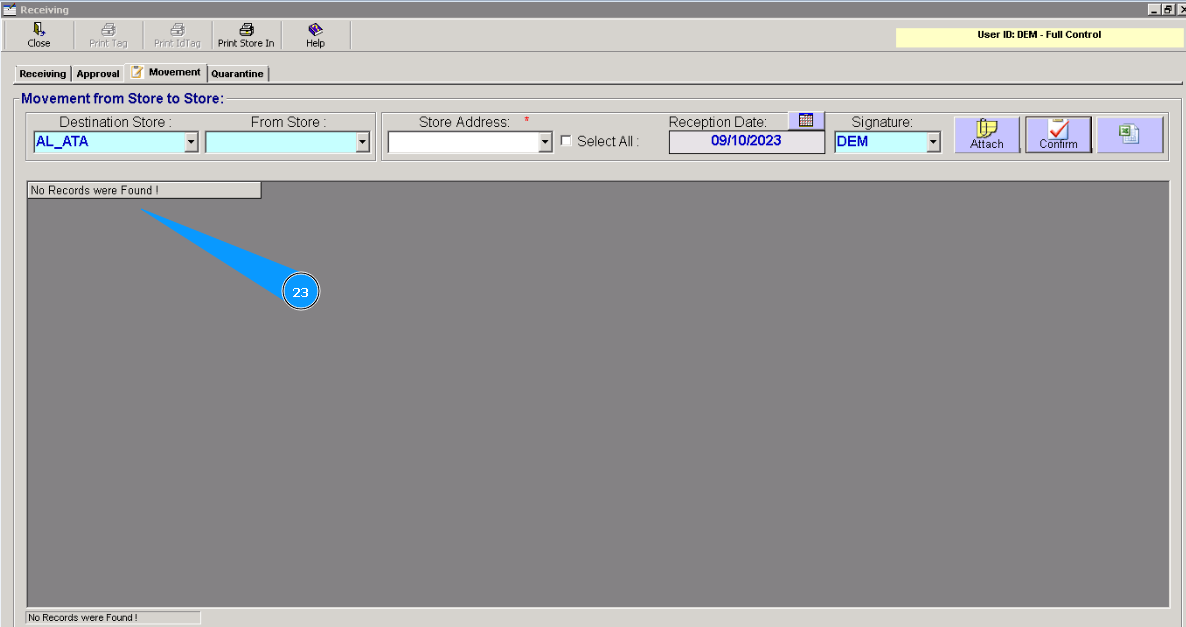
23. Check that line is disappeared. Component is moved to other store. Proccess is finished.